> ## Documentation Index
> Fetch the complete documentation index at: https://docs.qonto.com/llms.txt
> Use this file to discover all available pages before exploring further.
# Strong Customer Authentication
To be [PSD2 compliant](https://www.eba.europa.eu/regulation-and-policy/payment-services-and-electronic-money/regulatory-technical-standards-on-strong-customer-authentication-and-secure-communication-under-psd2) Qonto has implemented Strong Customer Authentication (from this point onwards, SCA) on a number of sensitive actions that our API is offering.
A sensitive action is an action that requires the user's authentication to reduce the risk of fraud.
To be able to execute sensitive actions using SCA, users should have granted access to your application from their account via OAuth2 (more information on [OAuth overview](/get-started/business-api/authentication/oauth/oauth-flow)).
There are currently two methods that can be used:
* The user has enrolled a trusted mobile device. For more information they can visit [How to pair my phone with my Qonto account?](https://support-fr.qonto.com/hc/en-us/articles/23947682067985-How-to-pair-my-phone-with-my-Qonto-account).
* Using [passkeys](https://webauthn.wtf).
* One-time passcode sent via SMS (Only available to Embed Partners).
Both options are available to all partners and the method can be changed on a request basis.
# Step by step guide
Example of SCA usage where you can select your preferred SCA method: [**Postman visual flow**](https://www.postman.com/qontoteam/workspace/qonto-public-api/flow/6670429eb7bd63003156bd57)
### Paired device flow
.png)
### Passkey flow
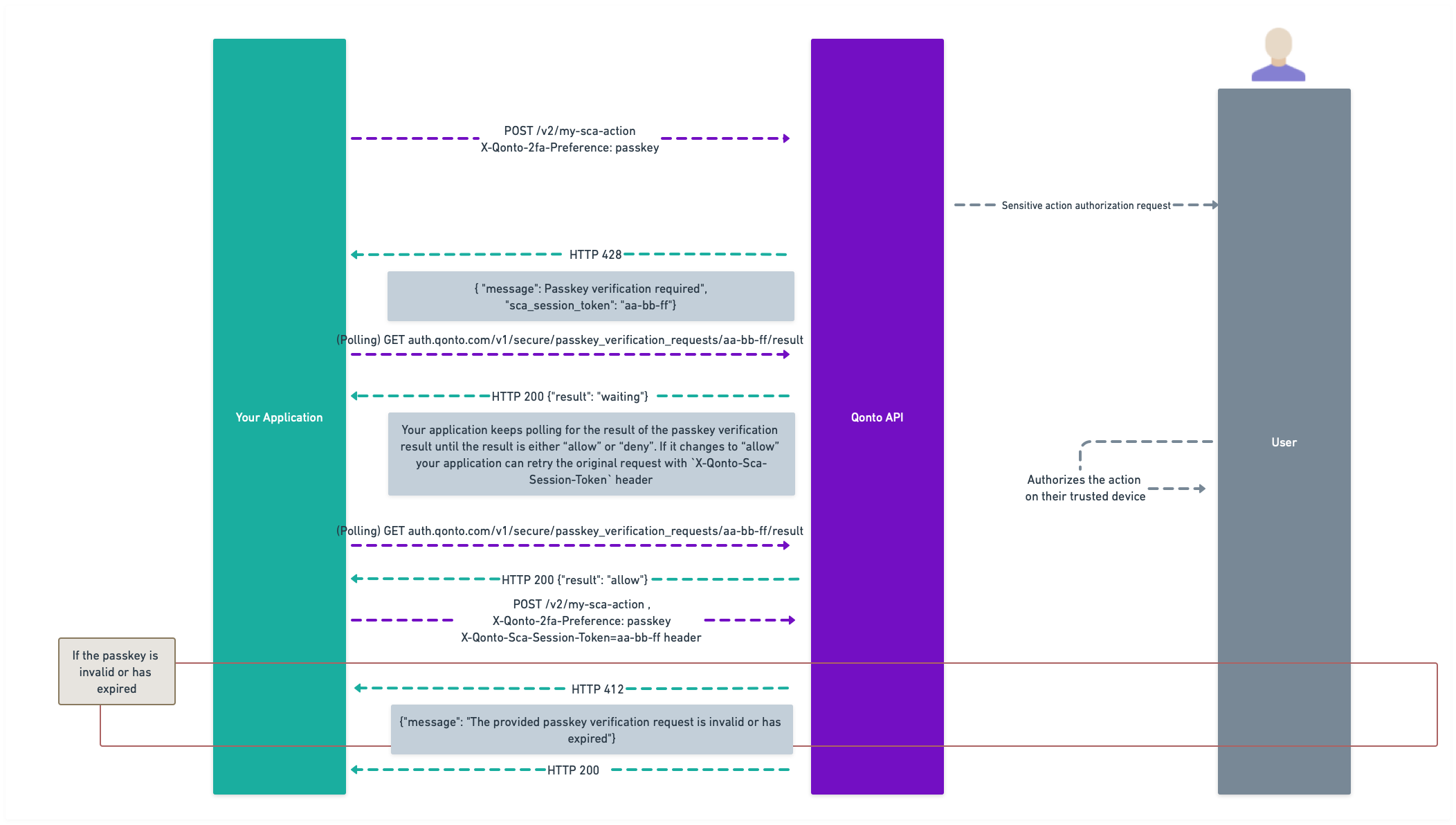
Please bear in mind that we are using `POST /v2/my-sca-action` only for illustrative purposes.
You can specify which method to use via the `X-Qonto-2fa-Preference` header. The possible values are `paired-device`, `passkey`, and `sms-otp`. If no header is present, the default becomes `paired-device`.
If `paired-device` is selected and the user has not paired a device yet, you'll get a `428 Precondition Required` response with a `message` encouraging you to its enablement.
* With `paired-device`, the user will get a push notification on his device to authorize the action, and you'll receive a `428 Precondition Required` response containing, among other fields, a "SCA required" `message` and a `sca_session_token` that you will need to reuse after. **You have 15 minutes to use this token before it expires**.
* If `passkey` is used as a method, the user will receive a text message with a link to setup or use an existing passkey, and you'll receive a `428 Precondition Required` response containing, among other fields, a "Passkey verification required" `message` and a `sca_session_token` that you will need to reuse after. **You have 15 minutes to use this token before it expires**.
At this point, you can poll [this endpoint](/api-reference/business-api/authentication/sca/retrieve-session) each second (at most) which will generate three possible outcomes:
* `waiting`: if the user has not authorized the action yet;
* `deny`: if the user refused the action (or more than 15 minutes passed);
* `allow`: if the user has authorised the action.
Once the user has authorized the action, you can use the `sca_session_token` value from the previous response to set the `X-Qonto-Sca-Session-Token` header and repeat the original sensitive action request with no other change than the new header. **Note: It's important that you replay the same request including the `X-Qonto-2fa-Preference` header if it was added to the original request.**
* If the token has expired or is invalid, you will receive a `412 Precondition Failed` with a `message` providing more information.
* If the token is valid, the action will be effectively processed by the API.
### SMS OTP Flow
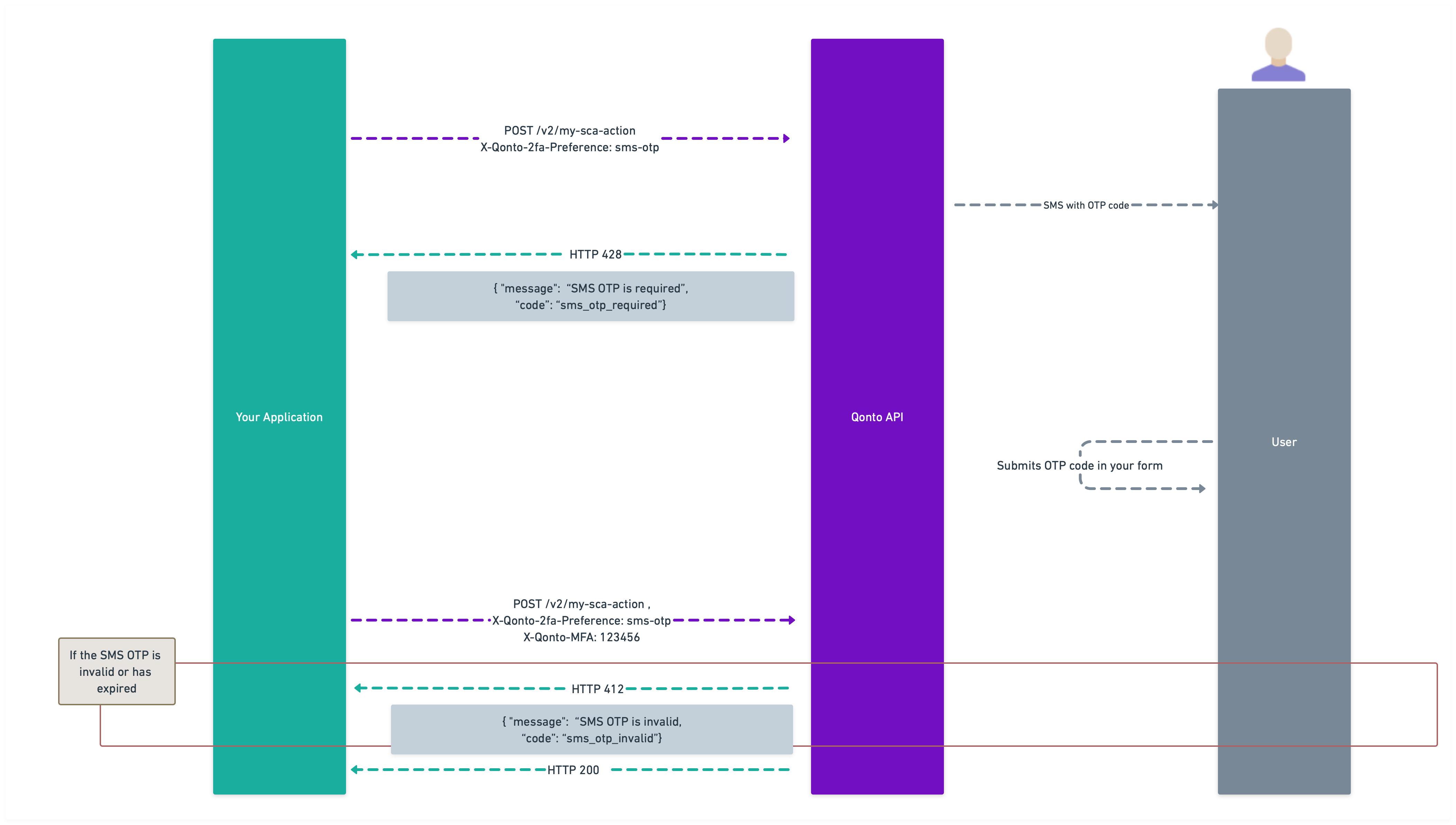
If `sms-otp` is used as a method, you'll receive a `428 Precondition Required` response with the following payload:
```json theme={null}
{
"code": "thirdparty_sms_otp_required",
"message": "Thirdparty SMS OTP required"
}
```
At this point, the user will receive an SMS containing a one-time passcode (OTP).
You should implement a form to capture this OTP from the user, as shown in the image below. The recommended approach is to build a simple form where the user can enter the code they received via SMS.
You might also want to include an option for users to request a new OTP if they haven't received the first one. To resend an OTP, simply repeat the original sensitive action request with the same parameters. There's no separate API endpoint for resending - the same request will trigger a new SMS to be sent.
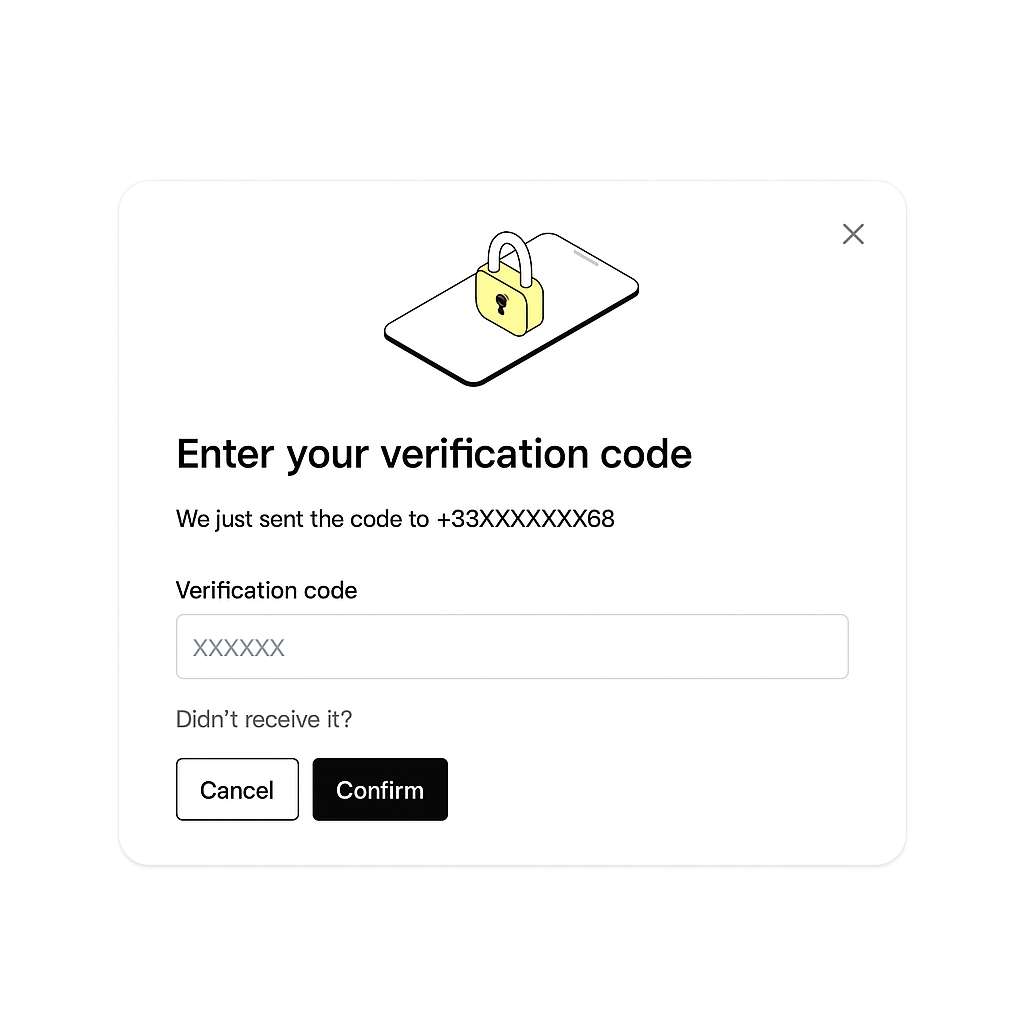
Once you have the OTP from the user, include it in the `X-Qonto-MFA` header and repeat the original request with no other changes. Make sure to include the `X-Qonto-2fa-Preference` header with the value `sms-otp`.
**Note**: The SMS OTP option is only available to Embed Partners. SMS OTP should be considered a fallback option and not one of the primary authentication methods as it's less secure than paired devices or passkeys. Qonto may review usage patterns and could apply limitations if SMS OTP is consistently used as the primary SCA method.
# Testing a sensitive action on the Sandbox environment
In the Sandbox environment, testing sensitive actions can be challenging due to the need for a paired device or SMS authentication. To streamline this process, Qonto provides a `mock` option for the `X-Qonto-2fa-Preference` header, allowing you to simulate these actions without the need for physical devices or messages.
### Using the Mock option
Here's how you can effectively test sensitive actions in Sandbox:
When you initiate a sensitive action, set the `X-Qonto-2fa-Preference` header to `mock`. This tells the system to simulate the authentication process.
Use [this endpoint](/api-reference/business-api/authentication/sca/retrieve-mocked-session) to check the status of your mocked SCA session. It works similarly to the Production polling endpoint, providing real-time updates on the session status.
You can simulate the approval or denial of the action using [this endpoint](/api-reference/business-api/authentication/sca/simulate-user-decision):
* To approve the action: `POST https://thirdparty-sandbox.staging.qonto.co/v2/mocked_sca_sessions//allow`
* To deny the action: `POST https://thirdparty-sandbox.staging.qonto.co/v2/mocked_sca_sessions//deny`
Once you have approved the action, you can use the `sca_session_token` value from the previous response to set the `X-Qonto-Sca-Session-Token` header and repeat the original sensitive action request with no other change than the new header.
* If the token has expired or is invalid, you will receive a `412 Precondition Failed` with a `message` providing more information.
* If the token is valid, the action will be effectively processed by the API.
### Benefits of Mock testing
By using the `mock` option and these endpoints, you can efficiently test and QA sensitive actions in a controlled environment. This approach ensures that your application is well-prepared to handle sensitive actions securely and reliably when deployed to production.
This method not only simplifies the testing process but also enhances the reliability of your application, providing a seamless experience for users.
### SMS OTP
With `X-Qonto-2fa-Preference` set to `sms-otp`, any 6-character code will be accepted as a valid OTP since no actual SMS messages are sent. This allows for easy testing of the SMS OTP flow without needing to wait for or simulate actual SMS delivery.