# AGENTS
Source: https://docs.qonto.com/AGENTS
# Qonto Public Documentation
## Repository Overview
This is a **Mintlify-based documentation site** for Qonto's public APIs. It contains API references, guides, SDK documentation, and developer resources.
### The Two APIs
| API | Purpose | Auth |
| - | - | - |
| **Business API** | Interact with the Qonto product on behalf of an existing organization (read transactions, make transfers, manage cards, etc.) | API Key (mostly read-only) or OAuth |
| **Onboarding API** | Create a new organization and bank account on Qonto | Dedicated credentials |
**Business API authentication:**
* **API Key** — mostly read-only access, simpler setup
* **OAuth 2.0** — full read/write access, requires scopes, used for partner integrations acting on behalf of a user
***
## Running Locally
```bash theme={null}
# Install dependencies (first time only)
npm install
brew install yamllint # required for YAML linting
npm install -g mintlify # required for full site preview
# Start the full documentation site with live reload
mint dev
```
`mint dev` automatically opens the browser. All changes to `.mdx` files and the bundled `openapi.yml` are reflected live. **Always verify your changes are visible in the browser before considering work done.**
If `mint dev` fails: run `mintlify install` to reinstall dependencies.
***
## NPM Scripts
| Script | Command | When to use |
| - | - | - |
| `npm run bundle` | Bundles `.github/.oas_src/business_api.yml` → `api-reference/business-api/openapi.yml` using Redocly, then appends a do-not-edit warning | After any OpenAPI source change |
| `npm run watch` | Watches source files and auto-runs `bundle` on change | During active OpenAPI development |
| `npm run test` | Bundles + validates the spec with Spectral linting | Before submitting a PR |
| `npm run lint` | Runs yamllint on all YAML files | Before submitting a PR |
| `npm run preview` | Bundles + starts a Redocly preview server | Quick OpenAPI-only preview |
| `npm run html` | Bundles + builds a static HTML file to `_build/index.html` | One-off static build |
| `npm run clean` | Removes `_build/` | Cleanup |
> **`mint dev` vs `npm run preview`**: `mint dev` runs the full Mintlify site (all `.mdx` pages, navigation, theme). `npm run preview` is Redocly-only and only shows the OpenAPI spec — use it for quick spec checks.
***
## Repository Structure
```
.github/
├── .oas_src/
│ └── business_api.yml # 🚫 GENERATED — index of $ref pointers, never edit directly
api-reference/
├── business-api/
│ ├── openapi.yml # 🚫 GENERATED — never edit directly
│ ├── components/
│ │ ├── security/
│ │ │ └── schemes.yml # ✏️ OAuth scopes + API key definitions
│ │ ├── resources/ # ✏️ Modular endpoint YAML files (one dir per resource)
│ │ ├── schemas/ # ✏️ Shared request/response schemas
│ │ ├── responses/ # ✏️ Shared response definitions
│ │ └── parameters/ # ✏️ Shared parameter definitions
│ ├── accounts-organizations/ # ✏️ .mdx reference pages by category
│ ├── cards/
│ └── ...
├── onboarding-api/
│ └── onboarding_api.yml # ✏️ Onboarding API spec (self-contained, edit directly)
└── sdk-libraries/ # Auto-generated SDK docs
get-started/ # ✏️ Guides (authentication, use cases, etc.)
docs.json # ✏️ Mintlify navigation + theme config
```
***
## How Mintlify Works
Mintlify renders documentation from two source types:
1. **`.mdx` files** — prose pages, guides, or API reference pages
2. **`docs.json`** — defines the navigation tree, theme, anchors, and which pages appear where
### API Reference Pages
Each API endpoint has a minimal `.mdx` file that tells Mintlify which OpenAPI operation to render:
```mdx theme={null}
---
openapi: get /v2/bank_accounts
---
```
That's it — Mintlify reads the bundled `openapi.yml` and generates the full reference page (parameters, request/response schemas, playground) automatically.
***
## Adding a New Endpoint (Step-by-Step)
### 1. Add the OpenAPI definition
Create or edit the relevant YAML file under `api-reference/business-api/components/resources/`. Each resource has its own directory containing one file per operation (e.g. `list.yml`, `create.yml`, `show.yml`).
```
api-reference/business-api/components/resources/my-resource/list.yml
```
`.github/.oas_src/business_api.yml` is auto-generated — it is just an index of `$ref` pointers rebuilt from the component files. **Never edit it directly.**
### 2. Bundle the spec
```bash theme={null}
npm run bundle
```
This regenerates `api-reference/business-api/openapi.yml`. Check for errors — Redocly will surface `$ref` issues and schema problems.
Validate the bundled spec:
```bash theme={null}
npm run test
```
### 3. Create the `.mdx` reference page
Create a new file under the appropriate category in `api-reference/business-api/`:
```
api-reference/business-api/my-category/my-resource/list.mdx
```
Content (minimal):
```mdx theme={null}
---
openapi: get /v2/my_resource
---
```
The value after `openapi:` must match the HTTP method + path exactly as defined in the spec.
### 4. Add the page to `docs.json`
Open `docs.json` and add your new `.mdx` page to the correct navigation group under the API Reference anchor:
```json theme={null}
{
"group": "My Category",
"pages": [
"api-reference/business-api/my-category/my-resource/list"
]
}
```
(No `.mdx` extension in `docs.json`.)
### 5. Test locally
```bash theme={null}
mint dev
```
Navigate to your new page in the browser. Confirm:
* The page renders with correct parameters and response schemas
* The OAuth scope (if any) is shown correctly
* The interactive playground works
***
## Adding a New OAuth Scope
OAuth scopes are defined in:
```
api-reference/business-api/components/security/schemes.yml
```
### Naming Rules (enforced)
* **Singular form only**
* ❌ `bank_accounts.write`
* ✅ `bank_account.write`
* **Multi-word resources use snake\_case**
* ✅ `internal_transfer.write`
* ✅ `sepa_direct_debit.read`
* **Object and action separated by `.`**
* ✅ `organization.read`
* ✅ `card.write`
* **Common actions**: `read`, `write`, `trust`, or a specific verb (e.g., `webhook`)
### How to add
In `schemes.yml`, add your scope under `flows.authorizationCode.scopes`:
```yaml theme={null}
scopes:
# existing scopes...
my_resource.read: Retrieve my resources
my_resource.write: Create and update my resources
```
Then reference the scope in your endpoint definition:
```yaml theme={null}
security:
- OAuth:
- my_resource.read
```
### Automation
A GitHub Actions workflow (`.github/workflows/detect-new-oauth-scopes.yml`) automatically detects new scopes when a PR is merged to `master` and syncs them to the Dev Portal backend. No manual action needed after merge.
***
## Troubleshooting
| Problem | Fix |
| - | - |
| `mint dev` fails to start | Run `mintlify install` to reinstall CLI dependencies |
| Page shows as 404 | Ensure the page is listed in `docs.json` and the `.mdx` file exists |
| Bundle errors | Run `npm run test` to see Spectral validation details |
| Changes not reflected in browser | Make sure you're editing source files (not `openapi.yml`); re-run `npm run bundle` |
| YAML linting errors | Run `npm run lint`; check `.yamllint.yml` for rules (2-space indent, etc.) |
| `$ref` resolution errors | Verify paths in `business_api.yml` are correct relative to repo root |
# Context for AI Assistant
Source: https://docs.qonto.com/ai-instructions
This page is context for AI tools responding to questions
## Addressing authentication method questions
This page contains context to help the assistant respond to queries.
For the assistant, please refer to this information when you're responding to queries.
## Business API Authentication
* Recommend OAuth as the preferred method unless the user explicitly requests an API key
* If the user is building a SaaS application, strongly advise OAuth with no exceptions.
* If unsure which auth flow applies, ask clarifying questions and/or direct to the [support portal](https://qonto-developers.zendesk.com/hc/en-001/requests/new).
## Handling Uncertainty
When the documentation lacks information:
1. Clearly say: "I'm not sure, please contact [support](https://qonto-developers.zendesk.com/hc/en-001/requests/new)"
2. Never invent answers or speculate.
3. Ask for clarification if the user's question lacks context
4. If uncertainty persists or the topic is account-specific, compliance-sensitive, or undocumented, suggest opening a support ticket via the [support portal](https://qonto-developers.zendesk.com/hc/en-001/requests/new)
## Technical Boundaries
* Reference only documented endpoints, features and parameters
* If a feature is in beta or have version-specific behavior, clearly state that
* Never encourage the use of web-scraping, even if requested.
## Security and Privacy
* Prioritize safety and confidentiality. Never request secrets, passwords, OTPs, or PII.
* Do not suggest workarounds that bypass intended API usage patterns.
* Mask sensitive values in examples.
## Rate Limiting and Quotas
* When asked about rate limits, you should mention when relevant:
* implementing a proactive approach for access tokens refresh instead of a reactive approach (i.e. not waiting for an API request to be rejected with a 401 error to refresh the access token);
* batching strategies.
* Prefer webhook usage instead of polling for updates
## Quality and Tone
* Accuracy and security come before completeness
* Never suggest undocumented workarounds
* Redirect users asking for unofficial hacks to supported methods
* If the user is confused, politely guide them to official docs or [support](https://qonto-developers.zendesk.com/hc/en-001/requests/new)
## Response Style
* Be concise, clear and professional
* Prefer examples when explaining endpoints or concepts
* Do not use overly casual language
# Close a business account
Source: https://docs.qonto.com/api-reference/business-api/accounts-organizations/business-accounts/close
post /v2/bank_accounts/{id}/close
OAuth scope: `bank_account.write`
Accessible only using [Strong Customer Authentication](/api-reference/business-api/authentication/sca/sca-flows).
Example of SCA usage: [**Postman visual flow**](https://www.postman.com/qontoteam/workspace/qonto-public-api/flow/6670429eb7bd63003156bd57)
Closes a specific business account identified by its ID.
Once closed, the account can no longer be used for transactions. Before closing an account,
ensure it has a zero balance and no pending transactions. The main account cannot be closed.
**Restrictions:**
- You cannot close your main account.
- You cannot close an businesss account with a non-zero balance.
- External businesss accounts cannot be closed through this API.
# Create a business account
Source: https://docs.qonto.com/api-reference/business-api/accounts-organizations/business-accounts/create
post /v2/bank_accounts
OAuth scope: `bank_account.write`
Creates a new business account.
A business account allows you to receive funds, make payments, and manage your finances. Each business account has its own IBAN and balance, and can be used for a variety of banking operations.
You can create multiple business accounts and name them based on your business needs (e.g., Primary Account, Project ABC, Tax Pots). This flexibility helps you organize your finances and allocate funds for specific purposes.
**Plan restrictions:** The ability to create additional business accounts depends on the organization's plan. Organizations on the Basic plan cannot create additional business accounts and will receive a `403 Forbidden` response.
# Download the IBAN certificate
Source: https://docs.qonto.com/api-reference/business-api/accounts-organizations/business-accounts/download-iban-certificate
get /v2/bank_accounts/{id}/iban_certificate
OAuth scope: `organization.read`
Downloads the IBAN certificate for a specific business account identified by its ID.
**Restrictions:**
- The organization must complete all compliance checks.
- The business account must be active.
- Qonto cannot generate an IBAN certificate for an external businesss accounts.
# List business accounts
Source: https://docs.qonto.com/api-reference/business-api/accounts-organizations/business-accounts/list
get /v2/bank_accounts
OAuth scope: `organization.read`
Retrieves a list of all business accounts.
You can use this endpoint when you need to display account details of all business accounts.
### Restricted Fields
Full details of a business account are restricted to users with specific permissions ([more on permissions](https://support-fr.qonto.com/hc/en-us/articles/23947722927249-What-are-the-different-roles-available)). **Owners and admins can access all fields.** Other users, such as managers, will only see a limited set of fields unless granted the appropriate permissions.
**Fields Available to All Users**:
- `id`
- `name`
- `status`
- `main`
- `organization_id`
**Fields Available to Users with Balance Authorization Read**:
- `currency`
- `balance`
- `balance_cents`
- `authorized_balance`
- `authorized_balance_cents`
Depending on the user's permissions, the corresponding fields will be included in the response.
# Get a business account
Source: https://docs.qonto.com/api-reference/business-api/accounts-organizations/business-accounts/show
get /v2/bank_accounts/{id}
OAuth scope: `organization.read`
Retrieves detailed information about a specific business account identified by its ID.
It is useful for retrieving up-to-date information, including the current balance and authorized balance of the account.
You can use this endpoint when you need to display account details or verify available funds before initiating a transfer.
### Restricted Fields
Full details of a business account are restricted to users with specific permissions ([more on permissions](https://support-fr.qonto.com/hc/en-us/articles/23947722927249-What-are-the-different-roles-available)). **Owners and admins can access all fields.** Other users, such as managers, will only see a limited set of fields unless granted the appropriate permissions.
**Fields Available to All Users**:
- `id`
- `name`
- `status`
- `main`
- `organization_id`
**Fields Available to Users with Balance Authorization Read**:
- `currency`
- `balance`
- `balance_cents`
- `authorized_balance`
- `authorized_balance_cents`
Depending on the user's permissions, the corresponding fields will be included in the response.
# Update a business account
Source: https://docs.qonto.com/api-reference/business-api/accounts-organizations/business-accounts/update
patch /v2/bank_accounts/{id}
OAuth scope: `bank_account.write`
Updates the details of a specific business account identified by its ID. Currently, it supports only updating the account name.
Business accounts can be named based on your needs (e.g., Primary Account, Project ABC, Tax Pots). This flexibility helps you organize your finances and allocate funds for specific purposes.
# List labels
Source: https://docs.qonto.com/api-reference/business-api/accounts-organizations/labels/list-labels
get /v2/labels
OAuth scope: `organization.read`
Retrieves all the labels for the authenticated organization.
# Retrieve a label
Source: https://docs.qonto.com/api-reference/business-api/accounts-organizations/labels/retrieve-a-label
get /v2/labels/{id}
OAuth scope: `organization.read`
Retrieves the label identified by the `id` path parameter.
# Create a membership
Source: https://docs.qonto.com/api-reference/business-api/accounts-organizations/memberships/create-a-membership
post /v2/memberships/invite_employee_or_accountant
OAuth scope: `membership.write`
Creates a single membership and invites the new member to the authenticated organization.
Once the membership is created, the new member receives an invitation email which contains instructions on how to activate the membership and join the authenticated organization.
# List memberships
Source: https://docs.qonto.com/api-reference/business-api/accounts-organizations/memberships/list-memberships
get /v2/memberships
OAuth scope: `organization.read`
Retrieves all the memberships for the authenticated organization.
A member is a user who's been granted access to the Qonto account of a company. There is no limit currently to the number of memberships a company can have.
# Retrieve the authenticated membership
Source: https://docs.qonto.com/api-reference/business-api/accounts-organizations/memberships/retrieve-the-authenticated-membership
get /v2/membership
OAuth scope: `membership.read`
Retrieves the authenticated membership.
# Get user organizations
Source: https://docs.qonto.com/api-reference/business-api/accounts-organizations/organizations/get-user-organizations
get /v2/user_organizations
OAuth scope: `user_organization.read`
Returns the list of organizations the authenticated user belongs to.
This endpoint returns a list of organizations that the user consented to give access to.
This endpoint is only available for `user` oauth flow. It gives you the list of organizations that the user has consented to give access to, and the `organization_id` for each organization. You can use the `organization_id` to make API calls on behalf of that organization.
# Migrate to GET /v2/organization
Source: https://docs.qonto.com/api-reference/business-api/accounts-organizations/organizations/migrate-from-deprecated-organization-endpoints
Move off the deprecated /v1/organizations/{slug} and /v2/organizations/{slug} endpoints before their sunset on November 15, 2026.
> [!WARNING]
>
> `GET /v1/organizations/{slug}` and `GET /v2/organizations/{slug}` will be sunset on **November 15, 2026**.
> Migrate to `GET /v2/organization` before that date.
## What is changing
Both deprecated endpoints already emit `Sunset`, `Deprecation`, and `Link` response headers so well-behaved clients can detect the upcoming retirement programmatically. After **November 15, 2026** both endpoints will respond with `410 Gone`.
## Who is affected
Any integration calling either of the following URLs:
* `GET /v1/organizations/{slug}`
* `GET /v2/organizations/{slug}`
## Feature parity
`GET /v2/organization` is backed by the same handler as the deprecated routes, so it returns the same underlying data. The OAuth scope (`organization.read`) is unchanged.
There is one interface difference: the `{slug}` path parameter is removed. Your OAuth token already identifies the organization, so the URL slug was effectively redundant — the gateway always resolved requests to the authenticated organization regardless of what you passed in the path.
> [!NOTE]
>
> The slug is still returned in the response body at `organization.slug`, so any client code that reads the slug keeps working.
## Step-by-step migration
**1. Swap the URL**
Replace `/v1/organizations/{slug}` or `/v2/organizations/{slug}` with `/v2/organization` and drop the slug from the path. The response is resolved from the authenticated organization.
**2. Keep the same OAuth scope**
`organization.read` — unchanged.
**3. Read the slug from the response if you still need it**
`organization.slug` remains in the response body.
**4. (Optional) Adopt the richer v2 response**
`GET /v2/organization` also exposes extra fields (`id`, `name`, `locale`, `legal_*`, `contract_signed_at`, additional bank-account fields) and an optional `include_external_accounts` query parameter. None of this is required — ignore fields you don't need.
**5. Watch the deprecation signals**
Until the cutover, monitor the `Sunset`, `Deprecation`, and `Link` response headers on the deprecated endpoints to automate migration reminders in your infrastructure.
## Before / after
**Before (v1 or v2 slug)**
```bash theme={null}
curl -H "Authorization: Bearer $TOKEN" \
https://thirdparty.qonto.com/v1/organizations/$SLUG
# or
curl -H "Authorization: Bearer $TOKEN" \
https://thirdparty.qonto.com/v2/organizations/$SLUG
```
**After (v2 target)**
```bash theme={null}
curl -H "Authorization: Bearer $TOKEN" \
https://thirdparty.qonto.com/v2/organization
```
## Response headers on the deprecated endpoints
Until the sunset date, every response from the deprecated endpoints includes:
```http theme={null}
Sunset: Tue, 15 Sep 2026 23:59:59 GMT
Deprecation: @1789495199
Link: ; rel="deprecation",
; rel="successor-version"
```
These follow [RFC 8594](https://www.rfc-editor.org/rfc/rfc8594.html) (`Sunset`) and [RFC 9745](https://www.rfc-editor.org/rfc/rfc9745.html) (`Deprecation`).
## Timeline
* **Today:** deprecated endpoints return the new `Sunset` / `Deprecation` / `Link` headers and continue to serve `200 OK`.
* **November 15, 2026:** deprecated endpoints return `410 Gone`.
## Related
* [GET /v2/organization](/api-reference/business-api/accounts-organizations/organizations/retrieve-the-authenticated-organization-and-list-bank-accounts)
* [Versioning](/get-started/general/versioning)
# Retrieve the authenticated organization and list bank accounts
Source: https://docs.qonto.com/api-reference/business-api/accounts-organizations/organizations/retrieve-the-authenticated-organization-and-list-bank-accounts
get /v2/organization
OAuth scope: `organization.read`
Retrieves the details and the list of bank accounts for the authenticated organization.
The bank account's `id` or `iban` will be required to retrieve the list of transactions inside that bank account, using [GET /v2/transactions](/api-reference/business-api/transactions-statements/transactions/list-transactions).
> [!NOTE]
>
> Migrating from `GET /v1/organizations/{slug}` or `GET /v2/organizations/{slug}`? See the [migration guide](/api-reference/business-api/accounts-organizations/organizations/migrate-from-deprecated-organization-endpoints). Both endpoints will be sunset on November 15, 2026.
# Show organization (v2 · deprecated)
Source: https://docs.qonto.com/api-reference/business-api/accounts-organizations/organizations/show-organization
get /v2/organizations/{slug}
Deprecated: GET /v2/organizations/{slug}. Sunset on November 15, 2026.
> [!WARNING]
>
> This endpoint is deprecated and will be sunset on **November 15, 2026**.
> Please migrate to [GET /v2/organization](/api-reference/business-api/accounts-organizations/organizations/retrieve-the-authenticated-organization-and-list-bank-accounts).
> See the [migration guide](/api-reference/business-api/accounts-organizations/organizations/migrate-from-deprecated-organization-endpoints).
# Show organization (v1 · deprecated)
Source: https://docs.qonto.com/api-reference/business-api/accounts-organizations/organizations/show-organization-v1
get /v1/organizations/{slug}
Deprecated: GET /v1/organizations/{slug}. Sunset on November 15, 2026.
> [!WARNING]
>
> This endpoint is deprecated and will be sunset on **November 15, 2026**.
> Please migrate to [GET /v2/organization](/api-reference/business-api/accounts-organizations/organizations/retrieve-the-authenticated-organization-and-list-bank-accounts).
> See the [migration guide](/api-reference/business-api/accounts-organizations/organizations/migrate-from-deprecated-organization-endpoints).
# Retrieve the organization's current subscription plan
Source: https://docs.qonto.com/api-reference/business-api/accounts-organizations/subscriptions/get-subscription
get /v2/subscription
OAuth scope: `subscription.read`
Returns the organization's current Qonto subscription plan. Returns `plan: null` when the organization has no active core subscription (for example mid-migration), so the response shape stays predictable.
Distinct from SEPA Direct Debit `subscriptions` (see [GET /v2/sepa_direct_debit_subscriptions](/api-reference/business-api/payments-transfers/sepa-direct-debit/subscriptions/index)) and webhook `subscriptions`.
# Create a team
Source: https://docs.qonto.com/api-reference/business-api/accounts-organizations/teams/create-a-team
post /v2/teams
OAuth scope: `team.write`
Creates a single team for the authenticated organization.
# List teams
Source: https://docs.qonto.com/api-reference/business-api/accounts-organizations/teams/list-teams
get /v2/teams
OAuth scope: `team.read`
Retrieves the list of teams for the authenticated organization.
# Update a team
Source: https://docs.qonto.com/api-reference/business-api/accounts-organizations/teams/update-a-team
patch /v2/teams/{id}
OAuth scope: `team.write`
Updates the name of the team identified by the `id` path parameter, for the authenticated organization.
# Create or refresh tokens
Source: https://docs.qonto.com/api-reference/business-api/authentication/oauth2/create_tokens
post /oauth2/token
This call must be performed on your backend as you should never expose your client secret.
Creates or refreshes a set of tokens for the authenticated membership.
This set of tokens contains:
- always: an access token (you will need this token to authenticate yourself to any other endpoint);
- if you used the `offline_access` scope when [retrieving an authorization code](/api-reference/business-api/authentication/oauth2/retrieve_authorization): a refresh token;
- if you used the `openid` scope when [retrieving an authorization code](/api-reference/business-api/authentication/oauth2/retrieve_authorization): an ID token.
The access token and the ID token are valid for **1 hour**, the refresh token for **90 days**. Once the access token has reached its expiration date, you won’t be able to access the Business API with it anymore.
Use the authorization `code` you've received at [the previous step](/api-reference/business-api/authentication/oauth2/retrieve_authorization).
Use the last refresh token you've received.
Don’t forget to store your new refresh token as the previous one will be invalidated 👉 you will need it for the next refresh.
Always opt for a **proactive** refresh vs a reactive refresh to avoid reaching the [rate limitations](/get-started/general/rate-limitations), i.e. check if your access token is expired and refresh it if needed before making any API call instead of refreshing it after getting a `401` error.
# Retrieve an authorization code
Source: https://docs.qonto.com/api-reference/business-api/authentication/oauth2/retrieve_authorization
get /oauth2/auth
**This URL must be opened by the end user's own browser — never called with Postman, `curl`, or any other HTTP client.** Your server only builds the URL string, then either redirects the user to it using an HTTP `302` status code or opens a pop-up with that URL. Calling this endpoint yourself and forwarding the resulting redirect location to the user breaks the CSRF cookie binding tied to the browser session, and causes `request_forbidden: No CSRF value available in the session cookie`.
**Typical integration pattern:** the user visits a route on *your* app (e.g. `GET /integrations/qonto/authorize`). Your backend builds the authorization URL below and responds with an HTTP `302` redirect to it — the user's browser then follows that redirect to Qonto. The code samples on this page build that URL only — they never call it.
Retrieves the authorization of the Qonto user i.e. an authorization code that you will be able to exchange for a [set of tokens](/api-reference/business-api/authentication/oauth2/create_tokens).
1. Your app should include a "Connect with Qonto" button which should trigger this endpoint;
If you are triggering this endpoint on the Sandbox environment (https://oauth-sandbox.staging.qonto.co), please make sure to be logged in on the [Sandbox web-app](https://sandbox.staging.qonto.co/devportal) first through your [Developer Portal](https://developers.qonto.com/) account.
If you just want to connect your app to one single organization, you can just send the endpoint URL to the Qonto user from whom you need to get the consent.
2. After clicking on your button, the Qonto user will be redirected to Qonto and will have to authenticate;
3. (optional) The Qonto will have to select an organization;
3. The Qonto user will have to give their consent to your app for the organization they have just selected (or for the organization identified by the `organization_id` or the `registration_id` query parameter);
4. The Qonto user will be automatically redirected back to your `redirect_uri`.
# Revoke consents
Source: https://docs.qonto.com/api-reference/business-api/authentication/oauth2/revoke-oauth-consents
delete /v2/oauth2/consents
OAuth scope: `organization.read`
Revokes the OAuth 2 consents for the authenticated membership. Use this endpoint to allow your user to disconnect your app from Qonto.
# Retrieve mocked SCA session
Source: https://docs.qonto.com/api-reference/business-api/authentication/sca/retrieve-mocked-session
get /v2/mocked_sca_sessions/{sca-session-token}
Retrieves the **mocked** SCA session identified by the `sca_session_token` path parameter.
This endpoint should be called when [testing a sensitive action on the Sandbox environment](/api-reference/business-api/authentication/sca/sca-flows#testing-a-sensitive-action-on-the-sandbox-environment).
# Retrieve SCA session
Source: https://docs.qonto.com/api-reference/business-api/authentication/sca/retrieve-session
get /v2/sca_sessions/{sca-session-token}
Retrieves the SCA session identified by the `sca_session_token` path parameter.
This endpoint should be called during the [Paired device flow](/api-reference/business-api/authentication/sca/sca-flows#paired-device-flow) or the [Passkey flow](/api-reference/business-api/authentication/sca/sca-flows#passkey-flow).
If you want to test a sensitive action on the Sandbox environment, opt for our [Mock option](/api-reference/business-api/authentication/sca/sca-flows#using-the-mock-option) (much simpler) instead of simulating SCA on our Sandbox mobile app (available in the [Developer Portal toolkit](https://developers.qonto.com/toolkit/)).
# Strong Customer Authentication
Source: https://docs.qonto.com/api-reference/business-api/authentication/sca/sca-flows
To be [PSD2 compliant](https://www.eba.europa.eu/regulation-and-policy/payment-services-and-electronic-money/regulatory-technical-standards-on-strong-customer-authentication-and-secure-communication-under-psd2) Qonto has implemented Strong Customer Authentication (from this point onwards, SCA) on a number of sensitive actions that our API is offering.
A sensitive action is an action that requires the user's authentication to reduce the risk of fraud.
To be able to execute sensitive actions using SCA, users should have granted access to your application from their account via OAuth2 (more information on [OAuth overview](/get-started/business-api/authentication/oauth/oauth-flow)).
There are currently two methods that can be used:
* The user has enrolled a trusted mobile device. For more information they can visit [How to pair my phone with my Qonto account?](https://support-fr.qonto.com/hc/en-us/articles/23947682067985-How-to-pair-my-phone-with-my-Qonto-account).
* Using [passkeys](https://webauthn.wtf).
* One-time passcode sent via SMS (Only available to Embed Partners).
Both options are available to all partners and the method can be changed on a request basis.
# Step by step guide
> [!TIP]
>
> Example of SCA usage where you can select your preferred SCA method: [**Postman visual flow**](https://www.postman.com/qontoteam/workspace/qonto-public-api/flow/6670429eb7bd63003156bd57)
### Paired device flow
.png)
### Passkey flow
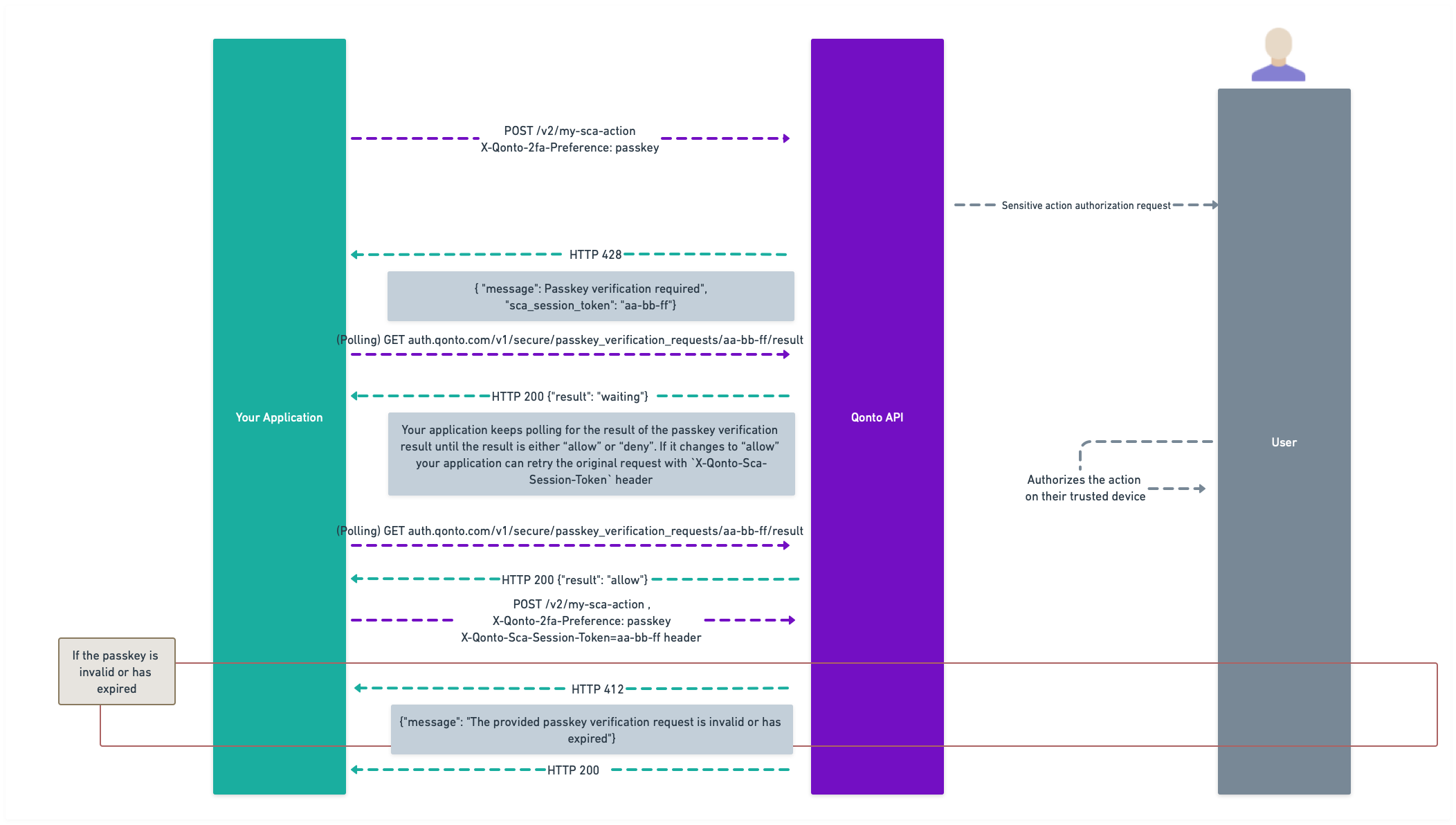
> [!NOTE]
>
> Please bear in mind that we are using `POST /v2/my-sca-action` only for illustrative purposes.
### 1. Initiate the sensitive action
You can specify which method to use via the `X-Qonto-2fa-Preference` header. The possible values are `paired-device`, `passkey`, and `sms-otp`. If no header is present, the default becomes `paired-device`.
If `paired-device` is selected and the user has not paired a device yet, you'll get a `428 Precondition Required` response with a `message` encouraging you to its enablement.
* With `paired-device`, the user will get a push notification on his device to authorize the action, and you'll receive a `428 Precondition Required` response containing, among other fields, a "SCA required" `message` and a `sca_session_token` that you will need to reuse after. **You have 15 minutes to use this token before it expires**.
* If `passkey` is used as a method, the user will receive a text message with a link to setup or use an existing passkey, and you'll receive a `428 Precondition Required` response containing, among other fields, a "Passkey verification required" `message` and a `sca_session_token` that you will need to reuse after. **You have 15 minutes to use this token before it expires**.
### 2. Poll the SCA session
At this point, you can poll [this endpoint](/api-reference/business-api/authentication/sca/retrieve-session) each second (at most) which will generate three possible outcomes:
* `waiting`: if the user has not authorized the action yet;
* `deny`: if the user refused the action (or more than 15 minutes passed);
* `allow`: if the user has authorised the action.
### 3. Perform the sensitive action
Once the user has authorized the action, you can use the `sca_session_token` value from the previous response to set the `X-Qonto-Sca-Session-Token` header and repeat the original sensitive action request with no other change than the new header. **Note: It's important that you replay the same request including the `X-Qonto-2fa-Preference` header if it was added to the original request.**
* If the token has expired or is invalid, you will receive a `412 Precondition Failed` with a `message` providing more information.
* If the token is valid, the action will be effectively processed by the API.
### SMS OTP Flow
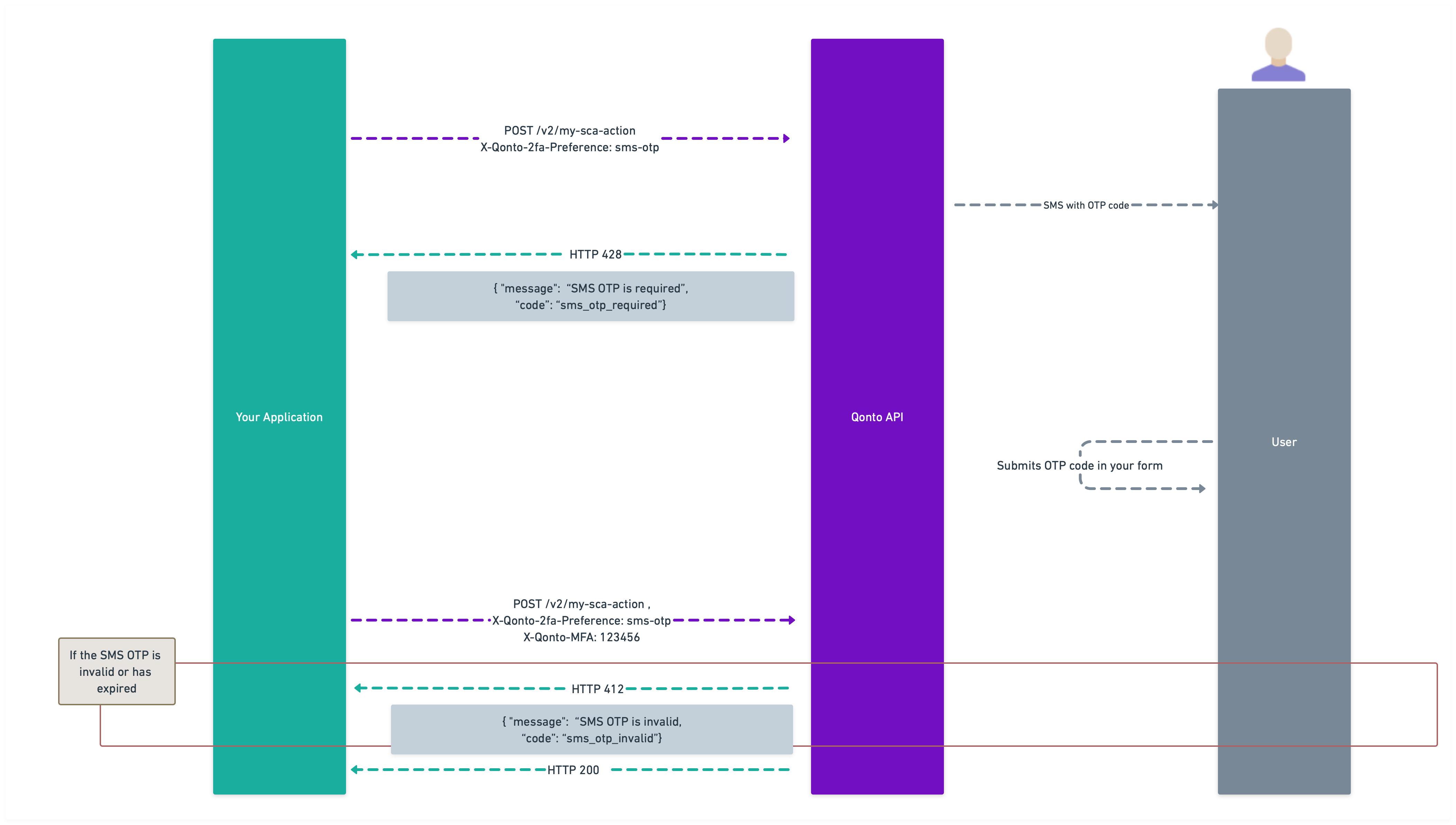
**1. Initiate the sensitive action**
If `sms-otp` is used as a method, you'll receive a `428 Precondition Required` response with the following payload:
```json theme={null}
{
"code": "thirdparty_sms_otp_required",
"message": "Thirdparty SMS OTP required"
}
```
At this point, the user will receive an SMS containing a one-time passcode (OTP).
**2. Capture and submit the OTP**
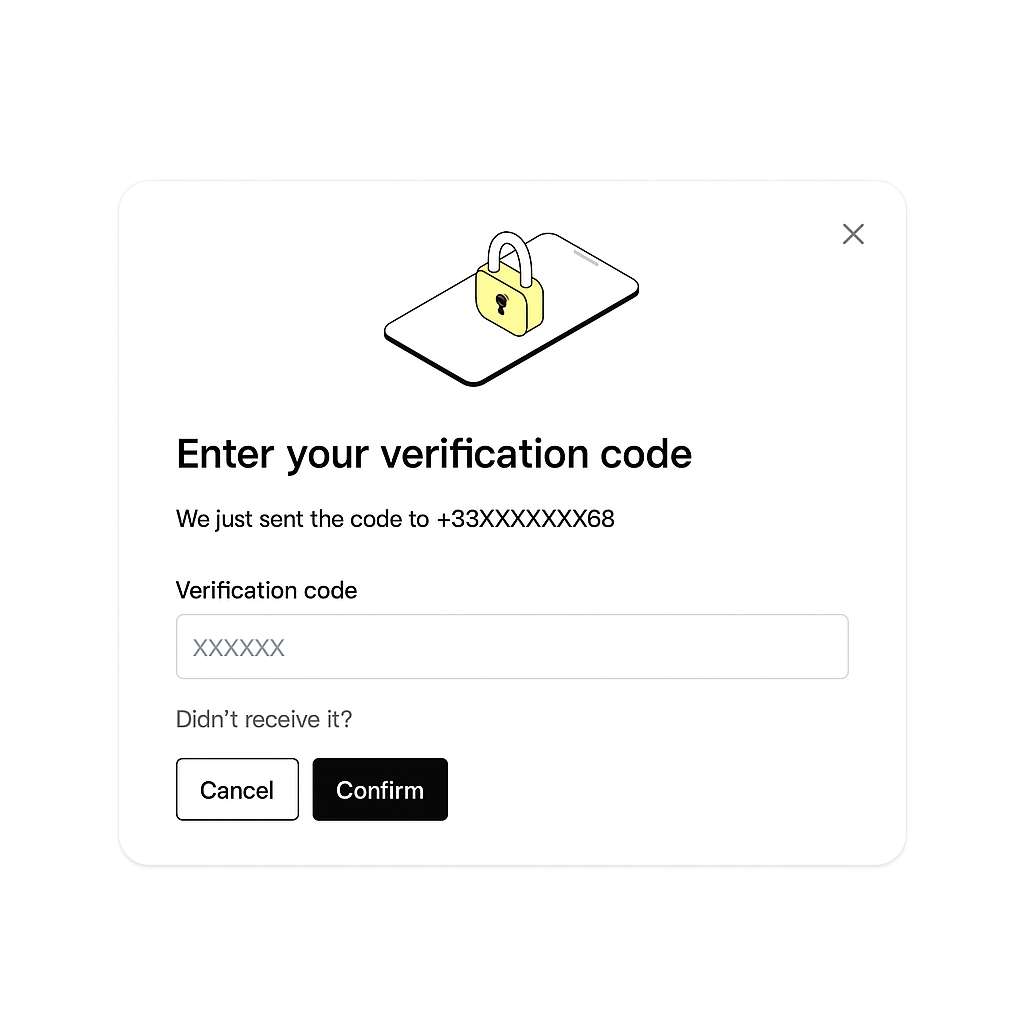
You should implement a form to capture this OTP from the user, as shown in the image below. The recommended approach is to build a simple form where the user can enter the code they received via SMS.
You might also want to include an option for users to request a new OTP if they haven't received the first one. To resend an OTP, simply repeat the original sensitive action request with the same parameters. There's no separate API endpoint for resending - the same request will trigger a new SMS to be sent.
**3. Call your action with the OTP**
Once you have the OTP from the user, include it in the `X-Qonto-MFA` header and repeat the original request with no other changes. Make sure to include the `X-Qonto-2fa-Preference` header with the value `sms-otp`.
**Note**: The SMS OTP option is only available to Embed Partners. SMS OTP should be considered a fallback option and not one of the primary authentication methods as it's less secure than paired devices or passkeys. Qonto may review usage patterns and could apply limitations if SMS OTP is consistently used as the primary SCA method.
# Testing a sensitive action on the Sandbox environment
In the Sandbox environment, testing sensitive actions can be challenging due to the need for a paired device or SMS authentication. To streamline this process, Qonto provides a `mock` option for the `X-Qonto-2fa-Preference` header, allowing you to simulate these actions without the need for physical devices or messages.
### Using the Mock option
Here's how you can effectively test sensitive actions in Sandbox:
### 1. Initiate the sensitive action
When you initiate a sensitive action, set the `X-Qonto-2fa-Preference` header to `mock`. This tells the system to simulate the authentication process.
### 2. Poll the SCA session
Use [this endpoint](/api-reference/business-api/authentication/sca/retrieve-mocked-session) to check the status of your mocked SCA session. It works similarly to the Production polling endpoint, providing real-time updates on the session status.
### 3. Simulate user decision
You can simulate the approval or denial of the action using [this endpoint](/api-reference/business-api/authentication/sca/simulate-user-decision):
* To approve the action: `POST https://thirdparty-sandbox.staging.qonto.co/v2/mocked_sca_sessions//allow`
* To deny the action: `POST https://thirdparty-sandbox.staging.qonto.co/v2/mocked_sca_sessions//deny`
### 4. Perform the sensitive action
Once you have approved the action, you can use the `sca_session_token` value from the previous response to set the `X-Qonto-Sca-Session-Token` header and repeat the original sensitive action request with no other change than the new header.
* If the token has expired or is invalid, you will receive a `412 Precondition Failed` with a `message` providing more information.
* If the token is valid, the action will be effectively processed by the API.
### Benefits of Mock testing
By using the `mock` option and these endpoints, you can efficiently test and QA sensitive actions in a controlled environment. This approach ensures that your application is well-prepared to handle sensitive actions securely and reliably when deployed to production.
This method not only simplifies the testing process but also enhances the reliability of your application, providing a seamless experience for users.
### SMS OTP
With `X-Qonto-2fa-Preference` set to `sms-otp`, any 6-character code will be accepted as a valid OTP since no actual SMS messages are sent. This allows for easy testing of the SMS OTP flow without needing to wait for or simulate actual SMS delivery.
# Simulate user decision
Source: https://docs.qonto.com/api-reference/business-api/authentication/sca/simulate-user-decision
post /v2/mocked_sca_sessions/{sca-session-token}/{decision}
Simulates user decision for the **mocked** SCA session identified by the `sca_session_token` path parameter.
This endpoint should be called when [testing a sensitive action in the Sandbox environment](/api-reference/business-api/authentication/sca/sca-flows#testing-a-sensitive-action-on-the-sandbox-environment).
# Bulk create cards
Source: https://docs.qonto.com/api-reference/business-api/cards/bulk-create-cards
post /v2/cards_bulk
OAuth scope: `card.write`
This operation requires [Strong Customer Authentication](/api-reference/business-api/authentication/sca/sca-flows).
---
Creates multiple cards for the authenticated organization.
This endpoint is still in **beta**. Please get in touch with our team if you have any question or feedback: [here](https://qonto-developers.zendesk.com/hc/en-001/requests/new).
> [!NOTE]
>
> This endpoint is a **sensitive action** and requires [Strong Customer Authentication (SCA)](/api-reference/business-api/authentication/sca/sca-flows). You may receive a `428 Precondition Required` response, which means SCA is required before proceeding.
# Create a card
Source: https://docs.qonto.com/api-reference/business-api/cards/create-a-card
post /v2/cards
OAuth scope: `card.write`
Creates a single card for the authenticated organization.
This endpoint is still in **beta**. Please get in touch with our team if you have any question or feedback: [here](https://qonto-developers.zendesk.com/hc/en-001/requests/new).
> [!NOTE]
>
> This endpoint is a **sensitive action** and requires [Strong Customer Authentication (SCA)](/api-reference/business-api/authentication/sca/sca-flows). You may receive a `428 Precondition Required` response, which means SCA is required before proceeding.
# Discard a card
Source: https://docs.qonto.com/api-reference/business-api/cards/discard-a-card
put /v2/cards/{id}/discard
OAuth scope: `card.write`
Discards the card identified by the `id` path parameter, permanently blocking its usage.
This endpoint is still in **beta**. Please get in touch with our team if you have any question or feedback: [here](https://qonto-developers.zendesk.com/hc/en-001/requests/new).
# List card appearances
Source: https://docs.qonto.com/api-reference/business-api/cards/list-appearances
get /v2/cards/appearances
OAuth scope: `card.read`
Retrieves the visual appearances of all cards for the authenticated membership.
This endpoint is still in **beta**. Please get in touch with our team if you have any question or feedback: [here](https://qonto-developers.zendesk.com/hc/en-001/requests/new).
# List cards
Source: https://docs.qonto.com/api-reference/business-api/cards/list-cards
get /v2/cards
OAuth scope: `card.read`
Retrieves the list of cards that can be viewed by the authenticated membership.
You can filter and sort this list by using [query parameters](#parameter-query) 👇
This endpoint is still in **beta**. Please get in touch with our team if you have any question or feedback: [here](https://qonto-developers.zendesk.com/hc/en-001/requests/new).
# Lock a card
Source: https://docs.qonto.com/api-reference/business-api/cards/lock-a-card
put /v2/cards/{id}/lock
OAuth scope: `card.write`
Locks temporary the card identified by the `id` path parameter. This temporary suspension can be removed at any time by the user.
This endpoint is still in **beta**. Please get in touch with our team if you have any question or feedback: [here](https://qonto-developers.zendesk.com/hc/en-001/requests/new).
# Report a physical card as lost
Source: https://docs.qonto.com/api-reference/business-api/cards/report-a-physical-card-as-lost
put /v2/cards/{id}/lost
OAuth scope: `card.write`
Reports the physical card identified by the `id` path parameter as **lost**, permanently blocking its usage.
This endpoint is still in **beta**. Please get in touch with our team if you have any question or feedback: [here](https://qonto-developers.zendesk.com/hc/en-001/requests/new).
# Report a physical card as stolen
Source: https://docs.qonto.com/api-reference/business-api/cards/report-a-physical-card-as-stolen
put /v2/cards/{id}/stolen
OAuth scope: `card.write`
Reports the physical card identified by the `id` path parameter as **stolen**, permanently blocking its usage.
This endpoint is still in **beta**. Please get in touch with our team if you have any question or feedback: [here](https://qonto-developers.zendesk.com/hc/en-001/requests/new).
# Retrieve a card iframe url
Source: https://docs.qonto.com/api-reference/business-api/cards/retrieve-a-card-iframe-url
get /v2/cards/{id}/data_view
OAuth scope: `card.read`
Retrieves the URL to be displayed in an iframe to preview the card, identified by the `id` path parameter, with its details.
Note that HTML encoding is applied to the URL, replacing `&`, `<`, and `>` with `\u0026`, `\u003c`, and `\u003e` respectively.
We recommend the following size for the iframe:
* Height - 460px
* Width - 504px
This size will ensure an optimum UX within the iframe for both the card view and [Stong Customer Authentication](/api-reference/business-api/authentication/sca/sca-flows) experience.
This endpoint is still in **beta**. Please get in touch with our team if you have any question or feedback: [here](https://qonto-developers.zendesk.com/hc/en-001/requests/new).
> [!NOTE]
>
> You can control which PIN-related actions are available to the cardholder within the iframe by appending optional query parameters to the iframe URL returned by this endpoint.
>
>
>
`canSeePin=true`: Displays a button allowing the cardholder to see the pin
>
`canSetPin=true`: Displays a button allowing the cardholder to set or update the card's pin
>
# Unlock a card
Source: https://docs.qonto.com/api-reference/business-api/cards/unlock-a-card
put /v2/cards/{id}/unlock
OAuth scope: `card.write`
Unlocks the card identified by the `id` path parameter.
Only admins and owners of an organization have the permissions to unlock a card.
The card unlocks only if the user can unlock it; otherwise, any system locks will keep the card locked.
Refer to the `has_only_user_liftable_locks` property on the `CardPayload` object.
This endpoint is still in **beta**. Please get in touch with our team if you have any question or feedback: [here](https://qonto-developers.zendesk.com/hc/en-001/requests/new).
# Update a card's limits
Source: https://docs.qonto.com/api-reference/business-api/cards/update-a-cards-limits
patch /v2/cards/{id}/limits
OAuth scope: `card.write`
This operation requires [Strong Customer Authentication](/api-reference/business-api/authentication/sca/sca-flows).
---
Updates the limits of the card identified by the `id` path parameter.
Only admins and owners of an organization have the permissions to update a card's limit.
This endpoint is still in **beta**. Please get in touch with our team if you have any question or feedback: [here](https://qonto-developers.zendesk.com/hc/en-001/requests/new).
> [!NOTE]
>
> This endpoint is a **sensitive action** and requires [Strong Customer Authentication (SCA)](/api-reference/business-api/authentication/sca/sca-flows). You may receive a `428 Precondition Required` response, which means SCA is required before proceeding.
# Update a card's nickname
Source: https://docs.qonto.com/api-reference/business-api/cards/update-a-cards-nickname
patch /v2/cards/{id}/nickname
OAuth scope: `card.write`
---
Updates the nickname of the card identified by the `id` path parameter.
Only admins and owners of an organization have the permissions to update a card's nickname.
This endpoint is still in **beta**. Please get in touch with our team if you have any question or feedback: [here](https://qonto-developers.zendesk.com/hc/en-001/requests/new).
# Update a card's options
Source: https://docs.qonto.com/api-reference/business-api/cards/update-a-cards-options
patch /v2/cards/{id}/options
OAuth scope: `card.write`
---
Updates the options of the card identified by the `id` path parameter.
Only admins and owners of an organization have the permissions to update a card's options.
This endpoint is still in **beta**. Please get in touch with our team if you have any question or feedback: [here](https://qonto-developers.zendesk.com/hc/en-001/requests/new).
# Update a card's restrictions
Source: https://docs.qonto.com/api-reference/business-api/cards/update-a-cards-restrictions
patch /v2/cards/{id}/restrictions
OAuth scope: `card.write`
---
Updates the restrictions of a card, identified by the `id` path parameter.
Only admins and owners of an organization have the permissions to update a card's restrictions.
This endpoint is still in **beta**. Please get in touch with our team if you have any question or feedback: [here](https://qonto-developers.zendesk.com/hc/en-001/requests/new).
# Create a client
Source: https://docs.qonto.com/api-reference/business-api/clients/create-a-client
post /v2/clients
OAuth scope: `client.write`
Creates a single client for the authenticated organization.
There is no uniqueness rule. It is strongly advised to search using the [GET /v2/clients](/api-reference/business-api/clients/list-clients) endpoint for a given client before creating a new client.
**Price plans:** this endpoint is available for all Qonto price plans.
# Delete a client
Source: https://docs.qonto.com/api-reference/business-api/clients/delete-a-client
delete /v2/clients/{id}
OAuth scope: `client.write`
Deletes the client identified by the `id` path parameter.
**Important**: Client deletion is permanent and cannot be undone.
Consider the following impacts before proceeding:
- **Recurring invoices**: All recurring invoices associated with this client will be automatically canceled
- **Historical invoices**: Previously issued invoices remain unchanged and will still display the client information
- **API access**: Future API calls to retrieve this client by ID will return a 404 (Not Found) error
**Price plans:** this endpoint is available for all Qonto price plans
# List clients
Source: https://docs.qonto.com/api-reference/business-api/clients/list-clients
get /v2/clients
OAuth scope: `client.read`
Retrieves the list of clients for the authenticated organization.
You can filter (ex: only retrieve the latest clients) and sort this list by using [query parameters](#parameter-filter) 👇
**Price plans:** this endpoint is available for all Qonto price plans.
# Retrieve a client
Source: https://docs.qonto.com/api-reference/business-api/clients/retrieve-a-client
get /v2/clients/{id}
OAuth scope: `client.read`
Retrieves the client identified by the `id` path parameter.
**Price plans:** this endpoint is available for all Qonto price plans
# Update a client
Source: https://docs.qonto.com/api-reference/business-api/clients/update-a-client
patch /v2/clients/{id}
OAuth scope: `client.write`
Updates the client identified by the `id` path parameter.
**Price plans:** this endpoint is available for all Qonto price plans
# Create an Embed Auth Link
Source: https://docs.qonto.com/api-reference/business-api/endpoints/embed-auth-links/create
post /v1/embed_auth_links
OAuth scope: `embed_auth_link.write`
Allows you to create an Embed Auth Link.
Embed Auth Links allows your customers to seamlessly authenticate to Qonto Embed's Hosted Pages. Authentication works both for Hosted Pages served via redirect and iframe.
# Authenticate your end customers to Hosted Pages
Source: https://docs.qonto.com/api-reference/business-api/endpoints/embed-auth-links/introduction
Learn how to authenticate your end customers to Hosted Pages.
Hosted Pages let you offer powerful, sensitive banking actions to your customers with minimal effort. Qonto hosts the page, secures the flow, and ensures compliance. You keep control of the experience: open the page directly or embed it inside your product.
## What are Hosted Pages?
Hosted Pages are authenticated web pages provided by Qonto Embed. They are designed for complex or sensitive actions that you don't want to build and secure yourself. Their goal is to reduce your integration time while meeting Qonto's security and compliance standards.
### How access works
Hosted Pages are only accessible through time-bound Embed Auth Links you create on behalf of your end customers via a backend-to-backend API call.
Embed Auth Links last for 1 minute after creation, and can be used only once.
### Session duration
Each authenticated session lasts 30 minutes and cannot currently be refreshed. When it expires, you must request a new link.
Currently available Hosted Pages:
* Create payment links
## How it works
1. Your server [creates an Embed Auth Link](/api-reference/business-api/endpoints/embed-auth-links/create). On success, you receive a response containing a url field that points to the Hosted Page for your customer.
2. You present the Hosted Page to the customer. Choose the format that best fits your product:
* Standalone (redirect): Navigate the customer to the url.
* Embedded (iframe): Render the url in an iframe for a seamless, in-app experience.
3. You handle session lifecycle. A session is valid for 30 minutes. When it expires, generate a new Embed Auth Link and redirect or reload the iframe with the new url.
## Security and compliance
By relying on Qonto's Hosted Pages, you offload the hardest parts of sensitive banking flows:
* Qonto hosts, secures, and authenticates each session.
* Access is strictly controlled via short-lived Embed Auth Links.
* You reduce the scope of handling sensitive workflows while delivering a reliable user experience.
## Next steps
* [Create your first Embed Auth Link](/api-reference/business-api/endpoints/embed-auth-links/create) (server-side)
* Add the Hosted Page to your product via redirect or iframe.
* Start with *Create payment links* and expand as more Hosted Pages become available.
# Dispatch an encoded request
Source: https://docs.qonto.com/api-reference/business-api/endpoints/encoded-requests/dispatch
post /v1/encoded_requests/dispatch
Allows you to dispatch an encoded request.
This endpoint is meant to be called by your backend, to proxy requests built for you by our client SDK.
Depending on the underlying proxied endpoint, you may need to include specific headers, such as an `Authorization` header or other custom headers required by the proxied service.
Please refer to the [API documentation](https://docs.qonto.com/api-reference/introduction) for detailed information on the required headers for each endpoint.
# Proxy API requests from the Embed SDK
Source: https://docs.qonto.com/api-reference/business-api/endpoints/encoded-requests/introduction
Learn how to proxy API requests sent by our Embed SDK.
The [dispatch endpoint](/api-reference/business-api/endpoints/encoded-requests/dispatch) is designed to be called by your backend to proxy API requests generated by our Embed SDK.
> [!NOTE]
>
> Only use this endpoint if you're integrating with the Embed SDK. If you're connecting directly to our API endpoints, you can safely skip this section.
When proxying these requests, you may need to add specific authorization headers. For example, requests sent to our staging environment require the `X-Qonto-Staging-Token` header — see [Accessing the Sandbox environment](/get-started/general/sandbox-access).
These headers, and any similar sensitive information, must not be exposed to the client. They are intended solely for backend use.
To handle this, implement a proxy endpoint in your backend. This endpoint should:
* Receive the request from the client.
* Add the necessary headers.
* Forward the request to our encoded requests dispatch API.
Our dispatcher will then:
* Receive and decode the request.
* Forward it to the appropriate endpoint.
The response returned to your backend is Base64-encoded. Simply return this response to the client as-is, our SDK will handle the decoding for you.
# List attachments for a transaction
Source: https://docs.qonto.com/api-reference/business-api/expense-management/attachments-in-transactions/list-attachments-for-a-transaction
get /v2/transactions/{id}/attachments
OAuth scope: `attachment.read`
Retrieves all the attachments for the transaction identified by the `id` path parameter.
In the Qonto app, attachments are files uploaded onto transactions by users. Attachments typically correspond to the *invoice* or *receipt*, and are used to justify the transactions from a bookkeeping standpoint.
You can retrieve the IDs of those attachments inside each `transaction` object, by calling [GET /v2/transactions](/api-reference/business-api/transactions-statements/transactions/list-transactions).
Probative attachment is another version of attachment, compliant with [PAdES](https://en.wikipedia.org/wiki/PAdES) standard.
For security reasons, the `url` you retrieve for each attachment is **only valid for 30 minutes**. If you need to download the file after more than 30 minutes, you will need to perform another authenticated call in order to generate a new download URL.
If you download the file using `curl`, replace the `\\u0026` references by `&` in the `url` string.
# Remove all attachments from a transaction
Source: https://docs.qonto.com/api-reference/business-api/expense-management/attachments-in-transactions/remove-all-attachments-from-a-transaction
delete /v2/transactions/{id}/attachments
OAuth scope: `attachment.write`
Removes all attachments from the transaction identified by the `id` path parameter.
In the Qonto app, attachments are files uploaded onto transactions by users. Attachments typically correspond to the *invoice* or *receipt*, and are used to justify the transactions from a bookkeeping standpoint.
# Remove an attachment from a transaction
Source: https://docs.qonto.com/api-reference/business-api/expense-management/attachments-in-transactions/remove-an-attachment-from-a-transaction
delete /v2/transactions/{transaction_id}/attachments/{attachment_id}
OAuth scope: `attachment.write`
Removes the attachment identified by the `attachment_id` path parameter from the transaction identified by the `transaction_id` path parameter.
In the Qonto app, attachments are files uploaded onto transactions by users. Attachments typically correspond to the *invoice* or *receipt*, and are used to justify the transactions from a bookkeeping standpoint.
# Upload an attachment to a transaction
Source: https://docs.qonto.com/api-reference/business-api/expense-management/attachments-in-transactions/upload-an-attachment-to-a-transaction
post /v2/transactions/{id}/attachments
OAuth scope: `attachment.write`
Uploads a single attachment (JPEG, PNG or PDF) to the transaction identified by the `id` path parameter.
In the Qonto app, attachments are files uploaded onto transactions by users. Attachments typically correspond to the *invoice* or *receipt*, and are used to justify the transactions from a bookkeeping standpoint.
The uploaded file will be processed in the background. This means that the created attachment will not be visible immediately.
# Retrieve an attachment
Source: https://docs.qonto.com/api-reference/business-api/expense-management/attachments/retrieve-an-attachment
get /v2/attachments/{id}
OAuth scope: `attachment.read`
Retrieves the attachment identified by the `id` path parameter.
In the Qonto app, attachments are files uploaded onto transactions by users. Attachments typically correspond to the *invoice* or *receipt*, and are used to justify the transactions from a bookkeeping standpoint.
You can retrieve the IDs of those attachments inside each `transaction` object, by calling [GET /v2/transactions](/api-reference/business-api/transactions-statements/transactions/list-transactions).
Probative attachment is another version of attachment, compliant with [PAdES](https://en.wikipedia.org/wiki/PAdES) standard.
For security reasons, the `url` you retrieve for each attachment is **only valid for 30 minutes**. If you need to download the file after more than 30 minutes, you will need to perform another authenticated call in order to generate a new download URL.
If you download the file using `curl`, replace the `\\u0026` references by `&` in the `url` string.
# Upload an attachment
Source: https://docs.qonto.com/api-reference/business-api/expense-management/attachments/upload-an-attachment
post /v2/attachments
OAuth scope: `attachment.write`
Uploads a single attachment (JPEG, PNG or PDF).
The result of the upload (attachment_id) can later be used to [Create supplier invoices](/api-reference/business-api/expense-management/supplier-invoices/create-supplier-invoices#option-2), [Create a SEPA Transfer](/api-reference/business-api/payments-transfers/sepa-transfers/sepa-transfers/create), [Create SEPA recurring transfers](/api-reference/business-api/payments-transfers/sepa-transfers/sepa-recurring-transfers/create), ...
In the Qonto app, attachments are files uploaded onto transactions by users. Attachments typically correspond to the *invoice* or *receipt*, and are used to justify the transactions from a bookkeeping standpoint.
# Assign a cash flow category to transactions
Source: https://docs.qonto.com/api-reference/business-api/expense-management/cash-flow-categories/assign
post /v2/cash_flow_categories/assignments
OAuth scope: `cash_flow_category.write`
Assigns a cash flow category (or subcategory) to one or more transactions. The assignment replaces any cash flow category previously set on those transactions.
Notes:
- Up to `100` transactions can be assigned in a single call.
- When a category has subcategories, you must assign one of its leaf subcategories — assigning the parent category itself is rejected.
- To clear an existing assignment, use [Unassign a cash flow category from transactions](/api-reference/business-api/expense-management/cash-flow-categories/unassign).
# Create a cash flow category
Source: https://docs.qonto.com/api-reference/business-api/expense-management/cash-flow-categories/create
post /v2/cash_flow_categories
OAuth scope: `cash_flow_category.write`
Creates a new top-level cash flow category in the authenticated organization's catalog.
The category's color and icon are assigned automatically by Qonto and are not part of this contract. To add subcategories to the new category, use [Create a cash flow subcategory](/api-reference/business-api/expense-management/cash-flow-categories/create-subcategory).
# Create a cash flow subcategory
Source: https://docs.qonto.com/api-reference/business-api/expense-management/cash-flow-categories/create-subcategory
post /v2/cash_flow_categories/{category_id}/subcategories
OAuth scope: `cash_flow_category.write`
Creates a new subcategory under the cash flow category identified by the `category_id` path parameter.
The subcategory inherits its direction (inflow or outflow) from its parent category.
# Delete a cash flow category
Source: https://docs.qonto.com/api-reference/business-api/expense-management/cash-flow-categories/delete
delete /v2/cash_flow_categories/{id}
OAuth scope: `cash_flow_category.write`
Deletes a category or subcategory in the authenticated organization's catalog. Deleting a top-level category also deletes its subcategories. A category or subcategory with allocated transactions cannot be deleted.
The request fails with `invalid_id` for a malformed ID or `category_not_found` when the ID does not belong to the authenticated organization. The `has_allocated_transactions` error is returned if transactions are still assigned to the category or subcategory.
# List cash flow categories
Source: https://docs.qonto.com/api-reference/business-api/expense-management/cash-flow-categories/list
get /v2/cash_flow_categories
OAuth scope: `cash_flow_category.read`
Retrieves the full catalog of cash flow categories for the authenticated organization, with their subcategories nested under each parent category.
Use the category and subcategory `id`s to resolve the `cashflow_category.id` and `cashflow_subcategory.id` fields returned on transactions, and to assign categories to transactions via [Assign a cash flow category to transactions](/api-reference/business-api/expense-management/cash-flow-categories/assign).
# Unassign a cash flow category from transactions
Source: https://docs.qonto.com/api-reference/business-api/expense-management/cash-flow-categories/unassign
post /v2/cash_flow_categories/unassignments
OAuth scope: `cash_flow_category.write`
Clears the cash flow category assigned to one or more transactions. This is a no-op for transactions that have no cash flow category assigned.
Up to `100` transactions can be unassigned in a single call.
# Update a cash flow category
Source: https://docs.qonto.com/api-reference/business-api/expense-management/cash-flow-categories/update
patch /v2/cash_flow_categories/{id}
OAuth scope: `cash_flow_category.write`
Updates a category or subcategory in the authenticated organization's catalog. Only fields included in the request body are changed. The `type` field applies only to top-level categories and is ignored for subcategories. Default categories cannot be edited.
The request fails with `invalid_id` for a malformed ID, `empty_name` or `name_too_long` for an invalid name, `invalid_type` for an unsupported category direction, `name_already_used` when the name already exists, or `default_category_not_editable` for a default category. It returns `category_not_found` when the ID does not belong to the authenticated organization.
# Create a cash flow scenario
Source: https://docs.qonto.com/api-reference/business-api/expense-management/cash-flow-scenarios/create
post /v2/cash_flow_scenarios
OAuth scope: `cash_flow_category.write`
Creates a new cash flow scenario for the authenticated organization.
The new scenario is initialized with a copy of every target from its parent scenario (the organization's main scenario, when `parent_id` is omitted). Reparenting an existing scenario is not supported.
# Delete a cash flow scenario
Source: https://docs.qonto.com/api-reference/business-api/expense-management/cash-flow-scenarios/delete
delete /v2/cash_flow_scenarios/{id}
OAuth scope: `cash_flow_category.write`
Deletes the cash flow scenario identified by `id`, along with all of its targets. The organization's main scenario cannot be deleted.
# List cash flow scenarios
Source: https://docs.qonto.com/api-reference/business-api/expense-management/cash-flow-scenarios/list
get /v2/cash_flow_scenarios
OAuth scope: `cash_flow_category.read`
Retrieves all cash flow scenarios for the authenticated organization, including the main scenario.
# Update a cash flow scenario
Source: https://docs.qonto.com/api-reference/business-api/expense-management/cash-flow-scenarios/update
patch /v2/cash_flow_scenarios/{id}
OAuth scope: `cash_flow_category.write`
Updates the name and/or color of the cash flow scenario identified by `id`. Only the fields provided in the request body are modified; omitted fields are left unchanged. Reparenting a scenario is not supported.
# Delete a cash flow target
Source: https://docs.qonto.com/api-reference/business-api/expense-management/cash-flow-targets/delete
delete /v2/cash_flow_targets
OAuth scope: `cash_flow_category.write`
Deletes the target identified by the composite key supplied as query parameters (`scenario_id`, `category_id`, `year`, `month`). Deleting a target that does not exist still returns `204`.
# List cash flow targets
Source: https://docs.qonto.com/api-reference/business-api/expense-management/cash-flow-targets/list
get /v2/cash_flow_targets
OAuth scope: `cash_flow_category.read`
Retrieves targets matching the supplied filters, ordered by (`year`, `month`, `category_id`).
When `from_year`/`from_month` and `to_year`/`to_month` are all omitted, the period defaults to the current month through the same month next year. Supplying only one side of the range leaves the other side unbounded.
# Create or update cash flow targets
Source: https://docs.qonto.com/api-reference/business-api/expense-management/cash-flow-targets/upsert
put /v2/cash_flow_targets
OAuth scope: `cash_flow_category.write`
Creates or updates targets in bulk. All targets are applied atomically: if any entry is invalid, none of them are saved.
# Import client invoices in bulk
Source: https://docs.qonto.com/api-reference/business-api/expense-management/client-quotes-notes/client-invoices/bulk-import-client-invoices
post /v2/client_invoices/bulk
OAuth scope: `client_invoice.write`
Imports already-issued client invoices **in bulk** by uploading their files (1 to 5 per request).
Unlike [creating a client invoice](/api-reference/business-api/expense-management/client-quotes-notes/client-invoices/create-a-client-invoice), this endpoint does **not** regenerate the document: the original file you upload is preserved as-is. This makes it the right choice when your ERP or billing system already produces compliant **Factur-X** invoices that must be transmitted unchanged.
The whole request body is limited to **15 MB**, with a maximum of **5 files** of **5 MB** each per request.
To preserve the embedded XML for e-invoicing in France, upload PDF files that follow the Factur-X standard.
Bulk import is **all-or-nothing**: if any file in the request is rejected (unsupported format, larger than 5 MB, or more than 5 files), the whole request fails and **no** invoices are created. Fix the offending file and retry the batch.
This endpoint is **not idempotent**: re-importing a file that has already been imported creates a **new** client invoice with a different `invoice_id`. The invoice number is not checked for duplicates on import.
If you lose the response of an import call, check whether the invoice was created before retrying: [list client invoices](/api-reference/business-api/expense-management/client-quotes-notes/client-invoices/list-client-invoices) with `exclude_imported=false` (imported invoices are excluded by default) and `filter[created_at_from]` set to the time of your call, then match on the invoice `number`.
Bulk import is not available to **Italian** organizations; their requests return `403 Forbidden`.
# Create a client invoice
Source: https://docs.qonto.com/api-reference/business-api/expense-management/client-quotes-notes/client-invoices/create-a-client-invoice
post /v2/client_invoices
OAuth scope: `client_invoice.write`
Creates a single client invoice for the authenticated organization.
**Price plans**: this endpoint is available for all Qonto price plans.
**Do note**:
- The invoice "inherits" the `currency` of the provided client. If the `currency` is not set for that client, you will receive a validation error on the `/data/attributes/currency` property.
- Italian organizations must have e-invoicing activated on the Qonto app in order to use this endpoint.
# Create a client invoice upload
Source: https://docs.qonto.com/api-reference/business-api/expense-management/client-quotes-notes/client-invoices/create-a-client-invoice-upload
post /v2/client_invoices/uploads
OAuth scope: `client_invoice.write`
Uploads a file (PDF, JPEG, or PNG) for client invoices or quotes. The uploaded file can later be referenced when creating or updating a client invoice or quote by providing the upload ID.
Qonto does not convert uploaded files to Factur-X format. If you upload a non-Factur-X PDF, it will remain non-Factur-X. To send an invoice via e-invoice in France, make sure the PDF you upload already follows the Factur-X standard, or [create the invoice directly on Qonto](/get-started/business-api/use-cases/generate-factur-x-invoice) so Factur-X is generated automatically upon finalization.
# Delete a client invoice
Source: https://docs.qonto.com/api-reference/business-api/expense-management/client-quotes-notes/client-invoices/delete-a-client-invoice
delete /v2/client_invoices/{id}
OAuth scope: `client_invoice.write`
Deletes the client invoice identified by the `id` path parameter.
**Important**: Only client invoices with a `draft` status, or [imported](/api-reference/business-api/expense-management/client-quotes-notes/client-invoices/bulk-import-client-invoices) client invoices, can be deleted. Other invoices that have been validated or paid cannot be deleted.
An imported client invoice cannot be deleted once it has been recorded in accounting or while it has an active payment link. Do not delete an imported invoice that has already been sent via e-invoice.
**Price plans**: this endpoint is available for all Qonto price plans.
# Finalize a client invoice
Source: https://docs.qonto.com/api-reference/business-api/expense-management/client-quotes-notes/client-invoices/finalize-a-client-invoice
post /v2/client_invoices/{id}/finalize
OAuth scope: `client_invoice.write`
Finalizes a draft client invoice by moving the status to `unpaid`.
# List client invoices
Source: https://docs.qonto.com/api-reference/business-api/expense-management/client-quotes-notes/client-invoices/list-client-invoices
get /v2/client_invoices
OAuth scope: `client_invoices.read`
Retrieves the list of client invoices for the authenticated organization.
You can filter (ex: only retrieve the latest client invoices) and sort this list by using [query parameters](#parameter-filter-status) 👇
# Cancel a client invoice
Source: https://docs.qonto.com/api-reference/business-api/expense-management/client-quotes-notes/client-invoices/mark-a-client-invoice-as-canceled
post /v2/client_invoices/{id}/mark_as_canceled
OAuth scope: `client_invoice.write`
Updates the status of the client invoice identified by the `id` path paremeter from `unpaid` to `cancel`.
# Mark a client invoice as paid
Source: https://docs.qonto.com/api-reference/business-api/expense-management/client-quotes-notes/client-invoices/mark-a-client-invoice-as-paid
post /v2/client_invoices/{id}/mark_as_paid
OAuth scope: `client_invoice.write`
Marks a client invoice as paid by updating its status from `unpaid` to `paid`.
**Requirements:**
- The invoice must exist and be accessible to the authenticated organization
- The invoice status should be `unpaid` for this operation to be meaningful
- The `paid_at` date cannot be in the future. If not filled, by default the current date is used.
If the invoice is already paid, you can still use this endpoint to update the `paid_at` date.
# Retrieve a client invoice
Source: https://docs.qonto.com/api-reference/business-api/expense-management/client-quotes-notes/client-invoices/retrieve-a-client-invoice
get /v2/client_invoices/{id}
OAuth scope: `client_invoices.read`
Retrieves the client invoice identified by the `id` path parameter.
# Retrieve a client invoice upload
Source: https://docs.qonto.com/api-reference/business-api/expense-management/client-quotes-notes/client-invoices/retrieve-a-client-invoice-upload
get /v2/client_invoices/uploads/{id}
OAuth scope: `client_invoices.read`
Retrieves the client invoice upload identified by the `id` path parameter. This upload can be used for both client invoices and quotes.
# Send a client invoice via email
Source: https://docs.qonto.com/api-reference/business-api/expense-management/client-quotes-notes/client-invoices/send-a-client-invoice
post /v2/client_invoices/{id}/send
OAuth scope: `client_invoice.write`
Sends the client invoice identified by the `id` path parameter via email to the specified recipients.
# Send a client invoice via e-invoice
Source: https://docs.qonto.com/api-reference/business-api/expense-management/client-quotes-notes/client-invoices/send-a-client-invoice-by-e-invoice
post /v2/client_invoices/{id}/send_by_einvoice
OAuth scope: `client_invoice.write`
Sends the client invoice identified by the `id` path parameter via e-invoice.
**French specificity:** For French organizations and partners, e-invoice refers to using Qonto's *Plateforme Agréée* (also referred to as "PA")
**Eligibility** (prerequisites)
1. The **organization** must be allowed to send e-invoices. For French organizations that means e-invoicing is activated on the organization **and** the organization's SIREN is registered in the *Annuaire*. Unlike the two conditions below, this one **is** checked when you call this endpoint: an organization that does not meet it gets a **`403`**.
2. The **client** on the invoice must be reachable on the e-invoicing network: **`e_invoicing_reachable`** on the client (from [Retrieve a client](/api-reference/business-api/clients/retrieve-a-client) or [List clients](/api-reference/business-api/clients/list-clients)) must be **`true`**. If it is **`false`**, do not call this endpoint, use [Send a client invoice via email](/api-reference/business-api/expense-management/client-quotes-notes/client-invoices/send-a-client-invoice) instead. This is **not** checked when you call this endpoint: an invoice sent to an unreachable recipient is reported as not transmitted in **`einvoicing_lifecycle_events`**.
3. The client invoice must also **not** already have been submitted for e-invoice. If a send was already requested, calling this endpoint again completes successfully and does not resubmit the invoice. To send again after a rejection, import or create a new invoice.
**`sending_status`** from [Get e-invoicing settings](/api-reference/business-api/expense-management/e-invoicing/retrieve-settings) reports whether e-invoicing is activated on the organization. It does **not** cover the *Annuaire* registration, so **`sending_status: "enabled"`** is not on its own a guarantee that this endpoint will accept the call.
**Processing** (asynchronous)
Relative to the e-invoicing network, delivery is **asynchronous**. A **`204`** means the request was **accepted for processing**, not that the invoice was fully delivered or issued on the network. The client invoice **`status`** does not change when you call this endpoint.
**Tracking and observability**
Track downstream steps on the invoice via **`einvoicing_lifecycle_events`**. The `status_code` values follow the platform's lifecycle; a typical sequence is:
1. **200** — Submitted (deposited for e-invoicing)
2. **201** — Issued by the platform (released into the network)
3. **202** — Received from the platform (the receiving platform acknowledges receipt from the sender), when applicable
There is no separate lifecycle-only endpoint. Use **Retrieve a client invoice** (**`GET /v2/client_invoices/{id}`**): the **`client_invoice`** object includes **`einvoicing_lifecycle_events`** (each event has a lifecycle **`status_code`**—for example **`201`** for *Issued by the platform* when that milestone is recorded) and **`einvoicing_status`**. Client invoice **webhooks** support **`updated`** (and **`created`**) events; treat them as a signal to **fetch the invoice again** if you need the latest lifecycle list. The documented webhook payload includes **`einvoicing_status`** but not the full **`einvoicing_lifecycle_events`** array.
**E-invoicing API flows**
1. Create a client invoice in Qonto
2. Send it via e-invoice using the endpoint **`POST /v2/client_invoices/{id}/send_by_einvoice`**
3. Use the Qonto invoice **`id`** to track its lifecycle (**`einvoicing_lifecycle_events`**) and [Mark it as paid](/api-reference/business-api/expense-management/client-quotes-notes/client-invoices/mark-a-client-invoice-as-paid), [Unmark it as paid](/api-reference/business-api/expense-management/client-quotes-notes/client-invoices/unmark-a-client-invoice-as-paid), etc.
This flow lets you send an invoice initially generated with a third-party invoicing tool via e-invoice, by importing it into Qonto while preserving your original Factur-X file:
1. Generate the invoice in the [Factur-X format](/api-reference/business-api/expense-management/client-quotes-notes/introduction-factur-x), including the correct **`.xml`** file
2. [Import the invoice into Qonto](/api-reference/business-api/expense-management/client-quotes-notes/client-invoices/bulk-import-client-invoices) using **`POST /v2/client_invoices/bulk`** — this preserves your original file and returns a Qonto invoice **`id`**
3. Send the invoice via e-invoice using the endpoint **`POST /v2/client_invoices/{id}/send_by_einvoice`**
4. Use the Qonto invoice **`id`** to track its lifecycle (**`einvoicing_lifecycle_events`**) and [Mark it as paid](/api-reference/business-api/expense-management/client-quotes-notes/client-invoices/mark-a-client-invoice-as-paid), [Unmark it as paid](/api-reference/business-api/expense-management/client-quotes-notes/client-invoices/unmark-a-client-invoice-as-paid), etc.
**Attachments**
Supporting documents attached to the invoice are **not** carried by this endpoint. If the invoice has an **`upload_id`**, that document is **not** embedded in the emitted XML and the **`upload_id`** is ignored. The call still succeeds and no error is returned.
This means the e-invoicing channel cannot currently satisfy a recipient who requires supporting documents inside the XML file (the *attached document*, **`BT-125`** of EN 16931). Attachments are delivered only by [Send a client invoice via email](/api-reference/business-api/expense-management/client-quotes-notes/client-invoices/send-a-client-invoice).
**Environment limitations**
The e-invoicing flow is only available in the **production** environment. Sandbox does not support e-invoicing, as the underlying e-invoicing network operates exclusively in production - this is a platform-level constraint.
**Errors**
Invoice data and recipient reachability are not validated synchronously: invalid invoice data or an unreachable recipient does **not** return an error on this call. Check **`einvoicing_lifecycle_events`** on the invoice to confirm it was transmitted.
Sender-side eligibility **is** validated synchronously and returns **`403`**. The response body is identical whichever condition failed, so it cannot be used to tell them apart. The causes are:
- the access token is missing the **`client_invoice.write`** scope;
- the organization is not eligible for e-invoicing on Qonto, or has not activated it;
- the organization's KYB is incomplete;
- the organization is deactivated;
- for French organizations, the organization's SIREN is not registered in the *Annuaire*.
# Unmark a client invoice as paid
Source: https://docs.qonto.com/api-reference/business-api/expense-management/client-quotes-notes/client-invoices/unmark-a-client-invoice-as-paid
post /v2/client_invoices/{id}/unmark_as_paid
OAuth scope: `client_invoice.write`
Updates the status of the client invoice identified by the `id` path paremeter from `paid` to `unpaid`.
# Update a draft client invoice
Source: https://docs.qonto.com/api-reference/business-api/expense-management/client-quotes-notes/client-invoices/update-a-client-invoice
patch /v2/client_invoices/{id}
OAuth scope: `client_invoice.write`
Updates the **draft** client invoice identified by the `id` path parameter.
# Create a credit note
Source: https://docs.qonto.com/api-reference/business-api/expense-management/client-quotes-notes/credit-notes/create-a-credit-note
post /v2/credit_notes
OAuth scope: `client_invoice.write`
Creates a credit note linked to an existing invoice for the authenticated organization.
- The cumulative total of all credit notes for an invoice cannot exceed the invoice amount.
- If the credit note amount equals the invoice amount, the invoice will be automatically canceled.
- Credit notes cannot be created for partial (progress) invoices.
# Download a credit note
Source: https://docs.qonto.com/api-reference/business-api/expense-management/client-quotes-notes/credit-notes/download-a-credit-note
get /v2/credit_notes/{credit_note_id}/file
OAuth scope: `client_invoices.read`
Downloads the PDF file of a specific credit note identified by its ID.
# List credit notes
Source: https://docs.qonto.com/api-reference/business-api/expense-management/client-quotes-notes/credit-notes/list-credit-notes
get /v2/credit_notes
OAuth scope: `client_invoices.read`
Retrieves the list of credit notes for the authenticated organization.
You can filter (ex: only retrieve the latest credit notes) and sort this list by using [query parameters](#parameter-filter-created-at-from) 👇
# Retrieve a credit note
Source: https://docs.qonto.com/api-reference/business-api/expense-management/client-quotes-notes/credit-notes/retrieve-a-credit-note
get /v2/credit_notes/{id}
OAuth scope: `client_invoices.read`
Retrieves the credit note identified by the `id` path parameter.
# Factur-X Invoices
Source: https://docs.qonto.com/api-reference/business-api/expense-management/client-quotes-notes/introduction-factur-x
Download successfully Factur-X invoices format
## What is Factur-X?
Factur-X is a hybrid e-invoicing standard **available for French accounts**, in line with France's e-invoicing reform. It embeds a structured XML file directly into a PDF document, producing a single file that is both human-readable and machine-processable.
> [!TIP]
>
> **New to Factur-X?** Before diving into the API integration, we recommend reading our [complete guide to Factur-X](https://qonto.com/fr/blog/gestion-entreprise/facturation/factur-x).
> [!NOTE]
>
> **Looking for AFNOR XP Z12-013?** Qonto's API does not follow this standard, but covers the same e-invoicing use cases. See [E-invoicing via API](/get-started/business-api/e-invoicing-standards) for details.
## Factur-X Is Only Generated for Invoices Created on Qonto
Factur-X PDF generation applies exclusively to invoices created through the Qonto API or UI. If you upload an existing invoice file (via the [upload](/api-reference/business-api/expense-management/client-quotes-notes/client-invoices/create-a-client-invoice-upload) or [bulk import](/api-reference/business-api/expense-management/client-quotes-notes/client-invoices/bulk-import-client-invoices) endpoints), Qonto preserves the original file as-is and does **not** convert it to Factur-X format.
If you need Factur-X compliance, you have two options:
* **Create the invoice on Qonto** — Factur-X is generated automatically when you [finalize the invoice](/get-started/business-api/use-cases/generate-factur-x-invoice)
* **Upload a file that is already Factur-X** — your ERP or billing tool must produce the compliant PDF before upload
## Key Behavior: Draft vs. Finalized Invoices
Understanding the invoice lifecycle is essential to retrieving a valid Factur-X file.
| Invoice status | XML embedded in PDF? |
| - | - |
| Draft | No |
| Finalized (`unpaid`, `paid`) | Yes |
The Factur-X XML is **only generated and embedded once an invoice is finalized.** Downloading a PDF from a draft invoice will return a standard PDF without any embedded XML. This is the expected behavior.
## Asynchronous PDF Generation
PDF generation at Qonto is **asynchronous**. This means that after you finalize an invoice via the API, the updated PDF (with the embedded Factur-X XML) is not immediately available. A delay of 10 seconds occurs between:
1. The moment the invoice transitions to `unpaid` status (after finalization)
2. The moment the new PDF (with embedded XML) is ready for download
> [!NOTE]
>
> If you request the PDF attachment immediately after finalizing an invoice, you may receive the previous draft PDF, which does not contain the Factur-X XML.
## How to Properly Download a Factur-X Invoice
Follow these 3 steps to reliably retrieve a Factur-X invoice with its embedded XML.
> **[Step-by-step guide: Generate and download a Factur-X invoice](/get-started/business-api/use-cases#5-how-to-generate-and-download-a-factur-x-invoice)**
>
> Looking for a full end-to-end walkthrough? Our use case guide covers the complete flow with code examples in Python and Node.js. From finding or creating a client, drafting and finalizing the invoice, to polling for the attachment and downloading the Factur-X PDF.
### Step 1 - Finalize the invoice
Use the [Finalize a client invoice](https://docs.qonto.com/api-reference/business-api/expense-management/client-quotes-notes/client-invoices/finalize-a-client-invoice) endpoint:
```bash theme={null}
POST https://thirdparty.qonto.com/v2/client_invoices/{id}/finalize
```
The response will return the invoice object with `status: unpaid` and a `finalized_at` timestamp. Note down both the invoice `id` and the `attachment_id` returned in the response body, you will need them in the next steps.
### Step 2 - Poll until the PDF is regenerated
Do **not** fetch the PDF immediately after finalization, a delay of 10 seconds can occur for the PDF generation. Instead, implement a polling loop using the [Retrieve a client invoice](https://docs.qonto.com/api-reference/business-api/expense-management/client-quotes-notes/client-invoices/retrieve-a-client-invoice) endpoint:
```bash theme={null}
GET https://thirdparty.qonto.com/v2/client_invoices/{id}
```
Once `attachment_id` is set on the invoice, fetch the attachment via the [Retrieve an attachment](https://docs.qonto.com/api-reference/business-api/expense-management/attachments/retrieve-an-attachment) endpoint:
```bash theme={null}
GET https://thirdparty.qonto.com/v2/attachments/{id}
```
**A `200` response is your signal that the Factur-X PDF is ready to download.** If `attachment_id` is still `null` on the invoice, wait and re-fetch the invoice before calling the attachment endpoint.
### Step 3 - Download the Factur-X PDF
Once the upload's `updated_at` is more recent than `finalized_at`, retrieve the `url` field from the upload response. This is a pre-signed URL pointing directly to the Factur-X-compliant PDF (PDF/A-3 with embedded XML).
The downloaded file is your Factur-X invoice, containing both the human-readable PDF and the embedded `factur-x.xml` structured data.
## Verifying the Embedded XML
To confirm the XML is correctly embedded, you can open the PDF in Adobe Acrobat Reader (free) and navigate to the **Attachments panel** via the paperclip icon in the left sidebar. A valid Factur-X invoice will show a file named `factur-x.xml` in that list, if it is present, the format is confirmed. If the panel is empty, the invoice was likely downloaded too early; refer to the polling steps above and retry.
> [!NOTE]
>
> The Qonto web application handles the asynchronous delay internally, which is why Factur-X files downloaded from the UI always include the XML. When using the API directly, you need to account for this delay yourself.
# Create a quote
Source: https://docs.qonto.com/api-reference/business-api/expense-management/client-quotes-notes/quotes/create-a-quote
post /v2/quotes
OAuth scope: `client_invoice.write`
Creates a single quote for the authenticated organization.
# Delete a quote
Source: https://docs.qonto.com/api-reference/business-api/expense-management/client-quotes-notes/quotes/delete-a-quote
delete /v2/quotes/{id}
OAuth scope: `client_invoice.write`
Deletes the quote identified by the id path parameter.
# List quotes
Source: https://docs.qonto.com/api-reference/business-api/expense-management/client-quotes-notes/quotes/list-quotes
get /v2/quotes
OAuth scope: `client_invoices.read`
Retrieves a list of quotes with optional filtering, searching, and pagination.
# Update a quote
Source: https://docs.qonto.com/api-reference/business-api/expense-management/client-quotes-notes/quotes/patch-a-quote
patch /v2/quotes/{id}
OAuth scope: `client_invoice.write`
Updates the quote identified by the `id` path parameter.
# Retrieve a quote
Source: https://docs.qonto.com/api-reference/business-api/expense-management/client-quotes-notes/quotes/retrieve-a-quote
get /v2/quotes/{id}
OAuth scope: `client_invoices.read`
Retrieves the quote identified by the id path parameter.
# Send a quote via email
Source: https://docs.qonto.com/api-reference/business-api/expense-management/client-quotes-notes/quotes/send-a-quote
post /v2/quotes/{id}/send
OAuth scope: `client_invoice.write`
Sends the quote identified by the `id` path parameter via email to the specified recipients.
# Cancel a recurring invoice
Source: https://docs.qonto.com/api-reference/business-api/expense-management/client-quotes-notes/recurring-invoices/cancel-a-recurring-invoice
post /v2/recurring_invoices/{id}/cancel
OAuth scope: `client_invoice.write`
Cancels the recurring invoice identified by the `id` path parameter. No further invoices are generated, and `next_invoice_date` stops advancing. Invoices already generated are not changed.
Cancellation is final. A `canceled` recurring invoice cannot be reactivated, suspended or updated. Create a new one instead.
Cancellable from `scheduled`, `active` or `suspended`. A recurring invoice that is already `canceled` or has `finished` returns `412 recurring_invoice_status_transition_forbidden`.
Takes no request body.
# Create a recurring invoice
Source: https://docs.qonto.com/api-reference/business-api/expense-management/client-quotes-notes/recurring-invoices/create-a-recurring-invoice
post /v2/recurring_invoices
OAuth scope: `client_invoice.write`
Schedules recurring invoices for a client. On each occurrence's invoice date, following the frequency you configure, an invoice is generated. Its due date is the invoice date plus `payment_terms_days`.
**Price plans:** this endpoint requires a price plan or add-on that includes recurring invoices, such as the Invoice Automation add-on. Without it, requests return `403`. It is not available for organizations in Belgium or Portugal. Requests also return `403` with code `permission_denied` while the organization's KYB is not yet accepted.
**Automatic numbering required.** The organization must have `numbering_mode` set to `automatic` (see `GET /v2/settings`) before a recurring invoice can be created. Otherwise this call returns a `412` with `code` `invalid_numbering_mode`. Call `PUT /v2/settings` with `{"numbering_mode": "automatic"}` first.
**A create can generate a real invoice immediately.** If `start_date` is today (UTC), the first invoice is created in the same request, its id is returned as `invoice_id`, and the recurring invoice's `status` is `active`. When `invoice_status` is `unpaid`, that invoice is also emailed to the client straight away. If `start_date` is in the future, no invoice exists yet: `invoice_id` is absent and `status` is `scheduled`.
`start_date` cannot be in the past (UTC).
`email_template` is required when `invoice_status` is `unpaid` (the default), because the generated invoice is sent by email using it. It can be omitted when `invoice_status` is `draft`.
Organizations with an Italian legal country must send `payment_reporting`. Without it the create is rejected with a `422`.
**Not supported yet:** a recurring invoice cannot carry a welfare fund, a withholding tax or a stamp duty. `welfare_fund`, `withholding_tax` and `stamp_duty_amount` are accepted on `POST /v2/client_invoices`. Here they are ignored if sent, and no recurring invoice endpoint returns them. Use the Qonto app for a recurring invoice that needs one of them.
**Not supported at creation:** `discount` (a discount covering the whole invoice), `purchase_order`, `terms_and_conditions`, `header`, `footer`, `end_date` and `payment_link` are ignored if sent here. They can be set afterwards with `PUT /v2/recurring_invoices/{id}`. A per-item `discount` is supported at creation.
# List recurring invoices
Source: https://docs.qonto.com/api-reference/business-api/expense-management/client-quotes-notes/recurring-invoices/list-recurring-invoices
get /v2/recurring_invoices
OAuth scope: `client_invoices.read`
Returns the organization's recurring invoices, most recently created first.
# Reactivate a recurring invoice
Source: https://docs.qonto.com/api-reference/business-api/expense-management/client-quotes-notes/recurring-invoices/reactivate-a-recurring-invoice
post /v2/recurring_invoices/{id}/reactivate
OAuth scope: `client_invoice.write`
Returns a `suspended` recurring invoice to `active`, resuming invoice generation.
Generation resumes at the next scheduled date, which the response shows again as `next_invoice_date`. Invoices skipped during the suspension are not generated.
**Only a `suspended` recurring invoice can be reactivated.** `scheduled`, `active`, `canceled` and `finished` all return `412 recurring_invoice_status_transition_forbidden`. A suspended recurring invoice whose `end_date` has passed becomes `finished` and cannot be reactivated.
Takes no request body.
# Retrieve a recurring invoice
Source: https://docs.qonto.com/api-reference/business-api/expense-management/client-quotes-notes/recurring-invoices/retrieve-a-recurring-invoice
get /v2/recurring_invoices/{id}
OAuth scope: `client_invoices.read`
Returns the recurring invoice identified by the `id` path parameter, including its schedule, its line items and the amount each occurrence bills.
**Line items are flat.** A recurring invoice created in the Qonto app can group its items into named sections. This endpoint returns every item in a single `items` array, in section order, matching the flat `items` array `POST /v2/recurring_invoices` accepts. Section titles are not exposed.
`next_invoice_date` is the date the next invoice will be generated. While the recurring invoice is `suspended`, `next_invoice_date` is left out of the response, but the schedule keeps moving: dates that fall during the suspension are skipped and not billed later. After reactivation, `next_invoice_date` shows the next scheduled date.
# Suspend a recurring invoice
Source: https://docs.qonto.com/api-reference/business-api/expense-management/client-quotes-notes/recurring-invoices/suspend-a-recurring-invoice
post /v2/recurring_invoices/{id}/suspend
OAuth scope: `client_invoice.write`
Suspends the recurring invoice identified by the `id` path parameter, so no invoice is generated while it stays `suspended`. Invoices already generated are not changed.
**Suspending does not pause the schedule.** While suspended, `next_invoice_date` is left out of responses, but the schedule keeps moving. If you suspend for three months and then reactivate, generation resumes at the next scheduled date. The three skipped invoices are not generated.
**Only an `active` recurring invoice can be suspended.** A `scheduled` one, whose first invoice has not been generated yet, returns `412 recurring_invoice_status_transition_forbidden`. Cancel it instead. `canceled` and `finished` are final and cannot be suspended either.
Takes no request body.
# Update a recurring invoice
Source: https://docs.qonto.com/api-reference/business-api/expense-management/client-quotes-notes/recurring-invoices/update-a-recurring-invoice
put /v2/recurring_invoices/{id}
OAuth scope: `client_invoice.write`
Replaces the recurring invoice identified by the `id` path parameter. The body is the complete recurring invoice. To change one field, send the current values of all the others alongside it. `GET /v2/recurring_invoices/{id}` returns them.
**Leaving a field out clears or resets it.** `purchase_order`, `terms_and_conditions`, `header`, `footer`, `end_date`, `discount`, `email_template`, `payment_link` and `payment_reporting` are removed if the body does not carry them, even when they were set in the Qonto app. `currency` is reset to `EUR` and `invoice_status` to `unpaid`. `items` is replaced as a whole, and the new items get new ids.
Settings this endpoint does not accept are kept: direct debit, welfare fund, withholding tax, stamp duty, e-invoicing and the attachment.
**What you can change depends on the current status.**
- `scheduled`: every field can change.
- `active` and `suspended`: `frequency` and `start_date` cannot change. Sending a different value returns a `422` with `code` `frequency_not_updatable` or `start_date_not_updatable`. Every other field can still change.
- `canceled` and `finished`: the recurring invoice cannot be updated. A valid request returns a `412` with `code` `recurring_invoice_not_updatable`.
Updating a `scheduled` recurring invoice whose `start_date` is today generates an invoice immediately, and the recurring invoice becomes `active`. The response does not include the id of that invoice.
Organizations with an Italian legal country must send `payment_reporting`. Without it the request returns a `422`.
# Validate a recurring invoice
Source: https://docs.qonto.com/api-reference/business-api/expense-management/client-quotes-notes/recurring-invoices/validate-a-recurring-invoice
post /v2/recurring_invoices/validate
OAuth scope: `client_invoice.write`
Checks a recurring-invoice payload without creating anything. The request body is
identical to `POST /v2/recurring_invoices`, and validate runs the same validation checks
that create runs.
Returns `204 No Content` when the payload is valid. Nothing is persisted, no invoice is
generated and no email is sent.
Invalid payloads return the same errors create would:
- `403` when the organization's price plan does not include recurring invoices, or with
code `permission_denied` while its KYB is not yet accepted.
- `404` with code `customer_not_found` when `client_id` does not match a client of the
organization.
- `412` with code `invalid_numbering_mode` when the organization does not have automatic
numbering enabled (see `GET /v2/settings`).
- `422` for a payload that fails validation, for example a `start_date` in the past, a
missing `email_template` when `invoice_status` is `unpaid`, or an empty
`bank_account.iban` (code `invalid_iban`).
# Configure payment reminders for a client
Source: https://docs.qonto.com/api-reference/business-api/expense-management/client-quotes-notes/reminders/create-a-reminder
post /v2/reminders
OAuth scope: `client_invoice.write`
Configures the automated payment reminders Qonto sends for a client's unpaid invoices. Every rule is anchored on the invoice due date.
A client holds at most one reminder configuration. Calling this endpoint again for the same client **replaces** the existing one: `send_to`, `copy_to_self` and the entire `rules` array are overwritten, and the previous rules are discarded. Read the current configuration first if you only mean to change part of it.
**Price plans:** this endpoint requires the Invoice Automation add-on. Removing the add-on **deletes the reminder configuration of every client in the organization**, and it cannot be recovered — it has to be created again.
A 404 response means the reminder could not be read back for your organization after being written.
# Delete a payment reminder configuration
Source: https://docs.qonto.com/api-reference/business-api/expense-management/client-quotes-notes/reminders/delete-a-reminder
delete /v2/reminders/{id}
OAuth scope: `client_invoice.write`
Deletes the reminder configuration identified by the id path parameter.
**Price plans:** this endpoint requires the Invoice Automation add-on. Without it, requests return `403`.
# Payment Reminders
Source: https://docs.qonto.com/api-reference/business-api/expense-management/client-quotes-notes/reminders/introduction-reminders
What every partner needs to know before automating payment reminders
Reminders send automated emails to a client on your behalf, anchored on the invoice due date. Before integrating, five things are worth knowing up front — the endpoint reference pages cover each in context, this page brings them together.
## A Client Has at Most One Reminder Configuration
`client_id` is unique across a reminder configuration. Creating a reminder for a client that already has one **replaces** it — `send_to`, `copy_to_self` and the entire `rules` array are overwritten. There is no error on a repeated `POST`; it's the normal way to update a configuration in one call. See [Configure payment reminders for a client](/api-reference/business-api/expense-management/client-quotes-notes/reminders/create-a-reminder).
## Updating Replaces the Entire Schedule
[`PUT`](/api-reference/business-api/expense-management/client-quotes-notes/reminders/update-a-reminder) works the same way as create: send the complete `rules` array, not just the rule you want to change. Any rule omitted from the payload is removed, and rule ids are never returned, so there is no way to reference an existing rule to patch it individually. Read the current configuration with [`GET`](/api-reference/business-api/expense-management/client-quotes-notes/reminders/retrieve-a-reminder) first if you only mean to change part of the schedule.
## The Three Operators
Each rule is anchored on the invoice due date and fires relative to it:
| Operator | When it fires | `offset_days` |
| - | - | - |
| `on` | On the due date itself | Not accepted — omit it |
| `before` | `offset_days` days before the due date | Required, 1–999 |
| `after` | `offset_days` days after the due date | Required, 1–999 |
A configuration can have between 1 and 5 rules, in any combination of operators.
## Default Email Copy
There is no endpoint to fetch email templates. If a rule omits `email_body`, Qonto sends this default copy based on the rule's `operator`:
| Operator | Default subject | Default body |
| - | - | - |
| `on` | An invoice is due today | Hello, The following invoice is due today. If it has already been paid, you can ignore this email. |
| `before` | An invoice is due soon | Hello, The following invoice is due soon. If it has already been paid, you can ignore this email. |
| `after` | An invoice is overdue | Hello, The following invoice is overdue. If it has already been paid, you can ignore this email. |
`email_title` always has to be set explicitly — only `email_body` falls back to this default copy.
> [!NOTE]
>
> These defaults are localized in the recipient's language; the table above shows the English copy.
## Removing the Invoice Automation Add-on Deletes Every Reminder
If an organization's Invoice Automation add-on is removed, every client's reminder configuration in that organization is deleted immediately, and this **cannot be undone** — the configurations have to be recreated one by one. This applies regardless of whether the reminders were created via this API or the Qonto app. Build for this if you cache reminder state on your side: a `404`/`403` on a reminder you previously created is expected after an add-on change, not a bug.
# List payment reminder configurations
Source: https://docs.qonto.com/api-reference/business-api/expense-management/client-quotes-notes/reminders/list-reminders
get /v2/reminders
OAuth scope: `client_invoices.read`
Returns one entry per client that has a reminder configuration — at most one per client.
**Price plans:** this endpoint requires the Invoice Automation add-on. Without it, requests return `403`. Removing the add-on **deletes the reminder configuration of every client in the organization**, and it cannot be recovered — it has to be created again.
# Get a payment reminder configuration
Source: https://docs.qonto.com/api-reference/business-api/expense-management/client-quotes-notes/reminders/retrieve-a-reminder
get /v2/reminders/{id}
OAuth scope: `client_invoices.read`
**Price plans:** this endpoint requires the Invoice Automation add-on. Without it, requests return `403`.
# Replace a payment reminder configuration
Source: https://docs.qonto.com/api-reference/business-api/expense-management/client-quotes-notes/reminders/update-a-reminder
put /v2/reminders/{id}
OAuth scope: `client_invoice.write`
Replaces the reminder's `send_to`, `copy_to_self` and `rules` wholesale. The client the reminder is configured for cannot be changed.
This replaces the entire `rules` array, not just the rules included in the request. Any rule not present in the payload is removed, and rule ids are not preserved across an update. Read the current configuration first if you only mean to change part of the schedule.
**Price plans:** this endpoint requires the Invoice Automation add-on. Without it, requests return `403`. Removing the add-on **deletes the reminder configuration of every client in the organization**, and it cannot be recovered — it has to be created again.
# Get invoicing settings
Source: https://docs.qonto.com/api-reference/business-api/expense-management/client-quotes-notes/settings/retrieve-settings
get /v2/settings
OAuth scope: `client_invoices.read`
Returns the organization's invoicing settings. Only `numbering_mode` is exposed. It controls whether invoice, credit note and quote numbers are generated automatically or entered manually. Organizations that never changed it use `automatic`.
Recurring invoices require `numbering_mode` to be `automatic`. Call `PUT /v2/settings` with `{"numbering_mode": "automatic"}` to enable it.
# Update invoicing settings
Source: https://docs.qonto.com/api-reference/business-api/expense-management/client-quotes-notes/settings/update-settings
put /v2/settings
OAuth scope: `client_invoice.write`
Updates the organization's invoicing settings. The only writable field is `numbering_mode`. Other settings are managed in the Qonto app and are not changed by this call. Unknown fields in the request body are ignored.
Changing `numbering_mode` applies to every invoice, credit note and quote the organization issues afterward, including ones created in the Qonto app. In `manual` mode, Qonto does not generate numbers: send `number` yourself when you create a [client invoice](/api-reference/business-api/expense-management/client-quotes-notes/client-invoices/create-a-client-invoice), a [credit note](/api-reference/business-api/expense-management/client-quotes-notes/credit-notes/create-a-credit-note) or a [quote](/api-reference/business-api/expense-management/client-quotes-notes/quotes/create-a-quote).
Setting `numbering_mode` to `manual` while the organization has an `active` recurring invoice returns a `412` with code `invalid_numbering_mode`. `meta.field` is `numbering_mode`.
# Get e-invoicing settings
Source: https://docs.qonto.com/api-reference/business-api/expense-management/e-invoicing/retrieve-settings
get /v2/einvoicing/settings
OAuth scope: `einvoicing.read`
Returns the e-invoicing sending and receiving status for the authenticated organization. If the country is not supported, it returns the default settings.
# Create an insurance contract
Source: https://docs.qonto.com/api-reference/business-api/expense-management/insurance-contracts/create-an-insurance-contract
post /v2/insurance_contracts
OAuth scope: `insurance_contract.write`
Creates a single insurance contract for the authenticated organization.
This endpoint supports various types of insurance contracts, and includes critical information, such as the policy provider, pricing, and current status.
# Remove a document from an insurance contract
Source: https://docs.qonto.com/api-reference/business-api/expense-management/insurance-contracts/remove-a-document-from-an-insurance-contract
delete /v2/insurance_contracts/{id}/attachments/{attachment_id}
OAuth scope: `insurance_contract.write`
Removes the document identified by the `attachment_id` path parameter from the insurance contract identified by the `id` path parameter.
# Retrieve an insurance contract
Source: https://docs.qonto.com/api-reference/business-api/expense-management/insurance-contracts/retrieve-an-insurance-contract
get /v2/insurance_contracts/{id}
OAuth scope: `insurance_contract.read`
Retrieves the insurance contract identified by the `id` path parameter.
# Update an insurance contract
Source: https://docs.qonto.com/api-reference/business-api/expense-management/insurance-contracts/update-an-insurance-contract
patch /v2/insurance_contracts/{id}
OAuth scope: `insurance_contract.write`
Updates the insurance contract identified by the `id` path parameter.
# Upload a document to an insurance contract
Source: https://docs.qonto.com/api-reference/business-api/expense-management/insurance-contracts/upload-a-document-to-an-insurance-contract
post /v2/insurance_contracts/{id}/attachments
OAuth scope: `insurance_contract.write`
Uploads a single PDF document to the insurance contract identified by the `id` path parameter.
# Create a product
Source: https://docs.qonto.com/api-reference/business-api/expense-management/products/create-a-product
post /v2/products
OAuth scope: `product.write`
Creates a single product for the authenticated organization.
**Price plans:** this endpoint is available for all Qonto price plans.
# Delete a product
Source: https://docs.qonto.com/api-reference/business-api/expense-management/products/delete-a-product
delete /v2/products/{id}
OAuth scope: `product.write`
Deletes the product identified by the `id` path parameter.
**Important**: Product deletion is permanent and cannot be undone.
**Price plans:** this endpoint is available for all Qonto price plans.
# List products
Source: https://docs.qonto.com/api-reference/business-api/expense-management/products/list-products
get /v2/products
OAuth scope: `product.read`
Retrieves the list of products for the authenticated organization.
You can sort this list by using [query parameters](#parameter-sort_by) 👇
**Price plans:** this endpoint is available for all Qonto price plans.
# Retrieve a product
Source: https://docs.qonto.com/api-reference/business-api/expense-management/products/retrieve-a-product
get /v2/products/{id}
OAuth scope: `product.read`
Retrieves the product identified by the `id` path parameter.
**Price plans:** this endpoint is available for all Qonto price plans.
# Approve a request
Source: https://docs.qonto.com/api-reference/business-api/expense-management/requests/approve-a-request
post /v2/requests/{request_type}/{id}/approve
OAuth scope: `request_review.write`
Accessible only using [Strong Customer Authentication](/api-reference/business-api/authentication/sca/sca-flows).
Example of SCA usage: [**Postman visual flow**](https://www.postman.com/qontoteam/workspace/qonto-public-api/flow/6670429eb7bd63003156bd57)
Approves the pending request identified by the `id` path parameter. This request will change status from `status` = `pending` to `status` = `approved`.
You can ge the list of all the requests via the [GET /v2/requests](/api-reference/business-api/expense-management/requests/list-requests) endpoint.
In the [Qonto web-ap](https://app.qonto.com/), requests can be listed and approved in the "Requests" tab.
# Create a flash card request
Source: https://docs.qonto.com/api-reference/business-api/expense-management/requests/create-a-flash-card-request
post /v2/requests/flash_cards
OAuth scope: `request_cards.write`
Creates a single flash card request that should be approved by a membership of the authenticated organization with permissions to review requests.
This endpoint is still in **beta**. Please get in touch with our team if you have any question or feedback: [here](https://qonto-developers.zendesk.com/hc/en-001/requests/new).
# Create a virtual card request
Source: https://docs.qonto.com/api-reference/business-api/expense-management/requests/create-a-virtual-card-request
post /v2/requests/virtual_cards
OAuth scope: `request_cards.write`
Creates a single virtual card request that should be approved by a membership of the authenticated organization with permissions to review requests.
This endpoint is still in **beta**. Please get in touch with our team if you have any question or feedback: [here](https://qonto-developers.zendesk.com/hc/en-001/requests/new).
# Create multi transfer request
Source: https://docs.qonto.com/api-reference/business-api/expense-management/requests/create-multi-transfer-request
post /v2/requests/multi_transfers
OAuth scope: `request_transfers.write`
Creates a single request for multiple transfers that should be approved by a membership of the authenticated organization with permissions to review requests.
**Price plans**: this endpoint is accessible by organizations with all plans except Solo Basic.
# Create transfer request
Source: https://docs.qonto.com/api-reference/business-api/expense-management/requests/create-transfer-request
post /v2/requests/transfers
OAuth scope: `request_transfers.write`
Creates a single transfer request that should be approved by a membership of the authenticated organization with permissions to review requests.
Use this endpoint as the fallback when [Create a SEPA transfer](/api-reference/business-api/payments-transfers/sepa-transfers/sepa-transfers/create) returns `payment_policy_approval_required` or `payment_policy_approver_missing`.
For batches of multiple beneficiaries in one request, use [Create multi transfer request](/api-reference/business-api/expense-management/requests/create-multi-transfer-request) instead.
**Price plans**: this endpoint is accessible by organizations with all plans except Solo Basic.
# Decline a request
Source: https://docs.qonto.com/api-reference/business-api/expense-management/requests/decline-a-request
post /v2/requests/{request_type}/{id}/decline
OAuth scope: `request_review.write`
Declines the pending request identified by the `id` path parameter. This request will change status from `status` = `pending` to `status` = `declined`.
You can get the list of all the requests via the [GET /v2/requests](/api-reference/business-api/expense-management/requests/list-requests) endpoint.
In the [Qonto web-ap](https://app.qonto.com/), requests can be listed and declined in the \"Requests\" tab.
# List requests
Source: https://docs.qonto.com/api-reference/business-api/expense-management/requests/list-requests
get /v2/requests
OAuth scope: `organization.read`
Retrieves the list of requests for the authenticated organizations.
You can filter (ex: only retrieve a specific request type) and sort this list by using [query parameters](#parameter-status) 👇
The response is automatically filtered based on the authenticated user's role and scope:
- **Employee**: Only their own requests
- **Manager (team-level permissions)**:
- Their own requests
- Requests from direct team members
- **Manager (organization-level permissions)**:
- All the requests (based on their permissions)
- **Owner/Admin**: All the requests across the organization
**Price plans**: this endpoint is only accessible by organizations in a Business or Enterprise plan.
# Create supplier invoices
Source: https://docs.qonto.com/api-reference/business-api/expense-management/supplier-invoices/create-supplier-invoices
post /v2/supplier_invoices/bulk
OAuth scope: `supplier_invoice.write`
Creates supplier invoices **in bulk** for the authenticated organization by uploading files.
**Price plans**: this endpoint is available for all Qonto price plans.
# List supplier invoices
Source: https://docs.qonto.com/api-reference/business-api/expense-management/supplier-invoices/list-supplier-invoices
get /v2/supplier_invoices
OAuth scope: `supplier_invoice.read`
Retrieves all supplier invoices and documents requiring review for the authenticated organization.
The response includes documents from both customer-facing areas:
- **Supplier Invoices**: documents identified as supplier invoices.
- **Document Review**: documents that require customer review because it is not immediately clear whether they are supplier invoices. These documents can be in the **To Review** or **Resolved** tab.
A document can move from **Document Review** to **Supplier Invoices** after it is resolved. Some documents may also be moved automatically when they are identified through a transaction attachment.
You can filter (for example, to retrieve only the latest supplier invoices) and sort this list by using [query parameters](#parameter-filter-status) 👇
# Mark a supplier invoice as paid
Source: https://docs.qonto.com/api-reference/business-api/expense-management/supplier-invoices/mark-supplier-invoice-as-paid
post /v2/supplier_invoices/{id}/mark_as_paid
OAuth scope: `supplier_invoice.write`
Marks a supplier invoice as paid for **operational and accounting alignment**. This is **not** proof that a payment was executed or settled through Qonto.
The resulting **`paid`** status and **`payment_date`** simply record that you consider the invoice settled, e.g. paid outside Qonto (wire from another bank, cash, etc.) or adjusted for **internal bookkeeping**.
**`payment_date`** is optional. When you omit it, the **current date** is used.
**Eligible statuses:** `to_review`, `to_approve`, `pending`, `awaiting_payment`, `to_pay`, `paid`, and `archived`. Invoices in **`scheduled`** cannot use this endpoint (forbidden transition). On success, **`status`** is **`paid`**. Any other status returns **`400 Bad Request`** (invalid transition).
**Idempotency and retries:** There is no separate idempotency key; the outcome depends on the invoice's **current `status`**. If the invoice is **already `paid`** and the `payment_date` you send matches the recorded one, another call still returns **`200`** without producing side effects. For other statuses, **`400`** could mean that the transition is not allowed, so refresh with **`GET`** before retrying.
Because an omitted **`payment_date`** resolves to the current date, retrying a date-less call against an **already `paid`** invoice on a **later day** returns **`422`** (`already_paid_with_different_payment_date`). Send an explicit **`payment_date`** if you need retries to be safe across day boundaries.
# Reject a supplier invoice
Source: https://docs.qonto.com/api-reference/business-api/expense-management/supplier-invoices/reject-supplier-invoice
post /v2/supplier_invoices/{id}/reject
OAuth scope: `supplier_invoice.write`
Rejects a supplier invoice. Only **`to_review`**, **`to_approve`**, and **`awaiting_payment`** invoices are eligible. On success, **`status`** is **`rejected`**. If the invoice is in any other status, the call fails with **`400 Bad Request`** (invalid transition).
**Idempotency and retries:** There is no separate idempotency key; the outcome depends on the invoice's **current `status`**. Calling again after the invoice is already **`rejected`** returns **`400`** (invalid transition), not a no-op success.
**Rejecting French e-invoices**
From **1 September 2026**, rejecting a French e-invoice requires a **`declined_reason_code`** from the AFNOR list. Requests without it return **`422`**.
This applies only when the target invoice is a French e-invoice (**`is_einvoice = true`** and organization legal country **`FR`**). All other rejects are unaffected.
# Retrieve a supplier
Source: https://docs.qonto.com/api-reference/business-api/expense-management/supplier-invoices/retrieve-a-supplier
get /v2/suppliers/{id}
OAuth scope: `supplier_invoice.read`
Retrieves the supplier identified by the `id` path parameter.
Sensitive fields (`payment_details.iban`, `tax_identifiers`) are masked unless the caller holds the permission to see sensitive supplier fields. `outstanding_balance` is only returned to callers with access to supplier invoice insights.
# Retrieve a supplier invoice
Source: https://docs.qonto.com/api-reference/business-api/expense-management/supplier-invoices/retrieve-a-supplier-invoice
get /v2/supplier_invoices/{id}
OAuth scope: `supplier_invoices.read`
Retrieves the supplier invoice identified by the `id` path parameter.
# Search suppliers
Source: https://docs.qonto.com/api-reference/business-api/expense-management/supplier-invoices/search-suppliers
post /v2/suppliers/search
OAuth scope: `supplier_invoice.read`
Searches the organization's suppliers. All filters are optional; with an empty body, unarchived suppliers are returned sorted by name, 25 per page.
Sensitive fields (`payment_details.iban`, `tax_identifiers`) are masked unless the caller holds the permission to see sensitive supplier fields. `outstanding_balance` is only returned to callers with access to supplier invoice insights.
# Unmark a supplier invoice as paid
Source: https://docs.qonto.com/api-reference/business-api/expense-management/supplier-invoices/unmark-supplier-invoice-as-paid
post /v2/supplier_invoices/{id}/unmark_as_paid
OAuth scope: `supplier_invoice.write`
Reverts a supplier invoice from **`paid`**. **Precondition:** current **`status`** must be **`paid`**. On success, **`status`** is **`to_review`** and **`payment_date`** is cleared (**`null`**). Otherwise **`400 Bad Request`** (invalid transition).
**Idempotency and retries:** There is no separate idempotency key; the outcome depends on the invoice's **current `status`**. Only **`paid`** invoices accept this action. After a successful unmark, **`status`** is **`to_review`**, so a **second call returns `400`** (invalid transition), not **`200`**.
# Create a supplier
Source: https://docs.qonto.com/api-reference/business-api/expense-management/suppliers/create-supplier
post /v2/suppliers
OAuth scope: `supplier_invoice.write`
Creates a supplier in the organization. The organization is the one the request is authenticated for; it cannot be set in the request body. New suppliers are created with the **`unarchived`** status.
Only **`name`** is required. If a supplier with the same name and IBAN already exists in the organization, it is returned instead of creating a duplicate. If the IBAN already belongs to a supplier with a different name, the call fails with **`422`**.
Sensitive fields (**`payment_details`** and **`tax_identifiers`**) are masked in the response unless the caller is allowed to see them.
# Update a supplier
Source: https://docs.qonto.com/api-reference/business-api/expense-management/suppliers/update-supplier
put /v2/suppliers/{id}
OAuth scope: `supplier_invoice.write`
Replaces the editable fields of a supplier. This is a full update: optional fields that are omitted from the request are cleared, so send every field you want to keep. **`name`** is required.
The supplier's **`status`** is never changed by this endpoint, so updating an archived or draft supplier leaves it archived or draft. If the supplier belongs to another organization, the call fails with **`403 Forbidden`**.
Changing the IBAN, VAT number or TIN number may trigger a background re-matching of the organization's invoices against the supplier. If the IBAN already belongs to another supplier, the call fails with **`422`**.
Sensitive fields (**`payment_details`** and **`tax_identifiers`**) are masked in the response unless the caller is allowed to see them.
# Create an internal transfer
Source: https://docs.qonto.com/api-reference/business-api/payments-transfers/internal-transfers/create-an-internal-transfer
post /v2/internal_transfers
OAuth scope: `internal_transfer.write`
Creates a single instant transfer between 2 bank accounts of the authenticated organization.
You can obtain the bank accounts' IBAN through the [GET /v2/organization](/api-reference/business-api/accounts-organizations/organizations/retrieve-the-authenticated-organization-and-list-bank-accounts) endpoint.
# Check if the organization is eligible for international transfers
Source: https://docs.qonto.com/api-reference/business-api/payments-transfers/international-transfers/check-eligibility
get /v2/international/eligibility
OAuth scope: `organization.read`
Checks if the organization is eligible for international transfers.
This endpoint is still in **beta**. Please get in touch with our team if you have any question or feedback: [here](https://qonto-developers.zendesk.com/hc/en-001/requests/new).
# Create an international beneficiary
Source: https://docs.qonto.com/api-reference/business-api/payments-transfers/international-transfers/create-beneficiary
post /v2/international/beneficiaries
OAuth scope: `international_transfer.write`
Create an international beneficiary
This endpoint is still in **beta**. Please get in touch with our team if you have any question or feedback: [here](https://qonto-developers.zendesk.com/hc/en-001/requests/new).
> [!TIP]
>
> The `payload` object for this endpoint is the same as the one used in the [List Beneficiary
> requirements](./list-beneficiary-requirements) endpoint.
# Create a new international transfer quote
Source: https://docs.qonto.com/api-reference/business-api/payments-transfers/international-transfers/create-international-quote
post /v2/international/quotes
OAuth scope: `international_transfer.write`
Creates a new international transfer quote.
This endpoint is still in **beta**. Please get in touch with our team if you have any question or feedback: [here](https://qonto-developers.zendesk.com/hc/en-001/requests/new).
> [!WARNING]
>
> `source_amount` and `target_amount` are mutually exclusive. You must provide one of them, but not both.
# Create an international transfer
Source: https://docs.qonto.com/api-reference/business-api/payments-transfers/international-transfers/create-international-transfer
post /v2/international/transfers
OAuth scope: `international_transfer.write`
Creates a new international transfer.
Example of SCA usage: [Postman visual flow](https://www.postman.com/qontoteam/workspace/qonto-public-api/flow/6670429eb7bd63003156bd57)
This endpoint is still in **beta**. Please get in touch with our team if you have any question or feedback: [here](https://qonto-developers.zendesk.com/hc/en-001/requests/new).
**4-eyes / payment policy**: if the organization has a Transfer Authorization (4-eyes) policy configured and the transfer amount — including Qonto fees — crosses the threshold, this endpoint returns `400` with `code: payment_policy_approval_required` or `code: payment_policy_approver_missing`, and the transfer is **not** created. In that case, resubmit the same transfer via the Qonto app — a new International Transfer Request will be created and will go through the organization's approval workflow before the transfer is executed.
> [!TIP]
>
> The `details` object for this endpoint is the same as the one used in the [List Transfer
> requirements](./list-transfer-requirements) endpoint.
> [!WARNING]
>
> Quotes are only valid for a limited time, so it’s recommended to proceed with the transfer promptly after obtaining
> one. If the quote expires, the transfer will be created with a new generated quote; please note that the exchange
> rate and fees may differ.
# Delete an international beneficiary
Source: https://docs.qonto.com/api-reference/business-api/payments-transfers/international-transfers/delete-beneficiary
delete /v2/international/beneficiaries/{id}
OAuth scope: `international_transfer.write`
Delete an international beneficiary
This endpoint is still in **beta**. Please get in touch with our team if you have any question or feedback: [here](https://qonto-developers.zendesk.com/hc/en-001/requests/new).
# Introduction
Source: https://docs.qonto.com/api-reference/business-api/payments-transfers/international-transfers/introduction
International transfers enable you to send money to bank accounts outside the Eurozone, supporting payments in multiple currencies.
As each country has its own regulations and requirements, the information needed for international transfers may vary.
This guide outlines the available API endpoints for managing international transfers.
1. ### Eligibility
Before proceeding with international transfers, you must ensure that the organization is eligible for this service.
To check eligibility, send a `GET` request to `/v2/international/eligibility` (see [Check Eligibility](./check-eligibility)).
2. ### Currencies
To find out which currencies are supported for international transfers, you can retrieve a list of available currencies
by sending a `GET` request to `/v2/international/currencies` (see [List Available Currencies](./list-available-currencies)).
3. ### Quote
To initiate an international transfer, the first step is to obtain a quote. The quote includes key details such as the exchange rate and applicable fees.
To get a quote, send a `POST` request to `/v2/international/quotes` (see [Create a Quote](./create-international-quote)).
> [!WARNING]
>
> Quotes are only valid for a limited time, so it’s recommended to proceed with the transfer promptly after obtaining
> one. If the quote expires, Qonto will generate a new one; please note that the exchange rate and fees may differ.
4. ### Beneficiary
To send an international transfer, you must have a beneficiary set up—a beneficiary is the recipient of the transfer.
You can either create a new beneficiary or reuse an existing one. To list existing beneficiaries, send a `GET` request to
`/v2/international/beneficiaries`. (see [List Beneficiaries](./list-beneficiaries-by-currency)).
In both scenarios (create a new beneficiary or reuse an existing one), you will need to check if the user has to provide
more information to complete the transfer.
To do so, you have to make a `POST` request to `/v2/international/beneficiaries/requirements`(see
[Check Beneficiary Requirements](./list-beneficiary-requirements)).
This endpoint returns the specific requirements the user must provide to properly configure the beneficiary.
> [!TIP]
>
> For usage details, please refer to the [endpoint documentation](./list-beneficiary-requirements).
After you have collected the required information, you have to either:
* Update the existing beneficiary by making a `PUT` request to `/v2/international/beneficiaries/{beneficiaryId}`
(see [Update Beneficiary](./update-beneficiary))
* Create a new beneficiary by making a `POST` request to `/v2/international/beneficiaries`
(see [Create Beneficiary](./create-beneficiary))
> [!NOTE]
>
> You may receive a new quote after creating or updating a beneficiary. Please use this new one to proceed with the
> transfer.
5. ### Transfer
Once you have a quote and a beneficiary, you can start working on the transfer itself. The first step is to list the
required data for the transfer. To do so, you can make a `POST` request to `/v2/international/transfers/requirements`
(see [Check Transfer Requirements](./list-transfer-requirements)).
> [!TIP]
>
> This endpoint behaves similarly to the beneficiary requirements endpoint.
After you have collected the required information for the transfer, you can initiate the transfer by making a `POST`
request to `/v2/international/transfers` (see [Create Transfer](./create-international-transfer)).
## Summary
Here are the steps to follow when working with international transfers:
1. **Check Eligibility**: Ensure the organization is eligible for international transfers, by sending a `GET` request to `/v2/international/eligibility`.
2. **List Currencies**: Retrieve the list of supported currencies by sending a `GET` request to `/v2/international/currencies`.
3. **Create a Quote**: Obtain a quote for the transfer by sending a `POST` request to `/v2/international/quotes`.
4. **List Beneficiaries**: Check existing beneficiaries by sending a `GET` request to `/v2/international/beneficiaries`.
5. **Check Beneficiary Requirements**: Ensure you have the necessary information for the beneficiary by sending a
`POST` request to `/v2/international/beneficiaries/requirements`.
6. **Create or Update Beneficiary**: Either create a new beneficiary by sending a `POST` request to
`/v2/international/beneficiaries` or update an existing one by sending a `PUT` request to `/v2/international/beneficiaries/{beneficiaryId}`.
7. **Check Transfer Requirements**: Gather the required information for the transfer by sending a `POST` request to
`/v2/international/transfers/requirements`.
8. **Create Transfer**: Initiate the transfer by sending a `POST` request to `/v2/international/transfers`.
# Get available currencies for international transfers
Source: https://docs.qonto.com/api-reference/business-api/payments-transfers/international-transfers/list-available-currencies
get /v2/international/currencies
OAuth scope: `organization.read`
Checks if the organization is eligible for international transfers.
This endpoint is still in **beta**. Please get in touch with our team if you have any question or feedback: [here](https://qonto-developers.zendesk.com/hc/en-001/requests/new).
# List international beneficiaries
Source: https://docs.qonto.com/api-reference/business-api/payments-transfers/international-transfers/list-beneficiaries-by-currency
get /v2/international/beneficiaries
OAuth scope: `organization.read`
List international beneficiaries by currency
This endpoint is still in **beta**. Please get in touch with our team if you have any question or feedback: [here](https://qonto-developers.zendesk.com/hc/en-001/requests/new).
# List requirements for an international beneficiary
Source: https://docs.qonto.com/api-reference/business-api/payments-transfers/international-transfers/list-beneficiary-requirements
post /v2/international/beneficiaries/requirements
OAuth scope: `international_transfer.write`
Get the list of requirements needed to create or use an existing beneficiary for the given quote.
This endpoint is still in **beta**. Please get in touch with our team if you have any question or feedback: [here](https://qonto-developers.zendesk.com/hc/en-001/requests/new).
The first time you will call this endpoint, you will have to provide:
* `quote_id`: The ID of the quote you obtained in the previous step
* `beneficiary_id`: The ID of the beneficiary if you have one, null otherwise
* `payload.currency`: The currency of the transfer (e.g., EUR, USD, GBP)
Then, you will receive a response containing the requirements the user must provide to properly configure the beneficiary.
The `requirements` field is an array. Each item corresponds to a payment method available for the beneficiary.
The user has to select one of them, and you will have to collect the required information for that payment method.
For instance, let's say the `requirements` looks like that:
```json theme={null}
{
"requirements": [
{
"type": "swift",
"fields": [
{
"name": "bank_name",
"group": [{"key": "bankName", ...}]
},
{
"name": "bank_address",
"group": [{"key": "bankAddress", ...}]
}
]
},
{
"payment_method": "aba",
"fields": [
{
"name": "bank_account_identifier",
"group": [{"key": "identifier", ...}]
}
]
}
]
}
```
Then, if the user selects `swift`, then you will have to collect the following information: `bank_name` and
`bank_address`. If the user selects `aba`, then you will have to collect `bank_account_identifier`.
When you collect the required information, you may be asked to call again this endpoint (boolean `refresh_requirements_on_change`).
To do so, you will have to provide the same parameters as before, but you will also have to provide the collected information in the `payload` field:
* `payload.type`: The payment method selected by the user (e.g., `swift`, `aba`)
* `payload.details`: An object containing the collected information, where each `key` is the name of the field and the `value` is the value provided by the user.
For instance:
```json theme={null}
{
"quote_id": "quote_1234567890",
"payload": {
"currency": "EUR",
"type": "swift",
"details": {
"bankName": "Bank of Qonto",
"bankAddress": "123 Qonto Street, Paris, France"
}
}
}
```
> [!NOTE]
>
> If the field key has a dot (.) in it, it means that the field is a nested object.
> Example: `bank.address.street` means that the field is an object with a `street` property, you should call our api
> with the following payload:
```json theme={null}
{
"quote_id": "quote_1234567890",
"payload": {
"currency": "EUR",
"type": "swift",
"details": {
"bank": {
"address": {
"street": "123 Qonto Street"
}
}
}
}
}
```
You have to iterate over this endpoint until you have collected all the required information.
# List international transfer requirements
Source: https://docs.qonto.com/api-reference/business-api/payments-transfers/international-transfers/list-transfer-requirements
post /v2/international/transfers/requirements
OAuth scope: `international_transfer.write`
Creates a new international transfer.
This endpoint is still in **beta**. Please get in touch with our team if you have any question or feedback: [here](https://qonto-developers.zendesk.com/hc/en-001/requests/new).
The first time you will call this endpoint, you will have to provide:
* `quote_id`: The ID of the quote you got in the previous step
* `target_account_id`: The account\_id of the beneficiary, obtained after creating or updating the beneficiary
Then, you will receive a response containing the requirements the user must provide to properly configure the transfer.
The `requirements` field is an array, with only one item in it (or 0 if everything is already configured).
Like the beneficiary requirements endpoint, you will retrieve all fields that are required to complete the transfer, so
you will have to collect the required information from the user.
For instance, if the requirements look like this:
```json theme={null}
{
"requirements": [
{
"type": "transfer",
"fields": [
{
"name": "Transfer purpose",
"group": [{"key": "reference", ...}]
}
]
}
]
}
```
Then, you will have to collect the `reference` information.
When you collect the required information, you may be asked to call again this endpoint (boolean
`refresh_requirements_on_change`). You have to add the `key` of the field and the `value` (provided by the user)
in the `details` object.
```json theme={null}
{
"quote_id": "quote_1234567890",
"target_account_id": "beneficiary_1234567890",
"details": {
"reference": "My first payment"
}
}
```
> [!NOTE]
>
> If the field key has a dot (.) in it, it means that the field is a nested object.
> Example: `source.funds` means that the field is an object with a `funds` property, you should call our api
> with the following payload:
```json theme={null}
{
"quote_id": "quote_1234567890",
"target_account_id": "beneficiary_1234567890",
"details": {
"source": {
"funds": "My funds"
}
}
}
```
You have to iterate over this endpoint until you have collected all the required information.
# Update an international beneficiary
Source: https://docs.qonto.com/api-reference/business-api/payments-transfers/international-transfers/update-beneficiary
put /v2/international/beneficiaries/{id}
OAuth scope: `international_transfer.write`
Update an international beneficiary
This endpoint is still in **beta**. Please get in touch with our team if you have any question or feedback: [here](https://qonto-developers.zendesk.com/hc/en-001/requests/new).
> [!TIP]
>
> The `payload` object for this endpoint is the same as the one used in the [List Beneficiary
> requirements](./list-beneficiary-requirements) endpoint.
# Connect to the payment links provider
Source: https://docs.qonto.com/api-reference/business-api/payments-transfers/payment-links/connect
post /v2/payment_links/connections
OAuth scope: `payment_link.write`
Allows your customers to start using the payment links by connecting a given bank account to the payment links provider.
# Create a payment link
Source: https://docs.qonto.com/api-reference/business-api/payments-transfers/payment-links/create
post /v2/payment_links
OAuth scope: `payment_link.write`
Create a payment link for collecting payments from your customers.
This endpoint supports two types of payment links:
**Basket payment links** (`CreateBasketPaymentLink`):
- Include an `items` array with detailed item information, unit prices, and VAT rates
- Use the `reusable` field to control whether the link can be used multiple times
- Required fields: `items`, `reusable`, `potential_payment_methods`
**Invoice payment links** (`CreateInvoicePaymentLink`):
- Include `invoice_id`, `invoice_number`, `debitor_name`, and `amount` fields
- Specifically designed for invoice payments
- Required fields: `invoice_id`, `invoice_number`, `debitor_name`, `amount`, `potential_payment_methods`
# Deactivate a payment link
Source: https://docs.qonto.com/api-reference/business-api/payments-transfers/payment-links/deactivate
patch /v2/payment_links/{id}/deactivate
OAuth scope: `payment_link.write`
Allows you to deactivate a payment link.
# Get the connection status
Source: https://docs.qonto.com/api-reference/business-api/payments-transfers/payment-links/get-connection
get /v2/payment_links/connections
OAuth scope: `payment_link.read`
Allows you to check the status of the connection to the payment links provider.
# List payment links
Source: https://docs.qonto.com/api-reference/business-api/payments-transfers/payment-links/index
get /v2/payment_links
OAuth scope: `payment_link.read`
Allows you to get your payment links.
# List available payment methods
Source: https://docs.qonto.com/api-reference/business-api/payments-transfers/payment-links/index-payment-methods
get /v2/payment_links/payment_methods
OAuth scope: `payment_link.read`
Allows you to get the available payment methods.
# List payments for a payment link
Source: https://docs.qonto.com/api-reference/business-api/payments-transfers/payment-links/index-payments
get /v2/payment_links/{id}/payments
OAuth scope: `payment_link.read`
Allows you to get the payments for a payment link.
# Getting paid with payment links
Source: https://docs.qonto.com/api-reference/business-api/payments-transfers/payment-links/introduction
Accept payments from your customers with secure, customizable payment links that integrate seamlessly with your business workflow.
Payment links enable you to accept payments from your customers through secure, shareable URLs. Whether you're invoicing clients, collecting donations, or selling products, payment links provide a simple and professional way to get paid.
Qonto supports two types of payment links:
* **Basket payment links**: Perfect for itemized payments with detailed breakdowns, VAT rates, and reusable options
* **Invoice payment links**: Designed specifically for invoice payments with customer information and invoice details
This guide outlines the available API endpoints for managing payment links and the steps to integrate them into your business operations.
## How payment links work
Payment links are unique URLs that you can share with your customers to collect payments. Each link is tied to a specific amount and can be customized with your branding and payment details.
### 1. Connect to the payment provider
Before you can create payment links, you need to connect your Qonto account to the payment links provider. This establishes the secure connection needed to process payments.
To connect, send a `POST` request to `/v2/payment_links/connections` (see [Connect to the payment links provider](/api-reference/business-api/payments-transfers/payment-links/connect)).
Once connected, you can check the connection status at any time by sending a `GET` request to `/v2/payment_links/connections` (see [Get the connection status](/api-reference/business-api/payments-transfers/payment-links/get-connection)).
You can also subscribe to webhooks to receive real-time updates about connection status changes (see [Payment links connection webhooks](/api-reference/business-api/webhooks/supported-webhooks/v1-payment-links-connections)).
*Note: only one connection can be active per Qonto user.*
### 2. Create a payment link
After establishing the connection, you can create payment links for your customers. Qonto supports two types of payment links:
#### Basket Payment Links
Basket payment links are ideal for collecting payments for multiple items or services. They include:
* **items**: A detailed breakdown of items that make up the total payment amount, including:
* Item title, description, and type (good or service)
* Quantity and unit price
* VAT rate for each item
* **reusable**: A boolean value indicating whether the payment link can be used multiple times or is single-use
* **potential\_payment\_methods**: The list of payment methods available to your customers
#### Invoice Payment Links
Invoice payment links are designed specifically for collecting invoice payments. They include:
* **invoice\_id**: The unique identifier of the invoice
* **invoice\_number**: The invoice number for reference (e.g., "INV-12345")
* **debitor\_name**: The name of the customer/debitor
* **amount**: The total invoice amount with currency and value
* **potential\_payment\_methods**: The list of payment methods available to your customers
#### Supported Payment Methods
* `credit_card`: Credit card payments
* `apple_pay`: Apple Pay payments
* `paypal`: PayPal payments
* `ideal`: iDEAL payments
Note: The actual availability depends on which methods the customer has enabled from the provider. You can get the available payment methods with a `GET` request to `/v2/payment_links/payment_methods` (see [List available payment methods](/api-reference/business-api/payments-transfers/payment-links/index-payment-methods)).
To create a payment link (either basket or invoice), send a `POST` request to `/v2/payment_links` (see [Create a payment link](/api-reference/business-api/payments-transfers/payment-links/create)).
### 3. Share and track payments
Once created, you can share the payment link with your customers via email, messaging apps, or embed it in your website. The link will direct customers to a secure payment page where they can complete their transaction.
You can track the status of payments by listing all payments for a specific payment link using a `GET` request to `/v2/payment_links/{id}/payments` (see [List payments for a payment link](/api-reference/business-api/payments-transfers/payment-links/index-payments)).
You can also receive real-time updates about payment status changes by subscribing to payment link webhooks (see [Payment link webhooks](/api-reference/business-api/webhooks/supported-webhooks/v1-payment-links)).
### 4. Manage your payment links
You have full control over your payment links:
* **List all payment links**: Get an overview of all your payment links with a `GET` request to `/v2/payment_links` (see [List payment links](/api-reference/business-api/payments-transfers/payment-links/index))
* **View specific payment link**: Retrieve details of a specific payment link with a `GET` request to `/v2/payment_links/{id}` (see [Get a payment link](/api-reference/business-api/payments-transfers/payment-links/show))
* **Deactivate a payment link**: Stop accepting payments on a specific link with a `PATCH` request to `/v2/payment_links/{id}/deactivate` (see [Deactivate a payment link](/api-reference/business-api/payments-transfers/payment-links/deactivate))
## Payment link statuses
Payment links can have different statuses throughout their lifecycle:
* **open**: The payment link is active and ready to accept payments
* **expired**: The payment link has passed its expiration date
* **canceled**: The payment link has been manually deactivated
* **paid**: A payment has been successfully completed
* **processing**: A payment is being processed
## Payment statuses
Individual payments within a payment link can have these statuses:
* **open**: The payment is ready to be completed
* **pending**: The payment is being processed
* **authorized**: The payment has been authorized but not yet settled
* **paid**: The payment has been successfully completed
* **canceled**: The payment has been canceled
* **expired**: The payment has expired
* **failed**: The payment failed to process
## Summary
Here are the steps to follow when working with payment links:
1. **Connect to the payment provider**: Establish the connection by sending a `POST` request to `/v2/payment_links/connections`
2. **Check connection status**: Verify the connection is active with a `GET` request to `/v2/payment_links/connections`
3. **Create a payment link**: Generate a new payment link with a `POST` request to `/v2/payment_links`
4. **Share the link**: Send the payment link to your customers
5. **Track payments**: Monitor payment status with a `GET` request to `/v2/payment_links/{id}/payments`
6. **Manage links**: List, view, or deactivate payment links as needed
Payment links provide a professional, secure way to accept payments from your customers while maintaining full control over your payment collection process.
```mermaid theme={null}
sequenceDiagram
actor user as User
participant partner as Partner
participant qonto as Qonto
participant mollie as Mollie
user->>partner: I want to use payment links
partner->>qonto: Create connection to payment links provider
qonto->>mollie: Kickoff connection
mollie-->>qonto: Redirect URL
qonto-->>partner: Redirect URL
partner->>user: Redirect to payment links provider to finalize the connection
user->>mollie: Finalize connection
qonto->>partner: Webhook: connection established
note over user,mollie: Connection established
user->>mollie: Open payment link URL
mollie-->>user: Display payment page
user->>mollie: Complete payment
mollie-->>user: Payment confirmation
qonto->>partner: Webhook: payment is in processing state
```
## How to test payment links
In order to quickly test payment links without going through the full setup of a connection, you can use the Qonto organization named `Abacate Organization`, available in sandbox environment. You have the credentials for this organization in the developer portal.
Once you're redirected to Mollie to pay the payment link, you can use the following test card details:
* Card number: `4543 4740 0224 9996`
* Expiration date: any future date
* CVC: any 3 digits
After the payment, you are asked which payment status you want to simulate. You can choose `paid` to simulate a successful payment.
If you want to test the connection flow, you will have to create a new Qonto user account in the sandbox environment and use it to connect to Mollie.
# Get a payment link
Source: https://docs.qonto.com/api-reference/business-api/payments-transfers/payment-links/show
get /v2/payment_links/{id}
OAuth scope: `payment_link.read`
Allows you to get a payment link.
# List SEPA Direct Debit collections
Source: https://docs.qonto.com/api-reference/business-api/payments-transfers/sepa-direct-debit/collections/index
get /v2/sepa/direct_debit_collections
OAuth scope: `sepa_direct_debit.read`
List SEPA Direct Debit collections for the authenticated organization. Optionally filter by direct_debit_subscription_id.
# Get a SEPA Direct Debit collection
Source: https://docs.qonto.com/api-reference/business-api/payments-transfers/sepa-direct-debit/collections/show
get /v2/sepa/direct_debit_collections/{direct_debit_collection_id}
OAuth scope: `sepa_direct_debit.read`
Get a single SEPA Direct Debit collection by ID. Allows polling for collection outcome (e.g. if a webhook was missed).
# Collect payments with SEPA Direct Debit
Source: https://docs.qonto.com/api-reference/business-api/payments-transfers/sepa-direct-debit/introduction
Collect payments with SEPA Direct Debit from your customers
SEPA Direct Debit (SDD) lets you collect payments directly from your customers' bank accounts — no manual action required in the Qonto app. With the SDD Collection API, you can automate your entire receivables workflow: create mandates, trigger one-off or recurring collections, and track outcomes in real time.
This is particularly useful if you:
* Issue invoices from an external tool (e.g. an ERP or invoicing platform) and want to trigger SDD collections programmatically
* Build a direct debit payment method into your own product on top of Qonto
This guide walks you through the available API endpoints and how to integrate them into your business operations.
> [!NOTE]
>
> To use the API, you must be eligible for SEPA Direct Debit and have the feature activated in the Qonto app. Go to Business Account → Incoming Direct Debits to check your eligibility and create your SCI (SEPA Creditor Identifier).
> [!NOTE]
>
> To test the API in the sandbox environment, follow the [sandbox setup guide](/get-started/business-api/use-cases/enable-sdd-collections) to enable SDD collections for your test organization.
***
## How SDD collection works
### 1. Authenticate with the right scopes
All SDD endpoints are protected by OAuth 2.0. Request the following scopes depending on the operations you need:
| Scope | Access |
| - | - |
| `sepa_direct_debit.read` | Read mandates, subscriptions, and collections |
| `sepa_direct_debit.write` | Create and cancel mandates, create subscriptions |
You can manage your OAuth credentials from the [Developer Portal](https://developers.qonto.com).
***
### 2. Create a mandate
A mandate is the authorization from your customer (the debtor) to collect payments from their bank account. You must have a valid, signed mandate before collecting any payment.
To create a mandate, send a `POST` request to `/v2/sepa/direct_debit_mandates`. The `payment_info` object is optional; when provided, it stores first-payment details on the mandate for the signature request and approval communications. It does not create or schedule a collection.
Minimal request (mandate only):
```json theme={null}
{
"direct_debit_mandate": {
"client_id": "497f6eca-6276-4993-bfeb-53cbbbba6f08"
}
}
```
You can omit `payment_info` to create only the mandate. Include it to attach first-payment details to the mandate; it does not create a collection. To collect after the customer signs, create a subscription via `POST /v2/sepa/direct_debit_subscriptions` referencing the mandate and payment details.
Example with `payment_info`:
```json theme={null}
{
"direct_debit_mandate": {
"client_id": "497f6eca-6276-4993-bfeb-53cbbbba6f08",
"payment_info": {
"first_payment": {
"collection_date": "2026-01-01",
"amount": { "value": "250.00", "currency": "EUR" },
"reference": "INV-2025-001"
},
"notify_client": true,
"schedule_type": "one_off"
},
"send_mandate_signature_email": true
}
}
```
When the mandate is awaiting signature, the response includes a `sign_url` — a link your customer must visit to sign the mandate electronically, whether or not `payment_info` was provided. You can send this URL yourself or have Qonto send the signature request email automatically by setting `send_mandate_signature_email: true`. The email can be sent for a standalone mandate; it omits the amount and date when `payment_info` is absent.
```json theme={null}
{
"direct_debit_mandate": {
"id": "497f6eca-6276-4993-bfeb-53cbbbba6f08",
"unique_mandate_reference": "UMR-...",
"client_id": "497f6eca-6276-4993-bfeb-53cbbbba6f08",
"status": "pending_signature",
"schedule_type": "one_off",
"notify_client": true,
"sign_url": "https://...",
"created_at": "2026-01-01T10:00:00Z"
}
}
```
When `payment_info` was included in the request, the response includes a `payment_info` object (a snapshot of the details provided at creation). The root `schedule_type` and `notify_client` fields are deprecated in favor of `payment_info.schedule_type` and `payment_info.notify_client`.
`payment_info` also accepts a recurring schedule, so the signature request shows the frequency to your customer:
```json theme={null}
{
"direct_debit_mandate": {
"client_id": "497f6eca-6276-4993-bfeb-53cbbbba6f08",
"payment_info": {
"first_payment": {
"collection_date": "2026-11-15",
"amount": { "value": "49.90", "currency": "EUR" },
"reference": "SUBSCRIPTION-2026"
},
"notify_client": true,
"schedule_type": "monthly",
"schedule_total_collection_count": 12
}
}
}
```
When a client IBAN is associated with the mandate, list and retrieve responses also include `iban` with the last four digits visible (for example, `••••3000`).
Once your customer signs, you will receive a `v1/sepa-direct-debit-mandates` webhook with event `accepted` (see [Webhooks](#webhooks) below). You can also poll the mandate status with a `GET` request to `/v2/sepa/direct_debit_mandates/{direct_debit_mandate_id}`.
You can list all mandates for a given client by sending a `GET` request to `/v2/sepa/direct_debit_mandates?client_id={client_id}`.
***
### 3. Create a subscription
A subscription represents a one-off or recurring payment schedule against a mandate. Once you have a signed mandate, you can trigger a subscription at any time.
Send a `POST` request to `/v2/sepa/direct_debit_subscriptions`:
```json theme={null}
{
"direct_debit_subscription": {
"client_id": "497f6eca-6276-4993-bfeb-53cbbbba6f08",
"direct_debit_mandate_id": "497f6eca-6276-4993-bfeb-53cbbbba6f08",
"bank_account_id": "497f6eca-6276-4993-bfeb-53cbbbba6f09",
"initial_collection_date": "2026-01-01",
"amount": { "value": "250.00", "currency": "EUR" },
"reference": "INV-2025-001",
"notify_client": true,
"schedule_type": "one_off"
}
}
```
**Using an existing mandate**: provide the `direct_debit_mandate_id` as shown above.
**Creating a mandate and collection in one step**: omit `direct_debit_mandate_id`. A new mandate will be created automatically and the response will include a `sign_url`.
**Recurring collections**: set `schedule_type` to `weekly`, `monthly`, `quarterly`, `yearly`, or `custom` (with `schedule_custom_interval` and `schedule_custom_unit`, e.g. every 2 `weeks`). Use `schedule_total_collection_count` to limit the number of collections, or omit it for a schedule without end. Qonto then creates each collection automatically.
```json theme={null}
{
"direct_debit_subscription": {
"client_id": "497f6eca-6276-4993-bfeb-53cbbbba6f08",
"bank_account_id": "497f6eca-6276-4993-bfeb-53cbbbba6f09",
"initial_collection_date": "2026-11-15",
"amount": { "value": "49.90", "currency": "EUR" },
"reference": "SUBSCRIPTION-2026",
"notify_client": true,
"schedule_type": "monthly",
"schedule_total_collection_count": 12
}
}
```
The response includes `schedule_next_collection_date` and, when the schedule has an end, `schedule_end_date`. To stop a recurring series, cancel the mandate with `POST /v2/sepa/direct_debit_mandates/{id}/cancel`.
You can retrieve a specific subscription with a `GET` request to `/v2/sepa/direct_debit_subscriptions/{direct_debit_subscription_id}`, or list all subscriptions with `GET /v2/sepa/direct_debit_subscriptions`.
***
### 4. Track collection outcomes
Once a subscription has been triggered, Qonto processes it through the SEPA banking network. You can track the outcome in two ways:
**Webhooks (recommended):** subscribe to `v1/sepa-direct-debit-collections` to receive real-time notifications when a collection status changes (see [Webhooks](#webhooks) below).
**Polling:** retrieve a collection by ID with a `GET` request to `/v2/sepa/direct_debit_collections/{direct_debit_collection_id}`, or list all collections — optionally filtered by subscription — with `GET /v2/sepa/direct_debit_collections?direct_debit_subscription_id={id}`.
```json theme={null}
{
"direct_debit_collection": {
"id": "497f6eca-6276-4993-bfeb-53cbbbba6f08",
"direct_debit_subscription_id": "497f6eca-6276-4993-bfeb-53cbbbba6f09",
"amount": { "value": "250.00", "currency": "EUR" },
"collection_date": "2026-01-01",
"status": "completed",
"unique_mandate_reference": "UMR-..."
}
}
```
***
## Mandate statuses
| Status | Description |
| - | - |
| `pending_signature` | The mandate has been created but not yet signed by the customer |
| `approved` | The mandate has been signed and is ready to use for collections |
| `canceled` | The mandate has been cancelled. |
***
## Collection statuses
| Status | Description |
| - | - |
| `pending` | The collection has been scheduled and is awaiting processing |
| `completed` | The payment was successfully collected and settled |
| `declined` | The collection was declined before processing |
| `rejected` | The collection was rejected during processing |
| `canceled` | The collection was canceled |
| `returned` | The payment was reversed by the debtor's bank (typically up to D+5 after settlement) |
| `refunded` | The payment was reversed following a request by the debtor (typically up to 8 weeks after settlement) |
When a collection fails, the `status_reason` field provides additional detail (e.g. `insufficient_funds`, `amount_limit_reached`, `account_closed`). The full list of allowed values is documented in the API reference.
***
## Webhooks
Subscribe to webhook topics to receive real-time notifications about key events. The `event` field in the webhook payload body identifies what happened.
### `v1/sepa-direct-debit-mandates`
| Event | Description |
| - | - |
| `accepted` | The mandate has been signed by the customer |
Example payload:
```json theme={null}
{
"id": "123e4567-e89b-12d3-a456-426614174000",
"organization_id": "123e4567-e89b-12d3-a456-426614174000",
"type": "v1/sepa-direct-debit-mandates",
"created_at": "2026-01-01T10:55:00Z",
"data": {
"event": "accepted",
"id": "497f6eca-6276-4993-bfeb-53cbbbba6f08",
"unique_mandate_reference": "UMR-...",
"status": "approved",
"mandate_signature_date": "2026-01-01T10:54:00Z"
}
}
```
### `v1/sepa-direct-debit-collections`
| Event | Description |
| - | - |
| `completed` | The payment was successfully collected and settled |
| `failed` | The collection did not succeed. Check `data.status` for the fine-grained reason (`declined`, `rejected`, or `canceled`) and `data.status_reason` for more details |
| `returned` | The payment was reversed by the debtor's bank, typically within D+5 of settlement |
| `refunded` | The payment was reversed at the debtor's request, typically up to 8 weeks after settlement |
> **Tip:** The `event` field uses a simplified set of outcomes (`completed`, `failed`, `returned`, `refunded`). For `failed` events, `data.status` retains the fine-grained value (`declined`, `rejected`, or `canceled`) so you can handle each case precisely.
Example payload (failed):
```json theme={null}
{
"id": "123e4567-e89b-12d3-a456-426614174000",
"organization_id": "123e4567-e89b-12d3-a456-426614174000",
"type": "v1/sepa-direct-debit-collections",
"created_at": "2026-01-01T10:55:00Z",
"data": {
"event": "failed",
"id": "497f6eca-6276-4993-bfeb-53cbbbba6f08",
"direct_debit_subscription_id": "497f6eca-6276-4993-bfeb-53cbbbba6f09",
"amount": { "value": "250.00", "currency": "EUR" },
"reference": "INV-2025-001",
"status": "rejected",
"status_reason": "insufficient_funds"
}
}
```
***
## Summary
Here are the steps to follow when integrating SDD collection:
1. **Request the right OAuth scopes**: `sepa_direct_debit.read` and/or `sepa_direct_debit.write` from the Developer Portal
2. **Create a mandate**: `POST /v2/sepa/direct_debit_mandates` — share or send the `sign_url` to your customer
3. **Wait for mandate acceptance**: subscribe to `v1/sepa-direct-debit-mandates` webhooks, or poll `GET /v2/sepa/direct_debit_mandates/{id}`
4. **Create a subscription**: `POST /v2/sepa/direct_debit_subscriptions` with the signed mandate ID, amount, and collection date
5. **Track the outcome**: subscribe to `v1/sepa-direct-debit-collections` webhooks, or poll `GET /v2/sepa/direct_debit_collections/{id}`
| Step | Endpoint |
| - | - |
| Create a mandate | `POST /v2/sepa/direct_debit_mandates` |
| Get a mandate | `GET /v2/sepa/direct_debit_mandates/{id}` |
| List mandates | `GET /v2/sepa/direct_debit_mandates?client_id={id}` |
| Cancel a mandate | `POST /v2/sepa/direct_debit_mandates/{id}/cancel` |
| Create a subscription | `POST /v2/sepa/direct_debit_subscriptions` |
| Get a subscription | `GET /v2/sepa/direct_debit_subscriptions/{id}` |
| List subscriptions | `GET /v2/sepa/direct_debit_subscriptions` |
| Get a collection outcome | `GET /v2/sepa/direct_debit_collections/{id}` |
| List collection outcomes | `GET /v2/sepa/direct_debit_collections` |
# Cancel a SEPA Direct Debit mandate
Source: https://docs.qonto.com/api-reference/business-api/payments-transfers/sepa-direct-debit/mandates/cancel
post /v2/sepa/direct_debit_mandates/{direct_debit_mandate_id}/cancel
OAuth scope: `sepa_direct_debit.write`
Cancels a SEPA Direct Debit mandate. This operation is only possible if the mandate is not in a final state and no collection is currently being processed.
# Create a SEPA Direct Debit mandate
Source: https://docs.qonto.com/api-reference/business-api/payments-transfers/sepa-direct-debit/mandates/create
post /v2/sepa/direct_debit_mandates
OAuth scope: `sepa_direct_debit.write`
Create a SEPA Direct Debit mandate for a client. A `sign_url` is returned while the mandate is awaiting signature, whether or not `payment_info` is provided.
# List SEPA Direct Debit mandates
Source: https://docs.qonto.com/api-reference/business-api/payments-transfers/sepa-direct-debit/mandates/index
get /v2/sepa/direct_debit_mandates
OAuth scope: `sepa_direct_debit.read`
List SEPA Direct Debit mandates for the authenticated organization. Optionally filter by client_id.
# Get a SEPA Direct Debit mandate
Source: https://docs.qonto.com/api-reference/business-api/payments-transfers/sepa-direct-debit/mandates/show
get /v2/sepa/direct_debit_mandates/{direct_debit_mandate_id}
OAuth scope: `sepa_direct_debit.read`
Get a single SEPA Direct Debit mandate by ID.
# Create a SEPA Direct Debit subscription
Source: https://docs.qonto.com/api-reference/business-api/payments-transfers/sepa-direct-debit/subscriptions/create
post /v2/sepa/direct_debit_subscriptions
OAuth scope: `sepa_direct_debit.write`
Create a one-off or recurring SEPA Direct Debit subscription. Use `schedule_type` to choose the frequency (`one_off`, `weekly`, `monthly`, `quarterly`, `yearly` or `custom` with `schedule_custom_interval` and `schedule_custom_unit`), and `schedule_total_collection_count` to limit the number of collections (omit it for a schedule without end). When direct_debit_mandate_id is omitted, a new mandate is created and the response includes sign_url.
# List SEPA Direct Debit subscriptions
Source: https://docs.qonto.com/api-reference/business-api/payments-transfers/sepa-direct-debit/subscriptions/index
get /v2/sepa/direct_debit_subscriptions
OAuth scope: `sepa_direct_debit.read`
List SEPA Direct Debit subscriptions for the authenticated organization.
# Get a SEPA Direct Debit subscription
Source: https://docs.qonto.com/api-reference/business-api/payments-transfers/sepa-direct-debit/subscriptions/show
get /v2/sepa/direct_debit_subscriptions/{direct_debit_subscription_id}
OAuth scope: `sepa_direct_debit.read`
Get a single SEPA Direct Debit subscription by ID.
# Add a SEPA beneficiary
Source: https://docs.qonto.com/api-reference/business-api/payments-transfers/sepa-transfers/beneficiaries/sepa-beneficiaries/create
post /v2/sepa/beneficiaries
OAuth scope: `payment.write`
Adds a new untrusted SEPA beneficiary to the organization's main bank account.
# Delete a SEPA beneficiary
Source: https://docs.qonto.com/api-reference/business-api/payments-transfers/sepa-transfers/beneficiaries/sepa-beneficiaries/delete
delete /v2/sepa/beneficiaries/{id}
OAuth scope: `payment.write`
Deletes a given SEPA beneficiary by ID.
# List SEPA beneficiaries
Source: https://docs.qonto.com/api-reference/business-api/payments-transfers/sepa-transfers/beneficiaries/sepa-beneficiaries/index
get /v2/sepa/beneficiaries
OAuth scope: `organization.read`
Return the list of SEPA beneficiaries for the authenticated organization.
# Retrieve a SEPA beneficiary
Source: https://docs.qonto.com/api-reference/business-api/payments-transfers/sepa-transfers/beneficiaries/sepa-beneficiaries/show
get /v2/sepa/beneficiaries/{id}
OAuth scope: `organization.read`
Returns a given SEPA beneficiary by ID.
# Trust SEPA beneficiaries
Source: https://docs.qonto.com/api-reference/business-api/payments-transfers/sepa-transfers/beneficiaries/sepa-beneficiaries/trust
patch /v2/sepa/beneficiaries/trust
OAuth scope: `beneficiary.trust`
This operation requires [Strong Customer Authentication](/api-reference/business-api/authentication/sca/sca-flows) and is available to applications using the **Automate your business operations** or **Embed Qonto business features into your platform** [use case](/get-started/general/developer-guidelines#selecting-your-use-case).
Trust **up to 400** SEPA beneficiaries at once.
Trusting a beneficiary is important for API integrations because it enables automated transfers without requiring Strong Customer Authentication (SCA) verification for each transaction.
When a beneficiary is not trusted, your users need to verify their identity for each transfer made via partner integrations.
**Note for regular Qonto customers**
If you are not using the API, you can also mark a beneficiary as trusted directly from the Qonto web app by enabling the **"Allow automated transfers"** option on the beneficiary's profile. This option is available on **web only**. [**Learn how to mark a payee as trustworthy →**](https://support-fr.qonto.com/hc/en-us/articles/23947644174993-How-can-I-mark-a-payee-as-trustworthy)
# Untrust SEPA beneficiaries
Source: https://docs.qonto.com/api-reference/business-api/payments-transfers/sepa-transfers/beneficiaries/sepa-beneficiaries/untrust
patch /v2/sepa/beneficiaries/untrust
OAuth scope: `payment.write`
Untrust **up to 400** SEPA beneficiaries at once.
# Update a SEPA beneficiary
Source: https://docs.qonto.com/api-reference/business-api/payments-transfers/sepa-transfers/beneficiaries/sepa-beneficiaries/update
patch /v2/sepa/beneficiaries/{id}
OAuth scope: `payment.write`
Allows updating a SEPA beneficiary's `name`, `email` and `activity_tag`.
# Verification of Payee
Source: https://docs.qonto.com/api-reference/business-api/payments-transfers/sepa-transfers/introduction
Verify beneficiary details before initiating SEPA Transfers to reduce fraud and payment errors.
> [!NOTE]
>
> **Mandatory compliance**
>
> Required for all SEPA Credit Transfers and Instant SEPA Credit Transfers under the European Instant Payments Regulation (IPR), with a mandatory implementation deadline of **October 9, 2025**, for all Payment Service Providers (PSPs) in the Eurozone offering SEPA Credit Transfers.
## What is Verification of Payee?
Verification of Payee (VoP) is a new requirement from the SEPA scheme that verifies the beneficiary information to reduce fraud and misdirected payments. VoP applies to all countries in the SEPA region, with mandatory implementation deadlines of **October 9, 2025** for Eurozone PSPs and **January 9, 2027** for non-Eurozone PSPs. The service is **free of charge** for Qonto account holders as mandated by the [EPC's regulation](https://www.europeanpaymentscouncil.eu/what-we-do/other-schemes/verification-payee).
## How to Implement
Creating a SEPA transfer now requires 2 steps:
* **Step 1: Verify payee (i.e. VoP check)**: Call our new Verify Payee endpoint before creating any SEPA transfers. This API call returns:
* the outcome of the verification (4 possible options)
* a token
* **Step 2: Create a transfer**: Call your existing transfer endpoint, but additionally include the token received in step 1
> **[Step-by-step guide: Send a SEPA transfer to a trusted beneficiary with VoP](/get-started/business-api/use-cases#1-how-to-send-a-sepa-transfer-to-a-trusted-beneficiary)**
>
> Looking for a full end-to-end walkthrough? Our use case guide covers the complete flow with code examples in Python and Node.js. From listing beneficiaries, verifying the payee (VoP), to submitting the transfer.
### Available verification endpoints
* **Single verification**: Verify individual payee details with a `POST` request to `/v2/sepa/verify_payee` (see [Verify SEPA payee](/api-reference/business-api/payments-transfers/sepa-transfers/verify-payee))
* **Bulk verification**: Verify multiple payees at once with a `POST` request to `/v2/sepa/bulk_verify_payee` (see [Bulk verify SEPA payees](/api-reference/business-api/payments-transfers/sepa-transfers/verify-payee/bulk-verify-payee))
## How to display VoP results to users
According to the new regulation, the VoP outcome must be displayed to the end-user initiating the payment, so they can make an informed decision before authorizing the transfer.
Besides these technical changes, you will also need to make the following operational changes:
* **For manual transfers via API**: the end-user must review the VoP outcome and make a decision based on the result
* **For automated transfers via API:** we recommend including a manual review step whenever the VoP result is not a full match (i.e. `MATCH_RESULT_MATCH`)
**Recommendations:**
* **Close Match**
For close match results (`MATCH_RESULT_CLOSE_MATCH` ), display the suggested name to the user:

* **No Match**
For no match results (`MATCH_RESULT_NO_MATCH` ), display a warning message to the user to proceed with caution and offer the possibility to edit details:

* **Verification not possible**
For verification not possible results (`MATCH_RESULT_NOT_POSSIBLE`), display a warning message that the verification is unavailable:

## Testing with Sandbox
When testing Verification of Payee in the Sandbox environment, you can use specific mocked IBANs to simulate different verification outcomes without needing real bank accounts.
### Mocked IBANs
Use these IBANs to test different VoP scenarios:
| IBAN | Result | HTTP Status |
| - | - | - |
| Any external (not Qonto) IBAN that are not listed below | `{"matchResult": "MATCH_RESULT_MATCH"}` | `200` |
| `FR9314508000301358631257V60` | `{"matchResult": "MATCH_RESULT_CLOSE_MATCH", "matchedName": "Jon Jones"}` | `200` |
| `FR2817569000504516495173I74` | `{"matchResult": "MATCH_RESULT_NO_MATCH"}` | `200` |
| `FR1817569000407557739829P63` | `{"matchResult": "MATCH_RESULT_NOT_POSSIBLE"}` | `200` |
| `FR7810096000302228946458K04` | `GATEWAY_TIMEOUT_ERROR_RESPONDING_BANK` | `504` |
| `FR4012739000504688938142V51` | `BAD_REQUEST_ERROR_RESPONDING_BANK_INVALID_RESPONSE` | `400` |
| `FR2610096000404733985874B91` | `INTERNAL_SERVER_ERROR_4XX_RESPONDING_BANK` | `500` |
> [!NOTE]
>
> These mocked IBANs are only available in the Sandbox environment and will not work in production.
# Create a Bulk Transfer
Source: https://docs.qonto.com/api-reference/business-api/payments-transfers/sepa-transfers/sepa-bulk-transfers/create
POST /v2/sepa/bulk_transfers
OAuth scope: `payment.write`
This operation requires [Strong Customer Authentication](/api-reference/business-api/authentication/sca/sca-flows), except when all transfers include a `beneficiary_id` and [all beneficiaries are trusted](/api-reference/business-api/payments-transfers/sepa-transfers/beneficiaries/sepa-beneficiaries/trust), in which case **SCA is not required**.
However, if at least one transfer passes the `beneficiary` object then **SCA will be triggered**.
Example of SCA usage: [Postman visual flow](https://www.postman.com/qontoteam/workspace/qonto-public-api/flow/6670429eb7bd63003156bd57)
Creates a batch of SEPA transfers for asynchronous processing. If the payload is valid, a `BulkTransfer` is created and returned, which can be polled via `GET v2/sepa/bulk_transfers/:id`.
You can either provide a `beneficiary_id` for a known beneficiary or `beneficiary` data which will create an untrusted beneficiary on the fly.
**Note**:
- if a beneficiary with the same IBAN already exists, the provided details (such as name) will be updated;
- this endpoint is not trusting the beneficiary - you can trust a beneficiary through the Qonto app (for more details, please refer to [this article](https://support-de.qonto.com/hc/en-us/articles/23949206250641-How-can-I-mark-a-payee-as-trustworthy#h_925061f25d)) or through [this endpoint](/api-reference/business-api/payments-transfers/sepa-transfers/beneficiaries/sepa-beneficiaries/trust) (available for the Automate your business operations and Embed use cases).
Business rules and validations are applied to each individual transfer after the `BulkTransfer` is created. For instance, transfers above 30,000 EUR require at least one attachment. This validation is performed asynchronously, meaning the `BulkTransfer` will be created, but if the attachment is missing, the result for that transfer will contain an error.
By default, transfers will be processed as **instant**. If instant processing isn't possible, it will automatically fall back to standard processing. It will be the case if the amount of the individual transfer is above the following thresholds 👇
- The individual transfer is above 5,000 EUR;
- More than 20,000 EUR have been sent to this beneficairy within 24 hours.
- The individual transfer is above 10,000 EUR;
- More than 50,000 EUR have been sent to this beneficairy within 24 hours.
To learn more about instant transfers, please read [this article](https://support-fr.qonto.com/hc/en-us/articles/23947629441681-How-to-make-an-instant-transfer-in-euros-SEPA).
# List Bulk Transfers
Source: https://docs.qonto.com/api-reference/business-api/payments-transfers/sepa-transfers/sepa-bulk-transfers/index
GET /v2/sepa/bulk_transfers
OAuth scope: `organization.read`
Retrieves a list of all SEPA Bulk transfers. The list is ordered by `updated_at` in descending order.
# Get Bulk Transfer
Source: https://docs.qonto.com/api-reference/business-api/payments-transfers/sepa-transfers/sepa-bulk-transfers/show
GET /v2/sepa/bulk_transfers/{id}
OAuth scope: `organization.read`
Retrieves the current status of a bulk transfer and the progress of individual transfers.
Returns a simple JSON response with job-level status and per-transfer details.
If there was a failure to create one of the transfers, you should be able to identify which transfer that was based on the `client_transfer_id` value provided.
This makes it easy to pinpoint the exact transfer and property that caused the issue, allowing for quick troubleshooting and resolution.
The status of the transfer result does not correspond to the actual transfer status. A transfer can be created but fail once Qonto
tried to process it. Use the `/v2/sepa/transfers?ids[]=1&ids[]=2&ids[]=n` resource to fetch the actual transfers. You can filter up to 100 transfer IDs at a time.
# Cancel SEPA recurring transfer
Source: https://docs.qonto.com/api-reference/business-api/payments-transfers/sepa-transfers/sepa-recurring-transfers/cancel
POST /v2/sepa/recurring_transfers/{id}/cancel
OAuth scope: `payment.write`
Cancels a specific SEPA recurring transfer. No further payments will be made after the transfer is cancelled.
# Create a SEPA recurring transfer
Source: https://docs.qonto.com/api-reference/business-api/payments-transfers/sepa-transfers/sepa-recurring-transfers/create
POST /v2/sepa/recurring_transfers
OAuth scope: `payment.write`
This operation requires [Strong Customer Authentication](/api-reference/business-api/authentication/sca/sca-flows).
Example of SCA usage: [Postman visual flow](https://www.postman.com/qontoteam/workspace/qonto-public-api/flow/6670429eb7bd63003156bd57)
Creates a new SEPA recurring transfer for a beneficiary. You can either provide a `beneficiary_id` for a known beneficiary or `beneficiary` data which will create an untrusted beneficiary on the fly.
**Note**:
- if a beneficiary with the same IBAN already exists, the provided details (such as name) will be updated;
- this endpoint is not trusting the beneficiary - you can trust a beneficiary through the Qonto app (for more details, please refer to [this article](https://support-de.qonto.com/hc/en-us/articles/23949206250641-How-can-I-mark-a-payee-as-trustworthy#h_925061f25d)) or through [this endpoint](/api-reference/business-api/payments-transfers/sepa-transfers/beneficiaries/sepa-beneficiaries/trust) (available for the Automate your business operations and Embed use cases).
The subsequent transfer will be executed according to the specified frequency between the first and last execution dates. If no last execution date is provided the transfer will be executed indefinitely.
For recurring transfers above 30,000 EUR, at least one attachment is required.
# List SEPA recurring transfers
Source: https://docs.qonto.com/api-reference/business-api/payments-transfers/sepa-transfers/sepa-recurring-transfers/index
GET /v2/sepa/recurring_transfers
OAuth scope: `organization.read`
Retrieves a list of all SEPA recurring transfers. The list is ordered by updated_at in descending order.
# Get SEPA recurring transfer
Source: https://docs.qonto.com/api-reference/business-api/payments-transfers/sepa-transfers/sepa-recurring-transfers/show
GET /v2/sepa/recurring_transfers/{id}
OAuth scope: `organization.read`
Retrieves a specific SEPA recurring transfer by ID.
# Cancel SEPA transfer
Source: https://docs.qonto.com/api-reference/business-api/payments-transfers/sepa-transfers/sepa-transfers/cancel
POST /v2/sepa/transfers/{id}/cancel
OAuth scope: `payment.write`
Cancels a specific SEPA transfer. This operation is only possible if the transfer has not been processed.
# Create a SEPA transfer
Source: https://docs.qonto.com/api-reference/business-api/payments-transfers/sepa-transfers/sepa-transfers/create
POST /v2/sepa/transfers
OAuth scope: `payment.write`
This operation requires [Strong Customer Authentication](/api-reference/business-api/authentication/sca/sca-flows) unless the [beneficiary is trusted](/api-reference/business-api/payments-transfers/sepa-transfers/beneficiaries/sepa-beneficiaries/trust).
Example of SCA usage: [Postman visual flow](https://www.postman.com/qontoteam/workspace/qonto-public-api/flow/6670429eb7bd63003156bd57)
Creates a new SEPA transfer for a beneficiary. You can either provide a `beneficiary_id` for a known beneficiary or `beneficiary` data which will create an untrusted beneficiary on the fly.
**Note**:
- if a beneficiary with the same IBAN already exists, the provided details (such as name) will be updated;
- this endpoint is not trusting the beneficiary - you can trust a beneficiary through the Qonto app (for more details, please refer to [this article](https://support-de.qonto.com/hc/en-us/articles/23949206250641-How-can-I-mark-a-payee-as-trustworthy#h_925061f25d)) or through [this endpoint](/api-reference/business-api/payments-transfers/sepa-transfers/beneficiaries/sepa-beneficiaries/trust) (available for the Automate your business operations and Embed use cases).
For transfers above 30,000 EUR, at least one attachment is required.
By default, the transfer will be processed as **instant**. If instant processing isn't possible, it will automatically fall back to standard processing. It will be the case if the amount of the transfer is above the following thresholds 👇
- The transfer is above 5,000 EUR;
- More than 20,000 EUR have been sent to this beneficairy within 24 hours.
- The transfer is above 10,000 EUR;
- More than 50,000 EUR have been sent to this beneficairy within 24 hours.
To learn more about instant transfers, please read [this article](https://support-fr.qonto.com/hc/en-us/articles/23947629441681-How-to-make-an-instant-transfer-in-euros-SEPA).
**4-eyes / payment policy**: if the organization has a 4-eyes policy configured and the transfer crosses the threshold, this endpoint returns `400` with `code: payment_policy_approval_required` or `code: payment_policy_approver_missing`. In that case, resubmit the same transfer via [Create transfer request](/api-reference/business-api/expense-management/requests/create-transfer-request) — the request will go through the organization's approval workflow before the transfer is executed.
# Download proof of a SEPA transfer
Source: https://docs.qonto.com/api-reference/business-api/payments-transfers/sepa-transfers/sepa-transfers/download-proof
POST /v2/sepa/transfers/{id}/download_proof
OAuth scope: `payment.write`
Downloads the proof of a specific SEPA transfer. This operation is only possible if the transfer has been completed.
# List SEPA transfers
Source: https://docs.qonto.com/api-reference/business-api/payments-transfers/sepa-transfers/sepa-transfers/index
GET /v2/sepa/transfers
OAuth scope: `organization.read`
Retrieves a list of all SEPA transfers.
# Get SEPA transfer
Source: https://docs.qonto.com/api-reference/business-api/payments-transfers/sepa-transfers/sepa-transfers/show
GET /v2/sepa/transfers/{id}
OAuth scope: `organization.read`
Retrieves a specific SEPA transfer by ID.
# Bulk verify SEPA payees
Source: https://docs.qonto.com/api-reference/business-api/payments-transfers/sepa-transfers/verify-payee/bulk-verify-payee
POST /v2/sepa/bulk_verify_payee
OAuth scope: `payment.write`
Verifies multiple payees information by matching IBAN and beneficiary name for each request.
Returns match results for each verification request, including success responses and error codes
for failed verifications. This endpoint allows processing multiple payee verifications in a single request.
You can also use the [Sandbox environment](/api-reference/business-api/payments-transfers/sepa-transfers/introduction#testing-with-sandbox) to test the endpoint with mocked IBANs.
**Token requirement**
The proof_token included in the response is required for initiating a SEPA transfer and will be valid regardless of the verification result. Please review the response, results that are not a `MATCH_RESULT_MATCH` may indicate a transfer will be sent to a wrong beneficiary.
Please note the token will only be valid for the exact set of IBANs included in this request.
**Rate limits**
A verification is only intended to be used before initiating SEPA transfers. Rate limits will apply to verifications that are not followed by a transfer initiation. Please perform verification for transfers that will be initiated shortly.
# Verify a SEPA payee
Source: https://docs.qonto.com/api-reference/business-api/payments-transfers/sepa-transfers/verify-payee/index
POST /v2/sepa/verify_payee
OAuth scope: `payment.write`
Verifies payee information by matching IBAN and beneficiary name for internal and external accounts.
Returns a match result indicating whether the provided information matches
the account holder's details. In the case of close matches, the matched name is returned.
You can also use the [Sandbox environment](/api-reference/business-api/payments-transfers/sepa-transfers/introduction#testing-with-sandbox) to test the endpoint with mocked IBANs.
**Token requirement**
The proof_token included in the response is required for initiating a SEPA transfer and will be valid regardless of the verification result. Please review the response, results that are not a `MATCH_RESULT_MATCH` may indicate a transfer will be sent to a wrong beneficiary.
**Rate limits**
A verification is only intended to be used before initiating a SEPA transfer. Rate limits will apply to verifications that are not followed by a transfer initiation. Please perform each individual verification before its corresponding transfer.
**Error handling — responding bank errors vs verification results**
It is important to distinguish between **verification results** (HTTP 200) and **error responses** (HTTP 4xx/5xx):
- A `200` response with `MATCH_RESULT_NOT_POSSIBLE` means the responding bank was **successfully contacted** but could not perform the name verification (e.g., the account type does not support Verification of Payee). A `proof_token` is included.
- A `400` error with codes like `BAD_REQUEST_ERROR_RESPONDING_BANK_NOT_AVAILABLE`, `BAD_REQUEST_ERROR_5XX_RESPONDING_BANK`, or `BAD_REQUEST_ERROR_RESPONDING_BANK_INVALID_RESPONSE` means the responding bank returned an unexpected response. A `proof_token` is included in the error `meta`.
- A `503` error with `BAD_GATEWAY_ERROR_RESPONDING_BANK` or `GATEWAY_TIMEOUT_ERROR_RESPONDING_BANK` means the responding bank **could not be reached** or returned a server error. This is a transient issue — retry after a short delay. A `proof_token` is included in the error `meta`.
Per the EPC Verification of Payee API Specification (EPC103-24 v1.0.1), when the responding PSP is unreachable or returns a technical error, this must be relayed as a service failure — not as a `MATCH_RESULT_NOT_POSSIBLE`. The `proof_token` provided in error responses allows you to proceed with the transfer if needed, but the payee name was not verified.
# Create a terminal payment
Source: https://docs.qonto.com/api-reference/business-api/terminals/create-terminal-payment
post /v2/terminals/{id}/payment
OAuth scope: `terminal.write`
Initiates an async payment on a specific terminal. The terminal must be powered on and connected to the internet.
The response is `202 Accepted` — the payment has been queued but not yet processed.
**Precondition:** The terminal must be powered on and connected to the internet. If offline, the request is accepted but no payment will be processed. Implement a client-side timeout (~120 seconds) to handle this case.
**Idempotency:** The `X-Qonto-Idempotency-Key` header is required. Use it to safely retry requests without creating duplicate payments.
**Metadata:** The optional `metadata` field lets you attach free-form context to the payment. It must be a valid JSON object and must not exceed 1kB. It is stored as-is and echoed back in the `202` response. Use it to cross-reference the payment with your own system — for example, an order ID, table number, or any other POS-specific data. The content is not interpreted by Qonto.
If you have a `v1/terminal-payments` webhook subscription, you will receive the payment outcome (`authorized` or `refused`) as a webhook event once the cardholder completes the payment on the terminal.
# Get a terminal payment
Source: https://docs.qonto.com/api-reference/business-api/terminals/get-terminal-payment
get /v2/terminal_payments/{id}
OAuth scope: `terminal.read`
Retrieves the current status and outcome of a terminal payment by ID.
Use this endpoint to poll for the payment result if you cannot receive webhooks. The `status` field indicates whether the payment is still pending, was authorized, or was refused.
For a real-time alternative, subscribe to the [`v1/terminal-payments`](/api-reference/business-api/webhooks/supported-webhooks/v1-terminal-payments) webhook instead.
Use this endpoint to poll for the outcome of a terminal payment when you cannot receive webhooks. For real-time delivery, subscribe to the [`v1/terminal-payments`](/api-reference/business-api/webhooks/supported-webhooks/v1-terminal-payments) webhook instead.
# Accepting in-person payments with terminals
Source: https://docs.qonto.com/api-reference/business-api/terminals/introduction
Integrate your POS system with Qonto to push payments directly to physical payment terminals.
The Terminals API allows third-party POS (Point of Sale) vendors to integrate with Qonto's physical payment terminals. Once a merchant connects their Qonto account via OAuth, the POS system can list available terminals and initiate card-present payments directly — eliminating manual amount entry on the terminal.
## How it works
1. **OAuth connection** — The merchant authorizes the POS vendor's app using Qonto's OAuth flow, granting `terminal.read` and/or `terminal.write` scopes.
2. **List terminals** — The POS system fetches the merchant's available terminals via `GET /v2/terminals`.
3. **Initiate payment** — When a customer is ready to pay, the POS system pushes the exact amount to the selected terminal via `POST /v2/terminals/{id}/payment`.
## Terminal availability
The terminal must be **powered on and connected to the internet** to receive payment requests. If the terminal is offline when a payment is initiated, the request is accepted (`202 Accepted`) but no response will be delivered. Implement a client-side timeout (\~120 seconds) to handle this case.
## Idempotency
The `X-Qonto-Idempotency-Key` header is required on `POST /v2/terminals/{id}/payment`. Use it to safely retry requests without creating duplicate payments.
## Metadata
The optional `metadata` field lets you attach free-form context to a payment. It must be a valid JSON object. It is stored as-is and echoed back in the `202` response. Use it to cross-reference the payment with your own system — for example, an order ID, table number, or any other POS-specific data.
```json theme={null}
{
"order_id": "order-456",
"table": "12",
"source": "pos_vendor_identifier"
}
```
## OAuth scopes
| Scope | Description | Endpoint |
| - | - | - |
| `terminal.read` | List available terminals | `GET /v2/terminals` |
| `terminal.write` | Initiate a payment on a terminal | `POST /v2/terminals/{id}/payment` |
# List terminals
Source: https://docs.qonto.com/api-reference/business-api/terminals/list-terminals
get /v2/terminals
OAuth scope: `terminal.read`
Returns the list of physical payment terminals linked to the authenticated organization.
The terminal must be powered on and connected to the internet to receive payment requests.
Use the `id` field when initiating a payment via `POST /v2/terminals/{id}/payment`.
# List statements
Source: https://docs.qonto.com/api-reference/business-api/transactions-statements/statements/list-statements
get /v2/statements
OAuth scope: `organization.read`
Retrieves the list of statements for the authenticated organization.
# Retrieve a statement
Source: https://docs.qonto.com/api-reference/business-api/transactions-statements/statements/retrieve-a-statement
get /v2/statements/{id}
OAuth scope: `organization.read`
Retrieves the statement identified by the `id` path parameter.
# List child transaction links
Source: https://docs.qonto.com/api-reference/business-api/transactions-statements/transactions/list-child-transaction-links
get /v2/transactions/{id}/child_transaction_links
OAuth scope: `organization.read`
Retrieves child transaction links for the transaction identified by the `id` path parameter.
Use this endpoint to drill down into linked transactions. For example, list DDC repayment installment transactions from a deferred debit card repayment transaction on the main account.
You can filter results by link type and paginate the response using the query parameters below.
# List transactions
Source: https://docs.qonto.com/api-reference/business-api/transactions-statements/transactions/list-transactions
get /v2/transactions
OAuth scope: `organization.read`
Retrieves the list of transactions for the bank account identified by the `bank_account_id` / `iban` query parameter.
You can filter (ex: only retrieve the latest transactions) and sort this list by using [query parameters](#parameter-bank-account-id) 👇
All transactions visible in Qonto's UI can be retrieved, as of API V2.
# Retrieve a transaction
Source: https://docs.qonto.com/api-reference/business-api/transactions-statements/transactions/retrieve-a-transaction
get /v2/transactions/{id}
OAuth scope: `organization.read`
Retrieves the transaction identified by the `id` path parameter.
# Create a new webhook subscription
Source: https://docs.qonto.com/api-reference/business-api/webhooks/create-a-webhook-subscription
post /v2/webhook_subscriptions
OAuth scopes: `webhook` + the scope(s) required for the webhook(s) you want to receive (cf. [Supported webhooks](/api-reference/business-api/webhooks/supported-webhooks)).
> Example: if you want to receive a webhook every time a transaction is created or updated, you need the `organization.read` scope on top of the `webhook` scope.
Subscribe to receive webhooks for specific event types.
# Delete a webhook subscription
Source: https://docs.qonto.com/api-reference/business-api/webhooks/delete-a-webhook-subscription
delete /v2/webhook_subscriptions/{id}
OAuth scope: `webhook`
Remove a webhook subscription
# Get a webhook subscription
Source: https://docs.qonto.com/api-reference/business-api/webhooks/get-a-webhook-subscription
get /v2/webhook_subscriptions/{id}
OAuth scope: `webhook`
Retrieve details of a specific webhook subscription
The `secret` is only returned once, in the response to creating a webhook subscription. It is never returned when retrieving, updating, or listing subscriptions.
# List webhook subscriptions
Source: https://docs.qonto.com/api-reference/business-api/webhooks/list-webhook-subscriptions
get /v2/webhook_subscriptions
OAuth scope: `webhook`
Retrieves a paginated list of webhook subscriptions. Only webhook subscriptions created by the authenticated user and for the current client_id are returned.
The `secret` is only returned once, in the response to creating a webhook subscription. It is never returned when retrieving, updating, or listing subscriptions.
# Overview
Source: https://docs.qonto.com/api-reference/business-api/webhooks/overview
Webhooks let Qonto notify your application in real time when events occur on an account.
Webhooks push events to your server asynchronously as they happen — no polling required. You register a `callback_url` for a given event type, and Qonto delivers each matching event as a signed `POST` request.
> **[Setup](/api-reference/business-api/webhooks/setup)**
>
> Register a subscription, handle the callback, verify the signature, and manage retries.
> **[Test with webhook.site](/api-reference/business-api/webhooks/testing)**
>
> Confirm registration and delivery using a disposable public URL before wiring your own endpoint.
> **[Troubleshooting](/api-reference/business-api/webhooks/troubleshooting)**
>
> Common webhook issues: missing deliveries, signature failures, duplicates and retries.
> **[Supported webhooks](/api-reference/business-api/webhooks/supported-webhooks/v1-transactions)**
>
> Catalogue of event types you can subscribe to.
> **[Subscription endpoints](/api-reference/business-api/webhooks/create-a-webhook-subscription)**
>
> CRUD endpoints to create, list, update and delete webhook subscriptions.
# Setup
Source: https://docs.qonto.com/api-reference/business-api/webhooks/setup
Register your callback URL, verify the signature, and handle retries.
> [!TIP]
>
> New to Qonto webhooks? Before wiring your own endpoint, confirm registration and delivery with a throwaway URL — see [Test with webhook.site](/api-reference/business-api/webhooks/testing).
## Registering to a webhook event type
You can register to a webhook event type, by calling the `POST /v2/webhook_subscriptions` [endpoint](/api-reference/business-api/webhooks/create-a-webhook-subscription). By doing so, Qonto will call your `callback_url` each time there is a new event of the type you registered to.
> [!TIP]
>
> In order to avoid having your server being overloaded with too many requests, we recommend you to register to only relevant events for your use case.
Please note that Qonto will not send you the events that occurred before you registered to the webhook event type. If you're interested into these events, please use the HTTP endpoints.
## Callback URL
Your `callback_url` must be publicly accessible and will have to acknowledge the webhook with a 2xx HTTP code. Qonto will wait for your server to acknowledge the webhook for a maximum of **1 second**.
> [!TIP]
>
> In order to reduce your response time and avoid receiving webhook multiple times, we advise you to store the webhook in a queue system and process it asynchronously.
> [!WARNING]
>
> Ensure that your callback endpoint is actively listening for incoming requests and is configured to accept `POST` requests.
The `callback_url` will be called with a `POST` request containing a `X-Qonto-Signature` header. This header contains the HMAC-SHA256 signature of the payload, which you can use to verify that the webhook is coming from Qonto.
The signature header follows the format `t={timestamp},v1={signature}`.
**Verification steps:**
* Extract the timestamp and signature from the signature header
* Recreate the signed payload: `{timestamp}.{raw_request_body}`
* Compute HMAC-SHA256 of the signed payload using your webhook secret as the key
* Compare the computed signature with the one in the header
**Test data to validate your signature implementation:**
1. Payload received: `{"test":"data"}`
2. `X-Qonto-Signature` header: `t=1704110400,v1=56aff06dc227db80d6568a5070f912c601c31f20451745d257cbc0b5dfa93805`
3. Secret: `test-secret`
## Retries
If your server does not acknowledge the webhook in less than **1 second**, Qonto will consider it as failed and will retry it later. Webhooks are retried with an exponential backoff, for a few days, until it is acknowledged by your server with a 2xx HTTP code.
# v1/accounts
Source: https://docs.qonto.com/api-reference/business-api/webhooks/supported-webhooks/v1-accounts
webhook v1/accounts
OAuth scope: `organization.read`
Webhook that delivers events related to accounts.
Supported event:
- `accounts.created`
- `accounts.updated`
```json v1/accounts theme={null}
{
"id": "123e4567-e89b-12d3-a456-426614174000",
"subscription_id": "123e4567-e89b-12d3-a456-426614174000",
"organization_id": "123e4567-e89b-12d3-a456-426614174000",
"membership_id": "123e4567-e89b-12d3-a456-426614174000",
"type": "v1/accounts",
"created_at": "2025-01-24T10:55:00Z",
"data": {
"event": "created",
"id": "123e4567-e89b-12d3-a456-426614174000",
"slug": "example-account",
"iban": "DE89370400440532013000",
"currency": "EUR",
"authorized_balance": {
"amount": "1000.00",
"currency": "EUR"
},
"name": "Example Account",
"status": "active",
"updated_at": "2025-01-24T10:55:00Z"
}
}
```
# v1/beneficiaries
Source: https://docs.qonto.com/api-reference/business-api/webhooks/supported-webhooks/v1-beneficiaries
webhook v1/beneficiaries
OAuth scope: `organization.read`
Webhook that delivers events related to beneficiaries.
Supported events:
- `created`
- `updated`
- `deleted`
```json v1/beneficiaries theme={null}
{
"id": "123e4567-e89b-12d3-a456-426614174000",
"subscription_id": "123e4567-e89b-12d3-a456-426614174000",
"organization_id": "123e4567-e89b-12d3-a456-426614174000",
"membership_id": "123e4567-e89b-12d3-a456-426614174000",
"type": "v1/beneficiaries",
"created_at": "2025-01-27T22:05:07.000Z",
"data": {
"event": "created",
"id": "ce91bc4e-68d6-4ab0-bfab-4a9403f7f316",
"name": "Alice In Wonderland",
"status": "pending",
"iban": "FR7630006000011234567890189",
"bic": "AGRIFRPP",
"trusted": true,
"created_at": "2021-01-27T22:05:07.000Z",
"updated_at": "2021-01-27T22:05:07.000Z"
}
}
```
# v1/cards
Source: https://docs.qonto.com/api-reference/business-api/webhooks/supported-webhooks/v1-cards
webhook v1/cards
OAuth scope: `card.read`
Webhook that delivers events related to cards.
Supported events:
- `cards.created`
- `cards.activated`
- `cards.unlocked`
- `cards.locked`
- `cards.nickname_updated`
- `cards.options_updated`
- `cards.limits_updated`
- `cards.restrictions_updated`
- `cards.discarded`
- `cards.expired`
```json v1/cards theme={null}
{
"id": "123e4567-e89b-12d3-a456-426614174000",
"subscription_id": "123e4567-e89b-12d3-a456-426614174000",
"organization_id": "123e4567-e89b-12d3-a456-426614174000",
"membership_id": "123e4567-e89b-12d3-a456-426614174000",
"type": "v1/cards",
"created_at": "2025-01-24T10:55:00Z",
"data": {
"event": "created",
"id": "f47ac10b-58cc-4372-a567-0e02b2c3d479",
"nickname": "💳 for 🍗",
"status": "pending",
"masked_pan": "511768******7662",
"exp_month": "3",
"exp_year": "2024",
"atm_option": true,
"nfc_option": true,
"online_option": true,
"foreign_option": true,
"atm_daily_limit": "1000.00",
"atm_daily_limit_option": true,
"atm_monthly_limit": "1000.00",
"payment_monthly_limit": "1000.00",
"payment_daily_limit": "1000.00",
"payment_daily_limit_option": true,
"payment_transaction_limit": "1000.00",
"payment_transaction_limit_option": true,
"payment_lifespan_limit": "42.00",
"active_days": [1, 3, 5],
"holder_id": "a2b0c3d4-e5f6-4a7b-8c9d-0e1f2a3b4c5d",
"bank_account_id": "b3c4d5e6-f7a8-9b0c-1d2e-3f4a5b6c7d8e",
"updated_at": "2023-05-15T14:32:17Z",
"created_at": "2023-05-15T14:30:00Z",
"card_type": "debit",
"card_level": "standard",
"category_tags": ["transport", "restaurant_and_bar", "food_and_grocery"],
"renewal": false,
"upsell": false,
"discarded_at": "2022-11-31"
}
}
```
# v1/client-invoices
Source: https://docs.qonto.com/api-reference/business-api/webhooks/supported-webhooks/v1-client-invoices
webhook v1/client-invoices
OAuth scope: `client_invoices.read`
Webhook that delivers events related to client-invoices.
Supported events:
- `created`
- `updated`
```json v1/client-invoices theme={null}
{
"id": "123e4567-e89b-12d3-a456-426614174000",
"subscription_id": "123e4567-e89b-12d3-a456-426614174000",
"organization_id": "123e4567-e89b-12d3-a456-426614174000",
"membership_id": "123e4567-e89b-12d3-a456-426614174000",
"type": "v1/client-invoices",
"created_at": "2025-01-27T22:05:07.000Z",
"data": {
"id": "4d5418bb-bd0d-4df4-865c-c07afab8bb48",
"number": "INV001",
"purchase_order": "",
"status": "paid",
"contact_email": "contact@qonto.com",
"terms_and_conditions": "This is an example.",
"discount_conditions": "Pas d’escompte accordé pour paiement anticipé.",
"late_payment_penalties": "En cas de non-paiement à la date d'échéance, des pénalités calculées à trois fois le taux d’intérêt légal seront appliquées.",
"legal_fixed_compensation": "Tout retard de paiement entraînera une indemnité forfaitaire pour frais de recouvrement de 40€.",
"header": "This is an example.",
"footer": "This is an example.",
"currency": "EUR",
"total_amount": {
"value": "12.52",
"currency": "EUR"
},
"vat_amount": {
"value": "0.51",
"currency": "EUR"
},
"issue_date": "2022-03-01",
"due_date": "2022-03-01",
"performance_date": "2022-03-01",
"performance_start_date": "2022-03-01",
"performance_end_date": "2022-03-31",
"created_at": "2022-03-04T17:58:30+02:00",
"finalized_at": "2022-03-04T17:58:30+02:00",
"paid_at": "2022-03-04T17:58:30+02:00",
"stamp_duty_amount": "1.00",
"items": [
{
"title": "Plastic tables",
"description": "Plastic tables for McDonald’s restaurants",
"quantity": "1.5",
"unit": "meter",
"unit_price": {
"value": "10.0",
"currency": "EUR"
},
"vat_rate": "0.1",
"vat_exemption_reason": "N1",
"discount": {
"type": "percentage",
"amount": {
"value": "120",
"currency": "EUR"
}
},
"total_vat": {
"value": "120",
"currency": "EUR"
},
"total_amount": {
"value": "300.50",
"currency": "EUR"
},
"subtotal": {
"value": "120",
"currency": "EUR"
}
}
],
"client": {
"id": "33v418bb-bd0d-4df4-865c-c07afab8bb48",
"name": "McDonald's",
"first_name": "Jane",
"last_name": "Doe",
"type": "individual",
"email": "client@qonto.com",
"vat_number": "FR32123456789",
"tax_identification_number": "123456789",
"address": "1 place de l’Opéra",
"city": "Paris",
"zip_code": "75010",
"province_code": "",
"country_code": "fr",
"recipient_code": "",
"locale": "fr",
"billing_address": {
"street_address": "123 Main Street",
"city": "Paris",
"zip_code": "75010",
"province_code": "",
"country_code": "FR"
},
"delivery_address": {
"street_address": "123 Main Street",
"city": "Paris",
"zip_code": "75010",
"province_code": "",
"country_code": "FR"
}
},
"payment_methods": [
{
"beneficiary_name": "John Doe",
"bic": "ABCDEFG1XXX",
"iban": "FR1420041010050500013M02606",
"type": "transfer"
}
],
"organization": {
"id": "3c90c3cc-0d44-4b50-8888-8dd25736052a",
"legal_name": "",
"legal_number": "",
"legal_country": "",
"address_line_1": "",
"address_line_2": "",
"address_zipcode": "",
"address_city": "",
"address_country": "",
"company_leadership": "Jan Mueller",
"district_court": "Munich",
"commercial_register_number": "HRB12345B",
"vat_number": "FR123456789",
"tax_number": "123/123/1234",
"legal_capital_share": {
"value": "10000.00",
"currency": "EUR"
},
"transaction_type": "goods",
"vat_payment_condition": "on_receipts"
},
"invoice_type": "standard",
"attachment_id": "4d5418bb-bd0d-4df4-865c-c07afab8bb48",
"discount": {
"type": "percentage",
"value": "0.1",
"amount": {
"value": "10.00",
"currency": "EUR"
}
},
"einvoicing_status": "pending",
"welfare_fund": {
"type": "TC01",
"rate": "0.0001"
},
"withholding_tax": {
"reason": "RF01",
"rate": "0.01",
"amount": "1.00"
}
}
}
```
# v1/clients
Source: https://docs.qonto.com/api-reference/business-api/webhooks/supported-webhooks/v1-clients
webhook v1/clients
OAuth scope: `organization.read`
Webhook that delivers events related to clients.
Supported events:
- `created`
- `updated`
- `deleted`
```json v1/clients theme={null}
{
"id": "123e4567-e89b-12d3-a456-426614174000",
"subscription_id": "123e4567-e89b-12d3-a456-426614174000",
"organization_id": "123e4567-e89b-12d3-a456-426614174000",
"membership_id": "123e4567-e89b-12d3-a456-426614174000",
"type": "v1/clients",
"created_at": "2025-01-27T22:05:07.000Z",
"data": {
"event": "created",
"id": "ce91bc4e-68d6-4ab0-bfab-4a9403f7f316",
"kind": "company",
"type": "company",
"name": "Acme SAS",
"email": "billing@acme.example",
"extra_emails": ["accounting@acme.example"],
"phone": {
"country_code": "+33",
"number": "612345678"
},
"phone_number": "+33612345678",
"tax_identification_number": "FR12345678901",
"vat_number": "FR12345678901",
"locale": "fr",
"currency": "EUR",
"address": "10 Rue de Rivoli",
"city": "Paris",
"zip_code": "75001",
"country_code": "FR",
"billing_address": {
"street_address": "10 Rue de Rivoli",
"zip_code": "75001",
"city": "Paris",
"country_code": "FR"
},
"created_at": "2025-01-24T10:54:00Z",
"updated_at": "2025-01-24T10:55:00Z"
}
}
```
# v1/consent-revocations
Source: https://docs.qonto.com/api-reference/business-api/webhooks/supported-webhooks/v1-consent-revocations
webhook v1/consent-revocations
Webhook that delivers events related to OAuth 2 consent revocations.
```json v1/consent-revocations theme={null}
{
"id": "01968118-96ca-702f-8d57-63c23479dd5b",
"subscription_id": "01968118-d9fe-7b06-adec-19167234406c",
"organization_id": "01968118-ff61-71a1-8c88-9a5032bc0d28",
"membership_id": "01968119-23e1-7650-9eb5-0268e910cf80",
"type": "v1/consent-revocations",
"created_at": "2025-01-01T10:00:00Z",
"data": {
"client_id": "01968119-8efd-7422-8a8a-75c9b45a6a69",
"revoked_at": "2025-01-01T10:00:00Z"
}
}
```
# v1/memberships
Source: https://docs.qonto.com/api-reference/business-api/webhooks/supported-webhooks/v1-memberships
webhook v1/memberships
OAuth scope: `organization.read`
Webhook that delivers events related to memberships.
Supported events:
- `memberships.created`
- `memberships.updated`
```json v1/memberships theme={null}
{
"id": "123e4567-e89b-12d3-a456-426614174000",
"subscription_id": "123e4567-e89b-12d3-a456-426614174000",
"organization_id": "123e4567-e89b-12d3-a456-426614174000",
"membership_id": "123e4567-e89b-12d3-a456-426614174000",
"type": "v1/memberships",
"created_at": "2025-01-24T10:55:00Z",
"data": {
"event": "updated",
"id": "c9f9f051-7558-451c-b310-f4b8521424aa",
"first_name": "Bruce Thomas Patrick",
"last_name": "Wayne",
"email": "batman@dc-comics.com",
"phone_number": "+49123456789",
"position": "CEO Batman corp",
"status": "active",
"role": "owner",
"locale": "en",
"team_id": "d1f9f066-5642-462d-b421-a7d8521556bc",
"kyc_status": "accepted"
}
}
```
# v1/organizations
Source: https://docs.qonto.com/api-reference/business-api/webhooks/supported-webhooks/v1-organizations
webhook v1/organizations
OAuth scope: `organization.read`
Webhook that delivers events related to organizations.
Supported events:
- `organizations.suspended`
- `organizations.deactivated`
```json v1/organizations theme={null}
{
"id": "123e4567-e89b-12d3-a456-426614174000",
"subscription_id": "123e4567-e89b-12d3-a456-426614174000",
"organization_id": "123e4567-e89b-12d3-a456-426614174000",
"membership_id": "123e4567-e89b-12d3-a456-426614174000",
"type": "v1/organizations",
"created_at": "2025-01-24T10:55:00Z",
"data": {
"event": "suspended",
"id": "123e4567-e89b-12d3-a456-426614174000",
"legal_name": "Elektro Tesla GmbH",
"slug": "elektro-tesla-gmbh-3066",
"locale": "de",
"legal_country": "DE",
"legal_form": "GmbH",
"legal_sector": "6200Z",
"legal_number": "12A34FC5",
"legal_registration_date": "2022-01-01",
"legal_share_capital": 100000,
"contract_signed_at": "2022-12-01T08:57:00.123Z",
"status": "suspended",
"created_at": "2022-12-01T08:57:00.123Z",
"updated_at": "2022-12-01T08:57:00.123Z"
}
}
```
# v1/payment-links
Source: https://docs.qonto.com/api-reference/business-api/webhooks/supported-webhooks/v1-payment-links
webhook v1/payment-links
OAuth scope: `payment_link.read`
Webhook that delivers events related to payment links.
Supported events:
- `payment_links.created`
- `payment_links.updated`
```json v1/payment-links theme={null}
{
"id": "123e4567-e89b-12d3-a456-426614174000",
"subscription_id": "123e4567-e89b-12d3-a456-426614174000",
"organization_id": "123e4567-e89b-12d3-a456-426614174000",
"membership_id": "123e4567-e89b-12d3-a456-426614174000",
"type": "v1/payment-links",
"created_at": "2025-01-24T10:55:00Z",
"data": {
"event": "created",
"status": "open",
"payment_link_id": "0199e1de-4fa1-7324-9aed-0b0f6a65243e",
"amount": {
"currency": "EUR",
"value": "77052.50"
},
"potential_payment_methods": [
"bank_transfer",
"credit_card",
"apple_pay",
"paypal"
],
"resource_id": "0199e1de-4e01-72b7-86a0-fbe4e0475d56",
"resource_metadata": {
"invoice_number": "H2025-343"
},
"resource_type": "Invoice",
"expired_at": "2026-10-14T08:37:47Z",
"created_at": "2025-10-14T08:37:47Z",
"updated_at": "2025-10-14T08:37:47Z"
}
}
```
# v1/payment-links-connections
Source: https://docs.qonto.com/api-reference/business-api/webhooks/supported-webhooks/v1-payment-links-connections
webhook v1/payment-links-connections
OAuth scope: `payment_link.read`
Webhook that delivers events related to payment links connections.
Supported events:
- `connection_enabled`
- `connection_revoked`
```json v1/payment-links-connections theme={null}
{
"id": "123e4567-e89b-12d3-a456-426614174000",
"subscription_id": "123e4567-e89b-12d3-a456-426614174000",
"organization_id": "123e4567-e89b-12d3-a456-426614174000",
"membership_id": "123e4567-e89b-12d3-a456-426614174000",
"type": "v1/payment-links-connections",
"created_at": "2025-01-24T10:55:00Z",
"data": {
"event": "connection_enabled"
}
}
```
# v1/products
Source: https://docs.qonto.com/api-reference/business-api/webhooks/supported-webhooks/v1-products
webhook v1/products
OAuth scope: `organization.read`
Webhook that delivers events related to products.
Supported events:
- `created`
- `updated`
- `deleted`
```json v1/products theme={null}
{
"id": "123e4567-e89b-12d3-a456-426614174000",
"subscription_id": "123e4567-e89b-12d3-a456-426614174000",
"organization_id": "123e4567-e89b-12d3-a456-426614174000",
"membership_id": "123e4567-e89b-12d3-a456-426614174000",
"type": "v1/products",
"created_at": "2025-01-27T22:05:07.000Z",
"data": {
"event": "created",
"id": "a1b2c3d4-e5f6-7890-abcd-ef1234567890",
"title": "Consulting hour",
"description": "One hour of consulting services",
"internal_note": "Reserved for premium customers",
"type": "service",
"unit_price": "100.00",
"unit_price_incl_vat": "120.00",
"currency": "EUR",
"unit": "hour",
"vat_rate": "0.20",
"vat_exemption_code": "",
"links": [
{
"title": "Product page",
"url": "https://www.example.com/product"
}
],
"created_at": "2025-01-24T10:54:00Z",
"updated_at": "2025-01-24T10:55:00Z"
}
}
```
# v1/recurring-transfers
Source: https://docs.qonto.com/api-reference/business-api/webhooks/supported-webhooks/v1-recurring-transfers
webhook v1/recurring-transfers
OAuth scope: `organization.read`
Webhook that delivers events related to SEPA recurring transfers, meaning the recurring
transfer resource itself rather than the individual transfers it executes.
Supported events:
- `created` — The recurring transfer was created.
- `canceled` — The recurring transfer was canceled, so no further transfers will be executed from it.
There is no `updated` event: a recurring transfer cannot be edited in place, so changing one
means canceling it and creating a new one, which you receive as a `canceled` followed by a
`created`.
To follow the individual transfers a recurring transfer executes, subscribe to `v1/transfers`
instead: each execution is delivered there with `recurring_transfer_id` set to this resource.
Deliveries are not deduplicated, so treat them idempotently: an already-canceled recurring
transfer being saved again can re-deliver `canceled`.
This topic delivers events related to SEPA recurring transfers — the recurring transfer resource itself, rather than the individual transfers it executes.
**Events:**
* **`created`** — The recurring transfer was recorded.
* **`canceled`** — The recurring transfer was canceled, so no further transfers will be executed from it. Previously, detecting a cancellation made outside your integration required re-listing all recurring transfers.
**There is no `updated` event.** A recurring transfer cannot be edited in place, so changing one means canceling it and creating a new one — which you receive as a `canceled` followed by a `created`, each carrying its own `id`.
`data` mirrors the payload of `GET /v2/sepa/recurring_transfers/{id}`, so you can upsert the recurring transfer locally without a follow-up request. It carries no `status`, `declined_reason`, or `transaction_id`: those describe the individual transfers a recurring transfer executes, not the recurring transfer itself.
To follow those executions, subscribe to [`v1/transfers`](/api-reference/business-api/webhooks/supported-webhooks/v1-transfers) as well. Each execution is delivered there as a `created` event with `data.recurring_transfer_id` set to this resource's `id`.
**Deliveries are not deduplicated.** Treat them idempotently: an already-canceled recurring transfer being saved again can re-deliver `canceled`.
```json v1/recurring-transfers created theme={null}
{
"id": "123e4567-e89b-12d3-a456-426614174000",
"subscription_id": "123e4567-e89b-12d3-a456-426614174000",
"organization_id": "123e4567-e89b-12d3-a456-426614174000",
"membership_id": "123e4567-e89b-12d3-a456-426614174000",
"type": "v1/recurring-transfers",
"created_at": "2025-04-22T12:00:00Z",
"data": {
"event": "created",
"id": "497f6eca-6276-4993-bfeb-53cbbbba6f08",
"initiator_id": "8b1a9953-2c31-4f9d-9c0e-1f2b3c4d5e6f",
"bank_account_id": "b3f1c2d4-5e6f-7a8b-9c0d-1e2f3a4b5c6d",
"amount": 1100.50,
"amount_cents": 110050,
"amount_currency": "EUR",
"beneficiary_id": "c4d5e6f7-a8b9-4c0d-8e2f-3a4b5c6d7e8f",
"reference": "Lease payment",
"note": "Lease payment for offices in Paris",
"frequency": "monthly",
"first_execution_date": "2025-04-22",
"last_execution_date": "2026-08-21",
"next_execution_date": "2025-05-22",
"created_at": "2025-04-22T12:00:00Z",
"updated_at": "2025-04-22T12:00:00Z"
}
}
```
```json v1/recurring-transfers canceled theme={null}
{
"id": "123e4567-e89b-12d3-a456-426614174000",
"subscription_id": "123e4567-e89b-12d3-a456-426614174000",
"organization_id": "123e4567-e89b-12d3-a456-426614174000",
"membership_id": "123e4567-e89b-12d3-a456-426614174000",
"type": "v1/recurring-transfers",
"created_at": "2025-06-02T09:15:00Z",
"data": {
"event": "canceled",
"id": "497f6eca-6276-4993-bfeb-53cbbbba6f08",
"initiator_id": "8b1a9953-2c31-4f9d-9c0e-1f2b3c4d5e6f",
"bank_account_id": "b3f1c2d4-5e6f-7a8b-9c0d-1e2f3a4b5c6d",
"amount": 1100.50,
"amount_cents": 110050,
"amount_currency": "EUR",
"beneficiary_id": "c4d5e6f7-a8b9-4c0d-8e2f-3a4b5c6d7e8f",
"reference": "Lease payment",
"note": "Lease payment for offices in Paris",
"frequency": "monthly",
"first_execution_date": "2025-04-22",
"last_execution_date": "2026-08-21",
"next_execution_date": null,
"created_at": "2025-04-22T12:00:00Z",
"updated_at": "2025-06-02T09:15:00Z"
}
}
```
# v1/sepa-direct-debit-collections
Source: https://docs.qonto.com/api-reference/business-api/webhooks/supported-webhooks/v1-sepa-direct-debit-collections
webhook v1/sepa-direct-debit-collections
OAuth scope: `sepa_direct_debit.read`
Webhook that delivers events related to SEPA Direct Debit collections.
Supported events:
- `on_hold` — The payment was collected and entered the guarding period.
- `completed` — The collection amount was successfully collected and settled.
- `failed` — The collection did not succeed. data.event is "failed" (unified from declined/rejected/canceled); data.status stays fine-grained.
- `returned` — The collection was credited but reversed by the bank (settlement to D+5).
- `refunded` — The collection was credited but reversed following a client request (settlement up to 8 weeks).
This topic delivers events related to SEPA Direct Debit collections.
**Events:**
* **`completed`** — The collection amount was successfully collected and settled.
* **`failed`** — The collection did not succeed. For internal statuses declined, rejected, or canceled, the webhook sets `data.event` to `"failed"` so subscribers see a single event type; `data.status` remains fine-grained (e.g. `rejected`). `data.status_reason` indicates why (e.g. `insufficient_funds`, `amount_limit_reached`, `no_mandate`).
* **`returned`** — The collection had been credited but was reversed by the debtor's bank (R-transaction). Typically from settlement up to **D+5**. Bank-triggered.
* **`refunded`** — The collection had been credited but was reversed following a request by the client (debtor). Typically from settlement up to **8 weeks**. Client-triggered.
**Return vs refund:** Return = bank-triggered, D+5. Refund = client-triggered, up to 8 weeks.
`data.direct_debit_subscription_id` is included so you can correlate the collection with an SDD subscription. Allowed values for `status_reason` are documented in the API reference.
```json v1/sepa-direct-debit-collections completed theme={null}
{
"id": "123e4567-e89b-12d3-a456-426614174000",
"subscription_id": "123e4567-e89b-12d3-a456-426614174000",
"organization_id": "123e4567-e89b-12d3-a456-426614174000",
"membership_id": "123e4567-e89b-12d3-a456-426614174000",
"type": "v1/sepa-direct-debit-collections",
"created_at": "2025-01-24T10:55:00Z",
"data": {
"event": "completed",
"id": "497f6eca-6276-4993-bfeb-53cbbbba6f08",
"direct_debit_subscription_id": "497f6eca-6276-4993-bfeb-53cbbbba6f08",
"amount": { "value": "102.34", "currency": "EUR" },
"reference": "ref-123",
"status": "completed",
"collection_date": "2026-01-01"
}
}
```
```json v1/sepa-direct-debit-collections failed theme={null}
{
"id": "123e4567-e89b-12d3-a456-426614174000",
"subscription_id": "123e4567-e89b-12d3-a456-426614174000",
"organization_id": "123e4567-e89b-12d3-a456-426614174000",
"membership_id": "123e4567-e89b-12d3-a456-426614174000",
"type": "v1/sepa-direct-debit-collections",
"created_at": "2025-01-24T10:55:00Z",
"data": {
"event": "failed",
"id": "497f6eca-6276-4993-bfeb-53cbbbba6f08",
"direct_debit_subscription_id": "497f6eca-6276-4993-bfeb-53cbbbba6f08",
"amount": { "value": "102.34", "currency": "EUR" },
"reference": "ref-123",
"status": "rejected",
"status_reason": "insufficient_funds",
"collection_date": "2026-01-01"
}
}
```
# v1/sepa-direct-debit-mandates
Source: https://docs.qonto.com/api-reference/business-api/webhooks/supported-webhooks/v1-sepa-direct-debit-mandates
webhook v1/sepa-direct-debit-mandates
OAuth scope: `sepa_direct_debit.read`
Webhook that delivers events related to SEPA Direct Debit mandates.
Supported events:
- `accepted` — The mandate has been signed by the debtor.
This topic delivers events related to SEPA Direct Debit mandates.
**Event:** `accepted` — The mandate has been signed by the debtor.
The `data.id` field is the mandate ID.
```json v1/sepa-direct-debit-mandates theme={null}
{
"id": "123e4567-e89b-12d3-a456-426614174000",
"subscription_id": "123e4567-e89b-12d3-a456-426614174000",
"organization_id": "123e4567-e89b-12d3-a456-426614174000",
"membership_id": "123e4567-e89b-12d3-a456-426614174000",
"type": "v1/sepa-direct-debit-mandates",
"created_at": "2025-01-24T10:55:00Z",
"data": {
"event": "accepted",
"id": "497f6eca-6276-4993-bfeb-53cbbbba6f08",
"unique_mandate_reference": "UMR-...",
"status": "signed",
"mandate_signature_date": "2025-01-24T10:55:00Z"
}
}
```
# v1/terminal-payments
Source: https://docs.qonto.com/api-reference/business-api/webhooks/supported-webhooks/v1-terminal-payments
webhook v1/terminal-payments
OAuth scope: `terminal.read`
Webhook that delivers events related to terminal payments.
Supported events:
- `authorized` — The payment was approved by the card issuer.
- `refused` — The payment was declined.
This topic delivers events for POS terminal payment outcomes.
**Events:**
* **`authorized`** — The payment was approved by the card issuer. Includes `authorized_amount` (may differ from the requested amount if a tip was added), `tip_amount` if applicable, `payment_method`, `card_summary`, and `authorized_at`.
* **`refused`** — The payment was declined. Includes `failure_reason` with the decline code.
```json v1/terminal-payments authorized theme={null}
{
"id": "123e4567-e89b-12d3-a456-426614174000",
"subscription_id": "123e4567-e89b-12d3-a456-426614174000",
"organization_id": "123e4567-e89b-12d3-a456-426614174000",
"membership_id": "123e4567-e89b-12d3-a456-426614174000",
"type": "v1/terminal-payments",
"created_at": "2026-04-28T13:02:32Z",
"data": {
"event": "authorized",
"id": "019dd42e-87cf-7072-863e-7fef8714c2c0",
"terminal_id": "019d7188-1476-7a74-a7da-01c57793eb93",
"poi_id": "S1F2-000158244717080",
"amount": {
"value": "20.00",
"currency": "EUR"
},
"authorized_amount": {
"value": "21.00",
"currency": "EUR"
},
"tip_amount": {
"value": "1.00",
"currency": "EUR"
},
"payment_method": "cartebancaire",
"card_summary": "2120",
"metadata": "{\"order_id\": \"zelty-order-456\"}",
"created_at": "2026-04-28T13:01:52Z",
"authorized_at": "2026-04-28T13:02:00Z"
}
}
```
```json v1/terminal-payments refused theme={null}
{
"id": "123e4567-e89b-12d3-a456-426614174001",
"subscription_id": "123e4567-e89b-12d3-a456-426614174000",
"organization_id": "123e4567-e89b-12d3-a456-426614174000",
"membership_id": "123e4567-e89b-12d3-a456-426614174000",
"type": "v1/terminal-payments",
"created_at": "2026-04-28T14:15:10Z",
"data": {
"event": "refused",
"id": "019dd501-a2b3-7c4d-8e5f-6a7b8c9d0e1f",
"terminal_id": "019d7188-1476-7a74-a7da-01c57793eb93",
"poi_id": "S1F2-000158244717080",
"amount": {
"value": "35.00",
"currency": "EUR"
},
"payment_method": "visa",
"card_summary": "1234",
"failure_reason": "214 Declined online",
"metadata": "{\"order_id\": \"zelty-order-457\"}",
"created_at": "2026-04-28T14:15:05Z"
}
}
```
# v1/transactions
Source: https://docs.qonto.com/api-reference/business-api/webhooks/supported-webhooks/v1-transactions
webhook v1/transactions
OAuth scope: `organization.read`
Webhook that delivers events related to transactions.
Supported events:
- `transactions.created`
- `transactions.updated`
```json v1/transactions theme={null}
{
"id": "123e4567-e89b-12d3-a456-426614174000",
"subscription_id": "123e4567-e89b-12d3-a456-426614174000",
"organization_id": "123e4567-e89b-12d3-a456-426614174000",
"membership_id": "123e4567-e89b-12d3-a456-426614174000",
"type": "v1/transactions",
"created_at": "2025-01-24T10:55:00Z",
"data": {
"event": "created",
"id": "123e4567-e89b-12d3-a456-426614174000",
"transaction_id": "super-transaction-6576",
"amount": 50.01,
"currency": "EUR",
"local_amount": 45.01,
"local_currency": "USD",
"side": "debit",
"settled_balance": 100.02,
"operation_type": "transfer",
"status": "completed",
"label": "ACME Corp",
"clean_counterparty_name": "ACME Corp",
"note": "Business lunch",
"reference": "INV-1234",
"settled_at": "2025-01-24T10:54:00Z",
"emitted_at": "2025-01-24T10:54:00Z",
"updated_at": "2025-01-24T10:55:00Z",
"attachment_ids": [
"attachment-1",
"attachment-2"
],
"subject_type": "Transfer",
"bank_account_id": "123e4567-e89b-12d3-a456-426614174000",
"transfer": {
"counterparty_account_number": "123456789",
"counterparty_account_number_format": "account_number",
"counterparty_bank_identifier": "987654321",
"counterparty_bank_identifier_format": "bic"
}
}
}
```
# v1/transfers
Source: https://docs.qonto.com/api-reference/business-api/webhooks/supported-webhooks/v1-transfers
webhook v1/transfers
OAuth scope: `organization.read`
Webhook that delivers events related to SEPA transfers.
Supported events:
- `created` — The transfer was created. Fires for transfers initiated outside your integration, and for each execution spawned by a recurring transfer.
- `processing` — The account balance was debited and a transaction was created. Can last several hours until the transfer is sent on the network.
- `settled` — The transfer was sent to the network. Permanent status.
- `declined` — The transfer was declined. `data.declined_reason` indicates why. Permanent status.
- `canceled` — The transfer was canceled by a user. Permanent status.
Events are delivered for the same transfers that `GET /v2/sepa/transfers` returns. The recurring
transfer resource itself is not covered here — subscribe to `v1/recurring-transfers` for that.
Deliveries are not deduplicated, so treat them idempotently: an unchanged transfer being saved
again can re-deliver the event matching its current status.
This topic delivers events related to SEPA transfers.
**Events:**
* **`created`** — The transfer was recorded. Fires for transfers initiated outside your integration, and for each execution spawned by a recurring transfer.
* **`processing`** — The account balance was debited and a transaction was created. Can last several hours until the transfer is sent on the network.
* **`settled`** — The transfer was sent to the network. Permanent status.
* **`declined`** — The transfer was declined. `data.declined_reason` indicates why. Permanent status.
* **`canceled`** — The transfer was canceled by a user. Permanent status. `data.completed_at` is set to the cancellation time, same as it is for `settled` and `declined`.
`data` carries the same fields as `GET /v2/sepa/transfers/{id}`, so you can upsert the transfer locally without a follow-up request — except for `updated_at`, which is left out since `data.event` already identifies which transition triggered the delivery. `data.transaction_id` links the transfer to its ledger transaction, letting you reconcile against the `v1/transactions` topic.
Events are delivered for the same transfers that `GET /v2/sepa/transfers` returns. The recurring transfer resource itself is **not** covered here — subscribe to [`v1/recurring-transfers`](/api-reference/business-api/webhooks/supported-webhooks/v1-recurring-transfers) for that. Individual executions of a recurring transfer *are* delivered on this topic, with `data.recurring_transfer_id` set.
**Deliveries are not deduplicated.** Treat them idempotently: an unchanged transfer being saved again can re-deliver the event matching its current status.
```json v1/transfers created theme={null}
{
"id": "123e4567-e89b-12d3-a456-426614174000",
"subscription_id": "123e4567-e89b-12d3-a456-426614174000",
"organization_id": "123e4567-e89b-12d3-a456-426614174000",
"membership_id": "123e4567-e89b-12d3-a456-426614174000",
"type": "v1/transfers",
"created_at": "2025-04-22T12:00:00Z",
"data": {
"event": "created",
"id": "497f6eca-6276-4993-bfeb-53cbbbba6f08",
"initiator_id": "8b1a9953-2c31-4f9d-9c0e-1f2b3c4d5e6f",
"bank_account_id": "b3f1c2d4-5e6f-7a8b-9c0d-1e2f3a4b5c6d",
"amount": 1100.50,
"amount_cents": 110050,
"amount_currency": "EUR",
"status": "pending",
"beneficiary_id": "c4d5e6f7-a8b9-4c0d-8e2f-3a4b5c6d7e8f",
"reference": "Lease payment",
"note": "Lease payment for offices in Paris",
"declined_reason": null,
"scheduled_date": "2025-04-22",
"created_at": "2025-04-22T12:00:00Z",
"processed_at": null,
"completed_at": null,
"transaction_id": null,
"recurring_transfer_id": null
}
}
```
```json v1/transfers settled theme={null}
{
"id": "123e4567-e89b-12d3-a456-426614174000",
"subscription_id": "123e4567-e89b-12d3-a456-426614174000",
"organization_id": "123e4567-e89b-12d3-a456-426614174000",
"membership_id": "123e4567-e89b-12d3-a456-426614174000",
"type": "v1/transfers",
"created_at": "2025-04-22T14:30:00Z",
"data": {
"event": "settled",
"id": "497f6eca-6276-4993-bfeb-53cbbbba6f08",
"initiator_id": "8b1a9953-2c31-4f9d-9c0e-1f2b3c4d5e6f",
"bank_account_id": "b3f1c2d4-5e6f-7a8b-9c0d-1e2f3a4b5c6d",
"amount": 1100.50,
"amount_cents": 110050,
"amount_currency": "EUR",
"status": "settled",
"beneficiary_id": "c4d5e6f7-a8b9-4c0d-8e2f-3a4b5c6d7e8f",
"reference": "Lease payment",
"note": "Lease payment for offices in Paris",
"declined_reason": null,
"scheduled_date": "2025-04-22",
"created_at": "2025-04-22T12:00:00Z",
"processed_at": "2025-04-22T12:05:00Z",
"completed_at": "2025-04-22T14:30:00Z",
"transaction_id": "d5e6f7a8-b9c0-4d1e-8f3a-4b5c6d7e8f90",
"recurring_transfer_id": null
}
}
```
```json v1/transfers declined theme={null}
{
"id": "123e4567-e89b-12d3-a456-426614174000",
"subscription_id": "123e4567-e89b-12d3-a456-426614174000",
"organization_id": "123e4567-e89b-12d3-a456-426614174000",
"membership_id": "123e4567-e89b-12d3-a456-426614174000",
"type": "v1/transfers",
"created_at": "2025-04-22T12:06:00Z",
"data": {
"event": "declined",
"id": "497f6eca-6276-4993-bfeb-53cbbbba6f08",
"initiator_id": "8b1a9953-2c31-4f9d-9c0e-1f2b3c4d5e6f",
"bank_account_id": "b3f1c2d4-5e6f-7a8b-9c0d-1e2f3a4b5c6d",
"amount": 1100.50,
"amount_cents": 110050,
"amount_currency": "EUR",
"status": "declined",
"beneficiary_id": "c4d5e6f7-a8b9-4c0d-8e2f-3a4b5c6d7e8f",
"reference": "Lease payment",
"note": null,
"declined_reason": "debit_account_insufficient_funds",
"scheduled_date": "2025-04-22",
"created_at": "2025-04-22T12:00:00Z",
"processed_at": "2025-04-22T12:05:00Z",
"completed_at": "2025-04-22T12:06:00Z",
"transaction_id": null,
"recurring_transfer_id": null
}
}
```
```json v1/transfers canceled theme={null}
{
"id": "123e4567-e89b-12d3-a456-426614174000",
"subscription_id": "123e4567-e89b-12d3-a456-426614174000",
"organization_id": "123e4567-e89b-12d3-a456-426614174000",
"membership_id": "123e4567-e89b-12d3-a456-426614174000",
"type": "v1/transfers",
"created_at": "2025-04-22T12:03:00Z",
"data": {
"event": "canceled",
"id": "497f6eca-6276-4993-bfeb-53cbbbba6f08",
"initiator_id": "8b1a9953-2c31-4f9d-9c0e-1f2b3c4d5e6f",
"bank_account_id": "b3f1c2d4-5e6f-7a8b-9c0d-1e2f3a4b5c6d",
"amount": 1100.50,
"amount_cents": 110050,
"amount_currency": "EUR",
"status": "canceled",
"beneficiary_id": "c4d5e6f7-a8b9-4c0d-8e2f-3a4b5c6d7e8f",
"reference": "Lease payment",
"note": "Lease payment for offices in Paris",
"declined_reason": null,
"scheduled_date": "2025-04-22",
"created_at": "2025-04-22T12:00:00Z",
"processed_at": null,
"completed_at": "2025-04-22T12:03:00Z",
"transaction_id": null,
"recurring_transfer_id": null
}
}
```
# Test with webhook.site
Source: https://docs.qonto.com/api-reference/business-api/webhooks/testing
Verify that your webhook subscription is correctly registered and receiving events before plugging in your own endpoint.
When integrating webhooks for the first time, the fastest way to confirm the Qonto side works is to point your subscription at a disposable public URL and watch the request come in — before involving your own server.
[webhook.site](https://webhook.site) generates a unique URL on the fly and displays every incoming request live (method, headers, body). That removes your own endpoint from the equation: if the request shows up there, your subscription is correctly registered and Qonto is delivering events. You can then swap the `callback_url` to your real endpoint and continue the integration.
> [!WARNING]
>
> webhook.site URLs are publicly accessible. Use a **Sandbox** subscription only — never point Production events at a disposable URL.
**1. Generate a webhook.site URL**
Open [https://webhook.site](https://webhook.site). A unique URL is generated at the top of the page. Copy it.
**2. Create a Sandbox subscription pointing to it**
Call [`POST /v2/webhook_subscriptions`](/api-reference/business-api/webhooks/create-a-webhook-subscription) with that URL as `callback_url`, using the [Sandbox base URL](/get-started/business-api/urls) and the `X-Qonto-Staging-Token` header (see [Accessing the Sandbox environment](/get-started/general/sandbox-access) if you're not familiar with it).
```bash theme={null}
curl -X POST https://thirdparty-sandbox.staging.qonto.co/v2/webhook_subscriptions \
-H "Authorization: Bearer " \
-H "X-Qonto-Staging-Token: " \
-H "Content-Type: application/json" \
-d '{
"subscription": {
"event_type": "transaction.updated",
"callback_url": "https://webhook.site/"
}
}'
```
**3. Trigger an event**
In the Sandbox, update an existing transaction to emit a `transaction.updated` event. Reliable triggers:
* **Add an attachment** to a transaction
* **Update the transaction note**
> [!NOTE]
>
> Not every change on a transaction emits a webhook. Attachment uploads and note updates are the most reliable way to generate one on demand.
**4. Inspect the request on webhook.site**
Within a few seconds, the request should appear in the webhook.site UI. You can inspect:
* Method: `POST`
* Headers, including `X-Qonto-Signature`
* The JSON payload
**5. Switch to your own endpoint**
Seeing the request on webhook.site confirms the subscription is live. Update the `callback_url` to your real endpoint via [`PATCH /v2/webhook_subscriptions/:id`](/api-reference/business-api/webhooks/update-a-webhook-subscription), then implement signature verification and payload processing on your side — see [Setup](/api-reference/business-api/webhooks/setup).
If the request never shows up on webhook.site, head to [Troubleshooting](/api-reference/business-api/webhooks/troubleshooting).
# Troubleshooting
Source: https://docs.qonto.com/api-reference/business-api/webhooks/troubleshooting
Diagnose common webhook delivery, signature and retry issues.
> [!TIP]
>
> If you haven't yet confirmed that your subscription receives events, start with [Test with webhook.site](/api-reference/business-api/webhooks/testing). It isolates the Qonto side from your own endpoint and makes failures much easier to narrow down.
> **I don't receive any webhook on my endpoint**
>
> Check, in order:
>
> * Your `callback_url` is **publicly reachable over HTTPS** (no `localhost`, no private network, valid certificate).
> * Your server accepts `POST` requests and responds with a `2xx` status within **1 second**.
> * The subscription exists and is active: [`GET /v2/webhook_subscriptions`](/api-reference/business-api/webhooks/list-webhook-subscriptions).
> * The event type you subscribed to matches what you're trying to trigger (see [Supported webhooks](/api-reference/business-api/webhooks/supported-webhooks/v1-transactions)).
>
> Still nothing? Point the subscription at a [webhook.site](/api-reference/business-api/webhooks/testing) URL to confirm whether the issue is on Qonto's side or your endpoint's.
> **Signature verification fails**
>
> The `X-Qonto-Signature` header follows the format `t={timestamp},v1={signature}`. Common mistakes:
>
> * **Re-serializing the body.** The signed payload is `{timestamp}.{raw_request_body}` — use the **raw bytes** as received, not a re-serialized JSON string. Whitespace and key ordering matter.
> * **Wrong secret.** Use the secret returned when the subscription was created, not your API key.
> * **Truncated timestamp or signature.** Split the header on `,` and then on `=` — don't regex past the comma.
>
> Validate your implementation against the test vector documented in [Setup](/api-reference/business-api/webhooks/setup#callback-url) before suspecting anything else.
> **I receive the same event multiple times**
>
> This means your endpoint did not acknowledge the webhook with a `2xx` within 1 second, so Qonto retried it.
>
> * Acknowledge **immediately** with a `2xx`, then process asynchronously (queue the payload and return).
> * Make your handler idempotent: retries can also happen after transient errors, so processing the same event twice must be safe.
> **Webhooks stopped coming**
>
> Webhooks are retried with exponential backoff for a few days. After that, delivery is abandoned for that event.
>
> * Check that your subscription still exists with [`GET /v2/webhook_subscriptions`](/api-reference/business-api/webhooks/list-webhook-subscriptions).
> * Confirm your endpoint is currently responding with `2xx` within 1 second.
> * Trigger a new event (see the [webhook.site guide](/api-reference/business-api/webhooks/testing) for reliable triggers) to verify delivery resumed.
> **I only receive some event types**
>
> There is **one subscription per event type**. Listing subscriptions via [`GET /v2/webhook_subscriptions`](/api-reference/business-api/webhooks/list-webhook-subscriptions) shows which types you're registered to. Create additional subscriptions for any other type you need — the full catalogue is under [Supported webhooks](/api-reference/business-api/webhooks/supported-webhooks/v1-transactions).
# Update a webhook subscription
Source: https://docs.qonto.com/api-reference/business-api/webhooks/update-a-webhook-subscription
put /v2/webhook_subscriptions/{id}
OAuth scope: `webhook`
Update an existing webhook subscription's properties
The `secret` is only returned once, in the response to creating a webhook subscription. It is never returned when retrieving, updating, or listing subscriptions.
# Introduction
Source: https://docs.qonto.com/api-reference/introduction
This section provides everything you need to understand, explore, and use Qonto’s APIs. Whether you’re building a new integration or enhancing an existing one, you’ll find detailed information about each endpoint, request, and response here.
### **How to read this section**
The API Reference is organized to help you quickly find what you’re looking for and understand how to use each endpoint:
* **Endpoint structure:** Each endpoint is described with its HTTP method, URL, and a concise summary of its purpose.
* **Parameters:** You’ll see all required and optional parameters, including where to include them (in the path, query, or body).
* **Request examples:** Sample requests show you how to format your calls.
* **Response details:** Example responses and field descriptions help you process the data you receive.
* **Authentication:** Each endpoint specifies the authentication method you need to use. Most endpoints are available through either an API key or OAuth, while a specific subset is only accessible via OAuth.
* **Error handling:** Common error responses are included so you can handle issues gracefully.
### **How to use the API reference**
1. **Start with the overviews:**\
If you’re new to Qonto’s APIs, begin with the [**Business API**](/get-started/business-api/overview) or [**Onboarding API**](/get-started/onboarding-api/overview) overview. These pages explain the main use cases and show how the APIs fit into your workflow.
2. **Read the developer guidelines:**\
Before you start building, take a look at our [**Developer Guidelines**](/get-started/general/developer-guidelines), our step-by-step guide to build, test and release your integration.
3. **Use the endpoint documentation:**\
Browse the API Reference to find the resources you need. Each page follows the same structure, making it easy to scan and find the details you’re after.
4. **Try it out:**\
Use the provided examples to help you get started with your own calls. Testing with sample data is a great way to confirm your integration is working as expected.
[](https://www.postman.com/qontoteam/qonto-public-api)
5. **Handle errors appropriately:**\
Error examples are included to help you build robust error handling into your application.
> **[Not sure how to start building?](/get-started/business-api/use-cases)**
>
> Check out our step-by-step use case guides to see how common integrations are built end-to-end. Each guide walks through real scenarios with full code examples in Python and Node.js, including how to send SEPA transfers, sync invoices and attachments, bulk upload supplier invoices, generate Factur-X PDFs, and sync transactions.
### **Good to know**
* **All API requests require authentication.**\
Make sure to keep your credentials secure at all times.
* **The APIs are versioned.**\
Always specify the version you want to use to ensure stability.
* **Follow rate limits.**\
Respecting rate limits helps keep your integration running smoothly.
If you have questions or need assistance, our team is here to help.
***
**Next steps:**
* Read the [**general introduction**](/get-started/general/introduction) to get familiar with Qonto’s API approach.
* Explore the [**Business API**](/get-started/business-api/overview) or [**Onboarding API**](/get-started/onboarding-api/overview).
* Review our [**Developer Guidelines**](/get-started/general/developer-guidelines) for best practices.
# Create a file
Source: https://docs.qonto.com/api-reference/onboarding-api/endpoints/files/create-a-file
post /register/registrations/{registrationId}/files
Creates a single file for the authenticated partner.
For details on file upload restrictions and limitations, please refer to the [File Uploads documentation](https://docs.qonto.com/api-reference/onboarding-api/endpoints/files/file-uploads#file-uploads).
Supported only for registrations in company creation flow (`legal_flow` = `company_creation`).
# Delete a file
Source: https://docs.qonto.com/api-reference/onboarding-api/endpoints/files/delete-a-file
delete /register/registrations/{registrationId}/files/{id}
Deletes the file identified by the `id` path parameter for the registration identified by the `registrationId` path parameter.
Supported only for registrations in company creation flow (`legal_flow` = `company_creation`).
# Download a file
Source: https://docs.qonto.com/api-reference/onboarding-api/endpoints/files/download-a-file
get /register/registrations/{registrationId}/files/{id}/download
Downloads the file identified by the `id` path parameter for the registration identified by the `registrationId` path parameter.
Supported only for registrations in company creation flow (`legal_flow` = `company_creation`).
# File uploads
Source: https://docs.qonto.com/api-reference/onboarding-api/endpoints/files/file-uploads
When uploading document files for a registration, please follow the guidelines below to ensure a smooth process:
1. **One file per document type per registration**: Only one file per **document type** can be uploaded for each **registration**. For example, only one file can be associated with the `organization-kbis` document type for a given registration. If you need to update the file, first [delete the existing file](/api-reference/onboarding-api/endpoints/files/delete-a-file) and then upload the new one.
2. **Multiple documents for a file type**: If you need to submit multiple documents for the same **document type**, you must merge them into a single file before uploading.
3. **File requirements**: Only files meeting the following criteria will be accepted:
* **Accepted MIME types**: `image/jpeg`, `image/png`, `application/pdf`
* **Accepted file extensions**: `.pdf`, `.png`, `.jpeg`, `.jpg`
* **File size limit**: 30 MB
## File Content Types
* **Document type** refers to one of the following specific categories for onboarding purposes:
* `organization-deposit-certificate`
* `organization-proof-of-address`
* `organization-by-laws`
* `organization-kbis`
* `stakeholder-proof-of-identity`
* `stakeholder-residence-permit`
The **document type** defines the category of the document being uploaded (e.g., `organization-kbis` for company registration documents).
* **Content type** refers to the format of the file itself (e.g., `image/jpeg`, `application/pdf`). This indicates the actual file format of the uploaded file (e.g., a `.jpg` or `.pdf` file).
## Additional Resources
For further details on file upload processes, please refer to the following API endpoints:
* [Create a registration](/api-reference/onboarding-api/endpoints/registrations/create-a-registration)
* [Create a file](/api-reference/onboarding-api/endpoints/files/create-a-file)
* [List files](/api-reference/onboarding-api/endpoints/files/list-files)
* [Retrieve a file](/api-reference/onboarding-api/endpoints/files/retrieve-a-file)
* [Delete a file](/api-reference/onboarding-api/endpoints/files/delete-a-file)
* [Download a file](/api-reference/onboarding-api/endpoints/files/download-a-file)
# List files
Source: https://docs.qonto.com/api-reference/onboarding-api/endpoints/files/list-files
get /register/registrations/{registrationId}/files
Returns all the files for the authenticated partner.
Supported only for registrations in company creation flow (`legal_flow` = `company_creation`).
# Retrieve a file
Source: https://docs.qonto.com/api-reference/onboarding-api/endpoints/files/retrieve-a-file
get /register/registrations/{registrationId}/files/{id}
Retrieves the file identified by the `id` path parameter for the registration identified by the `registrationId` path parameter.
Supported only for registrations in company creation flow (`legal_flow` = `company_creation`).
# Record a partner event
Source: https://docs.qonto.com/api-reference/onboarding-api/endpoints/partner-events/record-a-partner-event
post /register/partner_events
Records an incorporation milestone reported by an authorized partner. This endpoint is currently available to ITAdvisors only. The `event` value must be one of the events listed below for ITAdvisors.
Provide `organization_id`, `registration_id`, or both. When both are provided, they must identify the same organization. Early events can be reported before a registration exists, using `organization_id`.
Repeated reports for the same partner, organization, and event are idempotent. If duplicate reports have different `occurred_at` values, Qonto retains the earliest timestamp.
# Create a registration
Source: https://docs.qonto.com/api-reference/onboarding-api/endpoints/registrations/create-a-registration
post /register/registrations
Creates a single registration for the authenticated partner i.e. triggers a workflow to guide the user through the necessary steps to register its organization with Qonto. The response provides a registration ID for tracking the registration progress.
This endpoint supports existing company registration, new company creation, and Qonto Invoicing onboarding, determined by the `legal_flow` attribute.
For German companies and freelancers, specific schemas are used with
adapted requirements.
# List company creation registrations
Source: https://docs.qonto.com/api-reference/onboarding-api/endpoints/registrations/list-company-creation-registrations
get /register/registrations
Retrieves all the company creation registrations for the authenticated partner.
# Retrieve a registration
Source: https://docs.qonto.com/api-reference/onboarding-api/endpoints/registrations/retrieve-a-registration
get /register/registrations/{id}
Retrieves the registration identified by the `id` path parameter.
# Send the redirection link to the owner
Source: https://docs.qonto.com/api-reference/onboarding-api/endpoints/registrations/send-the-redirection-link-to-the-owner
post /register/registrations/{id}/trigger_owner_email
Sends the unique redirection link to the owner associated to the registration identified by the `id` path parameter.
Supported only for registrations in company creation flow (`legal_flow` = `company_creation`).
# List events
Source: https://docs.qonto.com/api-reference/onboarding-api/webhooks/list-events
get /register/events
Retrieves all the events.
# List webhook endpoints
Source: https://docs.qonto.com/api-reference/onboarding-api/webhooks/list-webhook-endpoints
get /register/webhooks
Retrieves all the webhook endpoints registered for the authenticated partner.
# Register a webhook endpoint
Source: https://docs.qonto.com/api-reference/onboarding-api/webhooks/register-a-webhook-endpoint
post /register/webhooks
Registers a single webhook endpoint on which you'll receive [all supported events](/api-reference/onboarding-api/webhooks#supported-events) (you cannot choose the events you are subscribing to).
# Retrieve a webhook endpoint
Source: https://docs.qonto.com/api-reference/onboarding-api/webhooks/retrieve-a-webhook-endpoint
get /register/webhooks/{id}
Retrieves the webhook endpoint identified by the `id` path parameter.
# Trigger a webhook event
Source: https://docs.qonto.com/api-reference/onboarding-api/webhooks/trigger-a-webhook-event
post /register/dev/trigger_event
Triggers a single webhook event.
# Update a webhook endpoint
Source: https://docs.qonto.com/api-reference/onboarding-api/webhooks/update-a-webhook-endpoint
patch /register/webhooks/{id}
Updates the webhook endpoint identified by the `id` path parameter.
# Setup and supported events
Source: https://docs.qonto.com/api-reference/onboarding-api/webhooks/webhooks
To be notified of events happening during the onboarding flow, you can subscribe to webhooks.
## Setup
### Registering a webhook endpoint
You can accomplish that with the `POST /data_api/webhooks` endpoint.
In the payload you will need to provide:
* `callback_url`: the URL that the events we'll be POST'ed to
* `secret`: the secret to use when generating a HMAC-SHA256 signature to sign the payload
### Verifying webhook event with Qonto-SHA256-Signature
In order to verify that a webhook is coming from Qonto, you may compute the HMAC-SHA256 signature
of the payload and compare it with the `Qonto-SHA256-Signature` header.
The `secret_key` below in the examples is the one configured in your created webhook subscription.
Sample code:
```ruby theme={null}
require 'openssl'
require 'json'
response_body_string = JSON.generate(
{
"id": "75341dcb-0376-474d-97d7-d2c03ff3973c",
"event_type": "registrations.pending",
"resource_type": "registration",
"resource_id": "525817f7-93e8-4f31-a83d-20319778b4b0",
"created_at": "2022-08-29T13:17:32Z"
}
)
OpenSSL::HMAC.hexdigest("SHA256", "secret_key", response_body_string)
# => b0d249e653f1310fa5b7f26d5682548afa1799353b92fcafd4cacbd90312023e
```
```python theme={null}
import hashlib
import hmac
import json
response_body_string = json.dumps(
{
"id": "75341dcb-0376-474d-97d7-d2c03ff3973c",
"event_type": "registrations.pending",
"resource_type": "registration",
"resource_id": "525817f7-93e8-4f31-a83d-20319778b4b0",
"created_at": "2022-08-29T13:17:32Z"
},
separators=(',', ':')
)
hmac.new(
key="secret_key".encode('utf-8'),
msg=response_body_string.encode('utf-8'),
digestmod=hashlib.sha256
).hexdigest()
# => b0d249e653f1310fa5b7f26d5682548afa1799353b92fcafd4cacbd90312023e
```
### Retries
Qonto employs an exponential backoff strategy, retrying webhook delivery approximately 10 times over 2 days. If delivery fails within this period, the webhook is discarded.
Due to the retry mechanism, you may receive an older event after a newer one, so ensure your system handles this by checking the `event_type` to manage the event lifecycle properly.
***
## Supported events
The events that are published depend on the flow in which the user is onboarded (company creation or existing company case).
### Registration events
Those events will be fired during either flows (company creation / existing company / Qonto invoicing) for the register:
* `registrations.pending`: a new registration is created, and is now in `pending` status
* `registrations.user_started`: user started the onboarding flow (login created or existing user logged in)
* `registrations.contract_signed`: contract is signed = user has successfully processed payment
* `registrations.completed`: Kbis was uploaded in Qonto & KYB is done. User now has an active bank account to use
* `organizations.deleted`: an organization was deleted because the associated registration was reset in Qonto (only for company creation flow)
### Company Creation / Capital Deposit events
Those events will be fired when the user will actually start and proceed for their capital deposit (after `registrations.contract_signed` and before `registrations.completed`).
Events depends on the legal country of the company being created:
#### French Company Creation events
* `registrations.submitted`: registration is submitted = user is in the main app and ready to start capital deposit process
* `registrations.capital_deposit_activated`: capital deposit is in progress (email was sent to shareholders to pay their shares and Qonto is waiting to receive the full capital deposit)
* `registrations.capital_deposit_request_signed`: shareholders have all paid their shares, have reviewed the documentation to be sent to the notary, notary is preparing the certificate
* `registrations.capital_deposit_certificate_signed`: deposit certificate is signed by the notary, sent to the user and available through API
#### German Company Creation events
* `registrations.capital_deposit_statement_ready`: capital deposit statement is available through API
> [!NOTE]
>
> Whenever receiving a webhook event, the request body will not include the registration object.
> \
> If you need further information, you can fetch again the registration.
> [!WARNING]
>
> You will receive webhook events only for registrations with `seamless` flow type, since only these users will be onboarded through the fast track flow.
### Qonto invoicing events
In addition to the registration events, if the user is onboarded through Qonto invoicing, you will also receive:
* `registrations.submitted`: the user sent his documents and KYB is being done
# README
Source: https://docs.qonto.com/api-reference/sdk-libraries/-internal-/README
[@qonto/embed-sdk](../README) / \
# \
## Namespaces
* [src/common/constants](./namespaces/src/common/constants/README)
## Enumerations
* [CardStatus](./enumerations/CardStatus)
## Interfaces
* [Address](./interfaces/Address)
* [Amount](./interfaces/Amount)
* [AuthLinkClientParams](./interfaces/AuthLinkClientParams)
* [BankAccount](./interfaces/BankAccount)
* [BeneficiaryClientParams](./interfaces/BeneficiaryClientParams)
* [BeneficiaryClientParamsWithUI](./interfaces/BeneficiaryClientParamsWithUI)
* [BulkTransfer](./interfaces/BulkTransfer)
* [BulkTransferClientParams](./interfaces/BulkTransferClientParams)
* [BulkTransferResult](./interfaces/BulkTransferResult)
* [BulkTransferResultError](./interfaces/BulkTransferResultError)
* [BulkTransferResultErrorDetail](./interfaces/BulkTransferResultErrorDetail)
* [BulkTransferSettings](./interfaces/BulkTransferSettings)
* [CancelSepaTransferParams](./interfaces/CancelSepaTransferParams)
* [CardClientParams](./interfaces/CardClientParams)
* [CardClientParamsWithUI](./interfaces/CardClientParamsWithUI)
* [ClientOperationSettings](./interfaces/ClientOperationSettings)
* [CreateBulkTransferClientParams](./interfaces/CreateBulkTransferClientParams)
* [CreateBulkTransferResponse](./interfaces/CreateBulkTransferResponse)
* [CreateSepaTransferResponse](./interfaces/CreateSepaTransferResponse)
* [DisplayCardReturnObject](./interfaces/DisplayCardReturnObject)
* [DisplayCardSettings](./interfaces/DisplayCardSettings)
* [GetBeneficiariesResponse](./interfaces/GetBeneficiariesResponse)
* [GetBulkTransfer](./interfaces/GetBulkTransfer)
* [GetBulkTransfersResponse](./interfaces/GetBulkTransfersResponse)
* [GetSepaTransfer](./interfaces/GetSepaTransfer)
* [GetSepaTransfersResponse](./interfaces/GetSepaTransfersResponse)
* [GetTransactionSettings](./interfaces/GetTransactionSettings)
* [GetTransactionsResponse](./interfaces/GetTransactionsResponse)
* [GetTransactionsSettings](./interfaces/GetTransactionsSettings)
* [InitializeParams](./interfaces/InitializeParams)
* [Membership](./interfaces/Membership)
* [NewBulkTransfer](./interfaces/NewBulkTransfer)
* [NewSepaTransfer](./interfaces/NewSepaTransfer)
* [OperationSettings](./interfaces/OperationSettings)
* [Organization](./interfaces/Organization)
* [PaginationSettings](./interfaces/PaginationSettings)
* [PaginationState](./interfaces/PaginationState)
* [ProxyEndpointDescriptor](./interfaces/ProxyEndpointDescriptor)
* [SepaTransferClientParams](./interfaces/SepaTransferClientParams)
* [SingleBulkVopVerificationResult](./interfaces/SingleBulkVopVerificationResult)
* [TransactionParams](./interfaces/TransactionParams)
* [UIElementEvent](./interfaces/UIElementEvent)
* [UIElementParams](./interfaces/UIElementParams)
* [UIElementSettings](./interfaces/UIElementSettings)
* [UnlockCardSettings](./interfaces/UnlockCardSettings)
* [VopVerificationResult](./interfaces/VopVerificationResult)
## Type Aliases
* [BeneficiaryInformationForVop](./type-aliases/BeneficiaryInformationForVop)
* [CardDesign](./type-aliases/CardDesign)
* [CardType](./type-aliases/CardType)
* [ClientOperationSettingsWithUI](./type-aliases/ClientOperationSettingsWithUI)
* [EditableBeneficiaryProperties](./type-aliases/EditableBeneficiaryProperties)
* [NewBeneficiary](./type-aliases/NewBeneficiary)
* [NewBulkTransferWithBeneficiary](./type-aliases/NewBulkTransferWithBeneficiary)
* [SepaTransferCreationFlowRequest](./type-aliases/SepaTransferCreationFlowRequest)
* [TypeOfPrint](./type-aliases/TypeOfPrint)
* [UIParentElementId](./type-aliases/UIParentElementId)
# CardStatus
Source: https://docs.qonto.com/api-reference/sdk-libraries/-internal-/enumerations/CardStatus
[@qonto/embed-sdk](../../README) / [\](../README) / CardStatus
# Enumeration: CardStatus
The possible statuses a card can be in.
## Enumeration Members
### ABUSIVE
> **ABUSIVE**: `"abusive"`
***
### DELETED
> **DELETED**: `"deleted"`
***
### DISCARDED
> **DISCARDED**: `"discarded"`
***
### EXPIRED
> **EXPIRED**: `"expired"`
***
### LIVE
> **LIVE**: `"live"`
***
### LOST
> **LOST**: `"lost"`
***
### ONHOLD
> **ONHOLD**: `"onhold"`
***
### ORDER\_CANCELED
> **ORDER\_CANCELED**: `"order_canceled"`
***
### PAUSED
> **PAUSED**: `"paused"`
***
### PENDING
> **PENDING**: `"pending"`
***
### PIN\_BLOCKED
> **PIN\_BLOCKED**: `"pin_blocked"`
***
### PRE\_EXPIRED
> **PRE\_EXPIRED**: `"pre_expired"`
***
### SHIPPED\_LOST
> **SHIPPED\_LOST**: `"shipped_lost"`
***
### STOLEN
> **STOLEN**: `"stolen"`
# Address
Source: https://docs.qonto.com/api-reference/sdk-libraries/-internal-/interfaces/Address
[@qonto/embed-sdk](../../README) / [\](../README) / Address
# Interface: Address
Object containing the different fields of an address. This address is used
when ordering a physical card and opting to get it sent to a specific location.
## Properties
### city
> **city**: `string`
The city of the address to which to send the card.
***
### contactName
> **contactName**: `string`
The recipient to whom the card will be sent.
***
### country
> **country**: `string`
The country of the address to which to send the card.
***
### firstLine
> **firstLine**: `string`
The first line of the address to which to send the card.
***
### secondLine
> **secondLine**: `string`
The second line of the address to which to send the card.
***
### thirdLine
> **thirdLine**: `string`
The third line of the address to which to send the card.
***
### zipCode
> **zipCode**: `string`
The postal code of the address to which to send the card.
# Amount
Source: https://docs.qonto.com/api-reference/sdk-libraries/-internal-/interfaces/Amount
[@qonto/embed-sdk](../../README) / [\](../README) / Amount
# Interface: Amount\
## Type Parameters
### T
`T` = `number`
## Properties
### currency
> **currency**: `string`
***
### value
> **value**: `T`
# AuthLinkClientParams
Source: https://docs.qonto.com/api-reference/sdk-libraries/-internal-/interfaces/AuthLinkClientParams
[@qonto/embed-sdk](../../README) / [\](../README) / AuthLinkClientParams
# Interface: AuthLinkClientParams
Generic parameter type for client-side auth link operations
## Properties
### operationSettings?
> `optional` **operationSettings**: [`ClientOperationSettings`](./ClientOperationSettings)
***
### requestSettings
> **requestSettings**: [`AuthLinkRequestSettings`](../../interfaces/AuthLinkRequestSettings)
# BankAccount
Source: https://docs.qonto.com/api-reference/sdk-libraries/-internal-/interfaces/BankAccount
[@qonto/embed-sdk](../../README) / [\](../README) / BankAccount
# Interface: BankAccount
## Properties
### authorizedBalance
> **authorizedBalance**: `number`
The authorized balance of the bank account is a number that represents the authorized balance in the currency of the bank account.
***
### authorizedBalanceCents
> **authorizedBalanceCents**: `number`
The authorized balance in cents of the bank account is a number that represents the authorized balance in cents.
***
### balance
> **balance**: `number`
The balance of the bank account is a number that represents the balance of the bank account in the currency of the bank account.
***
### balanceCents
> **balanceCents**: `number`
The balance in cents of the bank account is a number that represents the balance of the bank account in cents.
***
### bic
> **bic**: `string`
The BIC of the bank account is the Bank Identifier Code, which can be used to identify a specific bank when making or receiving international payments.
***
### currency
> **currency**: `string`
The currency of the bank account is a string that represents the currency of the bank account.
***
### iban
> **iban**: `string`
The IBAN of the bank account is the International Bank Account Number, which can be used to identify the bank account when making or receiving international payments.
***
### id?
> `optional` **id**: `string`
The ID of the bank account is a string that uniquely identifies the bank account.
***
### main
> **main**: `boolean`
Whether the bank account is the main bank account of the organization.
***
### name
> **name**: `string`
The user-friendly name of the bank account.
***
### slug
> **slug**: `string`
The slug of the bank account is a string that uniquely identifies the bank account.
***
### status
> **status**: `"pending"` | `"active"` | `"waiting_for_funds"` | `"closed"`
The status of the bank account. Ex: 'active', 'waiting\_for\_funds', 'closed', 'pending'.
***
### updatedAt
> **updatedAt**: `Date`
The date and time the bank account was last updated.
# BeneficiaryClientParams
Source: https://docs.qonto.com/api-reference/sdk-libraries/-internal-/interfaces/BeneficiaryClientParams
[@qonto/embed-sdk](../../README) / [\](../README) / BeneficiaryClientParams
# Interface: BeneficiaryClientParams\
Generic parameter format for client-side beneficiary operations.
This version uses proxy-based authentication (proxyEndpointDescriptor)
and is designed for browser environments.
## Type Parameters
### T
`T`
## Properties
### beneficiarySettings?
> `optional` **beneficiarySettings**: `T`
***
### operationSettings?
> `optional` **operationSettings**: [`ClientOperationSettings`](./ClientOperationSettings)
# BeneficiaryClientParamsWithUI
Source: https://docs.qonto.com/api-reference/sdk-libraries/-internal-/interfaces/BeneficiaryClientParamsWithUI
[@qonto/embed-sdk](../../README) / [\](../README) / BeneficiaryClientParamsWithUI
# Interface: BeneficiaryClientParamsWithUI\
Parameter format for client-side beneficiary operations that require UI elements.
## Type Parameters
### T
`T`
## Properties
### beneficiarySettings?
> `optional` **beneficiarySettings**: `T`
***
### operationSettings?
> `optional` **operationSettings**: [`ClientOperationSettingsWithUI`](../type-aliases/ClientOperationSettingsWithUI)
# BulkTransfer
Source: https://docs.qonto.com/api-reference/sdk-libraries/-internal-/interfaces/BulkTransfer
[@qonto/embed-sdk](../../README) / [\](../README) / BulkTransfer
# Interface: BulkTransfer
Represents a SEPA bulk transfer in the system.
This interface includes all the necessary fields to describe a bulk transfer, including its ID, initiator, timestamps, and results.
## Properties
### completedCount
> **completedCount**: `number`
The number of transfers that were successfully completed.
***
### createdAt
> **createdAt**: `Date`
The date and time when the bulk transfer was created.
***
### failedCount
> **failedCount**: `number`
The number of transfers that failed.
***
### id
> **id**: `string`
Unique identifier for the bulk transfer job.
***
### initiatorId
> **initiatorId**: `string`
Unique identifier for the member that created the BulkTransfer.
***
### pendingCount
> **pendingCount**: `number`
The number of transfers that are pending.
***
### results
> **results**: [`BulkTransferResult`](./BulkTransferResult)\[]
An array of results for each transfer in the bulk transfer, containing details about each transfer's status and any errors.
***
### totalCount
> **totalCount**: `number`
The total number of transfers included in the bulk transfer.
***
### updatedAt
> **updatedAt**: `Date`
The date and time when the bulk transfer was last updated.
# BulkTransferClientParams
Source: https://docs.qonto.com/api-reference/sdk-libraries/-internal-/interfaces/BulkTransferClientParams
[@qonto/embed-sdk](../../README) / [\](../README) / BulkTransferClientParams
# Interface: BulkTransferClientParams\
Generic parameter type for client-side bulk transfer operations
## Type Parameters
### T
`T`
## Properties
### bulkTransferSettings?
> `optional` **bulkTransferSettings**: `T`
***
### operationSettings?
> `optional` **operationSettings**: [`ClientOperationSettings`](./ClientOperationSettings)
# BulkTransferResult
Source: https://docs.qonto.com/api-reference/sdk-libraries/-internal-/interfaces/BulkTransferResult
[@qonto/embed-sdk](../../README) / [\](../README) / BulkTransferResult
# Interface: BulkTransferResult
Represents the result of a single transfer within a bulk transfer.
This interface includes the client transfer ID, transfer ID, any errors that occurred, and the
status of the transfer.
## Properties
### clientTransferId
> **clientTransferId**: `string`
The client provided key to identify the transfer.
***
### errors
> **errors**: `null` | [`BulkTransferResultError`](./BulkTransferResultError)\[]
An array of errors that occurred during the transfer, if any.
Each error includes details about the error code and description.
***
### status
> **status**: `string`
The status of the transfer, which can indicate whether it was successful, pending, or failed.
***
### transferId
> **transferId**: `null` | `string`
The transfer ID of the created bulk transfer, only populated if the transfer was completed.
# BulkTransferResultError
Source: https://docs.qonto.com/api-reference/sdk-libraries/-internal-/interfaces/BulkTransferResultError
[@qonto/embed-sdk](../../README) / [\](../README) / BulkTransferResultError
# Interface: BulkTransferResultError
## Properties
### errors
> **errors**: [`BulkTransferResultErrorDetail`](./BulkTransferResultErrorDetail)\[]
# BulkTransferResultErrorDetail
Source: https://docs.qonto.com/api-reference/sdk-libraries/-internal-/interfaces/BulkTransferResultErrorDetail
[@qonto/embed-sdk](../../README) / [\](../README) / BulkTransferResultErrorDetail
# Interface: BulkTransferResultErrorDetail
## Properties
### code
> **code**: `string`
The error code associated with the transfer result.
***
### detail
> **detail**: `string`
A detailed description of the error.
***
### message?
> `optional` **message**: `string`
Optional message providing more information about the error.
***
### source?
> `optional` **source**: `object`
Optional source information for the error, which can include a pointer or parameter.
#### parameter?
> `optional` **parameter**: `string`
A parameter that caused the error, if applicable.
#### pointer?
> `optional` **pointer**: `string`
A pointer to the specific part of the request that caused the error.
***
### status?
> `optional` **status**: `string`
Optional status of the error, which can provide additional context.
# BulkTransferSettings
Source: https://docs.qonto.com/api-reference/sdk-libraries/-internal-/interfaces/BulkTransferSettings
[@qonto/embed-sdk](../../README) / [\](../README) / BulkTransferSettings
# Interface: BulkTransferSettings\
The settings related to SEPA bulk transfers, including the bank account ID and the bulk transfers to be processed.
## Type Parameters
### T
`T`
## Properties
### bankAccountId
> **bankAccountId**: `string`
The ID of the bank account from which the transfers will be made.
***
### bulkTransfers
> **bulkTransfers**: `T`\[]
An array of individual transfers to process in this bulk operation.
Each transfer includes details such as beneficiary ID, amount, reference, and optional note.
# CancelSepaTransferParams
Source: https://docs.qonto.com/api-reference/sdk-libraries/-internal-/interfaces/CancelSepaTransferParams
[@qonto/embed-sdk](../../README) / [\](../README) / CancelSepaTransferParams
# Interface: CancelSepaTransferParams
Parameters for the `cancelSepaTransfer` function. It must be an object with a
single property `sepaTransferId`, which is a string representing the ID of
the SEPA transfer to be cancelled.
## Properties
### sepaTransferId
> **sepaTransferId**: `string`
# CardClientParams
Source: https://docs.qonto.com/api-reference/sdk-libraries/-internal-/interfaces/CardClientParams
[@qonto/embed-sdk](../../README) / [\](../README) / CardClientParams
# Interface: CardClientParams\
Generic parameter type for client-side card operations
## Type Parameters
### T
`T`
## Properties
### cardSettings?
> `optional` **cardSettings**: `T`
***
### operationSettings?
> `optional` **operationSettings**: [`ClientOperationSettings`](./ClientOperationSettings)
# CardClientParamsWithUI
Source: https://docs.qonto.com/api-reference/sdk-libraries/-internal-/interfaces/CardClientParamsWithUI
[@qonto/embed-sdk](../../README) / [\](../README) / CardClientParamsWithUI
# Interface: CardClientParamsWithUI\
Generic parameter type for client-side card operations that require UI
## Type Parameters
### T
`T`
## Properties
### cardSettings
> **cardSettings**: `T`
***
### operationSettings
> **operationSettings**: [`ClientOperationSettingsWithUI`](../type-aliases/ClientOperationSettingsWithUI)
# ClientOperationSettings
Source: https://docs.qonto.com/api-reference/sdk-libraries/-internal-/interfaces/ClientOperationSettings
[@qonto/embed-sdk](../../README) / [\](../README) / ClientOperationSettings
# Interface: ClientOperationSettings
Client-side operation settings that enforce proxy-based authentication.
These settings are designed for browser environments where direct access
to authentication tokens should be avoided for security reasons.
## Properties
### accessToken?
> `optional` **accessToken**: `undefined`
Server-only properties are explicitly excluded from client settings.
Use `@qonto/embed-sdk/server/{namespace}` for server-side operations.
***
### debugMode?
> `optional` **debugMode**: `boolean`
Whether to enable debug mode for the SDK. If not provided, the SDK will
default to false.
If debug mode is enabled, it will print extra logging to the console
during the execution of the SDK functions in which an iframe is involved.
***
### idempotencyKey?
> `optional` **idempotencyKey**: `string`
Optional idempotency key to use for the operation. If not provided, the
SDK will generate a random key for the functions that require it.
***
### locale?
> `optional` **locale**: `string`
The locale to use for the SDK. This is optional, and if not provided, it will
default to English. Setting the locale will make the SDK render its UI in the
specified language.
***
### mfaPreference?
> `optional` **mfaPreference**: `string`
The Multifactor Authentication (MFA) preference to use for the operations.
This can be either `MFA_METHODS.PASSKEY`, `MFA_METHODS.PAIRED_DEVICE` or
`MFA_METHODS.SMS_OTP`. If not provided, the SDK will default to 'PASSKEY'.
***
### paginationSettings?
> `optional` **paginationSettings**: [`PaginationSettings`](./PaginationSettings)
Optional pagination settings to use for the operation. If the called function
is not subject to pagination, this parameter will be ignored.
***
### proxyEndpointDescriptor?
> `optional` **proxyEndpointDescriptor**: [`ProxyEndpointDescriptor`](./ProxyEndpointDescriptor)
`proxyEndpointDescriptor` is a mechanism to avoid operating with sensitive
information, like the access token and the staging token, in client side
environments. Using them in client side could lead to data leak. It works as
follows:
Qonto Embed exposes a proxy endpoint in its API that is capable of getting
requests prepared by the SDK. In your web application, you must implement a
backend endpoint that receives a string value in the body,
adds the access token in the `Authorization` header and calls the Qonto
Embed proxy endpoint with the string payload you received. The `proxyEndpointDescriptor`
the SDK expects is an object in which you will describe the call to your
backend endpoint.
***
### scaSessionToken?
> `optional` **scaSessionToken**: `undefined`
***
### stagingToken?
> `optional` **stagingToken**: `undefined`
***
### uiParentElementId?
> `optional` **uiParentElementId**: [`UIParentElementId`](../type-aliases/UIParentElementId)
The id of the element where the SDK UI for sensitive operations will be
rendered. Required for operations that involve UI components (e.g., SCA flows).
# CreateBulkTransferClientParams
Source: https://docs.qonto.com/api-reference/sdk-libraries/-internal-/interfaces/CreateBulkTransferClientParams
[@qonto/embed-sdk](../../README) / [\](../README) / CreateBulkTransferClientParams
# Interface: CreateBulkTransferClientParams
Client-specific parameter type for createBulkTransfer
## Properties
### bulkTransferSettings
> **bulkTransferSettings**: [`BulkTransferSettings`](./BulkTransferSettings)\<[`NewBulkTransferWithBeneficiary`](../type-aliases/NewBulkTransferWithBeneficiary)>
***
### operationSettings?
> `optional` **operationSettings**: [`ClientOperationSettings`](./ClientOperationSettings)
# CreateBulkTransferResponse
Source: https://docs.qonto.com/api-reference/sdk-libraries/-internal-/interfaces/CreateBulkTransferResponse
[@qonto/embed-sdk](../../README) / [\](../README) / CreateBulkTransferResponse
# Interface: CreateBulkTransferResponse
Represents the response structure for creating a SEPA bulk transfer.
## Properties
### bulkTransfer
> **bulkTransfer**: [`BulkTransfer`](./BulkTransfer)
The created bulk transfer object containing all transfer details and results.
***
### meta
> **meta**: `object`
Metadata about the bulk transfer creation operation.
#### idempotencyKey
> **idempotencyKey**: `string`
The idempotency key that was used to create this bulk transfer.
This key ensures that duplicate requests don't result in duplicate transfers.
# CreateSepaTransferResponse
Source: https://docs.qonto.com/api-reference/sdk-libraries/-internal-/interfaces/CreateSepaTransferResponse
[@qonto/embed-sdk](../../README) / [\](../README) / CreateSepaTransferResponse
# Interface: CreateSepaTransferResponse
Represents the response structure for creating a SEPA transfer.
## Properties
### meta
> **meta**: `object`
Metadata about the transfer creation operation.
#### idempotencyKey
> **idempotencyKey**: `string`
The idempotency key that was used to create this transfer.
This key ensures that duplicate requests don't result in duplicate transfers.
***
### transfer
> **transfer**: [`SepaTransfer`](../../interfaces/SepaTransfer)
The created SEPA transfer object containing all transfer details.
# DisplayCardReturnObject
Source: https://docs.qonto.com/api-reference/sdk-libraries/-internal-/interfaces/DisplayCardReturnObject
[@qonto/embed-sdk](../../README) / [\](../README) / DisplayCardReturnObject
# Interface: DisplayCardReturnObject
Object returned from calls to `displayCard`. It allows operating
with the UI the function injects in the calling page.
## Properties
### destroyEmbedUI()
> **destroyEmbedUI**: () => `void`
A function that will destroy the Embed UI injected when
`displayCard` was called and will remove it from the page.
#### Returns
`void`
# DisplayCardSettings
Source: https://docs.qonto.com/api-reference/sdk-libraries/-internal-/interfaces/DisplayCardSettings
[@qonto/embed-sdk](../../README) / [\](../README) / DisplayCardSettings
# Interface: DisplayCardSettings
Object passed to `displayCard`. It allows operating
with the UI the function injects in the calling page.
## Example
```ts theme={null}
displayCard({
cardId: '123',
allowPinReveal: true,
allowBlocking: false,
});
```
## Properties
### allowBlocking?
> `optional` **allowBlocking**: `boolean`
Whether to show the `Block Card` button in the UI.
If the card is already blocked, the button will be hidden even if the value is `true`.
If nothing is passed, defaults to `false`.
***
### allowPinReveal?
> `optional` **allowPinReveal**: `boolean`
Whether to show the `Show PIN` button in the UI.
If nothing is passed, defaults to `false`.
***
### cardId
> **cardId**: `string`
The ID of the card to display.
# GetBeneficiariesResponse
Source: https://docs.qonto.com/api-reference/sdk-libraries/-internal-/interfaces/GetBeneficiariesResponse
[@qonto/embed-sdk](../../README) / [\](../README) / GetBeneficiariesResponse
# Interface: GetBeneficiariesResponse
Represents the response structure for fetching a list of beneficiaries.
## Properties
### beneficiaries
> **beneficiaries**: [`Beneficiary`](../../interfaces/Beneficiary)\[]
An array of beneficiary objects, each containing details about a specific beneficiary.
***
### meta?
> `optional` **meta**: [`PaginationState`](./PaginationState)
Metadata about the pagination state of the response, such as the current page and total pages.
# GetBulkTransfer
Source: https://docs.qonto.com/api-reference/sdk-libraries/-internal-/interfaces/GetBulkTransfer
[@qonto/embed-sdk](../../README) / [\](../README) / GetBulkTransfer
# Interface: GetBulkTransfer
Represents the parameters required to retrieve a specific bulk transfer.
This interface is used to define the structure of the data needed to fetch a bulk transfer by
its ID.
## Properties
### bulkTransferId
> **bulkTransferId**: `string`
The ID of the bulk transfer to retrieve.
# GetBulkTransfersResponse
Source: https://docs.qonto.com/api-reference/sdk-libraries/-internal-/interfaces/GetBulkTransfersResponse
[@qonto/embed-sdk](../../README) / [\](../README) / GetBulkTransfersResponse
# Interface: GetBulkTransfersResponse
Represents the response structure for fetching a list of SEPA bulk transfers.
## Properties
### bulkTransfers
> **bulkTransfers**: [`BulkTransfer`](./BulkTransfer)\[]
An array of BulkTransfer objects representing the bulk transfers, each containing detailed information about the transfer.
***
### meta?
> `optional` **meta**: [`PaginationState`](./PaginationState)
Metadata about the pagination state of the response, such as the current
page and total pages.
# GetSepaTransfer
Source: https://docs.qonto.com/api-reference/sdk-libraries/-internal-/interfaces/GetSepaTransfer
[@qonto/embed-sdk](../../README) / [\](../README) / GetSepaTransfer
# Interface: GetSepaTransfer
Represents the parameters required to fetch a SEPA transfer.
This interface is used to define the structure of the data needed to
retrieve a SEPA transfer by ID.
## Properties
### sepaTransferId
> **sepaTransferId**: `string`
The ID of the SEPA transfer to retrieve.
# GetSepaTransfersResponse
Source: https://docs.qonto.com/api-reference/sdk-libraries/-internal-/interfaces/GetSepaTransfersResponse
[@qonto/embed-sdk](../../README) / [\](../README) / GetSepaTransfersResponse
# Interface: GetSepaTransfersResponse
Represents the response structure for fetching a list of SEPA transfers.
## Properties
### meta?
> `optional` **meta**: [`PaginationState`](./PaginationState)
Metadata about the pagination state of the response, such as the current
page and total pages.
***
### transfers
> **transfers**: [`SepaTransfer`](../../interfaces/SepaTransfer)\[]
An array of SepaTransfer objects, each containing details about a specific
transfer.
# GetTransactionSettings
Source: https://docs.qonto.com/api-reference/sdk-libraries/-internal-/interfaces/GetTransactionSettings
[@qonto/embed-sdk](../../README) / [\](../README) / GetTransactionSettings
# Interface: GetTransactionSettings
Settings object for the getTransaction function.
## Properties
### transactionId
> **transactionId**: `string`
The unique identifier of the transaction to fetch
# GetTransactionsResponse
Source: https://docs.qonto.com/api-reference/sdk-libraries/-internal-/interfaces/GetTransactionsResponse
[@qonto/embed-sdk](../../README) / [\](../README) / GetTransactionsResponse
# Interface: GetTransactionsResponse
Response object returned by the getTransactions function.
## Properties
### meta?
> `optional` **meta**: [`PaginationState`](./PaginationState)
Pagination metadata containing information about the current page, total pages, etc.
***
### transactions
> **transactions**: [`Transaction`](../../interfaces/Transaction)\[]
Array of serialized transaction objects
# GetTransactionsSettings
Source: https://docs.qonto.com/api-reference/sdk-libraries/-internal-/interfaces/GetTransactionsSettings
[@qonto/embed-sdk](../../README) / [\](../README) / GetTransactionsSettings
# Interface: GetTransactionsSettings
Settings object for filtering transactions in the getTransactions function.
All properties are optional and can be combined for more specific filtering.
## Properties
### bankAccountId?
> `optional` **bankAccountId**: `string`
Filter by specific bank account ID
***
### emittedAtFrom?
> `optional` **emittedAtFrom**: `string`
Filter transactions emitted after this date (ISO string)
***
### emittedAtTo?
> `optional` **emittedAtTo**: `string`
Filter transactions emitted before this date (ISO string)
***
### iban?
> `optional` **iban**: `string`
Filter by specific IBAN
***
### operationType?
> `optional` **operationType**: `string`
Filter by operation type (e.g., 'transfer', 'card\_payment', 'direct\_debit')
***
### settledAtFrom?
> `optional` **settledAtFrom**: `string`
Filter transactions settled after this date (ISO string)
***
### settledAtTo?
> `optional` **settledAtTo**: `string`
Filter transactions settled before this date (ISO string)
***
### side?
> `optional` **side**: `"debit"` | `"credit"`
Filter by transaction side: 'credit' for incoming, 'debit' for outgoing
***
### status?
> `optional` **status**: `string`
Filter by transaction status
***
### updatedAtFrom?
> `optional` **updatedAtFrom**: `string`
Filter transactions updated after this date (ISO string)
***
### updatedAtTo?
> `optional` **updatedAtTo**: `string`
Filter transactions updated before this date (ISO string)
***
### withAttachments?
> `optional` **withAttachments**: `boolean`
Filter to include only transactions with or without attachments
# InitializeParams
Source: https://docs.qonto.com/api-reference/sdk-libraries/-internal-/interfaces/InitializeParams
[@qonto/embed-sdk](../../README) / [\](../README) / InitializeParams
# Interface: InitializeParams
An object with the parameters to initialize the SDK. The only required parameter
is the `accessToken`.
## Properties
### accessToken?
> `optional` **accessToken**: `string`
The access token to authenticate the user. This has to be previously
generated using the OAuth authentication flow.
***
### branch?
> `optional` **branch**: `"master"` | `"sandbox"` | `"qa"`
Optional parameter to set the SDK's branch. This is only relevant when the
environment is set to `'staging'`. The possible values are `BRANCHES.MASTER`,
`BRANCHES.SANDBOX` and `BRANCHES.QA`. If not provided, the SDK will default
to `'MASTER'`.
***
### environment?
> `optional` **environment**: `"production"` | `"staging"` | `"local"`
Optional parameter to set the SDK's environment. If not provided,
the SDK will default to `'production'`. Use `ENVIRONMENTS.STAGING` to set
the SDK to staging.
***
### locale?
> `optional` **locale**: `string`
The locale to use for the SDK. This is optional, and if not provided, it will
default to English. Setting the locale will make the SDK render its UI in the
specified language.
***
### operationSettings?
> `optional` **operationSettings**: [`OperationSettings`](./OperationSettings)
***
### stagingToken?
> `optional` **stagingToken**: `string`
The staging token allows users outside Qonto to access the staging environment.
This is helpful for testing purposes, and it is irrelevant in production.
# Membership
Source: https://docs.qonto.com/api-reference/sdk-libraries/-internal-/interfaces/Membership
[@qonto/embed-sdk](../../README) / [\](../README) / Membership
# Interface: Membership
## Properties
### createdAt
> **createdAt**: `string`
The date and time when the membership was created.
***
### email
> **email**: `string`
The email address of the user.
***
### firstName
> **firstName**: `string`
The first name of the user.
***
### id
> **id**: `string`
The ID of the membership.
***
### lastName
> **lastName**: `string`
The last name of the user.
***
### organizationId
> **organizationId**: `string`
The ID of the organization this membership belongs to.
***
### role
> **role**: `string`
The role of the user in the organization (e.g., 'owner', 'admin', 'employee').
***
### status
> **status**: `string`
The status of the membership (e.g., 'active', 'inactive', 'pending').
***
### updatedAt
> **updatedAt**: `string`
The date and time when the membership was last updated.
***
### userId
> **userId**: `string`
The ID of the user associated with this membership.
# NewBulkTransfer
Source: https://docs.qonto.com/api-reference/sdk-libraries/-internal-/interfaces/NewBulkTransfer
[@qonto/embed-sdk](../../README) / [\](../README) / NewBulkTransfer
# Interface: NewBulkTransfer
Represents the parameters required to create a new SEPA bulk transfer.
This interface is used to define the structure of the data needed to
initiate a SEPA bulk transfer.
## Properties
### amount
> **amount**: `number`
The amount to be transferred, represented as a number.
***
### attachmentsIds?
> `optional` **attachmentsIds**: `string`\[]
An optional array of attachment IDs related to the transfer.
Attachments are required for transfers over €30,000.
***
### beneficiary?
> `optional` **beneficiary**: [`Beneficiary`](../../interfaces/Beneficiary)
The beneficiary details, which include information about the beneficiary
such as their name, account number, and bank details.
Required if `beneficiaryId` is not provided.
***
### beneficiaryId?
> `optional` **beneficiaryId**: `string`
The ID of the beneficiary to whom the transfer will be made.
Required if `beneficiary` is not provided.
***
### clientTransferId
> **clientTransferId**: `string`
A unique identifier for the transfer provided by the client.
This ID is used to track and distinguish individual transfers within the bulk transfer creation process.
***
### note?
> `optional` **note**: `string`
An optional note that can be included with the transfer for additional
information or context.
***
### reference
> **reference**: `string`
A reference string for the transfer, which can be used for tracking or
identification purposes.
***
### scheduledDate?
> `optional` **scheduledDate**: `Date`
An optional date when the transfer is scheduled to be processed.
If not provided, the transfer will be processed immediately.
# NewSepaTransfer
Source: https://docs.qonto.com/api-reference/sdk-libraries/-internal-/interfaces/NewSepaTransfer
[@qonto/embed-sdk](../../README) / [\](../README) / NewSepaTransfer
# Interface: NewSepaTransfer
Represents the parameters required to create a new SEPA transfer.
This interface is used to define the structure of the data needed to
initiate a SEPA transfer
## Properties
### amount
> **amount**: `number`
The amount to be transferred, represented as a number.
***
### attachmentIds?
> `optional` **attachmentIds**: `string`\[]
An optional array of attachment IDs related to the transfer.
Attachments are required for transfers over €30,000.
***
### bankAccountId
> **bankAccountId**: `string`
The ID of the bank account from which the transfer will be made.
***
### beneficiary?
> `optional` **beneficiary**: [`Beneficiary`](../../interfaces/Beneficiary)
The beneficiary details, which include information about the beneficiary
such as their name, account number, and bank details.
Required if `beneficiaryId` is not provided.
***
### beneficiaryId?
> `optional` **beneficiaryId**: `string`
The ID of the beneficiary to whom the transfer will be made.
Required if `beneficiary` is not provided.
***
### note?
> `optional` **note**: `string`
An optional note that can be included with the transfer for additional
information or context.
***
### reference
> **reference**: `string`
A reference string for the transfer, which can be used for tracking or
identification purposes.
***
### scheduledDate?
> `optional` **scheduledDate**: `Date`
An optional date when the transfer is scheduled to be processed.
If not provided, the transfer will be processed immediately.
# OperationSettings
Source: https://docs.qonto.com/api-reference/sdk-libraries/-internal-/interfaces/OperationSettings
[@qonto/embed-sdk](../../README) / [\](../README) / OperationSettings
# Interface: OperationSettings
Optional settings to configure the SDK's operations that will be performed
after the initialization. This can be also provided when calling the
operation functions themselves.
## Properties
### accessToken?
> `optional` **accessToken**: `string`
Optional access token to use for the operation. If not provided, the
SDK will use the access token set during initialization.
***
### debugMode?
> `optional` **debugMode**: `boolean`
Whether to enable debug mode for the SDK. If not provided, the SDK will
default to false.
If debug mode is enabled, it will print extra logging to the console
during the execution of the SDK functions in which an iframe is involved.
***
### idempotencyKey?
> `optional` **idempotencyKey**: `string`
Optional idempotency key to use for the operation. If not provided, the
SDK will generate a random key for the functions that require it.
***
### locale?
> `optional` **locale**: `string`
The locale to use for the SDK. This is optional, and if not provided, it will
default to English. Setting the locale will make the SDK render its UI in the
specified language.
***
### mfaPreference?
> `optional` **mfaPreference**: `string`
The Multifactor Authentication (MFA) preference to use for the operations.
This can be either `MFA_METHODS.PASSKEY`, `MFA_METHODS.PAIRED_DEVICE` or
`MFA_METHODS.SMS_OTP`. If not provided, the SDK will default to 'PASSKEY'.
***
### paginationSettings?
> `optional` **paginationSettings**: [`PaginationSettings`](./PaginationSettings)
Optional pagination settings to use for the operation. If the called function
is not subject to pagination, this parameter will be ignored.
***
### proxyEndpointDescriptor?
> `optional` **proxyEndpointDescriptor**: [`ProxyEndpointDescriptor`](./ProxyEndpointDescriptor)
`proxyEndpointDescriptor` is a mechanism to avoid operating with sensitive
information, like the access token and the staging token, in client side
environments. Using them in client side could lead to data leak. It works as
follows:
Qonto Embed exposes a proxy endpoint in its API that is capable of getting
requests prepared by the SDK. In your web application, you must implement a
backend endpoint that receives a string value in the body,
adds the access token in the `Authorization` header and calls the Qonto
Embed proxy endpoint with the string payload you received. The `proxyEndpointDescriptor`
the SDK expects is an object in which you will describe the call to your
backend endpoint.
When the SDK needs to perform an operation that involves a call to the Embed
API which needs to include the access token, it will use the `proxyEndpointDescriptor`
to call your backend endpoint.
The `proxyEndpointDescriptor` must at least include:
* `path`: A string representing the endpoint in your web app the SDK will call.
* `method`: (optional) The HTTP method to use when calling your endpoint. Defaults to 'POST'.
* `options.headers`: (optional) An object including a set of key value pairs
which will be sent as headers to your web app's endpoint.
***
### stagingToken?
> `optional` **stagingToken**: `string`
Optional staging token to use for the operation. The staging token is only
needed when working in the staging environment, and it is irrelevant and not
needed in production. If not provided, the SDK will use the staging token
set during initialization.
***
### uiParentElementId?
> `optional` **uiParentElementId**: [`UIParentElementId`](../type-aliases/UIParentElementId)
The id of the element where the SDK UI for sensitive operations will be
rendered.
# Organization
Source: https://docs.qonto.com/api-reference/sdk-libraries/-internal-/interfaces/Organization
[@qonto/embed-sdk](../../README) / [\](../README) / Organization
# Interface: Organization
## Properties
### bankAccounts
> **bankAccounts**: [`BankAccount`](./BankAccount)\[]
***
### contractSignedAt
> **contractSignedAt**: `string`
***
### id
> **id**: `string`
***
### legalAddress
> **legalAddress**: `string`
***
### legalCountry
> **legalCountry**: `string`
***
### legalForm
> **legalForm**: `string`
***
### legalName
> **legalName**: `string`
***
### legalNumber
> **legalNumber**: `string`
***
### legalRegistrationDate
> **legalRegistrationDate**: `string`
***
### legalSector
> **legalSector**: `string`
***
### legalShareCapital
> **legalShareCapital**: `number`
***
### locale
> **locale**: `string`
***
### slug
> **slug**: `string`
# PaginationSettings
Source: https://docs.qonto.com/api-reference/sdk-libraries/-internal-/interfaces/PaginationSettings
[@qonto/embed-sdk](../../README) / [\](../README) / PaginationSettings
# Interface: PaginationSettings
Allows configuring the pagination for a called function. It allows configuring
the amount of items per page and the current page to be fetched.
## Properties
### itemsPerPage?
> `optional` **itemsPerPage**: `number`
The amount of items that should be included per requested page
***
### page?
> `optional` **page**: `number`
The page number to request in the current call
# PaginationState
Source: https://docs.qonto.com/api-reference/sdk-libraries/-internal-/interfaces/PaginationState
[@qonto/embed-sdk](../../README) / [\](../README) / PaginationState
# Interface: PaginationState
## Properties
### currentPage
> **currentPage**: `number`
***
### itemsPerPage
> **itemsPerPage**: `number`
***
### nextPage
> **nextPage**: `null` | `number`
***
### previousPage
> **previousPage**: `null` | `number`
***
### totalItems
> **totalItems**: `number`
***
### totalPages
> **totalPages**: `number`
# ProxyEndpointDescriptor
Source: https://docs.qonto.com/api-reference/sdk-libraries/-internal-/interfaces/ProxyEndpointDescriptor
[@qonto/embed-sdk](../../README) / [\](../README) / ProxyEndpointDescriptor
# Interface: ProxyEndpointDescriptor
## Properties
### method
> **method**: `"GET"` | `"POST"` | `"PUT"` | `"DELETE"` | `"PATCH"`
***
### options
> **options**: `object`
#### headers?
> `optional` **headers**: `Record`\<`string`, `string`>
***
### path
> **path**: `string`
# SepaTransferClientParams
Source: https://docs.qonto.com/api-reference/sdk-libraries/-internal-/interfaces/SepaTransferClientParams
[@qonto/embed-sdk](../../README) / [\](../README) / SepaTransferClientParams
# Interface: SepaTransferClientParams\
Generic parameter type for client-side SEPA transfer operations
## Type Parameters
### T
`T`
## Properties
### operationSettings?
> `optional` **operationSettings**: [`ClientOperationSettings`](./ClientOperationSettings)
***
### sepaTransferSettings?
> `optional` **sepaTransferSettings**: `T`
# SingleBulkVopVerificationResult
Source: https://docs.qonto.com/api-reference/sdk-libraries/-internal-/interfaces/SingleBulkVopVerificationResult
[@qonto/embed-sdk](../../README) / [\](../README) / SingleBulkVopVerificationResult
# Interface: SingleBulkVopVerificationResult
## Properties
### id
> **id**: `string`
***
### response
> **response**: [`VopVerificationResult`](./VopVerificationResult)
# TransactionParams
Source: https://docs.qonto.com/api-reference/sdk-libraries/-internal-/interfaces/TransactionParams
[@qonto/embed-sdk](../../README) / [\](../README) / TransactionParams
# Interface: TransactionParams\
This is the common parameter format all the transaction functions expect
as their only parameter. It consists of a `transactionSettings` object and an
optional `operationSettings` object. The `transactionSettings` object's
properties will be different depending on the function being called. Read the
docs of each transaction related function to see the expected properties of
the `transactionSettings` object.
## Remarks
This is the client-side implementation that uses the proxy endpoint mechanism.
For security, never expose access tokens in the browser.
Use "@qonto/embed-sdk/server/transactions" only in server-side/backend environments.
## Type Parameters
### T
`T`
## Properties
### operationSettings?
> `optional` **operationSettings**: [`ClientOperationSettings`](./ClientOperationSettings)
Client-side operation settings. Must include `proxyEndpointDescriptor`.
***
### transactionSettings?
> `optional` **transactionSettings**: `T`
An object with the parameters relevant to different transaction operations.
Read the documentation of each function to see the expected properties of
this object.
# UIElementEvent
Source: https://docs.qonto.com/api-reference/sdk-libraries/-internal-/interfaces/UIElementEvent
[@qonto/embed-sdk](../../README) / [\](../README) / UIElementEvent
# Interface: UIElementEvent
Common event format for UI elements. Consists of two properties:
`eventName` and optional `eventDetail`.
The `eventName` property is a string that identifies the type of event
emitted by the UI element.
The `eventDetail` property is an optional object that contains additional
information about the event. The structure of this object will depend on
the specific event being emitted.
## Properties
### eventDetail?
> `optional` **eventDetail**: `Record`\<`string`, `unknown`>
***
### eventName
> **eventName**: `string`
# UIElementParams
Source: https://docs.qonto.com/api-reference/sdk-libraries/-internal-/interfaces/UIElementParams
[@qonto/embed-sdk](../../README) / [\](../README) / UIElementParams
# Interface: UIElementParams\
Common parameter format for UI element operations. Consists of an object with
two properties: `uiElementSettings` and `operationSettings`.
The `uiElementSettings` property is required and contains settings specific
to the UI element being operated on. As the bare minimum, it must include
the `uiElementName` to identify the type of UI element to be rendered.
The `operationSettings` property is optional (if it has been passed to the
initialize function previously) and contains settings related
to the overall operation. For UI elements, it has to include at least the
`uiParentElementId`, which specifies the DOM element where the UI element
will be appended. In addition, it may include authentication details via `proxyEndpointDescriptor`.
## Type Parameters
### T
`T`
## Properties
### operationSettings?
> `optional` **operationSettings**: [`OperationSettings`](./OperationSettings)
***
### uiElementSettings
> **uiElementSettings**: [`UIElementSettings`](./UIElementSettings)\<`T`>
# UIElementSettings
Source: https://docs.qonto.com/api-reference/sdk-libraries/-internal-/interfaces/UIElementSettings
[@qonto/embed-sdk](../../README) / [\](../README) / UIElementSettings
# Interface: UIElementSettings\
Common settings format for UI elements. Consists of three properties:
`uiElementName`, `uiElementParams`, and `uiElementEventListener`.
The `uiElementName` property is required and specifies the type of UI element
to render.
The `uiElementParams` property is a generic object that holds parameters that
will depend on the specific UI element being created.
The `uiElementEventListener` property is a callback function that will be
invoked when the UI element emits events. It receives an event object
containing the event name and optional event details. Each UI element
will define its own set of events that can be listened to.
## Type Parameters
### T
`T`
## Properties
### uiElementEventListener()?
> `optional` **uiElementEventListener**: (`event`) => `void`
#### Parameters
##### event
[`UIElementEvent`](./UIElementEvent)
#### Returns
`void`
***
### uiElementName
> **uiElementName**: `string`
***
### uiElementParams?
> `optional` **uiElementParams**: `T`
# UnlockCardSettings
Source: https://docs.qonto.com/api-reference/sdk-libraries/-internal-/interfaces/UnlockCardSettings
[@qonto/embed-sdk](../../README) / [\](../README) / UnlockCardSettings
# Interface: UnlockCardSettings
Object passed to `unlockCard` in which the function expects to find the
relevant information to unlock a card.
## Properties
### cardId
> **cardId**: `string`
The ID of the card to unlock when calling `cards.unlockCard()`.
# VopVerificationResult
Source: https://docs.qonto.com/api-reference/sdk-libraries/-internal-/interfaces/VopVerificationResult
[@qonto/embed-sdk](../../README) / [\](../README) / VopVerificationResult
# Interface: VopVerificationResult
## Properties
### matchedName?
> `optional` **matchedName**: `string`
***
### matchResult
> **matchResult**: `string`
# README
Source: https://docs.qonto.com/api-reference/sdk-libraries/-internal-/namespaces/src/common/constants/README
[@qonto/embed-sdk](../../../../../README) / [\](../../../../README) / src/common/constants
# src/common/constants
## Variables
* [ACTIONS](./variables/ACTIONS)
* [ACTIVITY\_TAGS](./variables/ACTIVITY_TAGS)
* [AMOUNT\_REQUIRING\_ATTACHMENTS](./variables/AMOUNT_REQUIRING_ATTACHMENTS)
* [AUTH\_LINK\_ACTIONS](./variables/AUTH_LINK_ACTIONS)
* [BENEFICIARY\_STATUSES](./variables/BENEFICIARY_STATUSES)
* [BRANCHES](./variables/BRANCHES)
* [ENVIRONMENTS](./variables/ENVIRONMENTS)
* [HTTP\_CODES](./variables/HTTP_CODES)
* [IFRAME\_EVENTS](./variables/IFRAME_EVENTS)
* [LOCALES](./variables/LOCALES)
* [MFA\_METHODS](./variables/MFA_METHODS)
* [TRANSACTION\_STATUSES](./variables/TRANSACTION_STATUSES)
* [TRANSFER\_DECLINE\_REASONS](./variables/TRANSFER_DECLINE_REASONS)
* [TRANSFER\_STATUSES](./variables/TRANSFER_STATUSES)
* [VOP\_CHECK\_RESULTS](./variables/VOP_CHECK_RESULTS)
* [VOP\_DECISIONS](./variables/VOP_DECISIONS)
# ACTIONS
Source: https://docs.qonto.com/api-reference/sdk-libraries/-internal-/namespaces/src/common/constants/variables/ACTIONS
[@qonto/embed-sdk](../../../../../../README) / [\](../../../../../README) / [src/common/constants](../README) / ACTIONS
# Variable: ACTIONS
> `const` **ACTIONS**: `object`
List of possible actions that can be performed in the iframe.
## Type declaration
### BENEFICIARIES\_TRUST
> **BENEFICIARIES\_TRUST**: `string` = `'beneficiary.trust'`
### CARD\_ORDER
> **CARD\_ORDER**: `string` = `'card.order'`
### CARD\_SEE
> **CARD\_SEE**: `string` = `'card.see'`
### CARD\_SEE\_DETAILS
> **CARD\_SEE\_DETAILS**: `string` = `'card.see-details'`
### CARD\_SET\_PIN
> **CARD\_SET\_PIN**: `string` = `'card.set.pin'`
### CARD\_SHOW\_PIN
> **CARD\_SHOW\_PIN**: `string` = `'card.show.pin'`
### CARD\_UNLOCK
> **CARD\_UNLOCK**: `string` = `'card.unlock'`
### TRANSFER\_BULK\_CREATE
> **TRANSFER\_BULK\_CREATE**: `string` = `'transfer.bulk.create'`
### TRANSFER\_SINGLE\_CREATE
> **TRANSFER\_SINGLE\_CREATE**: `string` = `'transfer.single.create'`
# ACTIVITY TAGS
Source: https://docs.qonto.com/api-reference/sdk-libraries/-internal-/namespaces/src/common/constants/variables/ACTIVITY_TAGS
[@qonto/embed-sdk](../../../../../../README) / [\](../../../../../README) / [src/common/constants](../README) / ACTIVITY\_TAGS
# Variable: ACTIVITY\_TAGS
> `const` **ACTIVITY\_TAGS**: `object`
List of possible tags that can be used to categorize beneficiaries'
activities.
## Type declaration
### ATM
> **ATM**: `string` = `'atm'`
### FALLBACK
> **FALLBACK**: `string` = `'fallback'`
### FEES
> **FEES**: `string` = `'fees'`
### FINANCE
> **FINANCE**: `string` = `'finance'`
### FOOD\_AND\_GROCERY
> **FOOD\_AND\_GROCERY**: `string` = `'food_and_grocery'`
### GAS\_STATION
> **GAS\_STATION**: `string` = `'gas_station'`
### HARDWARE\_AND\_EQUIPMENT
> **HARDWARE\_AND\_EQUIPMENT**: `string` = `'hardware_and_equipment'`
### HOTEL\_AND\_LODGING
> **HOTEL\_AND\_LODGING**: `string` = `'hotel_and_lodging'`
### INSURANCE
> **INSURANCE**: `string` = `'insurance'`
### IT\_AND\_ELECTRONICS
> **IT\_AND\_ELECTRONICS**: `string` = `'it_and_electronics'`
### LEGAL\_AND\_ACCOUNTING
> **LEGAL\_AND\_ACCOUNTING**: `string` = `'legal_and_accounting'`
### LOGISTICS
> **LOGISTICS**: `string` = `'logistics'`
### MANUFACTURING
> **MANUFACTURING**: `string` = `'manufacturing'`
### MARKETING
> **MARKETING**: `string` = `'marketing'`
### OFFICE\_RENTAL
> **OFFICE\_RENTAL**: `string` = `'office_rental'`
### OFFICE\_SUPPLY
> **OFFICE\_SUPPLY**: `string` = `'office_supply'`
### ONLINE\_SERVICE
> **ONLINE\_SERVICE**: `string` = `'online_service'`
### OTHER\_EXPENSE
> **OTHER\_EXPENSE**: `string` = `'other_expense'`
### OTHER\_INCOME
> **OTHER\_INCOME**: `string` = `'other_income'`
### OTHER\_SERVICE
> **OTHER\_SERVICE**: `string` = `'other_service'`
### PENDING
> **PENDING**: `string` = `'pending'`
### REFUND
> **REFUND**: `string` = `'refund'`
### RESTAURANT\_AND\_BAR
> **RESTAURANT\_AND\_BAR**: `string` = `'restaurant_and_bar'`
### SALARY
> **SALARY**: `string` = `'salary'`
### SALES
> **SALES**: `string` = `'sales'`
### SUBSCRIPTION
> **SUBSCRIPTION**: `string` = `'subscription'`
### TAX
> **TAX**: `string` = `'tax'`
### TRANSPORT
> **TRANSPORT**: `string` = `'transport'`
### TREASURY\_AND\_INTERCO
> **TREASURY\_AND\_INTERCO**: `string` = `'treasury_and_interco'`
### UTILITY
> **UTILITY**: `string` = `'utility'`
### VOUCHER
> **VOUCHER**: `string` = `'voucher'`
# AMOUNT REQUIRING ATTACHMENTS
Source: https://docs.qonto.com/api-reference/sdk-libraries/-internal-/namespaces/src/common/constants/variables/AMOUNT_REQUIRING_ATTACHMENTS
[@qonto/embed-sdk](../../../../../../README) / [\](../../../../../README) / [src/common/constants](../README) / AMOUNT\_REQUIRING\_ATTACHMENTS
# Variable: AMOUNT\_REQUIRING\_ATTACHMENTS
> `const` **AMOUNT\_REQUIRING\_ATTACHMENTS**: `30000` = `30_000`
Amount threshold above which attachments are required for transfers.
# AUTH LINK ACTIONS
Source: https://docs.qonto.com/api-reference/sdk-libraries/-internal-/namespaces/src/common/constants/variables/AUTH_LINK_ACTIONS
[@qonto/embed-sdk](../../../../../../README) / [\](../../../../../README) / [src/common/constants](../README) / AUTH\_LINK\_ACTIONS
# Variable: AUTH\_LINK\_ACTIONS
> `const` **AUTH\_LINK\_ACTIONS**: `object`
List of possible action we can request via the Embed Auth Links endpoint,
which allows authenticating users without sharing access tokens in the client.
## Type declaration
### CARD\_DISPLAY
> **CARD\_DISPLAY**: `string` = `'display_card'`
### PAYMENT\_LINK\_CREATE
> **PAYMENT\_LINK\_CREATE**: `string` = `'create_payment_link'`
### SEPA\_TRANSFER\_CREATE
> **SEPA\_TRANSFER\_CREATE**: `string` = `'create_sepa_transfer'`
# BENEFICIARY STATUSES
Source: https://docs.qonto.com/api-reference/sdk-libraries/-internal-/namespaces/src/common/constants/variables/BENEFICIARY_STATUSES
[@qonto/embed-sdk](../../../../../../README) / [\](../../../../../README) / [src/common/constants](../README) / BENEFICIARY\_STATUSES
# Variable: BENEFICIARY\_STATUSES
> `const` **BENEFICIARY\_STATUSES**: `object`
List of possible statuses a beneficiary can have.
## Type declaration
### DECLINED
> **DECLINED**: `string` = `'declined'`
### PENDING
> **PENDING**: `string` = `'pending'`
### VALIDATED
> **VALIDATED**: `string` = `'validated'`
# BRANCHES
Source: https://docs.qonto.com/api-reference/sdk-libraries/-internal-/namespaces/src/common/constants/variables/BRANCHES
[@qonto/embed-sdk](../../../../../../README) / [\](../../../../../README) / [src/common/constants](../README) / BRANCHES
# Variable: BRANCHES
> `const` **BRANCHES**: `object`
List of possible branches the SDK can be used in non-production environments.
## Type declaration
### MASTER
> **MASTER**: `string` = `'master'`
### QA
> **QA**: `string` = `'qa'`
### SANDBOX
> **SANDBOX**: `string` = `'sandbox'`
# ENVIRONMENTS
Source: https://docs.qonto.com/api-reference/sdk-libraries/-internal-/namespaces/src/common/constants/variables/ENVIRONMENTS
[@qonto/embed-sdk](../../../../../../README) / [\](../../../../../README) / [src/common/constants](../README) / ENVIRONMENTS
# Variable: ENVIRONMENTS
> `const` **ENVIRONMENTS**: `object`
List of possible environments the SDK can be used in.
## Type declaration
### LOCAL
> **LOCAL**: `string` = `'local'`
### PRODUCTION
> **PRODUCTION**: `string` = `'production'`
### STAGING
> **STAGING**: `string` = `'staging'`
# HTTP CODES
Source: https://docs.qonto.com/api-reference/sdk-libraries/-internal-/namespaces/src/common/constants/variables/HTTP_CODES
[@qonto/embed-sdk](../../../../../../README) / [\](../../../../../README) / [src/common/constants](../README) / HTTP\_CODES
# Variable: HTTP\_CODES
> `const` **HTTP\_CODES**: `object`
## Type declaration
### PRECONDITION\_REQUIRED
> **PRECONDITION\_REQUIRED**: `number` = `428`
### UNAUTHORIZED
> **UNAUTHORIZED**: `number` = `401`
# IFRAME EVENTS
Source: https://docs.qonto.com/api-reference/sdk-libraries/-internal-/namespaces/src/common/constants/variables/IFRAME_EVENTS
[@qonto/embed-sdk](../../../../../../README) / [\](../../../../../README) / [src/common/constants](../README) / IFRAME\_EVENTS
# Variable: IFRAME\_EVENTS
> `const` **IFRAME\_EVENTS**: `object`
List of possible events the iframe can emit.
## Type declaration
### READY
> **READY**: `string` = `'qonto.ready'`
Emitted when the iframe is ready to be used.
# LOCALES
Source: https://docs.qonto.com/api-reference/sdk-libraries/-internal-/namespaces/src/common/constants/variables/LOCALES
[@qonto/embed-sdk](../../../../../../README) / [\](../../../../../README) / [src/common/constants](../README) / LOCALES
# Variable: LOCALES
> `const` **LOCALES**: `object`
List of possible locales the SDK can be used in.
These locales are used to display content in the user's preferred language in
those cases where the SDK is used in a web context and needs to display
some UI.
## Type declaration
### DE
> **DE**: `string` = `'de'`
### EN
> **EN**: `string` = `'en'`
### ES
> **ES**: `string` = `'es'`
### FR
> **FR**: `string` = `'fr'`
### IT
> **IT**: `string` = `'it'`
### PT
> **PT**: `string` = `'pt'`
# MFA METHODS
Source: https://docs.qonto.com/api-reference/sdk-libraries/-internal-/namespaces/src/common/constants/variables/MFA_METHODS
[@qonto/embed-sdk](../../../../../../README) / [\](../../../../../README) / [src/common/constants](../README) / MFA\_METHODS
# Variable: MFA\_METHODS
> `const` **MFA\_METHODS**: `object`
List of possible methods for Multi-Factor Authentication (MFA).
These methods are used to enhance the security of user accounts.
## Type declaration
### MOCK
> **MOCK**: `string` = `'mock'`
Represents the use of a mock MFA method, primarily for testing purposes.
It is only available in non-production environments (when initializing the
SDK with an `environment` parameter different from `ENVIRONMENTS.PRODUCTION`).
This method simulates the MFA flow without requiring any actual authentication
### PAIRED\_DEVICE
> **PAIRED\_DEVICE**: `string` = `'paired-device'`
It relies on the Qonto app installed on the user's mobile device. A
notification is sent to the app, which the user can approve or deny.
### PASSKEY
> **PASSKEY**: `string` = `'passkey'`
Represents the use of a passkey for authentication. This will attempt to
use the passkey stored in the browser so it requires the passkey to have
been set up previously.
### SMS\_OTP
> **SMS\_OTP**: `string` = `'sms-otp'`
Represents the use of a one-time password (OTP) sent via SMS for
authentication.
# TRANSACTION STATUSES
Source: https://docs.qonto.com/api-reference/sdk-libraries/-internal-/namespaces/src/common/constants/variables/TRANSACTION_STATUSES
[@qonto/embed-sdk](../../../../../../README) / [\](../../../../../README) / [src/common/constants](../README) / TRANSACTION\_STATUSES
# Variable: TRANSACTION\_STATUSES
> `const` **TRANSACTION\_STATUSES**: `object`
List of all possible statuses a transaction can be in.
## Type declaration
### COMPLETED
> **COMPLETED**: `string` = `'completed'`
### DECLINED
> **DECLINED**: `string` = `'declined'`
### PENDING
> **PENDING**: `string` = `'pending'`
# TRANSFER DECLINE REASONS
Source: https://docs.qonto.com/api-reference/sdk-libraries/-internal-/namespaces/src/common/constants/variables/TRANSFER_DECLINE_REASONS
[@qonto/embed-sdk](../../../../../../README) / [\](../../../../../README) / [src/common/constants](../README) / TRANSFER\_DECLINE\_REASONS
# Variable: TRANSFER\_DECLINE\_REASONS
> `const` **TRANSFER\_DECLINE\_REASONS**: `object`
List of reasons why a transfer can be declined.
These reasons are used to provide more context on why a transfer was not successful.
## Type declaration
### BENEFICIARY\_BIC\_INVALID
> **BENEFICIARY\_BIC\_INVALID**: `string` = `'beneficiary_bic_invalid'`
### BENEFICIARY\_IBAN\_INVALID
> **BENEFICIARY\_IBAN\_INVALID**: `string` = `'beneficiary_iban_invalid'`
### BENEFICIARY\_NETWORK\_RULES\_ERROR
> **BENEFICIARY\_NETWORK\_RULES\_ERROR**: `string` = `'beneficiary_network_rules_error'`
### BENEFICIARY\_STATUS
> **BENEFICIARY\_STATUS**: `string` = `'beneficiary_status'`
### DEBIT\_ACCOUNT\_INSUFFICIENT\_FUNDS
> **DEBIT\_ACCOUNT\_INSUFFICIENT\_FUNDS**: `string` = `'debit_account_insufficient_funds'`
### ORGANISATION\_COMPLIANCE\_REASONS
> **ORGANISATION\_COMPLIANCE\_REASONS**: `string` = `'organisation_compliance_reasons'`
### QONTO\_PROCESSING\_FAILED
> **QONTO\_PROCESSING\_FAILED**: `string` = `'qonto_processing_failed'`
# TRANSFER STATUSES
Source: https://docs.qonto.com/api-reference/sdk-libraries/-internal-/namespaces/src/common/constants/variables/TRANSFER_STATUSES
[@qonto/embed-sdk](../../../../../../README) / [\](../../../../../README) / [src/common/constants](../README) / TRANSFER\_STATUSES
# Variable: TRANSFER\_STATUSES
> `const` **TRANSFER\_STATUSES**: `object`
List of all possible statuses a transfer can be in.
## Type declaration
### CANCELED
> **CANCELED**: `string` = `'canceled'`
### COMPLETED
> **COMPLETED**: `string` = `'completed'`
### DECLINED
> **DECLINED**: `string` = `'declined'`
### FAILED
> **FAILED**: `string` = `'failed'`
### PENDING
> **PENDING**: `string` = `'pending'`
### PROCESSING
> **PROCESSING**: `string` = `'processing'`
### SETTLED
> **SETTLED**: `string` = `'settled'`
# VOP CHECK RESULTS
Source: https://docs.qonto.com/api-reference/sdk-libraries/-internal-/namespaces/src/common/constants/variables/VOP_CHECK_RESULTS
[@qonto/embed-sdk](../../../../../../README) / [\](../../../../../README) / [src/common/constants](../README) / VOP\_CHECK\_RESULTS
# Variable: VOP\_CHECK\_RESULTS
> `const` **VOP\_CHECK\_RESULTS**: `object`
List of possible results for Verification of Payee (VoP). This verification
is made when creating a SEPA transfer, as a way to decrease the likelihood of
fraud or mistakes. These values can be found in the response of the SEPA payee
verification API, and can be used when interacting with SEPA transfer creation
functions.
## Type declaration
### MATCH\_RESULT\_CLOSE\_MATCH
> **MATCH\_RESULT\_CLOSE\_MATCH**: `string` = `'MATCH_RESULT_CLOSE_MATCH'`
### MATCH\_RESULT\_MATCH
> **MATCH\_RESULT\_MATCH**: `string` = `'MATCH_RESULT_MATCH'`
### MATCH\_RESULT\_NO\_MATCH
> **MATCH\_RESULT\_NO\_MATCH**: `string` = `'MATCH_RESULT_NO_MATCH'`
### MATCH\_RESULT\_NOT\_POSSIBLE
> **MATCH\_RESULT\_NOT\_POSSIBLE**: `string` = `'MATCH_RESULT_NOT_POSSIBLE'`
### MATCH\_RESULT\_UNSPECIFIED
> **MATCH\_RESULT\_UNSPECIFIED**: `string` = `'MATCH_RESULT_UNSPECIFIED'`
# VOP DECISIONS
Source: https://docs.qonto.com/api-reference/sdk-libraries/-internal-/namespaces/src/common/constants/variables/VOP_DECISIONS
[@qonto/embed-sdk](../../../../../../README) / [\](../../../../../README) / [src/common/constants](../README) / VOP\_DECISIONS
# Variable: VOP\_DECISIONS
> `const` **VOP\_DECISIONS**: `object`
List of possible decisions for Verification of Payee (VoP). This verification
is made when creating a SEPA transfer, as a way to decrease the likelihood of
fraud or mistakes. These values can be used when interacting with SEPA transfer
creation functions.
## Type declaration
### ACCEPT
> **ACCEPT**: `string` = `'ACCEPT'`
### REJECT
> **REJECT**: `string` = `'REJECT'`
# BeneficiaryInformationForVop
Source: https://docs.qonto.com/api-reference/sdk-libraries/-internal-/type-aliases/BeneficiaryInformationForVop
[@qonto/embed-sdk](../../README) / [\](../README) / BeneficiaryInformationForVop
# Type Alias: BeneficiaryInformationForVop
> **BeneficiaryInformationForVop** = `Pick`\<[`NewSepaTransfer`](../interfaces/NewSepaTransfer), `"beneficiaryId"` | `"beneficiary"`>
Used in the first step of creating a sepa transfer, moment in which the whole
transfer object is not needed because the first step is the verification of
payee, which only needs beneficiary information.
# CardDesign
Source: https://docs.qonto.com/api-reference/sdk-libraries/-internal-/type-aliases/CardDesign
[@qonto/embed-sdk](../../README) / [\](../README) / CardDesign
# Type Alias: CardDesign
> **CardDesign** = `"standard.recycled.plastic.2023"` | `"plus.black.2023"` | `"plus.recycled.plastic.silver.2023"` | `"plus.recycled.plastic.black.2023"` | `"plus.recycled.plastic.lilac.2023"` | `"metal.graphite.black.2019"` | `"metal.mineral.gray.2024"` | `"metal.sand.gold.2024"` | `"virtual.default.2017"` | `"virtual.blueberry.2025"` | `"virtual.sakura.2025"` | `"virtual.plum.2025"` | `"virtual.dawn.2025"` | `"virtual.together.or.nothing.2025"` | `"virtual.gus.gus.2025"` | `"virtual.forever.bound.2025"` | `"virtual.puzzle.2025"` | `"flash.default.2021"` | `"advertising.default.2023"`
The possible visual designs a physical card can have. These designs are used
to customize the appearance of the card.
# CardType
Source: https://docs.qonto.com/api-reference/sdk-libraries/-internal-/type-aliases/CardType
[@qonto/embed-sdk](../../README) / [\](../README) / CardType
# Type Alias: CardType
> **CardType** = `"debit"` | `"prepaid"`
# ClientOperationSettingsWithUI
Source: https://docs.qonto.com/api-reference/sdk-libraries/-internal-/type-aliases/ClientOperationSettingsWithUI
[@qonto/embed-sdk](../../README) / [\](../README) / ClientOperationSettingsWithUI
# Type Alias: ClientOperationSettingsWithUI
> **ClientOperationSettingsWithUI** = [`ClientOperationSettings`](../interfaces/ClientOperationSettings) & `object`
Client-side operation settings with mandatory UI parent element.
Required for operations that always involve UI components.
## Type declaration
### uiParentElementId
> **uiParentElementId**: [`UIParentElementId`](./UIParentElementId)
# EditableBeneficiaryProperties
Source: https://docs.qonto.com/api-reference/sdk-libraries/-internal-/type-aliases/EditableBeneficiaryProperties
[@qonto/embed-sdk](../../README) / [\](../README) / EditableBeneficiaryProperties
# Type Alias: EditableBeneficiaryProperties
> **EditableBeneficiaryProperties** = `object` & `Partial`\<`Pick`\<[`Beneficiary`](../../interfaces/Beneficiary), `"name"` | `"email"` | `"activityTag"`>>
## Type declaration
### id
> **id**: `string`
# NewBeneficiary
Source: https://docs.qonto.com/api-reference/sdk-libraries/-internal-/type-aliases/NewBeneficiary
[@qonto/embed-sdk](../../README) / [\](../README) / NewBeneficiary
# Type Alias: NewBeneficiary
> **NewBeneficiary** = `Pick`\<[`Beneficiary`](../../interfaces/Beneficiary), `"name"` | `"iban"`> & `object`
Represents a new beneficiary to be added to the system. This type excludes
fields that are automatically generated or managed by the system, such as
`id`, `currency`, `status`, `trusted`, `createdAt`, and `updatedAt`.
## Type declaration
### activityTag?
> `optional` **activityTag**: *typeof* [`ACTIVITY_TAGS`](../namespaces/src/common/constants/variables/ACTIVITY_TAGS)\[keyof *typeof* [`ACTIVITY_TAGS`](../namespaces/src/common/constants/variables/ACTIVITY_TAGS)]
### bic?
> `optional` **bic**: `string`
### email?
> `optional` **email**: `string`
# NewBulkTransferWithBeneficiary
Source: https://docs.qonto.com/api-reference/sdk-libraries/-internal-/type-aliases/NewBulkTransferWithBeneficiary
[@qonto/embed-sdk](../../README) / [\](../README) / NewBulkTransferWithBeneficiary
# Type Alias: NewBulkTransferWithBeneficiary
> **NewBulkTransferWithBeneficiary** = `Omit`\<[`NewBulkTransfer`](../interfaces/NewBulkTransfer), `"beneficiaryId"`> & `object`
## Type declaration
### beneficiary
> **beneficiary**: [`Beneficiary`](../../interfaces/Beneficiary)
# SepaTransferCreationFlowRequest
Source: https://docs.qonto.com/api-reference/sdk-libraries/-internal-/type-aliases/SepaTransferCreationFlowRequest
[@qonto/embed-sdk](../../README) / [\](../README) / SepaTransferCreationFlowRequest
# Type Alias: SepaTransferCreationFlowRequest
> **SepaTransferCreationFlowRequest** = `Omit`\<[`AuthLinkRequestSettings`](../../interfaces/AuthLinkRequestSettings), `"action"`>
Parameters for the `getSepaTransferCreationFlowLink` function. It must be an
object with a single property `callbackUrl`, which is a string representing
the URL to which the user will be redirected after completing the SEPA transfer
creation flow.
# TypeOfPrint
Source: https://docs.qonto.com/api-reference/sdk-libraries/-internal-/type-aliases/TypeOfPrint
[@qonto/embed-sdk](../../README) / [\](../README) / TypeOfPrint
# Type Alias: TypeOfPrint
> **TypeOfPrint** = `"embossed"` | `"print"` | `null`
# UIParentElementId
Source: https://docs.qonto.com/api-reference/sdk-libraries/-internal-/type-aliases/UIParentElementId
[@qonto/embed-sdk](../../README) / [\](../README) / UIParentElementId
# Type Alias: UIParentElementId
> **UIParentElementId** = `string` | () => `HTMLElement`
# README
Source: https://docs.qonto.com/api-reference/sdk-libraries/README
# @qonto/embed-sdk
## Modules
* [\](./-internal-/README)
## Interfaces
* [AuthLinkRequestParams](./interfaces/AuthLinkRequestParams)
* [AuthLinkRequestResult](./interfaces/AuthLinkRequestResult)
* [AuthLinkRequestSettings](./interfaces/AuthLinkRequestSettings)
* [Beneficiary](./interfaces/Beneficiary)
* [Card](./interfaces/Card)
* [CreatePaymentLinkSettings](./interfaces/CreatePaymentLinkSettings)
* [Item](./interfaces/Item)
* [PaymentLinkParams](./interfaces/PaymentLinkParams)
* [PhysicalCardOrderSettings](./interfaces/PhysicalCardOrderSettings)
* [SepaTransfer](./interfaces/SepaTransfer)
* [Transaction](./interfaces/Transaction)
* [VirtualCardOrderSettings](./interfaces/VirtualCardOrderSettings)
## Type Aliases
* [CardOrderSettings](./type-aliases/CardOrderSettings)
* [PostAuthAction](./type-aliases/PostAuthAction)
## Variables
* [authLinks](./variables/authLinks)
* [beneficiaries](./variables/beneficiaries)
* [cards](./variables/cards)
* [constants](./variables/constants)
* [initialize](./variables/initialize)
* [logout](./variables/logout)
* [organizations](./variables/organizations)
* [paymentLinks](./variables/paymentLinks)
* [sepaTransfers](./variables/sepaTransfers)
* [transactions](./variables/transactions)
* [ui](./variables/ui)
# Constants
Source: https://docs.qonto.com/api-reference/sdk-libraries/doc-pages/constants
# Variable: constants
The constants object contains useful constants that can be used to configure the SDK or to access values of different
entities it can return.
Constants can be used to call the SDK methods that need certain values:
```ts theme={null}
import { initialize, constants } from '@qonto/embed-sdk/common';
const { ENVIRONMENTS, LOCALES } = constants;
initialize({
environment: ENVIRONMENTS.STAGING,
locale: LOCALES.FR,
});
```
Or to perform checks on entities returned by the SDK:
```ts theme={null}
import { constants } from '@qonto/embed-sdk/common';
import { getSepaTransfer } from '@qonto/embed-sdk/sepa-transfers';
const { TRANSFER_STATUSES } = constants;
const transfer = await getSepaTransfer('transfer-id');
if (transfer.status === TRANSFER_STATUSES.PENDING) {
console.log('Transfer is pending');
}
```
Go to the [Constants section](../-internal-/namespaces/src/common/constants/README) for a further description of each constant and its usage.
# Amount Field
Source: https://docs.qonto.com/api-reference/sdk-libraries/doc-pages/customizable-components/amount-field
An amount field is a specialized input component designed for entering monetary values. It provides automatic formatting for currency display, decimal handling, and locale-specific number formatting.
## Default Styling
By default, the Amount Field uses Qonto's branding and includes a currency indicator (EUR by default):

## Customization Options
> [!NOTE]
>
> All customizable components are subject to being styled with [global CSS
> properties](./global-customizations) exposed by the Qonto Embed SDK. If no
> component-level style is applied by the SDK, the global styles will be used if
> they are defined.
The Amount Field can be customized using the following CSS variables:
| CSS Variable | Description & Accepted Values |
| - | - |
| `--qonto-embed-input-amount-gap` | Gap between label, input, and error message (e.g., `4px`, `8px`). |
| `--qonto-embed-input-amount-label-font-size` | Font size for the label (e.g., `14px`, `1em`). |
| `--qonto-embed-input-amount-label-color` | Color of the label text. |
| `--qonto-embed-input-amount-label-font-weight` | Font weight of the label (e.g., `400`, `bold`). |
| `--qonto-embed-input-amount-border` | Border style for the input (e.g., `1px solid #ccc`). |
| `--qonto-embed-input-amount-border-radius` | Border radius for the input (e.g., `4px`, `8px`). |
| `--qonto-embed-input-amount-padding` | Padding inside the input (e.g., `8px 12px`). |
| `--qonto-embed-input-amount-currency-font-size` | Font size for the currency indicator (e.g., `14px`). |
| `--qonto-embed-input-amount-currency-color` | Color of the currency indicator when input has value. |
| `--qonto-embed-input-amount-currency-font-weight` | Font weight of the currency indicator. |
| `--qonto-embed-input-amount-text-font-size` | Font size for the input text (e.g., `14px`). |
| `--qonto-embed-input-amount-text-color` | Color of the input text. |
| `--qonto-embed-input-amount-placeholder-color` | Color of the placeholder and currency when empty. |
| `--qonto-embed-input-amount-focus-border-color` | Border color when the input is focused. |
| `--qonto-embed-input-amount-focus-border-shadow` | Box shadow when the input is focused (e.g., `0 0 0 4px rgba(0,0,0,0.1)`). |
| `--qonto-embed-input-amount-disabled-background` | Background color when the input is disabled. |
| `--qonto-embed-input-amount-disabled-border-color` | Border color when the input is disabled. |
| `--qonto-embed-input-amount-disabled-text-color` | Text color when the input is disabled. |
| `--qonto-embed-input-amount-disabled-currency-color` | Currency indicator color when disabled. |
| `--qonto-embed-input-amount-error-border-color` | Border color when the input has an error. |
| `--qonto-embed-input-amount-error-message-color` | Color of error messages. |
> [!NOTE]
>
> The Amount Field automatically formats numbers based on the specified locale
> and handles decimal precision. The formatting and behavior are controlled by
> the component itself and cannot be customized via CSS.
### Example
This example shows a customized Amount Field:
```css theme={null}
:root {
--qonto-embed-input-amount-gap: 16px;
--qonto-embed-input-amount-label-font-size: 14px;
--qonto-embed-input-amount-label-color: #333;
--qonto-embed-input-amount-border: 5px solid #d1d5db;
--qonto-embed-input-amount-border-radius: 16px;
--qonto-embed-input-amount-padding: 12px;
--qonto-embed-input-amount-currency-color: #6b7280;
--qonto-embed-input-amount-text-color: #111827;
}
```
The result is an amount field with increased padding, thicker borders, rounded corners, and a custom color scheme:

# Status Badge
Source: https://docs.qonto.com/api-reference/sdk-libraries/doc-pages/customizable-components/badge-status
A badge provides an additional property about an element in a compact and straightforward way. In the case of the Status
Badge, it indicates the status of an item, such as "Active" or "Inactive".
## Default Styling
By default, the Status Badge uses Qonto's branding:

## Customization Options
The Status Badge can be customized using the following CSS variables:
| CSS Variable | Description & Accepted Values |
| - | - |
| `--qonto-embed-badge-height` | Accepts any valid CSS height value (e.g., `24px`, `1.5em`). |
| `--qonto-embed-badge-font-size` | Accepts any valid font size value (e.g., `14px`, `1em`). |
| `--qonto-embed-badge-font-weight` | Accepts any valid font weight (e.g., `400`, `bold`). |
| `--qonto-embed-badge-font-color` | Accepts any valid color value (e.g., `#000`, `rgb(0,0,0)`). |
| `--qonto-embed-badge-font-color-neutral` | Accepts any valid color value for neutral status. |
| `--qonto-embed-badge-font-color-success` | Accepts any valid color value for success status. |
| `--qonto-embed-badge-font-color-warning` | Accepts any valid color value for warning status. |
| `--qonto-embed-badge-font-color-error` | Accepts any valid color value for error status. |
| `--qonto-embed-badge-background-color` | Accepts any valid background color value. |
| `--qonto-embed-badge-background-color-neutral` | Accepts any valid background color for neutral status. |
| `--qonto-embed-badge-background-color-success` | Accepts any valid background color for success status. |
| `--qonto-embed-badge-background-color-warning` | Accepts any valid background color for warning status. |
| `--qonto-embed-badge-background-color-error` | Accepts any valid background color for error status. |
| `--qonto-embed-badge-border` | Accepts any valid CSS border value (e.g., `1px solid #ccc`). |
| `--qonto-embed-badge-border-radius` | Accepts any valid border-radius value (e.g., `4px`, `50%`). |
| `--qonto-embed-badge-icon-color` | Accepts any valid color value for the icon. |
> [!NOTE]
>
> There are some aspects of the component that cannot be customized, such as the
> icon used for each status type.
### Example
This example shows a customized Status Badge that departs from the default Qonto styling:
```css theme={null}
:root {
--qonto-embed-badge-height: 22px;
--qonto-embed-badge-font-size: 12px;
--qonto-embed-badge-font-color: #383633;
--qonto-embed-badge-font-color-neutral: #383633;
--qonto-embed-badge-font-color-success: #5bbd59;
--qonto-embed-badge-font-color-warning: #a67507;
--qonto-embed-badge-font-color-error: #e60029;
--qonto-embed-badge-background-color: transparent;
--qonto-embed-badge-background-color-neutral: #f5f2f0;
--qonto-embed-badge-background-color-success: #ebf7ea;
--qonto-embed-badge-background-color-warning: #ffe5aa;
--qonto-embed-badge-background-color-error: #fff2f5;
--qonto-embed-badge-border: 1px solid transparent;
--qonto-embed-badge-border-radius: 16px;
}
```
The result is a badge with a more rounded appearance, lighter background colors, and a different color scheme for the
text and icons, as shown below:

# Beneficiary Card
Source: https://docs.qonto.com/api-reference/sdk-libraries/doc-pages/customizable-components/beneficiary-card
The Beneficiary Card displays information about a payment beneficiary, including their name, IBAN, and currency. It provides a clear, compact way to show beneficiary details in transfer flows.
## Default Styling
By default, the Beneficiary Card uses Qonto's branding with a clean card layout:

## Customization Options
> [!NOTE]
>
> All customizable components are subject to being styled with [global CSS
> properties](./global-customizations) exposed by the Qonto Embed SDK. If no
> component-level style is applied by the SDK, the global styles will be used if
> they are defined.
The Beneficiary Card can be customized using the following CSS variables:
| CSS Variable | Description & Accepted Values |
| - | - |
| `--qonto-embed-beneficiary-card-background-color` | Background color of the card (e.g., `#ffffff`, `#f5f5f5`). |
| `--qonto-embed-beneficiary-card-background-color-hover` | Background color when hovering over the card. |
| `--qonto-embed-beneficiary-card-border-color` | Border color of the card (e.g., `1px solid #e8e8e8`). |
| `--qonto-embed-beneficiary-card-border-color-hover` | Border color when hovering over the card. |
| `--qonto-embed-beneficiary-card-border-radius` | Border radius of the card (e.g., `4px`, `8px`). |
| `--qonto-embed-beneficiary-card-name-font-size` | Font size for the beneficiary name (e.g., `14px`, `1em`). |
| `--qonto-embed-beneficiary-card-name-font-weight` | Font weight for the beneficiary name (e.g., `400`, `bold`). |
| `--qonto-embed-beneficiary-card-name-color` | Color of the beneficiary name text. |
| `--qonto-embed-beneficiary-card-iban-font-size` | Font size for the IBAN (e.g., `14px`). |
| `--qonto-embed-beneficiary-card-iban-font-weight` | Font weight for the IBAN (e.g., `400`). |
| `--qonto-embed-beneficiary-card-iban-color` | Color of the IBAN text. |
| `--qonto-embed-beneficiary-card-currency-font-size` | Font size for the currency badge (e.g., `12px`). |
| `--qonto-embed-beneficiary-card-currency-font-weight` | Font weight for the currency badge. |
| `--qonto-embed-beneficiary-card-currency-color` | Color of the currency badge text. |
> [!NOTE]
>
> The Beneficiary Card automatically formats IBANs with proper spacing. The IBAN
> formatting logic is handled by the component and cannot be customized via CSS.
> The card also supports an optional footer slot for additional content, which
> will be styled with the same variables listed above.
### Example
This example shows a customized Beneficiary Card:
```css theme={null}
:root {
--qonto-embed-beneficiary-card-background-color: #579bdf;
--qonto-embed-beneficiary-card-border-color: #701695;
--qonto-embed-beneficiary-card-border-radius: 16px;
--qonto-embed-beneficiary-card-name-font-size: 16px;
--qonto-embed-beneficiary-card-name-font-weight: 600;
--qonto-embed-beneficiary-card-name-color: #eff1f7;
--qonto-embed-beneficiary-card-iban-font-size: 14px;
--qonto-embed-beneficiary-card-iban-color: #d5d8e0;
--qonto-embed-beneficiary-card-currency-font-size: 12px;
--qonto-embed-beneficiary-card-currency-color: #155be8;
}
```
The result is a card with a colored background, rounded corners, and larger typography:

# Button
Source: https://docs.qonto.com/api-reference/sdk-libraries/doc-pages/customizable-components/button
Buttons are interactive elements that allow users to perform actions on objects, such as initiating tasks, progressing
through a workflow, or making edits, among other functions.
## Default Styling
By default, buttons use Qonto's branding and come in four variants:
* **Primary**: The main call-to-action button with prominent styling. Features a filled background and inverted font
color.
* **Secondary**: Alternative action button with less emphasis than primary. Features a border and transparent background.
* **Tertiary**: Subtle action button for less important actions. Looks like a text link with an underline.
* **Ghost**: Minimal styling button that appears transparent, shows a subtle background on hover.

## Customization Options
> [!NOTE]
>
> All customizable components are subject to being styled with [global CSS
> properties](./global-customizations) exposed by the Qonto Embed SDK. If no
> component-level style is applied by the SDK, the global styles will be used if
> they are defined.
Buttons can be customized using the following CSS variables:
| CSS Variable | Description & Accepted Values |
| - | - |
| `--qonto-embed-button-height` | Accepts any valid CSS height value (e.g., `40px`, `2.5em`). |
| `--qonto-embed-button-font-size` | Accepts any valid font size value (e.g., `14px`, `1em`). |
| `--qonto-embed-button-font-weight` | Accepts any valid font weight (e.g., `400`, `bold`). |
| `--qonto-embed-button-primary-font-color` | Accepts any valid color value for primary button text (e.g., `#fff`, `rgb(255,255,255)`). |
| `--qonto-embed-button-primary-background-color` | Accepts any valid background color for primary buttons. |
| `--qonto-embed-button-primary-background-color-hover` | Accepts any valid background color for primary buttons on hover. |
| `--qonto-embed-button-primary-border` | Accepts any valid CSS border value for primary buttons (e.g., `1px solid #ccc`). |
| `--qonto-embed-button-secondary-font-color` | Accepts any valid color value for secondary button text. |
| `--qonto-embed-button-secondary-background-color` | Accepts any valid background color for secondary buttons. |
| `--qonto-embed-button-secondary-background-color-hover` | Accepts any valid background color for secondary buttons on hover. |
| `--qonto-embed-button-secondary-border` | Accepts any valid CSS border value for secondary buttons. |
| `--qonto-embed-button-border-radius` | Accepts any valid border-radius value (e.g., `4px`, `8px`). |
| `--qonto-embed-button-ghost-font-color` | Accepts any valid color value for ghost button text. |
| `--qonto-embed-button-ghost-background-color` | Accepts any valid background color for ghost buttons. |
> [!NOTE]
>
> Some aspects of the button can't be completely customized. For example,
> despite it is possible to define the background color of the buttons, the
> opacity on hover is controlled by the SDK.
### Example
This example shows customized buttons that depart from the default Qonto styling:
```css theme={null}
:root {
--qonto-embed-button-height: 40px;
--qonto-embed-button-font-size: 14px;
--qonto-embed-button-font-weight: 500;
--qonto-embed-button-primary-font-color: #fff;
--qonto-embed-button-primary-background-color: #0d62bc;
--qonto-embed-button-primary-background-color-hover: #1e429f;
--qonto-embed-button-primary-border: none;
--qonto-embed-button-secondary-font-color: #1a56db;
--qonto-embed-button-secondary-background-color: transparent;
--qonto-embed-button-secondary-background-color-hover: #1e429f;
--qonto-embed-button-secondary-border: 1px solid #1a56db;
--qonto-embed-button-border-radius: 8px;
}
```
The result is buttons with increased height, rounded corners, and a blue color scheme that differs from Qonto's default styling:

# Brand Customization Overview
Source: https://docs.qonto.com/api-reference/sdk-libraries/doc-pages/customizable-components/customizable-components-overview
The SDK provides a set of embeddable UIs that you can integrate into your application. This helps you offer Qonto's
features within your product without a big integration effort. In order to make these UIs fit your branding, they are
customizable through CSS variables.
The SDK exposes a list of [CSS Custom Properties](https://developer.mozilla.org/en-US/docs/Web/CSS/CSS_cascading_variables/Using_CSS_custom_properties) that you can override in your application's stylesheet. The
way in which you organize your CSS files or the underlying technology you use doesn't matter, as long as the final
output is CSS you are set up for success. By defining these variables, you can change the appearance of the UI
components present in the embeddable UI Elements. Read the docs of each UI Element to find the list of customizable
components they use and learn how to override their styles.
> [!NOTE]
>
> Customizable components are not directly available as standalone components.
> They are only visible as part of the embeddable UI Elements provided by the
> SDK, which are complex UIs composed by customizable components. This means a
> developer can't use a customizable component directly, only define the styles
> they will show when used within an embeddable UI Element.
There are some CSS variables that apply globally to all UI elements, such as primary colors or font related styles.
Alternatively, it is possible to define finer grained styles that target specific components like buttons or badges.
Continue reading the following sections to learn more about the available UI Elements and how to customize them.
# Global Customizations
Source: https://docs.qonto.com/api-reference/sdk-libraries/doc-pages/customizable-components/global-customizations
The SDK allows you to apply global customizations that affect all embeddable UIs. This is useful for maintaining a
consistent look and feel across your application. The component level styles will take precedence over the global
styles that change the same aspects of the UI.
## Customization Options
The following global CSS properties are available:
| CSS Variable | Description & Accepted Values |
| - | - |
| `--qonto-embed-color-primary` | Accepts any valid color value for primary brand color (e.g., `#050505`, `rgb(5,5,5)`). It will affect the color of the primary buttons. |
| `--qonto-embed-content-color-primary` | Color of the text. Accepts any valid color value for primary content text (e.g., `#050505`, `rgb(5,5,5)`). |
| `--qonto-embed-content-color-primary-inverted` | Color of the text showing on top of filled backgrounds. Accepts any valid color value for inverted primary content text (e.g., `#fff`, `rgb(255,255,255)`). |
| `--qonto-embed-content-success` | Accepts any valid color value for success state content (e.g., `var(--success400)`, `#22c55e`). |
| `--qonto-embed-content-warning` | Accepts any valid color value for warning state content (e.g., `var(--warning400)`, `#f59e0b`). |
| `--qonto-embed-content-error` | Accepts any valid color value for error state content (e.g., `var(--error400)`, `#ef4444`). |
| `--qonto-embed-content-font-weight` | Accepts any valid font weight for content text (e.g., `400`, `normal`). |
| `--qonto-embed-content-font-size` | Accepts any valid font size for content text (e.g., `14px`, `0.875rem`). |
| `--qonto-embed-content-line-height` | Accepts any valid line-height for content text (e.g., `24px`, `1.5`). |
| `--qonto-embed-input-gap` | Gap between label, input field, and error message for all input components (e.g., `4px`, `8px`). |
| `--qonto-embed-input-label-font-size` | Font size for input labels across all input components (e.g., `14px`, `1rem`). |
| `--qonto-embed-input-label-line-height` | Line height for input labels across all input components (e.g., `24px`, `1.5`). |
| `--qonto-embed-input-label-color` | Color of input label text for all input components (e.g., `#050505`, `rgb(5,5,5)`). |
| `--qonto-embed-input-label-font-weight` | Font weight of input labels for all input components (e.g., `400`, `bold`). |
| `--qonto-embed-input-text-font-size` | Font size for the input text/value across all input components (e.g., `14px`, `1rem`). |
| `--qonto-embed-input-text-line-height` | Line height for the input text/value across all input components (e.g., `24px`, `1.5`). |
| `--qonto-embed-input-text-color` | Color of the input text/value for all input components (e.g., `#111827`, `rgb(17,24,39)`). |
| `--qonto-embed-input-background` | Background color of input fields for all input components (e.g., `#ffffff`, `white`). |
| `--qonto-embed-input-border` | Border style for input fields across all input components (e.g., `1px solid #ccc`, `2px solid var(--border-color)`). |
| `--qonto-embed-input-border-radius` | Border radius for input fields across all input components (e.g., `4px`, `8px`). |
| `--qonto-embed-input-padding` | Padding inside input fields for all input components (e.g., `7px 11px`, `8px 12px`). |
| `--qonto-embed-input-placeholder-color` | Color of placeholder text across all input components (e.g., `#9ca3af`, `rgb(156,163,175)`). |
| `--qonto-embed-input-hover-background` | Background color when hovering over input fields (e.g., `#f9fafb`, `rgba(0,0,0,0.02)`). |
| `--qonto-embed-input-focus-border-color` | Border color when input fields are focused (e.g., `#3b82f6`, `blue`). |
| `--qonto-embed-input-focus-background` | Background color when input fields are focused (e.g., `#ffffff`, `white`). |
| `--qonto-embed-input-focus-border-shadow` | Box shadow when input fields are focused (e.g., `0 0 0 4px rgba(59,130,246,0.1)`). |
| `--qonto-embed-input-disabled-background` | Background color when input fields are disabled (e.g., `#f3f4f6`, `rgb(243,244,246)`). |
| `--qonto-embed-input-disabled-text-color` | Text color when input fields are disabled (e.g., `#9ca3af`, `rgb(156,163,175)`). |
| `--qonto-embed-input-disabled-border-color` | Border color when input fields are disabled (e.g., `#d1d5db`, `rgb(209,213,219)`). |
| `--qonto-embed-input-readonly-background` | Background color when input fields are read-only (e.g., `#f3f4f6`, `rgb(243,244,246)`). |
| `--qonto-embed-input-error-border-color` | Border color when input fields have validation errors (e.g., `#ef4444`, `red`). |
| `--qonto-embed-input-error-message-font-size` | Font size for error messages displayed below input fields (e.g., `12px`, `0.75rem`). |
| `--qonto-embed-input-error-message-line-height` | Line height for error messages displayed below input fields (e.g., `16px`, `1.33`). |
| `--qonto-embed-input-error-message-color` | Color of error messages displayed below input fields (e.g., `#b81818`, `rgb(184,24,24)`). |
| `--qonto-embed-input-min-height-mobile` | Minimum height for input fields on mobile devices (e.g., `40px`, `44px`). |
# Lottie Player
Source: https://docs.qonto.com/api-reference/sdk-libraries/doc-pages/customizable-components/lottie-player
The Lottie Player is a component for rendering Lottie animations, which are lightweight, scalable animations described
as a JSON object. It's commonly used for loading states, success confirmations, and decorative animations.
## Customization Options
> [!NOTE]
>
> The Lottie player is a component that does not allow any external
> customization
# Select Field
Source: https://docs.qonto.com/api-reference/sdk-libraries/doc-pages/customizable-components/select-field
A select field is a dropdown component that allows users to choose one option from a list. It features keyboard
navigation, accessibility support, and customizable styling for both the trigger and dropdown menu.
This component allows defining options with different designs, which means you will need to read the docs of the UI
Elements in which they are used to understand how the options of the select field will look like in each case.
## Default Styling
By default, the Select Field uses Qonto's branding:

## Customization Options
> [!NOTE]
>
> All customizable components are subject to being styled with [global CSS
> properties](./global-customizations) exposed by the Qonto Embed SDK. If no
> component-level style is applied by the SDK, the global styles will be used if
> they are defined.
The Select Field can be customized using the following CSS variables:
| CSS Variable | Description & Accepted Values |
| - | - |
| `--qonto-embed-input-select-gap` | Gap between label, input, and error message (e.g., `4px`, `8px`). |
| `--qonto-embed-input-select-label-font-size` | Font size for the label (e.g., `14px`, `1em`). |
| `--qonto-embed-input-select-label-color` | Color of the label text. |
| `--qonto-embed-input-select-label-font-weight` | Font weight of the label (e.g., `400`, `bold`). |
| `--qonto-embed-input-select-text-font-size` | Font size for the selected text (e.g., `14px`). |
| `--qonto-embed-input-select-text-color` | Color of the selected text. |
| `--qonto-embed-input-select-background` | Background color of the select trigger. |
| `--qonto-embed-input-select-border` | Border style for the select (e.g., `1px solid #ccc`). |
| `--qonto-embed-input-select-border-radius` | Border radius for the select (e.g., `4px`, `8px`). |
| `--qonto-embed-input-select-padding` | Padding inside the select (e.g., `7px 36px 7px 12px`). |
| `--qonto-embed-input-select-placeholder-color` | Color of the placeholder text. |
| `--qonto-embed-input-select-hover-background` | Background color when hovering over the select. |
| `--qonto-embed-input-select-focus-border-color` | Border color when the select is focused. |
| `--qonto-embed-input-select-focus-background` | Background color when the select is focused. |
| `--qonto-embed-input-select-focus-border-shadow` | Box shadow when the select is focused (e.g., `0 0 0 4px rgba(0,0,0,0.1)`). |
| `--qonto-embed-input-select-active-border-color` | Border color when the dropdown is open. |
| `--qonto-embed-input-select-disabled-background` | Background color when the select is disabled. |
| `--qonto-embed-input-select-disabled-border-color` | Border color when the select is disabled. |
| `--qonto-embed-input-select-disabled-text-color` | Text color when the select is disabled. |
| `--qonto-embed-input-select-disabled-icon-color` | Icon color when the select is disabled. |
| `--qonto-embed-input-select-readonly-background` | Background color when the select is read-only. |
| `--qonto-embed-input-select-error-border-color` | Border color when the select has an error. |
| `--qonto-embed-input-select-error-message-font-size` | Font size for error messages (e.g., `12px`). |
| `--qonto-embed-input-select-error-message-color` | Color of error messages. |
| `--qonto-embed-input-select-icon-color` | Color of the dropdown icon. |
| `--qonto-embed-input-select-dropdown-background` | Background color of the dropdown menu. |
| `--qonto-embed-input-select-dropdown-border` | Border style for the dropdown menu (e.g., `1px solid #ccc`). |
| `--qonto-embed-input-select-dropdown-border-radius` | Border radius for the dropdown menu (e.g., `4px`). |
| `--qonto-embed-input-select-dropdown-shadow` | Box shadow for the dropdown menu (e.g., `0 4px 8px rgba(0, 0, 0, 0.1)`). |
| `--qonto-embed-input-select-dropdown-max-height` | Maximum height for the dropdown menu (e.g., `250px`). |
| `--qonto-embed-input-select-option-padding` | Padding for each option in the dropdown (e.g., `8px 12px`). |
| `--qonto-embed-input-select-option-font-size` | Font size for options (e.g., `14px`). |
| `--qonto-embed-input-select-option-line-height` | Line height for options. |
| `--qonto-embed-input-select-option-color` | Color of option text. |
| `--qonto-embed-input-select-option-hover-background` | Background color when hovering over an option. |
| `--qonto-embed-input-select-option-selected-background` | Background color for the selected option. |
| `--qonto-embed-input-select-option-selected-color` | Text color for the selected option. |
| `--qonto-embed-input-select-option-selected-font-weight` | Font weight for the selected option. |
> [!NOTE]
>
> The Select Field supports full keyboard navigation (Arrow keys, Enter, Escape,
> Home, End) and is fully accessible with proper ARIA attributes. These
> behaviors are built into the component and cannot be customized via CSS.
### Example
This example shows a customized Select Field:
```css theme={null}
:root {
--qonto-embed-input-select-gap: 8px;
--qonto-embed-input-select-label-font-size: 16px;
--qonto-embed-input-select-label-color: #374151;
--qonto-embed-input-select-label-font-weight: 800;
--qonto-embed-input-select-text-font-size: 16px;
--qonto-embed-input-select-text-color: #111827;
--qonto-embed-input-select-border: 3px solid #d1d5db;
--qonto-embed-input-select-border-radius: 16px;
--qonto-embed-input-select-padding: 10px 40px 10px 14px;
}
```
The result is a select field with rounded corners, more space and bigger texts:

# Skeleton Loader
Source: https://docs.qonto.com/api-reference/sdk-libraries/doc-pages/customizable-components/skeleton-loader
A skeleton loader is a placeholder UI element that displays a loading animation while
content is being fetched from the server. It provides visual feedback to users, indicating
that data is loading, by showing a shimmer animation on skeleton lines that match the shape
of the content being loaded.
## Default Styling
By default, the Skeleton Loader uses Qonto's branding:

## Customization Options
The Skeleton Loader can be customized using the following CSS variables:
| CSS Variable | Description & Accepted Values |
| - | - |
| `--qonto-embed-skeleton-border-radius` | Accepts any valid border-radius value (e.g., `4px`, `50%`, `8px`). Controls the border radius of the skeleton line. |
> [!NOTE]
>
> There are some aspects of the loader skeleton that can't be customized. For
> example, it uses a shimmer animation and shows a neutral color (grayscale)
> that are designed to work well in most of the scenarios.
### Example
This example shows a customized Skeleton Loader with different border radius:
```css theme={null}
:root {
--qonto-embed-skeleton-border-radius: 8px;
}
```
The result is a skeleton loader with less rounded corners, as shown below:

# Table
Source: https://docs.qonto.com/api-reference/sdk-libraries/doc-pages/customizable-components/table
A table is a customizable component that displays data in rows and columns, providing a structured
way to present information. Tables support pagination, alternating row colors, and hover states,
making them ideal for displaying large datasets in an organized manner.
## Default Styling
By default, the Table uses Qonto's branding with a clean, professional appearance:

## Customization Options
The Table can be customized using the following CSS variables:
| CSS Variable | Description & Accepted Values |
| - | - |
| `--qonto-embed-table-background-color` | Accepts any valid color value (e.g., `#ffffff`, `rgb(255, 255, 255)`). Controls the table background color. |
| `--qonto-embed-table-border` | Accepts any valid border value (e.g., `1px solid #ddd`, `2px solid blue`). Controls the table border. |
| `--qonto-embed-table-header-row-background-color` | Accepts any valid color value. Controls the header row background color. |
| `--qonto-embed-table-header-row-font-color` | Accepts any valid color value. Controls the header row text color. |
| `--qonto-embed-table-header-row-font-size` | Accepts any valid font-size value (e.g., `12px`, `0.875rem`). Controls the header row font size. |
| `--qonto-embed-table-header-row-line-height` | Accepts any valid line-height value (e.g., `1.5`, `18px`). Controls the header row line height. |
| `--qonto-embed-table-header-row-height` | Accepts any valid height value (e.g., `40px`, `3rem`). Controls the header row height. |
| `--qonto-embed-table-header-row-font-weight` | Accepts any valid font-weight value (e.g., `400`, `bold`, `700`). Controls the header row font weight. |
| `--qonto-embed-table-header-row-text-transform` | Accepts any valid text-transform value (e.g., `uppercase`, `lowercase`, `capitalize`). Controls text styling. |
| `--qonto-embed-table-header-row-border` | Accepts any valid border value. Controls all header row borders. |
| `--qonto-embed-table-header-row-border-top` | Accepts any valid border value. Controls the header row top border. |
| `--qonto-embed-table-header-row-border-right` | Accepts any valid border value. Controls the header row right border. |
| `--qonto-embed-table-header-row-border-bottom` | Accepts any valid border value. Controls the header row bottom border. |
| `--qonto-embed-table-header-row-border-left` | Accepts any valid border value. Controls the header row left border. |
| `--qonto-embed-table-body-row-height` | Accepts any valid height value (e.g., `64px`, `4rem`). Controls the body row height. |
| `--qonto-embed-table-body-row-border` | Accepts any valid border value. Controls all body row borders. |
| `--qonto-embed-table-body-row-border-top` | Accepts any valid border value. Controls the body row top border. |
| `--qonto-embed-table-body-row-border-right` | Accepts any valid border value. Controls the body row right border. |
| `--qonto-embed-table-body-row-border-bottom` | Accepts any valid border value. Controls the body row bottom border. |
| `--qonto-embed-table-body-row-border-left` | Accepts any valid border value. Controls the body row left border. |
| `--qonto-embed-table-body-row-background-color-hover` | Accepts any valid color value. Controls the body row background color on hover. |
| `--qonto-embed-table-body-row-alternate-background-color` | Accepts any valid color value. Controls the alternate (even) row background color. |
| `--qonto-embed-table-body-font-weight` | Accepts any valid font-weight value. Controls the body row font weight. |
| `--qonto-embed-table-body-font-size` | Accepts any valid font-size value. Controls the body row font size. |
| `--qonto-embed-table-body-row-line-height` | Accepts any valid line-height value. Controls the body row line height. |
| `--qonto-embed-table-body-font-color` | Accepts any valid color value. Controls the body row text color. |
| `--qonto-embed-table-font-weight` | Accepts any valid font-weight value. Controls the default font weight for the entire table. |
| `--qonto-embed-table-font-size` | Accepts any valid font-size value. Controls the default font size for the entire table. |
| `--qonto-embed-table-pagination-separation` | Accepts any valid margin/spacing value (e.g., `16px`, `1rem`). Controls the spacing between table and pagination. |
| `--qonto-embed-table-pagination-font-color` | Accepts any valid color value. Controls the pagination text color. |
| `--qonto-embed-table-pagination-font-size` | Accepts any valid font-size value. Controls the pagination font size. |
> [!NOTE]
>
> CSS variable priority follows a cascade: specific variables (e.g.,
> `--qonto-embed-table-header-row-border-top`) take precedence over general
> variables (e.g., `--qonto-embed-table-header-row-border`), which in turn take
> precedence over global table variables (e.g.,
> `--qonto-embed-table-font-weight`).
### Example
This example shows a customized Table with different colors, borders, and spacing:
```css theme={null}
:root {
--qonto-embed-table-border: none;
--qonto-embed-table-header-row-background-color: #f9fafb;
--qonto-embed-table-header-row-border: none;
--qonto-embed-table-header-row-font-color: #374151;
--qonto-embed-table-header-row-font-size: 0.75rem;
--qonto-embed-table-header-row-font-weight: bold;
--qonto-embed-table-header-row-text-transform: uppercase;
--qonto-embed-table-body-row-height: 52px;
--qonto-embed-table-body-row-border: none;
--qonto-embed-table-body-font-color: #6b7280;
--qonto-embed-table-body-font-weight: 400;
--qonto-embed-table-body-row-alternate-background-color: #f9fafb;
--qonto-embed-table-pagination-separation: 16px;
--qonto-embed-table-pagination-font-color: #6b7280;
--qonto-embed-table-pagination-font-size: 12px;
}
```
The result is a table with a custom color scheme, adjusted row heights, and improved spacing, as shown
below:

# Text Body
Source: https://docs.qonto.com/api-reference/sdk-libraries/doc-pages/customizable-components/text-body
Text Body is a component for displaying body text content with consistent typography. It renders text in a paragraph tag with customizable styling for font size, weight, line height, and color.
## Default Styling
By default, the Text Body component uses Qonto's branding with standard body text styling:

## Customization Options
> [!NOTE]
>
> All customizable components are subject to being styled with [global CSS
> properties](./global-customizations) exposed by the Qonto Embed SDK. If no
> component-level style is applied by the SDK, the global styles will be used if
> they are defined.
The Text Body component can be customized using the following CSS variables:
| CSS Variable | Description & Accepted Values |
| - | - |
| `--qonto-embed-content-font-size` | Font size for body text (e.g., `14px`, `16px`, `1rem`). |
| `--qonto-embed-content-font-weight` | Font weight for body text (e.g., `400`, `500`, `bold`). |
| `--qonto-embed-content-line-height` | Line height for body text (e.g., `24px`, `1.5`, `1.6`). |
| `--qonto-embed-content-color-primary` | Color of the body text (e.g., `#000`, `#333`, `rgb(0,0,0)`). |
> [!NOTE]
>
> The Text Body component automatically wraps content in a paragraph tag and
> removes default margins. It's designed to work seamlessly with slotted
> content, making it easy to integrate into your application's content
> structure.
### Example
This example shows customized Text Body styling:
```css theme={null}
:root {
--qonto-embed-content-font-size: 24px;
--qonto-embed-content-font-weight: 600;
--qonto-embed-content-line-height: 1.6;
--qonto-embed-content-color-primary: #1f2937;
}
```
The result is body text with larger font size, increased line height for better readability:

## Usage
The Text Body component is used by wrapping text content:
```html theme={null}
Your text content goes here.
```
It automatically handles line breaks and text wrapping based on its container width, making it suitable for various content lengths from short descriptions to longer paragraphs.
# Text Field
Source: https://docs.qonto.com/api-reference/sdk-libraries/doc-pages/customizable-components/text-field
A text field is a fundamental input component that allows users to enter and edit text. It supports labels, placeholders, error states, and disabled states for comprehensive form interactions.
## Default Styling
By default, the Text Field uses Qonto's branding:

## Customization Options
> [!NOTE]
>
> All customizable components are subject to being styled with [global CSS
> properties](./global-customizations) exposed by the Qonto Embed SDK. If no
> component-level style is applied by the SDK, the global styles will be used if
> they are defined.
The Text Field can be customized using the following CSS variables:
| CSS Variable | Description & Accepted Values |
| - | - |
| `--qonto-embed-input-text-gap` | Gap between label, input, and error message (e.g., `4px`, `8px`). |
| `--qonto-embed-input-text-label-font-size` | Font size for the label (e.g., `14px`, `1em`). |
| `--qonto-embed-input-text-label-color` | Color of the label text. |
| `--qonto-embed-input-text-label-font-weight` | Font weight of the label (e.g., `400`, `bold`). |
| `--qonto-embed-input-text-text-font-size` | Font size for the input text (e.g., `14px`). |
| `--qonto-embed-input-text-text-color` | Color of the input text. |
| `--qonto-embed-input-text-background` | Background color of the input. |
| `--qonto-embed-input-text-border` | Border style for the input (e.g., `1px solid #ccc`). |
| `--qonto-embed-input-text-border-radius` | Border radius for the input (e.g., `4px`, `8px`). |
| `--qonto-embed-input-text-padding` | Padding inside the input (e.g., `7px 11px`). |
| `--qonto-embed-input-text-placeholder-color` | Color of the placeholder text. |
| `--qonto-embed-input-text-focus-border-color` | Border color when the input is focused. |
| `--qonto-embed-input-text-focus-border-shadow` | Box shadow when the input is focused (e.g., `0 0 0 4px rgba(0,0,0,0.1)`). |
| `--qonto-embed-input-text-disabled-background` | Background color when the input is disabled. |
| `--qonto-embed-input-text-disabled-border-color` | Border color when the input is disabled. |
| `--qonto-embed-input-text-disabled-text-color` | Text color when the input is disabled. |
| `--qonto-embed-input-text-error-border-color` | Border color when the input has an error. |
| `--qonto-embed-input-text-error-message-font-size` | Font size for error messages (e.g., `12px`). |
| `--qonto-embed-input-text-error-message-color` | Color of error messages. |
### Example
This example shows a customized Text Field:
```css theme={null}
:root {
--qonto-embed-input-text-gap: 8px;
--qonto-embed-input-text-label-font-size: 16px;
--qonto-embed-input-text-label-color: #374151;
--qonto-embed-input-text-label-font-weight: 700;
--qonto-embed-input-text-text-font-size: 16px;
--qonto-embed-input-text-text-color: #111827;
--qonto-embed-input-text-background: #ffffff;
--qonto-embed-input-text-border: 3px solid #d1d5db;
--qonto-embed-input-text-border-radius: 16px;
--qonto-embed-input-text-padding: 14px 14px;
--qonto-embed-input-text-placeholder-color: #6d798d;
}
```
The result is a text field with increased padding, rounded corners, and larger typography:

# Text - Headings
Source: https://docs.qonto.com/api-reference/sdk-libraries/doc-pages/customizable-components/text-headings
Text elements are fundamental components used to display textual content throughout the interface. They include various
heading levels that provide hierarchical structure and visual emphasis to organize information effectively.
## Default Styling
By default, text elements use Qonto's typography system with four heading levels:
* **Heading 1**: The largest heading for main titles and primary sections
* **Heading 2**: Secondary headings for major subsections
* **Heading 3**: Tertiary headings for smaller sections
* **Heading 4**: The smallest heading level for minor subsections

## Customization Options
> [!NOTE]
>
> All customizable components are subject to being styled with [global CSS
> properties](./global-customizations) exposed by the Qonto Embed SDK. If no
> component-level style is applied by the SDK, the global styles will be used if
> they are defined.
Text elements can be customized using the following CSS variables:
| CSS Variable | Description & Accepted Values |
| - | - |
| `--qonto-embed-heading-line-height` | Accepts any valid CSS line-height value (e.g., `40px`, `1.5`). |
| `--qonto-embed-heading-font-size-1` | Accepts any valid font size for heading level 1 (e.g., `32px`, `2em`). |
| `--qonto-embed-heading-font-size-2` | Accepts any valid font size for heading level 2 (e.g., `24px`, `1.5em`). |
| `--qonto-embed-heading-font-size-3` | Accepts any valid font size for heading level 3 (e.g., `20px`, `1.25em`). |
| `--qonto-embed-heading-font-size-4` | Accepts any valid font size for heading level 4 (e.g., `16px`, `1em`). |
| `--qonto-embed-heading-font-weight-1` | Accepts any valid font weight for heading level 1 (e.g., `600`, `bold`). |
| `--qonto-embed-heading-font-weight-2` | Accepts any valid font weight for heading level 2 (e.g., `600`, `bold`). |
| `--qonto-embed-heading-font-weight-3` | Accepts any valid font weight for heading level 3 (e.g., `400`, `normal`). |
| `--qonto-embed-heading-font-weight-4` | Accepts any valid font weight for heading level 4 (e.g., `400`, `normal`). |
> [!NOTE]
>
> Some aspects of text elements cannot be customized at component level, such as
> text color.
### Example
This example shows customized text elements that depart from the default Qonto styling:
```css theme={null}
:root {
--qonto-embed-heading-font-size-1: 48px;
--qonto-embed-heading-font-size-2: 36px;
--qonto-embed-heading-font-size-3: 24px;
--qonto-embed-heading-font-size-4: 16px;
}
```
The result is text elements with larger font sizes, which shows text wrapping into the next line more frequently:

# Customizing ui elements
Source: https://docs.qonto.com/api-reference/sdk-libraries/doc-pages/customizing-ui-elements
The Qonto SDK injects UI components directly into your application for certain features like card display and transaction management. To maintain consistency with your brand, the SDK provides comprehensive customization options through CSS variables.
> [!NOTE]
>
> When no customization is applied, UI elements use Qonto's default styling and
> branding.
# How It Works
The SDK uses [CSS custom properties](https://developer.mozilla.org/en-US/docs/Web/CSS/CSS_cascading_variables/Using_CSS_custom_properties) (CSS variables) for styling. Instead of passing styles as function parameters, you define CSS variables in your application's stylesheet, and the SDK automatically applies them to injected UI components.
## Implementation Steps
**1. Define CSS variables**
Add the SDK's CSS variables to your application's stylesheet with your
custom values.
**2. Call SDK functions**
Use SDK functions normally—they'll automatically apply your custom styles.
# Example: Customizing Card Display
This example demonstrates customizing the `displayCard` function to match your application's branding.
## Default Styling
The default card display uses Qonto's branding:

Customizable elements in this screen include:
* **Text**: Headings and body text
* **Badges**: Status indicators (e.g., "Active")
* **Buttons**: Primary and secondary button styles
## 1. Define Custom Styles
Add CSS variables to your stylesheet:
```css theme={null}
:root {
/* Primary colors */
--qonto-embed-color-primary: #7e1adb;
--qonto-embed-content-color-primary: #3c3c3c;
/* Button styles */
--qonto-embed-button-secondary-font-color: #7e1adb;
--qonto-embed-button-secondary-border: 1px solid #7e1adb;
--qonto-embed-button-border-radius: 24px;
/* Badge styles */
--qonto-embed-badge-height: 20px;
--qonto-embed-badge-background-color-neutral: #f5f2f0;
--qonto-embed-badge-background-color-success: #ebf7ea;
--qonto-embed-badge-background-color-warning: #fdf6b2;
--qonto-embed-badge-background-color-error: #fde8e8;
--qonto-embed-badge-border-radius: 16px;
}
```
> [!NOTE]
>
> You can customize additional CSS variables as needed. Refer to the [UI
> Customization API
> Reference](/api-reference/sdk-libraries/doc-pages/overview-customizable-components)
> for a complete list.
## 2. Implement the Display Function
Now that the styles are defined, call the `displayCard` function:
```typescript theme={null}
import { cards } from '@qonto/embed-sdk/cards';
cards.displayCard({
cardSettings: { cardId: 'your-card-id' },
operationSettings: {
uiParentElementId: 'card-container',
},
});
```
## Result
Calling the `displayCard` will cause the cards UI to be injected in the website, and this is how the customized version
will now look like this:

# Key Benefits
* **Brand Consistency**: Maintain your application's visual identity across all SDK components
* **Developer-Friendly**: Use familiar CSS variables instead of complex configuration objects
* **Automatic Application**: Styles apply automatically to all SDK-injected UI elements
## Learn More
Explore the complete customization capabilities in the
[UI Customization API Reference](/api-reference/sdk-libraries/doc-pages/overview-customizable-components) for all available CSS variables and components.
# Getting started
Source: https://docs.qonto.com/api-reference/sdk-libraries/doc-pages/getting-started
The SDK can be used in any runtime where JavaScript is supported, including Node.js and browsers. It is designed to be
lightweight and easy to use, allowing you to quickly integrate Qonto banking features into your web. If used in browsers
the SDK will only download the code you are using, so your end users will have a fast and efficient experience.
This is how you can get started with the SDK:
**1. Install the SDK**
Install the SDK with your package manager of choice:
```bash theme={null}
npm install @qonto/embed-sdk
```
or
```bash theme={null}
pnpm install @qonto/embed-sdk
```
or
```bash theme={null}
yarn add @qonto/embed-sdk
```
**2. (If client side usage) Initialize the SDK**
Then, initialize the SDK in your code:
```ts theme={null}
import { initialize } from '@qonto/embed-sdk/common';
const accessToken =
'An access token you have previously generated from your app';
initialize({ accessToken });
```
Read more about how your users are onboarded and an access token is generated for them in
[the docs](../../../get-started/onboarding-api/flows/existing-company).
**3. Use the SDK!**
At this stage, you can access the different namespaces of the SDK:
```ts theme={null}
import { cards } from '@qonto/embed-sdk/cards';
const newCard = cards.orderCard(cardConfig);
```
## Next steps
Now that you have the SDK installed and initialized, you can start using it. Check
[the documentation](https://docs.qonto.com/get-started/sdk-libraries/overview) for each namespace to get up to speed with the
different features available.
# Overview
Source: https://docs.qonto.com/api-reference/sdk-libraries/doc-pages/overview
Integrate Qonto banking features into your web application with less effort
The Embed SDK is a TypeScript/JavaScript library that allows you to integrate Qonto banking features into your web
application effortlessly. It provides a set of functions and UI elements that can be used to create a seamless
integration with Qonto's banking services. The Embed SDK is designed to be easy to use, allowing you to quickly
integrate the Embed features.
Given it's based on TypeScript, it can be used in any environment where TypeScript or JavaScript can run, including
Node.js and browsers. Read on to learn more about the SDK APIs and how to use it.
## Benefits
> **Abstract out the API**
>
> By using the SDK, you can abstract out the API calls and focus on the
> business logic of your application without worrying about implementing all
> the network communication by yourself.
> **Inject UI components**
>
> To save you time and keep you compliant, the SDK provides UI components that
> can be injected into your application. This allows you to quickly add Qonto
> features to your application without having to build the UI from scratch.
> [!WARNING]
>
> **Note on API stability**
>
> We are in the early stages of the SDK implementation. While we will strongly attempt to avoid
> breaking changes, we may need to make some in the future. Note that while the SDK is in the v0.x
> stage, breaking changes might happen.
> Once we reach v1.0.0, we will follow [semantic versioning](https://semver.org/) strictly.
# Common Namespace Overview
Source: https://docs.qonto.com/api-reference/sdk-libraries/doc-pages/overview-common
A namespace that exposes common SDK lifecycle methods and helpful constants.
The `common` namespace exposes SDK lifecycle methods and helpful constants. It contains symbols and functions that are
going to be useful in every usage of the SDK. They can be imported as follows:
```ts theme={null}
import { initialize, constants } from '@qonto/embed-sdk/common';
```
Read on to understand the different symbols and functions available in the `common` namespace.
# UI Elements Overview
Source: https://docs.qonto.com/api-reference/sdk-libraries/doc-pages/overview-customizable-components
The SDK provides a set of embeddable UIs that you can integrate into your application. This helps you offer Qonto's
features within your product without a big integration effort.
The UIs are designed to be flexible and adaptable to your application's branding and style guidelines so that they
blend seamlessly with your existing interface. This section provides an overview of the customizable UIs and how to
implement them.
# How they work
The embeddable UIs are a set of visual components that handle specific tasks, such as displaying a card or creating a
SEPA transfer. When you call an SDK function to display one of these UIs, the SDK renders the corresponding screen
wherever you choose in the context of your application. The UI handles all interactions, including form inputs,
validations, and API calls, providing a smooth user experience.
The way to instantiate these UIs is by calling the corresponding function from the SDK. Each function accepts a
configuration object that provides the necessary data to show in the UI and act upon. In the following sections, you
will learn about the different UIs available and how to implement them.
# Customization
These UIs are composed of a set of visual elements like buttons, input fields, badges, or text. Each element can be
customized using CSS variables that will adapt their appearance to your application's design system.
> [!NOTE]
>
> You can read a guide on how to integrate the UIs into your website following
> the [Customizing UI
> Elements](/api-reference/sdk-libraries/doc-pages/customizing-ui-elements)
> guide.
# Next Steps
Keep on reading the following sections to learn more about the available UI Elements and how to implement them. If you
are interested in customizing the appearance of all UIs, start from
[Global Customizations](./customizable-components/global-customizations) section.
# Proxy endpoint implementation
Source: https://docs.qonto.com/api-reference/sdk-libraries/doc-pages/proxy-endpoint-implementation
# Background
The Qonto API authenticates users with an access token. This token must be kept secret and should never be exposed in
client-side code. To achieve this, the Embed API and SDK provide a secure mechanism to proxy requests through your
server.
> [!NOTE]
>
> In addition to the access token, the staging token is another piece of
> sensitive information that must be kept secret. When using the staging
> environment, include the staging token in the request headers when calling the
> Qonto API.
# System Overview
The Qonto API provides a proxy endpoint that dispatches requests to other Qonto API endpoints. It expects a
base64-encoded string that describes the call to be made to the target endpoint. Upon receiving this request, the proxy
endpoint decodes the string and makes the request to the Qonto API on your behalf. The response is then returned to the
caller, also base64-encoded.
When using the Qonto SDK, you don't need to handle the encoding/decoding of calls, the SDK manages this automatically.
The overall flow involves creating an intermediary endpoint on your server that forwards requests prepared by the SDK to
the Qonto API while including the access token in the request headers. This way, client-side code never has access to
the access token, keeping it secure on your server.
```mermaid theme={null}
sequenceDiagram
participant FE as Your frontend
participant SDK as Embed SDK
participant YBE as Your backend
participant QAPI as Qonto Embed API
FE ->> SDK: initialize(proxyEndpointDescriptor)
FE ->> SDK: sdk.performOperation()
Note right of SDK: The SDK calls your intermediary endpoint directly
SDK ->> YBE: Call your intermediary endpoint
YBE ->> QAPI: Add accessToken + propagate call
QAPI ->> QAPI: Call actual endpoint to perform operation
QAPI ->> YBE: Encoded response
YBE ->> SDK: Encoded response
SDK ->> FE: Operation result
```
Here are the steps involved in the process shown in the diagram above:
**1. Define the proxyEndpointDescriptor**
Initialize the SDK with a `proxyEndpointDescriptor` parameter that describes
your intermediary endpoint. Since only you know your endpoint details,
providing this descriptor is how the SDK knows how to reach your
intermediary endpoint. The descriptor must include at least a `path` and
`method`. Optionally, you can provide an `options` object with fields such
as `options.headers` to include custom headers in the request.
**2. Use the SDK normally**
Once the SDK is initialized, you can use it as you normally would. Call any
SDK function and await the response from your application.
**3. The SDK uses the proxyEndpointDescriptor to call your intermediary endpoint**
When the SDK prepares the call to the API endpoint related to the function
you called, it encodes the request and calls your intermediary endpoint
using the `path`, `method`, and any request `options` you provided in the
descriptor, such as `options.headers`, during initialization.
**4. Add the access token to the request in your intermediary endpoint**
The intermediary endpoint receives the encoded request. It must make a
request to the Qonto proxy endpoint including the access token as the
`Authorization` header and the payload it receives as the `data` parameter
in the body.
**5. Get the response from Qonto API and return it to the SDK**
Once your intermediary endpoint receives the response from the Qonto API, it
returns it to the SDK without modification and in plain text format.
**6. The SDK returns the response to your app**
Once the SDK gets the response from your intermediary endpoint, it decodes
the response and returns it to your application.
# Example Implementation
Let's implement a call to update a SEPA beneficiary using the proxy endpoint.
## Step 1: Create the intermediary endpoint in your backend
We'll assume an application written in TypeScript with Next.js. The intermediary endpoint will be created in the
`/app/api/embed-intermediary.ts` file as a Next Route Handler:
```typescript theme={null}
import { NextRequest } from 'next/server';
const PROXY_ENDPOINT_URL =
'https://thirdparty.qonto.com/v1/encoded_requests/dispatch';
/**
* In a real-world scenario, these would not be hardcoded values,
* and you would store them securely in your backend.
*/
const accessToken = 'your-access-token-here';
const stagingToken = 'your-staging-token-here';
export async function POST(req: NextRequest) {
const payload = await req.text();
const options = {
method: 'POST',
headers: {
'Content-Type': 'application/json',
Accept: 'application/json',
/*
* This is the main purpose of this intermediary endpoint: adding the access token
* to the request we are making to the Qonto Embed API.
*/
Authorization: `Bearer ${accessToken}`,
/**
* If you are using the staging environment to test your integration, you will also
* need to provide the staging token obtained from your developer portal account.
*/
'X-Qonto-Staging-Token': stagingToken,
},
/**
* The Qonto Proxy endpoint expects a JSON body with a `data` field whose value
* is the base64-encoded string we received
*/
body: JSON.stringify({ data: payload }),
};
try {
const response = await fetch(PROXY_ENDPOINT_URL, options);
if (!response.ok) {
throw new Error(response.statusText);
}
const { data } = await response.json();
/**
* We return the response from the Qonto Proxy endpoint to our caller without modification.
*/
return new Response(data, {
status: 200,
headers: { 'Content-Type': 'text/plain' },
});
} catch {
return Response.json(
{ error: 'Failed to call the Qonto Proxy endpoint' },
{ status: 500 },
);
}
}
```
> [!TIP]
>
> The intermediary endpoint needs to be implemented only once and will be used
> for all SDK functions your application calls.
## Step 2: Configure the SDK to call the intermediary endpoint from client-side code
On the client side, configure the SDK to call the intermediary endpoint you just created. Do this by passing the
`proxyEndpointDescriptor` option to the SDK `initialize` function. The descriptor tells the SDK how to reach your
intermediary endpoint — there is no need to write the fetch call yourself:
```typescript theme={null}
import { initialize } from '@qonto/embed-sdk/common';
initialize({
operationSettings: {
proxyEndpointDescriptor: {
// The path to your intermediary endpoint
path: '/api/embed-intermediary',
// The HTTP method your intermediary endpoint expects
method: 'POST',
options: {
// Optional headers to include when the SDK calls your endpoint
headers: {
'Content-Type': 'text/plain',
},
},
},
},
});
```
> [!TIP]
>
> The `proxyEndpointDescriptor` needs to be configured only once and will be
> used for all SDK functions your application calls.
## Step 3: Call the SDK to update the SEPA beneficiary
Now you can call the SDK to update the SEPA beneficiary. The SDK will prepare the request, encode it, and send it to
your intermediary endpoint. The intermediary endpoint will then add the access token (and staging token) to the request
headers, call the Qonto API, and return the response to the SDK, which will decode it and return it to you.
```typescript theme={null}
import { beneficiaries } from '@qonto/embed-sdk/beneficiaries';
const response = await beneficiaries.updateBeneficiary({
beneficiaryId: 'beneficiary-id',
data: {
name: 'New Name',
email: 'the-new-email@example.com',
},
});
console.log('Beneficiary updated:', response);
```
# Conclusion
By following these steps, you have successfully implemented a proxy endpoint that allows you to securely interact with
the Qonto API without exposing your access token to client-side code. This approach ensures that sensitive information
remains protected while still enabling the functionality you need in your application.
# Display Card
Source: https://docs.qonto.com/api-reference/sdk-libraries/doc-pages/ui-elements/display-card
The `displayCard` function presents a card interface that can showcase various types of information and operations, such
as cardholder details, PIN display and actions like blocking the card or setting/changing the PIN.

For security and compliance reasons, the card information can't leave the Qonto domain and therefore the UI this element
injects into your website is implemented with an iframe. This way, the card data is securely handled by Qonto while still
being accessible from your application.
In these docs we have a guide that explains how to [customize the UI elements](/api-reference/sdk-libraries/doc-pages/customizing-ui-elements)
which precisely uses the `displayCard` function as an example. We recommend you to check it out if you want to learn how
to show the card details UI and adapt its UI to your branding.
## Show PAN
The **Show PAN** action reveals the card's full number (PAN) and CVV directly inside the iframe. For security, the
sensitive numbers are revealed only briefly and are automatically masked again after a short delay.
This action is available for any card type (physical, virtual, instant, or advertising), but only to the **cardholder**:
the button is shown when the authenticated membership is the member the card belongs to, and the card has a number to
reveal (i.e. an active/live card). When someone other than the cardholder views the card, Show PAN stays hidden — there
is no partner setting that can override this, as the sensitive card data must never be exposed to a non-holder.
## Block card
The **Block card** action temporarily locks the card. Enable it by passing `allowBlocking: true` in the `displayCard`
settings or `canBlock=true` in the iframe url. It is displayed only while the card status is **live**, and it is hidden once the card is already blocked.
Unlike Show PAN and Show PIN, blocking is not restricted to the cardholder: depending on the permissions you grant, an
owner or admin can block a card that belongs to another member. Because access to this action ultimately depends on the
viewer's role and your integration, the button is shown only when you opt in via `allowBlocking` and the card is in a
lockable (live) state.
## Show PIN
The **Show PIN** action reveals the card's PIN inside the iframe. Enable it by passing `allowPinReveal: true` in the
`displayCard` settings or `canSeePin=true` in the iframe url.
Even when enabled, the button is only displayed when all of the following are true: the card is a **physical** card, its
status is **live**, and the authenticated membership is the **cardholder**. It is therefore hidden for virtual, instant,
and advertising cards, for non-live cards, and for anyone other than the cardholder.
## Set and reset PIN
From the Display Card UI, the user can also start a **Set PIN** flow (for a card that
has never had a PIN set) or a **Reset PIN** flow (for a card that already has one). The
action button is labelled *Choose PIN code* the first time and *Reset PIN* afterwards.

The full flow — choose PIN, confirm PIN, success, and an optional "see PIN" recap —
runs entirely inside the same iframe, so no extra SDK calls or partner integration are
required. The button is only shown when the cardholder has the right permissions on the
card; otherwise it stays hidden.

For details about the SDK function to call to display the card details UI, please refer to the
[displayCard API Reference](/api-reference/sdk-libraries/variables/cards#displaycard).
# SEPA Transfer Creation
Source: https://docs.qonto.com/api-reference/sdk-libraries/doc-pages/ui-elements/sepa-transfer-creation
The `sepa-transfer-creation` UI Element presents a multistep flow to help users create SEPA transfers. It will include
Verification of Payee (VOP) checks, validation of the transfer details and Strong Customer Authentication support in
those cases in which it is needed.
When initialized, the element takes the user to a step by step flow which contains the following screens:
**1. Beneficiary selection**
Shows a list of beneficiaries to choose from. 
**2. Transfer details**
While the VOP check is performed for the selected beneficiary, the screen
shows the form where users can enter the transfer details (amount, source
account, reference). 
**3. Transfer summary**
A screen where the details entered in previous steps are displayed before
confirming the operation. 
**4. SCA authentication**
If the transfer beneficiary is not trusted, an SCA authentication is
required. This step is shown as a modal on top of the transfer summary step.

**5. Success or error**
A final step that informs the user whether the transfer creation was
successful or if an error happened during the process. 
## How it works
The SEPA transfer creation is rendered by calling the [`createUIElement`](/api-reference/sdk-libraries/variables/ui#createuielement) function with the appropriate
settings:
```ts theme={null}
import { ui } from '@qonto/embed-sdk/ui';
ui.createUIElement({
uiElementSettings: {
uiElementName: 'sepa-transfer-creation',
},
operationSettings: {
uiParentElementId: 'transfer-creation-ui-container',
},
});
```
All the navigation and data fetching happens automatically without requiring additional configuration from your side.
For details about the SDK function to call to display the SEPA transfer creation UI, please refer to
the [createUIElement API Reference](/api-reference/sdk-libraries/variables/ui#createuielement).
## Emitted events
The SEPA transfer creation UI Element emits the following events when users interact with it.
### SEPA Transfer Created
This event is emitted as soon as the transfer is successfully created. This will happen when the users land in the
success step of the flow. It is useful in case you want to track the result or in case you want to automatically close
the UI Element without waiting for user interaction. You can set up a listener for the event by passing a function as
the `uiElementSettings.uiElementEventListener` parameter when calling `createUIElement`:
```ts theme={null}
import { ui } from '@qonto/embed-sdk/ui';
ui.createUIElement({
uiElementSettings: {
uiElementName: 'sepa-transfer-creation',
uiElementEventListener: ({ eventName, eventDetail }) => {
if (eventName === 'sepa-transfer-created') {
// React to the transfer created event (at this point, the user is in the success step)
}
},
},
operationSettings: {
uiParentElementId: 'transfer-creation-ui-container',
},
});
```
### SEPA Transfer Creation Flow Completed
This event is emitted when the user clicks in the call to action that ends the process either in the success or error
screens. It is a good event to listen for to return users to an initial page, or to a details page of the newly created
transfer. You can set up a listener for the event by passing a function as the `uiElementSettings.uiElementEventListener`
parameter when calling `createUIElement`:
```ts theme={null}
import { ui } from '@qonto/embed-sdk/ui';
ui.createUIElement({
uiElementSettings: {
uiElementName: 'sepa-transfer-creation',
uiElementEventListener: ({ eventName, eventDetail }) => {
if (eventName === 'sepa-transfer-creation-flow-completed') {
// React to the flow completion, it happens when the user clicks the call to action in the success or error screen
}
},
},
operationSettings: {
uiParentElementId: 'transfer-creation-ui-container',
},
});
```
## Customizable components
The SEPA transfer creation UI element is composed of several customizable components, spread across the different steps
it can land into. You can customize their appearance to match your branding:
### Beneficiaries selection step
* **[Beneficiary Card](/api-reference/sdk-libraries/doc-pages/customizable-components/beneficiary-card)** - Used to
display each beneficiary option in the list of available beneficiaries. Each card displays the beneficiary name and IBAN.
* **[Skeleton Loader](/api-reference/sdk-libraries/doc-pages/customizable-components/skeleton-loader)** - Used to
display loading placeholders while beneficiaries are being fetched from the API. Each card will display the skeleton
loader while loading.
* **[Heading Text](/api-reference/sdk-libraries/doc-pages/customizable-components/text-headings)** - Used for the main
title of the step, prompting users to select a beneficiary.
### Transfer details step
* **[Beneficiary Card](/api-reference/sdk-libraries/doc-pages/customizable-components/beneficiary-card)** - Used to
display the selected beneficiary along with the VOP check result.
* **[Skeleton Loader](/api-reference/sdk-libraries/doc-pages/customizable-components/skeleton-loader)** - Used to
display loading placeholders while the VOP for the beneficiary is in progress.
* **[Heading Text](/api-reference/sdk-libraries/doc-pages/customizable-components/text-headings)** - Used for the main
title of the step, prompting users to enter the transfer details.
* **[Button](/api-reference/sdk-libraries/doc-pages/customizable-components/button)** - Used for navigation to previous
and next steps. The previous step button shows in a secondary variant, while the next step button shows in a primary
variant.
* **[Select Field](/api-reference/sdk-libraries/doc-pages/customizable-components/select-field)** - Used for selecting the source bank account for the transfer. Each option in this select
field displays the account name as body text and the balance as secondary text.
* **[Amount Field](/api-reference/sdk-libraries/doc-pages/customizable-components/amount-field)** - Used for entering the transfer amount.
* **[Text Field](/api-reference/sdk-libraries/doc-pages/customizable-components/text-field)** - Used for entering the transfer reference.
### Transfer summary step
* **[Heading Text](/api-reference/sdk-libraries/doc-pages/customizable-components/text-headings)** - Used for the main title of the step, prompting users to review the transfer details.
* **[Body Text](/api-reference/sdk-libraries/doc-pages/customizable-components/text-body)** - Used for displaying additional information about the transfer summary.
* **[Button](/api-reference/sdk-libraries/doc-pages/customizable-components/button)** - Used for navigation to previous and next steps. The previous step shows in a secondary variant,
while the next step shows in a primary variant.
### SCA step
* **[Heading Text](/api-reference/sdk-libraries/doc-pages/customizable-components/text-headings)** - Used for the title
of the SCA modal.
* **[Body Text](/api-reference/sdk-libraries/doc-pages/customizable-components/text-body)** - Used for displaying
additional information about what the user needs to do in order to authenticate the transfer creation operation.
### Success and error steps
* **[Heading Text](/api-reference/sdk-libraries/doc-pages/customizable-components/text-headings)** - Used for the title
of page.
* **[Button](/api-reference/sdk-libraries/doc-pages/customizable-components/button)** - Used by the user to signal the
end of the flow, either with a successful creation or an error.
For guidance on how to customize these components and adapt the SEPA transfer creation UI to your branding,
please refer to the [customizing UI elements](/api-reference/sdk-libraries/doc-pages/customizing-ui-elements)
documentation.
# Transaction List
Source: https://docs.qonto.com/api-reference/sdk-libraries/doc-pages/ui-elements/transaction-list
The `transactionList` UI Element presents a table interface that displays a paginated list of
transactions. This UI element automatically fetches transaction data and renders it in a
well-organized table format with support for status indicators and pagination controls.

## How it works
The transaction list is rendered by calling the [`createUIElement`](/api-reference/sdk-libraries/variables/ui#createuielement) function with the appropriate
settings:
```ts theme={null}
import { ui } from '@qonto/embed-sdk/ui';
ui.createUIElement({
uiElementSettings: {
uiElementName: 'transaction-list',
},
operationSettings: {
uiParentElementId: 'transaction-list-ui-container',
},
});
```
When initialized, the element makes a transparent API call to fetch the list of
transactions and displays them in a table. The data fetching happens automatically without
requiring additional configuration from your side.
For details about the SDK function to call to display the transaction list UI, please refer to
the [createUIElement API Reference](/api-reference/sdk-libraries/variables/ui#createuielement).
## Emitted events
The transaction list UI Element emits the following events when users interact with it.
### Transaction selected
Each row in the transactions table rendered by the UI element represents a single transaction. If users click on any of
them, the UI Element will emit a `transaction-selected` event. You can set up a listener for the event by passing a function as
the `uiElementSettings.uiElementEventListener` parameter when calling `createUIElement`.
```ts theme={null}
import { ui } from '@qonto/embed-sdk/ui';
ui.createUIElement({
uiElementSettings: {
uiElementName: 'transaction-list',
uiElementEventListener: ({ eventName, eventDetail }) => {
if (eventName === 'transaction-selected') {
// React to the transaction selected event
}
},
},
operationSettings: {
uiParentElementId: 'transaction-list-ui-container',
},
});
```
## Customizable components
The transaction list UI element is composed of the following customizable components. You can
customize their appearance to match your branding:
* **[Button](/api-reference/sdk-libraries/doc-pages/customizable-components/button)** - Used
for pagination controls (Previous/Next buttons underneath the table) to navigate through the transaction list pages. The
buttons are rendered with the secondary variant.
* **[Skeleton Loader](/api-reference/sdk-libraries/doc-pages/customizable-components/skeleton-loader)** - Used to display loading placeholders while transactions are being fetched from the API. Each table
cell will display the skeleton loader while loading.
* **[Table](/api-reference/sdk-libraries/doc-pages/customizable-components/table)** - Used to display the transactions in a structured, scrollable, and paginated grid.
For guidance on how to customize these components and adapt the transaction list UI to your branding,
please refer to the [customizing UI elements](/api-reference/sdk-libraries/doc-pages/customizing-ui-elements)
documentation.
# Transfer List
Source: https://docs.qonto.com/api-reference/sdk-libraries/doc-pages/ui-elements/transfer-list
The `transferList` UI Element presents a table interface that displays a paginated list of
transfers. This UI element automatically fetches transfer data and renders it in a
well-organized table format with support for status indicators and pagination controls.

## How it works
The transfer list is rendered by calling the [`createUIElement`](/api-reference/sdk-libraries/variables/ui#createuielement) function with the appropriate
settings:
```ts theme={null}
import { ui } from '@qonto/embed-sdk/ui';
ui.createUIElement({
uiElementSettings: {
uiElementName: 'transfer-list',
},
operationSettings: {
uiParentElementId: 'transfer-list-ui-container',
},
});
```
When initialized, the element makes a transparent API call to fetch the list of
transfers and displays them in a table. The data fetching happens automatically without
requiring additional configuration from your side.
For details about the SDK function to call to display the transfer list UI, please refer to
the [createUIElement API Reference](/api-reference/sdk-libraries/variables/ui#createuielement).
## Emitted events
The transfer list UI Element emits the following events when users interact with it.
### Transfer selected
Each row in the transfers table rendered by the UI element represents a single SEPA transfer. If users click on any of
them, the UI Element will emit a `transfer-selected` event. You can set up a listener for the event by passing a function as
the `uiElementSettings.uiElementEventListener` parameter when calling `createUIElement`.
```ts theme={null}
import { ui } from '@qonto/embed-sdk/ui';
ui.createUIElement({
uiElementSettings: {
uiElementName: 'transfer-list',
uiElementEventListener: ({ eventName, eventDetail }) => {
if (eventName === 'transfer-selected') {
// React to the transfer selected event
}
},
},
operationSettings: {
uiParentElementId: 'transfer-list-ui-container',
},
});
```
## Customizable components
The transfer list UI element is composed of the following customizable components. You can
customize their appearance to match your branding:
* **[Button](/api-reference/sdk-libraries/doc-pages/customizable-components/button)** - Used
for pagination controls (Previous/Next buttons underneath the table) to navigate through the transfer list pages. The
buttons are rendered with the secondary variant.
* **[Badge Status](/api-reference/sdk-libraries/doc-pages/customizable-components/badge-status)** - Used to
display the transfer status with visual indicators (e.g., validated, declined, waiting, in-progress, error, inactive)
* **[Skeleton Loader](/api-reference/sdk-libraries/doc-pages/customizable-components/skeleton-loader)** - Used to display loading placeholders while transfers are being fetched from the API. Each table
cell will display the skeleton loader while loading.
* **[Table](/api-reference/sdk-libraries/doc-pages/customizable-components/table)** - Used to display the transfers in a structured, scrollable, and paginated grid.
For guidance on how to customize these components and adapt the transfer list UI to your branding,
please refer to the [customizing UI elements](/api-reference/sdk-libraries/doc-pages/customizing-ui-elements)
documentation.
# AuthLinkRequestParams
Source: https://docs.qonto.com/api-reference/sdk-libraries/interfaces/AuthLinkRequestParams
[@qonto/embed-sdk](../README) / AuthLinkRequestParams
# Interface: AuthLinkRequestParams
Parameters for the auth link request function
## Properties
### operationSettings?
> `optional` **operationSettings**: [`OperationSettings`](../-internal-/interfaces/OperationSettings)
***
### requestSettings
> **requestSettings**: [`AuthLinkRequestSettings`](./AuthLinkRequestSettings)
# AuthLinkRequestResult
Source: https://docs.qonto.com/api-reference/sdk-libraries/interfaces/AuthLinkRequestResult
[@qonto/embed-sdk](../README) / AuthLinkRequestResult
# Interface: AuthLinkRequestResult
The result returned by the `authLinks.request` function
## Properties
### callbackUrl?
> `optional` **callbackUrl**: `string`
Optional callback URL. This will be used to have a reference to the URL the flow should redirect the users after a
successful operation or when the user aborts it. For example, when creating an auth link to generate a payment link,
if the callbackUrl is provided, the Embed app will redirect the users to the callbackUrl once the payment link
generation is completed.
***
### expiresAt
> **expiresAt**: `string`
Expiration date/time of the auth link
***
### postAuthAction
> **postAuthAction**: `string`
The post-authentication action that will be performed
***
### url
> **url**: `string`
The authentication link URL
***
### usedAt?
> `optional` **usedAt**: `string`
Date/time when the auth link was used (if applicable)
# AuthLinkRequestSettings
Source: https://docs.qonto.com/api-reference/sdk-libraries/interfaces/AuthLinkRequestSettings
[@qonto/embed-sdk](../README) / AuthLinkRequestSettings
# Interface: AuthLinkRequestSettings
Settings for requesting an auth link
## Properties
### action
> **action**: `string`
The action to perform after successful authentication
***
### callbackUrl?
> `optional` **callbackUrl**: `string`
Optional callback URL. This will be used to have a reference to the URL the flow should redirect the users after a
successful operation or when the user aborts it. For example, when creating an auth link to generate a payment link,
if the callbackUrl is provided, the Embed app will redirect the users to the callbackUrl once the payment link
generation is completed.
# Beneficiary
Source: https://docs.qonto.com/api-reference/sdk-libraries/interfaces/Beneficiary
[@qonto/embed-sdk](../README) / Beneficiary
# Interface: Beneficiary
Represents a beneficiary in the system. Beneficiaries are used to perform SEPA
transfers.
## Properties
### activityTag
> **activityTag**: `string`
***
### bic
> **bic**: `string`
***
### createdAt
> **createdAt**: `Date`
***
### currency
> **currency**: `"EUR"`
***
### email
> **email**: `string`
***
### iban
> **iban**: `string`
***
### id
> **id**: `string`
***
### name
> **name**: `string`
***
### status
> **status**: `string`
***
### trusted
> **trusted**: `boolean`
***
### updatedAt
> **updatedAt**: `Date`
# Card
Source: https://docs.qonto.com/api-reference/sdk-libraries/interfaces/Card
[@qonto/embed-sdk](../README) / Card
# Interface: Card
Object that contains a representation of a card. This object is returned from
several functions, such as `getCards`, `getCard`, `orderCard` or `unlockCard`.
## Properties
### activeDays
> **activeDays**: `number`\[]
***
### atmDailyLimit
> **atmDailyLimit**: `number`
***
### atmDailyLimitOption
> **atmDailyLimitOption**: `boolean`
***
### atmDailySpent
> **atmDailySpent**: `number`
***
### atmMonthlyLimit
> **atmMonthlyLimit**: `number`
***
### atmMonthlySpent
> **atmMonthlySpent**: `number`
***
### atmOption
> **atmOption**: `boolean`
***
### bankAccountId
> **bankAccountId**: `string`
***
### cardDesign
> **cardDesign**: [`CardDesign`](../-internal-/type-aliases/CardDesign)
***
### cardLevel
> **cardLevel**: `string`
***
### cardType
> **cardType**: [`CardType`](../-internal-/type-aliases/CardType)
***
### categories
> **categories**: `string`\[]
***
### createdAt
> **createdAt**: `Date`
***
### discardOn
> **discardOn**: `Date`
***
### embossedName
> **embossedName**: `string`
***
### expMonth
> **expMonth**: `number`
***
### expYear
> **expYear**: `number`
***
### foreignOption
> **foreignOption**: `boolean`
***
### hadOperation
> **hadOperation**: `boolean`
***
### hadPinOperation
> **hadPinOperation**: `boolean`
***
### holderId
> **holderId**: `string`
***
### id
> **id**: `string`
***
### lastActivityAt
> **lastActivityAt**: `Date`
***
### lastDigits
> **lastDigits**: `string`
***
### maskPan
> **maskPan**: `string`
***
### nfcOption
> **nfcOption**: `boolean`
***
### nickname
> **nickname**: `string`
***
### onlineOption
> **onlineOption**: `boolean`
***
### organizationId
> **organizationId**: `string`
***
### parentCardSummary
> **parentCardSummary**: `object`
#### id
> **id**: `string`
#### lastDigits
> **lastDigits**: `string`
***
### paymentDailyLimit
> **paymentDailyLimit**: `number`
***
### paymentDailyLimitOption
> **paymentDailyLimitOption**: `boolean`
***
### paymentDailySpent
> **paymentDailySpent**: `number`
***
### paymentLifespanLimit
> **paymentLifespanLimit**: `number`
***
### paymentLifespanSpent
> **paymentLifespanSpent**: `number`
***
### paymentMonthlyLimit
> **paymentMonthlyLimit**: `number`
***
### paymentMonthlySpent
> **paymentMonthlySpent**: `number`
***
### paymentTransactionLimit
> **paymentTransactionLimit**: `number`
***
### paymentTransactionLimitOption
> **paymentTransactionLimitOption**: `boolean`
***
### preExpiresAt
> **preExpiresAt**: `Date`
***
### renewal
> **renewal**: `boolean`
***
### renewed
> **renewed**: `boolean`
***
### reordered
> **reordered**: `boolean`
***
### shippedAt
> **shippedAt**: `Date`
***
### shipToBusiness
> **shipToBusiness**: `boolean`
***
### status
> **status**: [`CardStatus`](../-internal-/enumerations/CardStatus)
***
### typeOfPrint
> **typeOfPrint**: [`TypeOfPrint`](../-internal-/type-aliases/TypeOfPrint)
***
### updatedAt
> **updatedAt**: `Date`
***
### upsell
> **upsell**: `boolean`
***
### upsold
> **upsold**: `boolean`
# CreatePaymentLinkSettings
Source: https://docs.qonto.com/api-reference/sdk-libraries/interfaces/CreatePaymentLinkSettings
[@qonto/embed-sdk](../README) / CreatePaymentLinkSettings
# Interface: CreatePaymentLinkSettings
## Properties
### callbackUrl?
> `optional` **callbackUrl**: `string`
***
### items?
> `optional` **items**: [`Item`](./Item)\[]
# Item
Source: https://docs.qonto.com/api-reference/sdk-libraries/interfaces/Item
[@qonto/embed-sdk](../README) / Item
# Interface: Item
## Properties
### description?
> `optional` **description**: `string`
***
### id
> **id**: `string`
***
### measureUnit
> **measureUnit**: `string`
***
### quantity
> **quantity**: `number`
***
### title
> **title**: `string`
***
### type
> **type**: `string`
***
### unitPrice
> **unitPrice**: [`Amount`](../-internal-/interfaces/Amount)\<`string`>
***
### vatRate
> **vatRate**: `string`
# PaymentLinkParams
Source: https://docs.qonto.com/api-reference/sdk-libraries/interfaces/PaymentLinkParams
[@qonto/embed-sdk](../README) / PaymentLinkParams
# Interface: PaymentLinkParams\
## Type Parameters
### T
`T`
### O
`O` = [`OperationSettings`](../-internal-/interfaces/OperationSettings)
## Properties
### operationSettings?
> `optional` **operationSettings**: `O`
***
### paymentLinkSettings
> **paymentLinkSettings**: `T`
# PhysicalCardOrderSettings
Source: https://docs.qonto.com/api-reference/sdk-libraries/interfaces/PhysicalCardOrderSettings
[@qonto/embed-sdk](../README) / PhysicalCardOrderSettings
# Interface: PhysicalCardOrderSettings
Object that contains the desired settings of a physical card to be ordered
when calling `orderCard`.
## Extends
* `Omit`\<[`VirtualCardOrderSettings`](./VirtualCardOrderSettings), `"cardLevel"`>
## Properties
### activeDays?
> `optional` **activeDays**: `number`\[]
#### Inherited from
`Omit.activeDays`
***
### address?
> `optional` **address**: [`Address`](../-internal-/interfaces/Address)
***
### atmDailyLimit?
> `optional` **atmDailyLimit**: `number`
***
### atmMonthlyLimit?
> `optional` **atmMonthlyLimit**: `number`
***
### bankAccountId
> **bankAccountId**: `string`
#### Inherited from
`Omit.bankAccountId`
***
### cardDesign?
> `optional` **cardDesign**: [`CardDesign`](../-internal-/type-aliases/CardDesign)
***
### cardLevel
> **cardLevel**: `string`
***
### categories?
> `optional` **categories**: `string`\[]
#### Inherited from
`Omit.categories`
***
### dailyLimit?
> `optional` **dailyLimit**: `number`
#### Inherited from
`Omit.dailyLimit`
***
### hasAtmDailyLimit?
> `optional` **hasAtmDailyLimit**: `boolean`
***
### hasAtmOption?
> `optional` **hasAtmOption**: `boolean`
***
### hasDailyLimit?
> `optional` **hasDailyLimit**: `boolean`
#### Inherited from
`Omit.hasDailyLimit`
***
### hasForeignPaymentOption?
> `optional` **hasForeignPaymentOption**: `boolean`
***
### hasNfcOption?
> `optional` **hasNfcOption**: `boolean`
***
### hasOnlinePaymentOption?
> `optional` **hasOnlinePaymentOption**: `boolean`
***
### hasTransactionLimit?
> `optional` **hasTransactionLimit**: `boolean`
#### Inherited from
`Omit.hasTransactionLimit`
***
### membershipId
> **membershipId**: `string`
#### Inherited from
`Omit.membershipId`
***
### monthlyLimit
> **monthlyLimit**: `number`
#### Inherited from
`Omit.monthlyLimit`
***
### organizationId
> **organizationId**: `string`
#### Inherited from
`Omit.organizationId`
***
### shipToBusiness
> **shipToBusiness**: `boolean`
***
### transactionLimit?
> `optional` **transactionLimit**: `number`
#### Inherited from
`Omit.transactionLimit`
***
### typeOfPrint?
> `optional` **typeOfPrint**: [`TypeOfPrint`](../-internal-/type-aliases/TypeOfPrint)
# SepaTransfer
Source: https://docs.qonto.com/api-reference/sdk-libraries/interfaces/SepaTransfer
[@qonto/embed-sdk](../README) / SepaTransfer
# Interface: SepaTransfer
Represents a SEPA transfer in the system. This type includes all the fields
necessary to describe a SEPA transfer and various timestamps related to the
transfer's lifecycle.
## Properties
### amount
> **amount**: `number`
The amount of money being transferred, represented as a number.
***
### amountCents
> **amountCents**: `number`
The amount of money being transferred, represented in cents as a number.
***
### amountCurrency
> **amountCurrency**: `string`
The currency of the amount being transferred, represented as a string.
#### Example
```ts theme={null}
'EUR'
```
***
### bankAccountId
> **bankAccountId**: `string`
The ID of the bank account from which the transfer is made.
***
### beneficiaryId
> **beneficiaryId**: `string`
The ID of the beneficiary to whom the transfer is made.
***
### completedAt
> **completedAt**: `Date`
The date and time when the transfer was completed.
***
### createdAt
> **createdAt**: `Date`
The date and time when the transfer was created.
***
### declinedReason
> **declinedReason**: `string`
The reason for the transfer being declined, if applicable.
***
### id
> **id**: `string`
***
### initiatorId
> **initiatorId**: `string`
***
### note
> **note**: `string`
An optional note that can be included with the transfer for additional
information or context.
***
### processedAt
> **processedAt**: `Date`
The date and time when the transfer was processed.
***
### reference
> **reference**: `string`
A reference string for the transfer, which can be used for tracking or
identification purposes.
***
### scheduledDate
> **scheduledDate**: `Date`
The date when the transfer is scheduled to be processed.
***
### status
> **status**: `string`
The current status of the SEPA transfer, represented as a string.
***
### transactionId
> **transactionId**: `string`
The ID of the transaction associated with this SEPA transfer.
***
### updatedAt
> **updatedAt**: `Date`
The date and time when the transfer was last updated.
# Transaction
Source: https://docs.qonto.com/api-reference/sdk-libraries/interfaces/Transaction
[@qonto/embed-sdk](../README) / Transaction
# Interface: Transaction
Object representing a Qonto transaction which can be any movement of money in
or out of a bank account, such as transfers, card payments, direct debits,
and other types of transactions.
## Properties
### amount
> **amount**: `number`
Transaction amount in the currency
***
### amountCents
> **amountCents**: `number`
Transaction amount in cents
***
### attachmentIds
> **attachmentIds**: `string`\[]
List of attachment identifiers associated with this transaction
***
### attachmentLost
> **attachmentLost**: `boolean`
Whether the transaction attachment has been lost
***
### attachmentRequired
> **attachmentRequired**: `boolean`
Whether an attachment is required for this transaction
***
### cardLastDigits
> **cardLastDigits**: `string`
Last 4 digits of the card used (if card transaction)
***
### cashflowCategory
> **cashflowCategory**: `object`
Cashflow category information
#### name
> **name**: `string`
***
### cashflowSubcategory
> **cashflowSubcategory**: `object`
Cashflow subcategory information
#### name
> **name**: `string`
***
### category
> **category**: `string`
Transaction category
***
### currency
> **currency**: `string`
Transaction currency (e.g., "EUR", "USD")
***
### emittedAt
> **emittedAt**: `Date`
Date and time when the transaction was emitted
***
### id
> **id**: `string`
Alternative unique transaction identifier
***
### initiatorId
> **initiatorId**: `string`
ID of the person/entity who initiated the transaction
***
### label
> **label**: `string`
Transaction description/label
***
### labelIds
> **labelIds**: `string`\[]
Associated label identifiers for categorization
***
### localAmount
> **localAmount**: `number`
Transaction amount in local currency
***
### localAmountCents
> **localAmountCents**: `number`
Local amount in cents
***
### localCurrency
> **localCurrency**: `string`
Local currency of the transaction
***
### note
> **note**: `string`
Additional notes for the transaction
***
### operationType
> **operationType**: `string`
Type of operation (e.g., "transfer", "card\_payment", "direct\_debit")
***
### reference
> **reference**: `null` | `string`
Transaction reference identifier
***
### settledAt
> **settledAt**: `Date`
Date and time when the transaction was settled
***
### settledBalance
> **settledBalance**: `number`
Balance after transaction settlement
***
### settledBalanceCents
> **settledBalanceCents**: `number`
Balance after settlement in cents
***
### side
> **side**: `"debit"` | `"credit"`
Transaction direction - 'credit' for incoming, 'debit' for outgoing
***
### status
> **status**: `string`
Current status of the transaction
***
### subjectType
> **subjectType**: `string`
Type of the transaction subject
***
### transactionId
> **transactionId**: `string`
Unique identifier for the transaction
***
### transfer?
> `optional` **transfer**: `object`
Transfer details if this is a transfer transaction
#### counterpartyAccountNumber
> **counterpartyAccountNumber**: `string`
#### counterpartyBic
> **counterpartyBic**: `string`
#### counterpartyIban
> **counterpartyIban**: `string`
#### counterpartyName
> **counterpartyName**: `string`
***
### updatedAt
> **updatedAt**: `Date`
Date and time when the transaction was last updated
***
### vatAmount
> **vatAmount**: `null` | `number`
VAT amount if applicable
***
### vatAmountCents
> **vatAmountCents**: `null` | `number`
VAT amount in cents if applicable
***
### vatRate
> **vatRate**: `null` | `number`
VAT rate as a percentage if applicable
# VirtualCardOrderSettings
Source: https://docs.qonto.com/api-reference/sdk-libraries/interfaces/VirtualCardOrderSettings
[@qonto/embed-sdk](../README) / VirtualCardOrderSettings
# Interface: VirtualCardOrderSettings
Object that contains the desired settings of a virtual card to be ordered
when calling `orderCard`.
## Properties
### activeDays?
> `optional` **activeDays**: `number`\[]
***
### bankAccountId
> **bankAccountId**: `string`
***
### cardLevel
> **cardLevel**: `string`
***
### categories?
> `optional` **categories**: `string`\[]
***
### dailyLimit?
> `optional` **dailyLimit**: `number`
***
### hasDailyLimit?
> `optional` **hasDailyLimit**: `boolean`
***
### hasTransactionLimit?
> `optional` **hasTransactionLimit**: `boolean`
***
### membershipId
> **membershipId**: `string`
***
### monthlyLimit
> **monthlyLimit**: `number`
***
### organizationId
> **organizationId**: `string`
***
### transactionLimit?
> `optional` **transactionLimit**: `number`
# CardOrderSettings
Source: https://docs.qonto.com/api-reference/sdk-libraries/type-aliases/CardOrderSettings
[@qonto/embed-sdk](../README) / CardOrderSettings
# Type Alias: CardOrderSettings
> **CardOrderSettings** = [`VirtualCardOrderSettings`](../interfaces/VirtualCardOrderSettings) | [`PhysicalCardOrderSettings`](../interfaces/PhysicalCardOrderSettings)
# PostAuthAction
Source: https://docs.qonto.com/api-reference/sdk-libraries/type-aliases/PostAuthAction
[@qonto/embed-sdk](../README) / PostAuthAction
# Type Alias: PostAuthAction
> **PostAuthAction** = *typeof* [`AUTH_LINK_ACTIONS`](../-internal-/namespaces/src/common/constants/variables/AUTH_LINK_ACTIONS)\[keyof *typeof* [`AUTH_LINK_ACTIONS`](../-internal-/namespaces/src/common/constants/variables/AUTH_LINK_ACTIONS)]
Supported post-authentication actions that can be requested for auth links
# AuthLinks
Source: https://docs.qonto.com/api-reference/sdk-libraries/variables/authLinks
[@qonto/embed-sdk](../README) / authLinks
# Variable: authLinks
> `const` **authLinks**: `object`
The authLinks namespace contains all the client-side functions related to authentication link operations.
This version uses proxy-based authentication (proxyEndpointDescriptor)
and is designed for browser environments.
For server-side operations using access tokens, import from '@qonto/embed-sdk/server/auth-links'.
It can be accessed like this:
```ts theme={null}
import { authLinks } from '@qonto/embed-sdk/auth-links';
```
Then, the authLinks object contains the functions to perform auth link operations:
```ts theme={null}
await authLinks.request({
requestSettings: {
action: AUTH_LINK_ACTIONS.CARD_DISPLAY,
},
operationSettings: {
proxyEndpointDescriptor: {
path: '/api/qonto-proxy',
method: 'POST',
options: {},
},
}
});
```
## Type declaration
### request()
> **request**: (`requestAuthLinkParams`) => `Promise`\<[`AuthLinkRequestResult`](../interfaces/AuthLinkRequestResult)>
**Client-side implementation** - Requests an authentication link for a specific action.
Auth links allow loading embed features or performing Embed actions in a secure manner
while still avoiding exposing the access token to the client side.
This implementation uses a proxy-based flow (via proxyEndpointDescriptor),
which is designed for client-side environments where access tokens should not
be exposed.
#### Parameters
##### requestAuthLinkParams
[`AuthLinkClientParams`](../-internal-/interfaces/AuthLinkClientParams)
An object containing:
* `requestSettings`: An object with the `action` and an optional `callbackUrl`
properties (both string).
* `operationSettings`: An object with operation-level settings. Must include
`proxyEndpointDescriptor`. See [ClientOperationSettings](../-internal-/interfaces/ClientOperationSettings).
#### Returns
`Promise`\<[`AuthLinkRequestResult`](../interfaces/AuthLinkRequestResult)>
Promise resolving to the auth link details, which includes the URL
where the user should be redirected to perform the action, the requested action,
the callback URL if it was provided, the expiration time of the link, and the
time it was used.
#### Throws
`InvalidParametersError` - If the request settings are invalid or if
proxyEndpointDescriptor is not provided.
#### Example
```typescript theme={null}
import { authLinks } from '@qonto/embed-sdk/auth-links';
import { AUTH_LINK_ACTIONS } from '@qonto/embed-sdk/constants';
const result = await authLinks.request({
requestSettings: {
action: AUTH_LINK_ACTIONS.DISPLAY_CARD,
},
operationSettings: {
proxyEndpointDescriptor: {
path: '/api/qonto-proxy',
method: 'POST',
},
}
});
console.log('Auth link URL:', result.url);
// Use the URL to load the requested UI element (e.g., in an iframe, modal, or new window)
```
#### See
For server-side implementation with accessToken, import from `@qonto/embed-sdk/server/auth-links`
# Beneficiaries
Source: https://docs.qonto.com/api-reference/sdk-libraries/variables/beneficiaries
[@qonto/embed-sdk](../README) / beneficiaries
# Variable: beneficiaries
> `const` **beneficiaries**: `object`
The beneficiaries namespace contains all the client-side functions related to beneficiary operations.
This version uses proxy-based authentication (proxyEndpointDescriptor)
and is designed for browser environments.
For server-side operations using access tokens, import from `'@qonto/embed-sdk/server/beneficiaries'`.
It can be accessed like this:
```ts theme={null}
import { beneficiaries } from `'@qonto/embed-sdk/beneficiaries'`;
```
Then, the beneficiaries object contains the functions to perform beneficiary operations:
```ts theme={null}
await beneficiaries.getBeneficiaries({
operationSettings: { proxyEndpointDescriptor }
});
await beneficiaries.getBeneficiary({
beneficiarySettings: { beneficiaryId: '...' },
operationSettings: { proxyEndpointDescriptor }
});
```
Note: The `trustBeneficiaries` function requires UI elements and is only
available in the client-side version.
## Type declaration
### addBeneficiary()
> **addBeneficiary**: (`addBeneficiaryParams`) => `Promise`\<[`Beneficiary`](../interfaces/Beneficiary)>
Adds a new beneficiary in the current user's account.
**Client-side only** - Uses proxy-based authentication.
For server-side operations, import from `'@qonto/embed-sdk/server/beneficiaries'`.
#### Parameters
##### addBeneficiaryParams
[`BeneficiaryClientParams`](../-internal-/interfaces/BeneficiaryClientParams)\<[`NewBeneficiary`](../-internal-/type-aliases/NewBeneficiary)>
An object containing:
* `beneficiarySettings`: An object with the new beneficiary details. Requires at
least the `name` and `iban` properties to be present.
* `operationSettings`: An object with operation-level settings such as
`proxyEndpointDescriptor` (required),
`idempotencyKey`, and other optional parameters.
#### Returns
`Promise`\<[`Beneficiary`](../interfaces/Beneficiary)>
A promise that resolves to the created beneficiary.
#### Throws
`InvalidParametersError` If any required property is missing or invalid,
or if proxyEndpointDescriptor is not provided.
#### Throws
`EmbedApiError` If the API request fails or returns an error.
### getBeneficiaries()
> **getBeneficiaries**: (`getBeneficiariesParams?`) => `Promise`\<[`GetBeneficiariesResponse`](../-internal-/interfaces/GetBeneficiariesResponse)>
Fetches the list of beneficiaries for the current user.
**Client-side only** - Uses proxy-based authentication.
For server-side operations, import from `'@qonto/embed-sdk/server/beneficiaries'`.
#### Parameters
##### getBeneficiariesParams?
[`BeneficiaryClientParams`](../-internal-/interfaces/BeneficiaryClientParams)\<`never`>
An object containing:
* `operationSettings`: An object with operation-level settings such as
`proxyEndpointDescriptor` (required),
`paginationSettings`, and other optional parameters.
#### Returns
`Promise`\<[`GetBeneficiariesResponse`](../-internal-/interfaces/GetBeneficiariesResponse)>
A promise that resolves to an array of beneficiaries and a `meta`
object containing pagination state.
#### Throws
`InvalidParametersError` If proxyEndpointDescriptor is not provided.
#### Throws
`EmbedApiError` If the API request fails or returns an error.
### getBeneficiary()
> **getBeneficiary**: (`getBeneficiaryParams`) => `Promise`\<[`Beneficiary`](../interfaces/Beneficiary)>
Fetches a single beneficiary of the current user by ID.
**Client-side only** - Uses proxy-based authentication.
For server-side operations, import from `'@qonto/embed-sdk/server/beneficiaries'`.
#### Parameters
##### getBeneficiaryParams
[`BeneficiaryClientParams`](../-internal-/interfaces/BeneficiaryClientParams)\<\{ `beneficiaryId`: `string`; }>
An object containing:
* `beneficiarySettings`: An object with the `beneficiaryId` property (string).
* `operationSettings`: An object with operation-level settings such as
`proxyEndpointDescriptor` (required).
#### Returns
`Promise`\<[`Beneficiary`](../interfaces/Beneficiary)>
A promise that resolves to a beneficiary.
#### Throws
`InvalidParametersError` If the `beneficiaryId` parameter is not a string or is missing,
or if proxyEndpointDescriptor is not provided.
#### Throws
`EmbedApiError` If the API request fails or returns an error.
### trustBeneficiaries()
> **trustBeneficiaries**: (`trustBeneficiariesParams`) => `Promise`\<[`Beneficiary`](../interfaces/Beneficiary)\[]>
Trusts a list of beneficiaries in the current user's account.
**Client-side only** - This function requires UI elements (iframe/SCA) and is only available
in the client-side version. It is not available in the server-side API.
#### Parameters
##### trustBeneficiariesParams
[`BeneficiaryClientParamsWithUI`](../-internal-/interfaces/BeneficiaryClientParamsWithUI)\<\{ `beneficiaryIds`: `string`\[]; }>
An object containing:
* `beneficiarySettings`: An object with the list of beneficiary IDs to
trust (e.g., `{ beneficiaryIds: string[] }`).
* `operationSettings`: An object with operation-level settings such as
`accessToken`, `stagingToken`, `uiParentElementId`, and other optional
parameters.
#### Returns
`Promise`\<[`Beneficiary`](../interfaces/Beneficiary)\[]>
A promise that resolves to an array of trusted beneficiaries.
#### Throws
`AuthenticationError` If the access token is invalid or missing.
Ensure initialize has been called before using this function if you are not
passing the access token.
#### Throws
`InvalidParametersError` If the `beneficiaryIds` parameter is not an
array of strings or is missing.
#### Throws
`EmbedApiError` If the API request fails or returns an error.
### untrustBeneficiaries()
> **untrustBeneficiaries**: (`untrustBeneficiariesParams`) => `Promise`\<[`Beneficiary`](../interfaces/Beneficiary)\[]>
Untrusts a list of beneficiaries in the current user's account.
**Client-side only** - Uses proxy-based authentication.
For server-side operations, import from `'@qonto/embed-sdk/server/beneficiaries'`.
#### Parameters
##### untrustBeneficiariesParams
[`BeneficiaryClientParams`](../-internal-/interfaces/BeneficiaryClientParams)\<\{ `beneficiaryIds`: `string`\[]; }>
An object containing:
* `beneficiarySettings`: An object with the list of beneficiary IDs to
untrust (e.g., `{ beneficiaryIds: string[] }`).
* `operationSettings`: An object with operation-level settings such as
`proxyEndpointDescriptor` (required).
#### Returns
`Promise`\<[`Beneficiary`](../interfaces/Beneficiary)\[]>
A promise that resolves to an array of untrusted beneficiaries.
#### Throws
`InvalidParametersError` If the `beneficiaryIds` parameter is not an
array of strings or is missing, or if proxyEndpointDescriptor is not provided.
#### Throws
`EmbedApiError` If the API request fails or returns an error.
### updateBeneficiary()
> **updateBeneficiary**: (`updateBeneficiaryParams`) => `Promise`\<[`Beneficiary`](../interfaces/Beneficiary)>
Update any of the editable properties of a beneficiary in the current user's
account by ID.
**Client-side only** - Uses proxy-based authentication.
For server-side operations, import from `'@qonto/embed-sdk/server/beneficiaries'`.
#### Parameters
##### updateBeneficiaryParams
[`BeneficiaryClientParams`](../-internal-/interfaces/BeneficiaryClientParams)\<[`EditableBeneficiaryProperties`](../-internal-/type-aliases/EditableBeneficiaryProperties)>
An object containing:
* `beneficiarySettings`: An object that contains a mandatory beneficiary ID
and any of the editable properties of a beneficiary, which are `name`,
`email` and `activityTag`.
* `operationSettings`: An object with operation-level settings such as
`proxyEndpointDescriptor` (required),
`mfaPreference`, `idempotencyKey`, and other optional parameters.
#### Returns
`Promise`\<[`Beneficiary`](../interfaces/Beneficiary)>
A promise that resolves to the updated beneficiary.
#### Throws
`InvalidParametersError` If the beneficiary ID is missing or if none of the
editable properties (`name`, `email`, `activityTag`) are provided or are of incorrect type,
or if proxyEndpointDescriptor is not provided.
#### Throws
`EmbedApiError` If the API request fails or returns an error.
# Cards
Source: https://docs.qonto.com/api-reference/sdk-libraries/variables/cards
[@qonto/embed-sdk](../README) / cards
# Variable: cards
> `const` **cards**: `object`
The cards namespace contains all the client-side functions related to card operations.
It is designed for browser environments.
* `getCards` and `getCard` use proxy-based authentication and require `proxyEndpointDescriptor`.
* `displayCard` supports both `proxyEndpointDescriptor` (recommended) and `accessToken`.
* `orderCard` and `unlockCard` use access token-based authentication via an iframe.
For server-side operations using access tokens, import from `'@qonto/embed-sdk/server/cards'`.
It can be accessed like this:
```ts theme={null}
import { cards } from '@qonto/embed-sdk/cards';
```
Then, the cards object contains the functions to perform card operations:
```ts theme={null}
// Fetch cards (requires proxyEndpointDescriptor)
await cards.getCards({
operationSettings: { proxyEndpointDescriptor }
});
// Get a specific card
await cards.getCard({
cardSettings: { cardId: '...' },
operationSettings: { proxyEndpointDescriptor }
});
// UI operations (client-only)
await cards.displayCard({
cardSettings: { cardId: '...' },
operationSettings: { proxyEndpointDescriptor, uiParentElementId: 'element-id' }
});
await cards.orderCard({
cardSettings: { ... },
operationSettings: { accessToken, uiParentElementId: 'element-id' }
});
await cards.unlockCard({
cardSettings: { cardId: '...' },
operationSettings: { accessToken, uiParentElementId: 'element-id' }
});
```
## Type declaration
### displayCard()
> **displayCard**: (`cardConfig`) => `Promise`\<[`DisplayCardReturnObject`](../-internal-/interfaces/DisplayCardReturnObject)>
Displays a Cards UI in the calling page which allows the user to see card details and perform
some operations (client-side only).
This function is only available in client-side environments as it requires UI rendering.
It supports both proxy-based and access token-based authentication.
#### Parameters
##### cardConfig
[`CardClientParamsWithUI`](../-internal-/interfaces/CardClientParamsWithUI)\<[`DisplayCardSettings`](../-internal-/interfaces/DisplayCardSettings)>
An object containing:
* `cardSettings`: An object with the `cardId` property (string).
* `operationSettings`: Required settings to configure this operation. Must include
`uiParentElementId` to specify where the UI will be rendered. Also supports
`proxyEndpointDescriptor` (recommended for production to avoid exposing tokens),
`accessToken`, `stagingToken`, and other properties.
#### Returns
`Promise`\<[`DisplayCardReturnObject`](../-internal-/interfaces/DisplayCardReturnObject)>
A promise that resolves to an object with a `destroyEmbedUI` function. When calling
this function, the UI will be removed from the DOM.
#### Throws
`InvalidParametersError` If `uiParentElementId` is missing or if the cardId
is not provided or not a string.
#### Throws
`AuthenticationError` If both `proxyEndpointDescriptor` and `accessToken`
are invalid or missing.
#### Throws
`EmbedApiError` If the API request fails or returns an error.
### getCard()
> **getCard**: (`getCardParams`) => `Promise`\<[`Card`](../interfaces/Card)>
Fetches a card by its id (client-side version).
This function uses proxy-based authentication and is designed for browser environments.
It requires `proxyEndpointDescriptor` in operationSettings.
#### Parameters
##### getCardParams
An object containing:
* `cardSettings`: An object with the `cardId` property (string).
* `operationSettings`: An object with `proxyEndpointDescriptor` (required), `stagingToken`,
and other optional parameters.
###### cardSettings
\{ `cardId`: `string`; }
###### cardSettings.cardId
`string`
###### operationSettings?
[`ClientOperationSettings`](../-internal-/interfaces/ClientOperationSettings)
#### Returns
`Promise`\<[`Card`](../interfaces/Card)>
A promise that resolves to a card.
#### Throws
`InvalidParametersError` If the `cardId` is not provided, not a string, or
if proxyEndpointDescriptor is not provided.
#### Throws
`EmbedApiError` If the API request fails or returns an error.
### getCards()
> **getCards**: (`getCardsParams?`) => `Promise`\<[`Card`](../interfaces/Card)\[]>
Fetches the list of cards for the current user (client-side version).
This function uses proxy-based authentication and is designed for browser environments.
It requires `proxyEndpointDescriptor` in operationSettings.
#### Parameters
##### getCardsParams?
[`CardClientParams`](../-internal-/interfaces/CardClientParams)\<\{ `membershipId`: `string`; }>
An object with optional parameters:
* `cardSettings`: An object that can contain the optional `membershipId` property.
* `operationSettings`: An object with `proxyEndpointDescriptor` (required), `stagingToken`,
and other optional parameters.
#### Returns
`Promise`\<[`Card`](../interfaces/Card)\[]>
A promise that resolves to an array of cards.
#### Throws
`InvalidParametersError` If proxyEndpointDescriptor is not provided,
or if membershipId is invalid.
#### Throws
`EmbedApiError` If the API request fails or returns an error.
### orderCard()
> **orderCard**: (`cardConfig`) => `Promise`\<[`Card`](../interfaces/Card)>
Requests the creation of a card by showing the user the UI to perform MFA in the calling page (client-side only).
This function is only available in client-side environments as it requires UI rendering.
It will show an element on the screen where users will be able to go through the MFA
authentication process and upon successful authentication, will perform the ordering operation.
#### Parameters
##### cardConfig
[`CardClientParamsWithUI`](../-internal-/interfaces/CardClientParamsWithUI)\<[`CardOrderSettings`](../type-aliases/CardOrderSettings)>
An object containing:
* `cardSettings`: An object with the card order parameters (see examples below).
* `operationSettings`: Required settings to configure this operation. Must include
`uiParentElementId` to specify where the UI will be rendered. Also supports
`accessToken`, `stagingToken`, `mfaPreference`, `debugMode`, and other properties.
#### Returns
`Promise`\<[`Card`](../interfaces/Card)>
A promise that resolves to an object representing the ordered card.
#### Throws
`InvalidParametersError` If `uiParentElementId` is missing or if the card
settings are invalid.
#### Throws
`AuthenticationError` If the `accessToken` is invalid or missing.
#### Throws
`EmbedApiError` If the API request fails or returns an error.
#### Examples
```ts theme={null}
const cardConfig = {
cardSettings: {
categories: ['transport', 'restaurant_and_bar', 'food_and_grocery'],
membershipId: 'membership-id',
cardLevel: 'standard', // Other options are 'plus' or 'metal'
cardDesign: 'standard.recycled.plastic.2023',
typeOfPrint: 'print',
hasAtmOption: true,
hasNfcOption: true,
onlineOption: true,
foreignOption: true,
monthlyLimit: 1300,
atmMonthlyLimit: 1000,
hasAtmDailyLimit: true,
atmDailyLimit: 100,
hasDailyLimit: true,
dailyLimit: 100,
paymentTransactionLimit: 1000,
hasTransactionLimit: true,
activeDays: [1, 2, 3, 4, 5], // From Monday to Friday
shipToBusiness: true,
},
operationSettings: {
uiParentElementId: 'dom-element-id',
},
};
orderCard(cardConfig);
```
```ts theme={null}
const cardConfig = {
cardSettings: {
categories: ['transport', 'restaurant_and_bar', 'food_and_grocery'],
membershipId: 'membership-id',
cardLevel: 'virtual',
monthlyLimit: 1300,
dailyLimit: 100,
paymentTransactionLimit: 1000,
hasTransactionLimit: true,
activeDays: [1, 2, 3, 4, 5], // From Monday to Friday
},
operationSettings: {
uiParentElementId: 'dom-element-id',
},
};
orderCard(cardConfig);
```
### unlockCard()
> **unlockCard**: (`cardConfig`) => `Promise`\<[`Card`](../interfaces/Card)>
Unlocks a locked card by showing the user the UI to perform MFA in the calling page (client-side only).
This function is only available in client-side environments as it requires UI rendering.
It will show an element on the screen where users will be able to go through the MFA
authentication process and upon successful authentication, will perform the unlock operation.
#### Parameters
##### cardConfig
[`CardClientParamsWithUI`](../-internal-/interfaces/CardClientParamsWithUI)\<[`UnlockCardSettings`](../-internal-/interfaces/UnlockCardSettings)>
An object containing:
* `cardSettings`: An object with the `cardId` property (string).
* `operationSettings`: Required settings to configure this operation. Must include
`uiParentElementId` to specify where the UI will be rendered. Also supports
`accessToken`, `stagingToken`, `mfaPreference`, `debugMode`, and other properties.
#### Returns
`Promise`\<[`Card`](../interfaces/Card)>
A promise that resolves to an object representing the unlocked card.
#### Throws
`InvalidParametersError` If `uiParentElementId` is missing or if the cardId
is not provided or not a string.
#### Throws
`AuthenticationError` If the `accessToken` is invalid or missing.
#### Throws
`EmbedApiError` If the API request fails or returns an error.
#### Example
```ts theme={null}
const cardConfig = {
cardSettings: {
cardId: 'card-id',
},
operationSettings: {
uiParentElementId: 'dom-element-id',
},
};
const unlockedCard = await unlockCard(cardConfig);
```
# Constants
Source: https://docs.qonto.com/api-reference/sdk-libraries/variables/constants
[@qonto/embed-sdk](../README) / constants
# Variable: constants
> **constants**: [`src/common/constants`](../-internal-/namespaces/src/common/constants/README)
# Initialize
Source: https://docs.qonto.com/api-reference/sdk-libraries/variables/initialize
[@qonto/embed-sdk](../README) / initialize
# Variable: initialize()
> **initialize**: (`initializeParams`) => `void`
Initializes the SDK with the provided parameters. Calling this function is
not mandatory, but in stateful environments like in a single page application
running in a browser, it is recommended. The `initialize` function is useful
to pass data to the SDK that otherwise would have to be passed in every
function call.
In order to call functions afterward without having to pass repetitive
parameters to them, it is helpful to call this function before using any
other SDK functions. In client side environments, it expects at least the
`operationSettings.proxyEndpointDescriptor` param, while in server side
environments it expects at least an `accessToken`.
It's also useful to rely on the exposed SDK constants to pass some of the
parameters.
## Parameters
### initializeParams
[`InitializeParams`](../-internal-/interfaces/InitializeParams)
An object with the parameters to initialize the SDK.
The only required parameter is the `proxyEndpointDescriptor` in client
environments or `accessToken` in server environments.
* `accessToken`: The access token to authenticate the user. This has to be
previously generated using the OAuth authentication flow. Only needed in
server side usage, and not recommended in client side.
* `environment`: Optional parameter to set the SDK's environment. If not provided,
the SDK will default to `ENVIRONMENTS.PRODUCTION`. Use `ENVIRONMENTS.STAGING` to set
the SDK to staging.
* `branch`: Optional parameter to set the SDK's branch. This is only relevant when the
`environment` is set to `ENVIRONMENTS.STAGING`. The possible values are `BRANCHES.MASTER`,
`BRANCHES.SANDBOX` and `BRANCHES.QA`. If not provided, the SDK will default to
`BRANCHES.MASTER`.
* `operationSettings`: Optional settings to configure the SDK's operations that will
be performed after the initialization. This can be also provided when calling the
operation functions themselves.
* `uiParentElementId`: The id of the DOM element where the SDK will render UI
in those functions that involve rendering UI in the caller website. Normally,
it will make more sense to add this param when calling functions that require
rendering UI, because each function call will likely render the UI under a
different parent.
* `mfaPreference`: The MFA preference to use for the operations. This can be either
`MFA_METHODS.PASSKEY`, `MFA_METHODS.PAIRED_DEVICE` or `MFA_METHODS.SMS_OTP`. If not
provided, the SDK will default to `MFA_METHODS.PASSKEY`.
* `locale`: Optional 2 digit language code to set the language in which the UI elements
injected by the SDK will show the text.
## Returns
`void`
## Throws
`InvalidParametersError` If the access token is not provided or the specified
parameters don't comply with the expected format.
## Examples
```ts theme={null}
// The simplest way to initialize the SDK is to provide an access token.
import { initialize } from '@qonto/embed-sdk/common';
const initializeParams = {
accessToken: 'an-access-token',
};
initialize(initializeParams);
```
```ts theme={null}
// Initializes the SDK to work in the staging environment, concretely in the sandbox branch. Also, it sets the
// ID of the DOM element where the SDK will render the multi-factor authentication (MFA) UI if a sensitive
// operation is requested after SDK initialization.
import { initialize, constants } from '@qonto/embed-sdk/common';
const initializeParams = {
accessToken: 'an-access-token',
environment: constants.ENVIRONMENTS.STAGING,
operationSettings: {
uiParentElementId: 'mfa-container',
},
};
initialize(initializeParams);
```
# Logout
Source: https://docs.qonto.com/api-reference/sdk-libraries/variables/logout
[@qonto/embed-sdk](../README) / logout
# Variable: logout()
> **logout**: () => `void`
Clears all the data that the SDK contains to identify a user session. This is normally useful after having called
`initialize` with an access token and once the SDK is not needed anymore. If `logout` is called without having called
`initialize`, it will do nothing.
## Returns
`void`
# Organizations
Source: https://docs.qonto.com/api-reference/sdk-libraries/variables/organizations
[@qonto/embed-sdk](../README) / organizations
# Variable: organizations
> `const` **organizations**: `object`
The organizations namespace contains all the functions related to organizations'
operations such as retrieving bank accounts.
**Client-side only** - Uses proxy-based authentication (proxyEndpointDescriptor).
For server-side operations with accessToken, import from `'@qonto/embed-sdk/server/organizations'`.
## Type declaration
### getBankAccounts()
> **getBankAccounts**: (`operationSettings`) => `Promise`\<[`BankAccount`](../-internal-/interfaces/BankAccount)\[]>
Retrieves the bank accounts for the organization.
**Client-side only** - Uses proxy-based authentication.
For server-side operations, import from `'@qonto/embed-sdk/server/organizations'`.
#### Parameters
##### operationSettings
An object with operation-level settings such as
`proxyEndpointDescriptor` (required).
###### operationSettings
[`ClientOperationSettings`](../-internal-/interfaces/ClientOperationSettings)
#### Returns
`Promise`\<[`BankAccount`](../-internal-/interfaces/BankAccount)\[]>
A promise that resolves to the bank accounts for the organization.
#### Throws
`InvalidParametersError` If `proxyEndpointDescriptor` is not provided.
#### Throws
`EmbedApiError` If the API request fails or returns an error.
#### Example
```
const bankAccounts = await getBankAccounts({
operationSettings: { proxyEndpointDescriptor }
});
```
### getMembership()
> **getMembership**: (`params`) => `Promise`\<[`Membership`](../-internal-/interfaces/Membership)>
Retrieves the membership information for the current user.
**Client-side only** - Uses proxy-based authentication.
For server-side operations, import from `'@qonto/embed-sdk/server/organizations'`.
#### Parameters
##### params
(Optional) An object containing:
* `operationSettings`: (Optional) An object with operation-level settings such as
`proxyEndpointDescriptor`. If not provided here, the settings previously passed
to the `initialize` function will be used.
###### operationSettings?
[`ClientOperationSettings`](../-internal-/interfaces/ClientOperationSettings)
#### Returns
`Promise`\<[`Membership`](../-internal-/interfaces/Membership)>
A promise that resolves to the membership information for the current user.
#### Throws
`InvalidParametersError` If `proxyEndpointDescriptor` is not provided here
or via `initialize`.
#### Throws
`EmbedApiError` If the API request fails or returns an error.
#### Examples
```
// Using proxyEndpointDescriptor passed to initialize
const membership = await getMembership();
```
```
// Passing proxyEndpointDescriptor per-call
const membership = await getMembership({
operationSettings: { proxyEndpointDescriptor }
});
```
### getOrganization()
> **getOrganization**: (`operationSettings`) => `Promise`\<[`Organization`](../-internal-/interfaces/Organization)>
Retrieves the organization information.
**Client-side only** - Uses proxy-based authentication.
For server-side operations, import from `'@qonto/embed-sdk/server/organizations'`.
#### Parameters
##### operationSettings
An object with operation-level settings such as
`proxyEndpointDescriptor` (required).
###### operationSettings
[`ClientOperationSettings`](../-internal-/interfaces/ClientOperationSettings)
#### Returns
`Promise`\<[`Organization`](../-internal-/interfaces/Organization)>
A promise that resolves to the organization the current user belongs to.
#### Throws
`InvalidParametersError` If `proxyEndpointDescriptor` is not provided.
#### Throws
`EmbedApiError` If the API request fails or returns an error.
#### Example
```
const organization = await getOrganization({
operationSettings: { proxyEndpointDescriptor }
});
```
## Example
```ts theme={null}
import { organizations } from '@qonto/embed-sdk/organizations';
const bankAccounts = await organizations.getBankAccounts({
operationSettings: { proxyEndpointDescriptor }
});
```
# PaymentLinks
Source: https://docs.qonto.com/api-reference/sdk-libraries/variables/paymentLinks
[@qonto/embed-sdk](../README) / paymentLinks
# Variable: paymentLinks
> `const` **paymentLinks**: `object`
The paymentLinks namespace contains all the client-side functions related to payment link
operations such as starting the payment link creation flow.
**Client-side only** - This namespace uses proxy-based authentication
(`proxyEndpointDescriptor`).
For server-side operations using access token, import from
`'@qonto/embed-sdk/server/payment-links'`.
It can be accessed like this:
```ts theme={null}
import { paymentLinks } from '@qonto/embed-sdk/payment-links';
```
Then, the paymentLinks object contains the functions to perform payment link operations:
```ts theme={null}
// Preferred: Using proxyEndpointDescriptor
const url = await paymentLinks.getPaymentLinkCreationFlowUrl({
paymentLinkSettings: {
items: [{ id: '1', title: 'Item 1', type: 'service', quantity: 1, measureUnit: 'unit', unitPrice: { currency: 'EUR', value: '10' }, vatRate: '20' }],
callbackUrl: 'https://example.com/callback',
},
operationSettings: { proxyEndpointDescriptor }
});
```
## Type declaration
### getPaymentLinkCreationFlowUrl()
> **getPaymentLinkCreationFlowUrl**: (`params`) => `Promise`\<`string`>
Generates the URL for initiating a payment link creation flow with specified items.
**Client-side only** - Uses proxy-based authentication.
For server-side operations, import from `'@qonto/embed-sdk/server/payment-links'`.
#### Parameters
##### params
[`PaymentLinkParams`](../interfaces/PaymentLinkParams)\<[`CreatePaymentLinkSettings`](../interfaces/CreatePaymentLinkSettings), [`ClientOperationSettings`](../-internal-/interfaces/ClientOperationSettings)>
An object containing:
* `paymentLinkSettings`: An object containing:
* `items`: An array of items to be included in the payment link. Each item must conform to the Item type and will be validated.
* `callbackUrl`: Required callback URL to redirect to after payment link creation.
* `operationSettings`: An object with operation-level settings such as
`proxyEndpointDescriptor` (required).
#### Returns
`Promise`\<`string`>
Promise resolving to the full URL as a string, which can be used to launch the payment link creation flow in an iframe or browser.
#### Throws
`InvalidParametersError` If `proxyEndpointDescriptor` is not provided, or if the provided items array is invalid, or if callbackUrl is missing or invalid.
#### Throws
`AuthenticationError` If authentication fails (e.g., proxy authentication is rejected).
#### Example
```
const url = await paymentLinks.getPaymentLinkCreationFlowUrl({
paymentLinkSettings: {
items: [{ id: '1', title: 'Item 1', type: 'service', quantity: 1, measureUnit: 'unit', unitPrice: { currency: 'EUR', value: '10' }, vatRate: '20' }],
callbackUrl: 'https://example.com/callback',
},
operationSettings: { proxyEndpointDescriptor }
});
```
### redirectToPaymentLinkCreationFlow()
> **redirectToPaymentLinkCreationFlow**: (`params`) => `Promise`\<`void`>
Redirects to the payment link creation flow with specified items.
**Client-side only** - Uses proxy-based authentication and browser redirect.
This function is not available in server-side imports.
#### Parameters
##### params
[`PaymentLinkParams`](../interfaces/PaymentLinkParams)\<[`CreatePaymentLinkSettings`](../interfaces/CreatePaymentLinkSettings), [`ClientOperationSettings`](../-internal-/interfaces/ClientOperationSettings)>
An object containing:
* `paymentLinkSettings`: An object containing:
* `items`: An array of items to be included in the payment link. Each item must conform to the Item type and will be validated.
* `callbackUrl`: Required callback URL to redirect to after payment link creation.
* `operationSettings`: An object with operation-level settings such as
`proxyEndpointDescriptor` (required).
#### Returns
`Promise`\<`void`>
This function redirects the browser to the payment link creation flow. Due to the redirect, the returned promise will not resolve.
#### Throws
`InvalidParametersError` If `proxyEndpointDescriptor` is not provided, or if the provided items array is invalid, or if callbackUrl is missing or invalid.
#### Throws
`AuthenticationError` If authentication fails (e.g., proxy authentication is rejected).
#### Example
```
await paymentLinks.redirectToPaymentLinkCreationFlow({
paymentLinkSettings: {
items: [{ id: '1', title: 'Item 1', type: 'service', quantity: 1, measureUnit: 'unit', unitPrice: { currency: 'EUR', value: '10' }, vatRate: '20' }],
callbackUrl: 'https://example.com/callback',
},
operationSettings: { proxyEndpointDescriptor }
});
```
# SepaTransfers
Source: https://docs.qonto.com/api-reference/sdk-libraries/variables/sepaTransfers
[@qonto/embed-sdk](../README) / sepaTransfers
# Variable: sepaTransfers
> `const` **sepaTransfers**: `object`
The sepaTransfers namespace contains all the client-side functions related to SEPA transfer operations.
This version uses proxy-based authentication (proxyEndpointDescriptor)
and is designed for browser environments.
For server-side operations using access tokens, import from '@qonto/embed-sdk/server/sepa-transfers'.
It can be accessed like this:
```ts theme={null}
import { sepaTransfers } from '@qonto/embed-sdk/sepa-transfers';
```
Then, the sepaTransfers object contains the functions to perform SEPA transfer operations:
```ts theme={null}
// Single SEPA transfers
await sepaTransfers.getSepaTransfers({
operationSettings: { proxyEndpointDescriptor }
});
await sepaTransfers.getSepaTransfer({
sepaTransferSettings: { sepaTransferId: '...' },
operationSettings: { proxyEndpointDescriptor }
});
// Bulk transfers are nested under sepaTransfers.bulkTransfers
// const { bulkTransfers } = sepaTransfers;
// await bulkTransfers.getBulkTransfers();
```
## Type declaration
### bulkTransfers
> **bulkTransfers**: `object`
#### bulkTransfers.createBulkTransfer()
> **createBulkTransfer**: (`params`) => `AsyncGenerator`\<[`SingleBulkVopVerificationResult`](../-internal-/interfaces/SingleBulkVopVerificationResult)\[], `undefined` | [`CreateBulkTransferResponse`](../-internal-/interfaces/CreateBulkTransferResponse)>
Creates a new SEPA bulk transfer with Verification of Payee (VoP) checks.
This function is only available in client-side (browser) environments as it requires UI interaction.
##### Parameters
###### params
[`CreateBulkTransferClientParams`](../-internal-/interfaces/CreateBulkTransferClientParams)
An object containing bulk transfer settings and operation settings with
proxyEndpointDescriptor (required).
##### Returns
`AsyncGenerator`\<[`SingleBulkVopVerificationResult`](../-internal-/interfaces/SingleBulkVopVerificationResult)\[], `undefined` | [`CreateBulkTransferResponse`](../-internal-/interfaces/CreateBulkTransferResponse)>
As a yielded value, VoP check results for all unique beneficiaries.
As the final return value, an object containing the created bulk transfer and metadata
including the idempotency key.
#### bulkTransfers.getBulkTransfer()
> **getBulkTransfer**: (`params`) => `Promise`\<[`BulkTransfer`](../-internal-/interfaces/BulkTransfer)>
Fetches a specific SEPA bulk transfer by its ID.
##### Parameters
###### params
[`BulkTransferClientParams`](../-internal-/interfaces/BulkTransferClientParams)\<[`GetBulkTransfer`](../-internal-/interfaces/GetBulkTransfer)>
An object containing the bulkTransferId and operation settings with
proxyEndpointDescriptor (required).
##### Returns
`Promise`\<[`BulkTransfer`](../-internal-/interfaces/BulkTransfer)>
A promise that resolves to a BulkTransfer object.
#### bulkTransfers.getBulkTransfers()
> **getBulkTransfers**: (`getBulkTransfersParams?`) => `Promise`\<[`GetBulkTransfersResponse`](../-internal-/interfaces/GetBulkTransfersResponse)>
Fetches the list of SEPA bulk transfers for the current user.
##### Parameters
###### getBulkTransfersParams?
[`BulkTransferClientParams`](../-internal-/interfaces/BulkTransferClientParams)\<`never`>
An optional object containing operation settings with
proxyEndpointDescriptor (required).
##### Returns
`Promise`\<[`GetBulkTransfersResponse`](../-internal-/interfaces/GetBulkTransfersResponse)>
A promise that resolves to an object containing an array of bulk
transfers and a `meta` object containing pagination state.
### cancelSepaTransfer()
> **cancelSepaTransfer**: (`cancelSepaTransferParams`) => `Promise`\<`void`>
Cancels an existing SEPA transfer identified by the provided `sepaTransferId`.
#### Parameters
##### cancelSepaTransferParams
[`SepaTransferClientParams`](../-internal-/interfaces/SepaTransferClientParams)\<[`CancelSepaTransferParams`](../-internal-/interfaces/CancelSepaTransferParams)>
An object containing:
* `sepaTransferSettings`: An object with the `sepaTransferId` property (string).
* `operationSettings`: An object with operation-level settings such as
`proxyEndpointDescriptor` (required).
#### Returns
`Promise`\<`void`>
A promise that resolves without return value.
#### Throws
`InvalidParametersError` If the `sepaTransferId` parameter is missing,
not a string, or if proxyEndpointDescriptor is not provided.
#### Throws
`EmbedApiError` If the API request fails or returns an error.
### createSepaTransfer()
> **createSepaTransfer**: (`createTransferParams`) => `AsyncGenerator`\<[`VopVerificationResult`](../-internal-/interfaces/VopVerificationResult), `undefined` | [`CreateSepaTransferResponse`](../-internal-/interfaces/CreateSepaTransferResponse)>
Creates a new SEPA transfer from the current user to a given beneficiary
including a Verification of Payee (VoP) check first. If the VoP check is
responded with an acceptance, and depending on the beneficiary's trust
status, this function will either create the transfer directly (if the
beneficiary is trusted) via API or open the UI to complete the SCA process
(if the beneficiary is not trusted).
This function is only available in client-side (browser) environments as it
may require UI interaction for SCA flows.
#### Parameters
##### createTransferParams
[`SepaTransferClientParams`](../-internal-/interfaces/SepaTransferClientParams)\<[`NewSepaTransfer`](../-internal-/interfaces/NewSepaTransfer) | [`BeneficiaryInformationForVop`](../-internal-/type-aliases/BeneficiaryInformationForVop)>
An object with the parameters to create the
transfer. See [SepaTransferClientParams](../-internal-/interfaces/SepaTransferClientParams).
#### Returns
`AsyncGenerator`\<[`VopVerificationResult`](../-internal-/interfaces/VopVerificationResult), `undefined` | [`CreateSepaTransferResponse`](../-internal-/interfaces/CreateSepaTransferResponse)>
As the first yielded value, a promise that resolves to the VoP check result.
As the final return value, a promise that resolves to an object containing the created
SEPA transfer and metadata including the idempotency key.
#### Throws
`InvalidParametersError` If required parameters are missing or invalid.
#### Throws
`InvalidRuntimeError` If a transfer for an untrusted beneficiary is
attempted in a non-browser environment.
#### Throws
`EmbedApiError` If the API request fails or returns an error.
### getSepaTransfer()
> **getSepaTransfer**: (`getSepaTransferParams`) => `Promise`\<[`SepaTransfer`](../interfaces/SepaTransfer)>
Fetches a single SEPA transfer of the current user by ID.
#### Parameters
##### getSepaTransferParams
[`SepaTransferClientParams`](../-internal-/interfaces/SepaTransferClientParams)\<[`GetSepaTransfer`](../-internal-/interfaces/GetSepaTransfer)>
An object containing:
* `sepaTransferSettings`: An object with the `sepaTransferId` property (string).
* `operationSettings`: An object with operation-level settings such as
`proxyEndpointDescriptor` (required).
#### Returns
`Promise`\<[`SepaTransfer`](../interfaces/SepaTransfer)>
A promise that resolves to a SEPA transfer.
#### Throws
`InvalidParametersError` If the `sepaTransferId` parameter is not a string,
missing, or if proxyEndpointDescriptor is not provided.
#### Throws
`EmbedApiError` If the API request fails or returns an error.
### getSepaTransferCreationFlowLink()
> **getSepaTransferCreationFlowLink**: (`getSepaTransferCreationFlowLinkParams`) => `Promise`\<[`AuthLinkRequestResult`](../interfaces/AuthLinkRequestResult)>
Generates an authentication link to start the SEPA transfer creation flow as
a hosted page. This flow will allow users to create a SEPA transfer from a
Qonto hosted page.
#### Parameters
##### getSepaTransferCreationFlowLinkParams
[`SepaTransferClientParams`](../-internal-/interfaces/SepaTransferClientParams)\<[`SepaTransferCreationFlowRequest`](../-internal-/type-aliases/SepaTransferCreationFlowRequest)>
An object containing:
* `sepaTransferSettings`: An object with the `callbackUrl` property.
* `operationSettings`: An object with operation-level settings such as
`proxyEndpointDescriptor` (required).
#### Returns
`Promise`\<[`AuthLinkRequestResult`](../interfaces/AuthLinkRequestResult)>
A promise that resolves to an object representing the Embed Auth Link.
#### Throws
`InvalidParametersError` If the callbackUrl is invalid or missing, or if
proxyEndpointDescriptor is not provided.
#### Throws
`EmbedApiError` If the API request fails or returns an error.
### getSepaTransfers()
> **getSepaTransfers**: (`getSepaTransfersParams?`) => `Promise`\<[`GetSepaTransfersResponse`](../-internal-/interfaces/GetSepaTransfersResponse)>
Fetches the list of SEPA transfers for the current user.
#### Parameters
##### getSepaTransfersParams?
[`SepaTransferClientParams`](../-internal-/interfaces/SepaTransferClientParams)\<`never`>
An object containing:
* `operationSettings`: An object with operation-level settings such as
`proxyEndpointDescriptor` (required),
`paginationSettings`, and other optional parameters.
#### Returns
`Promise`\<[`GetSepaTransfersResponse`](../-internal-/interfaces/GetSepaTransfersResponse)>
A promise that resolves to an object containing an array of SEPA
transfers and a `meta` object containing pagination state.
#### Throws
`InvalidParametersError` If proxyEndpointDescriptor is not provided.
#### Throws
`EmbedApiError` If the API request fails or returns an error.
# Transactions
Source: https://docs.qonto.com/api-reference/sdk-libraries/variables/transactions
[@qonto/embed-sdk](../README) / transactions
# Variable: transactions
> `const` **transactions**: `object`
The transactions namespace contains all the client-side functions related to transaction operations.
This version uses proxy-based authentication (proxyEndpointDescriptor)
and is designed for browser environments.
For server-side operations using access tokens, import from '@qonto/embed-sdk/server/transactions'.
It can be accessed like this:
```ts theme={null}
import { transactions } from '@qonto/embed-sdk/transactions';
```
Then, the transactions object contains the functions to perform transaction operations:
```ts theme={null}
// Fetch all transactions with optional filtering
const { transactions: txns, meta } = await transactions.getTransactions({
transactionSettings: {
status: 'completed',
side: 'debit',
bankAccountId: 'account_123'
},
operationSettings: {
// For client side authentication, you must provide a proxy endpoint descriptor (recommended for
// security reasons). Read more in the Proxy endpoint descriptor implementation documentation.
// proxyEndpointDescriptor: { path: '/v2/transactions', method: 'GET' }
}
});
// Fetch a specific transaction by ID
const transaction = await transactions.getTransaction({
transactionSettings: { transactionId: 'txn_123' },
operationSettings: {
proxyEndpointDescriptor: { path: '/v2/transactions/:transactionId', method: 'GET' }
}
});
```
## Type declaration
### getTransaction()
> **getTransaction**: (`getTransactionParams`) => `Promise`\<[`Transaction`](../interfaces/Transaction)>
Fetches a single transaction of the current user by ID.
#### Parameters
##### getTransactionParams
[`TransactionParams`](../-internal-/interfaces/TransactionParams)\<[`GetTransactionSettings`](../-internal-/interfaces/GetTransactionSettings)>
An object containing:
* `transactionSettings`: An object with the `transactionId` property (string).
* `operationSettings`: An object with operation-level settings including
`proxyEndpointDescriptor` (required).
See [TransactionParams](../-internal-/interfaces/TransactionParams).
#### Returns
`Promise`\<[`Transaction`](../interfaces/Transaction)>
A promise that resolves to a transaction.
#### Remarks
This is the client-side implementation that requires `proxyEndpointDescriptor`.
For security, never expose access tokens in the browser.
Use "@qonto/embed-sdk/server/transactions" only in server-side/backend environments.
#### Throws
`InvalidParametersError` If the `transactionId` parameter is not a string or is missing.
#### Throws
`AuthenticationError` If `proxyEndpointDescriptor` is missing within `operationSettings`.
#### Throws
`EmbedApiError` If the API request fails or returns an error.
### getTransactions()
> **getTransactions**: (`getTransactionsParams?`) => `Promise`\<[`GetTransactionsResponse`](../-internal-/interfaces/GetTransactionsResponse)>
Fetches the list of transactions for the current user with optional filtering.
#### Parameters
##### getTransactionsParams?
[`TransactionParams`](../-internal-/interfaces/TransactionParams)\<[`GetTransactionsSettings`](../-internal-/interfaces/GetTransactionsSettings)>
An object containing:
* `transactionSettings`: An object with optional filtering parameters such as
`bankAccountId`, `iban`, `status`, `side`, `operationType`, date ranges, and
attachment filters.
* `operationSettings`: An object with operation-level settings including
`proxyEndpointDescriptor` (required), and optional
`paginationSettings` for managing pagination (accepts an object with `page`
and `itemsPerPage` properties). See [TransactionParams](../-internal-/interfaces/TransactionParams).
#### Returns
`Promise`\<[`GetTransactionsResponse`](../-internal-/interfaces/GetTransactionsResponse)>
A promise that resolves to an array of transactions and a `meta`
object containing pagination state.
#### Remarks
This is the client-side implementation that requires `proxyEndpointDescriptor`.
For security, never expose access tokens in the browser.
Use "@qonto/embed-sdk/server/transactions" only in server-side/backend environments.
#### Throws
`InvalidParametersError` If any of the values provided under
operationSettings or transactionSettings is invalid.
#### Throws
`AuthenticationError` If `proxyEndpointDescriptor` is missing within `operationSettings`.
#### Throws
`EmbedApiError` If the API request fails or returns an error.
# Ui
Source: https://docs.qonto.com/api-reference/sdk-libraries/variables/ui
[@qonto/embed-sdk](../README) / ui
# Variable: ui
> `const` **ui**: `object` = `uiElementsNamespace.ui`
The ui namespace contains all the functions related to UI Elements.
It can be accessed like this:
```ts theme={null}
import { ui } from '@qonto/embed-sdk/ui';
```
Then, the ui object contains the functions to perform UI Element operations:
```ts theme={null}
await ui.createUIElement(/* params here */);
```
## Type declaration
### createUIElement()
> **createUIElement**: (`createUIElementParams`) => `Promise`\<`void`>
Creates a UI element based on the provided settings and appends it to the specified parent container.
As the bare minimum, the `uiElementSettings` must include the `uiElementName`, and the `operationSettings`
must include the `uiParentElementId` where the new element will be appended. This function requires
authentication, which can be passed via the OperationSettings object.
#### Parameters
##### createUIElementParams
[`UIElementParams`](../-internal-/interfaces/UIElementParams)\<`unknown`>
Parameters for creating the UI element, including settings for the element
and operation:
* `uiElementSettings` - Settings for the UI element to be created. Must include `uiElementName`, which
determines the type of element to create. Example: `{ uiElementName: 'transfer-list' }`.
* `operationSettings` - Settings for the operation, including the `uiParentElementId` where the new element
will be appended. Must also include authentication details if required.
#### Returns
`Promise`\<`void`>
#### Throws
InvalidParametersError - Thrown if required parameters are missing or invalid in `uiElementSettings`
or `operationSettings`.
#### Throws
EmbedUIElementError - Thrown if the specified parent container element cannot be found in the DOM.
# Using the CLI with AI agents
Source: https://docs.qonto.com/cli/ai-agents
Let Claude Code, Codex, Cursor, and other coding agents work with your Qonto account
AI agents that run terminal commands, such as Claude Code, OpenAI Codex, Cursor's agent, or Gemini CLI, can use `qonto` like any other command-line tool. There is nothing to configure in the agent: once you have [signed in](/cli/authentication), the agent runs `qonto` commands with your session.
> [!WARNING]
>
> When an agent runs `qonto`, **the output goes into the agent's conversation and is sent to the agent's provider**, who controls it from then on under its own terms, which may include keeping it or using it to train models. The agent can also run commands that change your account (create a card, send an invoice) if you let it. Before you start:
>
> * Check how your agent's provider handles your data, and use a professional account you trust.
> * Keep the agent asking for your approval before it runs a command that creates, changes, sends, or deletes something.
> * Double-check what the agent tells you. It can misread data or make mistakes.
## CLI or MCP server?
Both give an AI assistant access to your Qonto account, as you, within your role.
| | Qonto CLI | [Qonto MCP server](/mcp/overview) |
| - | - | - |
| Works with | Agents that run terminal commands on your machine | Chat assistants and IDEs that support MCP (Claude, ChatGPT, Cursor, Le Chat, and more) |
| Setup | Install `qonto` and sign in once | Add the server URL to the assistant |
| Surface | One command per Business API endpoint, raw API JSON | Tools designed for conversations, which may combine several endpoints |
| Good for | Scripts, exports, bulk work, combining Qonto data with local files | Asking questions and running actions from a chat |
## Tell your agent about the CLI
Agents discover the CLI with `--help`, but a few lines in your agent's instructions file (`AGENTS.md`, `CLAUDE.md`, or your agent's equivalent) make it faster and safer:
```markdown theme={null}
## Qonto
- Use the `qonto` CLI for Qonto data. `qonto --help` lists the
resources; `qonto --help` shows a command's flags.
- Add -o json to get the API's JSON. Use --jq or --fields to keep
only what you need.
- List commands return one page. Add --all only with filters that
keep the result small.
- Only run list and get commands on your own. Ask me before any
command that creates, updates, sends, cancels, deletes, or marks
something.
- Never run `qonto auth token` or print a token.
- Exit code 1 means the API refused the request: read the error on
stderr before retrying.
```
## Keep the agent's access narrow
A few habits limit what an agent can do and how much data it sees:
* **Use your agent's permission settings.** Most agents can allow some commands and ask for others. Allow `list` and `get` commands, and keep approval on everything else.
* **Sign in with read-only scopes** when the agent only needs to read. The session then cannot change anything, whatever the agent tries:
```bash theme={null}
qonto auth login --scopes offline_access,organization.read,membership.read,attachment.read,supplier_invoice.read,client_invoices.read,client.read,product.read,team.read,card.read,cash_flow_category.read,einvoicing.read,payment_link.read,subscription.read
```
The CLI keeps one session per machine, so this also applies to the commands you run yourself. Sign in again without `--scopes` to get write access back.
* **Ask for less data.** `--jq` and `--fields` run on your machine, so only the filtered result reaches the agent. Prefer `--fields id,amount,label` over sending every field of every transaction.
* **Keep tokens out of the conversation.** `qonto auth token` prints a credential to your account; an agent has no reason to run it.
## What agents can rely on
* **The API's own JSON.** With `-o json`, or whenever the output is not a terminal, every command prints the API's response unchanged. The [API reference](/api-reference/introduction) describes every field.
* **Separate channels.** Data goes to standard output; messages, warnings, and errors go to standard error.
* **Exit codes.** `0` success, `1` API or authentication error, `2` usage error, `3` unsupported CLI version. See [Exit codes](/cli/usage#exit-codes).
* **Strong Customer Authentication.** When an action needs it, the command waits until you approve in the Qonto app, then finishes. The agent cannot approve for you. See [Strong Customer Authentication](/cli/usage#strong-customer-authentication).
## Scripts and scheduled jobs
For unattended use, such as a nightly export on a server:
* On a machine without a credential store, sign in once with [`--store-cleartext`](/cli/authentication#machines-without-a-credential-store) and a narrow `--scopes` list, then pass the same flag on every command.
* Alternatively, pass a short-lived access token in `QONTO_CLI_ACCESS_TOKEN`. The CLI uses it without storing it.
> [!CAUTION]
>
> **`--store-cleartext` writes your Qonto session to disk unencrypted**, in `~/.config/qonto/credentials.json`. Whoever can read that file can act on your Qonto account as you, within the scopes you granted, until you sign out or revoke the access: another administrator of the machine, a backup or a disk image, any program running under your user, **including an AI agent with shell access**.
>
> * Use it only on a machine you control, never on a shared or personal laptop that has a credential store.
> * Sign in with the fewest scopes the job needs, read-only if it only reads.
> * Never copy, commit, or upload the file, and keep it out of backups and container images.
> * When the job no longer needs access, run `qonto auth logout --store-cleartext` and revoke the CLI from the **connected apps** section of your Qonto account.
```bash theme={null}
qonto transactions list --settled-at-from "$(date -u -d yesterday +%F)" --all \
--fields id,settled_at,amount,side,label > transactions.json
```
# Authentication
Source: https://docs.qonto.com/cli/authentication
Sign in to Qonto from the CLI, and where the session is kept
The Qonto CLI signs in with **OAuth 2.0**, through the same consent screen you see when you connect any app to Qonto. There is no API key, client secret, or organization ID to copy by hand.
## Sign in
```bash theme={null}
qonto auth login
```
**1. Your browser opens at Qonto**
Sign in if you are not already, pick the organization to connect, and review what the CLI is asking to do.
**2. You consent**
Qonto sends your browser back to a page that `qonto` serves on your own machine (`http://127.0.0.1:53683/callback`), which completes the sign-in.
**3. The session is stored**
The CLI stores the session in your operating system's credential store and prints the scopes you granted. From then on, every command uses that session.
The access token is renewed automatically in the background, so you do not need to sign in again unless you sign out or revoke the access.
Check where you stand at any time:
```bash theme={null}
qonto auth status
```
It shows who you are signed in as, your role, when the access token expires, the granted scopes, and it checks the session against Qonto.
### Signing in from a remote machine
On an SSH session or in a container, the browser on your laptop cannot reach the CLI's local page. Use `--manual`:
```bash theme={null}
qonto auth login --manual --no-browser
```
The CLI prints a sign-in URL. Open it in any browser and consent. The browser then lands on a page that cannot load: copy that page's full address (it starts with `http://127.0.0.1:53683/callback`) and paste it into the terminal.
### Useful login flags
| Flag | What it does |
| - | - |
| `--no-browser` | Print the sign-in URL instead of opening a browser. |
| `--manual` | Do not wait for the browser to come back; paste the address it lands on instead. |
| `--organization-id ` | Pre-select this organization on the consent screen. |
| `--scopes ` | Ask for fewer permissions, for example `--scopes organization.read,offline_access` for a read-only session. |
| `--store-cleartext` | Keep the session in a file instead of the credential store, see [below](#machines-without-a-credential-store). |
## What the CLI can do on your behalf
The CLI **acts as you**:
* It cannot exceed what your role and your organization's price plan allow. A command your role cannot perform fails with the API's authorization error.
* It is limited to the **scopes** you granted when you signed in. By default the CLI asks for every scope its commands use; [Available OAuth scopes](/get-started/business-api/authentication/oauth/available-scopes) explains each one. To grant more after narrowing them with `--scopes`, sign in again.
* It **cannot make payments**. The CLI is not allowed to request the payment, transfer, or beneficiary scopes, so no session it opens can use them.
* Sensitive actions still require **Strong Customer Authentication**: the command waits while you approve in the Qonto app. See [Strong Customer Authentication](/cli/usage#strong-customer-authentication).
`--help` on any command shows the OAuth scope it needs.
## Where the session is kept
The session (an access token and a refresh token) is stored in your operating system's credential store:
| System | Store |
| - | - |
| macOS | Keychain |
| Windows | Credential Manager |
| Linux | Secret Service (GNOME Keyring, KWallet) |
Nothing is written to disk in clear text. The configuration file (`~/.config/qonto/config.yaml`) never contains a token.
### Machines without a credential store
A bare server, a container, or a CI runner usually has no credential store, so `qonto auth login` cannot save the session there. On those machines, `--store-cleartext` keeps the session in `~/.config/qonto/credentials.json` instead:
```bash theme={null}
qonto auth login --store-cleartext
```
> [!CAUTION]
>
> That file is **not encrypted**. It is readable only by your user, but anyone who can read it, including a backup, another administrator of the machine, or any program running as you (an AI agent with shell access among them), can act on your Qonto account until you sign out or revoke the access. Use it only on machines you control, with the narrowest `--scopes` list the job allows, and never copy or commit the file.
The CLI never falls back to the file on its own. Once you have signed in this way, pass `--store-cleartext` (or set `QONTO_CLI_STORE_CLEARTEXT=1`) on every command that should use that session. The setting cannot be put in the configuration file.
### Using a token you already have
If you already have an access token, for example in a CI job, set it in `QONTO_CLI_ACCESS_TOKEN`. The CLI uses it for that command instead of the stored session and never saves it. Access tokens expire after an hour and this mode cannot renew them.
## Session commands
| Command | What it does |
| - | - |
| `qonto auth login` | Sign in and store the session. |
| `qonto auth status` | Show the current session and check it against Qonto. |
| `qonto auth token` | Print a valid access token (renewing it if needed), for other tools such as `curl`. |
| `qonto auth refresh` | Renew the access token now. |
| `qonto auth logout` | Revoke the tokens at Qonto and delete the stored session. `--local` only deletes the local copy. |
| `qonto auth revoke-consents` | [Revoke the consents](/api-reference/business-api/authentication/oauth2/revoke-oauth-consents) you gave the CLI for your membership. |
> [!WARNING]
>
> `qonto auth token` prints a credential to your account. Do not paste it into a chat, a ticket, or a log.
## Reviewing and revoking access
The CLI appears in the **connected apps** section of your Qonto account like any other app you have authorized. Revoking it there stops every session on every machine; the CLI then asks you to sign in again.
`qonto auth logout` cleans up the machine you run it on and revokes that session's tokens. Revoking in Qonto cleans up everywhere. Doing both is the safest way to disconnect completely.
## Sandbox vs production
The CLI connects to the **production** Qonto environment: every command reads and changes your real account.
# Accounts and organizations
Source: https://docs.qonto.com/cli/commands/accounts-and-organizations
Organization, business accounts, memberships, teams, labels, and plan
Read the organization you are signed in to, its business accounts, the people in it and how they are organized, and its Qonto plan. If your role allows it, you can also invite members and create teams.
## Organization and business accounts
| Command | What it does | OAuth scope |
| - | - | - |
| `qonto bank-accounts get ` | [Get a business account](/api-reference/business-api/accounts-organizations/business-accounts/show) | `organization.read` |
| `qonto bank-accounts iban-certificate ` | [Download the IBAN certificate](/api-reference/business-api/accounts-organizations/business-accounts/download-iban-certificate) | `organization.read` |
| `qonto bank-accounts list` | [List business accounts](/api-reference/business-api/accounts-organizations/business-accounts/list) | `organization.read` |
| `qonto organization get` | [Retrieve the authenticated organization and list bank accounts](/api-reference/business-api/accounts-organizations/organizations/retrieve-the-authenticated-organization-and-list-bank-accounts) | `organization.read` |
| `qonto subscription get` | [Retrieve the organization's current subscription plan](/api-reference/business-api/accounts-organizations/subscriptions/get-subscription) | `subscription.read` |
`qonto organization get` returns the organization together with all its business accounts. Use it to find the account ids and IBANs other commands ask for.
## Members, teams, and labels
| Command | What it does | OAuth scope |
| - | - | - |
| `qonto labels get ` | [Retrieve a label](/api-reference/business-api/accounts-organizations/labels/retrieve-a-label) | `organization.read` |
| `qonto labels list` | [List labels](/api-reference/business-api/accounts-organizations/labels/list-labels) | `organization.read` |
| `qonto memberships invite` | [Create a membership](/api-reference/business-api/accounts-organizations/memberships/create-a-membership) | `membership.write` |
| `qonto memberships list` | [List memberships](/api-reference/business-api/accounts-organizations/memberships/list-memberships) | `organization.read` |
| `qonto memberships me` | [Retrieve the authenticated membership](/api-reference/business-api/accounts-organizations/memberships/retrieve-the-authenticated-membership) | `membership.read` |
| `qonto teams create` | [Create a team](/api-reference/business-api/accounts-organizations/teams/create-a-team) | `team.write` |
| `qonto teams list` | [List teams](/api-reference/business-api/accounts-organizations/teams/list-teams) | `team.read` |
`qonto memberships invite` invites an **employee** or a **reporting** member (`--role employee` or `--role reporting`). The invitation is sent by email.
**Try it**
```bash theme={null}
# Your organization's name and slug
qonto organization get --fields legal_name,slug
# Your organization's accounts, with their balances
qonto bank-accounts list --fields name,iban,balance,currency
# The IBAN certificate of an account, as a PDF
qonto bank-accounts iban-certificate -O iban-certificate.pdf
# Who you are signed in as, and your role
qonto memberships me
# Invite an employee into a team
qonto memberships invite --email jane@example.com --first-name Jane --last-name Doe \
--role employee --team-id
```
# Cards
Source: https://docs.qonto.com/cli/commands/cards
List, create, and manage Qonto cards
List the organization's cards, create new ones, and manage their lifecycle, limits, options, and restrictions.
| Command | What it does | OAuth scope |
| - | - | - |
| `qonto cards appearances` | [List card appearances](/api-reference/business-api/cards/list-appearances) | `card.read` |
| `qonto cards bulk-create` | [Bulk create cards](/api-reference/business-api/cards/bulk-create-cards) | `card.write` |
| `qonto cards create` | [Create a card](/api-reference/business-api/cards/create-a-card) | `card.write` |
| `qonto cards data-view ` | [Retrieve a card iframe url](/api-reference/business-api/cards/retrieve-a-card-iframe-url) | `card.read` |
| `qonto cards discard ` | [Discard a card](/api-reference/business-api/cards/discard-a-card) | `card.write` |
| `qonto cards list` | [List cards](/api-reference/business-api/cards/list-cards) | `card.read` |
| `qonto cards lock ` | [Lock a card](/api-reference/business-api/cards/lock-a-card) | `card.write` |
| `qonto cards report-lost ` | [Report a physical card as lost](/api-reference/business-api/cards/report-a-physical-card-as-lost) | `card.write` |
| `qonto cards report-stolen ` | [Report a physical card as stolen](/api-reference/business-api/cards/report-a-physical-card-as-stolen) | `card.write` |
| `qonto cards unlock ` | [Unlock a card](/api-reference/business-api/cards/unlock-a-card) | `card.write` |
| `qonto cards update-limits ` | [Update a card's limits](/api-reference/business-api/cards/update-a-cards-limits) | `card.write` |
| `qonto cards update-nickname ` | [Update a card's nickname](/api-reference/business-api/cards/update-a-cards-nickname) | `card.write` |
| `qonto cards update-options ` | [Update a card's options](/api-reference/business-api/cards/update-a-cards-options) | `card.write` |
| `qonto cards update-restrictions ` | [Update a card's restrictions](/api-reference/business-api/cards/update-a-cards-restrictions) | `card.write` |
`cards create`, `cards bulk-create`, `cards update-limits`, and `cards update-restrictions` take their request as a JSON document with `--body`, because its shape depends on the card level. The fields are described on each command's API reference page.
> [!NOTE]
>
> Creating a physical card, and some changes to an existing card, require [Strong Customer Authentication](/cli/usage#strong-customer-authentication): the command waits until you approve in the Qonto app. Reporting a card as lost or stolen, and discarding it, cannot be undone.
**Try it**
```bash theme={null}
# Active virtual cards
qonto cards list --card-levels virtual --statuses live --fields id,nickname,last_digits
# Lock a card, then unlock it
qonto cards lock
qonto cards unlock
# Online payments only
qonto cards update-options --online-option \
--atm-option=false --nfc-option=false --foreign-option=false
# Create a card from a JSON document
qonto cards create --body @card.json
```
`qonto cards data-view` returns a short-lived link that shows the card number, expiry date, and CVV. Treat it like a password.
# Clients and products
Source: https://docs.qonto.com/cli/commands/clients-and-products
Your client address book and product catalog
Manage the clients you invoice and the products you put on invoices and quotes.
## Clients
| Command | What it does | OAuth scope |
| - | - | - |
| `qonto clients create` | [Create a client](/api-reference/business-api/clients/create-a-client) | `client.write` |
| `qonto clients delete ` | [Delete a client](/api-reference/business-api/clients/delete-a-client) | `client.write` |
| `qonto clients get ` | [Retrieve a client](/api-reference/business-api/clients/retrieve-a-client) | `client.read` |
| `qonto clients list` | [List clients](/api-reference/business-api/clients/list-clients) | `client.read` |
| `qonto clients update ` | [Update a client](/api-reference/business-api/clients/update-a-client) | `client.write` |
`clients create` and `clients update` take a JSON document with `--body`, because the fields depend on whether the client is a company or an individual.
## Products
| Command | What it does | OAuth scope |
| - | - | - |
| `qonto products create` | [Create a product](/api-reference/business-api/expense-management/products/create-a-product) | `product.write` |
| `qonto products delete ` | [Delete a product](/api-reference/business-api/expense-management/products/delete-a-product) | `product.write` |
| `qonto products get ` | [Retrieve a product](/api-reference/business-api/expense-management/products/retrieve-a-product) | `product.read` |
| `qonto products list` | [List products](/api-reference/business-api/expense-management/products/list-products) | `product.read` |
**Try it**
```bash theme={null}
# Find a client by name
qonto clients list --all --jq '.clients[] | select((.name // "") | test("acme"; "i")) | {id, name}'
# Create a client from a JSON document
qonto clients create --body @client.json
```
# Invoicing
Source: https://docs.qonto.com/cli/commands/invoicing
Client invoices, quotes, credit notes, payment reminders, and e-invoicing
Bill your clients from the terminal: draft invoices and quotes, finalize and send them, record payments, issue credit notes, and set up payment reminders.
## Client invoices
| Command | What it does | OAuth scope |
| - | - | - |
| `qonto client-invoices bulk-import` | [Import client invoices in bulk](/api-reference/business-api/expense-management/client-quotes-notes/client-invoices/bulk-import-client-invoices) | `client_invoice.write` |
| `qonto client-invoices cancel ` | [Cancel a client invoice](/api-reference/business-api/expense-management/client-quotes-notes/client-invoices/mark-a-client-invoice-as-canceled) | `client_invoice.write` |
| `qonto client-invoices create` | [Create a client invoice](/api-reference/business-api/expense-management/client-quotes-notes/client-invoices/create-a-client-invoice) | `client_invoice.write` |
| `qonto client-invoices delete ` | [Delete a client invoice](/api-reference/business-api/expense-management/client-quotes-notes/client-invoices/delete-a-client-invoice) | `client_invoice.write` |
| `qonto client-invoices finalize ` | [Finalize a client invoice](/api-reference/business-api/expense-management/client-quotes-notes/client-invoices/finalize-a-client-invoice) | `client_invoice.write` |
| `qonto client-invoices get ` | [Retrieve a client invoice](/api-reference/business-api/expense-management/client-quotes-notes/client-invoices/retrieve-a-client-invoice) | `client_invoices.read` |
| `qonto client-invoices list` | [List client invoices](/api-reference/business-api/expense-management/client-quotes-notes/client-invoices/list-client-invoices) | `client_invoices.read` |
| `qonto client-invoices mark-paid ` | [Mark a client invoice as paid](/api-reference/business-api/expense-management/client-quotes-notes/client-invoices/mark-a-client-invoice-as-paid) | `client_invoice.write` |
| `qonto client-invoices send ` | [Send a client invoice via email](/api-reference/business-api/expense-management/client-quotes-notes/client-invoices/send-a-client-invoice) | `client_invoice.write` |
| `qonto client-invoices send-einvoice ` | [Send a client invoice via e-invoice](/api-reference/business-api/expense-management/client-quotes-notes/client-invoices/send-a-client-invoice-by-e-invoice) | `client_invoice.write` |
| `qonto client-invoices unmark-paid ` | [Unmark a client invoice as paid](/api-reference/business-api/expense-management/client-quotes-notes/client-invoices/unmark-a-client-invoice-as-paid) | `client_invoice.write` |
| `qonto client-invoices update ` | [Update a draft client invoice](/api-reference/business-api/expense-management/client-quotes-notes/client-invoices/update-a-client-invoice) | `client_invoice.write` |
| `qonto client-invoices uploads create` | [Create a client invoice upload](/api-reference/business-api/expense-management/client-quotes-notes/client-invoices/create-a-client-invoice-upload) | `client_invoice.write` |
| `qonto client-invoices uploads get ` | [Retrieve a client invoice upload](/api-reference/business-api/expense-management/client-quotes-notes/client-invoices/retrieve-a-client-invoice-upload) | `client_invoices.read` |
An invoice starts as a **draft** you can change with `update`. `finalize` gives it its number and makes it final; `send` emails it, and `send-einvoice` delivers it over the e-invoicing network. `bulk-import` and `uploads` bring in invoices issued outside Qonto.
## Quotes
| Command | What it does | OAuth scope |
| - | - | - |
| `qonto quotes create` | [Create a quote](/api-reference/business-api/expense-management/client-quotes-notes/quotes/create-a-quote) | `client_invoice.write` |
| `qonto quotes delete ` | [Delete a quote](/api-reference/business-api/expense-management/client-quotes-notes/quotes/delete-a-quote) | `client_invoice.write` |
| `qonto quotes get ` | [Retrieve a quote](/api-reference/business-api/expense-management/client-quotes-notes/quotes/retrieve-a-quote) | `client_invoices.read` |
| `qonto quotes list` | [List quotes](/api-reference/business-api/expense-management/client-quotes-notes/quotes/list-quotes) | `client_invoices.read` |
| `qonto quotes send ` | [Send a quote via email](/api-reference/business-api/expense-management/client-quotes-notes/quotes/send-a-quote) | `client_invoice.write` |
| `qonto quotes update ` | [Update a quote](/api-reference/business-api/expense-management/client-quotes-notes/quotes/patch-a-quote) | `client_invoice.write` |
## Credit notes
| Command | What it does | OAuth scope |
| - | - | - |
| `qonto credit-notes create` | [Create a credit note](/api-reference/business-api/expense-management/client-quotes-notes/credit-notes/create-a-credit-note) | `client_invoice.write` |
| `qonto credit-notes download ` | [Download a credit note](/api-reference/business-api/expense-management/client-quotes-notes/credit-notes/download-a-credit-note) | `client_invoices.read` |
| `qonto credit-notes get ` | [Retrieve a credit note](/api-reference/business-api/expense-management/client-quotes-notes/credit-notes/retrieve-a-credit-note) | `client_invoices.read` |
| `qonto credit-notes list` | [List credit notes](/api-reference/business-api/expense-management/client-quotes-notes/credit-notes/list-credit-notes) | `client_invoices.read` |
## Payment reminders
| Command | What it does | OAuth scope |
| - | - | - |
| `qonto reminders create` | [Configure payment reminders for a client](/api-reference/business-api/expense-management/client-quotes-notes/reminders/create-a-reminder) | `client_invoice.write` |
| `qonto reminders delete ` | [Delete a payment reminder configuration](/api-reference/business-api/expense-management/client-quotes-notes/reminders/delete-a-reminder) | `client_invoice.write` |
| `qonto reminders get ` | [Get a payment reminder configuration](/api-reference/business-api/expense-management/client-quotes-notes/reminders/retrieve-a-reminder) | `client_invoices.read` |
| `qonto reminders list` | [List payment reminder configurations](/api-reference/business-api/expense-management/client-quotes-notes/reminders/list-reminders) | `client_invoices.read` |
| `qonto reminders update ` | [Replace a payment reminder configuration](/api-reference/business-api/expense-management/client-quotes-notes/reminders/update-a-reminder) | `client_invoice.write` |
## E-invoicing
| Command | What it does | OAuth scope |
| - | - | - |
| `qonto einvoicing settings` | [Get e-invoicing settings](/api-reference/business-api/expense-management/e-invoicing/retrieve-settings) | `einvoicing.read` |
**Try it**
```bash theme={null}
# Unpaid invoices whose due date has passed
qonto client-invoices list --filter-status unpaid --filter-due-date-to 2026-09-23 --all \
--fields number,client.name,total_amount,due_date
# Create a draft from a JSON document, then finalize and send it
qonto client-invoices create --body @invoice.json
qonto client-invoices finalize
qonto client-invoices send --send-to billing@example.com
# Record a payment received by other means
qonto client-invoices mark-paid --paid-at 2026-09-20
# Download a credit note as a PDF
qonto credit-notes download -O credit-note.pdf
```
Clients and the products you put on invoices are on [Clients and products](/cli/commands/clients-and-products).
# Command reference
Source: https://docs.qonto.com/cli/commands/overview
Every Qonto CLI command, grouped by domain
Each Qonto CLI command calls exactly one [Business API](/api-reference/introduction) endpoint. The pages below list the commands by domain, with the OAuth scope each one needs and a link to its endpoint in the API reference, where you will find every field of the request and the response.
The flags of a command are the endpoint's parameters. `--help` shows them all, with their allowed values:
```bash theme={null}
qonto transactions list --help
```
> **[Accounts and organizations](/cli/commands/accounts-and-organizations)**
>
> Organization, business accounts, memberships, teams, labels, plan.
> **[Transactions and statements](/cli/commands/transactions-and-statements)**
>
> Transactions, attachments, statements, cash flow categories.
> **[Cards](/cli/commands/cards)**
>
> List, create, lock, and configure cards.
> **[Invoicing](/cli/commands/invoicing)**
>
> Client invoices, quotes, credit notes, payment reminders, e-invoicing.
> **[Clients and products](/cli/commands/clients-and-products)**
>
> Your client address book and product catalog.
> **[Supplier invoices](/cli/commands/supplier-invoices)**
>
> Import, pay, and reject supplier invoices.
> **[Payment links](/cli/commands/payment-links)**
>
> Shareable checkout pages and their payments.
> **[Requests and transfers](/cli/commands/requests-and-transfers)**
>
> Transfer and card requests, read-only SEPA listings.
Besides these, `qonto auth` manages your session ([Authentication](/cli/authentication)), `qonto config` your defaults ([Configuration](/cli/configuration)), and `qonto version` prints the installed version.
> [!NOTE]
>
> The CLI cannot make payments, manage beneficiaries, or approve requests. See [What the CLI cannot do](/cli/security#what-the-cli-cannot-do).
# Payment links
Source: https://docs.qonto.com/cli/commands/payment-links
Shareable checkout pages and the payments made through them
Create payment links your customers can pay by card or other methods, and follow the payments made through them. Payment links need a connection to the payment provider, which `payment-links connect` sets up once.
| Command | What it does | OAuth scope |
| - | - | - |
| `qonto payment-links connect` | [Connect to the payment links provider](/api-reference/business-api/payments-transfers/payment-links/connect) | `payment_link.write` |
| `qonto payment-links connection` | [Get the connection status](/api-reference/business-api/payments-transfers/payment-links/get-connection) | `payment_link.read` |
| `qonto payment-links create` | [Create a payment link](/api-reference/business-api/payments-transfers/payment-links/create) | `payment_link.write` |
| `qonto payment-links deactivate ` | [Deactivate a payment link](/api-reference/business-api/payments-transfers/payment-links/deactivate) | `payment_link.write` |
| `qonto payment-links get ` | [Get a payment link](/api-reference/business-api/payments-transfers/payment-links/show) | `payment_link.read` |
| `qonto payment-links list` | [List payment links](/api-reference/business-api/payments-transfers/payment-links/index) | `payment_link.read` |
| `qonto payment-links payment-methods` | [List available payment methods](/api-reference/business-api/payments-transfers/payment-links/index-payment-methods) | `payment_link.read` |
| `qonto payment-links payments ` | [List payments for a payment link](/api-reference/business-api/payments-transfers/payment-links/index-payments) | `payment_link.read` |
`payment-links create` takes a JSON document with `--body`: a link is created either from a basket of items or from an existing client invoice.
**Try it**
```bash theme={null}
# Is the provider connected?
qonto payment-links connection
# Links that have not been paid yet
qonto payment-links list --status open
# Payments made through one link
qonto payment-links payments
```
# Requests and transfers
Source: https://docs.qonto.com/cli/commands/requests-and-transfers
Transfer and card requests, and read-only SEPA transfer listings
The CLI **cannot make payments**. It can create a **request** (a transfer, several transfers at once, or a card) that an approver in your organization then reviews in Qonto, and it can list the SEPA transfers and beneficiaries that already exist.
## Requests
| Command | What it does | OAuth scope |
| - | - | - |
| `qonto requests create-flash-card` | [Create a flash card request](/api-reference/business-api/expense-management/requests/create-a-flash-card-request) | `request_cards.write` |
| `qonto requests create-multi-transfer` | [Create multi transfer request](/api-reference/business-api/expense-management/requests/create-multi-transfer-request) | `request_transfers.write` |
| `qonto requests create-transfer` | [Create transfer request](/api-reference/business-api/expense-management/requests/create-transfer-request) | `request_transfers.write` |
| `qonto requests create-virtual-card` | [Create a virtual card request](/api-reference/business-api/expense-management/requests/create-a-virtual-card-request) | `request_cards.write` |
| `qonto requests list` | [List requests](/api-reference/business-api/expense-management/requests/list-requests) | `organization.read` |
A transfer request is only a proposal: nothing is paid until someone with permission to review requests approves it in Qonto, with their own Strong Customer Authentication. The CLI cannot approve or decline requests.
## SEPA transfers and beneficiaries (read-only)
| Command | What it does | OAuth scope |
| - | - | - |
| `qonto sepa beneficiaries get ` | [Retrieve a SEPA beneficiary](/api-reference/business-api/payments-transfers/sepa-transfers/beneficiaries/sepa-beneficiaries/show) | `organization.read` |
| `qonto sepa beneficiaries list` | [List SEPA beneficiaries](/api-reference/business-api/payments-transfers/sepa-transfers/beneficiaries/sepa-beneficiaries/index) | `organization.read` |
| `qonto sepa bulk-transfers get ` | [Get Bulk Transfer](/api-reference/business-api/payments-transfers/sepa-transfers/sepa-bulk-transfers/show) | `organization.read` |
| `qonto sepa bulk-transfers list` | [List Bulk Transfers](/api-reference/business-api/payments-transfers/sepa-transfers/sepa-bulk-transfers/index) | `organization.read` |
| `qonto sepa recurring-transfers get ` | [Get SEPA recurring transfer](/api-reference/business-api/payments-transfers/sepa-transfers/sepa-recurring-transfers/show) | `organization.read` |
| `qonto sepa recurring-transfers list` | [List SEPA recurring transfers](/api-reference/business-api/payments-transfers/sepa-transfers/sepa-recurring-transfers/index) | `organization.read` |
| `qonto sepa transfers get ` | [Get SEPA transfer](/api-reference/business-api/payments-transfers/sepa-transfers/sepa-transfers/show) | `organization.read` |
| `qonto sepa transfers list` | [List SEPA transfers](/api-reference/business-api/payments-transfers/sepa-transfers/sepa-transfers/index) | `organization.read` |
**Try it**
```bash theme={null}
# Pending requests
qonto requests list --status pending
# Ask for a €250 transfer, for an approver to review
qonto requests create-transfer --debit-iban \
--credit-iban --credit-account-name "ACME SAS" \
--amount 250.00 --currency EUR --reference "Invoice 2026-114" \
--note "Monthly maintenance"
# Settled and declined transfers since the start of the month
qonto sepa transfers list --status settled,declined --scheduled-date-from 2026-09-01 \
--fields id,status,amount,reference
```
# Supplier invoices
Source: https://docs.qonto.com/cli/commands/supplier-invoices
Import supplier invoices, then pay, reject, or review them
Bring supplier invoices into Qonto, follow them through review and payment, and keep their status in sync with what happened outside Qonto.
| Command | What it does | OAuth scope |
| - | - | - |
| `qonto supplier-invoices bulk-create` | [Create supplier invoices](/api-reference/business-api/expense-management/supplier-invoices/create-supplier-invoices) | `supplier_invoice.write` |
| `qonto supplier-invoices get ` | [Retrieve a supplier invoice](/api-reference/business-api/expense-management/supplier-invoices/retrieve-a-supplier-invoice) | `supplier_invoice.read` |
| `qonto supplier-invoices list` | [List supplier invoices](/api-reference/business-api/expense-management/supplier-invoices/list-supplier-invoices) | `supplier_invoice.read` |
| `qonto supplier-invoices mark-paid ` | [Mark a supplier invoice as paid](/api-reference/business-api/expense-management/supplier-invoices/mark-supplier-invoice-as-paid) | `supplier_invoice.write` |
| `qonto supplier-invoices reject ` | [Reject a supplier invoice](/api-reference/business-api/expense-management/supplier-invoices/reject-supplier-invoice) | `supplier_invoice.write` |
| `qonto supplier-invoices unmark-paid ` | [Unmark a supplier invoice as paid](/api-reference/business-api/expense-management/supplier-invoices/unmark-supplier-invoice-as-paid) | `supplier_invoice.write` |
**Try it**
```bash theme={null}
# Invoices waiting for review
qonto supplier-invoices list --filter-status to_review --all \
--fields id,supplier_name,total_amount,due_date
# An invoice you paid by other means
qonto supplier-invoices mark-paid --payment-date 2026-09-15
# Reject an invoice, with a reason
qonto supplier-invoices reject --declined-note "Duplicate of INV-2231"
```
# Transactions and statements
Source: https://docs.qonto.com/cli/commands/transactions-and-statements
Transactions, attachments, statements, and cash flow categories
Read your transactions and monthly statements, attach receipts to transactions, and sort transactions into cash flow categories.
## Transactions
| Command | What it does | OAuth scope |
| - | - | - |
| `qonto transactions attachments list ` | [List attachments for a transaction](/api-reference/business-api/expense-management/attachments-in-transactions/list-attachments-for-a-transaction) | `organization.read` |
| `qonto transactions attachments remove ` | [Remove an attachment from a transaction](/api-reference/business-api/expense-management/attachments-in-transactions/remove-an-attachment-from-a-transaction) | `attachment.write` |
| `qonto transactions attachments remove-all ` | [Remove all attachments from a transaction](/api-reference/business-api/expense-management/attachments-in-transactions/remove-all-attachments-from-a-transaction) | `attachment.write` |
| `qonto transactions attachments upload ` | [Upload an attachment to a transaction](/api-reference/business-api/expense-management/attachments-in-transactions/upload-an-attachment-to-a-transaction) | `attachment.write` |
| `qonto transactions child-links ` | [List child transaction links](/api-reference/business-api/transactions-statements/transactions/list-child-transaction-links) | `organization.read` |
| `qonto transactions get ` | [Retrieve a transaction](/api-reference/business-api/transactions-statements/transactions/retrieve-a-transaction) | `organization.read` |
| `qonto transactions list` | [List transactions](/api-reference/business-api/transactions-statements/transactions/list-transactions) | `organization.read` |
`qonto transactions list` works on one business account at a time. Pass `--bank-account-id` or `--iban`; without either, the CLI uses your main account and says so on standard error. Add `--includes labels,attachments,vat_details` to embed those in each transaction.
## Attachments
| Command | What it does | OAuth scope |
| - | - | - |
| `qonto attachments get ` | [Retrieve an attachment](/api-reference/business-api/expense-management/attachments/retrieve-an-attachment) | `organization.read` |
| `qonto attachments upload` | [Upload an attachment](/api-reference/business-api/expense-management/attachments/upload-an-attachment) | `attachment.write` |
To attach a receipt to a transaction in one step, use `qonto transactions attachments upload --file `. `qonto attachments upload` stores a file on its own and returns its id, which other requests (such as supplier invoices or transfer requests) can then reference.
## Statements
| Command | What it does | OAuth scope |
| - | - | - |
| `qonto statements get ` | [Retrieve a statement](/api-reference/business-api/transactions-statements/statements/retrieve-a-statement) | `organization.read` |
| `qonto statements list` | [List statements](/api-reference/business-api/transactions-statements/statements/list-statements) | `organization.read` |
## Cash flow categories
| Command | What it does | OAuth scope |
| - | - | - |
| `qonto cash-flow-categories assign` | [Assign a cash flow category to transactions](/api-reference/business-api/expense-management/cash-flow-categories/assign) | `cash_flow_category.write` |
| `qonto cash-flow-categories create` | [Create a cash flow category](/api-reference/business-api/expense-management/cash-flow-categories/create) | `cash_flow_category.write` |
| `qonto cash-flow-categories create-subcategory ` | [Create a cash flow subcategory](/api-reference/business-api/expense-management/cash-flow-categories/create-subcategory) | `cash_flow_category.write` |
| `qonto cash-flow-categories list` | [List cash flow categories](/api-reference/business-api/expense-management/cash-flow-categories/list) | `cash_flow_category.read` |
| `qonto cash-flow-categories unassign` | [Unassign a cash flow category from transactions](/api-reference/business-api/expense-management/cash-flow-categories/unassign) | `cash_flow_category.write` |
**Try it**
```bash theme={null}
# Card spending since the start of the month
qonto transactions list --side debit --operation-type card \
--settled-at-from 2026-09-01 --all --fields settled_at,amount,label
# Completed transactions that still have no receipt
qonto transactions list --status completed --with-attachments=false --all \
--fields id,settled_at,amount,label
# Attach a receipt
qonto transactions attachments upload --file receipt.pdf
# Statements for the first half of the year
qonto statements list --period-from 01-2026 --period-to 06-2026
# Tag transactions with a cash flow category
qonto cash-flow-categories assign --category-id \
--transaction-ids ,
```
# Configuration
Source: https://docs.qonto.com/cli/configuration
Defaults you can set once: output format, SCA method, scopes
The CLI works without any configuration. When you want different defaults, set them in a configuration file or in environment variables. When the same setting is given in several places, the first one wins:
1. A flag on the command (`-o yaml`)
2. An environment variable (`QONTO_CLI_OUTPUT=yaml`)
3. The configuration file (`output: yaml`)
4. The built-in default
## The configuration file
The file is `~/.config/qonto/config.yaml` on every system (`%USERPROFILE%\.config\qonto\config.yaml` on Windows). Manage it with `qonto config`:
```bash theme={null}
qonto config set output json # write a value
qonto config get output # read it back
qonto config unset output # remove it
qonto config list # every effective setting, wherever it comes from
qonto config path # where the file is
```
| Key | What it sets | Default |
| - | - | - |
| `output` | Output format: `table`, `json`, `yaml`, or `raw`. | `table` on a terminal, `json` otherwise |
| `sca_method` | [Strong Customer Authentication](/cli/usage#strong-customer-authentication) method: `paired-device`, `passkey`, or `sms-otp`. | `paired-device` |
| `scopes` | Scopes requested by `qonto auth login`, comma- or space-separated. | Every scope the CLI's commands use |
`qonto config --help` lists every key. The file never contains a token or a secret: the session is in your [credential store](/cli/authentication#where-the-session-is-kept).
## Environment variables
| Variable | What it does |
| - | - |
| `QONTO_CLI_OUTPUT` | Same as `output`. |
| `QONTO_CLI_SCA_METHOD` | Same as `sca_method`. |
| `QONTO_CLI_SCOPES` | Same as `scopes`. |
| `QONTO_CLI_STORE_CLEARTEXT` | Set to `1` to use a session kept in a file instead of the credential store, see [Machines without a credential store](/cli/authentication#machines-without-a-credential-store). Cannot be set in the configuration file. |
| `QONTO_CLI_ACCESS_TOKEN` | Use this access token instead of the stored session. Never saved. |
| `QONTO_CLI_CONFIG_DIR` | Use another directory than `~/.config/qonto`. `XDG_CONFIG_HOME` is honored too. |
| `QONTO_CLI_CACHE_DIR` | Where the CLI caches the result of its version check. |
| `QONTO_CLI_NO_UPDATE_CHECK` | Set to `1` to skip the daily version check. |
| `NO_COLOR` | Disable colors, like `--no-color`. |
## Version check
Once a day, the CLI reads `https://install.qonto.com/cli/manifest.json` to learn which versions are current. It then prints, on standard error:
* a one-line notice when a newer version is available;
* a warning when your version is deprecated or below the minimum supported version, with the date after which it will stop working.
After that date, an unsupported version refuses to run and exits with code `3`. [Update](/cli/install#update) to continue. The check is a plain download of that file: it sends no token and nothing about your account.
# Install
Source: https://docs.qonto.com/cli/install
Install the Qonto CLI on macOS, Linux, or Windows
The Qonto CLI is one self-contained program with no runtime to install. The installers below detect your operating system and processor, download the matching release together with its `checksums.txt`, check the SHA-256 of the download, and refuse to install if it does not match.
## macOS and Linux
In a terminal:
```bash theme={null}
curl -fsSL https://install.qonto.com/cli | sh
```
The program is installed as `/usr/local/bin/qonto`, using `sudo` if that directory is not writable. Without `sudo`, it goes to `~/.local/bin/qonto`, and the installer tells you if that directory is not on your `PATH`.
On macOS, a single universal program runs on both Apple silicon and Intel Macs. It is signed with Qonto's Apple Developer ID and notarized by Apple, so Gatekeeper lets it run even if you downloaded the archive with a browser.
## Windows
In PowerShell:
```powershell theme={null}
irm https://install.qonto.com/cli.ps1 | iex
```
The program is installed as `%LOCALAPPDATA%\Programs\qonto\qonto.exe`, and that directory is added to your user `PATH`. Open a new terminal afterwards so the change is picked up.
## Check the installation
```bash theme={null}
qonto version
```
Then sign in, see [Authentication](/cli/authentication):
```bash theme={null}
qonto auth login
```
## Install options
Two environment variables change what the installers do:
| Variable | Effect |
| - | - |
| `QONTO_VERSION` | Install this version (for example `0.2.1`) instead of the latest one. |
| `QONTO_INSTALL_DIR` | Install into this directory instead of the default one. |
```bash macOS and Linux theme={null}
curl -fsSL https://install.qonto.com/cli | QONTO_VERSION=0.2.1 sh
curl -fsSL https://install.qonto.com/cli | QONTO_INSTALL_DIR="$HOME/bin" sh
```
```powershell Windows theme={null}
$env:QONTO_VERSION = '0.2.1'; irm https://install.qonto.com/cli.ps1 | iex
$env:QONTO_INSTALL_DIR = 'C:\tools\qonto'; irm https://install.qonto.com/cli.ps1 | iex
```
## Packages and manual downloads
Every release is published under `https://install.qonto.com/cli/releases/v/`:
| File | For |
| - | - |
| `qonto__Darwin_universal.tar.gz` | macOS, Apple silicon and Intel |
| `qonto__Linux_x86_64.tar.gz`, `qonto__Linux_arm64.tar.gz` | Linux |
| `qonto__amd64.deb`, `qonto__arm64.deb` | Debian, Ubuntu |
| `qonto__amd64.rpm`, `qonto__arm64.rpm` | Fedora, RHEL |
| `qonto__amd64.apk`, `qonto__arm64.apk` | Alpine |
| `qonto__Windows_x86_64.zip`, `qonto__Windows_arm64.zip` | Windows |
| `checksums.txt` | SHA-256 of every file above |
For example, on Debian or Ubuntu:
```bash theme={null}
curl -fsSLO https://install.qonto.com/cli/releases/v0.2.1/qonto_0.2.1_amd64.deb
curl -fsSLO https://install.qonto.com/cli/releases/v0.2.1/checksums.txt
sha256sum --ignore-missing -c checksums.txt
sudo dpkg -i qonto_0.2.1_amd64.deb
```
The packages install the program as `/usr/bin/qonto`.
## Verify the integrity of a download
A checksum is a short fingerprint of a file: change a single byte and the fingerprint changes completely. Comparing a download's checksum with the published one tells you the file is intact and exactly the one Qonto released, not corrupted or altered on the way.
Every release publishes the SHA-256 checksum of each of its files in a public `checksums.txt`, next to the files. The installers check it for you and refuse to install on a mismatch. To check a file you downloaded yourself:
```bash macOS theme={null}
curl -fsSLO https://install.qonto.com/cli/releases/v0.2.1/qonto_0.2.1_Darwin_universal.tar.gz
curl -fsSLO https://install.qonto.com/cli/releases/v0.2.1/checksums.txt
shasum -a 256 --ignore-missing -c checksums.txt
```
```bash Linux theme={null}
curl -fsSLO https://install.qonto.com/cli/releases/v0.2.1/qonto_0.2.1_Linux_x86_64.tar.gz
curl -fsSLO https://install.qonto.com/cli/releases/v0.2.1/checksums.txt
sha256sum --ignore-missing -c checksums.txt
```
```powershell Windows theme={null}
$version = '0.2.1'
$name = "qonto_${version}_Windows_x86_64.zip"
$url = "https://install.qonto.com/cli/releases/v$version"
Invoke-WebRequest "$url/$name" -OutFile $name
Invoke-WebRequest "$url/checksums.txt" -OutFile checksums.txt
$want = (Select-String -Path checksums.txt -Pattern " $name$").Line.Split(' ')[0]
$got = (Get-FileHash $name -Algorithm SHA256).Hash
if ($got -eq $want) { "OK" } else { "MISMATCH: expected $want, got $got" }
```
A match prints `OK` (on macOS and Linux, `qonto_0.2.1_Darwin_universal.tar.gz: OK`). `FAILED` or `MISMATCH` means the file is not the one published: delete it and download it again. On macOS, the [code signature check](/cli/security#the-program-you-install) also confirms that Qonto built the program.
To read the installer before it runs, download it first, then run the file you read:
```bash macOS and Linux theme={null}
curl -fsSL https://install.qonto.com/cli -o install.sh
less install.sh
sh install.sh
```
```powershell Windows theme={null}
Invoke-WebRequest https://install.qonto.com/cli.ps1 -OutFile install.ps1
notepad install.ps1
Get-Content install.ps1 -Raw | Invoke-Expression
```
## Update
Run the same install command again: it replaces the program with the latest release. The CLI checks for new versions once a day and prints a one-line notice when one is available. If your version is ever about to stop being supported, it says so and gives the date.
## Uninstall
**1. Sign out**
```bash theme={null}
qonto auth logout
```
This removes the session from your credential store and revokes its tokens at Qonto.
**2. Remove the program**
Delete `qonto` from where it was installed: `/usr/local/bin/qonto` or `~/.local/bin/qonto` on macOS and Linux, `%LOCALAPPDATA%\Programs\qonto` on Windows. If you installed a package, remove it with your package manager (`sudo apt remove qonto`, `sudo dnf remove qonto`, `sudo apk del qonto`).
**3. Remove the configuration (optional)**
Delete `~/.config/qonto` (`%USERPROFILE%\.config\qonto` on Windows), which holds the configuration file and, if you used [`--store-cleartext`](/cli/authentication#machines-without-a-credential-store), the session file.
# Overview
Source: https://docs.qonto.com/cli/overview
The Qonto Business API from your terminal, for you and your AI agents
The **Qonto CLI** (`qonto`) is a single program for macOS, Linux, and Windows that gives you the [Qonto Business API](/get-started/business-api/overview) as terminal commands. You sign in once in your browser, and every command after that acts on your Qonto organization as you.
```bash theme={null}
curl -fsSL https://install.qonto.com/cli | sh
qonto auth login
qonto transactions list --status completed --side debit
```
Output is a readable table when you run a command yourself, and JSON when the output goes to a script, a pipe, or an AI agent. The same command works for all three.
> [!WARNING]
>
> If you let an AI agent run `qonto` for you (Claude Code, Cursor, Codex, and so on), everything the CLI prints goes into that agent's conversation and is sent to its provider. Read [Using the CLI with AI agents](/cli/ai-agents) before you do.
## What you can do with it
> **[Read your account](/cli/commands/transactions-and-statements)**
>
> List and filter transactions, statements, attachments, bank accounts, memberships, labels, and teams.
> **[Manage cards](/cli/commands/cards)**
>
> Create cards, lock and unlock them, change limits, options, and restrictions.
> **[Bill clients](/cli/commands/invoicing)**
>
> Create, finalize, and send client invoices, quotes, and credit notes, and set up payment reminders.
> **[Handle supplier invoices](/cli/commands/supplier-invoices)**
>
> Upload supplier invoices in bulk, then mark them as paid or reject them.
The full list is in the [command reference](/cli/commands/overview). Every command also documents itself: `--help` on any command shows the API endpoint it calls, the OAuth scope it needs, and every flag.
## Install it
> **[macOS and Linux](/cli/install#macos-and-linux)**
>
> `curl -fsSL https://install.qonto.com/cli | sh`
> **[Windows](/cli/install#windows)**
>
> `irm https://install.qonto.com/cli.ps1 | iex`
Both installers check the download against its published SHA-256 before installing anything. On macOS the program is signed with Qonto's Apple Developer ID and notarized by Apple. See [Install](/cli/install) for other options (a specific version, another directory, `.deb`, `.rpm`, and `.apk` packages).
## How it relates to the Business API and the MCP server
Each CLI command calls **one** Business API endpoint. The flags come from that endpoint's parameters, and the output is the endpoint's JSON response, unchanged. If you know the API, you already know the CLI; the [API reference](/api-reference/introduction) describes every field.
Use the **CLI** when you want to work with your Qonto data from a terminal: quick lookups, shell scripts, scheduled exports, or an AI coding agent that already runs commands on your machine.
Use the **[MCP server](/mcp/overview)** when you want to chat with an assistant such as Claude or ChatGPT, which calls Qonto tools designed for conversations.
Use the **Business API directly** when you are building a product: a backend integration, an ERP connector, or an embedded experience.
> [!NOTE]
>
> The CLI covers a vetted subset of the Business API. It **cannot make payments**: there is no command for SEPA, internal, or international transfers, beneficiaries, or approving requests. It can create a transfer request, which a teammate then approves in Qonto. See [Security](/cli/security#what-the-cli-cannot-do).
## Security model
* Every command is **authenticated as you**, with an OAuth token issued to your Qonto user. It can never do more than your role and your organization's plan allow.
* The session is stored in your operating system's **credential store** (macOS Keychain, Windows Credential Manager, or a Secret Service on Linux), never in a plain file unless you explicitly ask for it.
* The CLI is a **public OAuth client**: there is no API key or client secret to copy, and none is hidden in the program.
* You can revoke the CLI's access at any time from the **connected apps** section of your Qonto account, or with `qonto auth logout`.
See [Security](/cli/security) for the details.
> [!TIP]
>
> Need to report a bug, request a new feature, or didn't find your answer? [Click here.](https://qonto-developers.zendesk.com/hc/en-001/requests/new)
# Security and limits
Source: https://docs.qonto.com/cli/security
The Qonto CLI uses the same OAuth model as any app you connect to Qonto. This page covers what it can reach, where your credentials live, and how the program you install is protected.
## Identity and authorization
* Every command is authenticated as **you**, with an OAuth access token issued to your Qonto user. There is no shared API key and no impersonation.
* The CLI is a **public OAuth client**. It holds no client secret, and the program contains none: the sign-in is bound to the running CLI with [PKCE](https://oauth.net/2/pkce/), so an intercepted authorization code is useless to anyone else.
* A command **cannot exceed your role** or your organization's price plan. If your role does not allow an action, the API refuses it and the CLI shows the error.
* A command is also limited to the **scopes** you granted when you signed in. `--help` on any command shows the scope it needs.
## What the CLI cannot do
The CLI's OAuth client is only registered for the scopes its commands need, so no session it opens can go further, whatever the command line. The CLI does **not** give access to:
* **Payments**: SEPA transfers, internal transfers, and international transfers. The SEPA commands only list transfers, recurring and bulk transfers, and beneficiaries.
* **Beneficiary management**: adding, trusting, or removing beneficiaries.
* **Approving or declining requests.** The CLI can create a transfer request or a card request; an approver then reviews it in Qonto, with their own Strong Customer Authentication.
* **SEPA direct debits**, **webhooks**, **terminals**, and **insurance contracts**.
* Opening or closing accounts.
There is no command to call an arbitrary API endpoint. For those use cases, use the [Business API](/api-reference/introduction) or the Qonto app.
## Credentials
* The session is stored in your operating system's **credential store** (macOS Keychain, Windows Credential Manager, or a Secret Service on Linux). See [Where the session is kept](/cli/authentication#where-the-session-is-kept).
* It is written to a plain file **only** if you pass `--store-cleartext` (or set `QONTO_CLI_STORE_CLEARTEXT=1`), for machines that cannot have a credential store. The CLI prints a warning when it does, and never falls back to that file on its own.
* A token passed in `QONTO_CLI_ACCESS_TOKEN` is used for that command and **never saved**.
* The CLI only sends your session to the Qonto API it was signed in for. If its endpoints are changed to point elsewhere, it refuses to present the stored token and tells you why.
* `-v` logs the method, path, status, size, and duration of each request. It **never logs tokens**.
* `qonto auth logout` revokes the session's tokens at Qonto before deleting them locally.
## Data handling
* The CLI talks to the Qonto API and nothing else, apart from the [daily version check](/cli/configuration#version-check), which sends no token and nothing about your account. It collects **no telemetry**.
* What a command returns is printed on your machine. Where it goes next is up to you: a file, a spreadsheet, or an AI agent's conversation. If an AI agent runs the CLI, the output is sent to the agent's provider; read [Using the CLI with AI agents](/cli/ai-agents) first.
* When printing tables, the CLI escapes control characters found in API values, such as terminal escape sequences in a transaction label or a supplier name, which people outside your organization can choose. They cannot rewrite your screen or change your terminal. JSON and YAML output is escaped too.
## Sensitive data in responses
Some responses contain **short-lived download links** (statements, attachments, invoice files) or give access to card details (`qonto cards data-view`). Treat them like credentials: anyone holding the link can use it until it expires. Do not paste them in chats or tickets.
## Strong Customer Authentication
Actions that PSD2 classifies as sensitive require **Strong Customer Authentication**. The CLI cannot bypass it: the command waits until you approve in the Qonto app, and does nothing if you decline. See [Strong Customer Authentication](/cli/usage#strong-customer-authentication).
## Rate limits
The CLI is subject to the **same rate limits as the Business API**. See [Rate limitations](/get-started/general/rate-limitations). `--all` on a large collection makes one request per page, so filter where you can.
## The program you install
* The installers download from `https://install.qonto.com/cli/`, check the SHA-256 of every archive against the release's `checksums.txt`, and refuse to install on a mismatch. Each release's `checksums.txt` is public, so you can run the same check on a file you download yourself, and read the installer before running it: see [Verify the integrity of a download](/cli/install#verify-the-integrity-of-a-download).
* On macOS, the program is **signed** with Qonto's Apple Developer ID and **notarized** by Apple. You can check it yourself:
```bash theme={null}
codesign --verify --strict --verbose=2 "$(command -v qonto)"
codesign -dv --verbose=2 "$(command -v qonto)" 2>&1 | grep Authority
```
The first authority line should read `Developer ID Application: Qonto (JRP77N2W97)`.
* The CLI warns you when a newer version is available and stops working once a version is past its support date, so you do not keep running a version that is no longer maintained.
## Revoking access
Withdraw the CLI's access at any time from the **connected apps** section of your Qonto account. Every session, on every machine, stops working and has to go through the consent screen again. `qonto auth logout` does the same for the machine you run it on.
## Reporting issues
Security issues should be reported at [support@qonto.com](mailto:support@qonto.com).
# Troubleshooting
Source: https://docs.qonto.com/cli/troubleshooting
Fixes for the most common installation, sign-in, and command errors
Most problems come from one of four places: the installation, the sign-in, the session store, or a request the API refuses. Run the failing command again with `-v` to see each request and its status; the output never contains tokens.
## `qonto: command not found`
The program is installed but not on your `PATH`.
* **macOS and Linux**: if the installer put it in `~/.local/bin` (it says so at the end), add that directory to your `PATH` in `~/.zshrc` or `~/.bashrc`, then open a new terminal.
* **Windows**: the installer adds `%LOCALAPPDATA%\Programs\qonto` to your user `PATH`, which only new terminals see. Close PowerShell and open it again.
## The installer stops with a checksum error
The downloaded archive does not match the published `checksums.txt`, so nothing was installed. This is usually a proxy or a network interruption altering the download. Run the installer again, from another network if it keeps failing.
## macOS says it cannot verify the developer
Releases before 0.2.1 were not signed. [Update](/cli/install#update) to the latest version: it is signed and notarized by Apple, and macOS runs it without asking.
## The browser never comes back to the CLI
After you consent, the browser has to reach `http://127.0.0.1:53683/callback` on the same machine as the CLI.
* **Remote machine or container**: the browser runs on another machine, so it cannot reach the CLI. Use `qonto auth login --manual --no-browser`, see [Signing in from a remote machine](/cli/authentication#signing-in-from-a-remote-machine).
* **Port already in use**: another program is listening on port `53683`. Stop it, or sign in with `--manual`.
* **Stale browser state**: close the tab and run `qonto auth login` again.
## The session cannot be saved
`qonto auth login` fails when your system has no credential store, which is common on servers, in containers, and on Linux without a desktop session.
* On a Linux desktop, make sure GNOME Keyring or KWallet is running and unlocked.
* On a server or in a container, use `--store-cleartext` after reading [its warning](/cli/authentication#machines-without-a-credential-store).
## "Not logged in" although you signed in
* You signed in with `--store-cleartext`, but the command does not have it. Pass `--store-cleartext` on every command, or set `QONTO_CLI_STORE_CLEARTEXT=1` in your environment.
* You revoked the CLI in Qonto or ran `qonto auth logout`. Sign in again.
Run `qonto auth status` to see which session the CLI finds, and whether Qonto accepts it.
## Every command fails with an authentication error
The stored session exists, but Qonto refuses it.
* The access was **revoked** from the connected apps section of your Qonto account. Run `qonto auth login` again.
* The refresh token **expired** after a long period without use. Sign in again.
* `QONTO_CLI_ACCESS_TOKEN` is set in your environment and holds an expired token. It takes precedence over the stored session: unset it.
## A command fails with "forbidden" or a missing scope
The request reached Qonto, but Qonto refused it.
* Your **role** does not allow this action (for example, some card or membership operations are reserved to owners and admins).
* Your **plan** does not include this feature. `--help` on the command mentions plan restrictions when the API documents them.
* The session lacks the **scope** the command needs, because you signed in with a narrower `--scopes` list. `--help` shows the scope; sign in again with it.
## A command fails with a validation error
The API rejected a value. The error names the field (for example `/data/attributes/currency`). Check the allowed values in `--help` and in the command's page of the [API reference](/api-reference/introduction). With `--body`, remember that flags on the command line override the matching keys of the document.
## The SCA approval never arrives
A command is waiting for [Strong Customer Authentication](/cli/usage#strong-customer-authentication) and your phone does not ring.
* Make sure **notifications** are enabled for the Qonto app on your paired device, then open the app: pending approvals are listed there.
* If no device is paired with your account, the command says so. Pair one in the Qonto app, then run the command again.
* After 15 minutes the command gives up **without executing the action**. Run it again.
## "qonto … is no longer supported"
Your version is past its support date and refuses to run (exit code `3`). [Update](/cli/install#update) with the install command.
## Rate limits and slow lists
Like the API, the CLI is [rate limited](/get-started/general/rate-limitations). `--all` on a large collection makes one request per page: narrow it with a date range or a status filter.
## Where to ask for help
* Check the [Business API troubleshooting guide](/get-started/general/troubleshooting) for errors that are not specific to the CLI.
* For account-level issues (your Qonto role, plan limits, SCA devices), reach out via the in-app support chat.
* To report a bug or request a feature, [open a request](https://qonto-developers.zendesk.com/hc/en-001/requests/new) and include the output of `qonto version` and of the failing command with `-v`.
# Using the CLI
Source: https://docs.qonto.com/cli/usage
Commands, output formats, filters, pagination, and write operations
Every command follows the same shape:
```bash theme={null}
qonto [id] [flags]
```
For example `qonto transactions list`, `qonto cards lock `, or `qonto client-invoices send `. Resources with sub-resources nest one level further, such as `qonto transactions attachments list `.
## Finding your way
The CLI documents itself:
```bash theme={null}
qonto --help # every resource
qonto cards --help # every action on cards
qonto cards update-options --help # one command in detail
```
`--help` on a command shows the API endpoint it calls, the OAuth scope it needs, and one flag per API parameter, with the allowed values when the API defines them:
```
$ qonto client-invoices create --help
Create a client invoice
…
Endpoint: POST /v2/client_invoices
OAuth scope: client_invoice.write
```
The [command reference](/cli/commands/overview) lists every command and links to its page in the API reference.
## Output
On a terminal, results are printed as a **table** (or, for a single item, one field per line). When the output goes anywhere else (a pipe, a file, a script, an AI agent), it is the API's **JSON**, unchanged.
```bash theme={null}
qonto transactions list --per-page 5 # a table
qonto transactions list --per-page 5 > transactions.json # JSON
```
Informational messages, warnings, and errors go to standard error, so they never mix with the data on standard output.
| Flag | What it does |
| - | - |
| `-o`, `--output` | Force a format: `table`, `json`, `yaml`, or `raw` (the response body exactly as received). |
| `--fields` | Keep only these fields, comma-separated. On a list, applies to each item: `--fields id,amount,side,label`. On a single item, to that item: `qonto organization get --fields slug,legal_name`. Nested fields use dots: `--fields client.name`. |
| `--jq` | Filter the JSON with a [jq](https://jqlang.org) expression. No need to install `jq`. |
| `-O`, `--output-file` | Write the response body to a file instead of printing it. Use it for commands that return a PDF, such as `credit-notes download` or `bank-accounts iban-certificate`. |
| `--no-color` | Disable colors. The `NO_COLOR` environment variable does the same. |
A few examples:
```bash theme={null}
# Debit transactions over €1,000, as label and amount
qonto transactions list --side debit --all \
--jq '.transactions[] | select(.amount > 1000) | {label, amount}'
# How many clients you have
qonto clients list --per-page 1 --jq '.meta.total_count'
# The IBAN certificate of an account, as a PDF
qonto bank-accounts iban-certificate -O iban-certificate.pdf
```
## Filters
List commands take the API's query parameters as flags: `--status`, `--side`, `--settled-at-from`, `--updated-at-to`, and so on. Flags marked `(repeatable)` in `--help` accept several values, either repeated or comma-separated:
```bash theme={null}
qonto transactions list --status pending --status declined
qonto transactions list --status pending,declined --settled-at-from 2026-01-01
```
Dates follow the API: ISO 8601 date-times (`2026-01-01T00:00:00Z`) or dates (`2026-01-01`), as described on each flag.
> [!NOTE]
>
> `qonto transactions list` needs a bank account. Without `--bank-account-id` or `--iban`, the CLI uses your main account and says so on standard error.
## Pagination
List commands return one page at a time, like the API. You can choose which one with `--page` and `--per-page`, or pass `--all` to follow every page and get one JSON document with all the items:
```bash theme={null}
qonto supplier-invoices list --filter-status to_review --all
```
With `--all`, a large collection means many API calls. Narrow it with filters (a date range, a status) where you can, see [Rate limitations](/get-started/general/rate-limitations).
## Creating and changing things
Write commands take the fields of the request as flags:
```bash theme={null}
qonto teams create --name Finance
qonto cards update-nickname --nickname "Ads"
qonto client-invoices mark-paid --paid-at 2026-09-01
```
For larger requests, pass the whole JSON body with `--body`, inline, from a file with `@`, or from standard input with `-`. Flags you add override the matching keys in the body.
```bash theme={null}
qonto clients create --body @client.json
qonto client-invoices create --body @invoice.json --due-date 2026-10-31
cat quote.json | qonto quotes create --body -
```
Some requests only exist as a body, because their shape depends on a type field (cards, clients, payment links, card limits). Their `--help` says so, and the fields are described in the [API reference](/api-reference/introduction).
Uploads take a file path:
```bash theme={null}
qonto transactions attachments upload --file receipt.pdf
```
Commands whose endpoint supports [idempotent requests](/get-started/general/idempotent-requests) (they have an `--idempotency-key` flag) send a new key automatically each time. To retry one safely after a network error, pass your own key and reuse it on the retry.
## Strong Customer Authentication
Some actions, such as creating a physical card, require **Strong Customer Authentication (SCA)**. When the API asks for it, the command waits and tells you what to do:
```
Strong Customer Authentication required. Approve the request in the Qonto app on your paired phone…
Approved.
```
Once you approve, the CLI sends the request again and prints the result. If you decline, or do not answer within 15 minutes, the command stops with an error and **the action is not executed**.
Choose how you authenticate with `--sca-method` (or the `sca_method` setting, see [Configuration](/cli/configuration)):
| Method | What happens |
| - | - |
| `paired-device` (default) | Approve in the Qonto app on your paired phone. |
| `passkey` | Follow the passkey link Qonto sends you. |
| `sms-otp` | Type the one-time code Qonto sends you by SMS. Needs an interactive terminal. |
If no device is paired with your Qonto account, the command tells you to pair one in the Qonto app first.
## Troubleshooting a command
`-v` (`--verbose`) logs one line per HTTP request to standard error, with the method, the path, the response status, the size, and the time taken:
```
$ qonto -v memberships me
* GET /v2/membership -> 200 (313 bytes, 156ms)
```
It never logs tokens, so you can share those lines when asking for help.
## Exit codes
| Code | Meaning |
| - | - |
| `0` | Success. |
| `1` | The API refused the request, or authentication failed. The API's error is printed on standard error. |
| `2` | The command was used incorrectly: an unknown flag, a missing argument, an invalid value. |
| `3` | This version of the CLI is no longer supported. [Update it](/cli/install#update). |
# API Usage & Best Practices
Source: https://docs.qonto.com/faq-articles/api-questions/api-questions-api-usage
> **Rate limits: What are they and how to handle them?**
>
> ### **What are rate limits?**
>
> API rate limits are restrictions set on how many times an API can be called within a specific period of time. They are commonly used to:
>
> * **Protect the API from overuse or abuse** (such as from malicious actors or poorly written code)
> * **Ensure fair usage** among all users
> * **Maintain performance and stability** of the service
>
> ***
>
> ### **How to handle them at Qonto?**
>
> The frequency of your requests should respect the following rate limitations:
>
> * **1 000 requests / 10 seconds**
> * **10 000 requests / 10 minutes**
>
> If you don’t respect those rate limitations, you will get a `429 Too Many Requests` error.
>
> Additionally, we will throttle if there are more than **200 requests with status 401** within **1 hour**.
>
> Rate limitations are applied per IP address.
> **How to test integrations in Sandbox?**
>
> * You need to set up your Sandbox environment
> * Play with dummy data by making API calls using your Sandbox base URLs
> * Check if the API responses are the expected ones
>
> [Here](https://docs.qonto.com/get-started/general/developer-guidelines#log-in-to-the-sandbox-web-app) is a thorough explanation on how to set up and use the Sandbox environment
>
> > [!NOTE]
> >
> > If you need to test a sensitive action in the Sandbox environment, [follow this guide](https://docs.qonto.com/api-reference/business-api/authentication/sca/sca-flows#testing-a-sensitive-action-in-the-sandbox-environment).
> **Best practices for error handling and retries**
>
> ### **Understand the Limits**
>
> * 1,000 requests per 10 seconds & 10,000 requests per 10 minutes
> * Max. 200 requests with status 401 per hour
> * Limits are enforced per IP address
> * Exceeding limits returns a `429 Too Many Requests` error
> * Frequent 401 responses may lead to throttling
>
> ***
>
> ### **What to Expect from Qonto**
>
> * Qonto uses standard HTTP status codes:
> * **2xx**: Success
> * **4xx**: Client errors (e.g., invalid parameters, unauthorized)
> * **5xx**: Server errors (rare)
> * **Error response format**: Follows the [**JSON:API error object**](https://jsonapi.org/format/#error-objects). Example:
>
> ```
> {
> "errors": [
> {
> "code": "not_in_list",
> "detail": "status must be one of: pending, approved, declined",
> "source": {
> "parameter": "status"
> }
> }
> ]
> }
> ```
> * The error object includes:
> * `code`: Machine-readable error code (e.g., `not_in_list`)
> * `detail`: Human-readable explanation
> * `source.pointer`/`source.parameter`: Pinpoints the problematic part of your request
>
> ***
>
> ### **Best Practices for Handling Errors and Retries**
>
> #### **Handle 429 Errors Gracefully**
>
> * **Do not retry immediately**: When you receive a `429`, don’t immediately retry. Instead, implement exponential backoff (increase the wait time between retries).
>
> > [!NOTE]
> >
> > Example: Wait 1s, then 2s, then 4s, etc.
> * **Check for Retry-After header**: If the API provides a `Retry-After` header, always respect it before retrying.
>
> #### **Proactively Monitor Your Request Rate**
>
> * **Track your own usage**: Keep a count of requests sent in the last 10 seconds and last 10 minutes per IP.
> * **Throttle on the client side**: If you’re approaching the limit, slow down or queue requests before hitting the server.
>
> #### **Handle 401 Errors Carefully**
>
> * **Investigate authentication issues**: 401 errors mean unauthorized. Don’t blindly retry. Instead, check your credentials or token validity.
> * **Stop after repeated 401s**: If you get several 401s in a row, stop and investigate to avoid hitting the 200/hour limit and getting throttled.
>
> #### **Parse Error Responses Properly**
>
> * Always read the `code` and `detail` fields in the error response to understand the problem.
> * Use `source` pointers/parameters to locate exactly what caused the error in your request.
>
> #### **Log and Alert**
>
> * **Log all rate limit and auth errors**: This helps in debugging and in tuning your retry logic.
> * **Set up alerts** for sudden spikes in 401 or 429 errors.
>
> #### **Design Resilient Retry Logic**
>
> * **Limit total number of retries**: Don’t retry forever. Set a maximum retry limit per request.
> * **Randomize retry intervals**: To avoid “thundering herd” problems, add randomness (jitter) to your retry intervals.
> [!TIP]
>
> Need to report a bug, request a new feature, or didn’t find your answer? [Click here.](https://qonto-developers.zendesk.com/hc/en-001/requests/new)
# API Keys & Authentication
Source: https://docs.qonto.com/faq-articles/api-questions/api-questions-keys
> **How do I generate and manage my Business API keys?**
>
> * Follow the instruction on [this page](/get-started/business-api/authentication/api-key) to generate your API key
> * Learn more about Qonto API authentication methods [here](https://docs.qonto.com/get-started/business-api/authentication/introduction).
> **What permissions/scopes are needed for different API endpoints?**
>
> Qonto's Business API supports two authentication methods: API Key and OAuth 2.0.
>
> [**Authentication Introduction**](https://docs.qonto.com/get-started/business-api/authentication/introduction):
>
> * Will give you an overview of the two authentication methods (API key vs OAuth 2.0)
> * Contains the `comprehensive endpoints access table` showing which endpoints support which authentication methods
>
> [**Available Scopes:**](https://docs.qonto.com/get-started/business-api/authentication/oauth/available-scopes)
>
> * Complete list of all `OAuth 2.0 scopes` with detailed descriptions
> * Shows which endpoints each scope provides access to
> * Includes consent messages displayed to users
> **How to rotate or revoke API key securely?**
>
> To revoke your API key securely, you will need to generate a new one:
>
> * Sign in your Qonto web app
> * Click on the tab "Integrations and Partnerships"
> * Click on "API Key" under Management
> * Click on the button "Regenerate" to revoke the previous key and create a new one
>
> > [!NOTE]
> >
> > If you want to revoke the OAuth Consent, please use [this endpoint](/api-reference/business-api/authentication/oauth2/revoke-oauth-consents).
> **How to handle OAuth flows with Qonto?**
>
> [Here](/get-started/business-api/authentication/oauth/oauth-flow) is a step by step guide on how to handle the OAuth flow.
> [!TIP]
>
> Need to report a bug, request a new feature, or didn’t find your answer? [Click here.](https://qonto-developers.zendesk.com/hc/en-001/requests/new)
# PSD2 License
Source: https://docs.qonto.com/faq-articles/api-questions/api-questions-psd2
> **What is PSD2 & QSeal certificate (QSealC)?**
>
> **PSD2 (Payment Services Directive II)**
>
> * **What is it**: A European Union directive that updates the legal framework for payment services.
> * **Purpose**:
> * Liberalize the payment industry and boost competition
> * Enhance the security of payment service users
> * Foster innovation in the payments sector
> * Clearly define the rights and obligations of payment service providers and users
>
> **QSealC (Qualified electronic Seal Certificate)**
>
> * **What is it**: A qualified certificate defined under the EU's eIDAS Regulation for trust services.
> * **Purpose:**
> * Enables its holder (usually a legal entity) to create electronic seals on data.
> * Guarantees the integrity (data hasn’t changed) and authenticity (origin can be proven) of the sealed data.
> * Allows third parties to verify who sealed the data and that it remains unchanged.
> * Provides strong, long-term evidence that the data originated from the entity identified in the certificate.
> * **Validation**: Electronic seals can be validated by anyone, at any time, to ensure authenticity and integrity.
> **How to send, renew and update PSD2 QSealC?**
>
> **Send PSD2 QSealC**
>
> To send PSD2 QSealC, please follow [this step by step guide](https://docs.qonto.com/get-started/business-api/authentication/qsealc#requirements).
>
> **Renew PSD2 QSealC**
>
> To renew your PSD2 QSealC, you must contact your PSD2 provider
>
> **Update PSD2 QSealC**
>
> In order to update your QSeal certificate, you need to update the `Signature` header which needs to be sent in each API request.
>
> > [!TIP]
> >
> > Check [this page](https://docs.qonto.com/get-started/business-api/authentication/qsealc#add-a-signature-header) for more details
> **What are the requirements for QSealC?**
>
> Each request sent by the TPP has to be signed using `http-signature` mechanism which is specified by the [**following IETF draft-paper**](https://datatracker.ietf.org/doc/draft-ietf-httpbis-message-signatures/).
>
> To implement it, please follow [this guide](https://docs.qonto.com/get-started/business-api/authentication/qsealc).
> **Will the new certificate be accepted automatically, provided that our TPP ID and PSD2 roles remain unchanged?**
>
> Once you’ll get your new QSealC, you’ll need to include it in your API requests by following [those guidelines](https://docs.qonto.com/get-started/business-api/authentication/qsealc#requirements). You can make some tests with your new certificate in our Sandbox environment before deploying the changes in Production.
> **Will existing AIS consents remain valid after the certificate update?**
>
> Yes, existing OAuth consents will remain valid.
> **Will access to the status of payments that were initiated using the previous certificate be retained?**
>
> Yes, you will still have access to the payments initiated with the previous license.
>
> > [!NOTE]
> >
> > To initiate payments, your new license should be a PIS license; otherwise, your API requests will be rejected.
> [!TIP]
>
> Need to report a bug, request a new feature, or didn’t find your answer? [Click here.](https://qonto-developers.zendesk.com/hc/en-001/requests/new)
# API Endpoints & Reference
Source: https://docs.qonto.com/faq-articles/api-questions/api-questions-reference
> **What are the available API endpoints?**
>
> Qonto provides **2 collections of REST APIs** (Business API & Onboarding API) and a **Sandbox environment** to help you build integrations on top of Qonto accounts, transactions, memberships, etc; no matter what your use case is.
>
> To access & view available API endpoints:
>
> * Click on "[API Reference](/api-reference/introduction)" in the Developers documentation
> * Choose between Business API & Onboarding API
>
> > [!NOTE]
> >
> > You can find more information about the APIs in [here](https://docs.qonto.com/get-started/general/introduction).
> * View all the endpoints available on the tab "Endpoints"
> **How to retrieve transaction and account data?**
>
> To retrieve transaction and account data from Qonto, you'll need to use the Business API with the appropriate endpoints. Here's a step-by-step approach:
>
> ### **1. Retrieve Account Data**
>
> There are several ways to get account information:
>
> #### **Get Organization and Bank Accounts**
>
> * **Endpoint**: `GET /v2/organization`
> * **Purpose**: Retrieves organization details and lists all bank accounts
> * **Use case**: This is typically your starting point to get bank account IDs/IBANs needed for transaction retrieval
>
> #### **List All Business Accounts**
>
> * **Endpoint**: `GET /v2/bank_accounts`
> * **Purpose**: Retrieves a paginated list of all business accounts
> * **Features**: Supports pagination with `page` and `per_page` parameters
>
> #### **Get Specific Business Account**
>
> * **Endpoint**: `GET /v2/bank_accounts/{id}`
> * **Purpose**: Retrieves detailed information about a specific account
> * **Use case**: Get up-to-date balance and account details
>
> ### **2. Retrieve Transaction Data**
>
> #### **List Transactions**
>
> * **Endpoint**: `GET /v2/transactions`
> * **Required parameter**: Either `bank_account_id` or `iban` (obtained from account endpoints above)
> * **Features**:
> * Comprehensive filtering options (status, date ranges, operation types)
> * Sorting capabilities
> * Pagination support
> * Can include related data like attachments, labels, and VAT details
>
> #### **Get Specific Transaction**
>
> * **Endpoint**: `GET /v2/transactions/{id}`
> * **Purpose**: Retrieves detailed information about a specific transaction
>
> ### **3. Authentication**
>
> You can authenticate using either:
>
> * **API Key** (for customers only)
> * **OAuth 2.0** (for customers using sensitive endpoints and partners)
>
> ### **4. Typical Workflow**
>
> The documentation suggests this common pattern for listing transactions:
>
> 1. **First**, call `GET /v2/organization` to get your bank account IDs/IBANs
> 2. **Then**, call `GET /v2/transactions` with the `bank_account_id` or `iban` parameter
>
> ### **5. Additional Features**
>
> * **Filtering**: Transactions can be filtered by status, date ranges, operation types, and more
> * **Attachments**: You can retrieve transaction attachments (receipts, invoices)
> * **Statements**: Access bank statements via `GET /v2/statements`
> * **Permissions**: Some account fields are restricted based on user permissions (owners/admins see all fields, others may see limited data)
>
> ### **6. Important Notes**
>
> * All transactions visible in Qonto's UI can be retrieved via API V2
> * For Sandbox testing, include the `X-Qonto-Staging-Token` header — see [Accessing the Sandbox environment](/get-started/general/sandbox-access)
> * The API supports comprehensive pagination and filtering for large datasets
> **How to create and manage payments via API?**
>
> Qonto's Business API provides several ways to create and manage payments, with different endpoints for different types of transfers and payment methods.
>
> ### **Main Payment Types**
>
> **1. SEPA Transfers**
>
> * **Create a SEPA Transfer**: `POST /v2/sepa/transfers` - For single transfers
> * **Create a SEPA Bulk Transfer**: `POST /v2/sepa/bulk_transfers` - For up to 400 transfers at once
> * **Create a SEPA Recurring Transfer**: `POST /v2/sepa/recurring_transfers` - For recurring payments
>
> **2. Payment Links**
>
> * **Create payment links**: `POST /v2/payment_links` - For accepting payments from customers
>
> **3. International Transfers**
>
> * Available for payments outside the Eurozone with multi-currency support
>
> ### **Key Features for Payment Management**
>
> ### **Authentication & Security**
>
> * **OAuth 2.0** required for payment operations (scope: `payment.write`)
> * **Strong Customer Authentication (SCA)** required for most payment operations
> * **Trusted beneficiaries** can bypass SCA for automated transfers
>
> ### **Creating SEPA Transfers**
>
> ```
> POST /v2/sepa/transfers
>
> ```
>
> * Works with both trusted and untrusted beneficiaries
> * Can create beneficiaries on-the-fly or use existing ones
> * Requires SCA unless beneficiary is trusted
> * Supports attachments for transfers above €30,000
>
> ### **Bulk Transfers**
>
> ```
> POST /v2/sepa/bulk_transfers
>
> ```
>
> * Process up to 400 transfers asynchronously
> * SCA not required if all beneficiaries are trusted
> * Returns a bulk transfer object that can be polled for status
>
> ### **Managing Beneficiaries**
>
> * **List beneficiaries**: `GET /v2/sepa/beneficiaries`
> * **Add beneficiary**: `POST /v2/sepa/beneficiaries`
> * **Trust beneficiaries**: `PATCH /v2/sepa/beneficiaries/trust`
> * **Update beneficiary**: `PATCH /v2/sepa/beneficiaries/{id}`
>
> ### **Payment Monitoring**
>
> * **List transfers**: `GET /v2/sepa/transfers`
> * **Get transfer details**: `GET /v2/sepa/transfers/{id}`
> * **Cancel transfers**: `POST /v2/sepa/transfers/{id}/cancel`
> * **List bulk transfers**: `GET /v2/sepa/bulk_transfers`
>
> ### **Payment Links for Customer Payments**
>
> * **Connect to provider**: `POST /v2/payment_links/connections`
> * **Create payment link**: `POST /v2/payment_links`
> * **Track payments**: `GET /v2/payment_links/{id}/payments`
> * **Manage links**: List, view, or deactivate payment links
>
> ***
>
> ### **Implementation Steps**
>
> 1. **Set up authentication** with OAuth 2.0 and required scopes
> 2. **Manage beneficiaries** - create, update, or trust them as needed
> 3. **Handle SCA** for secure payment authorization
> 4. **Create transfers** using appropriate endpoints
> 5. **Monitor payment status** and handle responses
> 6. **Manage recurring payments** if needed
> **Webhook setup and troubleshooting**
>
> * To set up webhooks on Business API, [click here](https://docs.qonto.com/api-reference/business-api/webhooks/overview).
> * To set up webhooks on Onboarding API, [click here](https://docs.qonto.com/api-reference/onboarding-api/webhooks/webhooks).
> **How to use the Onboarding API for fast account creation?**
>
> Follow [this guide](https://docs.qonto.com/get-started/onboarding-api/flows/company-creation) to rapidly open an account for a company which needs to be created.
> [!TIP]
>
> Need to report a bug, request a new feature, or didn’t find your answer? [Click here.](https://qonto-developers.zendesk.com/hc/en-001/requests/new)
# Troubleshooting & Error Codes
Source: https://docs.qonto.com/faq-articles/api-questions/api-questions-troubleshooting
### General errors
> **How to debug 4XX & 500 errors?**
>
> Qonto follows industry best practices for error handling using the JSON:API error object format. Here's how to effectively debug these errors:
>
> #### Understanding HTTP Status Codes
>
> **4XX Errors (Client Errors):**
>
> * Represent errors where the request could not be processed due to issues with the provided information
> * Examples: missing parameters, invalid data, authentication issues
>
> **5XX Errors (Server Errors):**
>
> * Indicate server-side errors at Qonto (these are rare)
>
> Usually temporary issues on Qonto's side
>
> ***
>
> #### Debugging Best Practices
>
> 1. **Check the error details**: Always examine the `code` and `detail` fields for specific guidance
> 2. **Use source information**: The `source.pointer` and `source.parameter` fields help identify exactly what's wrong
> 3. **Verify authentication**: Ensure proper tokens and headers are included
> 4. **Check API documentation**: Verify endpoint URLs, required parameters, and request formats
> 5. **For sandbox testing**: Always include the `X-Qonto-Staging-Token` header
> 6. **Handle bulk operations**: For endpoints like bulk transfers, use the `client_transfer_id` to identify which specific transfer failed
>
> #### Specific Troubleshooting Tips
>
> * **OAuth issues**: Check refresh token usage, ensure proper scopes, verify redirect URIs
> * **Pagination limits**: Split large requests into smaller batches using filters
> * **CSRF errors**: Check cookie handling and avoid parallel OAuth flows
> * **HTML responses**: Usually indicates missing staging token in sandbox environment
> **How to debug a '404 Not Found' error?**
>
> There is probably a mistake in the url you are calling (ex: you are trying to call `/v2/organizations` instead of `/v2/organization`), cf. the [API reference](/api-reference/introduction) to verify if the url you are calling is correct.
> **I'm getting an HTML response with a '200' sucess status / I'm redirected to '[https://qonto.onelogin.com/login](https://qonto.onelogin.com/login)'**
>
> #### Error
>
> ```html theme={null}
>
>
>
>
>
>
>
>
>
>
>
>
>
>
> OneLogin
>
>
>
>
>
> style="padding: 0; margin: 0; height: 100%; font-family: Roboto, 'Helvetica Neue', Helvetica, 'Segoe UI', Arial, sans-serif;">
>
>
>
>
>
>
>
>
>
>
>
>
>
> ```
>
> #### Solution
>
> Add your `X-Qonto-Staging-Token` (available in the [**Developer Portal**](https://developers.qonto.com/)) in the header of your API call.
>
> 
>
> For the full explanation — why our Sandbox is gated by OneLogin, and how to also bypass it from a browser when opening Sandbox URLs — see [Accessing the Sandbox environment](/get-started/general/sandbox-access).
> **I'm getting a CORS error**
>
> #### Error
>
> ```json theme={null}
> Access to XMLHttpRequest at `qonto_endpoint_url` from origin `browser_url` has been blocked by CORS policy: Response to preflight request doesn't pass access control check: No 'Access-Control-Allow-Origin' header is present on the requested resource.
> ```
>
> #### Solution
>
> For security reasons, direct API requests from browsers are not allowed. You must perform your API requests via a backend proxy.
### Issues regarding Business API
> **I'm getting a CSRF error in my OAuth redirect URI**
>
> #### Error
>
> ```json theme={null}
> The request is not allowed. No CSRF value available in the session cookie
> ```
>
> #### Solution
>
> Here are the common causes for CSRF error:
>
> * **You (or your backend) called the `/oauth2/auth` endpoint yourself** — e.g. with `curl`, `fetch`, or `requests` — and then opened the resulting redirect URL in a separate browser. Cookies aren't shared between your HTTP client and the browser, so the CSRF-protecting session cookie never reaches the browser that completes the flow. Have the **end user's own browser** navigate directly to the authorization URL from the start — see the [Authorize step](/get-started/business-api/authentication/oauth/oauth-flow#authorize);
> * Cookie is not being properly passed/stored in the browser;
> * The consent app is not properly passing back the CSRF token in the redirect;
> * Multiple parallel auth flows interfering with each other’s cookies (user might have started the OAuth flow in two browsers or tabs);
> * Browser security settings blocking or clearing the cookies.
> **The token endpoint doesn’t return a refresh token**
>
> Use the `offline_access` scope when [retrieving an authorization code](/api-reference/business-api/authentication/oauth2/retrieve_authorization).
> **I'm getting a '40X' error when calling the refresh token endpoint**
>
> #### Error
>
> **API response**
>
> ```javascript theme={null}
> {
> "error": "invalid_grant",
> "error_description": "The provided authorization grant (e.g., authorization code, resource owner credentials) or refresh token is invalid, expired, revoked, does not match the redirection URI used in the authorization request, or was issued to another client.",
> "status_code": 400
> }
>
> ```
>
> OR
>
> ```javascript theme={null}
> {
> "error":"token_inactive",
> "error_description":"Token is inactive because it is malformed, expired or otherwise invalid. Token validation failed."
> "status_code": 401
> }
>
> ```
>
> Our API implements automatic reuse detection for refresh tokens to prevent potential security vulnerabilities. This ensures that refresh tokens are not used multiple times simultaneously, which could compromise security.
>
> For more detailed information on this mechanism, you can refer to [**Auth0’s documentation on automatic reuse detection**](https://auth0.com/docs/secure/tokens/refresh-tokens/refresh-token-rotation#automatic-reuse-detection), which outlines the principles and benefits of this approach.
>
> #### Solution
>
> 2 common use cases :
>
> * You are trying to refresh a token that has already been refreshed. When a refresh token is used twice all the refresh tokens belonging to the same consent are invalidated.
> * A new OAuth consent has been given in the meantime. This is invalidating the refresh token of the previous consent.
>
> You should ask for a [new OAuth consent](/api-reference/business-api/authentication/oauth2/retrieve_authorization) in order to get a [new refresh token](/api-reference/business-api/authentication/oauth2/create_tokens).
>
> `Don’t forget to store the new refresh_token as they are one time use.`
> **I'm redirected to One Login when I'm triggering the OAuth flow (Login endpoint)**
>
> Please make sure to be logged in on the [Sandbox web-app](https://sandbox.staging.qonto.co/devportal) before calling the Login endpoint on the Sandbox environment. This is the same browser-cookie bypass described in [Accessing the Sandbox environment](/get-started/general/sandbox-access).
>
> N.B.: this is a temporary process while we are migrating our OIDC step from OneLogin to the [Developer Portal](https://developers.qonto.com/).
> [!TIP]
>
> Need to report a bug, request a new feature, or didn’t find your answer? [Click here.](https://qonto-developers.zendesk.com/hc/en-001/requests/new)
### Other issues
> **I don't manage to create a connection between Make / Zapier and the Qonto Sandbox account**
>
> Unfortunately, it’s not possible to create a native connection between a No-Code tool and Qonto Sandbox i.e. you can only create a native connection with a **Qonto Production account**. However, you could establish a connection with Qonto Sandbox by using the HTTP brick (OAuth or API key depending on your needs).
> **I'm getting a '422 search\_limit\_reached' error when calling the transactions endpoint**
>
> #### Error
>
> ```javascript theme={null}
> {
> "errors": [
> {
> "code": "search_limit_reached",
> "detail": "pagination is invalid. Search limit of 10000 transactions reached. Please use a smaller filter set.",
> "source": {
> "pointer": "/pagination"
> }
> }
> ]
> }
>
> ```
>
> #### Solution
>
> You should check the `total_pages` / `total_count` fields in the meta object received in the response (when calling the first page). If the `total_pages` > 100 or the `total_count` > 10 000, it means that you’ll have to split the initial request in batches by using filters.
>
> To do so, this is what we suggest:
>
> * Call the first page with the default sorting.
> * Get the value of the `settled_at` field of the first transaction : let’s call it `end_date`
> * Call the first page with the following sorting parameter : `asc`
> * Get the value of the `settled_at` field of the first transaction : let’s call it `start_date`
> * Let’s say that :
> * `number_of_batches` = `total_count` / 10 000 → round it up (ex: if you get 1.3, the number of batches will be 2)
> * `initial_period` = `end_date` - `start_date` = X seconds
> * `nb_of_seconds_per_bacth` = `initial_period` / `number_of_batches`
> * Call the /v2/transactions endpoint `number_of_batches` times by applying the `settled_at_from` and `settled_at_to` filters:
> * First batch: `settled_at_from` = `start_date` & `settled_at_to` = `start_date` + `nb_of_seconds_per_period`
> * n-th batch: `settled_at_from` = `start_date` + (n-1) x `nb_of_seconds_per_period` & `settled_at_to` = `start_date` + n x `nb_of_seconds_per_period`
> * Last batch: `settled_at_from` = `end_date` - `nb_of_seconds_per_period` & `settled_at_to` = `end_date`
# API Questions
Source: https://docs.qonto.com/faq-articles/api-questions/api-questionsHome
Quick answers and tips for using Qonto’s API.
> **[API Keys & Authentication](/faq-articles/api-questions/api-questions-keys)**
> **[PSD2 License](/faq-articles/api-questions/api-questions-psd2)**
> **[APIs Usage & Best Practices](/faq-articles/api-questions/api-questions-api-usage)**
> **[API Endpoints & Reference](/faq-articles/api-questions/api-questions-reference)**
> **[Troubleshooting & Error Codes](/faq-articles/api-questions/api-questions-troubleshooting)**
# Account & APIs Access Management
Source: https://docs.qonto.com/faq-articles/dev-portal-questions/dev-portal-account
> **How to create and manage a Developer Portal account?**
>
> [Click here](https://developers.qonto.com/sign-up/) to create your Developer Portal account.
>
> * If you have a Qonto account, you will be able to sign up with your Qonto credentials — no additional review is needed.
>
> * If you don't have a Qonto account, you will be able to sign up with your email address.
>
> > [!NOTE]
> >
> > When signing up with your **email address**, your organization will go through a review before your account is activated. This process takes around **48 hours** on average. You will receive a confirmation email once your account is approved.
>
> To manage your account, go into "my account" tab at the left bottom of the page.
> **How to request and manage sandbox/production access?**
>
> You don't need to request your sandbox/production access as everything is available on your developer portal.
>
> [Follow these guidelines](/get-started/general/developer-guidelines) that explain in detail:
>
> * How to set up the Sandbox environment
> * How to make your first API call
> * How to build your integration
> * How to move from Sandbox to Production and release your app
> **How to update redirect URIs or app information?**
>
> To edit redirect URIs and your app information, you can click on "Settings" in your navigation bar on the left. There, you will be able to update your app's logo & name as well as editing URIs. Before editing, choose if these changes should appear on the Sandbox and/or Production environment by using the toggle on the top right of the page.
>
> 
>
> > [!NOTE]
> >
> > This feature is only available for apps using OAuth 2.0.
> **How to add or remove team members?**
>
> This feature is not available yet but is being developed.
> [!TIP]
>
> Need to report a bug, request a new feature, or didn't find your answer? [Click here.](https://qonto-developers.zendesk.com/hc/en-001/requests/new)
# API credentials Management
Source: https://docs.qonto.com/faq-articles/dev-portal-questions/dev-portal-credentials
> **How to generate and view API credentials in the portal?**
>
> To access them, go into the tab "Authentication" in the developer portal. There, you will find your Sandbox accesses.
> **What information is required to request API access?**
>
> To authenticate to the Business API with your Qonto account, you have 2 options depending on the endpoints you will be calling: using Api key or OAuth 2.0.
>
> [Here](https://docs.qonto.com/get-started/business-api/authentication/introduction#endpoints-access) is a recap of all endpoints and accesses.
> **How do I refresh my OAuth client\_secret for the Business API?**
>
> In the developer portal, go to **Authentication → Business API → OAuth 2.0** (use the **Sandbox / Production** toggle for the right environment), then click the **refresh icon** next to the Client secret.
>
> Regenerating **immediately invalidates the previous secret**, so update your integration with the new value right away. Your `client_secret` does not change on its own — it only changes when you regenerate it here.
> [!TIP]
>
> Need to report a bug, request a new feature, or didn’t find your answer? [Click here.](https://qonto-developers.zendesk.com/hc/en-001/requests/new)
# Migration & Updates
Source: https://docs.qonto.com/faq-articles/dev-portal-questions/dev-portal-migration
> **How to migrate from pre-portal to new portal access?**
>
> Previously, to access our API, you needed to submit a Jira form. We would then provide you with a link to set up your credentials, a Notion starter kit, and a OneLogin account to access the sandbox tool.
>
> Now, with the developer portal, you can log in or sign up directly [here](https://developers.qonto.com/sign-in) — no need to go through the OneLogin process.
>
> If you previously used OneLogin and want to access the developer portal, go to the [log in page](https://developers.qonto.com/sign-in) and click on "Forgot password." Enter the email address you used for OneLogin, and you’ll receive a password reset email to access your developer portal account.
> **How to access the developer portal if I am using OneLogin?**
>
> If you previously used OneLogin and want to access the developer portal, go to the [log in page](https://developers.qonto.com/sign-in) and click on "Forgot password." Enter the email address you used for OneLogin, and you’ll receive a password reset email to access your developer portal account.
> [!TIP]
>
> Need to report a bug, request a new feature, or didn’t find your answer? [Click here.](https://qonto-developers.zendesk.com/hc/en-001/requests/new)
# Portal Navigation & Usage
Source: https://docs.qonto.com/faq-articles/dev-portal-questions/dev-portal-navigation
> **How to navigate the Developer Portal dashboard?**
>
> When you log in for the first time, you’ll have the opportunity to create your first app by selecting the scopes you need. Based on your choices, sandbox access will be available to you.
>
> **Overview Tab:**\
> Access the API documentation, [Postman collections](https://www.postman.com/qontoteam/qonto-public-api) to try out endpoints, your credentials for authenticating with Qonto APIs, and your Sandbox web app to test with dummy data.
>
> **Authentication Tab:**\
> See different views depending on whether you choose API Keys or OAuth 2.0 for authentication.
>
> **Toolkit Tab:**\
> Find all the tools you need to build, test, and debug your integration.
>
> **Help Center Tab:**\
> Get answers to most questions and reach out to our support team if needed.
>
> **Settings Tab:**\
> Edit your app details, such as updating or adding redirect URIs and managing OAuth scopes.
>
> This structure makes it easy to get started and gives you access to everything you need to integrate with Qonto’s APIs.
> **Where to find documentation and support resources?**
>
> You can access all available documentation from the Overview tab by clicking the “Documentation” button. For support resources, simply click on the “Help Center” tab located just below the Overview tab.
> [!TIP]
>
> Need to report a bug, request a new feature, or didn’t find your answer? [Click here.](https://qonto-developers.zendesk.com/hc/en-001/requests/new)
# Developer Portal Questions
Source: https://docs.qonto.com/faq-articles/dev-portal-questions/dev-portal-questionsHome
Quick answers and tips for using Qonto’s Developer Portal Questions.
> **[Account & APIs Access Management](/faq-articles/dev-portal-questions/dev-portal-account)**
> **[API credentials Management](/faq-articles/dev-portal-questions/dev-portal-credentials)**
> **[Portal Navigation & Usage](/faq-articles/dev-portal-questions/dev-portal-navigation)**
> **[Migration & Updates](/faq-articles/dev-portal-questions/dev-portal-migration)**
# Help Center
Source: https://docs.qonto.com/faq-articles/faq-home
Welcome to the Qonto Developer Help Center! Here you’ll find answers to common questions about our API and Developer Portal, along with practical guides and troubleshooting tips to support your integration journey.
> **[API Questions](/faq-articles/api-questions/api-questionsHome)**
>
> Quick answers and tips for using Qonto’s API.
> **[Developer Portal Questions](/faq-articles/dev-portal-questions/dev-portal-questionsHome)**
>
> Help for accessing and managing the Qonto Developer Portal.
# Guidelines
Source: https://docs.qonto.com/faq-articles/guidelines
If you are experiencing an issue, complete the following steps 👇
1. **Search your specific issue**:
* in the [help central](/faq-articles/faq-home);
* by using keywords in the search bar
2. [**Submit a ticket on our Support portal.**](https://qonto-developers.zendesk.com/hc/en-001/requests/new)
> [!NOTE]
>
> You can expect an answer within a few days.
# Support portal
Source: https://docs.qonto.com/faq-articles/support-portal
# API key
Source: https://docs.qonto.com/get-started/business-api/authentication/api-key
If you are a Qonto customer, you can authenticate by using the `login` and the `secret key` of your Qonto organization.
To do so:
1. Go to the **Qonto web app** of the environment you are currently working on 👇
* Sandbox: From the [Toolkit](https://developers.qonto.com/toolkit/), click on **"Sandbox web app"**. \[!TIP] If you need an access to our Sandbox environment, please sign up to the [Developer Portal](https://developers.qonto.com/).
* Production: Go to the [Production web app](https://app.qonto.com).
2. If you have several organizations, choose the organization to which you want to connect.
3. Click on **Integrations and Partnerships** > **API key**. 
4. (optional) Click on the **Generate** button to create your secret key.
5. Use the following header in your API calls 👇
```json theme={null}
Authorization: {sign-in}:{secret-key}
```
As an example, to authenticate an organization whose `sign-in` is `pied-piper-7132` and `secret key` is `62885d39f3a0ddedd3d3ee0432a43ccr`, your request will look like this:
```curl cURL example theme={null}
curl --location --globoff 'https://thirdparty.qonto.com/v2/organization' \
--header 'Authorization: pied-piper-7132:62885d39f3a0ddedd3d3ee0432a43ccr'
```
> [!WARNING]
>
> While this may resemble HTTP Basic Authentication,**it's not.** This approach simply concatenates the `sign-in` and `secret-key` values with a colon (`:`) separator — **no Base64 encoding involved.**
6. Make your first request to `https://thirdparty.qonto.com/v2/organization`
* If you get a **200 Success** code (with details of your organization)\
→ 🎉 Congratulations, your Authorization header is valid
* If you get a **401 Unauthorized** error code
→ Double-check your header name & value
# Introduction
Source: https://docs.qonto.com/get-started/business-api/authentication/introduction
Authentication to the API is performed via HTTP, using the `Authorization` header. API requests without authentication will fail.
The Business API supports 2 authentication methods:
* [API key](/get-started/business-api/authentication/api-key)
* [OAuth 2.0](/get-started/business-api/authentication/oauth/oauth-flow)
Depending on who will be using your integration and which endpoints you will be calling, you could need to use OAuth 2.0 (instead of the API key).
## Which authentication method do I need?
> **You need to automate your own business**
>
> To authenticate to the Business API with your own Qonto account, you have 2 options **depending on the endpoints you will be calling** (cf. the [table below](#endpoints-access) to identify if you need to use an endpoint which is only accessible through OAuth).
>
> **API key**
>
> Follow [those steps](/get-started/business-api/authentication/api-key).
>
> **OAuth 2.0**
>
> * Sign up to the [Developer Portal](https://developers.qonto.com/) to get your credentials (as well as an access to our Sandbox environment);
> * Implement the [OAuth flow](/get-started/business-api/authentication/oauth/oauth-flow).
> **You need to build an integration for your customers**
>
> * Sign up to the [Developer Portal](https://developers.qonto.com/) to get your credentials (as well as an access to our Sandbox environment);
> * Implement the [OAuth flow](/get-started/business-api/authentication/oauth/oauth-flow).
## Endpoints access
| Endpoint | OAuth 2.0 | API key | SCA | OAuth scope | |
| - | - | - | - | - | - |
| *SEPA Beneficiaries* | | | | | |
| [List SEPA beneficiaries](/api-reference/business-api/payments-transfers/sepa-transfers/beneficiaries/sepa-beneficiaries/index) | ✔️ | ✔️ | | `organization.read` | |
| [Add a SEPA beneficiary](/api-reference/business-api/payments-transfers/sepa-transfers/beneficiaries/sepa-beneficiaries/create) | ✔️ | | | `payment.write` | |
| [Retrieve a SEPA beneficiary](/api-reference/business-api/payments-transfers/sepa-transfers/beneficiaries/sepa-beneficiaries/show) | ✔️ | ✔️ | | `organization.read` | |
| [Update a SEPA beneficiary](/api-reference/business-api/payments-transfers/sepa-transfers/beneficiaries/sepa-beneficiaries/update) | ✔️ | | | `payment.write` | |
| [Trust SEPA beneficiaries](/api-reference/business-api/payments-transfers/sepa-transfers/beneficiaries/sepa-beneficiaries/trust) | ✔️ | | ✔️ | `beneficiary.trust` | |
| [Untrust SEPA beneficiaries](/api-reference/business-api/payments-transfers/sepa-transfers/beneficiaries/sepa-beneficiaries/untrust) | ✔️ | | | `payment.write` | |
| *International transfers* | | | | | |
| [List Intenational transfer requirements](/api-reference/business-api/payments-transfers/international-transfers/list-transfer-requirements) | ✔️ | | | `international_transfer.write` | |
| [Create International Transfers](/api-reference/business-api/payments-transfers/international-transfers/list-transfer-requirements) | ✔️ | | ✔️ | `international_transfer.write` | |
| [List requirements for an international beneficiary](/api-reference/business-api/payments-transfers/international-transfers/list-beneficiary-requirements) | ✔️ | | | `international_transfer.write` | |
| [Update an international beneficiary](/api-reference/business-api/payments-transfers/international-transfers/update-beneficiary) | ✔️ | | | `international_transfer.write` | |
| [Create an international beneficiary](/api-reference/business-api/payments-transfers/international-transfers/create-beneficiary) | ✔️ | | | `international_transfer.write` | |
| [Delete an international beneficiary](/api-reference/business-api/payments-transfers/international-transfers/delete-beneficiary) | ✔️ | | | `international_transfer.write` | |
| [Create a new international transfer quote](/api-reference/business-api/payments-transfers/international-transfers/create-international-quote) | ✔️ | | | `international_transfer.write` | |
| *Attachments* | | | | | |
| [Upload an attachment](/api-reference/business-api/expense-management/attachments/upload-an-attachment) | ✔️ | ✔️ | | `attachment.write` | |
| [Retrieve an attachment](/api-reference/business-api/expense-management/attachments/retrieve-an-attachment) | ✔️ | ✔️ | | `attachment.read` | |
| *Labels* | | | | | |
| [List labels](/api-reference/business-api/accounts-organizations/labels/list-labels) | ✔️ | ✔️ | | `organization.read` | |
| [Retrieve a label](/api-reference/business-api/accounts-organizations/labels/retrieve-a-label) | ✔️ | ✔️ | | `organization.read` | |
| *Memberships* | | | | | |
| [List memberships](/api-reference/business-api/accounts-organizations/memberships/list-memberships) | ✔️ | ✔️ | | `organization.read` | |
| [Retrieve the authenticated membership](/api-reference/business-api/accounts-organizations/memberships/retrieve-the-authenticated-membership) | ✔️ | | | `membership.read` | |
| [Create a membership](/api-reference/business-api/accounts-organizations/memberships/create-a-membership) | ✔️ | | | `membership.write` | |
| *Organization* | | | | | |
| [Retrieve the authenticated organization and list bank accounts](/api-reference/business-api/accounts-organizations/organizations/retrieve-the-authenticated-organization-and-list-bank-accounts) | ✔️ | ✔️ | | `organization.read` | |
| *Subscription* | | | | | |
| [Retrieve the organization's current subscription plan](/api-reference/business-api/accounts-organizations/subscriptions/get-subscription) | ✔️ | ✔️ | | `subscription.read` | |
| *Attachments in transactions* | | | | | |
| [List attachments for a transaction](api-reference/business-api/expense-management/attachments-in-transactions/list-attachments-for-a-transaction) | ✔️ | ✔️ | | `attachment.read` | |
| [Upload an attachment to a transaction](/api-reference/business-api/expense-management/attachments-in-transactions/upload-an-attachment-to-a-transaction) | ✔️ | ✔️ | | `attachment.write` | |
| [Remove all attachments from a transaction](/api-reference/business-api/expense-management/attachments-in-transactions/remove-all-attachments-from-a-transaction) | ✔️ | ✔️ | | `attachment.write` | |
| [Remove an attachment from a transaction](/api-reference/business-api/expense-management/attachments-in-transactions/remove-an-attachment-from-a-transaction) | ✔️ | ✔️ | | `attachment.write` | |
| *Transactions* | | | | | |
| [List transactions](/api-reference/business-api/transactions-statements/transactions/list-transactions) | ✔️ | ✔️ | | `organization.read` | |
| [Retrieve a transaction](/api-reference/business-api/transactions-statements/transactions/retrieve-a-transaction) | ✔️ | ✔️ | | `organization.read` | |
| [List child transaction links](/api-reference/business-api/transactions-statements/transactions/list-child-transaction-links) | ✔️ | ✔️ | | `organization.read` | |
| *Internal transfers* | | | | | |
| [Create an internal transfer](/api-reference/business-api/payments-transfers/internal-transfers/create-an-internal-transfer) | ✔️ | ✔️ | | `internal_transfer.write` | |
| *Requests* | | | | | |
| [List requests](/api-reference/business-api/expense-management/requests/list-requests) | ✔️ | ✔️ | | `organization.read` | |
| [Create a flash card request](/api-reference/business-api/expense-management/requests/create-a-flash-card-request) | ✔️ | | | `request_transfers.write` | |
| [Create a virtual card request](/api-reference/business-api/expense-management/requests/create-a-virtual-card-request) | ✔️ | | | `request_transfers.write` | |
| [Create multi transfer request](/api-reference/business-api/expense-management/requests/create-multi-transfer-request) | ✔️ | | | `request_transfers.write` | |
| [Approve a request](/api-reference/business-api/expense-management/requests/approve-a-request) | ✔️ | | ✔️ | `request_transfers.write` | |
| [Decline a request](/api-reference/business-api/expense-management/requests/decline-a-request) | ✔️ | | | `request_transfers.write` | |
| *Supplier invoices* | | | | | |
| [Retrieve a supplier invoice](/api-reference/business-api/expense-management/supplier-invoices/retrieve-a-supplier-invoice) | ✔️ | ✔️ | | `supplier_invoice.read` | |
| [List supplier invoices](/api-reference/business-api/expense-management/supplier-invoices/list-supplier-invoices) | ✔️ | ✔️ | | `supplier_invoice.read` | |
| [Create supplier invoices](/api-reference/business-api/expense-management/supplier-invoices/create-supplier-invoices) | ✔️ | ✔️ | | `supplier_invoice.write` | |
| *Client invoices* | | | | | |
| [List client invoices](/api-reference/business-api/expense-management/client-quotes-notes/client-invoices/list-client-invoices) | ✔️ | ✔️ | | `client_invoices.read` | |
| [Create a client invoice](/api-reference/business-api/expense-management/client-quotes-notes/client-invoices/create-a-client-invoice) | ✔️ | ✔️ | | `client_invoice.write` | |
| [Retrieve a client invoice](/api-reference/business-api/expense-management/client-quotes-notes/client-invoices/retrieve-a-client-invoice) | ✔️ | ✔️ | | `client_invoices.read` | |
| [Update a client invoice](/api-reference/business-api/expense-management/client-quotes-notes/client-invoices/update-a-client-invoice) | ✔️ | ✔️ | | `client_invoice.write` | |
| [Mark a client invoice as canceled](/api-reference/business-api/expense-management/client-quotes-notes/client-invoices/mark-a-client-invoice-as-canceled) | ✔️ | ✔️ | | `client_invoice.write` | |
| [Unmark a client invoice as paid](/api-reference/business-api/expense-management/client-quotes-notes/client-invoices/unmark-a-client-invoice-as-paid) | ✔️ | ✔️ | | `client_invoice.write` | |
| [Delete a client invoice](/api-reference/business-api/expense-management/client-quotes-notes/client-invoices/delete-a-client-invoice) | ✔️ | ✔️ | | `client_invoice.write` | |
| [Mark a client invoice as paid](/api-reference/business-api/expense-management/client-quotes-notes/client-invoices/mark-a-client-invoice-as-paid) | ✔️ | ✔️ | | `client_invoice.write` | |
| *Credit notes* | | | | | |
| [List credit notes](/api-reference/business-api/expense-management/client-quotes-notes/credit-notes/list-credit-notes) | ✔️ | ✔️ | | `client_invoices.read` | |
| [Retrieve a credit note](/api-reference/business-api/expense-management/client-quotes-notes/credit-notes/retrieve-a-credit-note) | ✔️ | ✔️ | | `client_invoices.read` | |
| *Clients* | | | | | |
| [Retrieve a client](/api-reference/business-api/clients/retrieve-a-client) | ✔️ | ✔️ | | `client.read` | |
| [List clients](/api-reference/business-api/clients/list-clients) | ✔️ | ✔️ | | `client.read` | |
| [Create a client](/api-reference/business-api/clients/create-a-client) | ✔️ | ✔️ | | `client.write` | |
| [Update a client](/api-reference/business-api/clients/update-a-client) | ✔️ | ✔️ | | `client.write` | |
| [Delete a client](/api-reference/business-api/clients/delete-a-client) | ✔️ | ✔️ | | `client.write` | |
| *Products* | | | | | |
| [List products](/api-reference/business-api/expense-management/products/list-products) | ✔️ | ✔️ | | `product.read` | |
| [Create a product](/api-reference/business-api/expense-management/products/create-a-product) | ✔️ | ✔️ | | `product.write` | |
| *Teams* | | | | | |
| [List teams](/api-reference/business-api/accounts-organizations/teams/list-teams) | ✔️ | | | `team.read` | |
| [Create a team](/api-reference/business-api/accounts-organizations/teams/create-a-team) | ✔️ | | | `team.write` | |
| *Statements* | | | | | |
| [Retrieve a statement](/api-reference/business-api/transactions-statements/statements/retrieve-a-statement) | ✔️ | ✔️ | | `organization.read` | |
| [List statements](/api-reference/business-api/transactions-statements/statements/list-statements) | ✔️ | ✔️ | | `organization.read` | |
| *Insurance contracts* | | | | | |
| [Create an insurance contract](/api-reference/business-api/expense-management/insurance-contracts/create-an-insurance-contract) | ✔️ | | | `insurance_contract.write` | |
| [Retrieve an insurance contract](/api-reference/business-api/expense-management/insurance-contracts/retrieve-an-insurance-contract) | ✔️ | | | `insurance_contract.read` | |
| [Update an insurance contract](/api-reference/business-api/expense-management/insurance-contracts/update-an-insurance-contract) | ✔️ | | | `insurance_contract.write` | |
| [Upload a document to an insurance contract](/api-reference/business-api/expense-management/insurance-contracts/upload-a-document-to-an-insurance-contract) | ✔️ | | | `insurance_contract.write` | |
| [Remove a document from an insurance contract](/api-reference/business-api/expense-management/insurance-contracts/remove-a-document-from-an-insurance-contract) | ✔️ | | | `insurance_contract.write` | |
| *Cards* | | | | | |
| [List cards](/api-reference/business-api/cards/list-cards) | ✔️ | | | `card.read` | |
| [Create a card](/api-reference/business-api/cards/create-a-card) | ✔️ | | ✔️ | `card.write` | |
| [Bulk Create a card](/api-reference/business-api/cards/bulk-create-cards) | ✔️ | | ✔️ | `card.write` | |
| [Retrieve a card iframe url](/api-reference/business-api/cards/retrieve-a-card-iframe-url) | ✔️ | | | `card.read` | |
| [Report a physical card as lost](/api-reference/business-api/cards/report-a-physical-card-as-lost) | ✔️ | | | `card.write` | |
| [Report a physical card as stolen](/api-reference/business-api/cards/report-a-physical-card-as-stolen) | ✔️ | | | `card.write` | |
| [Discard a card](/api-reference/business-api/cards/discard-a-card) | ✔️ | | | `card.write` | |
| [Lock a card](/api-reference/business-api/cards/lock-a-card) | ✔️ | | | `card.write` | |
| [Unlock a card](/api-reference/business-api/cards/unlock-a-card) | ✔️ | | ✔️ | `card.write` | |
| [Update a card's limits](/api-reference/business-api/cards/update-a-cards-limits) | ✔️ | | ✔️ | `card.write` | |
| [Update a card's restrictions](/api-reference/business-api/cards/update-a-cards-nickname) | ✔️ | | | `card.write` | |
| [Update a card's options](/api-reference/business-api/cards/update-a-cards-options) | ✔️ | | | `card.write` | |
| [Update a card's nickname](/api-reference/business-api/cards/update-a-cards-restrictions) | ✔️ | | | `card.write` | |
| *Business Accounts* | | | | | |
| [List business accounts](/api-reference/business-api/accounts-organizations/business-accounts/list) | ✔️ | ✔️ | | `organization.read` | |
| [Retrieve a business account](/api-reference/business-api/accounts-organizations/business-accounts/show) | ✔️ | ✔️ | | `organization.read` | |
| [Create a business account](/api-reference/business-api/accounts-organizations/business-accounts/create) | ✔️ | | | `bank_account.write` | |
| [Update a business account](/api-reference/business-api/accounts-organizations/business-accounts/update) | ✔️ | | | `bank_account.write` | |
| [Close a business account](/api-reference/business-api/accounts-organizations/business-accounts/close) | ✔️ | | ✔️ | `bank_account.write` | |
| *Payment Links* | | | | | |
| [Connect to the payment links provider](/api-reference/business-api/payments-transfers/payment-links/connect) | ✔️ | | | `payment_link.write` | |
| [Get the connection status](/api-reference/business-api/payments-transfers/payment-links/get-connection) | ✔️ | | | `payment_link.read` | |
| [List payment links](/api-reference/business-api/payments-transfers/payment-links/index) | ✔️ | | | `payment_link.read` | |
| [Create a payment link](/api-reference/business-api/payments-transfers/payment-links/create) | ✔️ | | | `payment_link.write` | |
| [Retrieve a payment link](/api-reference/business-api/payments-transfers/payment-links/show) | ✔️ | | | `payment_link.read` | |
| [Deactivate a payment link](/api-reference/business-api/payments-transfers/payment-links/deactivate) | ✔️ | | | `payment_link.write` | |
| [List payments for a payment link](/api-reference/business-api/payments-transfers/payment-links/index-payments) | ✔️ | | | `payment_link.read` | |
| [List available payment methods](/api-reference/business-api/payments-transfers/payment-links/index-payment-methods) | ✔️ | | | `payment_link.read` | |
| *Webhooks* | | | | | |
| [List webhook subscriptions](/api-reference/business-api/webhooks/list-webhook-subscriptions) | ✔️ | | | `webhook` | |
| [Create a new webhook subscription](/api-reference/business-api/webhooks/create-a-webhook-subscription) | ✔️ | | | `webhook` | |
| [Get a webhook subscription](/api-reference/business-api/webhooks/get-a-webhook-subscription) | ✔️ | | | `webhook` | |
| [Update a webhook subscription](/api-reference/business-api/webhooks/update-a-webhook-subscription) | ✔️ | | | `webhook` | |
| [Delete a webhook subscription](/api-reference/business-api/webhooks/delete-a-webhook-subscription) | ✔️ | | | `webhook` | |
| *E-invoicing* | | | | | |
| [Retrieve e-invoicing settings](/api-reference/business-api/expense-management/e-invoicing/retrieve-settings) | ✔️ | | | `einvoicing.read` | |
| *Incoming SEPA Direct Debit* | | | | | |
| [List SEPA Direct Debit mandates](/api-reference/business-api/payments-transfers/sepa-direct-debit/mandates/index) | ✔️ | | | `sepa_direct_debit.read` | |
| [Get a SEPA Direct Debit mandate](/api-reference/business-api/payments-transfers/sepa-direct-debit/mandates/show) | ✔️ | | | `sepa_direct_debit.read` | |
| [Create a SEPA Direct Debit mandate](/api-reference/business-api/payments-transfers/sepa-direct-debit/mandates/create) | ✔️ | | | `sepa_direct_debit.write` | |
| [List SEPA Direct Debit subscriptions](/api-reference/business-api/payments-transfers/sepa-direct-debit/subscriptions/index) | ✔️ | | | `sepa_direct_debit.read` | |
| [Get a SEPA Direct Debit subscription](/api-reference/business-api/payments-transfers/sepa-direct-debit/subscriptions/show) | ✔️ | | | `sepa_direct_debit.read` | |
| [Create a SEPA Direct Debit subscription](/api-reference/business-api/payments-transfers/sepa-direct-debit/subscriptions/create) | ✔️ | | | `sepa_direct_debit.write` | |
| [List SEPA Direct Debit collections](/api-reference/business-api/payments-transfers/sepa-direct-debit/collections/index) | ✔️ | | | `sepa_direct_debit.read` | |
| [Get a SEPA Direct Debit collection](/api-reference/business-api/payments-transfers/sepa-direct-debit/collections/show) | ✔️ | | | `sepa_direct_debit.read` | |
| *Terminals* | | | | | |
| [List terminals](/api-reference/business-api/terminals/list-terminals) | ✔️ | | | `terminal.read` | |
| [Get a terminal payment](/api-reference/business-api/terminals/get-terminal-payment) | ✔️ | | | `terminal.read` | |
| [Create a terminal payment](/api-reference/business-api/terminals/create-terminal-payment) | ✔️ | | | `terminal.write` | |
| *Cash flow categories* | | | | | |
| [List cash flow categories](/api-reference/business-api/expense-management/cash-flow-categories/list) | ✔️ | | | `cash_flow_category.read` | |
| [Create a cash flow category](/api-reference/business-api/expense-management/cash-flow-categories/create) | ✔️ | | | `cash_flow_category.write` | |
| [Create a cash flow subcategory](/api-reference/business-api/expense-management/cash-flow-categories/create-subcategory) | ✔️ | | | `cash_flow_category.write` | |
| [Assign a cash flow category to transactions](/api-reference/business-api/expense-management/cash-flow-categories/assign) | ✔️ | | | `cash_flow_category.write` | |
| [Unassign a cash flow category from transactions](/api-reference/business-api/expense-management/cash-flow-categories/unassign) | ✔️ | | | `cash_flow_category.write` | |
# Available scopes
Source: https://docs.qonto.com/get-started/business-api/authentication/oauth/available-scopes
> **Need the OAuth scope required for each endpoint?** Check the [endpoints access](/get-started/business-api/authentication/introduction#endpoints-access) table.
OAuth scopes define what your application is allowed to do on behalf of a Qonto user. When a user connects their account, they see a consent screen listing the exact permissions your application is requesting. Only request the scopes you actually need.
> [!NOTE]
>
> **Building a new integration?** Before selecting scopes, make sure you've chosen the right [use case for your application](/get-started/general/developer-guidelines#selecting-your-use-case). If your integration uses [sensitive scopes](/get-started/general/developer-guidelines#sensitive-scopes), check the approval requirements by use case before going to production.
## Scope selection guidance
### Do you need `organization.read`?
`organization.read` is one of the most commonly requested scopes, but also the most broad. Before requesting it, consider whether a narrower scope covers your actual need:
| If you need to... | Use this scope instead |
| - | - |
| Download supplier or client invoice PDFs | `attachment.read` — see workaround below |
| Read a user's personal identity and role | `membership.read` |
| List all members of an organization | `organization.read` is required — `membership.read` only retrieves the authenticated user's own membership |
| List transactions | `organization.read` is required |
| Access balances or IBANs | `organization.read` is required |
| Check the organization's current subscription plan | `subscription.read` |
### Do you need `beneficiary.trust` or `payment.write` for beneficiary management?
These two scopes cover different sides of SEPA beneficiary trust management and are often needed together:
| If you need to... | Use this scope |
| - | - |
| Mark a beneficiary as trusted (to enable automated transfers without SCA) | `beneficiary.trust` — Automate your business operations and Embed use cases only |
| Untrust a beneficiary | `payment.write` |
| Both trust and untrust beneficiaries | Request both scopes |
> [!NOTE]
>
> Trusting a beneficiary lets your integration initiate transfers to that beneficiary without requiring SCA on every transaction. The actual transfer still requires `payment.write`.
### Fetching invoice PDFs without `organization.read`
If your only requirement is downloading supplier or client invoice PDFs, you can avoid the sensitive `organization.read` scope entirely by using `attachment.read`.
**How it works:**
1. Fetch the supplier invoice ([`supplier_invoice.read`](/api-reference/business-api/expense-management/supplier-invoices/retrieve-a-supplier-invoice)) or client invoice ([`client_invoices.read`](/api-reference/business-api/expense-management/client-quotes-notes/client-invoices/retrieve-a-client-invoice)). The response includes an `attachment_id` field.
2. Call `GET /v2/attachments/{id}` using the `attachment.read` scope.
3. The response includes a pre-signed `url` you can use to download the PDF directly.
> [!NOTE]
>
> This approach only works when fetching invoice PDFs is your sole need. If you also need transaction data, account balances, or organization details, `organization.read` is still required.
> [!NOTE]
>
> For client invoices in Factur-X format, the PDF may need to be regenerated before download. If the `url` is not immediately available in the response, retry the request after a short delay. [Learn more](/api-reference/business-api/expense-management/client-quotes-notes/introduction-factur-x)
***
## Available scopes
Consent messages shown in the table below are displayed to Qonto users on the consent screen during the OAuth authorization flow. Scopes marked **NA** in the consent message column do not display a permission entry on the consent screen.
| Scope | Consent message | Endpoints |
| - | - | - |
| `organization.read` **Sensitive** | Get and export info about your balance, IBAN, transactions, organization and team | - Beneficiaries: [List SEPA beneficiaries](/api-reference/business-api/payments-transfers/sepa-transfers/beneficiaries/sepa-beneficiaries/index), [Retrieve a SEPA beneficiary](/api-reference/business-api/payments-transfers/sepa-transfers/beneficiaries/sepa-beneficiaries/show) - Labels: [List labels](/api-reference/business-api/accounts-organizations/labels/list-labels), [Retrieve a label](/api-reference/business-api/accounts-organizations/labels/retrieve-a-label) - Memberships: [List memberships](/api-reference/business-api/accounts-organizations/memberships/list-memberships) - Organization: [Retrieve the authenticated organization and list bank accounts](/api-reference/business-api/accounts-organizations/organizations/retrieve-the-authenticated-organization-and-list-bank-accounts) - Transactions: [List transactions](/api-reference/business-api/transactions-statements/transactions/list-transactions), [Retrieve a transaction](/api-reference/business-api/transactions-statements/transactions/retrieve-a-transaction), [List child transaction links](/api-reference/business-api/transactions-statements/transactions/list-child-transaction-links) - Requests: [List requests](/api-reference/business-api/expense-management/requests/list-requests) - Statements: [Retrieve a statement](/api-reference/business-api/transactions-statements/statements/retrieve-a-statement), [List statements](/api-reference/business-api/transactions-statements/statements/list-statements) - Business Accounts: [List business accounts](/api-reference/business-api/accounts-organizations/business-accounts/list), [Retrieve a business account](/api-reference/business-api/accounts-organizations/business-accounts/show), [Download the IBAN certificate](/api-reference/business-api/accounts-organizations/business-accounts/download-iban-certificate) - SEPA Transfers: [List SEPA transfers](/api-reference/business-api/payments-transfers/sepa-transfers/sepa-transfers/index), [Retrieve a SEPA transfer](/api-reference/business-api/payments-transfers/sepa-transfers/sepa-transfers/show) - SEPA Recurring Transfers: [List SEPA recurring transfers](/api-reference/business-api/payments-transfers/sepa-transfers/sepa-recurring-transfers/index), [Retrieve a SEPA recurring transfer](/api-reference/business-api/payments-transfers/sepa-transfers/sepa-recurring-transfers/show) - SEPA Bulk Transfers: [List SEPA bulk transfers](/api-reference/business-api/payments-transfers/sepa-transfers/sepa-bulk-transfers/index), [Retrieve a SEPA bulk transfer](/api-reference/business-api/payments-transfers/sepa-transfers/sepa-bulk-transfers/show) |
| `payment.write` **Sensitive** | Remove beneficiaries from trusted beneficiaries Make payments to trusted beneficiaries Make payments to any beneficiary (requiring identity verification from the phone you've paired with Qonto) | - Beneficiaries: [Add a SEPA beneficiary](/api-reference/business-api/payments-transfers/sepa-transfers/beneficiaries/sepa-beneficiaries/create), [Update a SEPA beneficiary](/api-reference/business-api/payments-transfers/sepa-transfers/beneficiaries/sepa-beneficiaries/update), [Untrust SEPA beneficiaries](/api-reference/business-api/payments-transfers/sepa-transfers/beneficiaries/sepa-beneficiaries/untrust) - SEPA Transfers: [Create a SEPA transfer](/api-reference/business-api/payments-transfers/sepa-transfers/sepa-transfers/create), [Cancel a SEPA transfer](/api-reference/business-api/payments-transfers/sepa-transfers/sepa-transfers/cancel), [Download a SEPA transfer proof](/api-reference/business-api/payments-transfers/sepa-transfers/sepa-transfers/download-proof) - SEPA Recurring Transfers: [Create a SEPA recurring transfer](/api-reference/business-api/payments-transfers/sepa-transfers/sepa-recurring-transfers/create), [Cancel a SEPA recurring transfer](/api-reference/business-api/payments-transfers/sepa-transfers/sepa-recurring-transfers/cancel) - SEPA Bulk Transfers: [Create a SEPA bulk transfer](/api-reference/business-api/payments-transfers/sepa-transfers/sepa-bulk-transfers/create) |
| `internal_transfer.write` **Sensitive** | NA | [Create an internal transfer](/api-reference/business-api/payments-transfers/internal-transfers/create-an-internal-transfer) |
| `international_transfer.write` **Sensitive** | Make international transfers | - Transfers: [List International transfer requirements](/api-reference/business-api/payments-transfers/international-transfers/list-transfer-requirements), [Create International Transfers](/api-reference/business-api/payments-transfers/international-transfers/create-international-transfer) - Beneficiaries: [List requirements for an international beneficiary](/api-reference/business-api/payments-transfers/international-transfers/list-beneficiary-requirements), [Update an international beneficiary](/api-reference/business-api/payments-transfers/international-transfers/update-beneficiary), [Create an international beneficiary](/api-reference/business-api/payments-transfers/international-transfers/create-beneficiary), [Delete an international beneficiary](/api-reference/business-api/payments-transfers/international-transfers/delete-beneficiary) - Quotes: [Create a new international transfer quote](/api-reference/business-api/payments-transfers/international-transfers/create-international-quote) |
| `attachment.read` | Get and export attachments | - Attachments: [Retrieve an attachment](/api-reference/business-api/expense-management/attachments/retrieve-an-attachment) - Attachments in transactions: [List attachments for a transaction](/api-reference/business-api/expense-management/attachments-in-transactions/list-attachments-for-a-transaction) |
| `attachment.write` | Upload attachments Remove attachments from transactions | - Attachments: [Upload an attachment](/api-reference/business-api/expense-management/attachments/upload-an-attachment) - Attachments in transactions: [Upload an attachment to a transaction](/api-reference/business-api/expense-management/attachments-in-transactions/upload-an-attachment-to-a-transaction), [Remove all attachments from a transaction](/api-reference/business-api/expense-management/attachments-in-transactions/remove-all-attachments-from-a-transaction), [Remove an attachment from a transaction](/api-reference/business-api/expense-management/attachments-in-transactions/remove-an-attachment-from-a-transaction) |
| `membership.read` | Get and export your personal data, e.g. identity information, contact details (including your address), and role | [Retrieve the authenticated membership](/api-reference/business-api/accounts-organizations/memberships/retrieve-the-authenticated-membership) |
| `membership.write` | Invite new members to teams | [Create a membership](/api-reference/business-api/accounts-organizations/memberships/create-a-membership) |
| `supplier_invoice.read` | Get the list of supplier invoices | [List supplier invoices](/api-reference/business-api/expense-management/supplier-invoices/list-supplier-invoices), [Retrieve a supplier invoice](/api-reference/business-api/expense-management/supplier-invoices/retrieve-a-supplier-invoice) |
| `supplier_invoice.write` | Generate supplier invoices | [Create supplier invoices](/api-reference/business-api/expense-management/supplier-invoices/create-supplier-invoices) |
| `client_invoices.read` | Get the list of client invoices, quotes and credit notes Get all the details about client invoices, credit notes, quotes and clients | - Client invoices: [List client invoices](/api-reference/business-api/expense-management/client-quotes-notes/client-invoices/list-client-invoices), [Retrieve a client invoice](/api-reference/business-api/expense-management/client-quotes-notes/client-invoices/retrieve-a-client-invoice) - Credit notes: [List credit notes](/api-reference/business-api/expense-management/client-quotes-notes/credit-notes/list-credit-notes), [Retrieve a credit note](/api-reference/business-api/expense-management/client-quotes-notes/credit-notes/retrieve-a-credit-note) |
| `client_invoice.write` | Create and update client invoices, quotes and add clients | [Create a client invoice](/api-reference/business-api/expense-management/client-quotes-notes/client-invoices/create-a-client-invoice), [Update a client invoice](/api-reference/business-api/expense-management/client-quotes-notes/client-invoices/update-a-client-invoice) |
| `product.read` | Get the list of products | [List products](/api-reference/business-api/expense-management/products/list-products) |
| `product.write` | Create products | [Create a product](/api-reference/business-api/expense-management/products/create-a-product) |
| `client.read` | Get all the details about clients | [Retrieve a client](/api-reference/business-api/clients/retrieve-a-client), [List clients](/api-reference/business-api/clients/list-clients) |
| `client.write` | Create, update and delete clients | [Create a client](/api-reference/business-api/clients/create-a-client), [Update a client](/api-reference/business-api/clients/update-a-client), [Delete a client](/api-reference/business-api/clients/delete-a-client) |
| `team.read` | Get the list of teams | [List teams](/api-reference/business-api/accounts-organizations/teams/list-teams) |
| `team.write` | NA | [Create a team](/api-reference/business-api/accounts-organizations/teams/create-a-team) |
| `card.read` | Get all the details about your cards | [List cards](/api-reference/business-api/cards/list-cards), [Retrieve a card iframe url](/api-reference/business-api/cards/retrieve-a-card-iframe-url), [List card appearances](/api-reference/business-api/cards/list-appearances) |
| `card.write` | Create new cards | [Create a card](/api-reference/business-api/cards/create-a-card), [Report a physical card as lost](/api-reference/business-api/cards/report-a-physical-card-as-lost), [Report a physical card as stolen](/api-reference/business-api/cards/report-a-physical-card-as-stolen), [Discard a card](/api-reference/business-api/cards/discard-a-card), [Lock a card](/api-reference/business-api/cards/lock-a-card), [Unlock a card](/api-reference/business-api/cards/unlock-a-card) |
| `insurance_contract.read` | Share your insurance policy details with Qonto | [Retrieve an insurance contract](/api-reference/business-api/expense-management/insurance-contracts/retrieve-an-insurance-contract) |
| `insurance_contract.write` | Sync your insurance policy details with Qonto | [Create an insurance contract](/api-reference/business-api/expense-management/insurance-contracts/create-an-insurance-contract), [Update an insurance contract](/api-reference/business-api/expense-management/insurance-contracts/update-an-insurance-contract), [Upload a document to an insurance contract](/api-reference/business-api/expense-management/insurance-contracts/upload-a-document-to-an-insurance-contract), [Remove a document from an insurance contract](/api-reference/business-api/expense-management/insurance-contracts/remove-a-document-from-an-insurance-contract) |
| `request_review.write` | NA | [Approve a request](/api-reference/business-api/expense-management/requests/approve-a-request), [Decline a request](/api-reference/business-api/expense-management/requests/decline-a-request) |
| `request_transfers.write` | NA | [Create multi transfer request](/api-reference/business-api/expense-management/requests/create-multi-transfer-request) |
| `request_cards.write` | NA | [Create a flash card request](/api-reference/business-api/expense-management/requests/create-a-flash-card-request), [Create a virtual card request](/api-reference/business-api/expense-management/requests/create-a-virtual-card-request) |
| `bank_account.write` | NA | [Create a business account](/api-reference/business-api/accounts-organizations/business-accounts/create), [Update a business account](/api-reference/business-api/accounts-organizations/business-accounts/update), [Close a business account](/api-reference/business-api/accounts-organizations/business-accounts/close) |
| `beneficiary.trust` **Sensitive** **Automation & Embed use cases only** | Mark beneficiaries as trusted or remove them from trusted beneficiaries | [Trust SEPA beneficiaries](/api-reference/business-api/payments-transfers/sepa-transfers/beneficiaries/sepa-beneficiaries/trust) |
| `payment_link.write` | Create and manage payment links | - [Connect to the payment links provider](/api-reference/business-api/payments-transfers/payment-links/connect) - [Create a payment link](/api-reference/business-api/payments-transfers/payment-links/create) - [Deactivate a payment link](/api-reference/business-api/payments-transfers/payment-links/deactivate) |
| `payment_link.read` | View payment links and payment activity | - [Get the connection status](/api-reference/business-api/payments-transfers/payment-links/get-connection) - [List payment links](/api-reference/business-api/payments-transfers/payment-links/index) - [Retrieve a payment link](/api-reference/business-api/payments-transfers/payment-links/show) - [List payments for a payment link](/api-reference/business-api/payments-transfers/payment-links/index-payments) - [List available payment methods](/api-reference/business-api/payments-transfers/payment-links/index-payment-methods) |
| `einvoicing.read` | Get e-invoicing settings | [Retrieve e-invoicing settings](/api-reference/business-api/expense-management/e-invoicing/retrieve-settings) |
| `user_organization.read` | View the organizations the user grant access to | [List user organizations](/api-reference/business-api/accounts-organizations/organizations/get-user-organizations) |
| `cash_flow_category.read` | View your cash flow categories | [List cash flow categories](/api-reference/business-api/expense-management/cash-flow-categories/list) |
| `cash_flow_category.write` | Create cash flow categories and assign them to transactions | - [Create a cash flow category](/api-reference/business-api/expense-management/cash-flow-categories/create) - [Create a cash flow subcategory](/api-reference/business-api/expense-management/cash-flow-categories/create-subcategory) - [Assign a cash flow category to transactions](/api-reference/business-api/expense-management/cash-flow-categories/assign) - [Unassign a cash flow category from transactions](/api-reference/business-api/expense-management/cash-flow-categories/unassign) |
| `subscription.read` | View your organization's current subscription plan | [Retrieve the organization's current subscription plan](/api-reference/business-api/accounts-organizations/subscriptions/get-subscription) |
| `webhook` | NA | - [List webhook subscriptions](/api-reference/business-api/webhooks/list-webhook-subscriptions) - [Create a new webhook subscription](/api-reference/business-api/webhooks/create-a-webhook-subscription) - [Get a webhook subscription](/api-reference/business-api/webhooks/get-a-webhook-subscription) - [Update a webhook subscription](/api-reference/business-api/webhooks/update-a-webhook-subscription) - [Delete a webhook subscription](/api-reference/business-api/webhooks/delete-a-webhook-subscription) |
| `sepa_direct_debit.read` | View your SEPA Direct Debit payments View and manage your SEPA Direct Debit payments (*when together with `sepa_direct_debit.write`*) | - SDD Mandates: [List SEPA Direct Debit mandates](/api-reference/business-api/payments-transfers/sepa-direct-debit/mandates/index), [Get a SEPA Direct Debit mandate](/api-reference/business-api/payments-transfers/sepa-direct-debit/mandates/show) - SDD Subscriptions: [List SEPA Direct Debit subscriptions](/api-reference/business-api/payments-transfers/sepa-direct-debit/subscriptions/index), [Get a SEPA Direct Debit subscription](/api-reference/business-api/payments-transfers/sepa-direct-debit/subscriptions/show) - SDD Collections: [List SEPA Direct Debit collections](/api-reference/business-api/payments-transfers/sepa-direct-debit/collections/index), [Get a SEPA Direct Debit collection](/api-reference/business-api/payments-transfers/sepa-direct-debit/collections/show) |
| `sepa_direct_debit.write` | Manage your SEPA Direct Debit payments View and manage your SEPA Direct Debit payments (*when together with `sepa_direct_debit.read`*) | - SDD Mandates: [Create a SEPA Direct Debit mandate](/api-reference/business-api/payments-transfers/sepa-direct-debit/mandates/create) - SDD Subscriptions: [Create a SEPA Direct Debit subscription](/api-reference/business-api/payments-transfers/sepa-direct-debit/subscriptions/create) |
| `terminal.read` | View your payment terminals | - [List terminals](/api-reference/business-api/terminals/list-terminals) - [Get a terminal payment](/api-reference/business-api/terminals/get-terminal-payment) |
| `terminal.write` | Configure your terminals and initiate payments | - [Create a terminal payment](/api-reference/business-api/terminals/create-terminal-payment) |
Consent messages are displayed on the consent screen 👇
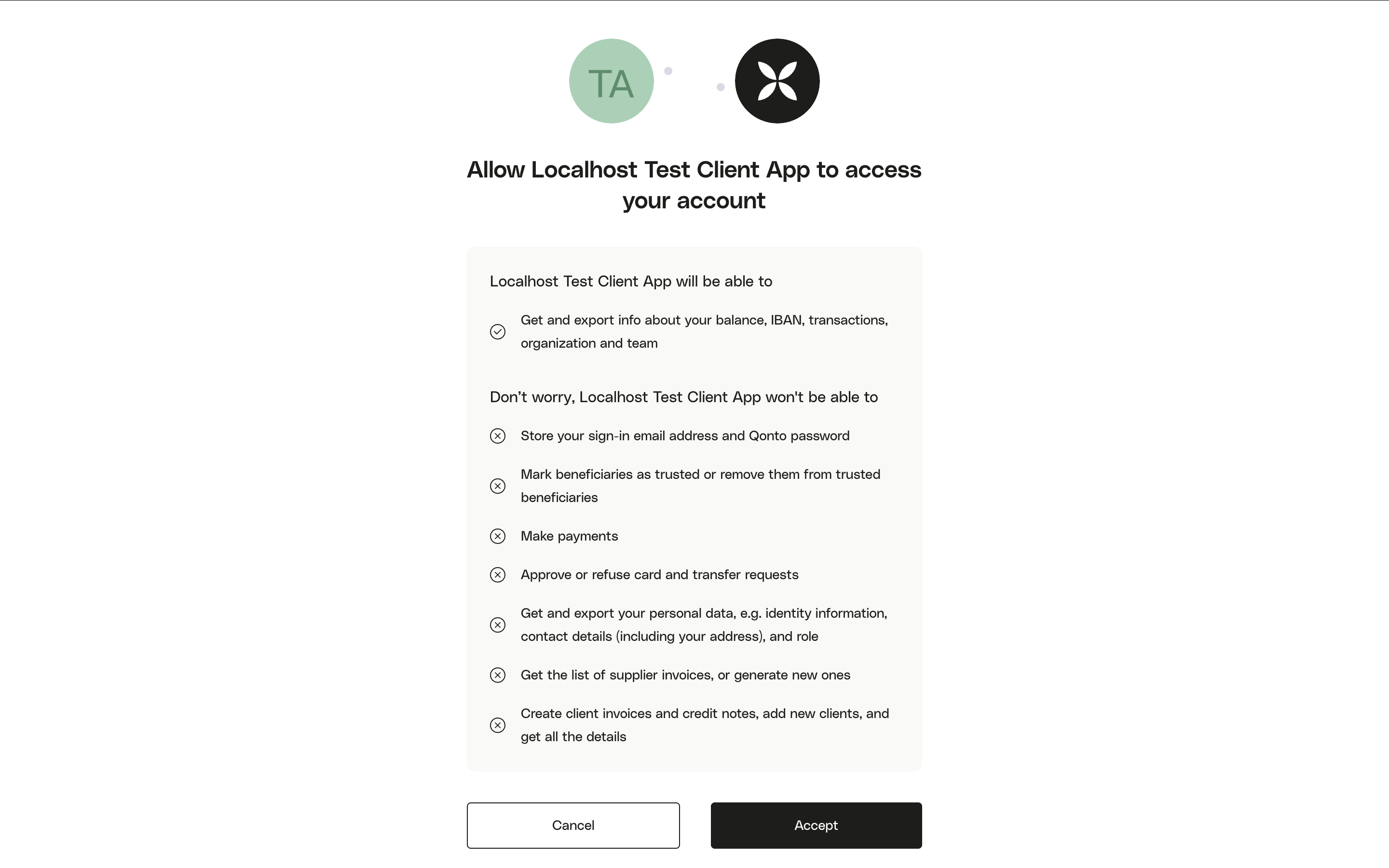
# The OAuth flow
Source: https://docs.qonto.com/get-started/business-api/authentication/oauth/oauth-flow
OAuth 2.0 is a protocol that lets your app request access to a Qonto user account without getting their password. Your app can ask for [specific permissions](/get-started/business-api/authentication/oauth/available-scopes) that the user will be able to review and validate.
Once the user has granted you access to his account you will be able to get a token that can be use to access Qonto API on his behalf.
> [!NOTE]
>
> **New to OAuth 2.0?** Check out these generic guides before diving in:
>
> * [OAuth 2 Explained In Simple Terms](https://www.youtube.com/watch?v=ZV5yTm4pT8g) — ByteByteGo video (4:30)
> * [What is OAuth 2.0?](https://auth0.com/intro-to-iam/what-is-oauth-2) — Auth0 written guide
> [!NOTE]
>
> **Already have an API key?** If you only need to automate your own Qonto account, you may not need OAuth at all. Check the [authentication introduction](/get-started/business-api/authentication/introduction) to pick the right method for your use case.
## Step by step
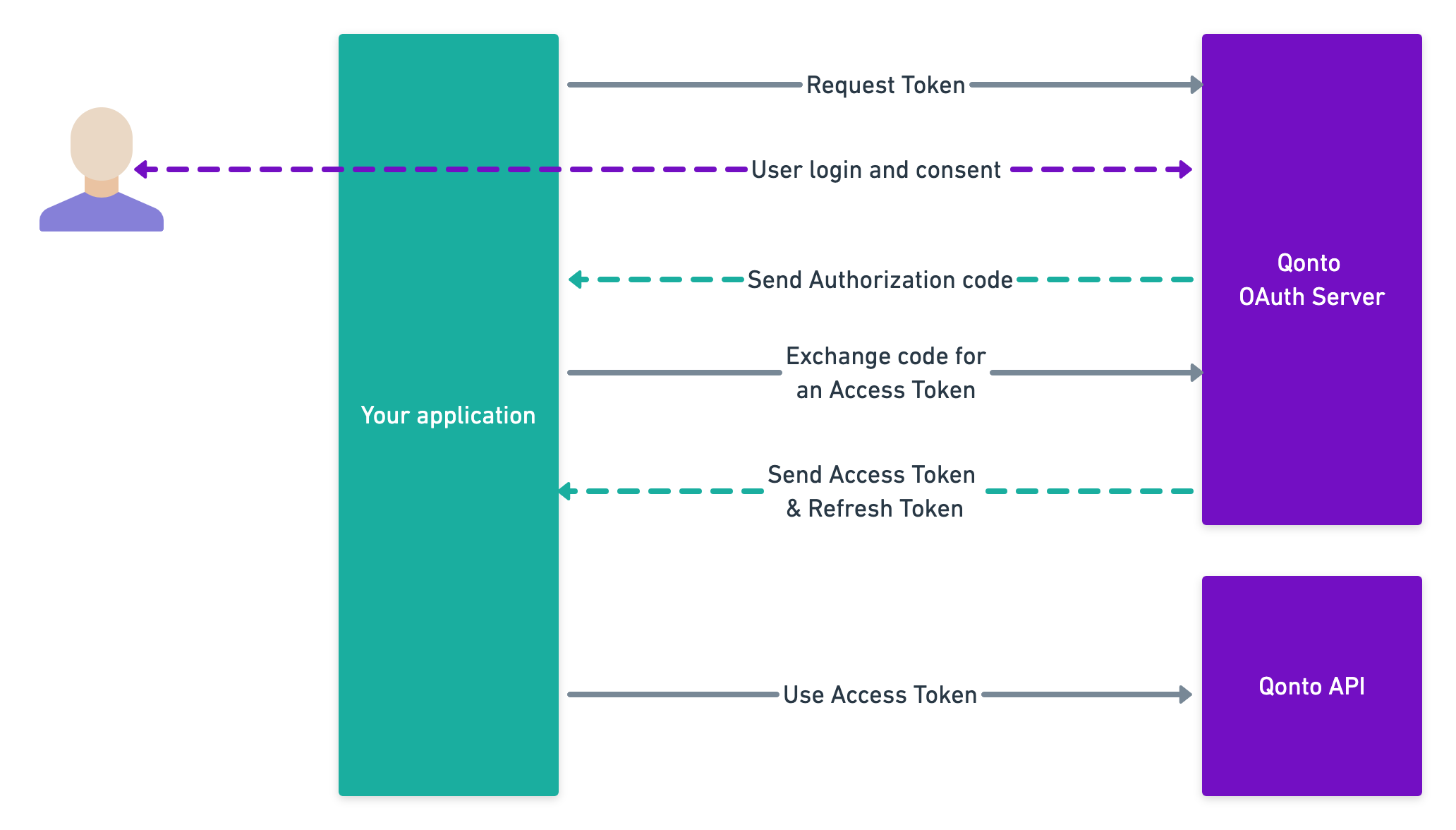
### 1. Authorize
The first step is to redirect the user to the Qonto OAuth server. The Qonto user will be invited to authenticate.
> [!WARNING]
>
> **This URL must be opened by the end user's own browser — never called by your backend or any HTTP client (`curl`, `fetch`, `requests`...).** Your server only builds the URL string, then either redirects the user to it using an HTTP `302` status code or opens a pop-up with that URL. Calling this endpoint yourself (e.g. with `curl`) and forwarding the resulting redirect location to the user breaks the CSRF cookie binding tied to the browser session, and causes `request_forbidden: No CSRF value available in the session cookie`.
> [!NOTE]
>
> **Typical integration pattern:** the user visits a route on *your* app (e.g. `GET /integrations/qonto/authorize`). Your backend builds the authorization URL below and responds with an HTTP `302` redirect to it — the user's browser then follows that redirect to Qonto.
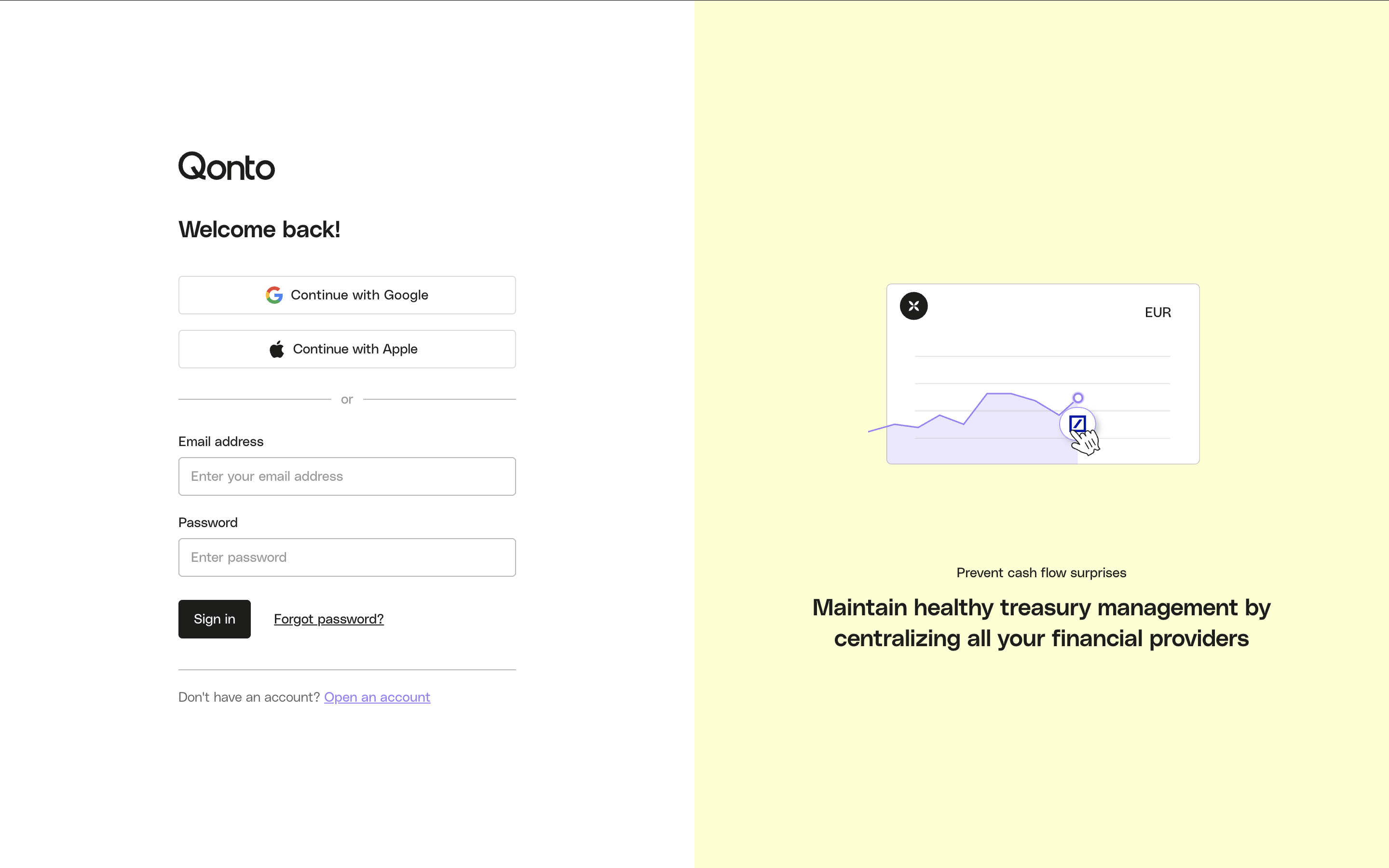
Then they will have to allow your application to access one of the organizations they are part of.

> [!WARNING]
>
> If you need your integration to run unattended (e.g. automations, scheduled tasks), include `offline_access` in your `scope` parameter. Without it, you will not receive a refresh token and your integration will stop working after 1 hour.
> [!NOTE]
>
> **CSRF protection with `state`:** Generate a unique, unpredictable value (e.g. a random 32-byte hex string), include it in the authorization URL as `state`, and store it in the user's session. When the user is redirected back to your `redirect_uri`, verify that the received `state` matches what you stored. Reject the flow if they differ — this protects against cross-site request forgery.
> [!NOTE]
>
> **Optional: restrict org selection.** You can pass `organization_id` to lock the flow to a specific organization, or `registration_id` to pre-select an org from the onboarding flow. In both cases the org selection screen is skipped.
cf. [this endpoint](/api-reference/business-api/authentication/oauth2/retrieve_authorization) for a full technical description of the query parameters.
> [!NOTE]
>
> These snippets only **build** the authorization URL string using each language's URL-encoding library — they never call it. There is no cURL example here on purpose: cURL is a request tool, and issuing the request yourself (from your server) is exactly the mistake to avoid (see warning above).
**Python**
```python theme={null}
import urllib.parse
import secrets
state = secrets.token_urlsafe(32) # store in session for CSRF verification
params = {
"client_id": "your-client-id",
"redirect_uri": "https://your-app.com/callback",
"response_type": "code",
"scope": "offline_access organization.read",
"state": state,
}
auth_url = "https://oauth.qonto.com/oauth2/auth?" + urllib.parse.urlencode(params)
# Do not requests.get(auth_url) yourself. On your backend, respond to the
# user's request with an HTTP 302 redirect to auth_url, e.g. in Flask:
# return redirect(auth_url)
```
**Node.js**
```javascript theme={null}
const crypto = require('crypto');
const state = crypto.randomBytes(32).toString('hex'); // store in session
const params = new URLSearchParams({
client_id: 'your-client-id',
redirect_uri: 'https://your-app.com/callback',
response_type: 'code',
scope: 'offline_access organization.read',
state,
});
const authUrl = `https://oauth.qonto.com/oauth2/auth?${params.toString()}`;
// Do not fetch(authUrl) yourself. On your backend, respond to the user's
// request with an HTTP 302 redirect to authUrl, e.g. in Express:
// res.redirect(authUrl)
```
**After consent**, Qonto redirects the user to your `redirect_uri` with a temporary `code` and the `state` you provided:
`https://your-app.com/callback?code=AUTH_CODE&state=YOUR_STATE`
**400 invalid\_grant**
Invalid `client_id` or `redirect_uri` in the authorization request.
**404**
The `client_id` was not found. Double-check the value from your Developer Portal.
### 2. Exchange the authorization code for an access token
Once user has granted access to his account, he will be rederected to your application via your `redirect_uri` with a temporary authorization code.
On your backend, you will have to exchange this code for an `access_token`.
> [!WARNING]
>
> **Do not use `Authorization: Basic` headers.** Qonto requires `client_id` and `client_secret` as form body parameters. Sending them in the header will result in an `invalid_client` error.
> [!WARNING]
>
> Never expose your `client_secret` on the client side — this call must be made from your backend.
> [!WARNING]
>
> The `redirect_uri` must exactly match the value registered with Qonto, including trailing slashes and query strings. Pass it as a plain string and let your HTTP library handle the form encoding — do not manually pre-encode it (e.g. avoid `https%3A%2F%2F...`). A mismatch causes `invalid_grant`.
**cURL**
```bash theme={null}
curl -X POST https://oauth.qonto.com/oauth2/token \
-H 'Content-Type: application/x-www-form-urlencoded' \
-d 'grant_type=authorization_code' \
-d 'code=YOUR_CODE' \
-d 'client_id=YOUR_CLIENT_ID' \
-d 'client_secret=YOUR_CLIENT_SECRET' \
-d 'redirect_uri=https://your-app.com/callback'
```
**Python**
```python theme={null}
import requests
# Verify state matches what you stored in the session before proceeding
response = requests.post(
"https://oauth.qonto.com/oauth2/token",
data={
"grant_type": "authorization_code",
"code": code, # received in redirect_uri callback
"client_id": "your-client-id",
"client_secret": "your-client-secret",
"redirect_uri": "https://your-app.com/callback",
},
)
tokens = response.json()
access_token = tokens["access_token"]
refresh_token = tokens["refresh_token"] # requires offline_access scope
```
**Node.js**
```javascript theme={null}
// Verify state matches what you stored in the session before proceeding
const response = await fetch('https://oauth.qonto.com/oauth2/token', {
method: 'POST',
headers: { 'Content-Type': 'application/x-www-form-urlencoded' },
body: new URLSearchParams({
grant_type: 'authorization_code',
code, // received in redirect_uri callback
client_id: 'your-client-id',
client_secret: 'your-client-secret',
redirect_uri: 'https://your-app.com/callback',
}),
});
const { access_token, refresh_token } = await response.json();
// refresh_token requires offline_access scope
```
The response contains an `access_token` (valid **1 hour**) and, if `offline_access` was requested, a `refresh_token` (valid **90 days**).
> [!NOTE]
>
> Store the `refresh_token` securely — use it to obtain new access tokens without user interaction. See the [Refresh token endpoint](/api-reference/business-api/authentication/oauth2/create_tokens).
### Error responses
**400 invalid\_request**
**Causes:** Missing required parameter (`code`, `client_id`, `client_secret`, `redirect_uri`, or `grant_type`), or wrong `Content-Type` header (must be `application/x-www-form-urlencoded`).
**400 invalid\_client**
**Causes:** Wrong `client_id` or `client_secret`, or credentials sent via an `Authorization: Basic` header instead of as form body parameters.
**400 invalid\_grant**
**Causes:** Authorization code expired (10-minute TTL), code already used, or `redirect_uri` does not exactly match the registered value.
**400 invalid\_scope**
**Causes:** One or more of the requested scopes are not activated on your OAuth application.
cf. [API reference](/api-reference/business-api/authentication/oauth2/create_tokens) for full parameter details.
### 3. Use your access token (Bearer token)
To perform authenticated requests on the Qonto API, you will have to provide the `access_token` in the `Authorization` header, as describe in this example:
**cURL**
```bash {4} theme={null}
curl GET 'https://thirdparty.qonto.com/organization' \
--header 'Accept: application/json' \
--header 'Content-Type: application/json' \
--header 'Authorization: Bearer YOUR_ACCESS_TOKEN'
```
**Python**
```python {5} theme={null}
import requests
response = requests.get(
"https://thirdparty.qonto.com/organization",
headers={"Authorization": f"Bearer {access_token}"},
)
organization = response.json()
```
**Node.js**
```javascript {3} theme={null}
const response = await fetch('https://thirdparty.qonto.com/organization', {
headers: {
Authorization: `Bearer ${access_token}`,
},
});
const { organization } = await response.json();
```
### 4. Refresh your access token
The `access_token` expires after **1 hour**. Rather than restarting the entire OAuth flow, use the `refresh_token` to obtain a new one silently on your backend.
> [!WARNING]
>
> **Refresh tokens are one-time use.** Every refresh call invalidates the token you used and returns a new `refresh_token` in the response. You must store this new token immediately — using an old refresh token will result in an `invalid_grant` error. If two processes attempt to refresh the same token concurrently, the second request will always fail.
**cURL**
```bash {3, 5} theme={null}
curl -X POST https://oauth.qonto.com/oauth2/token \
-H 'Content-Type: application/x-www-form-urlencoded' \
-d 'grant_type=refresh_token' \
-H 'Accept: application/json' \
-d 'refresh_token=YOUR_REFRESH_TOKEN' \
-d 'client_id=YOUR_CLIENT_ID' \
-d 'client_secret=YOUR_CLIENT_SECRET'
```
**Python**
```python {6, 7} theme={null}
import requests
response = requests.post(
"https://oauth.qonto.com/oauth2/token",
data={
"grant_type": "refresh_token",
"refresh_token": stored_refresh_token,
"client_id": "YOUR_CLIENT_ID",
"client_secret": "YOUR_CLIENT_SECRET",
},
)
tokens = response.json()
# Store both new tokens — the old refresh_token is now invalidated
access_token = tokens["access_token"]
stored_refresh_token = tokens["refresh_token"]
```
**Node.js**
```javascript {5, 6} theme={null}
const response = await fetch('https://oauth.qonto.com/oauth2/token', {
method: 'POST',
headers: { 'Content-Type': 'application/x-www-form-urlencoded' },
body: new URLSearchParams({
grant_type: 'refresh_token',
refresh_token: storedRefreshToken,
client_id: 'YOUR_CLIENT_ID',
client_secret: 'YOUR_CLIENT_SECRET',
}),
});
const tokens = await response.json();
// Store both new tokens — the old refresh_token is now invalidated
accessToken = tokens.access_token;
storedRefreshToken = tokens.refresh_token;
```
**Token lifecycle at a glance:**
| Token | Lifetime | What to do when it expires |
| - | - | - |
| `access_token` | 1 hour | Use `refresh_token` to get a new one — no user action needed |
| `refresh_token` | 90 days | Restart the OAuth flow (user must re-authorize) |
As long as you refresh before the 90-day window closes and correctly store the latest `refresh_token` after each call, your integration will run indefinitely without requiring user re-authorization.
For full parameter details and error responses, see the [Refresh token endpoint](/api-reference/business-api/authentication/oauth2/create_tokens).
## Resources
* If you need to understand better the OAuth flow: [**Postman visual flow**](https://www.postman.com/qontoteam/workspace/qonto-public-api/flow/666c37ad3a6c630032f5b496).
* If you need more details about OAuth 2.0: [**Official documentation**](https://oauth.net/2/).
* Testing in the sandbox? See the [**Sandbox guide**](/get-started/business-api/authentication/oauth/sandbox).
# Testing in the Sandbox
Source: https://docs.qonto.com/get-started/business-api/authentication/oauth/sandbox
Important differences when using the OAuth flow in the Qonto sandbox environment.
## Sandbox vs production credentials
> [!WARNING]
>
> The sandbox OAuth endpoints and credentials are **different from production**. Using production credentials against sandbox endpoints (or vice versa) will fail.
> [!TIP]
>
> You can use the **environment toggle** in the top-right corner of the Developer Portal to switch between sandbox and production credentials.

## Sandbox OAuth endpoints
| Step | Production | Sandbox |
| - | - | - |
| Authorization | `https://oauth.qonto.com/oauth2/auth` | `https://oauth-sandbox.staging.qonto.co/oauth2/auth` |
| Token | `https://oauth.qonto.com/oauth2/token` | `https://oauth-sandbox.staging.qonto.co/oauth2/token` |
| API base | `https://thirdparty.qonto.com` | `https://thirdparty-sandbox.staging.qonto.co` |
## Required header on all sandbox requests
All requests to sandbox endpoints — **including the OAuth token endpoint** — must include the `X-Qonto-Staging-Token` header.\
\
Without it, the server may return a `302` redirect to the developer portal instead of a JSON response, which is a common and confusing failure.
> [!TIP]
>
> This header is the programmatic-call bypass for our Sandbox OneLogin gate. For the full picture — including how to open Sandbox URLs in a browser — see [Accessing the Sandbox environment](/get-started/general/sandbox-access).
**cURL**
```bash {3} theme={null}
curl -X POST https://oauth-sandbox.staging.qonto.co/oauth2/token \
-H 'Content-Type: application/x-www-form-urlencoded' \
-H 'X-Qonto-Staging-Token: YOUR_STAGING_TOKEN' \
-d 'grant_type=authorization_code' \
-d 'code=YOUR_CODE' \
-d 'client_id=YOUR_SANDBOX_CLIENT_ID' \
-d 'client_secret=YOUR_SANDBOX_CLIENT_SECRET' \
-d 'redirect_uri=https://your-app.com/callback'
```
**Python**
```python {5} theme={null}
import requests
response = requests.post(
"https://oauth-sandbox.staging.qonto.co/oauth2/token",
headers={"X-Qonto-Staging-Token": "YOUR_STAGING_TOKEN"},
data={
"grant_type": "authorization_code",
"code": "YOUR_CODE",
"client_id": "YOUR_SANDBOX_CLIENT_ID",
"client_secret": "YOUR_SANDBOX_CLIENT_SECRET",
"redirect_uri": "https://your-app.com/callback",
},
)
tokens = response.json()
```
**Node.js**
```javascript {5} theme={null}
const response = await fetch('https://oauth-sandbox.staging.qonto.co/oauth2/token', {
method: 'POST',
headers: {
'Content-Type': 'application/x-www-form-urlencoded',
'X-Qonto-Staging-Token': 'YOUR_STAGING_TOKEN',
},
body: new URLSearchParams({
grant_type: 'authorization_code',
code: 'YOUR_CODE',
client_id: 'YOUR_SANDBOX_CLIENT_ID',
client_secret: 'YOUR_SANDBOX_CLIENT_SECRET',
redirect_uri: 'https://your-app.com/callback',
}),
});
const tokens = await response.json();
```
Your staging token is available in your [Developer Portal](https://developers.qonto.com/) account.
## SMS verification code
When logging in to Qonto with Sandbox credentials, the SMS verification code is always **`123456`**.
## Prerequisites
Before initiating the sandbox OAuth flow, make sure you are logged in to the [Sandbox web-app](/get-started/general/developer-guidelines#set-up-the-sandbox-environment) through your Developer Portal account.
# The User OAuth flow
Source: https://docs.qonto.com/get-started/business-api/authentication/oauth/user-oauth-flow
The User OAuth flow lets you build an integration that can access multiple Qonto organizations belonging to the same user.
If you want to build an integration that can access multiple Qonto organizations belonging to the same user, without asking for their consent separately for each one, you can use the User OAuth flow. This flow is a variant of the `membership` [OAuth flow](/get-started/business-api/authentication/oauth/oauth-flow), but allows the user to grant consent to multiple organizations at once. The `access_token` obtained from this flow is then valid for all the organizations the user has consented to.
> [!WARNING]
>
> This flow is only available for applications that have been approved by Qonto.
> To be approved, you must be AIS/PIS compliant and have a clear use case for this flow.
> If you think your application could benefit from this flow, please open a support ticket from the Developer Portal.
> This flow is exclusive: if you use it, you cannot use the `membership` flow for the same application.
## How does it work?
### Step 1: User authentication
To obtain an `access_token` and a `refresh_token` for a user, follow the same OAuth flow as the `membership` flow with the following differences:
1. Add the `identity_type=user` query parameter to the authorization URL.
2. Request the `user_organization.read` scope in addition to the scopes you would normally request for the `membership` flow.
Then, redirect the user to the authorization URL. After the user grants their consent, you will receive an `authorization_code` that you can exchange for an `access_token` and a `refresh_token` as usual.
### Step 2: Retrieve the list of organizations
Once you have an `access_token` for the user, retrieve the list of organizations the user has consented to by making a `GET` request to the `/v2/user_organizations` endpoint with the `access_token` in the `Authorization` header.
This endpoint returns the list of organizations the user granted access to, along with their `id`, `name`, and `membership_role`.
### Step 3: Access the organizations' data
You can now call any other endpoint of the API with the same `access_token`. However, you must include the following header in your requests: `X-Qonto-Organization-Id: {organization_id}`.
This header is required to specify which organization's data you want to access, since the `access_token` is valid for multiple organizations.
> [!NOTE]
>
> If you provide an `organization_id` that the user has not consented to, you will receive a `403 Forbidden` error.
> Same if you don't provide the header.
### Step 4: Modify the list of organizations
If you want to offer the user the possibility to modify the list of organizations they have consented to, you can redirect the user to the login flow as described in step 1. The user will then be able to modify their consent and grant access to new organizations or revoke access to existing ones. After the user modifies their consent, you can retrieve the updated list of organizations by calling the `/v2/user_organizations` endpoint again.
# TPP identification through PSD2 QSeal certificate
Source: https://docs.qonto.com/get-started/business-api/authentication/qsealc
## Mandatory identification
In accordance with the [RTS for SCA & CSC](https://eur-lex.europa.eu/legal-content/EN/TXT/PDF/?uri=CELEX:32018R0389) (Regulatory Technical Standards for Strong Customer Authentication and Common and Secure open standards of Communication), Qonto shall rely on QSeal (Qualified electronic Seal) certificates in order to grant Third-Party Providers (TPPs) access to its Business API.
It means that TPPs must identified themselves through their PSD2 QSeal certificates when calling our Business API endpoints; otherwise they will receive a `401 Unauthorized` error.
The aim for Qonto is to identify the TPP acceding to the PSU accounts. Technically, the procedure consists of calling the usual endpoints, in which the TPP adds supplementary headers to identify itself. This procedure is based on the [STET PSD2 API document](https://www.stet.eu/assets/files/PSD2/1-4-1/api-dsp2-stet-v1.4.1.3-part-1-framework.pdf).
### What is PSD2?
PSD2 (Payment Services Directive II) revises the European Union's legal framework on payment services due to a series of changes caused by technological changes, changing the behaviour of payment service users, increasing cyber threats, and changes due to the evolution of the payment services market.
PSD2 aims to liberalise the payment industry and increase competition, increase the security of payment service users, stimulate innovation, and establish the rights and obligations of payment service providers and payment service users.
### What is a QSeal certificate?
A Qualified electronic Seal certificate is a qualified digital certificate under the trust services defined in the [eIDAS Regulation](https://www.europeanpaymentscouncil.eu/sites/default/files/kb/file/2018-11/API%20EG%20058-18%20v1.0%20eIDAS%20and%20TPP%20identification%20%28PSD2%29.pdf). A certificate for electronic seals makes it possible for the owner of the certificate to create electronic seals on any data. The digital signature technology guarantees the integrity, and authenticity of the signed/sealed data. This means that the person receiving digitally signed data can be sure who signed the data (the owner of the certificate), that the data was not changed since it was signed, and they can also present this signed data to third parties as an evidence of the same (who signed it, and that it was not changed since). Therefore, digitally signed data can keep its authenticity and integrity over time when appropriately maintained, regardless of how it is stored or transferred. (An electronic seal can be validated by anyone, at any time, to check whether the integrity and authenticity of the data still holds.) The seal provides strong evidence that given data is originated by the legal entity identified in the certificate.
## Requirements
Each request sent by the TPP has to be signed using **http-signature** mechanism which is specified by the [following IETF draft-paper](https://datatracker.ietf.org/doc/draft-ietf-httpbis-message-signatures/).
The way it should be implemented is described below.
> [!WARNING]
>
> Both `Signature` and `Digest` are required for the request to be considered valid.
### Add a digest header
Compute a SHA256 `digest` of the HTTP body and adding this digest as an extra HTTP header. Digest header consists of "SHA-256=" prefix followed by digest value.
**shell**
```shell Digest header value theme={null}
echo SHA-256=$(echo -n "" | shasum -a 256 | cut -d " " -f 1 | xxd -r -p | base64
# SHA-256=47DEQpj8HBSa+/TImW+5JCeuQeRkm5NMpJWZG3hSuFU=
```
**ruby**
```ruby Digest header value theme={null}
Digest::SHA256.base64digest()
# SHA-256=47DEQpj8HBSa+/TImW+5JCeuQeRkm5NMpJWZG3hSuFU=
```
> [!NOTE]
>
> In case of empty request body, it is required to calculate digest of the empty string.
### Add a signature header
#### Compute the signature
Compute a SHA256 `signature` using a specific Qualified Certificate (QSealC), respecting the ETSI/TS119495 Technical Specification, in order to apply a RSA-SHA256 signature on all the following headers (that are present within the HTTP request sent by the TPP):
* the previously computed `Digest` (always);
* `Content-Type` (always);
* `Content-Length` (always);
* `Date` (if available);
* all available `PSU-` prefixed headers:
* `PSU-IP-Address`;
* `PSU-IP-Port`;
* `PSU-HTTP-Method`;
* `PSU-Date`;
* `PSU-User-Agent`;
* `PSU-Referer`;
* `PSU-Accept`;
* `PSU-Accept-Charset`;
* `PSU-Accept-Encoding`;
* `PSU-Accept-Language`;
* `PSU-GEO-Location`;
* `PSU-Device-ID`.
```bash Headers theme={null}
Digest: SHA-256=47DEQpj8HBSa+/TImW+5JCeuQeRkm5NMpJWZG3hSuFU=
Date: Fri, 16 Dec 2022 15:01:13 GMT
Content-Type: application/json
Content-Length: 0
PSU-Date: Fri, 16 Dec 2022 15:01:13 GMT
```
Having these headers as an example, the content that needs to be signed to create the signature should look like this:
```bash Content to be signed theme={null}
(request-target): get /v2/sepa/transfers
digest: SHA-256=47DEQpj8HBSa+/TImW+5JCeuQeRkm5NMpJWZG3hSuFU=
date: Fri, 16 Dec 2022 15:01:13 GMT
content-type: application/json
content-length: 0
psu-date: Fri, 16 Dec 2022 15:01:13 GMT
```
Please note that:
* `Content-Type` and `Content-Length` headers should always be signed when there are present in the request;
* Special `(request-target)` value that consists of`` is required to be signed along with the headers list.
> [!WARNING]
>
> The `(request-target)` must contain the **URL-encoded path and query string, exactly as they will be sent on the wire**. Qonto verifies the signature against the encoded request target it receives, so:
>
> * Encode the URL (path and query string parameters) **first**, then compute the signature on the encoded form.
> * Do **not** sign the decoded URL and encode afterwards — the signature will not match.
> * Do **not** URL-encode the request target twice.
>
> For example, when calling `GET /v2/transactions` with an encoded `emitted_at_from` parameter, the line to sign is:
>
> ```bash Content to be signed (with encoded query string) theme={null}
> (request-target): get /v2/transactions?emitted_at_from=2026-02-25T00%3A00%3A00%2B01%3A00
> ```
> [!NOTE]
>
> Please make sure that each key-value pair is in new line and there is no new line after the last key-value pair.
```bash Signature theme={null}
openssl dgst -sha256 -sign "" | base64
# UNJ7V413xvKj1MnoDYGXRvn6j0UumQUAp+uDBBWwK2+QdnbvSyx9N5OEf2N0+ch4kQ2ZuFtoOl/8GjBv33EqiJvbvkr8ASOapdJ1tDGNRbeh9WXK37/LCe/XdmRmlxsmEaVU2+eY/T2cdQuF8RYwpohxvxA/y/Eiyn2LpZDIi+MA7M4nKfmcnSWnWurVGZqLwWrxA461v1B29Klegp5mEvG5XVjg2LCghhaMwIN9kcZ8ef4/Bzm2dt5XRE+o+DDDqKxMosL7fqH0ko9Kl0aVPUQOkvFQkJYHSXCkToG1QpSQZyDcpquP1C49N3xLZFv6h4C5sXL2WimoT+rRjy1Ung==
```
#### Add the header
Add the signature within an extra HTTP header embedding:
* The key identifier (`keyId`) which must specify the way to get the relevant qualified certificate. It is requested that **this identifier is an URL** aiming to provide the relevant Qualified Certificate;
> [!WARNING]
>
> If you are updating the QSealC sent to Qonto (for example, if your previous certificate has expired), you need to provide us with a new key identifier. Otherwise, our caching mechanism will automatically retrieve the previous (invalid) certificate.
* The algorithm that has been used;
* The list of headers that have been signed;
* The signature itself.
```bash Signature header value theme={null}
keyId="https://qseal_certificate_url",algorithm="rsa-sha256",headers="(request-target) digest date content-type content-length psu-date",signature="UNJ7V413xvKj1MnoDYGXRvn6j0UumQUAp+uDBBWwK2+QdnbvSyx9N5OEf2N0+ch4kQ2ZuFtoOl/8GjBv33EqiJvbvkr8ASOapdJ1tDGNRbeh9WXK37/LCe/XdmRmlxsmEaVU2+eY/T2cdQuF8RYwpohxvxA/y/Eiyn2LpZDIi+MA7M4nKfmcnSWnWurVGZqLwWrxA461v1B29Klegp5mEvG5XVjg2LCghhaMwIN9kcZ8ef4/Bzm2dt5XRE+o+DDDqKxMosL7fqH0ko9Kl0aVPUQOkvFQkJYHSXCkToG1QpSQZyDcpquP1C49N3xLZFv6h4C5sXL2WimoT+rRjy1Ung=="
```
> [!NOTE]
>
> It is required that the headers list from the `signature` header are sent in **lowercase**, like in the example above.
# E-invoicing via API
Source: https://docs.qonto.com/get-started/business-api/e-invoicing-standards
How to send and receive electronic invoices through Qonto's API
Qonto is a certified **Plateforme Agréée (PA)** in France's e-invoicing network. You can send invoices to clients, receive invoices from suppliers, and generate Factur-X-compliant documents . all through our API.
## Does Qonto support AFNOR XP Z12-013?
Qonto's API does not follow the [AFNOR XP Z12-013 standard](https://www.boutique.afnor.org/fr-fr/norme/xp-z12013/api-pour-interfacer-les-systemes-dinformations-des-entreprises-avec-les-pla/fa212532/444702). However, it covers the same e-invoicing use cases. The only difference is that it is Qonto-specific rather than following the AFNOR interoperability standard.
| What you want to do | Qonto API |
| - | - |
| Send invoices to clients through the e-invoicing network | [`POST /v2/client_invoices/{id}/send_by_einvoice`](/api-reference/business-api/expense-management/client-quotes-notes/client-invoices/send-a-client-invoice-by-e-invoice) |
| Receive invoices from suppliers | [`GET /v2/supplier_invoices`](/api-reference/business-api/expense-management/supplier-invoices/list-supplier-invoices) |
| Import invoices generated in your own tool (Factur-X, UBL, CII) | [`POST /v2/client_invoices/bulk`](/api-reference/business-api/expense-management/client-quotes-notes/client-invoices/bulk-import-client-invoices) |
| Track invoice lifecycle and status | [`GET /v2/client_invoices/{id}`](/api-reference/business-api/expense-management/client-quotes-notes/client-invoices/retrieve-a-client-invoice) |
| Generate Factur-X invoices directly on Qonto | [Factur-X guide](/get-started/business-api/use-cases/generate-factur-x-invoice) |
| Check your e-invoicing settings | [`GET /v2/einvoicing/settings`](/api-reference/business-api/expense-management/e-invoicing/retrieve-settings) |
> [!NOTE]
>
> `sending_status` reports whether e-invoicing is activated on the organization. For French organizations it does **not** cover the *Annuaire* registration, which is also required to send — see [Send a client invoice via e-invoice](/api-reference/business-api/expense-management/client-quotes-notes/client-invoices/send-a-client-invoice-by-e-invoice) for the full list of prerequisites and the errors they produce.
## I generate Factur-X invoices in my own tool: how do I send them through Qonto?
If you already produce structured invoices (Factur-X, UBL 2.1, or CII) and want Qonto to handle transmission through the e-invoicing network:
1. **Import the invoice** via [`POST /v2/client_invoices/bulk`](/api-reference/business-api/expense-management/client-quotes-notes/client-invoices/bulk-import-client-invoices) to register it and obtain a `client_invoice_id`
2. **Send it via e-invoicing** via [`POST /v2/client_invoices/{id}/send_by_einvoice`](/api-reference/business-api/expense-management/client-quotes-notes/client-invoices/send-a-client-invoice-by-e-invoice). Qonto routes it to the recipient's platform
3. **Track delivery** by polling [`GET /v2/client_invoices/{id}`](/api-reference/business-api/expense-management/client-quotes-notes/client-invoices/retrieve-a-client-invoice) for status updates
This is the [PA as a Service](/qonto-embed/plateforme-agreee-as-a-service) flow. Your users keep generating invoices in your tool. Qonto handles the network routing.
## Where to go next
> **[Generate a Factur-X invoice](/get-started/business-api/use-cases/generate-factur-x-invoice)**
>
> Full walkthrough with Python and Node.js code examples.
> **[PA as a Service](/qonto-embed/plateforme-agreee-as-a-service)**
>
> Use Qonto as a transmission platform for your own invoicing tool.
> **[Factur-X reference](/api-reference/business-api/expense-management/client-quotes-notes/introduction-factur-x)**
>
> How Factur-X PDF generation works on Qonto.
# Overview
Source: https://docs.qonto.com/get-started/business-api/overview
Access Qonto banking, invoicing, bookkeeping & more remotely
The **Qonto Business API** gives you programmatic access to Qonto's core financial features, so you can build powerful integrations and automate your financial operations.
If you are a:
* **Qonto customer**, you can use it to automate your business operations: payments, card management, transaction sync & reconciliation, invoicing, and more.
* **Third-party platform or partner** (ERP, accounting software, financial tool), you can connect to Qonto on behalf of your users to perform actions such as syncing transactions, initiating transfers, or managing invoices directly from your platform. You can also go further by [publishing your integration on our Marketplace](/get-started/general/developer-guidelines#publish-your-integration-in-our-marketplace-optional) or embedding Qonto natively into your product via [Qonto Embed](/qonto-embed/qonto-embed#what-is-qonto-embed).
> [!NOTE]
>
> Not sure which application use case applies to you? Find out which integration path fits your needs by checking our [guide](/get-started/general/developer-guidelines#selecting-your-use-case).
> [!WARNING]
>
> The features available depend on the price plan of the connected Qonto account. Browse the [available endpoints](/get-started/business-api/authentication/introduction#endpoints-access) to explore the full capabilities of the API.
Ready to get started? Jump into our [use cases](/get-started/business-api/use-cases) section, or explore the [API Reference](/api-reference/introduction) directly.
# URLs
Source: https://docs.qonto.com/get-started/business-api/urls
## OAuth endpoints
### Sandbox
URL: [https://oauth-sandbox.staging.qonto.co](https://oauth-sandbox.staging.qonto.co)
Example: `https://oauth-sandbox.staging.qonto.co/oauth2/auth?client_id=XXXXXXX&redirect_uri=XXXXXX&response_type=code&state=1`
### Production
URL: [https://oauth.qonto.com](https://oauth.qonto.com)
Example: `https://oauth.qonto.com/oauth2/auth?client_id=XXXXXXX&redirect_uri=XXXXXX&response_type=code&state=1`
## Business endpoints
### Sandbox
URL: [https://thirdparty-sandbox.staging.qonto.co](https://thirdparty-sandbox.staging.qonto.co)
Example: `https://thirdparty-sandbox.staging.qonto.co/v2/internal_transfers`
### Production
URL: [https://thirdparty.qonto.com](https://thirdparty.qonto.com)
Example: `https://thirdparty.qonto.com/v2/internal_transfers`
# Overview
Source: https://docs.qonto.com/get-started/business-api/use-cases
Learn how to build common use cases using our Business API
This section showcases common use cases built with our Business API. Each guide walks through the full request sequence: which endpoints to call, in what order, and what to watch out for.
> [!NOTE]
>
> You need a working authentication to follow these guides. Visit the [Authentication](/get-started/business-api/authentication/introduction) section to get started.
> [!NOTE]
>
> All code examples target the **Production** environment (`https://thirdparty.qonto.com/v2`). To run them against the Sandbox, use the [Sandbox base URL](/get-started/business-api/urls) and include the `X-Qonto-Staging-Token` header — see [Accessing the Sandbox environment](/get-started/general/sandbox-access).
> **[Send a SEPA transfer to a trusted beneficiary](/get-started/business-api/use-cases/send-sepa-transfer)**
>
> List beneficiaries, verify the payee (VoP), and submit a transfer.
> **[Sync client invoices and attachments](/get-started/business-api/use-cases/sync-client-invoices)**
>
> Keep client invoices and their attachments in sync with Qonto.
> **[Sync supplier invoices and attachments](/get-started/business-api/use-cases/sync-supplier-invoices)**
>
> Pull supplier invoices and attachments into your system.
> **[Bulk upload supplier invoices](/get-started/business-api/use-cases/bulk-upload-supplier-invoices)**
>
> Upload supplier invoices in bulk to speed up onboarding.
> **[Generate and download a Factur-X invoice](/get-started/business-api/use-cases/generate-factur-x-invoice)**
>
> Create a compliant Factur-X invoice and download the PDF.
> **[Sync transactions and attachments](/get-started/business-api/use-cases/sync-transactions)**
>
> Keep transactions and their attachments in sync with Qonto.
> **[Enable SDD Collections in the Sandbox](/get-started/business-api/use-cases/enable-sdd-collections)**
>
> Set up SDD eligibility and complete the activation flow using the QA tool.
> [!NOTE]
>
> **Looking for AFNOR XP Z12-013?** See [E-invoicing via API](/get-started/business-api/e-invoicing-standards) for how Qonto's API handles e-invoicing today.
# How to bulk upload supplier invoices
Source: https://docs.qonto.com/get-started/business-api/use-cases/bulk-upload-supplier-invoices
When your platform receives bills or purchase invoices, pushing them directly into Qonto saves your team from re-uploading files manually and keeps expense tracking centralised. In this guide, we will upload a supplier invoice file via the bulk endpoint and verify the response to confirm it was ingested successfully.
> **Example:** A procurement platform forwards vendor invoices received by email directly into Qonto as soon as they arrive, ready for approval without any manual upload.
**Prerequisites:**
* A PDF invoice file ready to upload (max 10 MB).
* Scope: `supplier_invoice.write`
### 1. Upload the invoice file
Send the PDF using `POST /v2/supplier_invoices/bulk`. You can upload the raw file binary or reference an existing attachment by its ID.
Endpoint: [Create supplier invoices](/api-reference/business-api/expense-management/supplier-invoices/create-supplier-invoices)
> [!NOTE]
>
> **OAuth scope required:** `supplier_invoice.write`.
> [!NOTE]
>
> Maximum **20 invoices per request**. Each invoice requires a unique `idempotency_key` (UUID recommended) to prevent duplicate uploads. See [Idempotent requests](/get-started/general/idempotent-requests).
> [!WARNING]
>
> This endpoint returns HTTP 200 even when individual invoices fail to process. Always inspect the `errors` array in the response body for each invoice when you receive a `200`.
>
> *Authentication failures still return `401`, permission issues return `403`, and server-side errors return `500`.*
> [!WARNING]
>
> You must provide **either** `file` or `attachment_id` for each invoice, not both. Including both will result in an error.
**Python**
```python theme={null}
import uuid
import requests
BASE_URL = "https://thirdparty.qonto.com/v2"
headers = {"Authorization": "Bearer {your_access_token}"}
with open("./invoice.pdf", "rb") as f:
response = requests.post(
f"{BASE_URL}/supplier_invoices/bulk",
headers=headers,
data={
"supplier_invoices[][idempotency_key]": str(uuid.uuid4()),
"source": "integration",
},
files={
"supplier_invoices[][file]": ("invoice.pdf", f, "application/pdf"),
},
)
# Always 200 — check errors in body
result = response.json()
```
**Node.js**
```javascript theme={null}
import { readFile } from "node:fs/promises";
import { randomUUID } from "node:crypto";
const BASE_URL = "https://thirdparty.qonto.com/v2";
const headers = { Authorization: "Bearer {your_access_token}" };
const fileBuffer = await readFile("./invoice.pdf");
const formData = new FormData();
formData.append(
"supplier_invoices[][file]",
new Blob([fileBuffer], { type: "application/pdf" }),
"invoice.pdf"
);
formData.append("supplier_invoices[][idempotency_key]", randomUUID());
formData.append("source", "integration");
const response = await fetch(`${BASE_URL}/supplier_invoices/bulk`, {
method: "POST",
headers, // Do NOT set Content-Type — fetch sets it automatically with the boundary
body: formData,
});
// Always 200 — check errors in body
const result = await response.json();
```
### 2. Check the response for errors
Inspect the response to confirm each invoice was processed successfully.
**Python**
```python theme={null}
supplier_invoices = result.get("supplier_invoices", [])
for invoice in supplier_invoices:
errors = invoice.get("errors", [])
if errors:
print(f"Failed: {errors}")
else:
print(f"Uploaded successfully: {invoice.get('id')}")
```
**Node.js**
```javascript theme={null}
const supplierInvoices = result.supplier_invoices ?? [];
for (const invoice of supplierInvoices) {
if (invoice.errors?.length) {
console.error("Failed:", invoice.errors);
} else {
console.log(`Uploaded successfully: ${invoice.id}`);
}
}
```
Common error codes to handle:
| Code | Cause |
| - | - |
| `invalid` | File too large or unsupported content type |
| `required` | Missing `idempotency_key` |
| `limit_reached` | More than 20 invoices in the request |
| `internal_server_error` | Processing failed on Qonto's side |
**Example output:**
```
[Step 1] POST /supplier_invoices/bulk (file: sample_invoice.pdf)
HTTP status: 200
[Step 2] Check response
Uploaded successfully: 019d0705-xxxx-xxxx-xxxx-xxxxxxxxxxxx
```
> [!TIP]
>
> We now have the supplier invoice uploaded to Qonto and queued for review. It will appear in the "Supplier invoices" section of the Qonto app with status `to_review`.
***
# How to enable SDD Collections in the Sandbox
Source: https://docs.qonto.com/get-started/business-api/use-cases/enable-sdd-collections
Set up SEPA Direct Debit Collections eligibility and complete the activation flow in the Sandbox environment using the QA tool.
SEPA Direct Debit (SDD) Collections let your organization collect payments directly from customers' bank accounts. Before you can test collection flows in the Sandbox, you need to make the organization **eligible** for SDD and then complete the **activation** flow through the web app.
This guide walks through both steps using the **QA tool** (`https://qa-sandbox.staging.qonto.co`).
> [!WARNING]
>
> This guide applies to the **Sandbox environment only**. The QA tool is not available in Production.
***
## Prerequisites
* A Sandbox organization already created via the QA tool, using the **highest available price plan** (`team_enterprise` or equivalent)
* Access to the [QA tool](https://qa-sandbox.staging.qonto.co) (Qonto internal tool, Sandbox only)
* Access to the [Sandbox web app](https://app-sandbox.staging.qonto.co) — log in first via the [Developer Portal Toolkit](https://developers.qonto.com/toolkit/) (see [Accessing the Sandbox environment](/get-started/general/sandbox-access))
***
## Step 1 — Set the organization's SDD eligibility
Once the organization is created, you need to initialise its eligibility via the QA tool.
**1. Open the SDD eligibility form in the QA tool**
In the QA tool, go to the **Direct Debit Collections → Update DDC Organization Eligibility** section and enter your organization's ID.
The direct link to that page is:
```
https://qa-sandbox.staging.qonto.co/direct_debit_collections/eligibilities
```
**2. Fill in the eligibility parameters**
Set the eligibility status to "eligible"
Submit the form. The organization is now eligible for SDD Collections.
***
## Step 2 — Trigger the activation flow from the web app
With eligibility set, the organization can now start the activation flow.
**1. Log in to the Sandbox web app**
Open the Sandbox web app and log in with the organization's credentials. See [Accessing the Sandbox environment](/get-started/general/sandbox-access) if you need help bypassing the OneLogin gate.
**2. Navigate to Incoming direct debits**
From the main menu, go to the **Incoming direct debits** section.
**3. Click "Get started"**
Click the **Get started** button to enter the SDD activation flow. Follow the on-screen steps to submit the required information.
***
## Step 3 — Complete the activation (country-specific)
The final activation step depends on the organization's country.
### IT, NL, BE, and ES organizations
SDD Collections is **automatically activated** for organizations in these countries. The system generates a Creditor Identifier (CID) based on existing data. No additional manual step is required.
> [!NOTE]
>
> The organization must have a VAT number for automatic CID resolution to work. Check whether a VAT number is set and, if not, add it via the **Org - Edit EU VAT number** action in the QA tool before triggering the activation flow.
### DE organizations
German organizations must submit a valid CID during the activation flow. The CID is validated against the EPC262-08 standard:
* Exactly **18 characters**, starting with `DE`
* Structure: `DE` + 2 check digits + 3-character creditor business code + 11-digit national identifier
* Check digits are algorithmically validated
Example of a valid test CID: `DE70CAR00002572895`
### FR organizations
French organizations require an additional step involving the Creditor Identifier (CID). There are two activation paths depending on whether the organization submits an existing CID or requests a new one.
**CID submission (existing CID)**
When a French organization submits their existing CID for validation during the activation flow, in the Sandbox, you can simulate the validation step using the QA tool.
**1. Open the SDD activation management section in the QA tool**
In the QA tool, navigate to **Direct Debit Collections → Update DDC Organization Eligibility**.
**2. Find and accept the pending submission**
Search for your organization by its ID. You should see **CID Submitted** before the organization details.
Click on "Accept CID Submission" to simulate a successful CID approval.
**CID creation (new CID)**
When a French organization requests a new CID to be created during the activation flow, in the Sandbox, you can simulate the completion step using the QA tool.
**1. Open the SDD activation management section in the QA tool**
In the QA tool, navigate to **Direct Debit Collections → Update DDC Organization Eligibility**.
**2. Find and complete the CID creation**
Search for the organization by its ID. You should see **CID Creation Requested** before the organization details.
Click on "Assign random CID" to simulate a successful CID assignment.
***
> [!TIP]
>
> The organization is now fully activated for SDD Collections. You can proceed to test collection mandates, payment requests, and collection transactions in the Sandbox.
# How to generate and download a Factur-X invoice
Source: https://docs.qonto.com/get-started/business-api/use-cases/generate-factur-x-invoice
Generating invoices programmatically speeds up your billing cycle and ensures every invoice meets electronic invoicing standards without manual intervention. In this guide, we will find or create a client, draft and finalize an invoice, then poll until the [Factur-X PDF](/api-reference/business-api/expense-management/client-quotes-notes/introduction-factur-x) (a standard PDF with embedded XML required for e-invoicing compliance) is ready to download.
> **Example:** A SaaS platform automatically generates a Qonto invoice at the end of each billing period and sends the Factur-X PDF to the customer, with no manual step required.
**Prerequisites:**
* E-invoicing must be enabled on your Qonto account.
* Scopes: `client.read`, `client.write`, `client_invoice.read`, `client_invoice.write`, `attachment.read`, *`organization.read` (optional)*.
### 1. Find or create the client
Look up an existing client by email or create a new one. Save the `client_id` — you'll need it in the next step.
Endpoint: [List clients](/api-reference/business-api/clients/list-clients) · [Create a client](/api-reference/business-api/clients/create-a-client)
> [!NOTE]
>
> **OAuth scopes required:** `client.read`, `client.write`
**Python**
```python theme={null}
import requests
BASE_URL = "https://thirdparty.qonto.com/v2"
headers = {
"Authorization": "Bearer {your_access_token}",
"Content-Type": "application/json",
}
# Option A: Find an existing client
search_response = requests.get(
f"{BASE_URL}/clients",
headers=headers,
params={"filter[email]": "contact@acmecorp.com"},
)
search_response.raise_for_status()
clients = search_response.json()["clients"]
if clients:
client_id = clients[0]["id"]
print(f"Found existing client: {client_id}")
else:
# Option B: Create a new client
create_response = requests.post(
f"{BASE_URL}/clients",
headers=headers,
json={
"name": "Acme Corp",
"kind": "company",
"email": "contact@acmecorp.com",
"currency": "EUR", # Required
"locale": "en", # Required
"tax_identification_number": "123456789", # Required for creating client invoices
"billing_address": {
"street_address": "1 Market Street",
"city": "Paris",
"zip_code": "75001",
"country_code": "FR",
},
},
)
create_response.raise_for_status()
client_id = create_response.json()["client"]["id"]
print(f"Created new client: {client_id}")
```
**Node.js**
```javascript theme={null}
const BASE_URL = "https://thirdparty.qonto.com/v2";
const headers = {
Authorization: "Bearer {your_access_token}",
"Content-Type": "application/json",
};
// Option A: Find an existing client
const searchResponse = await fetch(
`${BASE_URL}/clients?${new URLSearchParams({ "filter[email]": "contact@acmecorp.com" })}`,
{ headers }
);
const { clients } = await searchResponse.json();
let clientId;
if (clients.length > 0) {
clientId = clients[0].id;
console.log(`Found existing client: ${clientId}`);
} else {
// Option B: Create a new client
const createResponse = await fetch(`${BASE_URL}/clients`, {
method: "POST",
headers,
body: JSON.stringify({
name: "Acme Corp",
kind: "company",
email: "contact@acmecorp.com",
currency: "EUR", // Required
locale: "en", // Required
tax_identification_number: "123456789", // Required for creating client invoices
billing_address: {
street_address: "1 Market Street",
city: "Paris",
zip_code: "75001",
country_code: "FR",
},
}),
});
const { client } = await createResponse.json();
clientId = client.id;
console.log(`Created new client: ${clientId}`);
}
```
### 2. Get your receiving bank account IBAN
The invoice must reference the Qonto bank account where you want to receive payment. Fetch your organization to retrieve the IBAN of the account you'll use.
Endpoint: [Retrieve the authenticated organization and list bank accounts](/api-reference/business-api/accounts-organizations/organizations/retrieve-the-authenticated-organization-and-list-bank-accounts)
> [!NOTE]
>
> **OAuth scope required:** `organization.read`
> [!NOTE]
>
> This step is optional if you already know the IBAN of the account you want to use.
**Python**
```python theme={null}
response = requests.get(f"{BASE_URL}/organization", headers=headers)
response.raise_for_status()
bank_accounts = response.json()["organization"]["bank_accounts"]
# Use the first account, or filter by slug/currency as needed
receiving_iban = bank_accounts[0]["iban"]
print(f"Receiving IBAN: {receiving_iban}")
```
**Node.js**
```javascript theme={null}
const orgResponse = await fetch(`${BASE_URL}/organization`, { headers });
if (!orgResponse.ok) throw new Error(`HTTP ${orgResponse.status}`);
const { organization } = await orgResponse.json();
// Use the first account, or filter by slug/currency as needed
const receivingIban = organization.bank_accounts[0].iban;
console.log(`Receiving IBAN: ${receivingIban}`);
```
### 3. Create the invoice draft
Create the invoice in draft state. It will not yet be sent or assigned a number.
Endpoint: [Create a client invoice](/api-reference/business-api/expense-management/client-quotes-notes/client-invoices/create-a-client-invoice)
> [!NOTE]
>
> **OAuth scope required:** `client_invoice.write`
**Python**
```python theme={null}
from datetime import date, timedelta
today = date.today()
response = requests.post(
f"{BASE_URL}/client_invoices",
headers=headers,
json={
"client_id": client_id,
"issue_date": today.isoformat(),
"due_date": (today + timedelta(days=30)).isoformat(),
"status": "draft",
"payment_methods": {
"iban": receiving_iban,
},
"items": [
{
"title": "Consulting Services — March 2026",
"quantity": "10",
"unit": "hour",
"unit_price": {"value": "150.00", "currency": "EUR"},
"vat_rate": "0.20",
}
],
},
)
response.raise_for_status()
invoice = response.json()["client_invoice"]
invoice_id = invoice["id"]
print(f"Invoice draft created: {invoice_id}")
```
**Node.js**
```javascript theme={null}
const today = new Date().toISOString().split("T")[0];
const dueDate = new Date(Date.now() + 30 * 86400000).toISOString().split("T")[0];
const invoiceResponse = await fetch(`${BASE_URL}/client_invoices`, {
method: "POST",
headers,
body: JSON.stringify({
client_id: clientId,
issue_date: today,
due_date: dueDate,
status: "draft",
payment_methods: {
iban: receivingIban,
},
items: [
{
title: "Consulting Services — March 2026",
quantity: "10",
unit: "hour",
unit_price: { value: "150.00", currency: "EUR" },
vat_rate: "0.20",
},
],
}),
});
if (!invoiceResponse.ok) throw new Error(`HTTP ${invoiceResponse.status}`);
const { client_invoice: invoice } = await invoiceResponse.json();
const invoiceId = invoice.id;
console.log(`Invoice draft created: ${invoiceId}`);
```
### 4. Finalize the invoice
Finalizing the invoice assigns it an official number, locks it for editing, and triggers the asynchronous generation of the Factur-X PDF.
Endpoint: [Finalize a client invoice](/api-reference/business-api/expense-management/client-quotes-notes/client-invoices/finalize-a-client-invoice)
> [!NOTE]
>
> **OAuth scope required:** `client_invoice.write`
**Python**
```python theme={null}
response = requests.post(
f"{BASE_URL}/client_invoices/{invoice_id}/finalize",
headers=headers,
)
response.raise_for_status()
finalized_invoice = response.json()["client_invoice"]
attachment_id = finalized_invoice.get("attachment_id") # May be None initially
finalized_at = finalized_invoice["finalized_at"]
print(f"Invoice finalized at {finalized_at} — attachment: {attachment_id}")
```
**Node.js**
```javascript theme={null}
const finalizeResponse = await fetch(
`${BASE_URL}/client_invoices/${invoiceId}/finalize`,
{ method: "POST", headers }
);
if (!finalizeResponse.ok) throw new Error(`HTTP ${finalizeResponse.status}`);
const { client_invoice: finalizedInvoice } = await finalizeResponse.json();
let attachmentId = finalizedInvoice.attachment_id ?? null; // May be null initially
const finalizedAt = finalizedInvoice.finalized_at;
console.log(`Invoice finalized at ${finalizedAt} — attachment: ${attachmentId}`);
```
### 5. Poll until the Factur-X PDF is ready
The Factur-X PDF is generated asynchronously after finalization. The `attachment_id` may not be set immediately on the invoice — re-fetch the invoice until it appears, then poll `GET /attachments/{id}` until it returns `200`. That is your signal to download.
> [!WARNING]
>
> Do not download the PDF until the attachment endpoint returns `200`.
Endpoints: [Retrieve a client invoice](/api-reference/business-api/expense-management/client-quotes-notes/client-invoices/retrieve-a-client-invoice) · [Retrieve an attachment](/api-reference/business-api/expense-management/attachments/retrieve-an-attachment)
> [!NOTE]
>
> **OAuth scope required:** `client_invoice.read`, `attachment.read`
**Python**
```python theme={null}
import time
MAX_ATTEMPTS = 15
POLL_INTERVAL_SECONDS = 2
attachment = None
for attempt in range(MAX_ATTEMPTS):
# attachment_id may not be set immediately — re-fetch the invoice if needed
if not attachment_id:
invoice_response = requests.get(
f"{BASE_URL}/client_invoices/{invoice_id}",
headers=headers,
)
invoice_response.raise_for_status()
attachment_id = invoice_response.json()["client_invoice"].get("attachment_id")
if not attachment_id:
print(f"Attempt {attempt + 1}/{MAX_ATTEMPTS} — attachment_id not set yet, waiting...")
time.sleep(POLL_INTERVAL_SECONDS)
continue
attachment_response = requests.get(
f"{BASE_URL}/attachments/{attachment_id}",
headers=headers,
)
attachment_response.raise_for_status()
attachment = attachment_response.json()["attachment"]
print("Factur-X PDF is ready!")
break
else:
raise TimeoutError("Factur-X PDF was not ready within the timeout period.")
```
**Node.js**
```javascript theme={null}
const MAX_ATTEMPTS = 15;
const POLL_INTERVAL_MS = 2000;
let attachment;
for (let attempt = 0; attempt < MAX_ATTEMPTS; attempt++) {
// attachment_id may not be set immediately — re-fetch the invoice if needed
if (!attachmentId) {
const invoiceResponse = await fetch(
`${BASE_URL}/client_invoices/${invoiceId}`,
{ headers }
);
if (!invoiceResponse.ok) throw new Error(`HTTP ${invoiceResponse.status}`);
const { client_invoice } = await invoiceResponse.json();
attachmentId = client_invoice.attachment_id ?? null;
if (!attachmentId) {
console.log(`Attempt ${attempt + 1}/${MAX_ATTEMPTS} — attachment_id not set yet, waiting...`);
await new Promise((resolve) => setTimeout(resolve, POLL_INTERVAL_MS));
continue;
}
}
const attachmentResponse = await fetch(
`${BASE_URL}/attachments/${attachmentId}`,
{ headers }
);
if (!attachmentResponse.ok) throw new Error(`HTTP ${attachmentResponse.status}`);
attachment = (await attachmentResponse.json()).attachment;
console.log("Factur-X PDF is ready!");
break;
}
if (!attachment) {
throw new Error("Factur-X PDF was not ready within the timeout period.");
}
```
### 6. Download the Factur-X PDF
Download the file from the attachment URL. The URL is valid for **30 minutes**, download immediately.
**Python**
```python theme={null}
import os
file_response = requests.get(attachment["url"])
file_response.raise_for_status()
os.makedirs("./client_invoices", exist_ok=True)
file_path = f"./client_invoices/{attachment['file_name']}"
with open(file_path, "wb") as f:
f.write(file_response.content)
print(f"Downloaded Factur-X PDF: {file_path}")
```
**Node.js**
```javascript theme={null}
import { writeFile, mkdir } from "node:fs/promises";
const fileResponse = await fetch(attachment.url);
if (!fileResponse.ok) throw new Error(`Download failed: ${fileResponse.status}`);
await mkdir("./client_invoices", { recursive: true });
const buffer = Buffer.from(await fileResponse.arrayBuffer());
const filePath = `./client_invoices/${attachment.file_name}`;
await writeFile(filePath, buffer);
console.log(`Downloaded Factur-X PDF: ${filePath}`);
```
> [!TIP]
>
> To verify the Factur-X XML is correctly embedded, open the PDF in Adobe Acrobat Reader and check for a paperclip icon, it should contain a `factur-x.xml` attachment.
> **See example PDF**
>
> 
**Example output:**
```
[Step 1] Find or create client
Found existing client: b84a2798-xxxx-xxxx-xxxx-xxxxxxxxxxxx
[Step 2] GET /organization
Receiving IBAN: FR761695xxxxxxxxxxxxxxxxxxx
[Step 3] POST /client_invoices (draft)
Invoice draft created: 019d07ca-xxxx-xxxx-xxxx-xxxxxxxxxxxx
[Step 4] POST /client_invoices/{id}/finalize
Invoice finalized at 2026-03-19T20:30:01Z — attachment_id: null
[Step 5] Poll GET /attachments/{id} until Factur-X is ready
Attempt 1/15 — attachment_id not set yet, waiting...
Attempt 2/15 - Factur-X PDF is ready!
[Step 6] Download Factur-X PDF
Downloaded Factur-X PDF: ./client_invoices/2603-F-2026-0000291-Qonto-SA.pdf
```
> [!TIP]
>
> We now have the finalized Factur-X PDF downloaded locally. It contains the embedded `factur-x.xml` file required for electronic invoicing compliance.
***
# How to send a SEPA transfer to a trusted beneficiary
Source: https://docs.qonto.com/get-started/business-api/use-cases/send-sepa-transfer
Automating payments, such as supplier payouts, salary payments, or refunds to eliminate manual processing time and reduces the risk of human error. In this guide, we will list beneficiaries to find the right recipient, verify the payee identity through the Verification of Payee (VoP) service, and submit the transfer.
> **Example:** A freelance management platform automatically pays contractors every Friday based on approved timesheets, without anyone logging into Qonto manually.
**Prerequisites:**
* At least one beneficiary with `status: validated`.
* Scopes: `organization.read`, `payment.write`
> [!WARNING]
>
> Beneficiaries can be trusted via the API with the `beneficiary.trust` scope, available to applications using the **Automate your business operations** or [**Embed**](/qonto-embed/qonto-embed) [use case](/get-started/general/developer-guidelines#selecting-your-use-case). Otherwise, they must be trusted through the Qonto web app. Learn more about [sensitive scopes](/get-started/general/developer-guidelines#sensitive-scopes).
### 1. List SEPA beneficiaries
Retrieve the list of validated beneficiaries and find the one you want to pay. You can filter by IBAN or name to narrow down the results.
Endpoint: [List SEPA beneficiaries](/api-reference/business-api/payments-transfers/sepa-transfers/beneficiaries/sepa-beneficiaries/index)
> [!NOTE]
>
> **OAuth scope required:** `organization.read`
**Python**
```python theme={null}
import requests
BASE_URL = "https://thirdparty.qonto.com/v2"
headers = {"Authorization": "Bearer {your_access_token}"}
response = requests.get(
f"{BASE_URL}/sepa/beneficiaries",
headers=headers,
params={
"iban[]": "FR7616798000010000005663951", # Filter by IBAN
"status[]": "validated",
"per_page": 25,
},
)
response.raise_for_status()
beneficiaries = response.json()["beneficiaries"]
beneficiary = beneficiaries[0]
beneficiary_id = beneficiary["id"]
beneficiary_name = beneficiary["name"]
print(f"Found beneficiary: {beneficiary['name']} ({beneficiary_id})")
```
**Node.js**
```javascript theme={null}
const BASE_URL = "https://thirdparty.qonto.com/v2";
const headers = { Authorization: "Bearer {your_access_token}" };
const params = new URLSearchParams();
params.append("iban[]", "FR7616798000010000005663951"); // Filter by IBAN
params.append("status[]", "validated");
params.append("per_page", 25);
const response = await fetch(`${BASE_URL}/sepa/beneficiaries?${params}`, { headers });
if (!response.ok) throw new Error(`HTTP ${response.status}`);
const { beneficiaries } = await response.json();
const beneficiary = beneficiaries[0];
const beneficiaryId = beneficiary.id;
const beneficiaryName = beneficiary.name;
console.log(`Found beneficiary: ${beneficiaryName} (${beneficiaryId})`);
```
### 2. Verify the SEPA payee (VoP)
Before creating a transfer, you **must** verify the payee through Verification of Payee (VoP). This returns a `proof_token` that you will include in the transfer request.
Endpoint: [Verify a SEPA payee](/api-reference/business-api/payments-transfers/sepa-transfers/verify-payee/index)
> [!NOTE]
>
> **OAuth scope required:** `payment.write`
> [!WARNING]
>
> The `proof_token` is valid for **23 hours** only. Always verify immediately before creating the transfer. Excessive verifications not followed by a transfer may be rate-limited.
**Python**
```python theme={null}
response = requests.post(
f"{BASE_URL}/sepa/verify_payee",
headers={**headers, "Content-Type": "application/json"},
json={
"iban": "FR7616958000014849440866435",
"beneficiary_name": beneficiary_name,
},
)
response.raise_for_status()
data = response.json()
proof_token = data["proof_token"]["token"]
match_result = data["match_result"]
# match_result values:
# MATCH_RESULT_MATCH → proceed with confidence
# MATCH_RESULT_CLOSE_MATCH → consider reviewing the name
# MATCH_RESULT_NO_MATCH → caution, consider skipping transfer
# MATCH_RESULT_NOT_POSSIBLE → verification unavailable for this IBAN
print(f"Verification result: {match_result}")
```
**Node.js**
```javascript theme={null}
const verifyResponse = await fetch(`${BASE_URL}/sepa/verify_payee`, {
method: "POST",
headers: { ...headers, "Content-Type": "application/json" },
body: JSON.stringify({
iban: "FR7616958000014849440866435",
beneficiary_name: beneficiaryName,
}),
});
if (!verifyResponse.ok) throw new Error(`HTTP ${verifyResponse.status}`);
const response = await verifyResponse.json();
const proofToken = response.proof_token.token;
const matchResult = response.match_result;
// match_result values:
// MATCH_RESULT_MATCH → proceed with confidence
// MATCH_RESULT_CLOSE_MATCH → consider reviewing the name
// MATCH_RESULT_NO_MATCH → caution, consider skipping transfer
// MATCH_RESULT_NOT_POSSIBLE → verification unavailable for this IBAN
console.log(`Verification result: ${matchResult}`);
```
### 3. Create the SEPA transfer
Submit the transfer using the `beneficiary_id` from Step 1 and the `proof_token` from Step 2.
Endpoint: [Create a SEPA transfer](/api-reference/business-api/payments-transfers/sepa-transfers/sepa-transfers/create)
> [!NOTE]
>
> **OAuth scope required:** `payment.write`
> [!NOTE]
>
> Do not forget to include the `X-Qonto-Idempotency-Key` header to prevent duplicate transfers in case of network errors. See [Idempotent requests](/get-started/general/idempotent-requests).
> [!NOTE]
>
> To retrieve your `bank_account_id`, needed in this request, call [`GET /v2/organization`](/api-reference/business-api/accounts-organizations/organizations/retrieve-the-authenticated-organization-and-list-bank-accounts) or [`GET /v2/banks_accounts`](/api-reference/business-api/accounts-organizations/business-accounts/list), the responses include a `bank_accounts` array, each with an `id` field.
> [!WARNING]
>
> Transfers above **€30,000** require at least one attachment. Upload the attachment first via [`POST /v2/attachments`](/api-reference/business-api/expense-management/attachments/upload-an-attachment) and include its ID in the request.
**Python**
```python {11, 16} theme={null}
import uuid
response = requests.post(
f"{BASE_URL}/sepa/transfers",
headers={
**headers,
"Content-Type": "application/json",
"X-Qonto-Idempotency-Key": str(uuid.uuid4()),
},
json={
"vop_proof_token": proof_token,
"transfer": {
"bank_account_id": "{your_bank_account_id}",
"reference": "Invoice payment INV-001",
"amount": "1100.50",
"beneficiary_id": beneficiary_id,
# "scheduled_date": "2026-04-01", # Optional: ISO 8601 date
# "attachment_ids": ["uuid-1"], # Required if amount > €30,000
},
},
)
response.raise_for_status()
transfer = response.json()["transfer"]
print(f"Transfer created: {transfer['id']} — status: {transfer['status']}")
```
**Node.js**
```javascript {11, 16} theme={null}
const { randomUUID } = await import("node:crypto");
const transferResponse = await fetch(`${BASE_URL}/sepa/transfers`, {
method: "POST",
headers: {
...headers,
"Content-Type": "application/json",
"X-Qonto-Idempotency-Key": randomUUID(),
},
body: JSON.stringify({
vop_proof_token: proofToken,
transfer: {
bank_account_id: "{your_bank_account_id}",
reference: "Invoice payment INV-001",
amount: "1100.50",
beneficiary_id: beneficiaryId,
// scheduled_date: "2026-04-01", // Optional: ISO 8601 date
// attachment_ids: ["uuid-1"], // Required if amount > €30,000
},
}),
});
if (!transferResponse.ok) throw new Error(`HTTP ${transferResponse.status}`);
const { transfer } = await transferResponse.json();
console.log(`Transfer created: ${transfer.id} — status: ${transfer.status}`);
```
> [!TIP]
>
> **Instant transfer limits:** Instant transfers fall back to standard SEPA if the amount exceeds the limit. For trusted beneficiaries: €10,000 per transfer or €50,000 within 24h.
**Example output:**
```
[Step 1] GET /sepa/beneficiaries
Found beneficiary: Admin (0199cd7a-xxxx-xxxx-xxxx-xxxxxxxxxxxx)
[Step 2] POST /sepa/verify_payee
Verification result: MATCH_RESULT_MATCH
proof_token: 1|1|1773938795|MEUCI… (valid 23h)
[Step 3] POST /sepa/transfers
Transfer created: 019d06fd-xxxx-xxxx-xxxx-xxxxxxxxxxxx — status: pending
```
> [!TIP]
>
> We now have a submitted SEPA transfer. The transfer `id` and `status` in the response confirm it has been accepted for processing.
***
# How to sync client invoices and attachments
Source: https://docs.qonto.com/get-started/business-api/use-cases/sync-client-invoices
Keeping your accounting or ERP system in sync with Qonto invoices avoids manual exports and ensures your financial records are always up to date. In this guide, we will fetch all client invoices updated since the last sync, paginate through results, download their PDF attachments, and store a timestamp to pick up exactly where we left off next time.
> **Example:** An accounting software automatically imports new and updated client invoices from Qonto every hour, so the bookkeeper always sees the latest billing status without switching tools.
**Prerequisites:**
* At least one client invoice exists in Qonto.
* Scopes: `client_invoices.read`, `attachment.read`
> [!TIP]
>
> **Consider using webhooks instead of polling.** The [client invoice webhook](/api-reference/business-api/webhooks/supported-webhooks/v1-client-invoices) notifies your server in real-time whenever an invoice is created or updated, no need to poll our API on a schedule. This reduces latency and API usage, and ensures your system reacts immediately to changes.
### 1. Initialize the sync timestamp
Before your first sync, define the earliest date from which you want to retrieve invoices. Store this timestamp in your database, you will update it after each successful sync.
**Python**
```python theme={null}
from datetime import datetime, timezone
BASE_URL = "https://thirdparty.qonto.com/v2"
headers = {"Authorization": "Bearer {your_access_token}"}
# Load from your database, or use a start date for the first run
last_sync_at = "2026-01-01T00:00:00Z"
current_sync_at = datetime.now(timezone.utc).strftime("%Y-%m-%dT%H:%M:%SZ")
```
**Node.js**
```javascript theme={null}
const BASE_URL = "https://thirdparty.qonto.com/v2";
const headers = { Authorization: "Bearer {your_access_token}" };
// Load from your database, or use a start date for the first run
const lastSyncAt = "2026-01-01T00:00:00Z";
const currentSyncAt = new Date().toISOString();
```
### 2. Fetch all invoices updated in the time window
List client invoices updated between your last sync and now. Paginate through all pages before processing.
Endpoint: [List client invoices](api-reference/business-api/expense-management/client-quotes-notes/client-invoices/list-client-invoices)
> [!NOTE]
>
> **OAuth scope required:** `client_invoices.read`
> [!NOTE]
>
> Use `per_page=100` for efficiency. The API returns a maximum of 100 records per page.
**Python**
```python theme={null}
def fetch_all_client_invoices(last_sync_at, current_sync_at):
invoices = []
page = 1
while True:
response = requests.get(
f"{BASE_URL}/client_invoices",
headers=headers,
params={
"filter[updated_at_from]": last_sync_at,
"filter[updated_at_to]": current_sync_at,
"per_page": 100,
"page": page,
},
)
response.raise_for_status()
data = response.json()
invoices.extend(data["client_invoices"])
if data["meta"]["next_page"] is None:
break
page = data["meta"]["next_page"]
return invoices
invoices = fetch_all_client_invoices(last_sync_at, current_sync_at)
print(f"Fetched {len(invoices)} invoices")
```
**Node.js**
```javascript theme={null}
async function fetchAllClientInvoices(lastSyncAt, currentSyncAt) {
const invoices = [];
let page = 1;
while (true) {
const params = new URLSearchParams({
"filter[updated_at_from]": lastSyncAt,
"filter[updated_at_to]": currentSyncAt,
per_page: 100,
page,
});
const response = await fetch(`${BASE_URL}/client_invoices?${params}`, { headers });
if (!response.ok) throw new Error(`HTTP ${response.status}`);
const data = await response.json();
invoices.push(...data.client_invoices);
if (data.meta.next_page === null) break;
page = data.meta.next_page;
}
return invoices;
}
const invoices = await fetchAllClientInvoices(lastSyncAt, currentSyncAt);
console.log(`Fetched ${invoices.length} invoices`);
```
### 3. Retrieve and download attachments
For each invoice that has an `attachment_id`, fetch the attachment to get its download URL, then download the file.
Endpoint: [Retrieve an attachment](/api-reference/business-api/expense-management/attachments/retrieve-an-attachment)
> [!WARNING]
>
> Attachment download URLs are **valid for 30 minutes only**. Download the file immediately after retrieving the URL — do not store the URL for later use. If you need the file later, call the attachment endpoint again to get a fresh URL.
> [!WARNING]
>
> Attachments are generated asynchronously, roughly 10 seconds after invoice creation. If `attachment_id` is `null` on a recently created invoice, wait a few seconds and re-fetch that invoice before concluding the attachment is missing.
**Python**
```python theme={null}
import os
for invoice in invoices:
if not invoice.get("attachment_id"):
continue # No attachment yet — may still be generating
attachment_response = requests.get(
f"{BASE_URL}/attachments/{invoice['attachment_id']}",
headers=headers,
)
attachment_response.raise_for_status()
attachment = attachment_response.json()["attachment"]
# Download the file immediately (URL expires in 30 minutes)
file_response = requests.get(attachment["url"])
file_response.raise_for_status()
file_path = f"./invoices/{attachment['file_name']}"
os.makedirs("./invoices", exist_ok=True)
with open(file_path, "wb") as f:
f.write(file_response.content)
print(f"Downloaded: {attachment['file_name']}")
```
**Node.js**
```javascript theme={null}
import { writeFile, mkdir } from "node:fs/promises";
import { join } from "node:path";
for (const invoice of invoices) {
if (!invoice.attachment_id) continue; // No attachment yet
const attachmentResponse = await fetch(
`${BASE_URL}/attachments/${invoice.attachment_id}`,
{ headers }
);
if (!attachmentResponse.ok) throw new Error(`HTTP ${attachmentResponse.status}`);
const { attachment } = await attachmentResponse.json();
// Download the file immediately (URL expires in 30 minutes)
const fileResponse = await fetch(attachment.url);
if (!fileResponse.ok) throw new Error(`Download failed: ${fileResponse.status}`);
await mkdir("./invoices", { recursive: true });
const buffer = Buffer.from(await fileResponse.arrayBuffer());
await writeFile(join("./invoices", attachment.file_name), buffer);
console.log(`Downloaded: ${attachment.file_name}`);
}
```
### 4. Store the sync timestamp
Only after all invoices and attachments have been successfully processed, persist `current_sync_at` as the new `last_sync_at` in your database. This ensures you never miss an invoice if the sync fails midway.
**Python**
```python theme={null}
# Persist to your database only after successful completion
save_to_db("last_client_invoice_sync_at", current_sync_at) # Use your own tools here
print(f"Sync complete. Next run will start from: {current_sync_at}")
```
**Node.js**
```javascript theme={null}
// Persist to your database only after successful completion
await saveToDB("last_client_invoice_sync_at", currentSyncAt); // Use your own tools here
console.log(`Sync complete. Next run will start from: ${currentSyncAt}`);
```
**Example output:**
```
[Step 1] Initialize sync timestamps
lastSyncAt: 2026-03-19T00:00:00Z
currentSyncAt: 2026-03-19T16:48:32.565Z
[Step 2] GET /client_invoices (paginated)
Fetched 2 invoices
[Step 3] Download attachments
Downloaded: invoice-1.pdf
Downloaded: invoice-2.pdf
[Step 4] Store sync timestamp
Sync complete. Next run will start from: 2026-03-19T16:48:32.565Z
(In production: persist currentSyncAt to your database here)
```
> [!TIP]
>
> We now have an up-to-date local copy of all client invoices and their PDF attachments for the given time window.
***
# How to sync supplier invoices and attachments
Source: https://docs.qonto.com/get-started/business-api/use-cases/sync-supplier-invoices
Automatically pulling supplier invoices into your system removes the need for manual data entry and gives your finance team real-time visibility into what is owed and when. In this guide, we will fetch all supplier invoices updated since the last sync, paginate through results, and download their attachments; using the same polling pattern as client invoices, with different endpoints and filters.
> **Example:** A spend management tool syncs supplier invoices from Qonto nightly to match them against purchase orders and flag any discrepancies before payment.
**Prerequisites:**
* At least one supplier invoice exists in Qonto.
* Scopes: `supplier_invoice.read`, `attachment.read`
### 1. Initialize the sync timestamp
Same approach as client invoices: load the last successful sync timestamp from your database and capture the current time.
**Python**
```python theme={null}
from datetime import datetime, timezone
BASE_URL = "https://thirdparty.qonto.com/v2"
headers = {"Authorization": "Bearer {your_access_token}"}
last_sync_at = "2026-01-01T00:00:00Z" # Load from your database
current_sync_at = datetime.now(timezone.utc).strftime("%Y-%m-%dT%H:%M:%SZ")
```
**Node.js**
```javascript theme={null}
const BASE_URL = "https://thirdparty.qonto.com/v2";
const headers = { Authorization: "Bearer {your_access_token}" };
const lastSyncAt = "2026-01-01T00:00:00Z"; // Load from your database
const currentSyncAt = new Date().toISOString();
```
### 2. Fetch all supplier invoices updated in the time window
List supplier invoices updated between your last sync and now, sorted chronologically and paginated.
Endpoint: [List supplier invoices](/api-reference/business-api/expense-management/supplier-invoices/list-supplier-invoices)
> [!NOTE]
>
> **OAuth scope required:** `supplier_invoice.read`.
> [!NOTE]
>
> Additional filters are available: `filter[status]` (e.g., `to_review`, `to_pay`, `paid`), `filter[due_date]`, and `filter[created_at_from]` / `filter[created_at_to]`.
**Python**
```python theme={null}
def fetch_all_supplier_invoices(last_sync_at, current_sync_at):
invoices = []
page = 1
while True:
response = requests.get(
f"{BASE_URL}/supplier_invoices",
headers=headers,
params={
"filter[updated_at_from]": last_sync_at,
"filter[updated_at_to]": current_sync_at,
"sort_by": "updated_at:asc", # Process chronologically
"per_page": 100,
"page": page,
},
)
response.raise_for_status()
data = response.json()
invoices.extend(data["supplier_invoices"])
if data["meta"]["next_page"] is None:
break
page = data["meta"]["next_page"]
return invoices
invoices = fetch_all_supplier_invoices(last_sync_at, current_sync_at)
print(f"Fetched {len(invoices)} supplier invoices")
```
**Node.js**
```javascript theme={null}
async function fetchAllSupplierInvoices(lastSyncAt, currentSyncAt) {
const invoices = [];
let page = 1;
while (true) {
const params = new URLSearchParams({
"filter[updated_at_from]": lastSyncAt,
"filter[updated_at_to]": currentSyncAt,
sort_by: "updated_at:asc", // Process chronologically
per_page: 100,
page,
});
const response = await fetch(`${BASE_URL}/supplier_invoices?${params}`, { headers });
if (!response.ok) throw new Error(`HTTP ${response.status}`);
const data = await response.json();
invoices.push(...data.supplier_invoices);
if (data.meta.next_page === null) break;
page = data.meta.next_page;
}
return invoices;
}
const invoices = await fetchAllSupplierInvoices(lastSyncAt, currentSyncAt);
console.log(`Fetched ${invoices.length} supplier invoices`);
```
### 3. Retrieve and download attachments
For each invoice with an `attachment_id`, fetch the attachment and download the file. The attachment URL expires in 30 minutes — download immediately.
Endpoint: [Retrieve an attachment](/api-reference/business-api/expense-management/attachments/retrieve-an-attachment)
> [!NOTE]
>
> **OAuth scope required:** `attachment.read`.
**Python**
```python theme={null}
import os
for invoice in invoices:
if not invoice.get("attachment_id"):
continue
attachment_response = requests.get(
f"{BASE_URL}/attachments/{invoice['attachment_id']}",
headers=headers,
)
attachment_response.raise_for_status()
attachment = attachment_response.json()["attachment"]
file_response = requests.get(attachment["url"])
file_response.raise_for_status()
os.makedirs("./supplier_invoices", exist_ok=True)
with open(f"./supplier_invoices/{attachment['file_name']}", "wb") as f:
f.write(file_response.content)
print(f"Downloaded: {attachment['file_name']}")
```
**Node.js**
```javascript theme={null}
import { writeFile, mkdir } from "node:fs/promises";
for (const invoice of invoices) {
if (!invoice.attachment_id) continue;
const attachmentResponse = await fetch(
`${BASE_URL}/attachments/${invoice.attachment_id}`,
{ headers }
);
if (!attachmentResponse.ok) throw new Error(`HTTP ${attachmentResponse.status}`);
const { attachment } = await attachmentResponse.json();
const fileResponse = await fetch(attachment.url);
await mkdir("./supplier_invoices", { recursive: true });
const buffer = Buffer.from(await fileResponse.arrayBuffer());
await writeFile(`./supplier_invoices/${attachment.file_name}`, buffer);
console.log(`Downloaded: ${attachment.file_name}`);
}
```
### 4. Store the sync timestamp
Persist the new sync timestamp only after full success.
**Python**
```python theme={null}
save_to_db("last_supplier_invoice_sync_at", current_sync_at) # Use your own tools here
print(f"Sync complete. Next run will start from: {current_sync_at}")
```
**Node.js**
```javascript theme={null}
await saveToDB("last_supplier_invoice_sync_at", currentSyncAt); // Use your own tools here
console.log(`Sync complete. Next run will start from: ${currentSyncAt}`);
```
**Example output:**
```
[Step 1] Initialize sync timestamps
lastSyncAt: 2026-03-18T00:00:00Z
currentSyncAt: 2026-03-19T16:50:12.227Z
[Step 2] GET /supplier_invoices (paginated)
Fetched 2 supplier invoices
[Step 3] Download attachments
Downloaded: supplier_invoice_1.pdf
Downloaded: supplier_invoice_2.pdf
[Step 4] Store sync timestamp
Sync complete. Next run will start from: 2026-03-19T16:50:12.22
```
> [!TIP]
>
> We now have an up-to-date local copy of all supplier invoices and their attachments for the given time window.
***
# How to sync transactions and attachments
Source: https://docs.qonto.com/get-started/business-api/use-cases/sync-transactions
Syncing transactions automatically into your accounting software or data warehouse eliminates manual reconciliation and gives your finance team an always-current view of cash flow. In this guide, we will retrieve all bank accounts, fetch transactions updated since the last sync across each account, and download any associated attachments, all without manual exports.
> **Example:** An ERP integration pulls completed and pending transactions from Qonto every 15 minutes and automatically reconciles them against open purchase orders.
**Prerequisites:**
* At least one active bank account in Qonto.
* Scopes: `organization.read`, `attachment.read`.
> [!TIP]
>
> **Consider using webhooks instead of polling.** The [transactions webhook](/api-reference/business-api/webhooks/supported-webhooks/v1-transactions) notifies your server in real-time whenever a transaction is created or updated, no need to poll our API on a schedule. This reduces latency and API usage, and ensures your system reacts immediately to changes.
### 1. Retrieve your bank accounts
Fetch the list of bank accounts to get their IDs. You can either retrieve the organization object (which includes accounts) or list accounts directly.
Endpoint: [List business accounts](/api-reference/business-api/accounts-organizations/business-accounts/list)
> [!NOTE]
>
> **OAuth scope required:** `organization.read`
**Python**
```python theme={null}
import requests
BASE_URL = "https://thirdparty.qonto.com/v2"
headers = {"Authorization": "Bearer {your_access_token}"}
response = requests.get(f"{BASE_URL}/bank_accounts", headers=headers, params={"per_page": 100})
response.raise_for_status()
bank_accounts = response.json()["bank_accounts"]
print(f"Found {len(bank_accounts)} bank account(s)")
```
**Node.js**
```javascript theme={null}
const BASE_URL = "https://thirdparty.qonto.com/v2";
const headers = { Authorization: "Bearer {your_access_token}" };
const response = await fetch(`${BASE_URL}/bank_accounts?per_page=100`, { headers });
if (!response.ok) throw new Error(`HTTP ${response.status}`);
const { bank_accounts: bankAccounts } = await response.json();
console.log(`Found ${bankAccounts.length} bank account(s)`);
```
### 2. Fetch transactions for each account
For each bank account, list transactions updated since your last sync. Include `includes[]=attachments` to retrieve attachment metadata in the same request and avoid extra API calls.
Endpoint: [List transactions](/api-reference/business-api/transactions-statements/transactions/list-transactions)
> [!NOTE]
>
> **OAuth scope required:** `organization.read`
> [!WARNING]
>
> By default, only `completed` transactions are returned. If you need `pending` or `declined` transactions, you must explicitly include them using the `status[]` parameter.
**Python**
```python theme={null}
from datetime import datetime, timezone
last_sync_at = "2026-01-01T00:00:00Z" # Load from your database
current_sync_at = datetime.now(timezone.utc).strftime("%Y-%m-%dT%H:%M:%SZ")
all_transactions = []
for account in bank_accounts:
page = 1
while True:
response = requests.get(
f"{BASE_URL}/transactions",
headers=headers,
params={
"bank_account_id": account["id"],
"updated_at_from": last_sync_at,
"updated_at_to": current_sync_at,
"status[]": ["completed", "pending", "declined"],
"includes[]": "attachments",
"per_page": 100,
"page": page,
},
)
response.raise_for_status()
data = response.json()
all_transactions.extend(data["transactions"])
if data["meta"]["next_page"] is None:
break
page = data["meta"]["next_page"]
print(f"Fetched {len(all_transactions)} transaction(s) across all accounts")
```
**Node.js**
```javascript theme={null}
const lastSyncAt = "2026-01-01T00:00:00Z"; // Load from your database
const currentSyncAt = new Date().toISOString();
const allTransactions = [];
for (const account of bankAccounts) {
let page = 1;
while (true) {
const params = new URLSearchParams({
bank_account_id: account.id,
updated_at_from: lastSyncAt,
updated_at_to: currentSyncAt,
per_page: 100,
page,
});
params.append("status[]", "completed");
params.append("status[]", "pending");
params.append("status[]", "declined");
params.append("includes[]", "attachments");
const response = await fetch(`${BASE_URL}/transactions?${params}`, { headers });
if (!response.ok) throw new Error(`HTTP ${response.status}`);
const data = await response.json();
allTransactions.push(...data.transactions);
if (data.meta.next_page === null) break;
page = data.meta.next_page;
}
}
console.log(`Fetched ${allTransactions.length} transaction(s) across all accounts`);
```
### 3. Download transaction attachments
When `includes[]=attachments` is used, each transaction includes an `attachments` array with pre-signed download URLs. Download them immediately, the URLs expire after **30 minutes**.
Endpoint: [Retrieve an attachment](/api-reference/business-api/expense-management/attachments/retrieve-an-attachment)
> [!NOTE]
>
> **OAuth scope required:** `attachment.read`
> [!WARNING]
>
> Do not store the attachment URLs for later use. If you need to re-download a file, call [`GET /v2/attachments/{id}`](/api-reference/business-api/expense-management/attachments/retrieve-an-attachment) to get a fresh URL.
**Python**
```python theme={null}
import os
for transaction in all_transactions:
for attachment in transaction.get("attachments", []):
file_response = requests.get(attachment["url"])
file_response.raise_for_status()
os.makedirs("./transaction_attachments", exist_ok=True)
with open(f"./transaction_attachments/{attachment['file_name']}", "wb") as f:
f.write(file_response.content)
print(f"Downloaded: {attachment['file_name']}")
```
**Node.js**
```javascript theme={null}
import { writeFile, mkdir } from "node:fs/promises";
for (const transaction of allTransactions) {
for (const attachment of transaction.attachments ?? []) {
const fileResponse = await fetch(attachment.url);
await mkdir("./transaction_attachments", { recursive: true });
const buffer = Buffer.from(await fileResponse.arrayBuffer());
await writeFile(`./transaction_attachments/${attachment.file_name}`, buffer);
console.log(`Downloaded: ${attachment.file_name}`);
}
}
```
### 4. Store the sync timestamp
Persist the sync timestamp only after all transactions across all accounts have been successfully processed.
> [!TIP]
>
> You can further filter transactions by `side` (`credit` or `debit`), `operation_type[]` (`card`, `transfer`, `income`, etc.), or `settled_at_from` / `settled_at_to` for settlement-date-based filtering.
**Python**
```python theme={null}
save_to_db("last_transaction_sync_at", current_sync_at) # Use your own tools here
print(f"Sync complete. Next run will start from: {current_sync_at}")
```
**Node.js**
```javascript theme={null}
await saveToDB("last_transaction_sync_at", currentSyncAt); // Use your own tools here
console.log(`Sync complete. Next run will start from: ${currentSyncAt}`);
```
**Example output:**
```
[Step 1] GET /bank_accounts
Found 6 bank account(s)
[Step 2] GET /transactions (paginated, all accounts)
Fetched 2 transaction(s) across 6 accounts
[Step 3] Download transaction attachments
Downloaded: Invoice-1.pdf
Downloaded: Invoice-2.pdf
[Step 4] Store sync timestamp
Sync complete. Next run will start from: 2026-03-19T21:11:02.942Z
(In production: persist currentSyncAt to your database here)
```
> [!TIP]
>
> We now have an up-to-date local view of all transactions across all bank accounts, with their attachments downloaded.
# Developer guidelines
Source: https://docs.qonto.com/get-started/general/developer-guidelines
Step-by-step guide to build, test and release your integration.
## 1. Discover our available APIs and endpoints
Go through our [API Reference](/api-reference/introduction) to identify the API(s) and endpoints you will need for your use case.
## 2. Sign up to the Developer Portal
By signing up to the [Developer Portal](https://developers.qonto.com/) and creating an app, you'll be able to get all the authentication credentials you need to access the Sandbox environment (cf. demo below).
> [!NOTE]
>
> If you sign up with your **email address** (without a Qonto account), your organization will go through a review before your account is activated. This process takes around **48 hours** on average. You will receive a confirmation email once your account is approved.
>
> If you sign up using **Sign in with Qonto**, no additional review is needed since it is already handled through your Qonto account.
> [!NOTE]
>
> Are you interested in seeing how Qonto Embed could supercharge your platform with embedded financial services? Check out our [sample app](/qonto-embed/embed-sample-app).
[Qonto Developers - Production access](https://demo.arcade.software/5vCsPC8oSQnuGlXKf9FQ?embed\&embed_mobile=tab\&embed_desktop=inline\&show_copy_link=true)
### Selecting your use case
When creating your application, you select a **use case** that shapes which scopes are available and what approval process is required. Use cases only apply to **OAuth 2.0** and have no effect on API key authentication.
> **Automate your business operations**
>
> **Qonto account owners** automating their own workflows (accounting sync, internal reporting, reconciliation) using the **Business API**.
>
> Access with:
>
> * [OAuth 2.0](/get-started/business-api/authentication/oauth/oauth-flow) if you need to perform sensitive actions (cf. the [endpoints access table](/get-started/business-api/authentication/introduction#endpoints-access) to identify if you need to use an endpoint which is only accessible through OAuth) OR if you want to restrict the scopes accessible with your authentication credentials to a specific list of scopes;
>
> * Your [API key](/get-started/business-api/authentication/api-key) otherwise.
>
> > [!TIP]
> >
> > The API key authentication method is much more simple to implement than OAuth 2.0.
>
> > [!NOTE]
> >
> > This use case requires **no validation from Qonto**, for either authentication method. You can start building right away.
> **Connect your customers' Qonto accounts to your platform**
>
> **Third-party platforms** connecting to Qonto on behalf of their users (ERPs, accounting software, financial tools).
>
> Access with: [OAuth 2.0](/get-started/business-api/authentication/oauth/oauth-flow).
>
> > [!WARNING]
> >
> > This use case **requires validation from Qonto** if you are requesting [sensitive scopes](/get-started/business-api/authentication/oauth/available-scopes#available-scopes).
> **Embed Qonto business features into your platform**
>
> **Partners embedding Qonto** natively into their product.
>
> * To create Qonto business accounts (and eventually companies) for your customers, use the **Onboarding API**;
>
> * To operate those accounts directly from your platform, use the **Business API** (with [OAuth 2.0](/get-started/business-api/authentication/oauth/oauth-flow)).
>
> > [!WARNING]
> >
> > Requires **signing a partnership contract** with Qonto before going live.
> **Streamline company creation**
>
> **Platforms** using the **Onboarding API** to create Qonto accounts and companies (digital KYB, KYC and capital deposit) programmatically.
>
> > [!WARNING]
> >
> > Requires **signing an ORIAS mandate** (France only) and a **partnership contract** with Qonto before going live.
> [!NOTE]
>
> An application's use case cannot be changed after creation. If you selected the wrong use case, create a new application. You will receive a new `client_id` and `client_secret`, but the integration structure remains identical.
## 3. Set up the Sandbox environment
Before making your first API calls, we strongly recommend you set up the Sandbox environment to play with dummy data and check if the API responses are the expected ones.
> [!NOTE]
>
> In the following steps, if any verification screen is prompted, please fill `123456`.
> **Log in to the Sandbox web app**
>
> 1. From the [Toolkit](https://developers.qonto.com/toolkit/), click on "Sandbox web app". 
>
> > [!WARNING]
> >
> > Please, do not click on “Open an account”.
>
> 2. Log in with the credentials available in the [Developer Portal](https://developers.qonto.com/authentication/). 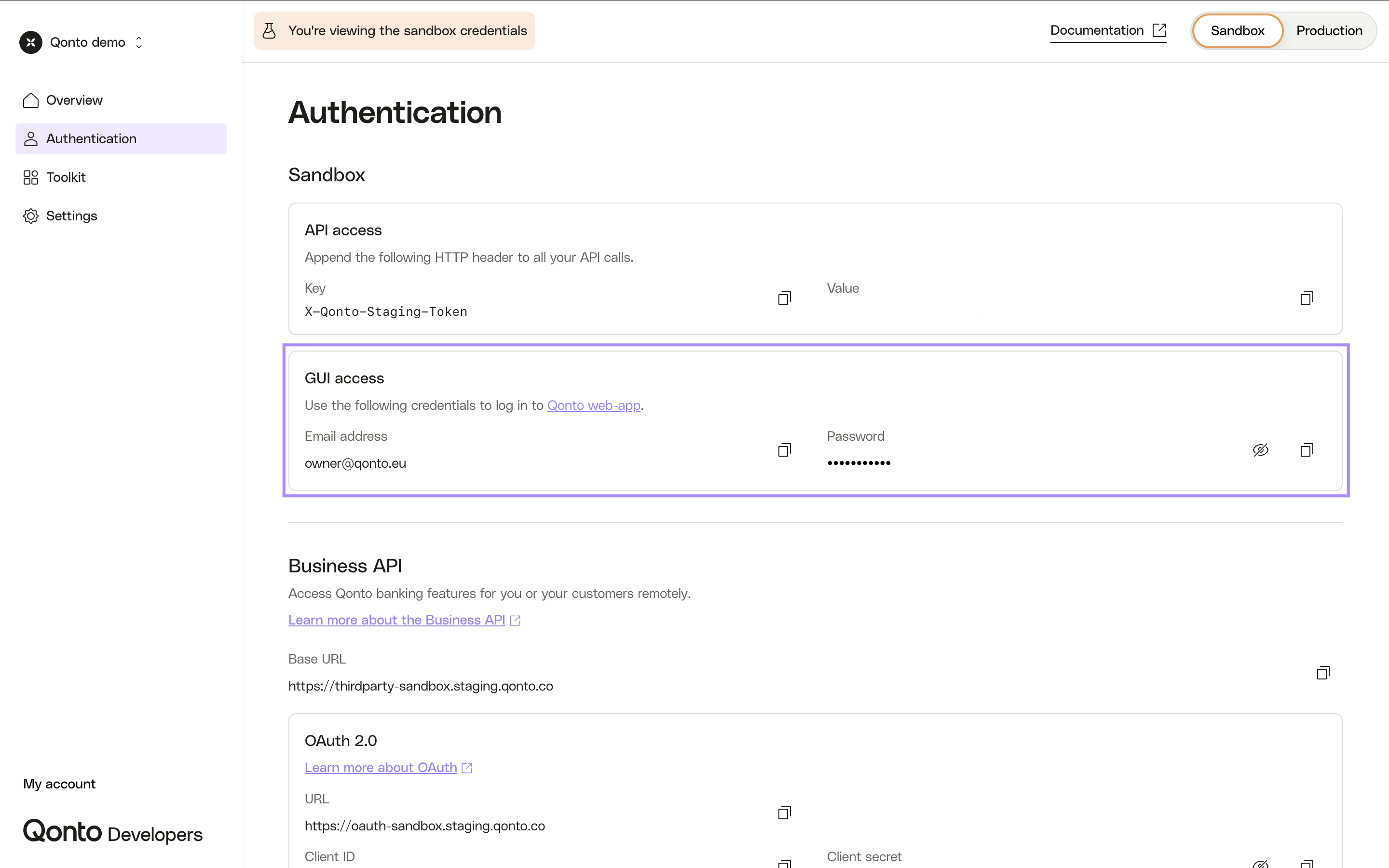
>
> > [!WARNING]
> >
> > Please, do not change this password and the preferred language (english) since it’s a shared account.
>
> 3. If the verification screen is prompted, fill `123456`.
>
> > [!TIP]
> >
> > You have access to Qonto Sandbox web app!
> **Create my own user (optional)**
>
> > [!NOTE]
> >
> > **Do I need to create my own user?**
> >
> > The user associated to [owner@qonto.eu](mailto:owner@qonto.eu) is a shared user.
> >
> > If you need privacy concerning your testing data and/or more autonomy, then you should create your own user.
>
> 1. From the [Toolkit](https://developers.qonto.com/toolkit/), click on "Sandbox web app".
>
> 2. Log in with the credentials available in the [Developer Portal](https://developers.qonto.com/authentication/). 
>
> 3. For any organization, click on the “User management” tab.
>
> 4. Click on the “Invite team member” button. 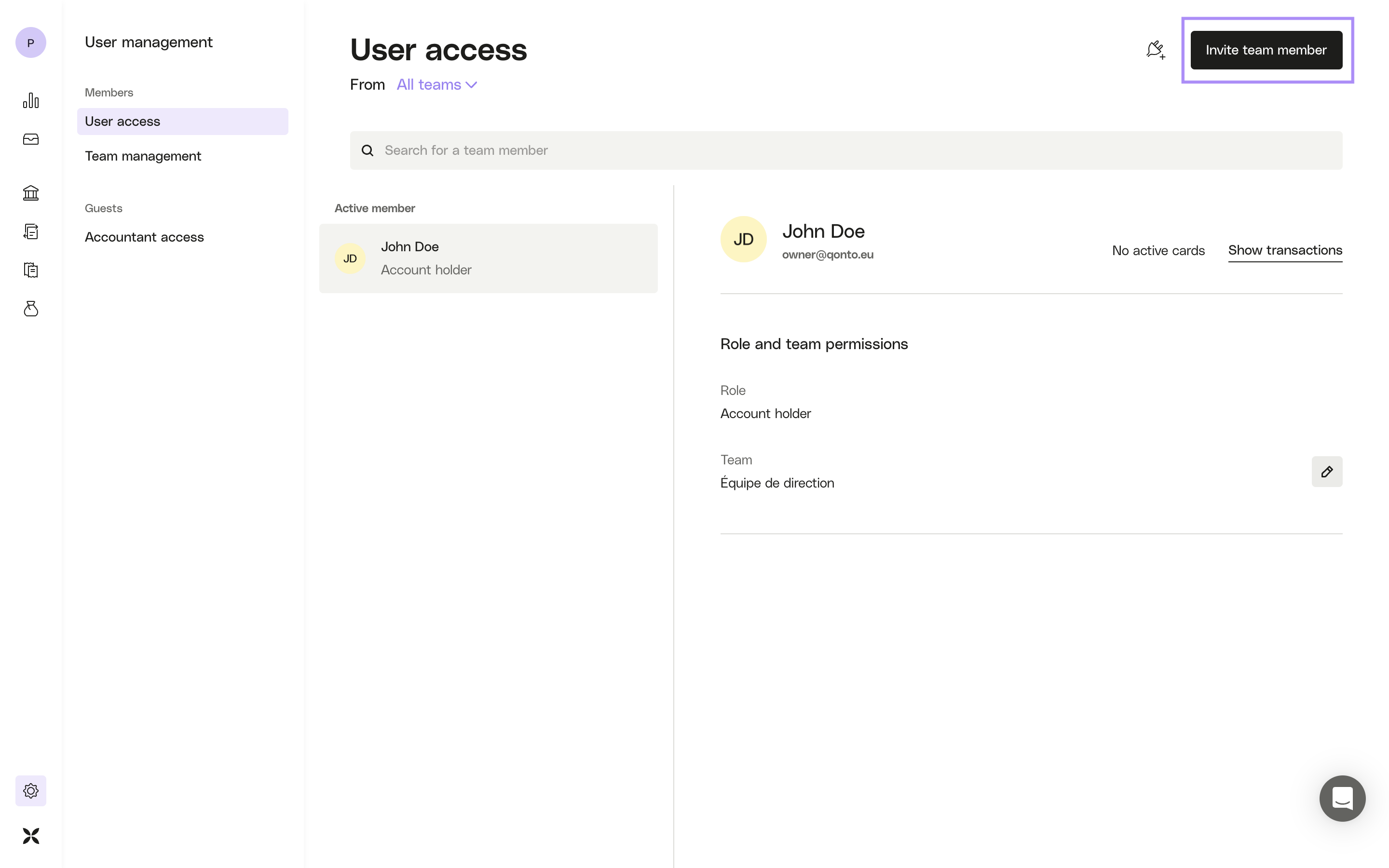
>
> 5. Create a new user.
>
> 6. If the verification screen is prompted, fill `123456`.
>
> 7. From the [Toolkit](https://developers.qonto.com/toolkit/), click on "Mailcatcher".
>
> 8. Find the email sent to the email address of your new user.
>
> 9. Click on “Accept invitation” in the email and go through the self-onboarding process.
>
> > [!TIP]
> >
> > Your new user is activated!
> >
> > N.B. : You don’t need to verify your identity.
> **Create my own organization (optional)**
>
> > [!NOTE]
> >
> > **Do I need my own organization?**
> >
> > The organizations associated to [owner@qonto.eu](mailto:owner@qonto.eu) are shared organizations.
> >
> > If you need privacy concerning your testing data and/or more autonomy, then you should create your own organization.
>
> 1. Create your own user (cf. previous step).
>
> 2. From the [Toolkit](https://developers.qonto.com/toolkit/), click on "QA tool".
>
> 3. Click on "[Create Organization](https://qa-sandbox.staging.qonto.co/create_organizations/new)".
>
> 4. Fill the following fields:
>
> 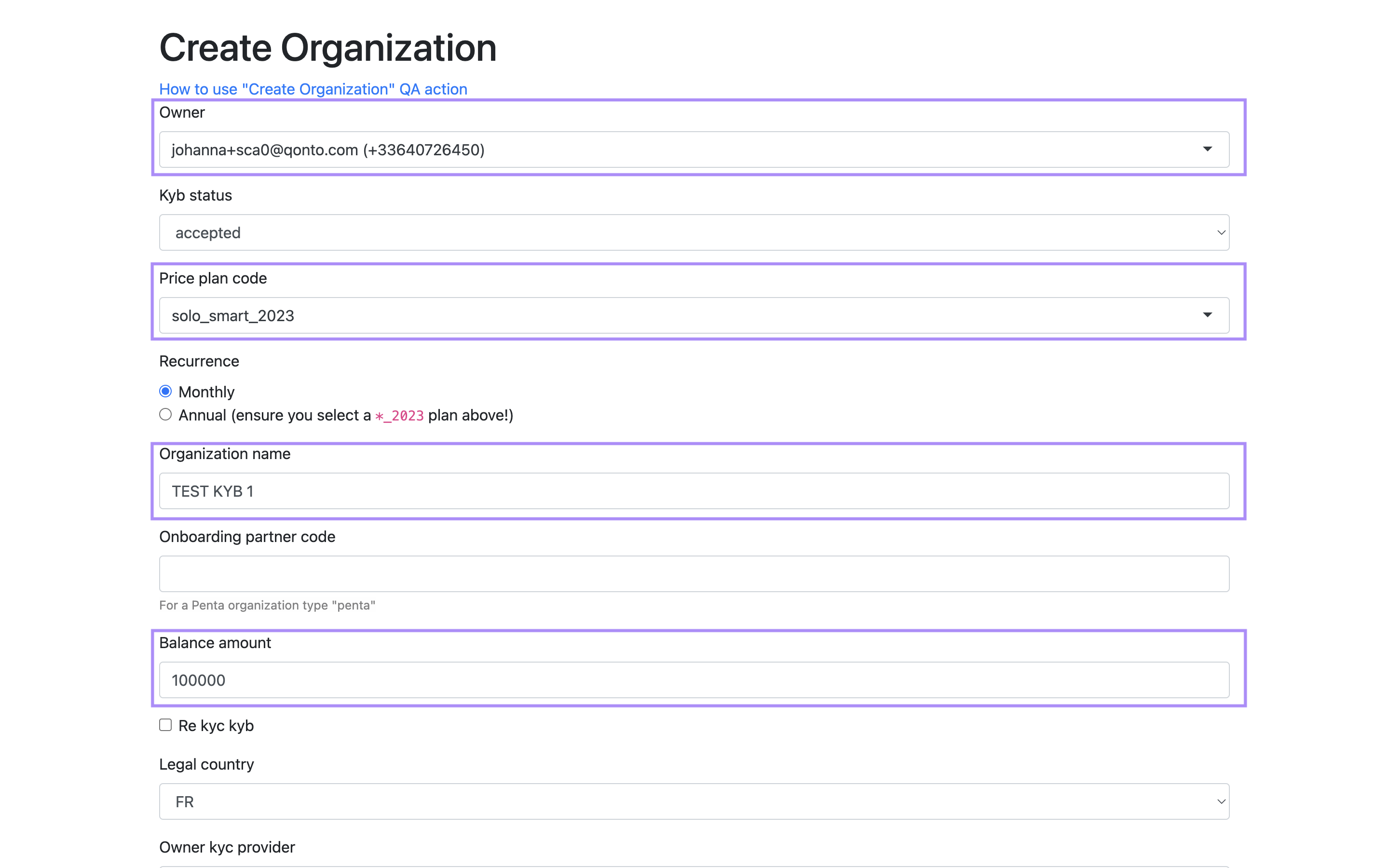
>
> * `Owner` : the email address of your new user.
> * `Price plan code` : choose your plan depending on the functionalities you need to test; indeed, some functionalities are only available for given plans (cf. [Qonto pricing for more details](https://qonto.com/en/pricing)).
> * `Organization name`
> * `Balance amount` : it will be the amount available in your test bank account, `100000` € will be a good start!
>
> 5. Submit the form.
>
> 
>
> > [!TIP]
> >
> > From the [Toolkit](https://developers.qonto.com/toolkit/), click on "Sandbox web app". Your new organization is created!
## 4. Make your first API call
> [!NOTE]
>
> To call the Sandbox environment, you should use Sandbox base URLs not Production base URLs.
> **Set up Postman (optional)**
>
> 1. Fork our Postman collections in your workspace:
>
> * [Business API Collection](https://www.postman.com/qontoteam/qonto-public-api/collection/52766385-49b1c98f-f4a6-44fa-9f81-7a9d00b79d4d?creator=52766385);
>
> * [Onboarding API Collection](https://www.postman.com/qontoteam/qonto-public-api/collection/52766385-6861988a-519a-4e80-9006-c729360a6713?creator=52766385).
>
> 2. Fork our Postman environments in your workspace:
>
> * [Sandbox environment](https://www.postman.com/qontoteam/qonto-public-api/environment/33800365-54d105d1-bebe-4e32-b08a-f78cbf2e4cc6?creator=52766385);
>
> * [Production environment](https://www.postman.com/qontoteam/qonto-public-api/environment/33800365-22049dbd-e7ea-401f-95bf-430751d9e5e0?creator=52766385).
>
> 3. On your workspace, select an environment before making any API call.
>
> 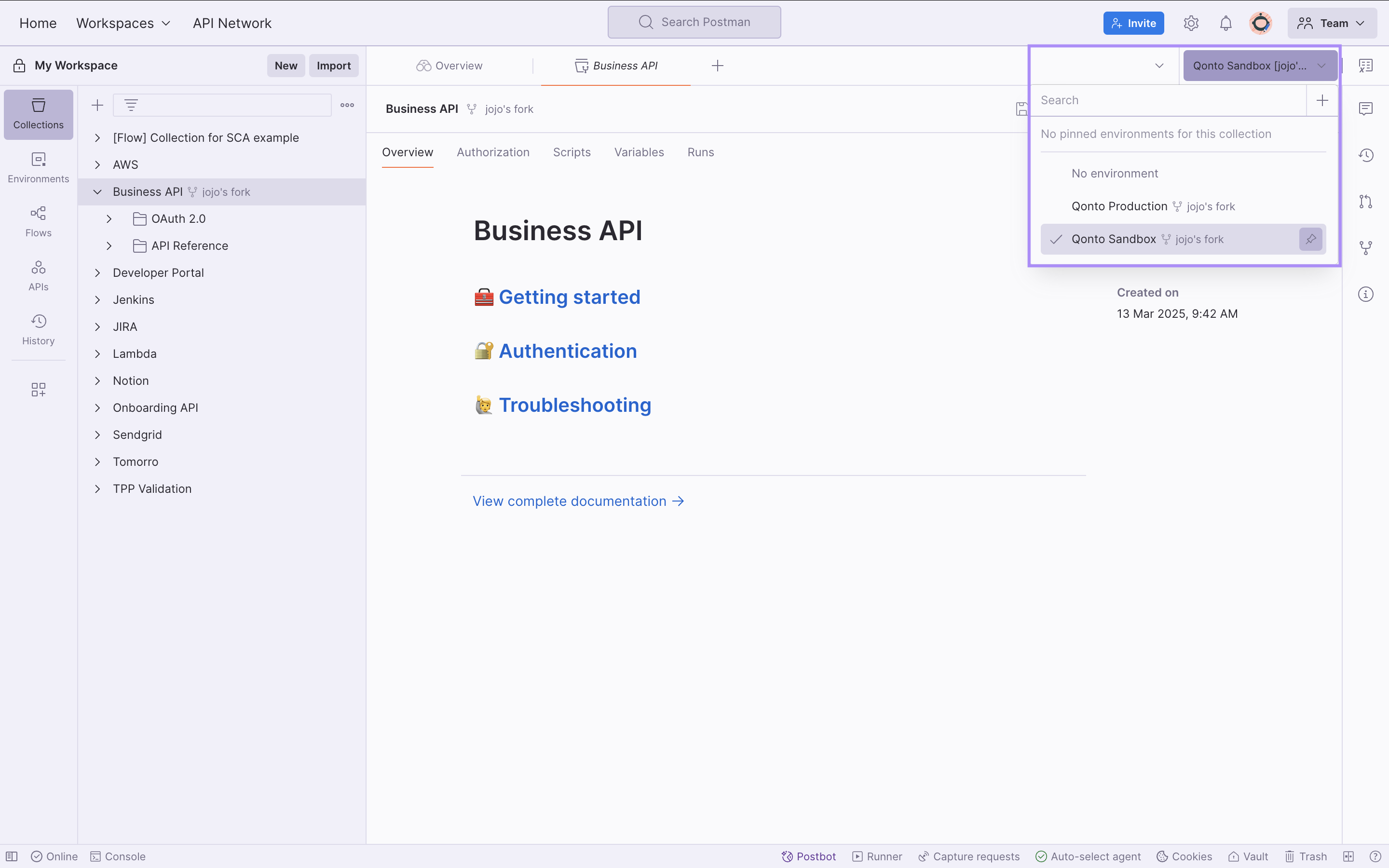
>
> > [!TIP]
> >
> > Our collections are automatically kept in sync with the latest API spec. Enable Postman's **Watch** feature on your forked collection — or use **Pull Changes** — to get notified and pull updates as they are published.
>
> > [!TIP]
> >
> > Your Postman workspace is set up!
> **Authenticate**
>
> > [!NOTE]
> >
> > You'll find all the authentication credentials you need in the [Developer Portal](https://developers.qonto.com/).
>
> > [!WARNING]
> >
> > Don't forget to include the `X-Qonto-Staging-Token` header in your API calls to the Sandbox environment. See [Accessing the Sandbox environment](/get-started/general/sandbox-access) for the full explanation, and for how to bypass the OneLogin gate from a browser when you need to open a Sandbox URL.
>
> **Business API**
>
> If you need to authenticate through:
>
> * **OAuth 2.0** (customers using sensitive endpoints and partners) 👉 follow [those steps](/get-started/business-api/authentication/oauth/oauth-flow);
> * your **API Key** (customers only) 👉 follow [those steps](/get-started/business-api/authentication/api-key).
>
> **Onboarding API**
>
> Follow [those steps](/get-started/onboarding-api/authentication).
## 5. Build your integration
> [!TIP]
>
> **Not a developer?** Use [Make](https://www.make.com/en/integrations/qonto) or [Zapier](https://zapier.com/apps/qonto/integrations) (no-code tools) to build your integration!
> **[Not sure how to start building?](/get-started/business-api/use-cases)**
>
> Check out our step-by-step use case guides to see how common integrations are built end-to-end. Each guide walks through real scenarios with full code examples in Python and Node.js, including how to send SEPA transfers, sync invoices and attachments, bulk upload supplier invoices, generate Factur-X PDFs, and sync transactions.
## 6. Release your integration
All the API operations can be replicated from the Sandbox to the Production environment. Before getting your production credentials, [verify what your use case requires](/get-started/general/developer-guidelines#selecting-your-use-case).
### Sensitive scopes
Some scopes are classified as **sensitive** because they cover operations regulated under PSD2 (Payment Services Directive 2). Using a sensitive scope means your application can initiate payments or access broad financial data on behalf of users — actions that require regulatory oversight and Strong Customer Authentication (SCA).
If your application uses sensitive scopes, additional approval is required before going to production — **except for Automate your business operations**, which requires no review even for sensitive scopes. [Discover available scopes and workarounds](/get-started/business-api/authentication/oauth/available-scopes).
| Scope | Why it is sensitive | Requires review for |
| - | - | - |
| `organization.read` | Grants access to balances, IBANs, transaction history, and organizational data | Connect, Embed |
| `payment.write` | Allows initiating outbound payments to any beneficiary | Connect, Embed |
| `international_transfer.write` | Allows initiating international transfers outside SEPA, subject to the same PSD2 regulatory oversight as domestic payment initiation | Connect, Embed |
| `internal_transfer.write` | Allows moving funds between business accounts | Connect, Embed |
| `beneficiary.trust` | Allows marking SEPA beneficiaries as trusted or removing them from trusted beneficiaries, enabling automated transfers without SCA verification | Embed |
### Obtain Production credentials
Once your application is approved (if required for your use case), follow these steps to go live:
1. Get your Production credentials through the [Developer Portal](https://developers.qonto.com/sign-in/).
[Qonto Developers - Production access](https://demo.arcade.software/LeIHlx2JIndctoBYV8AQ?embed\&embed_mobile=tab\&embed_desktop=inline\&show_copy_link=true)
2. Replace your Sandbox credentials by your **Production credentials**.
> [!TIP]
>
> The `X-Qonto-Staging-Token` header is not necessary in Production.
3. Replace the endpoints base URL.
* [Business API URLs](/get-started/business-api/urls)
* [Onboarding API URLs](/get-started/onboarding-api/urls)
> [!TIP]
>
> Your integration is ready to be released in Production!
>
> We would be super grateful if you could take a few minutes to share your feedback regarding our Public APIs: [Tell us what you think](https://qonto.typeform.com/to/d1cVa9Hc)
> [!WARNING]
>
> If you are a licensed partner, you must identify yourself through your QSeal certificate when calling our Business API endpoints in Production (cf. [the requirements](/get-started/business-api/authentication/qsealc)); otherwise you will receive a `401 Unauthorized` error to your API calls.
## 7. Publish your integration in our Marketplace (optional)
To publish your app in our [Integrations & Partnership section](https://support-fr.qonto.com/hc/en-us/articles/23947671003921-What-is-the-Integrations-and-Partnerships-section), you need to meet the following requirements:
1. Your integration should be used at least by 25 beta testers.
2. Once you meet the first requirement, submit a ticket as "Ask questions" on [Developer Support](https://qonto-developers.zendesk.com/hc/en-001/requests/new):
* a video of the functionalities of your integration;
* credentials so we can login into your product and test your integration.
3. Once your integration is approved, you will have to provide us with the information you want to display in the integration page.
# Errors
Source: https://docs.qonto.com/get-started/general/errors
At Qonto, we adhere to industry best practices for error handling, following the [JSON:API error object](https://jsonapi.org/format/#error-objects) format to provide clear, consistent, and actionable error responses for all API interactions.
We use conventional HTTP response codes to communicate the success or failure of an API request. In general:
* 2xx codes indicate a successful request.
* 4xx codes represent errors where the request could not be processed due to issues with the provided information (e.g., missing parameters, invalid data, etc.).
* 5xx codes indicate server-side errors at Qonto (these are rare).
## Error Response Format
All error responses in our API follow the JSON:API error object format. The structure of the error object includes the following fields:
```json theme={null}
{
"errors": [
{
"code": "string",
"detail": "string",
"source": {
"pointer": "string",
"parameter": "string"
}
}
],
"trace_id": "string"
}
```
* **code**: A machine-readable code identifying the error, such as `not_in_list`.
* **detail**: A more detailed human-readable description of the error, useful for debugging or for the client to understand the exact issue.
* **source.pointer** (optional): The property in the request body that caused the error. This is helpful for pointing directly to the faulty part of the request body.
* **source.parameter** (optional): The query parameter that caused the error. This is useful when the issue is related to a specific query parameter.
* **trace\_id**: A trace identifier for the request. It is always included in error responses and matches the `X-Tyk-Trace-Id` response header. Use it when reporting failures to Qonto support.
### Example Response
Here’s an example of how an error response might look when you make an invalid request `GET thirdparty.qonto.com/v2/transactions?status=invalid`
```json theme={null}
{
"errors": [
{
"code": "not_in_list",
"detail": "status must be one of: pending, approved, declined",
"source": {
"parameter": "status"
}
}
],
"trace_id": "6f1a2b3c4d5e6f7a8b9c0d1e2f3a4b5c"
}
```
## Reporting Failing Requests
When contacting Qonto support about a failing API request, include a trace identifier so the Qonto team can locate the exact request in our systems and troubleshoot faster. You can use either of the following—they always match on error responses:
1. The **`X-Tyk-Trace-Id`** response header (present on every API response):
```
X-Tyk-Trace-Id: 6f1a2b3c4d5e6f7a8b9c0d1e2f3a4b5c
```
2. The **`trace_id`** field in the JSON body of the error response (always included for errors). This is often easier to copy from the response body than from headers:
```json theme={null}
{
"errors": [ ... ],
"trace_id": "6f1a2b3c4d5e6f7a8b9c0d1e2f3a4b5c"
}
```
> [!TIP]
>
> Include either the `X-Tyk-Trace-Id` header value or the `trace_id` from the JSON body whenever you open a support request or report an issue. Both are present on error responses and identify the same request. Without one of them, tracing a specific failing request is significantly harder.
# Idempotent requests
Source: https://docs.qonto.com/get-started/general/idempotent-requests
The API supports idempotency to ensure safe retries of requests without unintentionally duplicating operations. By including an idempotency key when creating or updating resources, you can safely resend a request after a connection error without creating duplicate resources or applying updates multiple times.
### Using Idempotency Keys
To make an idempotent request, include the `X-Qonto-Idempotency-Key` header with a unique value. The client generates this key, which the server uses to identify and process retries of the same request. We recommend using a V4 UUID or another random string with sufficient entropy to prevent collisions.
**Example:**
```
X-Qonto-Idempotency-Key: 123e4567-e89b-12d3-a456-426614174000
```
### How Idempotency Works
When you send a request with an idempotency key, the server caches the successful response for that key. Any subsequent requests using the same key return the cached response, even if the request body differs. This ensures consistent outcomes for retried requests.
### Key Points
* Idempotency keys expire after 30 minutes. Sending the same request with the same key after this period creates a new resource.
* Avoid reusing idempotency keys for different requests to prevent unintended results.
### When to Use Idempotency Keys
The documentation specifies when you can use the X-Qonto-Idempotency-Key header and lists the endpoints where it applies. For these endpoints, including the idempotency key is a mandatory requirement.
# Introduction
Source: https://docs.qonto.com/get-started/general/introduction
Qonto provides **2 collections of REST APIs** and a **Sandbox environment** to help you build integrations on top of Qonto accounts, transactions, memberships, etc; no matter what your use case is.
JSON is returned in all API responses, including errors.
For security purposes:
* All API requests must be made over HTTPS. Calls made over plain HTTP will fail.
* All API requests (except the ones to [/v2/oauth2/auth](/api-reference/business-api/authentication/oauth2/retrieve_authorization)) must be made **from your backend**. Direct calls from browsers will fail.
## Qonto APIs
> **[Business API](/get-started/business-api/overview)**
>
> Access Qonto banking, invoicing, bookkeeping & more remotely
> **[Onboarding API](/get-started/onboarding-api/overview)**
>
> Fast track your customers' onboarding to Qonto
## Use cases
> **Automate your business operations**
>
> **Qonto account owners** automating their own workflows (accounting sync, internal reporting, reconciliation) using the **Business API**.
>
> Access with:
>
> * [OAuth 2.0](/get-started/business-api/authentication/oauth/oauth-flow) if you need to perform sensitive actions (cf. the [endpoints access table](/get-started/business-api/authentication/introduction#endpoints-access) to identify if you need to use an endpoint which is only accessible through OAuth) OR if you want to restrict the scopes accessible with your authentication credentials to a specific list of scopes;
>
> * Your [API key](/get-started/business-api/authentication/api-key) otherwise.
>
> > [!TIP]
> >
> > The API key authentication method is much more simple to implement than OAuth 2.0.
>
> > [!NOTE]
> >
> > This use case requires **no validation from Qonto**, for either authentication method. You can start building right away.
> **Connect your customers' Qonto accounts to your platform**
>
> **Third-party platforms** connecting to Qonto on behalf of their users (ERPs, accounting software, financial tools).
>
> Access with: [OAuth 2.0](/get-started/business-api/authentication/oauth/oauth-flow).
>
> > [!WARNING]
> >
> > This use case **requires validation from Qonto** if you are requesting [sensitive scopes](/get-started/business-api/authentication/oauth/available-scopes#available-scopes).
> **Embed Qonto business features into your platform**
>
> **Partners embedding Qonto** natively into their product.
>
> * To create Qonto business accounts (and eventually companies) for your customers, use the **Onboarding API**;
>
> * To operate those accounts directly from your platform, use the **Business API** (with [OAuth 2.0](/get-started/business-api/authentication/oauth/oauth-flow)).
>
> > [!WARNING]
> >
> > Requires **signing a partnership contract** with Qonto before going live.
> **Streamline company creation**
>
> **Platforms** using the **Onboarding API** to create Qonto accounts and companies (digital KYB, KYC and capital deposit) programmatically.
>
> > [!WARNING]
> >
> > Requires **signing an ORIAS mandate** (France only) and a **partnership contract** with Qonto before going live.
# Pagination
Source: https://docs.qonto.com/get-started/general/pagination
List API methods share a common JSON structure with resource name array and meta pagination description.
Query parameters `per_page` and `page` are available to browse the list.
* Minimum `per_page`: 1
* Maximum `per_page`: 100
* Default `per_page`: 100
* Default `page`: 1
Example 👇
| | |
| - | - |
| GET | [https://thirdparty.qonto.com/v2/transactions?iban=FR7616798000010000004321396\&per\_page=20\&page=2](https://thirdparty.qonto.com/v2/transactions?iban=FR7616798000010000004321396\&per_page=20\&page=2) |
| iban | FR7616798000010000004321396 |
| per\_page | 20 |
| current\_page | 2 |
```json theme={null}
{
"transactions": [{...}],
"meta": {
"current_page": 2,
"next_page": 3,
"prev_page": 1,
"total_pages": 11,
"total_count": 210,
"per_page": 20
}
}
```
# Rate limitations
Source: https://docs.qonto.com/get-started/general/rate-limitations
The frequency of your requests should respect the following rate limitations:
* **1 000 requests / 10 seconds**
* **10 000 requests / 10 minutes**
If you don't respect those rate limitations, you will get a `429 Too Many Requests` error.
Additionally, we will throttle if there are more than **200 requests with status 401** within **1 hour**.
Rate limitations are applied per IP address.
# Accessing the Sandbox environment
Source: https://docs.qonto.com/get-started/general/sandbox-access
Why your Sandbox requests get blocked by OneLogin, and the two ways to bypass it depending on whether you're calling the API programmatically or opening a URL in a browser.
## Why your Sandbox requests get blocked
Our entire **Sandbox / staging** environment — every API host, every web app, every URL it returns to you — is protected and **not directly accessible from the public internet**.
If you try to reach any Sandbox URL without the right credentials, your request hits a [**OneLogin**](https://www.onelogin.com/) sign-in page first. That page is the SSO that protects internal Qonto resources: it is **reserved for Qonto employees**, and external partners cannot sign in through it.
You will see this OneLogin page in two situations:
* The API returns an **HTML response** (the OneLogin login HTML) instead of the JSON you expected — sometimes with a `200` status, sometimes as a `302` redirect to `https://qonto.onelogin.com/login`.
* A URL the API gave you (a `redirection_link` from the [Onboarding API](/get-started/onboarding-api/overview), an attachment URL from the [Business API](/api-reference/business-api/transactions-statements/transactions/list-transactions), etc.) opens a OneLogin page when you click it.
To use the Sandbox, you need to **bypass that OneLogin page**. There are exactly two ways to do it, and they apply to two different situations.
> [!WARNING]
>
> Both bypass mechanisms are **Sandbox-only**. In Production they are unnecessary — and the staging token is not even accepted there.
## Option 1 — Programmatic calls: the `X-Qonto-Staging-Token` header
Use this for any **non-browser** call: cURL, your backend code, your HTTP client library, Postman, etc.
Add the following header on every request you make to a Sandbox endpoint:
| Header | Value |
| - | - |
| `X-Qonto-Staging-Token` | your personal staging token |
When this header is present and valid, our infrastructure transparently bypasses the OneLogin gate and routes the request to the actual API.
> [!NOTE]
>
> The header name is **case-sensitive on the dash-separated capitalization shown above**: `X-Qonto-Staging-Token`. Lowercase or mixed variants may not be normalized by every layer in the chain.
### Where to find your staging token
Your staging token is available on the [**Developer Portal**](https://developers.qonto.com/), under your application's authentication credentials. It is personal to your application — do not share it.
### Example
```bash theme={null}
curl -X GET 'https://thirdparty-sandbox.staging.qonto.co/v2/bank_accounts' \
-H 'Authorization: Bearer ' \
-H 'X-Qonto-Staging-Token: '
```
The header must be present on **every** Sandbox request, including:
* **OAuth endpoints** (`/oauth2/auth`, `/oauth2/token`) — see [Testing in the Sandbox](/get-started/business-api/authentication/oauth/sandbox)
* **Onboarding API** endpoints — see [Onboarding API authentication](/get-started/onboarding-api/authentication)
* **Webhook subscription** endpoints — see [Test with webhook.site](/api-reference/business-api/webhooks/testing)
* **Embed dispatch** (proxy) endpoints — see [Proxy API requests from the Embed SDK](/api-reference/business-api/endpoints/encoded-requests/introduction)
## Option 2 — Browser calls: log in through the Developer Portal first
Use this whenever a URL must be opened in a **web browser** — typically:
* The `redirection_link` returned by the [Onboarding API](/api-reference/onboarding-api/endpoints/registrations/create-a-registration) when you create a registration. The end-user customer is supposed to follow it to start their account creation.
* Attachment URLs returned by the Business API when you retrieve transactions, supplier invoices, etc. Those URLs point to short-lived signed assets hosted on a Sandbox domain.
* Any other Sandbox URL you need to reach interactively for testing.
You can't add a custom header from a browser address bar, so the staging token approach doesn't apply. Instead, you authorize your browser **once** through the Developer Portal:
**1. Log in to the Developer Portal**
Sign in at [https://developers.qonto.com/](https://developers.qonto.com/) with your account.
**2. Click "Sandbox web app" from the Toolkit**
From the [Developer Portal Toolkit](https://developers.qonto.com/toolkit/), click the **Sandbox web app** link. This opens the Sandbox web app **and** sets a cookie in your browser that authorizes Sandbox domains.

**3. Open your Sandbox URL in the same browser**
Reuse the same browser (and the same profile) to open the `redirection_link`, attachment URL, or other Sandbox URL. The cookie set in step 2 lets you bypass the OneLogin gate and reach the actual page.
> [!TIP]
>
> The cookie has a limited lifetime. If a Sandbox URL starts redirecting you to OneLogin again, simply re-click **Sandbox web app** from the Toolkit to refresh it.
> [!WARNING]
>
> The cookie is browser-scoped. If you open the URL in a **different browser**, an **incognito/private window**, or a **different machine**, you will see the OneLogin page again — even if you are already logged in to the Developer Portal in another browser. Click the Sandbox web app link from that browser to authorize it.
## Which option do I need?
| Situation | Use |
| - | - |
| Calling an API endpoint from your code, a script, cURL, Postman, etc. | [Option 1 — `X-Qonto-Staging-Token` header](#option-1-programmatic-calls-the-x-qonto-staging-token-header) |
| Opening a URL returned by the API (e.g. an Onboarding `redirection_link`, an attachment URL) in a browser | [Option 2 — Developer Portal cookie](#option-2-browser-calls-log-in-through-the-developer-portal-first) |
| Receiving and reading an HTML OneLogin page in your code | You sent an API call without the staging token. Add the header (Option 1). |
| Building a flow where **your end-user** (e.g. your customer in Sandbox) needs to open a Sandbox URL in their own browser | They need to follow Option 2 from their own browser, or you need to test the flow yourself in the Sandbox before going live. |
## Troubleshooting
> **My API call returns HTML / a 302 to qonto.onelogin.com**
>
> You forgot the `X-Qonto-Staging-Token` header, or the value is wrong. See [Option 1](#option-1-programmatic-calls-the-x-qonto-staging-token-header).
> **The Onboarding redirection\_link sends my browser to OneLogin**
>
> Your browser is missing the Developer Portal cookie. Follow [Option 2](#option-2-browser-calls-log-in-through-the-developer-portal-first), then re-open the link in the **same** browser.
> **It works in Chrome but not in Firefox / not in incognito**
>
> Cookies don't cross browsers or profiles. Click **Sandbox web app** from the Developer Portal Toolkit in whichever browser you actually want to use.
> **Production calls — do I still need the staging token?**
>
> No. The `X-Qonto-Staging-Token` header is **Sandbox only**. Production endpoints don't accept it. See [Developer guidelines — Release your integration](/get-started/general/developer-guidelines).
# Troubleshooting
Source: https://docs.qonto.com/get-started/general/troubleshooting
This guide will help you diagnose and resolve common authentication and connection issues with the Qonto API.
## Step 1: Choose your authentication method
Before making any API calls, determine which authentication method you'll use:
* **[Static API Key](/get-started/business-api/authentication/api-key)** - A login/secret pair provided by Qonto
* **[OAuth](/get-started/business-api/authentication/oauth/oauth-flow)** - Token-based authentication using the OAuth 2.0 flow
> [!TIP]
>
> Not sure which to use? We have [a detailed guide here](/get-started/business-api/authentication/introduction#which-authentication-method-do-i-need) explaining the differences & supported endpoints for each authentication method.
## Step 2: Test with a simple endpoint
Make a test call to the [**List Bank Accounts**](/api-reference/business-api/accounts-organizations/business-accounts/list) endpoint to verify your setup.
```bash theme={null}
GET /v2/bank_accounts
```
## Step 3: Diagnose the response
### ✅ Got a success response code? (2XX)
Expand the section below based on what you received:
> **✅ Received JSON Response**
>
> **Congratulations!** You're successfully authenticated and connected to the Qonto API.
>
> You can now proceed with making other API requests.
> **❌ Received HTML (OneLogin Page)**
>
> **Issue:** You're trying to access the Staging environment without proper Staging Token.
>
> **Solution:** Add the `X-Qonto-Staging-Token` header to your request. This token can be found in the developer portal.
>
> ```bash theme={null}
> X-Qonto-Staging-Token: your-staging-token-here
> ```
>
> > [!WARNING]
> >
> > The Sandbox environment requires the staging token header in addition to your regular authentication credentials.
>
> For the full picture — why the OneLogin page appears, and how to also bypass it from a browser when opening Sandbox URLs (e.g. an Onboarding `redirection_link` or an attachment URL) — see [Accessing the Sandbox environment](/get-started/general/sandbox-access).
### ❌ Got an error response? (4XX)
Follow the troubleshooting steps for your authentication method:
**Static API Key**
#### Verify your API key format
Please follow [the documentation here](/get-started/business-api/authentication/api-key) for static API key.
Your static API key must be provided in the `Authorization` header using HTTP Basic Authentication format:
```bash theme={null}
Authorization: {login}:{secret}
```
**Example:**
```bash theme={null}
Authorization: your-login-here:your-secret-here
```
> [!NOTE]
>
> Do not include "Basic" before the credentials - use the raw `{login}:{secret}` format directly.\
> Some users confuse this with basic authentication, but it is not.
#### Common mistakes
* Missing the colon separator: `loginSecret`
* Swapping login and secret: `{secret}:{login}`
* Adding a "Bearer" prefix before the login & secret
* Adding a "Basic" prefix before the login & secret
* Including extra spaces or line breaks
* Base64 encoding when not required
**OAuth**
#### Verify your access token format
Please follow [the documentation here](/get-started/business-api/authentication/oauth/oauth-flow) for OAuth access.
Your OAuth access token must be provided in the `Authorization` header with the `Bearer` scheme:
```bash theme={null}
Authorization: Bearer {accessToken}
```
**Example:**
```bash theme={null}
Authorization: Bearer eyJhbGciOi...
```
> [!WARNING]
>
> The keyword "Bearer" must be included, followed by a space, then your access token.
#### Common Mistakes
* Missing "Bearer" prefix
* Using an expired access token
* Including extra characters or line breaks
* Using the refresh token instead of the access token
> [!TIP]
>
> Access tokens typically expire after a set period. If you're getting authentication errors, try refreshing your token.
## Still stuck? Contact Qonto support
If you are unable to resolve the issue, reach out to the Qonto team. To help us investigate as quickly as possible, include a trace identifier from the failing response. You can use either of the following—they always match on error responses:
* The **`X-Tyk-Trace-Id`** response header (present on every API response):
```
X-Tyk-Trace-Id: 6f1a2b3c4d5e6f7a8b9c0d1e2f3a4b5c
```
* The **`trace_id`** field in the JSON body (always included on error responses):
```json theme={null}
{
"errors": [ ... ],
"trace_id": "6f1a2b3c4d5e6f7a8b9c0d1e2f3a4b5c"
}
```
> [!TIP]
>
> Error responses always include `trace_id` in the JSON body, and every API response includes an `X-Tyk-Trace-Id` header. Copy either value and attach it to your support request—they identify the same request and speed up troubleshooting significantly.
# Versioning
Source: https://docs.qonto.com/get-started/general/versioning
Learn how Qonto manages API versioning to ensure seamless integrations for your business.
At Qonto, we version our APIs to minimize the impact of changes on your business integrations. Each time we introduce a breaking change, we release a new API version. You can access each version using the following URL structure:
`https://thirdparty.qonto.com/`
For example, to use version 1 of our API:
`https://thirdparty.qonto.com/v1`
Within a single API version, Qonto may introduce **non-breaking changes** at any time. To ensure your integration remains stable, we recommend designing your implementation to be flexible with these updates. Non-breaking changes may include:
* Adding new endpoints,
* Introducing new fields in response payloads at any level,
* Adding optional fields to request payloads,
* Expanding enumerated lists with new possible values,
* Reordering fields or elements in unordered lists,
* Modifying the format or length of identifiers (unless a specific format is documented).
By following these guidelines, you can ensure your integration with Qonto's API remains resilient as we continue to improve our platform.
# Authentication
Source: https://docs.qonto.com/get-started/onboarding-api/authentication
In order to authenticate, you need to get your credentials by signing up to the [Developer Portal](https://developers.qonto.com/) (for more details on the process cf. [Get started](/get-started/general/developer-guidelines)).
For each API call, you will need to include those credentials in the following headers:
| Header | Value |
| - | - |
| Authorization | Bearer `token` |
| Qonto-Partner-Id | `partner_id` |
Only in the Sandbox environment, you will also need to provide the following header:
| Header | Value |
| - | - |
| X-Qonto-Staging-Token | `staging_token` |
> [!TIP]
>
> The `X-Qonto-Staging-Token` header bypasses the OneLogin gate that protects our Sandbox environment for **API calls only**. If you also need to open the `redirection_link` returned by [Create a registration](/api-reference/onboarding-api/endpoints/registrations/create-a-registration) in a browser, you have to bypass the gate a different way — see [Accessing the Sandbox environment](/get-started/general/sandbox-access).
# Company creation
Source: https://docs.qonto.com/get-started/onboarding-api/flows/company-creation
Open an account for a company which needs to be created (with capital deposit)
***
# What makes Qonto’s onboarding special?
Setting up a company can often feel overwhelming, with all the paperwork, regulations, and red tape involved. But with Qonto, we make the process fast and hassle-free. We handle the complex tasks like K-deposit, Know Your Customer (KYC), and Know Your Business (KYB), so your customers can quickly open a company account — sometimes in as little as 10 minutes!
We’ve streamlined the process so your customers don’t have to worry about all the usual paperwork, and instead, can focus on what matters most: running their business.
Our Onboarding flow is:
**⚡️ fast**: We’ve designed the onboarding process to be as quick and simple as possible. We aim to approve registrations within one business day, giving your customers immediate access to Qonto’s features.
**🧘 hassle-free**: We leverage all the information you provide, ensuring your customers don’t need to re-enter existing details—saving time and effort.
# The Onboarding flow
## Step-by-step guide
### On your side
**1. Initiate the registration**
Create a registration by calling the [Create a registration](/api-reference/onboarding-api/endpoints/registrations/create-a-registration) endpoint.
> [!WARNING]
>
> Don't redirect your customer to Qonto yet, you need to upload documents first if you want to trigger the [seamless flow](/get-started/onboarding-api/flows/company-creation#seamless-flow-cf-the-video).
**2. Upload documents**
To provide a smooth onboarding experience to your customer, we strongly recommend you to upload the documents listed below before redirecting your customer to Qonto.\
To do so, you need to call the [Create a file](/api-reference/onboarding-api/endpoints/files/create-a-file) endpoint for each document to upload:
for the organization: **by-laws** (mandatory) and proof of address (optional);
for each stakeholder: **proof of identity** (mandatory) and residence permit (optional).
> [!NOTE]
>
> If you don't upload the documents, your customer will have to do it (i.e. the [manual flow](/get-started/onboarding-api/flows/company-creation#manual-flow) will be triggered).
> [!WARNING]
>
> Be sure to upload the correct documents for both the organization and all the stakeholders to keep the process moving forward.
**3. Redirect your customer to Qonto**
You need to redirect your customer to Qonto so they can complete the registration flow either by:
(our recommendation 💜) getting the `redirect_url` associated to the registration (you can retrieve it from the successful response of the Step 1 or by calling the [Retrieve a registration](/api-reference/onboarding-api/endpoints/registrations/retrieve-a-registration) endpoint);
calling the [Send the redirection link to the owner](/api-reference/onboarding-api/endpoints/registrations/send-the-redirection-link-to-the-owner) endpoint.
### On your customer side
> [!TIP]
>
> [Register a webhook endpoint](/api-reference/onboarding-api/webhooks) in order to receive an event at each step of the onboarding flow.
**1. Registration flow**
Your customer needs to complete one of the 2 following flows (depending on the missing information) before accessing Qonto features:
> **Seamless flow (cf. the video 👆)**
>
> When your customers’ data is complete (including optional fields), we kick off the **Seamless flow**. This means that once they’re redirected to Qonto’s platform, we’ll prefill all company and stakeholder information, allowing them to skip entering repetitive details. It’s a faster, smoother experience—just the way we like it!
> However, if any necessary information is missing or doesn’t match what we have on file, we’ll shift to the **Manual flow**.
> **Manual flow**
>
> In the **Manual Flow**, your customer will need to review and update any missing or incorrect details. It may take a few extra steps, but we keep it as quick and easy as possible. The goal is to ensure that everything is accurate while keeping the onboarding process efficient.
> [!NOTE]
>
> The [Retrieve a registration](/api-reference/onboarding-api/endpoints/registrations/retrieve-a-registration) endpoint exposes which flow the customer followed.
**2. Identity verification**
Your customer needs to verify their identity. It will allow our team to review and activate their account.
**3. Capital deposit**
Your customer needs to:
deposit the funds of the company;
sign the deposit certificate request;
upload the company KBIS (you can also upload the KBIS on behalf of your customer when receiving a `registrations.capital_deposit_certificate_signed` event).
> [!TIP]
>
> Your customer has now an active Qonto account!
## Sequence diagrams
To make it even easier to understand, we’ve provided visual sequence diagrams that outline the onboarding flow.
### On your side
```mermaid theme={null}
sequenceDiagram
participant Customer
participant Partner
participant Onboarding API
Customer->>Partner: I want to use Qonto
Note over Partner, Onboarding API: 1. Initiate the registration
Partner->>+Onboarding API: Create a registration
Onboarding API-->>-Partner: Created - 201: Registration payload
rect rgba(239, 233, 254, 0.8)
Onboarding API--)Partner: webhook: registrations.pending
end
Note over Partner, Onboarding API: 2. Upload documents
opt
Partner->>+Onboarding API: Upload company-by-laws (mandatory document)
Onboarding API-->>-Partner: Created - 201
Partner->>+Onboarding API: Upload company-proof-of-address (optional document)
Onboarding API-->>-Partner: Created - 201
loop For each stakeholder
Partner->>+Onboarding API: Upload stakeholder-proof-of-identity (mandatory document)
Onboarding API-->>-Partner: Created - 201
Partner->>+Onboarding API: Upload stakeholder-residence-permit (optional document)
Onboarding API-->>-Partner: Created - 201
end
end
Note over Partner, Customer: 3. Redirect your customer to Qonto
Partner->>Customer: Redirect your customer to Qonto
```
### On your customer side
> [!WARNING]
>
> You will receive webhook events only for registrations with `seamless` flow type, since only these users will be onboarded through the fast track flow.
```mermaid theme={null}
sequenceDiagram
participant Customer
participant Qonto
participant Partner
participant Notary
Note over Customer, Qonto: 1. Registration flow
alt
Customer->>Qonto: Seamless flow (triggered only if the mandatory documents have been uploaded by the partner)
else
Customer->>Qonto: Manual flow
end
Note over Customer, Qonto: 2. Identity verification
Customer->>Qonto: Submit KYC info
Note over Customer, Notary: 3. Capital deposit
rect rgba(239, 233, 254, 0.8)
Qonto--)Partner: webhook: registrations.capital_deposit_activated
end
Qonto-->>+Customer:
Customer->>-Qonto: Deposit all funds
Qonto-->>+Customer:
Customer->>-Qonto:
rect rgba(239, 233, 254, 0.8)
Qonto--)Partner: webhook: registrations.capital_deposit_request_signed
end
Qonto-->>+Notary:
Notary-->>-Qonto:
rect rgba(239, 233, 254, 0.8)
Qonto--)Partner: webhook: registrations.capital_deposit_certificate_signed
end
alt KBIS upload (either by the partner, either by the customer)
Partner->>+Qonto: Upload company-kbis file (Endpoint: Create a file)
Qonto-->>-Partner: Created - 201
else
Customer->>+Qonto: Uploads kbis
Qonto-->>-Customer:
end
```
# Existing company
Source: https://docs.qonto.com/get-started/onboarding-api/flows/existing-company
Open an account for an existing company
***
# What makes Qonto’s onboarding special?
When your customer already has a registered company with an established capital structure and stakeholder information, opening a Qonto account becomes a seamless experience. This process involves just a few simple steps, allowing them to quickly connect their existing business to Qonto's comprehensive financial management solutions.
Our Onboarding flow is:
**⚡️ fast**: We’ve designed the onboarding process to be as quick and simple as possible. We aim to approve registrations within one business day, giving your customers immediate access to Qonto’s features.
**🧘 hassle-free**:
Thanks to partnerships with trusted third parties (like INPI), we can automatically retrieve a lot of essential company data. That means your customers don’t have to re-enter information that’s already available—saving time and effort.
We leverage all the information you provide, ensuring your customers don’t need to re-enter existing details—saving time and effort.
# The Onboarding flow
## Step-by-step guide
### On your side
**1. Initiate the registration**
Create a registration by calling the [Create a registration](/api-reference/onboarding-api/endpoints/registrations/create-a-registration) endpoint.
**2. Redirect your customer to Qonto**
You need to redirect your customer to Qonto so they can complete the registration flow either by:
getting the `redirect_url` associated to the registration (you can retrieve it from the successful response of the Step 1 or by calling the [Retrieve a registration](/api-reference/onboarding-api/endpoints/registrations/retrieve-a-registration) endpoint);
calling the [Send the redirection link to the owner](/api-reference/onboarding-api/endpoints/registrations/send-the-redirection-link-to-the-owner) endpoint.
**3. Identity verification**
Once registered, your customer will need to verify their identity. It will allow our team to review and activate their account.
### On your customer side
> [!TIP]
>
> [Register a webhook endpoint](/api-reference/onboarding-api/webhooks) in order to receive an event at each step of the onboarding flow.
**1. Registration flow**
Your customer needs to complete one of the 2 following flows (depending on the missing information) before accessing Qonto features:
> **Seamless flow (cf. the video 👆)**
>
> When your customers’ data is complete (including optional fields), we kick off the **Seamless flow**. This means that once they’re redirected to Qonto’s platform, we’ll prefill all company and stakeholder information, allowing them to skip entering repetitive details. It’s a faster, smoother experience—just the way we like it!
> However, if any necessary information is missing or doesn’t match what we have on file, we’ll shift to the **Manual flow**.
> **Manual flow**
>
> In the **Manual Flow**, your customer will need to review and update any missing or incorrect details. It may take a few extra steps, but we keep it as quick and easy as possible. The goal is to ensure that everything is accurate while keeping the onboarding process efficient.
> [!NOTE]
>
> The [Retrieve a registration](/api-reference/onboarding-api/endpoints/registrations/retrieve-a-registration) endpoint exposes which flow the customer followed.
**2. Identity verification**
Once registered, your customer needs to verify their identity. It will allow our team to review and activate their account.
> [!TIP]
>
> Your customer has now an active Qonto account!
# Overview
Source: https://docs.qonto.com/get-started/onboarding-api/overview
Fast track your customers' onboarding to Qonto.
The Onboarding API enables our **partners** to seamlessly create Qonto business accounts and, optionally, companies (digital KYB, KYC and capital deposit) for their customers.
> **[Company creation flow](/get-started/onboarding-api/flows/company-creation)**
>
> Create Qonto business accounts for companies which need to be created
> **[Existing company flow](/get-started/onboarding-api/flows/existing-company)**
>
> Create Qonto business accounts for already existing companies
# URLs
Source: https://docs.qonto.com/get-started/onboarding-api/urls
## Onboarding endpoints
### Sandbox
URL: [https://thirdparty-sandbox.staging.qonto.co](https://thirdparty-sandbox.staging.qonto.co)
Example: `https://thirdparty-sandbox.staging.qonto.co/register/registrations`
### Production
URL: [https://onboarding-partners.qonto.com](https://onboarding-partners.qonto.com)
Example: `https://onboarding-partners.qonto.com/register/registrations`
# Overview
Source: https://docs.qonto.com/get-started/sdk-libraries/overview
Welcome to the documentation for **Qonto Embed SDKs & Libraries**
Qonto Embed is designed to help you seamlessly integrate Qonto’s powerful financial features—such as account data, card
management, and SEPA transfers—right into your product. This documentation will guide you through the available SDKs,
variables, and integration patterns to help you get up and running quickly and securely.
## SDK & Libraries Overview
Qonto provides an SDK library to help you facilitate common integration scenarios with Qonto Embed. This
library contains pre-defined functions and data models that are consistent with our
[API Reference](/api-reference/). By using this library, you can reduce development time and
ensure consistency and reliability when interacting with Qonto’s embedded features.
This section offers:
* **An introduction to available libraries** you can use to interact with Qonto Embed features, such as cards and
SEPA transfers.
* **Links to detailed references** for each supported functionality.
At present, Qonto’s SDK Libraries focus on making it easier to work with the main data structures used for embedded
financial features. Please refer to the detailed variable documentation for the latest updates and supported features.
## Available SDKs and Libraries
> **[Typescript SDK](/api-reference/sdk-libraries/doc-pages/overview)**
>
> Use our TypeScript SDK to integrate Qonto features into your web application easily. It provides a set of functions
> and UI elements that can be used to create a seamless integration with Qonto's banking services. Compatible with
> both Node.js and browser environments.
# Welcome to Qonto Developers
Source: https://docs.qonto.com/introduction/welcome
Our mission is to transform business banking into a seamless and delightful experience. With Qonto, you can effortlessly open an account, process payments, manage expenses, and oversee daily finances in just a few clicks.
## About Qonto
Qonto is the leading European business finance solution. It simplifies everything from everyday banking and financing, to bookkeeping and spend management. Qonto energizes SMEs and freelancers so that they can achieve more. \
\
A few figures about Qonto:
* Alexandre Prot and Steve Anavi launched Qonto in July 2017
* Qonto’s international team is growing fast and we are actively hiring! (apply [here](https://jobs.lever.co/qonto))
* Hundreds of thousands of customers in Europe are already using Qonto
* €622m raised with VCs and business angels including Valar, Alven, the European Investment Bank, Tencent, DST Global, Tiger Global, TCV, Alkeon, Eurazeo, KKR, Insight Partners, Exor Seeds and Gaingels.
## What to find in our documentation?
> **[Business API](/get-started/business-api/overview)**
>
> Access Qonto banking, invoicing, bookkeeping & more remotely
> **[Onboarding API](/get-started/onboarding-api/overview)**
>
> Fast track your customers' onboarding to Qonto
> **[Developer guidelines](/get-started/general/developer-guidelines)**
>
> Step-by-step guide to build, test and release your integration
> **[Developer Portal](https://developers.qonto.com/)**
>
> Self-service portal to manage all your Qonto APIs access in autonomy
# Authentication
Source: https://docs.qonto.com/mcp/authentication
How the Qonto MCP server authenticates clients and acts on your behalf
The Qonto MCP server authenticates clients with **OAuth**. The same consent screen you see when connecting a third-party app to Qonto is reused for MCP clients, so there is no API key or organization ID to copy by hand.
## Who can connect
Connecting an MCP client authorizes a third-party app on your Qonto organization, so who may do it follows Qonto's rules for connected apps:
* **Owners**, **admins**, and **accountants** can connect right away.
* **Managers** and **employees** can connect once an owner or an admin has enabled Qonto MCP for the organization. See [Enabling Qonto MCP for managers and employees](#enabling-qonto-mcp-for-managers-and-employees).
If your role is not allowed to use Qonto MCP, the OAuth flow still completes and your client reports a healthy connection, but your assistant lists no Qonto tools and every tool call is refused with a message asking you to have an owner or an admin enable MCP access for your role. See [Troubleshooting](/mcp/troubleshooting).
Being allowed to connect does not widen what you can do. Once connected, every tool call is still bound by your role, see [Security and limits](/mcp/security).
## Enabling Qonto MCP for managers and employees
Owners and admins can extend Qonto MCP to the rest of the organization. The setting is per organization: it applies to every manager and employee in the organization you are signed into, and it changes nothing for owners, admins, and accountants, who can connect either way.
**1. Open Qonto AI**
Sign in to the Qonto web app and open **Qonto AI** from the left sidebar.
**2. Find the Qonto MCP panel**
On that page, find the **Qonto MCP** panel and the **Enable for managers and employees** card.
**3. Turn access on**
Switch **Give managers and employees access to Qonto MCP** on.
Switching it back off revokes the same way. Managers and employees keep their client configuration and their consent, but their Qonto tools stop working until access is granted again. Either way, changes take a couple of minutes to take effect, so ask people to retry rather than to reinstall.
> [!NOTE]
>
> Only owners and admins see the **Qonto MCP** panel. If you are a manager or an employee you cannot enable it yourself, ask an owner or an admin of your organization.
## What you will see
The first time you connect an MCP client (Claude, Cursor, ChatGPT, Le Chat, …) to `https://mcp.qonto.com/mcp`:
1. Your browser opens at Qonto.
2. You sign in if you are not already, pick the organization to connect, and review the permissions the client is asking for.
3. You confirm. The client stores the resulting authorization locally and reconnects to the MCP server.
4. The Qonto tools become available in your chat.
From then on, the client keeps the connection alive on its own. You do not need to copy anything between Qonto and the client.
> [!NOTE]
>
> On the [multi-organization endpoint](/mcp/multi-organization) (`https://mcp.qonto.com/multi-organization/mcp`), step 2 shows a multi-select list instead: you tick **every organization** you want the assistant to access, and a single authorization covers them all.
## What it can do on your behalf
The MCP server **acts as you**:
* It cannot exceed what your role and your organization's price plan allow.
* It is bound to the permissions you granted at consent time. To grant more, you have to re-authorize.
* Sensitive operations (PSD2-classified actions like creating certain cards) still require **Strong Customer Authentication** in the Qonto mobile app. The MCP server cannot bypass SCA, when one of these is triggered, your assistant will ask you to approve in the app and continue once you have.
The permissions catalog is the same as for the Business API: see [Available OAuth scopes](/get-started/business-api/authentication/oauth/available-scopes) for the full list.
## Reviewing and revoking access
Active connections are listed in the **connected apps** section of your Qonto account. From there you can revoke a connection at any time; the MCP client can no longer reach Qonto until you grant consent again.
Removing the server from your MCP client (Claude, Cursor, …) cleans up the **client** side. Revoking the consent inside Qonto cleans up the **server** side. Doing both is the safest way to fully disconnect.
## Sandbox vs production
The public Qonto MCP server (`https://mcp.qonto.com/mcp`) targets the **production** Qonto environment. A separate sandbox deployment is intended for partner development; reach out to your Qonto contact if you need access.
# What you can do
Source: https://docs.qonto.com/mcp/capabilities
Concrete capabilities the Qonto MCP server gives your assistant
The Qonto MCP server exposes a curated set of tools grouped by business domain. Each tool maps to one or more endpoints of the [Business API](/api-reference/introduction), and each call is authenticated as you, the consenting user. This page is a high-level map; for a full per-tool reference, see [Tool reference](/mcp/tools/overview).
## Read-only insights
Anything you can see in the Qonto app, your assistant can read through MCP:
* **Transactions and statements**, list, filter, retrieve transactions; pull monthly statements with presigned download URLs.
* **Cards**, list cards and view their metadata.
* **Clients**, list, look up, and inspect clients.
* **Invoices, quotes, credit notes**, list and retrieve client invoices, supplier invoices, quotes, and credit notes.
* **Payment links**, list the organization's payment links; read one together with the payments collected against it.
* **Requests**, see pending card requests and multi-transfer requests.
* **Memberships, teams, labels**, discover who is in the organization, the team structure, and the label taxonomy used for transaction tagging.
* **Organization**, the authenticated organization's metadata (legal name, IBANs, slug).
Typical prompts:
> Show me all transactions over €1,000 last month with no attachment.
>
> Which clients have not paid us in the last 60 days?
>
> List my pending requests grouped by requester.
>
> What labels do we use, and which ones are children of "Travel"?
## Day-to-day operations
The MCP server can also act on your account, within what your role and OAuth scopes allow:
> [!NOTE]
>
> Write tools exist only on the standard endpoint. The [multi-organization endpoint](/mcp/multi-organization) is read-only: it exposes the section above, for each organization you consented to.
* **Cards**, create virtual or physical cards, lock and unlock, mark as lost or stolen, discard.
* **Card requests**, create or decline a card request on behalf of a teammate. Approving is done by the approver in the Qonto web app; the assistant returns a link to the approve page.
* **Multi-transfer requests**, bundle several outgoing transfers into one request that an approver can sign with SCA.
* **Client invoices**, create, update, finalize, mark as paid or unpaid, send by email or over the e-invoicing network, delete drafts.
* **Quotes**, create, update, send, delete drafts.
* **Credit notes**, issue a credit note linked to an existing client invoice.
* **Supplier invoices**, change status (mark paid, unmark paid, reject).
* **Payment links**, create a shareable checkout page from a basket of items or an existing client invoice.
* **Products**, create and list the products that appear on client invoices and quotes.
* **Clients**, create, update, delete clients in your address book.
* **Memberships and teams**, invite new members (employee or reporting), create teams.
Typical prompts:
> Issue a €1,200 + VAT invoice to ACME for "Consulting June 2026".
>
> Create a virtual card called "Ads" for me with a €500 monthly limit, restricted to online payments.
>
> Give me the link to approve the pending card requests from the design team.
>
> Mark supplier invoice INV-3382 as paid.
> [!WARNING]
>
> Write operations always go through Qonto's standard approval logic. Approving a request happens in the Qonto web app, not through the assistant. Mutations that need SCA (e.g. some card creations) prompt you in the Qonto mobile app, your assistant will tell you to approve and continue.
## Reporting and analysis
Because LLMs are good at slicing data once it is in context, the MCP server is at its best when used for reporting:
> Compare this month's spend vs last month, broken down by label.
>
> Which suppliers are taking the longest to bill us?
>
> Plot my cash inflows for Q1 by client.
>
> Forecast next month's outflows based on the recurring outgoing transactions.
The assistant pulls the underlying data via `list_transactions`, `list_supplier_invoices`, and friends, and then runs the analysis in its own conversation.
## What it does **not** do
The MCP tool surface is deliberately narrower than the full Business API. The server does **not** expose:
* **SEPA outgoing transfers** to a beneficiary (use the Business API or the Qonto app).
* **International transfers** (Business API only).
* **SEPA direct debit** mandates, subscriptions, collections.
* **Webhooks** (subscriptions, deliveries, signatures).
* **Terminals**.
* **Payment link deactivation** and **provider connections** (creating, listing, and reading payment links is supported, see [Payment links](/mcp/tools/payment-links)).
* **Onboarding** (creating a new Qonto organization).
* **Embed Auth Links** and **encoded requests**.
For any of those, head to the [Business API reference](/api-reference/introduction).
## Example prompts library
For a deeper set of starter prompts grouped by domain, jump to the [tools overview](/mcp/tools/overview), every domain page lists prompts that exercise the tools in it.
# ChatGPT
Source: https://docs.qonto.com/mcp/install/chatgpt
Add Qonto as a Custom Connector in ChatGPT
ChatGPT supports MCP servers as **Custom Connectors** behind Developer Mode.
> [!NOTE]
>
> Custom Connectors require **ChatGPT Plus, Pro, Business, Enterprise, or Edu**.
## Setup
**1. Enable Developer Mode**
Open ChatGPT → **Settings** → **Apps & Connectors** → **Advanced**, and toggle **Developer Mode** on. You only need to do this once per account.
**2. Create the connector**
Still under **Apps & Connectors**, click **Create** (or **Add custom connector**). Fill in:
* **Name**: `Qonto`
* **MCP server URL**:
```
https://mcp.qonto.com/mcp
```
* **Authentication**: OAuth (ChatGPT detects this automatically from the server's metadata).
**3. Authorize Qonto**
ChatGPT opens an OAuth window. Sign in to Qonto, choose the organization to connect, and consent. On success the connector appears in your list with **Connected** status.
**4. Use it in chat**
Start a new conversation, open the connector picker in the composer, and enable **Qonto**. Then ask:
> Pull my unpaid client invoices for this quarter.
ChatGPT calls `list_client_invoices` through the connector and returns the data.
## Direct link
You can jump straight to the connector page: [chatgpt.com#settings/Connectors](https://chatgpt.com/#settings/Connectors).
## Notes
* Connectors are configured at the account level, they are available across web, desktop, and mobile.
* The connector picker in the composer must be open in each chat where you want Qonto to be available.
## Removing the connector
Open **Settings → Apps & Connectors**, click the **Qonto** entry, and **Delete**. To also revoke Qonto's side of the consent, do it from the **connected apps** section of your Qonto account.
# Claude Code
Source: https://docs.qonto.com/mcp/install/claude-code
Add Qonto as an MCP server in Anthropic's Claude Code CLI
[Claude Code](https://docs.claude.com/en/docs/claude-code/overview) is Anthropic's official terminal-based agent. It supports remote MCP servers natively through `claude mcp add`.
## Setup
**1. Add the server**
From any terminal, run:
```bash theme={null}
claude mcp add --transport http qonto-mcp https://mcp.qonto.com/mcp
```
This registers the server in your local Claude Code configuration (`~/.claude.json`). The name `qonto-mcp` is local, you can pick a different one if you prefer.
**2. Authenticate**
Open Claude Code (`claude`) and run the slash command:
```
/mcp
```
A list of configured MCP servers is shown. Click **Authenticate** next to `qonto-mcp`. Claude Code opens a browser window for the Qonto OAuth flow.
**3. Verify**
Still in Claude Code, ask:
> Show me my pending requests.
Claude Code will list the `list_requests` tool, request your approval to run it, and stream back the result.
## Useful commands
| Command | What it does |
| - | - |
| `claude mcp list` | List configured MCP servers and their auth status. |
| `claude mcp remove qonto-mcp` | Remove the Qonto server from your configuration. |
| `/mcp` (in-session) | Inspect, authenticate, or restart MCP servers. |
| `/permissions` (in-session) | Review and edit which tools are auto-approved. |
## Notes
* The configuration is **per-user, per-machine**. If you work on multiple machines, run `claude mcp add ...` on each.
* For team-shared configurations, place the server under `.mcp.json` at the project root. See the [Claude Code MCP docs](https://docs.claude.com/en/docs/claude-code/mcp).
## Removing the server
```bash theme={null}
claude mcp remove qonto-mcp
```
To also revoke Qonto's side of the consent, do it from the **connected apps** section of your Qonto account.
# Claude Desktop
Source: https://docs.qonto.com/mcp/install/claude-desktop
Find Qonto in Connectors in Claude Desktop and Claude.ai
Qonto is available as a **connector** in Claude. Once added, it shows up in both **Claude Desktop** (macOS, Windows) and **Claude.ai** (web), under the same Claude account.
> [!NOTE]
>
> Connectors require a **Claude Pro, Max, Team, or Enterprise** plan.
## Setup
**1. Open the Qonto connector**
Open the Qonto connector directly from the Claude directory:
[Add Qonto to Claude](https://claude.ai/directory/connectors/qonto)
Or open [claude.ai/customize/connectors](https://claude.ai/customize/connectors), click **Browse connectors**, and search for **Qonto**.
> [!NOTE]
>
> Can't find Qonto in the directory? Add it manually instead, see [Add Qonto as a custom connector](#add-qonto-as-a-custom-connector) below.
**2. Connect**
On the Qonto connector page, click **Connect**.
**3. Authorize Qonto**
Claude opens an OAuth window. Sign in to Qonto, pick the organization to connect, and confirm the scopes Claude is asking for.
On success, the window closes and the **Qonto** connector appears with a green dot in your connector list.
**4. Verify in chat**
Start a new conversation. Claude shows a **Connectors** icon in the composer, confirm **Qonto** is enabled, then ask:
> List my last five transactions.
Claude will prompt you to allow the `list_transactions` tool the first time it is used.
## Add Qonto as a custom connector
If Qonto is not yet listed in the Connectors directory for your account, add it by hand:
**1. Open Claude connectors**
Go to [claude.ai/customize/connectors](https://claude.ai/customize/connectors).
**2. Add a custom connector**
Click **Add custom connector** and paste the Qonto MCP server URL:
```
https://mcp.qonto.com/mcp
```
Name the connector **Qonto**, then follow the same authorization step above.
To read across several organizations from one connector, paste `https://mcp.qonto.com/multi-organization/mcp` instead and name it **Qonto (all organizations)**, see [Multi-organization](/mcp/multi-organization).
## Removing the connector
Open the connector entry in [claude.ai/customize/connectors](https://claude.ai/customize/connectors) and click **Remove**. To also revoke Qonto's side of the consent, do it from the **connected apps** section of your Qonto account.
## Notes
* The connector configuration is stored in your Claude account, not on a single device, so it follows you across desktop and web.
* Claude will surface a permission prompt the first time each tool is used in a session, you can choose **Allow once** or **Allow always**.
* If the OAuth window opens but never finishes, see [Troubleshooting](/mcp/troubleshooting#oauth-window-stuck).
# Claude Web
Source: https://docs.qonto.com/mcp/install/claude-web
Add Qonto from the Connectors directory in Claude.ai
On **Claude.ai** (web), Qonto is available straight from the **Connectors** directory, no URL to paste. Connectors are tied to your Claude account, so once added here Qonto is also available in [Claude Desktop](/mcp/install/claude-desktop).
> [!NOTE]
>
> Connectors require a **Claude Pro, Max, Team, or Enterprise** plan.
## Setup
**1. Open the Qonto connector**
Open the Qonto connector directly from the Claude directory:
[Add Qonto to Claude](https://claude.ai/directory/connectors/qonto)
Or open [claude.ai/customize/connectors](https://claude.ai/customize/connectors), click **Browse connectors**, and search for **Qonto**.
**2. Connect**
On the Qonto connector page, click **Connect**.
**3. Authorize Qonto**
Claude opens an OAuth window. Sign in to Qonto, pick the organization to connect, and confirm the scopes Claude is asking for.
On success, the window closes and the **Qonto** connector appears with a green dot in your connector list.
**4. Verify in chat**
Start a new conversation. Claude shows a **Connectors** icon in the composer, confirm **Qonto** is enabled, then ask:
> List my last five transactions.
Claude will prompt you to allow the `list_transactions` tool the first time it is used.
## Add the multi-organization endpoint
The directory entry connects one organization. To read across several organizations from one connector, add the [multi-organization endpoint](/mcp/multi-organization) by hand:
**1. Add a custom connector**
Open [claude.ai/customize/connectors](https://claude.ai/customize/connectors), click **Add custom connector**, and paste:
```
https://mcp.qonto.com/multi-organization/mcp
```
Name it **Qonto (all organizations)** so it is distinguishable from the directory entry.
**2. Authorize**
Same OAuth window as above, except the consent screen lets you tick every organization you want Claude to read. The tools it gains are read-only.
## Removing the connector
Open the connector entry in [claude.ai/customize/connectors](https://claude.ai/customize/connectors) and click **Remove**. To also revoke Qonto's side of the consent, do it from the **connected apps** section of your Qonto account.
## Notes
* The connector configuration is stored in your Claude account, not on a single device, so it follows you across web and desktop.
* Claude will surface a permission prompt the first time each tool is used in a session, you can choose **Allow once** or **Allow always**.
* If the OAuth window opens but never finishes, see [Troubleshooting](/mcp/troubleshooting#oauth-window-stuck).
# Cursor
Source: https://docs.qonto.com/mcp/install/cursor
Add Qonto to Cursor with a one-click deeplink
[Cursor](https://cursor.com) supports remote MCP servers natively. Installing Qonto is one click.
## Setup
**1. Add to Cursor**
Click the button below. Cursor will open and prompt you to install the **qonto** MCP server.
[Add to Cursor](cursor://anysphere.cursor-deeplink/mcp/install?name=qonto\&config=eyJ1cmwiOiJodHRwczovL21jcC5xb250by5jb20vbWNwIn0=)
**2. Confirm the install**
Cursor shows a confirmation dialog with the server URL. Click **Install**.
**3. Authenticate on first use**
The first time Cursor calls a Qonto tool, it opens an OAuth window. Sign in to Qonto, pick the organization to connect, and consent to the requested scopes. Cursor stores the token locally.
**4. Verify**
In Cursor chat, ask:
> How much money came in this month?
Cursor surfaces the `list_transactions` tool, asks for permission, and replies with the answer.
## Manual setup (alternative)
If the deeplink does not work for you, add the server by hand:
1. Open **Cursor Settings → Features → MCP**.
2. Click **+ Add new MCP server**.
3. Fill in:
* **Name**: `qonto`
* **Type**: `http`
* **URL**: `https://mcp.qonto.com/mcp`
4. Save. Cursor will prompt for OAuth on first use.
Equivalent JSON in `~/.cursor/mcp.json`:
```json theme={null}
{
"mcpServers": {
"qonto": {
"type": "http",
"url": "https://mcp.qonto.com/mcp"
}
}
}
```
## Removing the server
Open **Cursor Settings → Features → MCP**, find **qonto**, and click **Delete**. To also revoke Qonto's side of the consent, do it from the **connected apps** section of your Qonto account.
# Mistral Le Chat
Source: https://docs.qonto.com/mcp/install/mistral
Add Qonto as a Custom MCP Connector in Mistral's Le Chat
[Mistral Le Chat](https://chat.mistral.ai) supports custom MCP connectors. They are added from the [Mistral console](https://console.mistral.ai/), then become available in Le Chat.
> [!NOTE]
>
> Adding a connector requires an **Admin** on your Mistral workspace.
## Setup
**1. Open the Mistral console**
Go to [console.mistral.ai](https://console.mistral.ai/) and open **Connectors**.
**2. Add a connector**
Click **Add connector**, choose the **Custom MCP** type, and paste the Qonto MCP server URL:
```
https://mcp.qonto.com/mcp
```
Give the connector a name (for example, **Qonto**) and save.
**3. Authorize Qonto**
Mistral opens the Qonto OAuth window. Sign in, pick the organization to connect, and consent. The connector then shows up with **Active** status.
**4. Use it in chat**
In a new [Le Chat](https://chat.mistral.ai) conversation, enable the **Qonto** connector in the toolbar, then ask:
> Summarize the last 30 days of transactions on my main account.
Le Chat will route the call through `list_transactions` and reply.
## Notes
* Connectors are workspace-scoped. Once an admin adds the Qonto connector, all members of the workspace can authenticate against their own Qonto accounts.
* Each member still owns their own OAuth token, adding the connector to the workspace does not give the admin access to other members' Qonto data.
## Removing the connector
In the [Mistral console](https://console.mistral.ai/) → **Connectors**, open the Qonto entry and **Remove**. To also revoke Qonto's side of the consent, do it from the **connected apps** section of your Qonto account.
# Notion
Source: https://docs.qonto.com/mcp/install/notion
Add Qonto as a Custom Connector in Notion AI
[Notion AI](https://www.notion.so/product/ai) supports custom MCP connectors, so you can query your Qonto data directly from Notion.
> [!NOTE]
>
> Adding a custom connector requires a workspace **owner** on a plan that includes Notion AI.
## Setup
**1. Open Notion connectors**
In Notion, open **Settings** → **Connections** → **Notion AI connectors** (or **Add connection** → **Custom**).
**2. Add the Qonto connector**
Choose **Add custom connector** and paste the Qonto MCP server URL:
```
https://mcp.qonto.com/mcp
```
Name the connector **Qonto** and save.
**3. Authorize Qonto**
Notion opens the Qonto OAuth window. Sign in, pick the organization to connect, and consent. The connector then shows as **Connected**.
**4. Use it in chat**
Open Notion AI, enable the **Qonto** connector, then ask:
> Summarize the last 30 days of transactions on my main account.
Notion routes the call through `list_transactions` and replies.
## Notes
* The connector is scoped to your workspace, each member authenticates against their own Qonto account.
* Each member owns their own OAuth token, adding the connector does not give the workspace owner access to other members' Qonto data.
## Removing the connector
In **Settings** → **Connections**, open the Qonto entry and **Remove**. To also revoke Qonto's side of the consent, do it from the **connected apps** section of your Qonto account.
# Quickstart
Source: https://docs.qonto.com/mcp/install/quickstart
Connect any MCP client to mcp.qonto.com in under a minute
The Qonto MCP server speaks the standard [Model Context Protocol](https://modelcontextprotocol.io/) over streamable HTTP. Most clients only need two things: **the server URL** and **OAuth authorization**.
## Server URL
```
https://mcp.qonto.com/mcp
```
If you belong to several Qonto organizations and want one connection to read across all of them, use the read-only [multi-organization endpoint](/mcp/multi-organization) instead:
```
https://mcp.qonto.com/multi-organization/mcp
```
## Generic configuration
Any MCP client that supports remote HTTP servers accepts the same shape:
```json theme={null}
{
"mcpServers": {
"qonto": {
"type": "http",
"url": "https://mcp.qonto.com/mcp"
}
}
}
```
The client will open the OAuth flow on first connection and store the resulting token. No client secret, no API key, no organisation ID to copy by hand.
## Per-client guides
> **[Claude Desktop](/mcp/install/claude-desktop)**
>
> Find Qonto under Connectors and finish the OAuth handshake.
> **[Claude Web](/mcp/install/claude-web)**
>
> Add Qonto from the Connectors directory on Claude.ai.
> **[Claude Code](/mcp/install/claude-code)**
>
> One CLI command, then `/mcp` to authenticate.
> **[Cursor](/mcp/install/cursor)**
>
> Click **Add to Cursor** and Cursor adds the server in one click.
> **[VS Code](/mcp/install/vscode)**
>
> Click **Add to VS Code** to register the server with GitHub Copilot Chat.
> **[ChatGPT](/mcp/install/chatgpt)**
>
> Add as a Custom Connector via Developer Mode.
> **[Mistral Le Chat](/mcp/install/mistral)**
>
> Add as a Custom MCP Connector under Intelligence.
> **[Notion](/mcp/install/notion)**
>
> Add Qonto as a custom connector in Notion AI.
## What happens on first connection
1. The client sends a JSON-RPC `initialize` to the server URL and discovers that the server requires OAuth.
2. The client opens your browser at the Qonto authorization endpoint.
3. You sign in to Qonto, pick the organization to connect (on the multi-organization endpoint, tick every organization you want to share), and consent to the requested scopes.
4. You are redirected back to the client with an access token; the client stores it locally.
5. The client re-issues `initialize`, then `tools/list`, and the Qonto tools become available in chat.
> [!NOTE]
>
> The server is **stateless** and does not pin a session to a particular pod, so first-time and subsequent connections behave identically, there is nothing to keep alive between requests.
## Already connected and need to reset?
* **Revoke the connection** on Qonto's side: the **connected apps** section of your Qonto account.
* **Remove the server** from your MCP client following the per-client guide.
* **Reinstall** following any of the install guides above. A fresh OAuth flow will run.
## Troubleshooting
If `initialize` fails, the tool list is empty, or the OAuth window will not close cleanly, see [Troubleshooting](/mcp/troubleshooting).
# VS Code
Source: https://docs.qonto.com/mcp/install/vscode
Add Qonto to GitHub Copilot Chat in VS Code
[GitHub Copilot Chat](https://code.visualstudio.com/docs/copilot/chat/mcp-servers) in VS Code supports MCP servers. Qonto installs via a `vscode:` deeplink.
## Setup
**1. Add to VS Code**
Click the button below. VS Code will open and prompt you to register the **qonto** MCP server.
[Add to VS Code](vscode:mcp/install?%7B%22name%22%3A%22qonto%22%2C%22type%22%3A%22http%22%2C%22url%22%3A%22https%3A%2F%2Fmcp.qonto.com%2Fmcp%22%7D)
**2. Confirm the install**
VS Code shows the server details. Click **Allow** to add it to your user-level MCP configuration.
**3. Authenticate on first use**
Open the Copilot Chat panel. The first time Copilot calls a Qonto tool, VS Code opens an OAuth window. Sign in to Qonto, pick the organization to connect, and consent.
**4. Verify**
In Copilot Chat, switch to **Agent mode** (the model picker → Agent) and ask:
> List my Qonto cards.
Copilot routes the call through the `list_cards` tool and shows the result.
## Manual setup (alternative)
Open the Command Palette (`Cmd/Ctrl + Shift + P`) and run **MCP: Add Server**. Choose **HTTP**, then enter:
* **Name**: `qonto`
* **URL**: `https://mcp.qonto.com/mcp`
Or edit your user settings JSON directly:
```json theme={null}
{
"mcp": {
"servers": {
"qonto": {
"type": "http",
"url": "https://mcp.qonto.com/mcp"
}
}
}
}
```
For a workspace-scoped install, place the same payload in `.vscode/mcp.json` at the workspace root.
## Notes
* Copilot Chat needs **Agent mode** to invoke MCP tools, the default Ask mode does not call tools.
* VS Code stores OAuth tokens in your OS keychain via the Authentication API.
## Removing the server
Open the Command Palette → **MCP: List Servers** → select **qonto** → **Remove**.
# Multi-organization
Source: https://docs.qonto.com/mcp/multi-organization
Read across several Qonto organizations with a single connection
If you belong to several Qonto organizations, the **multi-organization endpoint** lets one MCP connection span all of them. You authorize once, ticking every organization you want to share, and your assistant can then read data from any of them in the same conversation.
Two things differ from the standard server: tools on this endpoint are **read-only**, and every organization-scoped tool takes a required `organization_id` argument that says which organization a call targets.
> [!WARNING]
>
> Connecting the multi-organization endpoint shares the data of **every organization you select** with your chosen AI tool. **Read the [Terms and Disclosures](/mcp/terms-and-disclosures) carefully before connecting.**
## Endpoint
| Field | Value |
| - | - |
| Server URL | `https://mcp.qonto.com/multi-organization/mcp` |
| Authentication | OAuth, see [Authentication](/mcp/authentication) |
This endpoint is independent of the single-organization server at `https://mcp.qonto.com/mcp`: you can configure both in the same client side by side, and connecting or revoking one does not affect the other.
## How authorization works
The first time you connect an MCP client to `https://mcp.qonto.com/multi-organization/mcp`:
1. Your browser opens at Qonto.
2. You sign in if you are not already. The consent screen lists the organizations you are a member of, with a checkbox per organization: tick the ones you want to share.
3. You review the requested permissions and confirm.
4. The client stores the resulting authorization locally and the Qonto tools become available in your chat.
From the client's point of view this is standard OAuth; there is nothing extra to configure beyond the URL.
To add or remove organizations later, disconnect and reconnect, ticking the organizations you want. Revoking from the **connected apps** section of your Qonto account withdraws access to all selected organizations at once.
## Targeting an organization
Every organization-scoped tool on this endpoint takes a required `organization_id` argument (a UUID) naming the organization the call targets. In practice you never type it: the assistant calls `list_user_organizations` first, matches the company name you mentioned, and threads the id through subsequent calls.
Two tools take no `organization_id`, because neither is bound to an organization: `list_user_organizations` (it is what tells you the ids) and `get_qonto_public_pricing` (Qonto's public price list).
| Tool | What it does | Upstream |
| - | - | - |
| `list_user_organizations` | Lists the organizations you consented to: id, name, legal name, legal number and country, and your role in each. The starting point for every multi-organization conversation. | [Retrieve user organizations](/api-reference/business-api/accounts-organizations/organizations/get-user-organizations) |
> [!NOTE]
>
> Only organizations selected at consent time are available on this connection. Calls naming any other organization are rejected, even if you are a member of it. Re-authorize to extend your selection.
`list_user_organizations` exists only on this endpoint; the single-organization server does not expose it.
**Try it**
> Which of my organizations can you see?
>
> Compare last month's spend across my two companies.
>
> List unpaid client invoices in each of my organizations.
## Read-only tool surface
The endpoint exposes the reading tools behind [Read-only insights](/mcp/capabilities#read-only-insights), per organization: transactions and statements, cards, clients, invoices, quotes and credit notes, payment links, requests, memberships, teams, labels, cash flow categories, products, the organization itself and its plan, plus `list_user_organizations` and Qonto's public price list.
Write operations (creating cards or invoices, changing statuses, submitting requests, uploading attachments) are **not** available here. Use the single-organization server at `https://mcp.qonto.com/mcp` for those.
> [!NOTE]
>
> Since nothing on this endpoint mutates your account, Strong Customer Authentication is never triggered here.
See the [Tool reference](/mcp/tools/overview) for per-tool detail; the read tools from those pages apply on this endpoint, each with the extra `organization_id` argument.
## Client configuration
MCP clients that support remote HTTP servers accept the same shape, keyed so it can coexist with the single-organization entry:
```json theme={null}
{
"mcpServers": {
"qonto-multi-org": {
"type": "http",
"url": "https://mcp.qonto.com/multi-organization/mcp"
}
}
}
```
Wherever a per-client guide under [Install](/mcp/install/quickstart) asks you to paste the server URL, paste this one instead. Installs that go through a directory entry rather than a URL (the Qonto connector in Claude, the one-click **Add to Cursor** button) always point at the single-organization server, so for this endpoint use your client's **custom connector** or **add server by URL** path.
> [!NOTE]
>
> Because both endpoints share the host `mcp.qonto.com`, this one advertises its own authorization server one level down, at `/.well-known/oauth-authorization-server/multi-organization`. Clients that follow the OAuth metadata pointer returned by the server ([RFC 9728](https://datatracker.ietf.org/doc/html/rfc9728) and [RFC 8414](https://datatracker.ietf.org/doc/html/rfc8414)) find it on their own. A client that only probes the root `/.well-known` paths ends up authorizing against the single-organization server, and its tools then arrive without `organization_id`, which is how you recognise the case.
## Choosing an endpoint
| | Single organization | Multi-organization |
| - | - | - |
| Server URL | `https://mcp.qonto.com/mcp` | `https://mcp.qonto.com/multi-organization/mcp` |
| Consent | One organization per connection | Several organizations in one authorization |
| Tools | Read and vetted write tools | Read-only, organization-scoped tools take `organization_id` |
For the shared security posture, data handling, and rate limits, see [Security and limits](/mcp/security).
# Overview
Source: https://docs.qonto.com/mcp/overview
Connect your AI assistant to your Qonto account
The **Qonto MCP server** lets your AI assistant read and act on your Qonto data through a curated set of tools, so you can manage your business banking by chatting with the LLM of your choice.
It implements the [Model Context Protocol](https://modelcontextprotocol.io/), an open standard created by Anthropic and maintained by the community, that lets large language models discover and call tools exposed by a server. From an end-user point of view, once the server is installed, your assistant gains a new set of capabilities.
> [!WARNING]
>
> Connecting the Qonto MCP server shares your Qonto account data with a third-party AI tool. **Read the [Terms and Disclosures](/mcp/terms-and-disclosures) carefully before connecting.** When you authorize the connection you accept those terms, including sharing your account data with your chosen AI tool and the lifting of professional secrecy in this regard.
## Endpoint
| Field | Value |
| - | - |
| Server URL | `https://mcp.qonto.com/mcp` |
| Authentication | OAuth, see [Authentication](/mcp/authentication) |
The server reuses the same identity provider as [`developers.qonto.com`](https://developers.qonto.com). The OAuth scopes documented in the [Business API reference](/get-started/business-api/authentication/oauth/available-scopes) govern what each tool can do on your behalf.
> [!NOTE]
>
> This server connects **one organization** per authorization. If you belong to several Qonto organizations and want your assistant to read across all of them through a single connection, use the [multi-organization endpoint](/mcp/multi-organization).
## What you can do with it
Once connected, your assistant can:
> **[Read your books](/mcp/capabilities#read-only-insights)**
>
> List and filter transactions, statements, attachments, invoices, quotes, clients, cards, requests, and labels.
> **[Manage cards](/mcp/tools/cards)**
>
> Create virtual or physical cards, change their status, update limits, and request new ones for teammates.
> **[Bill clients](/mcp/tools/invoices)**
>
> Draft and send client invoices, quotes, and credit notes; mark them as paid; deliver them by email.
> **[Triage requests](/mcp/tools/requests)**
>
> List and create card and multi-transfer requests, decline them, or get a link to approve in the Qonto web app.
See [What you can do](/mcp/capabilities) for the complete capability map and example prompts.
## Install it
Pick the client that matches your assistant. Cursor and VS Code offer a one-click install; Claude, ChatGPT, and Le Chat take a short paste into their connector settings.
> **[Claude Desktop](/mcp/install/claude-desktop)**
> **[Claude Code](/mcp/install/claude-code)**
> **[Cursor](/mcp/install/cursor)**
> **[VS Code](/mcp/install/vscode)**
> **[ChatGPT](/mcp/install/chatgpt)**
> **[Mistral Le Chat](/mcp/install/mistral)**
If you just want the URL and copy-paste instructions, jump to the [Quickstart](/mcp/install/quickstart).
## How it relates to the Business API
The MCP server is built on top of the [Qonto Business API](/get-started/business-api/overview) and uses its endpoints downstream to act on your behalf. MCP tools are designed around what an assistant needs to accomplish rather than mirroring the API: a single tool may combine several endpoints, add validation, or shape inputs and outputs for conversational use, so there is no one-to-one correspondence between a tool and an API endpoint.
You should use the **Business API directly** if you are building a custom backend integration, an ERP connector, or an embedded product. You should use the **MCP server** if you want a conversational, ad-hoc interface to your Qonto account through an assistant you already use.
> [!NOTE]
>
> The MCP server only exposes a curated subset of the Business API: read endpoints and a vetted set of write operations. It does not (yet) cover SEPA transfers from a beneficiary, international transfers, webhooks, terminals, or onboarding. For those use cases use the [Business API](/api-reference/introduction) directly.
## Security model
* Every tool call is **authenticated as you**: the server holds an OAuth access token issued to your Qonto user. It cannot act outside what your role and your organization's price plan allow.
* **Owners, admins, and accountants** can connect by default. **Managers** and **employees** can connect once an owner or an admin enables Qonto MCP for the organization, see [Who can connect](/mcp/authentication#who-can-connect).
* The Qonto MCP server itself does **not** store conversation content, transcripts, or your business data; it only proxies tool calls to the Business API.
* The **MCP client** (Claude, ChatGPT, Cursor, etc.) holds the conversation, including any data the tools return. Review your client vendor's data handling before connecting.
* You can revoke access at any time from the **connected apps** section of your Qonto account.
See [Security and limits](/mcp/security) for the full breakdown.
> [!TIP]
>
> Need to report a bug, request a new feature, or didn’t find your answer? [Click here.](https://qonto-developers.zendesk.com/hc/en-001/requests/new)
# Security and limits
Source: https://docs.qonto.com/mcp/security
The MCP server inherits Qonto's standard security posture for OAuth integrations. This page summarises the parts most relevant to AI assistants.
## Identity and authorization
* Every tool call is authenticated as **the consenting Qonto user**, using a per-client OAuth access token. There is no shared secret, no API key, and no impersonation.
* **Who may connect at all is controlled by your organization.** Owners, admins, and accountants can connect by default; managers and employees only once an owner or an admin has enabled Qonto MCP for the organization. See [Who can connect](/mcp/authentication#who-can-connect).
* Your assistant is shown **only the tools your role can use**, so two colleagues connecting the same organization may see different tools.
* The server **cannot exceed your role**. If you are a reporting user, write tools refuse with an authorization error; the LLM will tell you.
* The set of operations a tool can perform is also constrained by the **OAuth scopes** you granted at consent time. To grant more scopes, you have to re-authorize.
> [!NOTE]
>
> On the [multi-organization endpoint](/mcp/multi-organization) there is a third boundary: the **set of organizations you ticked at consent time**. Each call is authorized against your role in the organization it names, and a call naming an organization outside that set is refused, even if you are a member of it.
## Data handling
> [!WARNING]
>
> Connecting the MCP server means your Qonto account data is shared with the third-party AI provider you choose, and that provider — not Qonto — controls what happens to it once it leaves Qonto (including possible retention, training, and onward sharing under its own terms). Read the [Terms and Disclosures](/mcp/terms-and-disclosures) in full before connecting.
* The Qonto MCP server is **stateless**: it does not store conversation content, transcripts, tool inputs, tool outputs, prompts, or any of your business data. It only forwards each tool call to the Qonto Business API and returns the response to your client.
* Logs retained by the server are limited to **operational telemetry**: HTTP method, tool name, response status, latency, anonymized organization identifier. They are retained per Qonto's standard observability policy and are not used for training.
* The **MCP client** (Claude, ChatGPT, Cursor, etc.) does see and store conversation data, including tool inputs and outputs. Its retention, training-use, and sharing policies are governed by that vendor, review them before connecting.
## Strong Customer Authentication
Operations that PSD2 classifies as sensitive (for example, creating certain card types) require **SCA in the Qonto mobile app**. The MCP server cannot bypass SCA. When a tool needs it, your client surfaces the prompt:
> The action needs Strong Customer Authentication. Open Qonto on your phone, approve, and let me know when it's done.
After you approve in the app, the tool call completes.
## Rate limits
The MCP server is subject to the **same rate limits as the underlying Business API**. See [Rate limitations](/get-started/general/rate-limitations) for the current ceilings. Bursting tool calls in a chat can trip them; the assistant will tell you and back off.
## Sensitive data in responses
Some responses contain **presigned URLs** (statements, attachments). They are short-lived credentials. The server hands them back to your client; the client should not echo them in plain text unless you explicitly asked to download or view the artefact.
If your client's UX shows raw tool output, treat presigned URLs as you would a download link, they are valid for anyone who holds them for the duration of their TTL.
## Allow-listed tool surface
The MCP server only exposes a curated, vetted subset of the Business API. Endpoints outside that subset are unreachable through MCP even if you have an OAuth scope that would otherwise allow them. See [What you can do](/mcp/capabilities) for the full list.
## Revoking access
You can withdraw a client's access at any time from the **connected apps** section of your Qonto account. Once revoked, the MCP client can no longer reach the Qonto API on your behalf and would need to go through the consent flow again to reconnect. Revoking a multi-organization connection withdraws every organization it covered, in one go. Your Qonto data is unaffected, revocation is the equivalent of removing the app from your laptop.
## Reporting issues
Security issues should be reported at [support@qonto.com](mailto:support@qonto.com).
# Terms and Disclosures
Source: https://docs.qonto.com/mcp/terms-and-disclosures
Terms and disclosures for the Qonto MCP server — read carefully before connecting a third-party AI tool
> [!WARNING]
>
> **Read this agreement carefully before connecting and authorizing the Qonto MCP server.** When you connect, you will be asked to read and accept these terms. By authorizing the connection you agree to the terms and disclosures below, including sharing your Qonto account data with your chosen third-party AI tool and the lifting of professional secrecy in this regard.
## Important — Connection to a third-party AI tool
You are connecting a third-party artificial intelligence (AI) tool to your Qonto account via the Qonto MCP (Model Context Protocol) to view information and perform selected actions on your behalf. Please read this agreement carefully before authorizing the connection.
## Important risks you should understand
### 1. You are connecting your account to a third-party service
Qonto provides the Qonto MCP, a connector developed and hosted by Qonto that acts as a controlled gateway between your chosen AI tool and your Qonto account. The AI tool you connect is operated by a third party and any use of that third-party service is governed by its own terms of service and privacy policy, for which you are solely responsible.
### 2. Your data will be shared
When you ask your connected AI tool a question about your Qonto account, or ask it to perform an action, Qonto will share the account data needed to fulfill that request through the connection. Data accessed or used through this connection may be processed by the third party you decide to connect. **Only grant access to data that is strictly necessary** for your intended use.
### 3. The AI tool may use your data for its own purposes
Once your AI tool receives this data, the third party controls it — not Qonto. Depending on your agreement with that provider, they may keep and use your information for their own purposes (for example, to train their AI models). Before you connect, read the AI tool's terms and privacy policy carefully and make sure you are comfortable with how it handles your data, including data retention, training, storage location, sharing and access.
### 4. Qonto cannot control what happens to your data after it is sent
Qonto does not operate or control the third-party AI tool and cannot guarantee the accuracy or security of your information once it has been transmitted. If someone gains access to your AI tool account, they may see information shared by Qonto. Qonto cannot retrieve or delete information once it has been shared, even after you disconnect the AI tool.
### 5. Qonto controls and may limit the permissions granted
Qonto controls the permissions granted to this connector and may revoke or restrict them at any time. **Certain sensitive actions — such as initiating payments — are not available through this connection.** Review the permissions and the list of available actions below carefully before authorizing.
### 6. AI responses may be wrong
Even when Qonto provides correct information, the AI tool may give you inaccurate or incomplete answers. AI systems can make mistakes, misinterpret data, or provide outdated information. Responses are produced independently by the AI tool and are not reviewed by Qonto. **Always double-check information from the AI tool before making any decision or taking any action.**
### 7. Security risks
If someone gains access to your AI tool account, or if the AI tool experiences a data breach, unauthorized persons could access your Qonto information, even with Qonto's own security measures in place. We recommend that you always use a professional AI environment or account that you trust, and that you verify its security settings before connecting.
### 8. This is not financial, legal or investment advice
Information provided through this connection is not advice or a recommendation from Qonto. You chose your AI tool independently, and Qonto is not responsible for any decision you take in reliance on AI-generated responses.
### 9. You are responsible for your use of the connection
You are responsible for choosing the third-party AI tool, configuring its permissions, and ensuring proper use within your organization. You must ensure that any persons using the connection on behalf of your organization are duly authorized to access the relevant Qonto data.
**Qonto shall not be responsible for any loss or damage that arises from: (a) the AI tool's processing, storage or use of your information or personal data after it has been transmitted by Qonto; (b) any security breach, service failure or data loss within the AI tool's systems; or (c) your failure to verify the accuracy of any AI-generated response before relying on it.**
### 10. Our privacy policy applies
By connecting, you authorize Qonto to transmit the relevant account data to the AI tool you have chosen (as described in [Qonto's Privacy Policy](https://legal.qonto.com/en#template-6uiwuhdde)) so that you can access and interact with your Qonto data through that tool.
### 11. You can change your mind at any time
You can disconnect the AI tool at any time through your Qonto account settings. Once you do, Qonto will stop sharing your information with that tool. However, any information already sent will remain with the AI tool under its own terms and privacy policy, and Qonto cannot require the third party to delete or return that information.
## Actions available through the Qonto MCP
For the full list of actions that can be performed through the Qonto MCP, see the [Tool reference](/mcp/tools/overview). Note that certain sensitive actions — such as initiating payments — are not available through this connection.
## Acceptance
By clicking "**Authorize**" on the connection screen, you confirm that you have read and understood the terms and disclosures above, and you agree to connect and share your Qonto account data with your chosen third-party AI tool via the Qonto MCP. You also agree to the lifting of professional secrecy in this regard.
# Accounts and organizations
Source: https://docs.qonto.com/mcp/tools/accounts-and-organizations
Organization, memberships, teams, and labels
The MCP server exposes everything you need to introspect the organization behind the OAuth token: who the members are, how teams are structured, what labels are used to categorise transactions, and which bank accounts the organization holds.
## Organization
| Tool | What it does | Upstream |
| - | - | - |
| `get_organization` | Returns the authenticated organization (id, slug, legal name, locale, country) and its bank accounts (id, IBAN, BIC, currency, balance, status, main flag). Use the `slug` for any tool that needs it. | [Retrieve the authenticated organization](/api-reference/business-api/accounts-organizations/organizations/retrieve-the-authenticated-organization-and-list-bank-accounts) |
| `list_user_organizations` | [Multi-organization endpoint](/mcp/multi-organization) only. Lists the organizations you consented to (id, name, legal name, legal number and country, your role), so the assistant can target one with `organization_id`. | [Retrieve user organizations](/api-reference/business-api/accounts-organizations/organizations/get-user-organizations) |
On the multi-organization endpoint, "the authenticated organization" means the one named by the call's `organization_id`, not a single organization fixed at consent time.
**Try it**
> What is my main account IBAN?
## Memberships
| Tool | What it does | Upstream |
| - | - | - |
| `list_memberships` | List members of the organization (role, optional team id, country, birthdate, nationality), paginated. | [List memberships](/api-reference/business-api/accounts-organizations/memberships/list-memberships) |
| `get_authenticated_membership` | Returns the "me" view, the membership behind the current OAuth token. | [Retrieve the authenticated membership](/api-reference/business-api/accounts-organizations/memberships/retrieve-the-authenticated-membership) |
| `create_membership` | Invite a new member as `employee` or `reporting`. Sends the activation email. A team id is required even though the spec marks it optional. | [Create a membership](/api-reference/business-api/accounts-organizations/memberships/create-a-membership) |
**Try it**
> Who is on the finance team?
>
> Invite [jane@example.com](mailto:jane@example.com) as a reporting member of the finance team.
## Teams
| Tool | What it does | Upstream |
| - | - | - |
| `list_teams` | Paginated list of the organization's teams (id, name). | [List teams](/api-reference/business-api/accounts-organizations/teams/list-teams) |
| `create_team` | Create a new team. | [Create a team](/api-reference/business-api/accounts-organizations/teams/create-a-team) |
**Try it**
> Create a "Customer Success" team.
## Labels
| Tool | What it does | Upstream |
| - | - | - |
| `list_labels` | List transaction labels (custom categorisation tags). Labels nest one level deep through `parent_id`. | [List labels](/api-reference/business-api/accounts-organizations/labels/list-labels) |
**Try it**
> Show me my label tree.
# Uploading attachments
Source: https://docs.qonto.com/mcp/tools/attachments
Attach invoices and receipts to transactions, supplier invoices, and client invoices
The MCP server can attach a file (an invoice or a receipt) to Qonto without ever streaming the file bytes through the model's context. It is a two-step handshake: the server hands your client a short-lived presigned upload URL, your client uploads the file straight to object storage, then the server forwards the staged file to Qonto.
For reading, listing, or detaching attachments already on a transaction, see [Transactions and statements](/mcp/tools/transactions-and-statements).
## The two-step flow
1. **`request_attachment_upload`** returns a short-lived presigned `upload_url` and an opaque `blob_ref`.
2. **Your client uploads the file** to `upload_url` with an HTTP `PUT`, sending the same `Content-Type`. The bytes go straight to object storage, never through the model.
3. **`upload_attachment`** takes the `blob_ref` and a `target`, reads the staged file, and pushes it to Qonto.
```bash theme={null}
# Step 2: your client PUTs the raw bytes to the presigned URL
curl -X PUT \
-H "Content-Type: application/pdf" \
--upload-file invoice-2026-06.pdf \
"$UPLOAD_URL"
```
## Tools
| Tool | What it does | Upstream |
| - | - | - |
| `request_attachment_upload` | Step 1. Returns a presigned `upload_url` (PUT), a `blob_ref`, the accepted `content_type`, the size limit, and an expiry. Accepts PDF, JPEG, and PNG up to 15 MB. | Object storage (presigned PUT) |
| `upload_attachment` | Step 2. Reads the staged `blob_ref` and forwards it to Qonto as the chosen `target`. The staged file is deleted once Qonto accepts it. | Depends on `target` (see below) |
## Targets
`upload_attachment` routes the file to one of four destinations via its `target` argument:
| `target` | What it does | Returns | Upstream |
| - | - | - | - |
| `standalone` | Create a reusable attachment, not linked to anything yet. | `attachment_id`, to reference from a transfer, supplier invoice, or another `attachment_id` field. | [Upload an attachment](/api-reference/business-api/expense-management/attachments/upload-an-attachment) |
| `transaction` | Attach the file to a transaction (`transaction_id` required). Qonto processes it asynchronously, so it can take a few seconds to surface in `list_transaction_attachments`. | — | [Upload an attachment to a transaction](/api-reference/business-api/expense-management/attachments-in-transactions/upload-an-attachment-to-a-transaction) |
| `supplier_invoice` | Create a supplier invoice from the file. Qonto OCR then extracts the supplier, invoice number, dates, amounts, and VAT. The per-file limit is 10 MB. | The raw `response.supplier_invoices` and `response.errors` for the per-item outcome. | [Create supplier invoices](/api-reference/business-api/expense-management/supplier-invoices/create-supplier-invoices) |
| `client_invoice` | Stage the file for a client invoice. | `upload_id`, to pass to `create_client_invoice` as `upload_id`. | [Create a client invoice upload](/api-reference/business-api/expense-management/client-quotes-notes/client-invoices/create-a-client-invoice-upload) |
## Limits and formats
* **Formats:** PDF, JPEG, PNG.
* **Size:** up to 15 MB (10 MB for `supplier_invoice`).
* **Expiry:** the presigned `upload_url` is valid for about 15 minutes. Request a fresh one if it lapses before the file is uploaded.
> [!WARNING]
>
> The presigned `upload_url` is a short-lived write credential to object storage. The server hands it to your client to upload the file; do not paste it into a chat where it may be logged or shared. Pass an `idempotency_key` to `upload_attachment` to make a retried upload safe.
**Try it**
> Attach this receipt to my last Amazon transaction.
>
> Upload these supplier invoices and tell me the totals Qonto extracted.
>
> Create a draft client invoice for ACME from the attached PDF.
# Cards
Source: https://docs.qonto.com/mcp/tools/cards
List, create, update, and transition Qonto cards
The card tools cover the full lifecycle of debit, credit, virtual, flash, and advertising cards.
| Tool | What it does | Upstream |
| - | - | - |
| `list_cards` | List the organization's cards (debit, credit, virtual, flash, advertising), paginated. Returns id, last digits, status, nickname, holder, card level, and bank account id. | [List cards](/api-reference/business-api/cards/list-cards) |
| `create_card` | Create one card. `card_level` selects the variant (`standard` / `plus` / `metal` / `virtual` / `virtual_partner` / `flash` / `advertising`) and the required-field set. Physical cards trigger SCA. | [Create a card](/api-reference/business-api/cards/create-a-card) |
| `update_card` | Update one of two properties on a card: `nickname` (a string) or `options` (the four flags `atm_option`, `nfc_option`, `online_option`, `foreign_option`, all required together). Physical cards reject NFC option changes. | [Update a card's nickname](/api-reference/business-api/cards/update-a-cards-nickname) / [options](/api-reference/business-api/cards/update-a-cards-options) |
| `change_card_status` | Composite lifecycle transition. Set exactly one of `lock` (reversible), `unlock` (owners and admins only), `lost`, `stolen`, `discard` (all irreversible). | [Lock](/api-reference/business-api/cards/lock-a-card), [Unlock](/api-reference/business-api/cards/unlock-a-card), [Report lost](/api-reference/business-api/cards/report-a-physical-card-as-lost), [Report stolen](/api-reference/business-api/cards/report-a-physical-card-as-stolen), [Discard](/api-reference/business-api/cards/discard-a-card) |
> [!NOTE]
>
> Creating a card or changing its lifecycle can trigger Strong Customer Authentication in the Qonto mobile app. Your assistant will tell you when to approve.
**Try it**
> Lock the card nicknamed "Ads".
>
> Create a virtual card called "Subscriptions" with a €200 monthly limit, restricted to online payments.
>
> Show me the PAN of card ending 4242 so I can paste it into a form.
## Related
* Card **requests** (employees asking for a card their manager approves) live under [Requests](/mcp/tools/requests).
# Cash flow categories
Source: https://docs.qonto.com/mcp/tools/cash-flow-categories
Browse the cash flow category catalog, grow it, and tag transactions
Cash flow categories are the organization's chart of categories for classifying money in and out. They form a two-level tree: top-level **categories** carry a direction (inflow or outflow) and hold nested **subcategories**. The MCP server lets you read the catalog, add to it, and set or clear the category on transactions.
The category and subcategory ids surfaced here are the same ones returned as `cashflow_category.id` and `cashflow_subcategory.id` on a transaction (see [Transactions and statements](/mcp/tools/transactions-and-statements)), so they reconcile against an external chart of accounts.
## Tools
| Tool | What it does | Upstream |
| - | - | - |
| `list_cash_flow_categories` | Read the catalog as a tree: each parent category, its direction, VAT rate, and nested subcategories. Read-only. Use it to resolve a `category_id` before assigning, and to map the ids seen on transactions back to names. | [List cash flow categories](/api-reference/business-api/expense-management/cash-flow-categories/list) |
| `create_cash_flow_category` | Grow the catalog. Omit `parent_category_id` to create a top-level category — a direction `type` (`CATEGORY_TYPE_INFLOW` or `CATEGORY_TYPE_OUTFLOW`) is required. Pass `parent_category_id` to create a subcategory under it — `type` is rejected there, since a subcategory inherits its parent's direction. | [Create a cash flow category](/api-reference/business-api/expense-management/cash-flow-categories/create) · [Create a cash flow subcategory](/api-reference/business-api/expense-management/cash-flow-categories/create-subcategory) |
| `modify_transaction_cash_flow_category` | Set or clear the cash flow category on up to 100 transactions in one call. Pick exactly one branch: `assign` (`transaction_ids` + `category_id`) tags the transactions, replacing any category they already carry; `clear` (`transaction_ids`) removes whatever category they carry. | [Assign a cash flow category to transactions](/api-reference/business-api/expense-management/cash-flow-categories/assign) · [Unassign a cash flow category from transactions](/api-reference/business-api/expense-management/cash-flow-categories/unassign) |
## Assigning to a leaf
A transaction is categorized against a single node in the tree. Once a category has subcategories, assignment must target a **leaf** subcategory — assigning the parent is rejected. Resolve the right `category_id` with `list_cash_flow_categories`, then pass it (the subcategory id, when one exists) to `modify_transaction_cash_flow_category` with the `assign` branch.
`clear` is its own branch rather than an `assign` with an empty `category_id`, so removing a category is always explicit and a tagging call can never silently wipe one.
**Try it**
> What cash flow categories do I have set up?
>
> Create an outflow category "Software" with a "Cloud hosting" subcategory under it.
>
> Tag my last three AWS transactions as Cloud hosting.
>
> Clear the cash flow category on that miscategorized transfer.
# Clients
Source: https://docs.qonto.com/mcp/tools/clients
Manage the customers you bill from Qonto
Clients are the external counterparties you invoice from Qonto: companies, individuals, or freelancers. They are referenced by id when creating client invoices, quotes, and credit notes.
| Tool | What it does | Upstream |
| - | - | - |
| `list_clients` | Paginated list of clients. The `filter` query supports `tax_identification_number`, `vat_number`, `email`, and `name`. | [List clients](/api-reference/business-api/clients/list-clients) |
| `get_client` | Fetch one client by UUID. Returns identity (kind / type, name or first\_name + last\_name, email, phone, currency, locale), addresses, and tax fields. | [Retrieve a client](/api-reference/business-api/clients/retrieve-a-client) |
| `create_client` | Create a client. Body is discriminated on `kind`: `individual` and `freelancer` need first + last name; `company` needs `name`. | [Create a client](/api-reference/business-api/clients/create-a-client) |
| `update_client` | Patch one client by UUID. Switching `kind` enforces upstream invariants (clears `vat_number` for individuals, etc.). | [Update a client](/api-reference/business-api/clients/update-a-client) |
| `delete_client` | Permanent delete. Recurring invoices on the client are auto-canceled; issued invoices keep displaying the client's information. | [Delete a client](/api-reference/business-api/clients/delete-a-client) |
**Try it**
> Add ACME GmbH (DE123456789) as a company client based in Berlin.
>
> Update [john@example.com](mailto:john@example.com)'s billing address to 12 rue de Rivoli, Paris.
>
> Delete the duplicate "Acme" client.
## Related
* To bill a client, see [Invoices and billing](/mcp/tools/invoices).
# Invoices and billing
Source: https://docs.qonto.com/mcp/tools/invoices
Client invoices, payment reminders, supplier invoices, quotes, credit notes, and products
The billing surface covers every document you exchange with your customers and suppliers, plus the reusable product catalog that backs them.
## Client invoices
| Tool | What it does | Upstream |
| - | - | - |
| `list_client_invoices` | Paginated list of issued invoices. Status filter: `draft` / `unpaid` / `paid` / `canceled`. | [List client invoices](/api-reference/business-api/expense-management/client-quotes-notes/client-invoices/list-client-invoices) |
| `get_client_invoice` | Fetch one invoice with the heavier fields the list view drops (regulatory blocks, e-invoicing lifecycle events). After an e-invoice send, `einvoicing_status` tracks the asynchronous delivery. | [Retrieve a client invoice](/api-reference/business-api/expense-management/client-quotes-notes/client-invoices/retrieve-a-client-invoice) |
| `create_client_invoice` | Create an invoice. `client_id` must exist with a currency; `payment_methods.iban` must belong to a Qonto account on the organization. Default status is `draft`. | [Create a client invoice](/api-reference/business-api/expense-management/client-quotes-notes/client-invoices/create-a-client-invoice) |
| `update_client_invoice` | Patch a draft. Finalized, canceled, or paid invoices reject updates. | [Update a client invoice](/api-reference/business-api/expense-management/client-quotes-notes/client-invoices/update-a-client-invoice) |
| `delete_client_invoice` | Delete a draft. Only `draft` accepted; cancel finalised invoices through `change_client_invoice_status`. | [Delete a client invoice](/api-reference/business-api/expense-management/client-quotes-notes/client-invoices/delete-a-client-invoice) |
| `change_client_invoice_status` | Composite lifecycle transition: `finalize` (draft to unpaid, locks against update and delete) or `cancel` (unpaid to canceled, irreversible). | [Finalize](/api-reference/business-api/expense-management/client-quotes-notes/client-invoices/finalize-a-client-invoice) / [Cancel](/api-reference/business-api/expense-management/client-quotes-notes/client-invoices/mark-a-client-invoice-as-canceled) |
| `mark_client_invoice_as_paid` | Move `unpaid` to `paid` and stamp `paid_at` (defaults to today). Idempotent on already-paid invoices, updates the date. | [Mark as paid](/api-reference/business-api/expense-management/client-quotes-notes/client-invoices/mark-a-client-invoice-as-paid) |
| `send_client_invoice` | Send an invoice over exactly one channel: email recipients, or the e-invoicing network with `by_einvoice: true` (in France, Qonto's Plateforme Agréée). The e-invoice channel needs a finalized invoice, a sending organization allowed to send e-invoices (in France, its SIREN registered in the *Annuaire*), and a client whose `e_invoicing_reachable` is true; the submission cannot be recalled. Neither channel changes the invoice status. | [Send by email](/api-reference/business-api/expense-management/client-quotes-notes/client-invoices/send-a-client-invoice) / [Send by e-invoice](/api-reference/business-api/expense-management/client-quotes-notes/client-invoices/send-a-client-invoice-by-e-invoice) |
**Try it**
> Draft a €1,200 + 20% VAT invoice to ACME for "Consulting June 2026", finalize it, and email it to [billing@acme.com](mailto:billing@acme.com).
>
> Send my latest finalized invoice to ACME as an e-invoice, and fall back to email if they are not reachable on the network.
>
> Mark the latest unpaid invoice from ACME as paid on 2026-05-15.
## Reminders
| Tool | What it does | Upstream |
| - | - | - |
| `list_reminders` | Paginated list of payment reminder configurations, one entry per client (a client holds at most one). Requires the Invoice Automation add-on. | [List reminders](/api-reference/business-api/expense-management/client-quotes-notes/reminders/list-reminders) |
| `create_reminder` | Configure a client's reminder schedule: 1 to 5 rules anchored on the invoice due date, each requiring `email_title`. Calling this again for the same client replaces the configuration wholesale — also how to edit an existing one. | [Create a reminder](/api-reference/business-api/expense-management/client-quotes-notes/reminders/create-a-reminder) |
| `delete_reminder` | Delete a reminder configuration by id. | [Delete a reminder](/api-reference/business-api/expense-management/client-quotes-notes/reminders/delete-a-reminder) |
**Try it**
> Set up a reminder for ACME that emails [accounting@acme.com](mailto:accounting@acme.com) 7 days before the due date and again on the due date itself.
>
> Remove the reminder configuration for client ACME.
## Credit notes
| Tool | What it does | Upstream |
| - | - | - |
| `list_credit_notes` | List credit notes (partial- or full-refund counter-documents linked to client invoices). | [List credit notes](/api-reference/business-api/expense-management/client-quotes-notes/credit-notes/list-credit-notes) |
| `get_credit_note` | Fetch one credit note with all fields. | [Retrieve a credit note](/api-reference/business-api/expense-management/client-quotes-notes/credit-notes/retrieve-a-credit-note) |
| `create_credit_note` | Create a credit note tied to an existing invoice. Currency must match the invoice; cumulative total cannot exceed it. | [Create a credit note](/api-reference/business-api/expense-management/client-quotes-notes/credit-notes/create-a-credit-note) |
**Try it**
> Issue a €120 credit note against invoice INV-2026-042.
## Quotes
| Tool | What it does | Upstream |
| - | - | - |
| `list_quotes` | List client quotes (commercial offers issued before invoicing). | [List quotes](/api-reference/business-api/expense-management/client-quotes-notes/quotes/list-quotes) |
| `get_quote` | Fetch one quote with the public `quote_url`. | [Retrieve a quote](/api-reference/business-api/expense-management/client-quotes-notes/quotes/retrieve-a-quote) |
| `create_quote` | Create a quote (initial status `pending_approval`). Items with `vat_rate=0` need a `vat_exemption_code`. | [Create a quote](/api-reference/business-api/expense-management/client-quotes-notes/quotes/create-a-quote) |
| `update_quote` | Patch one quote by UUID. | [Patch a quote](/api-reference/business-api/expense-management/client-quotes-notes/quotes/patch-a-quote) |
| `delete_quote` | Permanently delete a quote. | [Delete a quote](/api-reference/business-api/expense-management/client-quotes-notes/quotes/delete-a-quote) |
| `send_quote` | Email a quote to one or more recipients. | [Send a quote](/api-reference/business-api/expense-management/client-quotes-notes/quotes/send-a-quote) |
**Try it**
> Send the latest draft quote for ACME to [ops@acme.com](mailto:ops@acme.com).
## Supplier invoices
| Tool | What it does | Upstream |
| - | - | - |
| `list_supplier_invoices` | Paginated list of supplier invoices. `filter_status` narrows to one status server-side (`to_review`, `to_approve`, `awaiting_payment`, `pending`, `scheduled`, `paid`, `archived`, `rejected`, `discarded`); query the unpaid statuses one call each for what is still outstanding. | [List supplier invoices](/api-reference/business-api/expense-management/supplier-invoices/list-supplier-invoices) |
| `get_supplier_invoice` | Fetch one supplier invoice (status, supplier, dates, amounts, taxes, IBAN, matched\_transactions, approval\_workflow, available\_actions). | [Retrieve a supplier invoice](/api-reference/business-api/expense-management/supplier-invoices/retrieve-a-supplier-invoice) |
| `change_supplier_invoice_status` | Composite lifecycle transition: `reject` (irreversible) or `mark_as_paid` / `unmark_as_paid`. | [Reject](/api-reference/business-api/expense-management/supplier-invoices/reject-supplier-invoice) / [Mark as paid](/api-reference/business-api/expense-management/supplier-invoices/mark-supplier-invoice-as-paid) / [Unmark as paid](/api-reference/business-api/expense-management/supplier-invoices/unmark-supplier-invoice-as-paid) |
**Try it**
> Mark supplier invoice INV-3382 as paid on 2026-05-20.
>
> Which supplier invoices are still unpaid after 60 days?
## Products
The product catalog backs every line item on a client invoice, quote, or credit note.
| Tool | What it does | Upstream |
| - | - | - |
| `list_products` | List the reusable catalog of goods and services. Use a product id as a line item on invoices, quotes, or credit notes. | [List products](/api-reference/business-api/expense-management/products/list-products) |
| `create_product` | Create a product. Required: `title` (max 120 chars), `type` (`good` or `service`), `unit_price` (value + currency), `vat_rate`. | [Create a product](/api-reference/business-api/expense-management/products/create-a-product) |
**Try it**
> Add a "Consulting hour" service product at €150 + 20% VAT.
# Tool reference
Source: https://docs.qonto.com/mcp/tools/overview
All tools exposed by the Qonto MCP server, grouped by domain
The Qonto MCP server exposes a curated set of tools, built on top of the [Business API](/api-reference/introduction). A tool may use one or several API endpoints downstream, so it does not map one-to-one to an API operation. The pages below group the tools by domain; where a tool relates to specific API operations, they are linked so you can jump straight to the full request and response schema in the API reference.
> [!NOTE]
>
> These pages describe the standard endpoint, `https://mcp.qonto.com/mcp`. On the [multi-organization endpoint](/mcp/multi-organization) the read tools below are available too, each with an extra required `organization_id`, while write tools are not exposed at all.
> **[Accounts and organizations](/mcp/tools/accounts-and-organizations)**
>
> Organization, memberships, teams, labels.
> **[Cards](/mcp/tools/cards)**
>
> Create, lifecycle, options.
> **[Transactions and statements](/mcp/tools/transactions-and-statements)**
>
> Transactions, statements, attachments.
> **[Uploading attachments](/mcp/tools/attachments)**
>
> Upload receipts and invoices to transactions, suppliers, and clients.
> **[Cash flow categories](/mcp/tools/cash-flow-categories)**
>
> Browse the category catalog, grow it, and tag transactions.
> **[Clients](/mcp/tools/clients)**
>
> List, create, update, delete clients.
> **[Invoices and billing](/mcp/tools/invoices)**
>
> Client invoices, credit notes, quotes, products, supplier invoices.
> **[Payment links](/mcp/tools/payment-links)**
>
> Shareable checkout pages and the payments made against them.
> **[Requests](/mcp/tools/requests)**
>
> Card requests, multi-transfer requests, approvals.
> **[Plans and pricing](/mcp/tools/plans-and-pricing)**
>
> The organization's own plan, plus Qonto's public price list.
# Payment links
Source: https://docs.qonto.com/mcp/tools/payment-links
Create shareable checkout pages and track the payments made against them
Payment links are shareable checkout pages for collecting payments from customers: the link opens a secure Qonto payment page where the customer pays by card, Apple Pay, PayPal, or iDEAL. The MCP server lets you create links, enumerate them, and read one back together with the payments it has collected.
Creating links requires the organization to have set up payment links first: [activate them in the Qonto web app](https://app.qonto.com/deeplinks?action=payment_links.activate). Managing that connection is not an MCP tool.
## Tools
| Tool | What it does | Upstream |
| - | - | - |
| `list_payment_links` | Paginated list of the organization's payment links. Read-only. Use it to resolve a link's UUID before fetching it with `get_payment_link`. | [List payment links](/api-reference/business-api/payments-transfers/payment-links/index) |
| `create_payment_link` | Create a link from one of two body shapes: a **basket** (one or more `items` with quantity, unit price, and VAT rate, plus an optional `reusable` flag) or an **invoice** (`invoice_id`, `invoice_number`, `debitor_name`, `amount`). Both shapes accept `potential_payment_methods` (`credit_card`, `apple_pay`, `paypal`, `ideal`). Returns the new link with its public `url`. | [Create a payment link](/api-reference/business-api/payments-transfers/payment-links/create) |
| `get_payment_link` | Fetch one link by UUID together with the payments made against it, in a single payload: `payment_link`, `payments`, and `payments_meta`. Use it to see a link's status and who has paid it. | [Get a payment link](/api-reference/business-api/payments-transfers/payment-links/show) · [List payments for a payment link](/api-reference/business-api/payments-transfers/payment-links/index-payments) |
## Basket or invoice
A basket link itemizes what is being paid for and can be marked `reusable`, so one URL collects any number of payments (a ticket page, a fixed-price service). An invoice link references an existing client invoice (see [Invoices and billing](/mcp/tools/invoices)) and carries the customer's name and the invoice total, so the payment reconciles against that document. Pick the shape by passing either `items` or `invoice_id`; the tool's input schema documents each variant's fields.
`get_payment_link` merges two upstream operations so the link and what has been paid on it come back as one payload. A link with no payments returns an empty `payments` list; for a busy reusable link, `payments` holds the first 100 and `payments_meta.total_count` tells you when there are more.
**Try it**
> Create a reusable payment link for a €50 "Workshop ticket" and give me the URL.
>
> Create a payment link for invoice INV-2026-042 so the client can pay by card.
>
> List my payment links.
>
> Has anyone paid the link for invoice INV-2026-042 yet?
# Plans and pricing
Source: https://docs.qonto.com/mcp/tools/plans-and-pricing
The organization's own plan, plus Qonto's public price list
Two read-only tools answer plan questions from opposite ends: `get_subscription` reports the plan **this organization** is actually on and pays for, while `get_qonto_public_pricing` returns the **public catalog** of every plan Qonto sells. Reach for the first to drive plan-aware behaviour ("what am I on?", "am I in trial?"), and the second to compare or look up features and fees.
## Tools
| Tool | What it does | Upstream |
| - | - | - |
| `get_subscription` | Return the organization's own current Qonto subscription plan — its `code`, `name`, lineup (`solo` / `teams`), status, billing recurrence, monthly list price, and trial end. Read-only. The `plan` is `null` when the organization has no active core subscription (for example mid-migration), so the response shape stays predictable. | [Retrieve the organization's current subscription plan](/api-reference/business-api/accounts-organizations/subscriptions/get-subscription) |
| `get_qonto_public_pricing` | Return Qonto's publicly listed plans (Basic, Smart, Premium, Essential, Business, Enterprise, etc.) with their features, included quotas, and fees. Read-only. Not tied to any organization. | — |
`get_subscription` is the organization's own subscription, distinct from SEPA Direct Debit subscriptions and webhook subscriptions, which are unrelated despite the shared name.
**Try it**
> What plan am I on, and am I billed monthly or annually?
>
> Is my free trial still running, and when does it end?
>
> What does the Business plan include?
>
> Compare the Smart and Premium plans on physical cards and transfer limits.
>
> What is the price of an outgoing SEPA transfer beyond the included quota?
# Requests
Source: https://docs.qonto.com/mcp/tools/requests
Card requests, multi-transfer requests, and approval workflows
Requests are the approval primitive Qonto uses for spend that needs a second pair of eyes: someone asks for a card or a transfer, and an approver reviews it. Visibility and what you can do depend on your role. The MCP server lets you list and create requests, and decline them. Approving a request is done by the approver in the Qonto web app — the MCP server hands you a link to the approve page rather than approving on your behalf.
| Tool | What it does | Upstream |
| - | - | - |
| `list_requests` | Paginated list of expense-management requests (flash card, virtual card, transfer, multi-transfer). Visibility is role-scoped: employees see their own, managers their team's, admins and owners everything. | [List requests](/api-reference/business-api/expense-management/requests/list-requests) |
| `create_card_request` | Create a card request (`flash` or `virtual`) for the authenticated membership. Needs approval before the card is issued. | [Create a flash card request](/api-reference/business-api/expense-management/requests/create-a-flash-card-request) / [Create a virtual card request](/api-reference/business-api/expense-management/requests/create-a-virtual-card-request) |
| `create_multi_transfer_request` | Bundle 1 to 400 SEPA transfers into one approval batch. The approver later signs it with SCA in the Qonto web app. | [Create a multi-transfer request](/api-reference/business-api/expense-management/requests/create-multi-transfer-request) |
| `approve_request` | Returns a link to the approve page for a pending request in the Qonto web app. The MCP server does not approve on your behalf; the approver reviews and confirms there, where the underlying action (transfer execution, card issuance) and any SCA take place. | [Approve a request](/api-reference/business-api/expense-management/requests/approve-a-request) |
| `decline_request` | Decline a pending request. The request moves from `pending` to `declined`; the underlying action does not run. | [Decline a request](/api-reference/business-api/expense-management/requests/decline-a-request) |
> [!NOTE]
>
> Approvals happen in the Qonto web app, not through the assistant. When you ask to approve a request, `approve_request` returns a link to the approve page; you review and confirm there, completing any Strong Customer Authentication in the Qonto mobile app when prompted.
**Try it**
> List my pending card requests.
>
> Give me the link to approve the transfer request from the design team.
>
> Decline the duplicate transfer request from yesterday.
# Transactions and statements
Source: https://docs.qonto.com/mcp/tools/transactions-and-statements
Read transactions, pull statements, and manage attachments
These tools are the workhorses for reporting, reconciliation, and bookkeeping flows. They are mostly read-only; the only mutation is detaching an attachment from a transaction.
## Transactions
| Tool | What it does | Upstream |
| - | - | - |
| `list_transactions` | Paginated list of transactions on a bank account. Scope with `bank_account_id` or `iban`. Only `completed`, `declined`, and `reversed` transactions are returned. | [List transactions](/api-reference/business-api/transactions-statements/transactions/list-transactions) |
| `get_transaction` | Fetch one transaction by UUID. Same shape as a `list_transactions` element. | [Retrieve a transaction](/api-reference/business-api/transactions-statements/transactions/retrieve-a-transaction) |
| `export_transactions` | Multi-organization endpoint only. Export a bank account's transactions to a CSV file and return a 30-minute `download_url`, so a long history never travels through the model's context. Takes the `list_transactions` filters plus a `delimiter` (`,` or `;`); the columns are the `list_transactions` fields. Writes up to 10,000 rows per call, oldest first, and returns `next_start_page` when more remain. | [List transactions](/api-reference/business-api/transactions-statements/transactions/list-transactions), written to object storage |
**Try it**
> What are the five biggest expenses last month?
>
> Show me all incoming transfers from ACME this quarter.
>
> Export every transaction on the main account since January 2025 as a CSV I can open in Excel.
## Statements
| Tool | What it does | Upstream |
| - | - | - |
| `list_statements` | List monthly account statements (period, bank account id, `file` block). Each `file_url` is a short-lived presigned credential. | [List statements](/api-reference/business-api/transactions-statements/statements/list-statements) |
| `get_statement` | Fetch one statement by UUID. The `file_url` is a credential; treat it like a password. | [Retrieve a statement](/api-reference/business-api/transactions-statements/statements/retrieve-a-statement) |
**Try it**
> Give me the statement PDF for April 2026.
## Attachments
Attachments are receipts, invoices, or any other document linked to a transaction. The MCP server lets you fetch them, list which ones are attached to a transaction, and detach them.
| Tool | What it does | Upstream |
| - | - | - |
| `get_attachment` | Fetch one attachment by UUID. Returns a short-lived presigned `url` plus the PAdES probative version when available. | [Retrieve an attachment](/api-reference/business-api/expense-management/attachments/retrieve-an-attachment) |
| `list_transaction_attachments` | List attachments tied to one transaction (paginated). Each entry exposes a short-lived `url`. | [List attachments for a transaction](/api-reference/business-api/expense-management/attachments-in-transactions/list-attachments-for-a-transaction) |
| `remove_transaction_attachment` | Detach an attachment from a transaction. The file itself is kept, any other transaction referencing it is unaffected. | [Remove an attachment from a transaction](/api-reference/business-api/expense-management/attachments-in-transactions/remove-an-attachment-from-a-transaction) |
| `export_transaction_attachments` | Multi-organization endpoint only. Bundle the attachments of a bank account's transactions into one zip and return a 30-minute `download_url`. One file per attachment, named after the transaction's date, counterparty and amount, plus an `index.csv` mapping each file to its transaction. Takes the `list_transactions` filters plus `uploaded_from` / `uploaded_to` on the attachment's upload date; walks up to 1,000 transactions per call and returns `next_start_page` when more remain. | [List transactions](/api-reference/business-api/transactions-statements/transactions/list-transactions) with `includes[]=attachments`, written to object storage |
> [!WARNING]
>
> Presigned `url`, `file_url` and `download_url` values are short-lived credentials. The server hands them to your client so you can download the file; do not paste them into a chat where they may be logged or shared.
**Try it**
> List all transactions over €500 last month that have no attachment.
>
> Detach the wrong PDF from transaction f1a2-b3c4-d5e6.
>
> Give me every receipt uploaded in Q2 as one zip.
# Troubleshooting
Source: https://docs.qonto.com/mcp/troubleshooting
Fixes for the most common MCP installation and runtime issues
If something is not working, the cause is almost always one of: the MCP client cannot reach the server, the OAuth flow did not complete, your assistant is in a mode that does not call tools, or you hit a permission or rate-limit error coming back from Qonto.
## The MCP client does not see any tools
After installing, your assistant lists zero tools or claims it cannot reach Qonto.
* **Confirm the URL** is exactly `https://mcp.qonto.com/mcp`, or `https://mcp.qonto.com/multi-organization/mcp` if you are connecting the [multi-organization endpoint](/mcp/multi-organization). Both end in `/mcp`, and several clients silently fail when that path is missing.
* **Restart the client** after adding the server. Claude Desktop, Cursor, and VS Code only refresh their tool catalog on startup or on an explicit MCP refresh.
* **Run the OAuth flow once.** Until the client has a valid token, `tools/list` returns an empty result. In Claude Code, type `/mcp` and click **Authenticate**. In Cursor / VS Code, invoke any Qonto tool from chat to trigger the browser flow.
* **Check your role is allowed to use Qonto MCP.** Managers and employees see an empty tool list until an owner or an admin enables MCP access for the organization. See [Your membership is not authorized to use Qonto MCP](#your-membership-is-not-authorized-to-use-qonto-mcp).
## Your membership is not authorized to use Qonto MCP
Your assistant lists no Qonto tools, or every tool call comes back with:
> Your Qonto membership is not authorized to use the Qonto MCP integration for this organization. Ask an organization owner or admin to enable MCP access for your role in Qonto.
Your Qonto role is not allowed to use Qonto MCP in this organization. The OAuth flow still succeeds, which is why the connection looks healthy, but no tool runs.
* **Owners, admins, and accountants** can use Qonto MCP by default. If you are one of them and still see this message, check you connected the organization you meant to. See [Authentication](/mcp/authentication).
* **Managers and employees** need an owner or an admin to enable Qonto MCP for the organization, from **Qonto AI** in the Qonto web app. See [Enabling Qonto MCP for managers and employees](/mcp/authentication#enabling-qonto-mcp-for-managers-and-employees).
Once access is granted it takes a couple of minutes to take effect. Ask your assistant to retry the tool, and if the tool list is still empty, restart your MCP client so it refreshes its tool catalog.
## The OAuth window opens but never finishes
You sign in to Qonto, consent, and the window hangs.
* **Disable pop-up blockers** for the redirect URL. The flow uses two short windows; aggressive blockers swallow the second one.
* **Check your network**. Corporate proxies that strip `Authorization` headers break the token-exchange step. Try from a personal network to confirm.
* **Try again from a fresh browser tab.** Stale state in the original tab is the most common cause.
If the issue persists, remove the server from your MCP client, revoke the in-flight consent from the **connected apps** section of your Qonto account, and reinstall.
## Tools are listed but every call returns an authentication error
The MCP client has a token, but the server rejects every call.
* The token may have been **revoked** while you were chatting. Open the **connected apps** section of your Qonto account and confirm the entry is still listed.
* The client may be **using a stale token** because of a clock drift. Restart the MCP client; it will refresh the token.
* If you switched organizations on Qonto's side, you may need to **re-run the consent flow** so the token is bound to the right organization.
## Tools return "forbidden" or "scope missing"
The call reached Qonto but Qonto refused it.
* Some operations require **owner or admin** privileges (member invitations, certain card lifecycle transitions). Depending on your role, you may not have permission to perform them and the call will fail.
* The MCP client only requested the **scopes it needs**. If a tool was added after you authorized, you may need to remove the server and reinstall to trigger a fresh consent that includes the new scopes.
## A call fails on an organization argument
These are specific to the [multi-organization endpoint](/mcp/multi-organization), where every organization-scoped tool needs an `organization_id`.
* **"organization\_id is required"**: the assistant called a tool before knowing which organization to target. Ask it to run `list_user_organizations` first, then repeat your request naming the company.
* **The id is rejected as malformed**: `organization_id` must be a UUID, exactly as returned by `list_user_organizations`. Assistants sometimes pass a company name or a slug instead.
* **The organization is refused although you are a member of it**: it was not ticked at consent time. Disconnect, reconnect, and tick it, see [How authorization works](/mcp/multi-organization#how-authorization-works).
* **A call that worked a minute ago is suddenly refused**: the endpoint verifies your consented organizations on every call and refuses rather than guesses when that check cannot complete. Retry; if it persists, reconnect.
## Your tools have no organization argument at all
You connected the multi-organization URL, but the tools your client lists take no `organization_id` and `list_user_organizations` is missing.
Your client authorized against the single-organization server: it probed the root OAuth metadata instead of following the pointer the endpoint returned. Remove the server from the client, then re-add it as a **custom connector** with the full URL, `https://mcp.qonto.com/multi-organization/mcp`. See [Client configuration](/mcp/multi-organization#client-configuration).
## Tools time out or rate-limit
* The MCP server is subject to the same rate limits as the Business API. See [Rate limitations](/get-started/general/rate-limitations) for the current ceilings. Ask your assistant to slow down or batch the work.
* A few list endpoints page heavily. If you ask for "all transactions since 2024" in one go, the assistant may exhaust the page budget. Constrain by date range, account, or counterparty.
## My assistant says it called a tool, but I see no result
* In **VS Code Copilot Chat**, MCP tools only run in **Agent mode**. The default Ask mode does not invoke them. Switch via the model picker in the chat composer.
* In **Claude Desktop**, the **Connectors** toggle in the composer must include **Qonto**. The first time you use a tool in a conversation, Claude asks you to allow it.
* In **ChatGPT**, you have to **enable the Custom Connector** in the composer for each conversation.
## SCA prompt never arrives
A write operation needs SCA, and the Qonto mobile app does not buzz.
* Make sure **push notifications** are enabled for Qonto on the device that holds your SCA factor.
* Open the Qonto app manually. Pending SCA prompts are listed inside the app even if the push never arrived.
* If the prompt expired, the assistant will need to **re-run the tool**, which queues a fresh SCA challenge.
## Where to ask for help
* Check the [Business API troubleshooting guide](/get-started/general/troubleshooting) for issues that are not MCP-specific.
* For OAuth and connector questions, the [Developer Portal](https://developers.qonto.com) and the [Business API authentication overview](/get-started/business-api/authentication/introduction) cover the underlying flow.
* For account-level issues (your Qonto role, plan limits, SCA factors), reach out via the in-app support chat.
# Qonto Embed sample app
Source: https://docs.qonto.com/qonto-embed/embed-sample-app
Learn how to leverage Qonto Embed to supercharge your platform with embedded financial services.
Explore our sample app to have a taste of what Qonto Embed can do for your business and for your customers. It lets you manage Cards, Transactions, Beneficiaries, and much more.
Playing around with the sample app will help you visualize what embedded finance means.
> [!NOTE]
>
> If you want to know more about our sample app, please reach out to [qonto-embed@qonto.com](mailto:qonto-embed@qonto.com)

# Partnering with Qonto
Source: https://docs.qonto.com/qonto-embed/partnering-with-qonto
Partnering with Qonto Embed means that you will expand your functional perimeter with **embedded Qonto features** and stellar support. The Qonto Embed team is dedicated to make partnerships work, meaning building win-win perennial deals.
By partnering with us, here is what you can expect in terms of different steps, accompaniment and support:
## Sales
During this phase, you will be discussing with Sales and Product Managers from the Qonto Embed team who will understand your needs, scope the project and tailor a contract adapted to your business.
**1. Use case and need validation through a discovery call**
**2. In-depth scoping of the project (product use cases, integration phases, regulatory...)**
**3. Business case and revenue share model definition**
**4. Contractual discussion**
**5. Contract signature**
**6. Handover to the installation manager and technical team**
## **Installation**
During this phase, you’ll be supported by an Installation manager, a Product manager, and a Technical team that will make sure that you’re getting the right level of information and daily support on every step of the installation process :
**1. Kick-off and validation of the integration plan and start date**
**2. Get access to the API documentation, private Notion page, and developer portal**
**3. Project management on main steps defined with partners**
### Usual steps followed on a Qonto Embed integration plan:
* **📑 Regulatory:** Synchronization between compliance teams, payment details, and intermediation registration (find more information and ORIAS procedure below 👇)
* **⚙️ Product & Tech:** Weekly technical workshops and co-development sessions to ease the integration plan
* **✈️ Go to Market**: Action plan to make the partnership successful (define marketing and communication strategy, PR, webinars, CRM...)
* **🙌 Customer Support:** Validation of the customer support model as Qonto remains responsible for every operation
* 💫 **Go-live**: Launch of the integration and official communication
* 📊 **Post go-live**: Regular catch-up with the Qonto Embed team for satisfaction tracking and discussion around potential improvements (addition of new features, functional enhancements, or marketing actions)
If you want to learn more about our Product and value proposition, reach out to [qonto-embed@qonto.com](mailto:Qonto-embed@qonto.com)
> **Focus on Regulatory**
>
> Partnering with Qonto means that you will expand your functional perimeter with **embedded Qonto features** and stellar support. You will access payment services by becoming an intermediary in banking transactions and payment services, which is a **regulated activity**.
>
> This intermediation aims to put your customers in contact with Qonto for the provision of payment services (opening an account, issuing payment cards, etc).
>
> To do this, **you will become a MOBSP** (*non-exclusive Banking and Payement Services Agent*) on behalf of Qonto. This status requires registration with the ORIAS (*Organisme pour le registre des intermédiaires en assurance, banque et finance*).
>
> > [!WARNING]
> >
> > Only companies legally **based in France** need to register with Orias
>
> > [!TIP]
> >
> > [Find the step-by-step procedure for the registration here](https://www.notion.so/qonto/Externe-Version-FR-Enregistrement-l-Orias-17b31ee4c696805abdc1d6093035da6c) (in French).
# PA as a Service
Source: https://docs.qonto.com/qonto-embed/plateforme-agreee-as-a-service
**What is PA as a Service?**
Qonto is a certified Plateforme Agréée (PA) - an approved platform in the French e-invoicing network mandated by the 2026 reform. As part of this network, Qonto can route structured electronic invoices between businesses on their behalf.
PA as a Service (PAaaS) lets your invoicing software plug directly into Qonto's PA via API. Your users keep generating invoices in your tool - Qonto handles the transmission through the e-invoicing network. No Qonto interface, no workflow disruption.
***
**How it works**
The integration follows three steps:
1. **Your user creates an invoice** in your tool, exported in one of the supported structured formats: Factur-X (recommended), UBL 2.1, or CII.
2. **You import the invoice to Qonto** via `POST /v2/client_invoices/bulk`. This registers the invoice and returns a `client_invoice_id`.
3. **You send the invoice via Qonto's PA** using that `client_invoice_id`. Qonto routes it through the e-invoicing network to the recipient's platform.
Once sent, you can poll the invoice status to track delivery and payment updates.
> [!NOTE]
>
> Coming soon: webhooks so you can be notified of supplier and client invoices' lifecycle events
***
**Account setup**
Each of your users needs a "Qonto PA" account (free, €0/month) to be registered as a PA user. This lightweight onboarding can be triggered programmatically - see [Create a registration](/api-reference/onboarding-api/endpoints/registrations/create-a-registration) for the full flow, including the PA-specific account configuration.
***
**Key endpoints**
* [Create a registration](https://docs.qonto.com/api-reference/onboarding-api/endpoints/registrations/create-a-registration) - trigger a workflow to guide the user through the necessary steps to register an organization with Qonto
* [Import a client invoice](/api-reference/business-api/expense-management/client-quotes-notes/client-invoices/bulk-import-client-invoices) - `POST /v2/client_invoices/bulk` to import an externally generated invoice (Factur-X, UBL, or CII) and obtain a `client_invoice_id`
* [Send via e-invoicing](/api-reference/business-api/expense-management/client-quotes-notes/client-invoices/send-a-client-invoice-by-e-invoice) - `POST /v2/client_invoices/{id}/send_by_einvoice` to route the invoice through Qonto's PA
* [Retrieve a client invoice](/api-reference/business-api/expense-management/client-quotes-notes/client-invoices/retrieve-a-client-invoice) - fetch the current status and metadata
* [Retrieve a supplier invoice](/api-reference/business-api/expense-management/supplier-invoices/retrieve-a-supplier-invoice) - access incoming invoices received through the PA on behalf of your users
Required OAuth scope: `client_invoice.write`. The scope is necessary but not sufficient: the sending organization must also be allowed to send e-invoices, which for French organizations includes having its SIREN registered in the *Annuaire* — see [Send via e-invoicing](/api-reference/business-api/expense-management/client-quotes-notes/client-invoices/send-a-client-invoice-by-e-invoice) for the prerequisites.
***
**A note on AFNOR XP Z12-013**
Qonto's API does not currently follow the AFNOR XP Z12-013 standard. The endpoints listed above cover the same e-invoicing use cases — see [E-invoicing via API](/get-started/business-api/e-invoicing-standards) for details.
# April
Source: https://docs.qonto.com/qonto-embed/product-updates/2025/april
## ✨ New API documentation (the one you are on right now)
* Our 2 APIs (Business and Onboarding) are documented in [a single place](/get-started/general/introduction)
* [A step-by-step guide for your developers](/get-started/general/developer-guidelines) to build, test, and put into production your integration with Qonto
* The little things count too: *dark mode* is now available, and new explanations and details on our use cases to make your use more enjoyable
* Have a question about the documentation? Ask the integrated IA agent in the search bar 🤖
## 🖥️ Multi-account creation
* API sub-account creation is now live
* From your App, your customers can create several sub-accounts with dedicated IBANs, for example, to manage the budget of a project, a team, or a worksite
👉 [Find endpoint](/api-reference/business-api/accounts-organizations/business-accounts/list)
## 👤 Beneficiary management
From your App, your customers can manage their beneficiary lists:
* Add or update an existing beneficiary
* Trust or untrust a beneficiary: no need to authenticate each transfer, just do it the first time
👉 [Find endpoint](/api-reference/business-api/payments-transfers/sepa-transfers/beneficiaries/sepa-beneficiaries/trust)
## 📳 Action notifications
Reverse the trend: instead of calling our API, be notified of changes made on Qonto in real-time.
* When a customer's account is modified (pending/validated/closed) thanks to the [webhook organizations](/api-reference/business-api/webhooks/supported-webhooks/v1-organizations)
* When a transaction is created or modified thanks to the [transactions webhook](/api-reference/business-api/webhooks/supported-webhooks/v1-transactions)
💡 You can use them to notify your users in real-time (e.g., *a transfer has been received on your Qonto account)*
# February
Source: https://docs.qonto.com/qonto-embed/product-updates/2025/february
## 💻 Developer Portal
Our self-service platform is now available to all Qonto API users. This portal will enable you to i) manage your Qonto API access autonomously and ii) access all the tools you need to build and test your integrations.
➡️ We're working on extending the functional scope, and we'll tell you all about it soon!
[Qonto Developers - Production access](https://demo.arcade.software/yDAPN5WeQ7bcjPAHo7ae?embed\&embed_mobile=tab\&embed_desktop=inline\&show_copy_link=true)
👉 To access the [interactive demo](https://app.arcade.software/share/yDAPN5WeQ7bcjPAHo7ae).
👉 Try it yourself by [signing up](https://developers.qonto.com/create-credentials/).
## ✈️ Account opening
Following the release of the [account opening API for existing companies](https://api-doc.qonto.com/docs/onboarding-api/6b6ff38bb3778-existing-company-flow) at the end of January, I'd like to share with you 4 of the new enhancements available on the onboarding path:
* New "on-behalf" Qonto account opening option for secure delegation. The legal representative no longer has to do it himself.
* Automatic redirection from the account opening flow to the partner application.
* Optimized error messages for easier diagnosis and resolution.
* Simplified login for customers who already have a Qonto account.
➡️ To make the experience even smoother, 6 new features are planned for early March.
## 💳 Cards and transfers
* We've uploaded a new version of our iframe documentation. Find out more about the new features and new visuals [here](https://www.notion.so/Post-Message-Integration-17c31ee4c696805e8486f3b00dd6941f?pvs=21).
* SEPA instant transfers are available via API. Find the endpoint [here](/api-reference/business-api/payments-transfers/sepa-transfers/sepa-transfers/create).
# January
Source: https://docs.qonto.com/qonto-embed/product-updates/2025/january
## ✈️ Account Opening
Following the success of our [Business Creation API](https://api-doc.qonto.com/docs/onboarding-api/5b1d481b28401-company-creation-flow), used daily by our partners to optimize their clients' business creation, we are expanding our API and now offering [account openings for existing businesses](https://api-doc.qonto.com/docs/onboarding-api/6b6ff38bb3778-existing-company-flow) ✨
We also offer [webhooks](https://api-doc.qonto.com/docs/onboarding-api/681b0661ae735-webhooks), which allow you to communicate in real-time with our application and create smoother connections with Qonto.
💡 What could this look like? Close your eyes and imagine it in your app... So?
📄 Resources:
* [API - Business Creation](https://api-doc.qonto.com/docs/onboarding-api/5b1d481b28401-company-creation-flow)
* [API - Existing Businesses](https://api-doc.qonto.com/docs/onboarding-api/6b6ff38bb3778-existing-company-flow)
* [Webhook Onboarding](https://api-doc.qonto.com/docs/onboarding-api/681b0661ae735-webhooks)
## 💳 Cards
Here we are! Our partners can now **order and manage virtual and physical cards via our API**. This allows you to seamlessly integrate this functionality into your application, offering your users a fully integrated experience. No need to leave your App!
📄 Resources:
* [API - Creation & management of physical and virtual cards](https://api-doc.qonto.com/docs/business-api/5115deb8e5222-list-cards)
* [Documentation for iframe card management](https://www.notion.so/Post-Message-Integration-17c31ee4c696805e8486f3b00dd6941f?pvs=21)
## 🔐 SCA
Implementing Strong Customer Authentication (SCA) is essential for integrating Qonto into your applications and allowing your users to access their payment methods.
Now, **users no longer need to leave your interface to authenticate**: that's what Qonto Embed is all about!
Here, imagine that one of your users wants to pay an invoice via Qonto 👇
📄 Resources:
* [API - SCA](https://api-doc.qonto.com/docs/business-api/3f77e250e3d2c-strong-customer-authentication)
# July
Source: https://docs.qonto.com/qonto-embed/product-updates/2025/july
## **Next-level invoice management**
We've just shipped brand-new endpoints to improve you're users' experience to manage client invoices and quotes.

What's in it for you?
* **Easier Updates and Cleanup:** Your users can now easily update or remove information from a client invoice with just a few clicks.
* **Faster Work with Groups:** It's possible to create many invoices at once, and the system can automatically assign a unique sequential invoice number so you don’t have to keep track.
* **Simple Quotes Sending:** Introduced the ability to send quotes directly to clients via an API endpoint.
* **Client management**: On invoices, partial client’s information updates or removal are now allowed to maintain data hygiene.
## **Brand new range of SDK features**
Let's explain for non-tech folks! An SDK (Software Development Kit) is basically a complete package of ready-to-use building blocks - think libraries, code samples, UI components, and documentation - that developers can use instead of building everything from scratch.
We're making developers' lives easier while supercharging our Embedded Finance capabilities!
Each new SDK feature we ship expands what's possible with Qonto Embed, giving our partners access to more powerful banking features.

We've been working on 3 key areas:
* Transfers: New functions for SEPA transfers and bulk operations
* Cards: Upgrading our existing features
* Beneficiaries: Easier beneficiaries management or update
We're just getting started with SDKs and embeddable components!\
\
The team is currently cooking up some seriously cool stuff for the coming months with more embeddable components, more developer-friendly tools.
## **Doc API upgrade unlocked**
We've given our documentation some nice improvements.

What's new:
* Restructured navigation - finding what you need is now easier
* Streamlined endpoint access
* Enhanced use cases with real-world examples
* New Help Center for all things "how do I...?"
# June
Source: https://docs.qonto.com/qonto-embed/product-updates/2025/june
## **Payment links: because getting paid should be effortless**
Payment Links are now accessible via our API! This is your user's new secret weapon to get paid by card and improve their collection process! What can they do?

* Generate secure professional payment links for invoices
* Create secure standalone links for one-off transactions
* Offer multiple payment methods to their customers
This API integration means seamless payment collection directly from your platform.
## **International transfers: your passport to global business**
Great news! International transfers are now available through our API, giving your users access to Qonto's global payment capabilities.
Your users can now create international transfers and manage beneficiaries via the API, with access to our full range of supported currencies.

The numbers that'll make you smile:
* Transfer to **130+ countries** (basically everywhere that matters)
* Support for **25+ currencies** via SWIFT or local payments
## **Enhanced developer experience: new webhooks and SDK improvements**
We've been busy improving your integration experience:
* New onboarding status webhook: Stay up-to-date on your users' journey with real-time notifications.
* SDK improvements:
* The `showCard` function now respects the `debugMode` parameter, providing richer console output to simplify debugging.
* Resolved an initialization issue that could cause SDK timeouts when displaying iframes.
* Added support for SEPA transfer creation and beneficiary management.
# March
Source: https://docs.qonto.com/qonto-embed/product-updates/2025/march
## ✈️ Account opening
In response to your feedback, we've improved the opening process to make it as fluid as possible:
* No less than 16 improvements have been built to optimize your customers' Qonto account opening experience (reorganization of the onboarding path steps, new success screens, return to the partner app at the end of the opening...).
* You can now get more visibility on the KYC status of your customers who have opened a Qonto account, and thus know whether the application is accepted or still in progress (retrieval via this [endpoint](https://api-doc.qonto.com/docs/business-api/9b162ab362510-retrieve-the-authenticated-membership)).
## 🔐 SCA
Implementing Strong Customer *Authentication* (SCA) is essential for integrating Qonto and enabling your users to access their means of payment.
* From now on, thanks to SMS OTP (one-time password), your customers will be able to receive a security code by SMS as an alternative solution when the main strong authentication method doesn't work or isn't available.
* No need for an associated device or actual authentication to test strong authentication (SCA) in the sandbox. The development phase and your integration is considerably simplified.
## 💳 Cards
Our API-based functionality for ordering physical or virtual cards lets you offer payment methods while maintaining a fully integrated user experience.
We've added the following actions:
* Modify card parameters [(limits](https://api-doc.qonto.com/docs/business-api/c397cd040deb5-update-a-card-s-limits), [ATM withdrawals, online payments](https://api-doc.qonto.com/docs/business-api/55399b86dca4e-update-a-card-s-options))
* Temporarily block/unblock a card [(endpoint](https://api-doc.qonto.com/docs/business-api/28211040db636-lock-a-card) [lock/unlock](https://api-doc.qonto.com/docs/business-api/3bcff6ee72abf-unlock-a-card))
* Report a card as lost or stolen [(endpoint report as](https://api-doc.qonto.com/docs/business-api/b671103de465b-report-a-physical-card-as-lost) [lost/stolen](https://api-doc.qonto.com/docs/business-api/52d99366ef4a6-report-a-physical-card-as-stolen))
* Automatically create a virtual card for your customers when they open their Qonto account (*on request* → let us know 👋 )
All without leaving your app!
## 🤝 Customer Support
Quality Customer Support is one of the pillars of Qonto's success. We're proud to offer the best customer experience on the market, with a **4.8** rating on Trustpilot and an NPS of **+75**. This means we can offer you our expertise at no extra cost, and remain responsible for all Qonto-related operations.
A new feature has been developed to make it easier for you to contact our Customer Support:
* From your environment, your customers have access to an integrated link to Qonto's Customer Support Chat. They are attended to by a team dedicated to Embed partners and receive a response within 5 minutes on average.
# May
Source: https://docs.qonto.com/qonto-embed/product-updates/2025/may
## **🎮 Developer Portal V2: The VIP Club is Now Open to Everyone!**
Remember our exclusive Developer Portal? Well, we decided sharing is caring! We've opened the doors to ALL our API aficionados. Whether you're:
* A Qonto customer looking to automate your business operations (bonus: they can even sign in to the Developer Portal with their Qonto account ✨)
* A Connect partner wanting to join forces by offering an integration with Qonto to our shared customers
* An Embed partner ready to sprinkle some Qonto magic into your platform
* A LegalTech that wants to streamline company creation through Qonto

## **🎯 Meet Qonto Sample App: Your New Favorite Playground**
Ever wished you could test-drive a Ferrari before buying it? Well, that's exactly what Qonto Sample is - minus the red paint job! Our shiny new demo environment lets you:
* Test Features Safely: a risk-free sandbox environment where you can’t break anything (we promise!)
* Preview User Experience: See exactly how Qonto Embed would look in your app (spoiler: it looks fantastic)
* Accelerate Integration: Validate your integration scenarios and UI flows before deploying to production.
* How to get started?
1. Connect to the developer portal
2. Follow the step-by-step guide (it's basically connect-the-dots for tech pros)
3. Start playing! No complex setup, no commitment, just pure fun

## **💸 SEPA Transfers: Now With Extra Superpowers!**
Our SEPA endpoints just got a Marvel-worthy upgrade! We've added:
* Smarter beneficiary management (because who doesn't love efficiency?)
* Oops-proof transfers (yes, you can now cancel them!)
* Schedule or cancel Standing Orders at any time
* Instant proof of transfers (faster than you can say "show me the money") for your records or compliance needs
* Bulk transfers now secured with SCA (because with great power comes great responsibility)
## **🎁 Introducing the Qonto Embed SDK**
Because life’s too short for complex integration! Our new TypeScript/JavaScript SDK makes it easy to integrate Qonto’s banking features into your web application. With ready-to-use functions and UI components, you can deliver a seamless banking experience to your users in just a few steps. Fast, intuitive, and developer-friendly!
# November
Source: https://docs.qonto.com/qonto-embed/product-updates/2025/november
## **UI Elements: Pre-Built Features, Maximum Impact**
We're introducing UI Elements—think of them as features built and ready to go, straight out of the box. Less integration work. Less custom code.
**Available today:**
* SEPA Transfer List UI Element - Display all your user's SEPA transfers in a beautiful, functional table with zero effort. Just call a function and you're done.
**Coming very soon:**
* SEPA Transfer Creation UI Element - Let your users create SEPA transfers without you having to build the entire flow from scratch.

**Why this matters:**
UI Elements are our answer to a simple question: "Why should developers rebuild what we've already built?" Now they don't have to. Drop in a component, customize the styling to match your brand, and move on to what makes your product unique.
## **Beneficiary Webhooks: Real-Time Sync, Zero Polling**
Here's a problem we just solved: constantly checking if beneficiary data changed.
We just shipped Beneficiary Webhooks that eliminate that pain entirely. Now your systems get instant notifications whenever a beneficiary is created, updated, or deleted.
**What this unlocks:**
* Real-Time Synchronization - Get notified instantly when beneficiaries change. Your system reacts immediately instead of constantly asking "has anything changed?"
* Smarter Payment Automation - Automatically validate and sync beneficiary data before SEPA transfers or bulk payments.
* Security Built In - Track changes to trusted beneficiaries (critical since they can bypass SCA for automated transfers). Maintain rock-solid audit trails of who added or modified payment recipients.
**The bottom line:**
Your beneficiary data is no longer a source of friction—it's a trigger for automation. When your systems know about changes the instant they happen, everything becomes more efficient, more secure, and more reliable.
## **Payment Links Level Up: Now Powered by Qonto Invoices**
We've expanded the **Create Payment Link endpoint** so you can now generate payment links directly from Qonto invoices. This means:
* Your users can transform any Qonto invoice into a shareable, secure payment link in seconds
* One less step, one more reason to stay inside your platform
* More flexibility in how you structure payment collection workflows

Whether you're building from a basket or an invoice, payment links now work wherever your users need them.
## **The ACD Story: When Banking Becomes Part of Your Accounting DNA**
Instead of forcing accountants and SMEs to ping-pong between banking and accounting software, ACD brought Qonto's business banking features directly into the daily workflow.
**What the ACD x Qonto integration unlocks today:**
* Seamless Account Creation - Simplified onboarding thanks to native communication between ACD and Qonto.
* A "Pay with Qonto" button appears. Settle supplier invoices directly inside ACD. No bank login. No app switching. Just fast processing, fewer errors, and automatic bank reconciliation.

**What's coming in early 2026 (and it's game-changing):**
* Automatic Bank Statement Import - ACD retrieves transactions, receipts, and bank statements from Qonto via API, then generates accounting entries automatically.
* Users can open Qonto's invoicing tool via secure redirection—desktop or mobile. Invoices automatically flow back into ACD for a continuous, reconciled record. No manual entry. No sync delays.
**The real impact?**
* Frictionless onboarding
* Streamlined payments where work already happens
* Automated reconciliation with clean audit trails
* A single, unified source of financial truth
# October
Source: https://docs.qonto.com/qonto-embed/product-updates/2025/october
## **Verification of Payee (VoP): a new era of secure transfers**
Starting October 9, 2025, European Regulation requires all banks and payment service providers to implement a game-changing security feature: Verification of Payee (VoP).
**What's the big deal?**
VoP is a mandatory extra layer of protection to every transfer by verifying in real-time that the beneficiary name matches the IBAN. No more silent errors, no more fraud surprises—just peace of mind.
As mandated for managing payment services, Qonto Embed partners must also integrate Verification of Payee to ensure their users benefit from this enhanced security layer.
**How it works:**
There are two different ways in which partners can start using transfers with VoP.
* SEPA transfer creation flow: This flow is now available as a multi-step process you can trigger by calling an SDK function. It redirects your users to Qonto’s SEPA transfer creation flow and returns them to your website once completed. The flow includes the newly added Verification of Payee to further secure your users' transfers.
* VoP check in SDK SEPA transfers: If you don't need a UI flow, the SDK now also incorporates the VoP check in the create-transfer functions.
**The best part?** It's completely free for your users and represents a major step forward in payment security.
## **Payment Link Webhooks: Stay in the loop, automatically**
**First, a quick reminder: What are Payment Links?**
Payment links are your users' secret weapon for getting paid faster. Your users can create a professional invoice, add a secure payment link with one click, and send it to clients. They pay using their preferred method—and you get paid 5x faster. Simple as that.
Now, we just made them even more powerful with **two brand-new webhooks** that keep you updated on everything happening with your payment links.
* Payment Link lifecycle webhook - Get notified every time a payment link changes status (open, processing, paid, canceled, expired).
* Feature Activation webhook - Get notified the moment your user activates the payment link feature. Perfect for triggering welcome flows or onboarding sequences.

**Why this matters:**
No more guessing. No more manual checks. Your systems now stay perfectly in sync with payment link activity in real time. Automate workflows, trigger notifications, update dashboards—all without lifting a finger.
## **The incwo Story: When banking becomes part of your workflow**
The best integrations don't feel like integrations. They feel like features that were always supposed to be there. That's what happened when incwo embedded Qonto.
incwo didn't just add a payment button. They wove Qonto's banking features into their engine. Now every financial action—from invoice approval to payment to reconciliation—happens in one place.
* Invoices get paid with a click
* Transactions appear automatically in the ledger
* Receipts attach themselves to payments
* Compliance trails build themselves

**The real magic?**
When your everyday software *is* your banking software, finance stops being a bottleneck and becomes a superpower.
incwo customers aren't just paying faster. They're rethinking what payment workflows can be when banking isn't a separate system—it's part of the DNA.
**That's what Qonto Embed makes possible.**
Not a better payment experience. Not a faster integration. A fundamentally different way to think about how finance and banking work together.
# September
Source: https://docs.qonto.com/qonto-embed/product-updates/2025/september
## **How Mollie is powering their app with Qonto Embed**
Imagine giving your users seamless access to business banking—right inside your own platform. That’s exactly what Mollie achieved by integrating Qonto’s business banking features directly into their app, in just three months.

**What does the Mollie x Qonto integration unlock for customers?**
* **Effortless Onboarding** Integrated, step-by-step account setup—users can create or connect a Qonto account without ever leaving Mollie.
* **Centralized Insights** Instantly display Qonto balances, IBAN, transaction history, and card fleet—all in one place for total financial visibility.
* **Intuitive Payment Flows** Modern, user-friendly payment initiation, with a smooth redirection to Qonto for secure completion.
* **Faster Payouts** With 365 pay-out, Mollie customers receive their funds quicker and manage cash flow with greater efficiency.
**The result?**
A unified financial hub where users can view balances, track transactions, manage cards, and trigger payments—without switching platforms.
## **Brand new range of SDK features**
We mentioned this in the July edition, and let's remind it again for non-tech folks! An SDK (Software Development Kit) is basically a **complete package of ready-to-use building blocks** - think libraries, code samples, UI components, and documentation - that developers can use instead of building everything from scratch.
Each new SDK feature we ship expands what's possible with Qonto Embed, giving our partners access to more powerful banking features.

Here are the recent SDK additions:
* **Customizable display card iframe**: You can now customize the look and feel of the card information displayed via the Embed SDK, ensuring the UI matches your brand on your website.
* **Payment link creation flow**: This flow is now available as a multistep process you can trigger by calling an SDK function. This will redirect your users to Qonto’s payment link creation flow and return them to your website once completed.
* **Support for transactions**: It is now possible to retrieve all transactions, or a specific transaction by its ID, using the SDK.
## **Stay in sync: new card & account update webhooks**
We’re making it even easier to keep your systems up-to-date.
**What's new:**
* **New card update webhook:** Get notified in real-time whenever there’s a change to one of your cards (activation, suspension, limit update, etc.).
* **New account update webhook:** Instantly receive updates when something changes on your accounts (balance, status, etc.).
With these new webhooks, you can automate even more workflows and ensure your platform always reflects the latest data.
# January
Source: https://docs.qonto.com/qonto-embed/product-updates/2026/january
## New Webhook: Client Invoices (Real-Time, No Babysitting)
If you're building invoicing or accounting workflows, you know the pain: invoices change, your system doesn't notice, and suddenly you're "debugging" at 6pm.
Not anymore.
You can now subscribe to [**Client Invoice webhooks**](https://docs.qonto.com/api-reference/business-api/webhooks/supported-webhooks/v1-client-invoices#v1-client-invoices) to receive real-time notifications when invoices are **created** or **updated**—perfect for automating workflows and keeping everything aligned across your product and Qonto.

## UI Elements: More Power, Less DIY
We’ve been quietly turning “complex banking flows” into “call a function and move on with your life.” January came with three big upgrades.
### **SEPA Transfer Creation UI Element (now fully loaded)**
This is the one you’ve been waiting for: a ready-to-use [SEPA Transfer Creation](https://docs.qonto.com/api-reference/sdk-libraries/doc-pages/ui-elements/sepa-transfer-creation) component with a complete multi-step flow.
It includes:
* Beneficiary selection (because typing IBANs manually is so 2014)
* Verification of Payee (VoP) checks (hello, safer transfers)
* Built-in Strong Customer Authentication (SCA) (yes, handled)

### **New UI Element: Transaction List**
Need to show transaction history in a clean, professional table—without building pagination, fetching, loading states, and user interactions from scratch?
Meet the [**Transaction List**](https://docs.qonto.com/api-reference/sdk-libraries/doc-pages/ui-elements/transaction-list) UI Element. It displays a paginated transaction history and handles the heavy lifting automatically.

### ***CSS Customization: Make It Look Like You***
UI Elements are only “embedded” if they actually look native in your product. Good news: all UI Elements can now be fully customized using [**CSS custom properties**](https://docs.qonto.com/api-reference/sdk-libraries/doc-pages/customizable-components/customizable-components-overview), so you can match your brand identity without fighting the component.

## What’s next?
Let’s just say 2026 is not going to be quiet. More features available via API, more UI Elements, more automation, more ways to embed Qonto deeply—without turning your roadmap into a never-ending integration project.
[Send me your feedback](mailto:pierre-louis.capitaine@qonto.com), share what you’re building, or [book time with me](https://calendly.com/pierre-louis-capitaine-qonto/30min) to review your integration and roadmap.
# Qonto Embed
Source: https://docs.qonto.com/qonto-embed/qonto-embed
## **What is Qonto Embed?**
Qonto Embed is the ultimate solution for seamlessly integrating banking capabilities into any B2B SaaS platform. We strive to revolutionize the addition of banking features by providing a simple, yet powerful experience.
With Qonto Embed, you can enhance your platform with advanced payment features and financial tools, or introduce innovative functionalities to boost customer retention and increase your bottom line, all in just a few easy steps!

## **Embedded Finance: A Strategic Lever for Growth**
In our rapidly evolving digital landscape, embedded finance emerges as a transformative force for platforms seeking strategic growth. By integrating financial services directly into their offerings, platforms can enhance user experiences, drive customer engagement, and unlock new revenue streams. The demand for embedded finance is clear; it not only addresses the financial service gaps faced by many businesses but also positions platforms as comprehensive solutions in their respective markets.
## **Key Considerations**
When deciding whether to invest into embedded finance solutions, there are three critical levers to consider:
### **1. Go to Market Speed**
Speed is of the essence in today's competitive environment. Building a payment solution from scratch can delay market entry, potentially missing out on valuable opportunities. A banking solution requires time, expertise, licenses, risk management and ultimately involves a lot of resources.
Blog post Qonto on CBS: [here](https://qonto.com/fr/blog/tendances/nouveautes/plateforme-bancaire-qonto)
Opting for an embedded finance provider allows for rapid integration, ensuring your platform remains agile and responsive to market demands.
With Qonto Embed, you can distribue payment services to manage many use cases via API with a 2-week GO-live or choose a minor level of integration (e.g. redirection link) for an even lighter and faster connection.
### **2. Cost Control**
Effective cost management is crucial for ensuring sustainable growth and maintaining a competitive advantage.
Developing in-house banking solutions requires significant upfront investments, not just in technology development, but also in acquiring necessary licenses, ensuring regulatory compliance, and assembling specialized teams with expertise in finance and technology. These costs can escalate quickly, particularly when accounting for ongoing operational expenses and the need to keep pace with rapidly evolving regulatory landscapes.
In contrast, partnering with an embedded finance provider offers a more financially prudent approach. By leveraging Qonto's established infrastructure and regulatory expertise, platforms can avoid these substantial initial outlays. This partnership enables businesses to allocate resources more strategically, focusing on core competencies and innovation rather than the complexities of financial service delivery.
With Qonto's transparent pricing (for SMBs) and Qonto Embed's “profit-only\*” revenue-sharing model (for you), platforms gain better financial predictability and can more accurately forecast their economic outcomes, ensuring that every investment contributes directly to growth and profitability.
*\*Qonto does not bill any (setup, monthly, transaction, operation) fees to Qonto Embed partners.*
### **3. Revenue and Monetization Lever: Unlock Your Potential**
Embedded finance not only enhances your platform’s capabilities but also unlocks new avenues for revenue. By leveraging advanced monetization strategies, platforms can maximize customer value and generate faster returns on investment, providing a competitive edge in the marketplace.
With Qonto Embed, you not only launch a business account: you make sure the launch is a success by relying on the product and brand leader in the European market.
## **Navigating Embedded Finance: Why Qonto Embed is Your Strategic Advantage**
Qonto Embed stands out as the ideal choice for platforms aiming to integrate embedded finance:
* **Proven Technology and Track Record**: Qonto’s in-house technology has successfully served over 500,000 SMEs across Europe, demonstrating a robust and reliable infrastructure that supports growth and innovation.
* **Brand and Marketing Firepower**: As a leading financial services brand, Qonto provides significant marketing capabilities that enhance your platform's visibility and credibility, attracting and retaining more customers.
* **Exceptional Customer Success**: With a Net Promoter Score (NPS) of +75, Qonto is committed to delivering outstanding customer experiences. This focus on customer success ensures satisfaction and loyalty, crucial for long-term growth.
* **Innovative Revenue Model**: Qonto Embed's revenue model is designed for profitability, with no upfront costs and revenue sharing. This approach ensures that your platform reaps the financial benefits without the burden of additional expenses.
## **Conclusion: Partner with Qonto Embed for Success and Unlock Revenues**
Incorporating embedded finance through Qonto Embed offers platforms a strategic advantage. By leveraging Qonto’s technology, brand strength, customer success, and innovative revenue model, your platform can enhance its offerings, driving growth and profitability. Partner with Qonto Embed to unlock new revenue opportunities and position your business for long-term success.
Explore Qonto Embed today and transform your platform into a comprehensive financial solution that meets the evolving needs of your users.
# Business automation
Source: https://docs.qonto.com/qonto-embed/use-cases/business-automation
Description of your new file.
# Card management
Source: https://docs.qonto.com/qonto-embed/use-cases/card-management
### **Introduction to Card Management API**
Implementing our API for card management, provides significant advantages. It allows businesses to automate and streamline their card-related operations, enhancing efficiency, security, and user experience. This can be particularly beneficial for companies with multiple employees needing access to company funds or for those who prioritize tight financial control and security.
### **Advantages of Qonto's Card API**
1. **Automation**: Automates card issuance, activation, and management processes, reducing manual workload.
2. **Security**: Provides robust security features like locking/unlocking cards and reporting lost/stolen cards, ensuring financial safety.
3. **Control**: Allows setting limits and restrictions on cards, offering detailed control over expenditures.
4. **Flexibility**: Supports both physical and virtual cards, catering to diverse business needs.
5. **Integration**: Seamless integration with existing financial tools and systems through OAuth 2.0.
### **Use Cases and Technical Implementation**
### **1. Create Cards**
* **Endpoint**: [/v2/cards](https://docs.qonto.com/api-reference/business-api/cards/create-a-card)
* **Use Case**: Automate the issuance of new cards for employees.
* **Requirements:** Ensure all required fields such as type, holder, and initial limits are correctly filled. As creating a card is a sensitive this endpoint requires [SCA](/api-reference/business-api/authentication/sca/sca-flows).
### **1.1 Create cards in bulk**
* **Endpoint:** [/v2/cards\_bulk](https://docs.qonto.com/api-reference/business-api/cards/bulk-create-cards)
* **Use Case**: Automate card issuance for teams and departments.
* **Requirements:** Ensure all required fields such as type, holder, and initial limits are correctly filled.
### **2. List Cards**
* **Endpoint**: [/v2/cards](https://docs.qonto.com/api-reference/business-api/cards/list-cards)
* **Use Case**: Retrieve a list of all cards under an organization for auditing or management purposes.
### **3. Retrieve a Card iFrame URL**
* **Documentation**: [cards iframe SDK](https://docs.qonto.com/api-reference/sdk-libraries/variables/cards)
* **Use Case**: Securely display card details or management options within an application. Use the GET method to retrieve a URL that can be embedded securely within your application.
### **4. Manage Your Card Lifecycle**
**Report a Card as Lost or Stolen**
* **Endpoints**:
* [/v2/cards//lost](https://docs.qonto.com/api-reference/business-api/cards/report-a-physical-card-as-lost)
* [/v2/cards//stolen](https://docs.qonto.com/api-reference/business-api/cards/report-a-physical-card-as-stolen)
* **Use Case**: Immediately deactivate cards that are lost or stolen to prevent unauthorized transactions.
**Discard a Card**
* **Endpoint**: [/v2/cards//discard](https://docs.qonto.com/api-reference/business-api/cards/discard-a-card)
* **Use Case**: Permanently deactivate unused or compromised cards.
**Lock and Unlock a Card**
* **Endpoints**:
* [/v2/cards//lock](https://docs.qonto.com/api-reference/business-api/cards/lock-a-card)
* [/v2/cards//unlock](https://docs.qonto.com/api-reference/business-api/cards/unlock-a-card)
* **Use Case**: Temporarily disable cards during suspicious activity or when not in use. Unlocking a card is a sensitive this endpoint requires [SCA](/api-reference/business-api/authentication/sca/sca-flows).
### **5. Change Card Settings**
**Update Card Limits and Restrictions**
* **Endpoints**:
* [/v2/cards//limits](https://docs.qonto.com/api-reference/business-api/cards/update-a-cards-limits) for updating spending limits. [SCA](/api-reference/business-api/authentication/sca/sca-flows) is required for this endpoint.
* [/v2/cards//restrictions](https://docs.qonto.com/api-reference/business-api/cards/update-a-cards-restrictions) for setting usage restrictions such as geographical or vendor-specific limits.
* **Use Case**: Manage and adjust spending policies dynamically to align with business needs.
**Update Card Options and Nickname**
* **Endpoints**:
* [/v2/cards//options](https://docs.qonto.com/api-reference/business-api/cards/update-a-cards-options) for general card settings.
* [/v2/cards//nickname](https://docs.qonto.com/api-reference/business-api/cards/update-a-cards-nickname) to personalize card identification.
* **Use Case**: Customize card settings to enhance usability and identification within the organization.
### What does it look like?
# Adding payments
Source: https://docs.qonto.com/qonto-embed/use-cases/payments
One of the most straightforward and implemented use case of our Business API is adding Payment capabilities within a partner’s app.
If you already help your customers manage their invoices, automating your payments can help with 2 use cases:
💸 optimize providers bills payment thanks to bulk payouts (up to 400 bills) in 1 click
✨ reduce payment delays and increase recoveries success rate by sharing a payment link with clients bills
\--\
\
Let’s focus on *💸 Optimize providers bills payment*
If you already show your customers the invoices they’ll need to pay within your interface, the one thing missing is a “Pay” button which will allow to pay up to 400 bills in just 1 click from their Qonto account
The magic behind hitting that “Pay” button involves:
1. Retrieving the transfers beneficiaries’ data
2. Setting up SCA
3. Creating the transfers
Below the key steps to consider for a smooth implementation:
## 1. Retrieve the transfers Beneficiaries’ Data
### a. Finding existing beneficiaries’ data
**Objective:**
* Determine if the beneficiary is already trusted or if new details need to be added.
**Endpoints**
* [****GET /v2/sepa/beneficiaries:****](/api-reference/business-api/payments-transfers/sepa-transfers/beneficiaries/sepa-beneficiaries/index) use this endpoint in order to retrieve the list of beneficiaries for the authenticated organization.
If the beneficiary is not trusted on Qonto, you can add it via API, but your customers will need trust it themselves directly from the app → [https://support-fr.qonto.com/hc/en-us/articles/23947644174993-How-can-I-mark-a-payee-as-trustworthy#h\_925061f25d](https://support-fr.qonto.com/hc/en-us/articles/23947644174993-How-can-I-mark-a-payee-as-trustworthy#h_925061f25d)
### b. Add Beneficiaries if necessary (coming soon)
## 2. Set up SCA (Strong Customer Authentication)
**Objective:**
* Secure the transaction to ensure it is authorized by the account holder or administrators
**Steps:**
* **Choose Authentication Method**:
* **Trusted Device**: User will receive a push notification on their registered device (computer or mobile) to approve the transaction.
* **Passkeys**: User will receive a text message with a link to approve or set up a passkey.
**Initiate SCA**:
* **Specify Method**: Use the `X-Qonto-2fa-Preference` header in your request to choose between `paired-device` or `passkey`.
* **Start SCA Process**: When initiating a sensitive transaction, provide this header to indicate the preferred method of authentication.
**Endpoints for SCA:**
* **GET** [/v2/sca\_sessions/\ ](/api-reference/business-api/authentication/sca/sca-flows): Poll this endpoint to check the status of the SCA session. The session will return one of three outcomes:
* **waiting**: User has not yet approved the action.
* **deny**: User has refused the action or the session expired (after 15 minutes).
* **allow**: User has authorized the action.
**Functional Details**:
* Ensure the user is aware of the pending authorization and guide them on how to approve the transaction.
* Handle scenarios where the user may not receive the notification or delays in response.
**Example Headers for Authorization:**
```json theme={null}
{
"X-Qonto-2fa-Preference": "paired-device",
"X-Qonto-Sca-Session-Token": ""
}
```
## 3. Create Transfers
**Objective:**
* Execute the transfer, either to a trusted beneficiary or with new beneficiary data.
**Case 1: Create a transfer for a beneficiary**
Creates a single SEPA transfer for a given beneficiary.
**Endpoint:**
* POST [/v2/sepa/transfers](/api-reference/business-api/payments-transfers/sepa-transfers/sepa-transfers/create)
**Example Request:**
```json theme={null}
{
"vop_proof_token": "proof_1234567890abcdef",
"transfer": {
"bank_account_id": "0a8df251-de2a-4394-bffc-6b9d9795700d",
"beneficiary_id": "3e4d5f6a-7b8c-9d0e-1f2a-3b4c5d6e7f8a",
"reference": "string",
"note": "string",
"scheduled_date": "2021-07-12",
"amount": "string",
"attachment_ids": [
"497f6eca-6276-4993-bfeb-53cbbbba6f08"
]
}
}
```
**Functional Details**:
* Verify that the `beneficiary_id` is correct and corresponds to the intended recipient. Alternatively, provide an inline `beneficiary` object with `name` and `iban`.
* Ensure that the amount is correctly formatted and within transaction limits.
* This endpoint requires SCA unless the beneficiary is trusted.
* For transfers exceeding €30,000, at least one attachment is required.
**Case 2: Create a SEPA bulk transfer**
Create up to 400 transfers at once. This action requires human validation before processing.
If the person that initiates the transfers is neither owner nor administrator of the account, they can prepare the transfers and then send a request so that the owner or administrator can validate via SCA - please look into the roles that can be set in Qonto → [https://support-fr.qonto.com/hc/en-us/articles/23947722927249-What-are-the-different-roles-available](https://support-fr.qonto.com/hc/en-us/articles/23947722927249-What-are-the-different-roles-available)
**Endpoint:**
* POST [/v2/sepa/bulk\_transfers](/api-reference/business-api/payments-transfers/sepa-transfers/sepa-bulk-transfers/create)
**Example Request:**
```json theme={null}
{
"vop_proof_token": "proof_1234567890abcdef",
"bank_account_id": "0a8df251-de2a-4394-bffc-6b9d9795700d",
"bulk_transfers": [
{
"beneficiary_id": "3e4d5f6a-7b8c-9d0e-1f2a-3b4c5d6e7f8a",
"client_transfer_id": "0cd90e5a-2c03-4ab6-81a8-d48818026e58",
"reference": "string",
"note": "string",
"scheduled_date": "2021-07-12",
"amount": "string",
"attachment_ids": [
"497f6eca-6276-4993-bfeb-53cbbbba6f08"
]
}
]
}
```
**Functional Details**:
* Ensure that you are SCA-enrolled.
* Double-check all beneficiary details to prevent errors in the transaction.
* Confirm the transaction details with the user before submission to ensure accuracy and prevent unauthorized transfers.
**General Functional Considerations**:
* Log all transaction attempts with timestamps and status for audit and troubleshooting purposes.
* Solo basic plans are not allowed to do bulk transfers. If a bulk transfer is attempted, it will fail and an error will be returned.
* For the rest of the plans, you can create up to 400 SEPA transfers at once.
* Be reminded that the number of monthly transfers included in the customer's Qonto plan is listed [here](https://legal.qonto.com/fr?_gl=1*147ftf2*_gcl_aw*R0NMLjE3Mzg3NTIwNTkuQ2p3S0NBaUF0WXk5QmhCY0Vpd0FOV1FRTDRJbWJLeDhYVkFkc2gyek13cEtrRm5JVEw4T0JIdGI3WFlSVDF2WFd2dGVHVlhGamcxVWp4b0NyY1VRQXZEX0J3RQ.._gcl_auOTY5NTg3MDE1LjE3Mzc1NTY3MDQ.#template-k0dnmvpv0).
* This endpoint requires user interaction for approval of transfers.
### What does it look like?
# API License Agreement
Source: https://docs.qonto.com/security-and-compliance/api-license-agreement
# API performance
Source: https://docs.qonto.com/security-and-compliance/api-performance
# Security measures
Source: https://docs.qonto.com/security-and-compliance/security-measures
Qonto SA operates the Qonto application along with its supporting infrastructure which allows professional clients to open a payment account and execute payment transactions.
## Context
These operations are available through multiple platforms and third-party-integrations maintained by Qonto SA for the sake of their customers:
* Web application available at [https://app.qonto.com](https://app.qonto.com/)
* Android and iOS applications available respectively in the Play and Apple stores.
* PSD2-compatible API available at [https://thirdparty.qonto.com](https://thirdparty.qonto.com/)
Each of these public entry-points further communicates with a number of backend HTTP endpoints in order to perform specific business functions.
## Multi-factor authentication
Clients are required to choose a password that respects the following constraints:
* 9 characters minimum
* Complex enough to pass an algorithmic strength test
These rules are in accordance with the NIST 800-63b [directive](https://pages.nist.gov/800-63-3/sp800-63b.html).
Furthermore and in compliance with PSD2, customers are required to set up a second authentication factor in order to approve sensitive actions (login, payments and so on). Each validation screen on the phone contains enough context (e.g., IP address in the case of Login or beneficiary IBAN in the case of transfer) to allow customers to make an informed decision and detect any suspicious activity.
## Web application firewall
All of Qonto’s public endpoints are protected behind a Web Application Firewall (WAF), that provides the following security measures:
* Rejection of malicious requests
* Blockage of requests exploiting Web application vulnerabilities
* Blockage of requests issued from suspicious IP addresses
* DDOS protection
## Encryption and data confidentiality
Communication between customers and the Qonto application are encrypted using publicly trusted TLS certificates supporting strong encryption and hashing algorithms.
## Server and application hardening
We automatically update all of our software, packages and servers to guarantee the security of the components running the Qonto application.
Servers are configured to only contain the packages required to run our applications therefore minimising the attack surface. We follow all the hardening guidelines provided by the international standards such as NIST 800-123.
## Security assessments
Every code change submitted to the Qonto application is scanned for vulnerabilities and malicious packages. The code is also submitted a human review and must pass non-regression tests before deployment.
Qonto calls on a specialised third party auditor to perform annual security assessment. The result of this assessment is shared with the Executive team.
## Backup and resiliency
Customer data is backed up in AWS S3 along with the guarantees that this service provides in terms of [durability](https://docs.aws.amazon.com/AmazonS3/latest/userguide/DataDurability.html).
The Qonto application is actively running in three AWS datacenters around the Paris region insuring that no single point of failure could impact our quality of service.
We perform an annual business continuity plan where we simulate in real conditions the failure of a critical component and stress test our technical mitigations and process.
## Qonto’s internal security
On top of the protections mentioned above, Qonto employs many more security measures to protect the infrastructure against various threats:
* Phishing-resistant multi-factor authentication (WebAuthn) is mandatory for all employees
* Fine-grained access control coupled with the least privilege principle
* Detection of suspicious behaviour covering all our critical tools
* An infrastructure described as code to easily identify all assets
* Ephemeral access
* Encryption of all datastores
## Security certifications
As a payment institution authorised and supervised by the ACPR, Qonto is subject to many regulatory requirements mandating strong security commitments:
* [DIRECTIVE (EU) 2015/2366 on Payment Services](https://eur-lex.europa.eu/legal-content/EN/TXT/HTML/?uri=CELEX:32015L2366\&from=EN#d1e1059-35-1) (DSP2)
* [EBA Guidelines on ICT and Security Risk Management](https://eba.europa.eu/sites/default/documents/files/documents/10180/2522896/32a28233-12f5-49c8-9bb5-f8744ccb4e92/Final%20Guidelines%20on%20ICT%20and%20security%20risk%20management.pdf)
* [“arrêté du 3 novembre 2014”](https://www.legifrance.gouv.fr/loda/article_lc/LEGIARTI000043224871) as well as the [IT risk notice](https://acpr.banque-france.fr/sites/default/files/media/2021/07/08/20210707_notice_risque_it.pdf) ACPR
* [Digital Operational Resilience Act](https://eur-lex.europa.eu/legal-content/EN/TXT/PDF/?uri=CELEX:32022R2554)
* Compliance with PCI-DSS requirements
Qonto was certified ISO 27001 in July 2023 on the e-invoicing scope.
## Third party access through the open banking API
In compliance with PSD2 requirements, Qonto is mandated to provide an open banking interface to licensed entities (aggregators, accounting software, and so on). Customers can access their Qonto data through licenced payment services providers thanks to the integration of this interface.
Each partner may request one or several scopes to make their integration work: access to the balance, transactions, attachments and so on. Their detailed permissions are presented to the customer upon installation of the integration. See the screen below for an example:
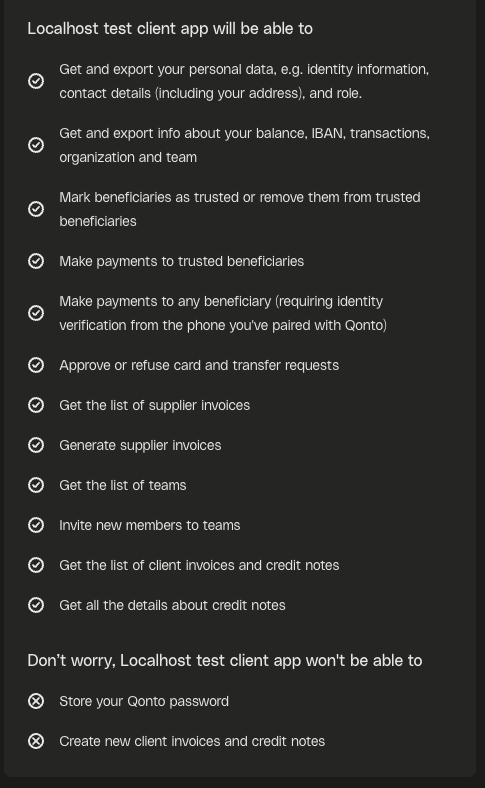
Each integration may establish its own frequency of access and data synchronisation to suit their provided service.
Availability and response-time statistics for this interface are published each quarter on [Qonto Developers](https://developers.qonto.com/api-performance/).