

client_id and client_secret used in the OAuth 2.0 flow, your Sandbox accesses and your staging token. If you only automate your own Qonto account with an API key, you don’t need an OAuth app.
1
Sign up to the Developer Portal
Create your Developer Portal account.
- If you have a Qonto account, sign up using Sign in with Qonto: no additional review is needed since it is already handled through your Qonto account.
- If you don’t have a Qonto account, sign up with your email address: your organization will go through a review before your account is activated. This process takes around 48 hours on average. You will receive a confirmation email once your account is approved.
2
Create your app and select its use case
When creating your application, you select a use case that shapes which scopes are available and what approval process is required. Use cases only apply to OAuth 2.0 and have no effect on API key authentication. See Selecting your use case.
3
Get your Sandbox credentials
Go into the Authentication tab of the Developer Portal: there, you will find your Sandbox accesses — your OAuth 2.0
client_id and client_secret, and the staging token to send in the X-Qonto-Staging-Token header of every Sandbox API call (see Accessing the Sandbox environment).4
Register your redirect URIs and app information
Click on Settings in the navigation bar on the left to update your app’s logo & name and to edit its redirect URIs. Before editing, choose if these changes should appear on the Sandbox and/or Production environment by using the toggle on the top right of the page.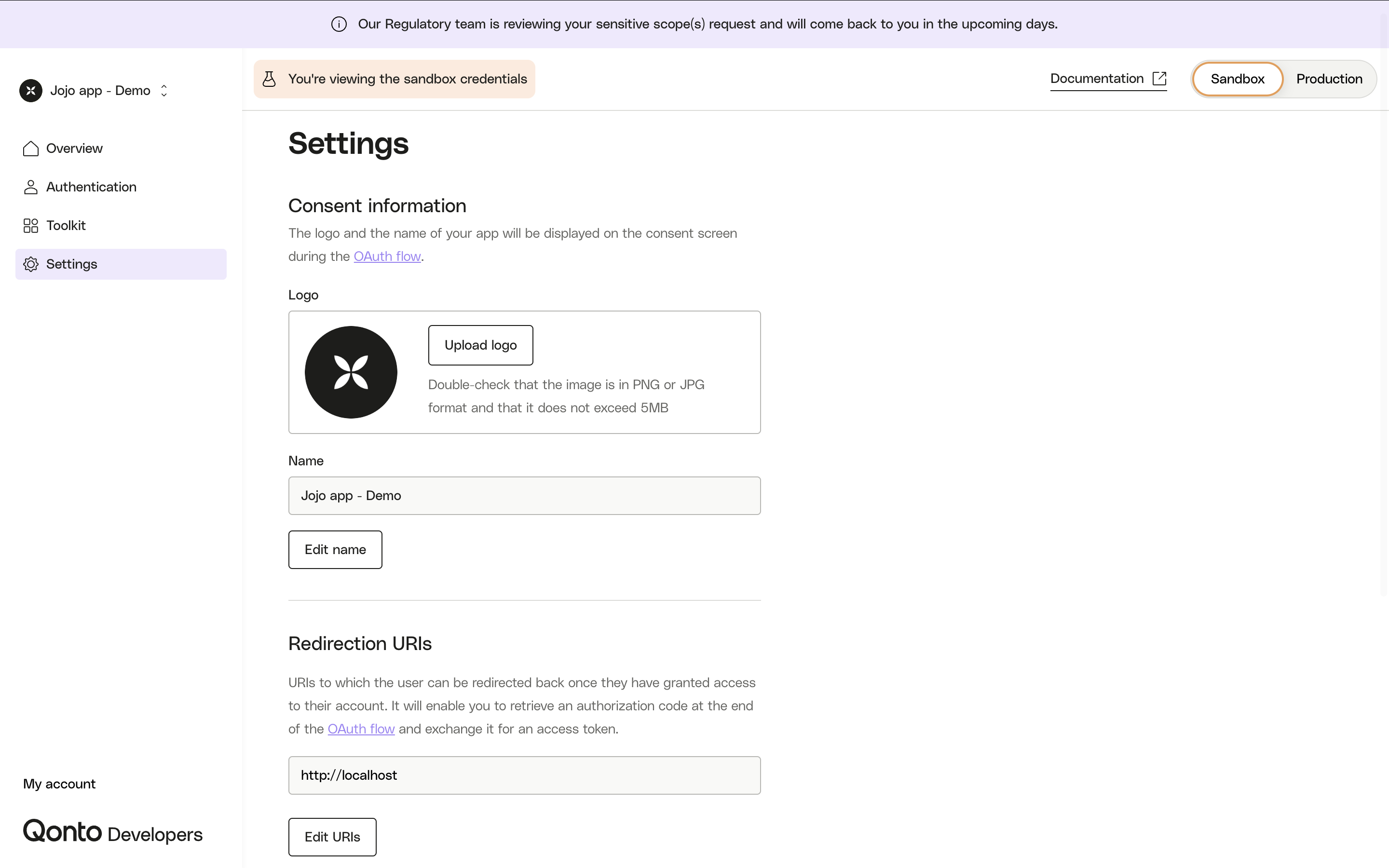
The
redirect_uri you send in the OAuth flow must exactly match the value registered with Qonto, including trailing slashes and query strings.5
Choose your scopes and implement the OAuth flow
Only request the scopes you actually need: see Scopes & endpoint access. Then implement the flow described in Basics of the OAuth 2.0 flow, and test it in the Sandbox.
6
Go to Production
If your application uses sensitive scopes, additional approval is required before going to production — except for Automate your business operations, which requires no review even for sensitive scopes. Once your application is approved (if required for your use case), get your Production credentials through the Developer Portal and follow Release your integration.
Manage your credentials
How do I refresh my OAuth client_secret?
How do I refresh my OAuth client_secret?
In the Developer Portal, go to Authentication → Business API → OAuth 2.0 (use the Sandbox / Production toggle for the right environment), then click the refresh icon next to the Client secret.Regenerating immediately invalidates the previous secret, so update your integration with the new value right away. Your
client_secret does not change on its own — it only changes when you regenerate it here.Can I add or remove team members?
Can I add or remove team members?
This feature is not available yet but is being developed.
Never expose your client secret
Never expose your client secret
Never expose your
client_secret on the client side: the token request must be made from your backend, with client_id and client_secret sent as form body parameters (not in an Authorization: Basic header). See Basics of the OAuth 2.0 flow.