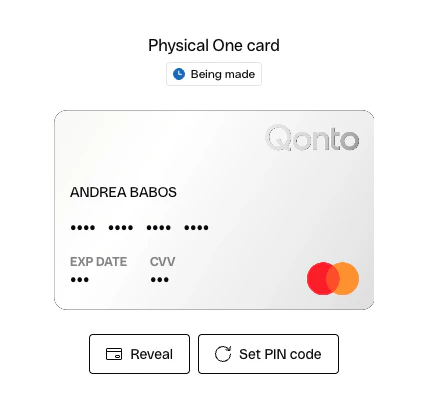
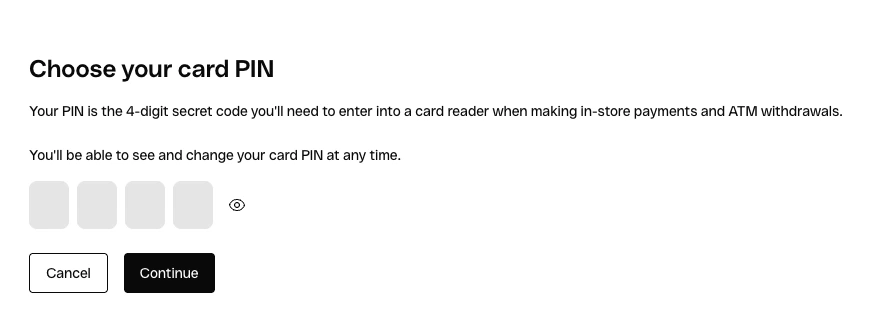
displayCard function presents a card interface that can showcase various types of information and operations, such
as cardholder details, PIN display and actions like blocking the card or setting/changing the PIN.
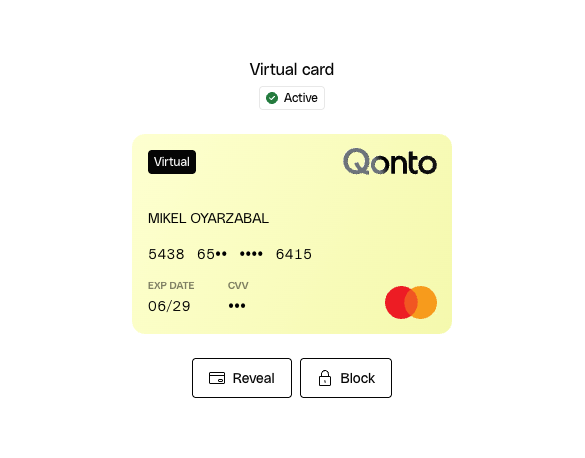
displayCard function as an example. We recommend you to check it out if you want to learn how
to show the card details UI and adapt its UI to your branding.
Show PAN
The Show PAN action reveals the card’s full number (PAN) and CVV directly inside the iframe. For security, the sensitive numbers are revealed only briefly and are automatically masked again after a short delay. This action is available for any card type (physical, virtual, instant, or advertising), but only to the cardholder: the button is shown when the authenticated membership is the member the card belongs to, and the card has a number to reveal (i.e. an active/live card). When someone other than the cardholder views the card, Show PAN stays hidden — there is no partner setting that can override this, as the sensitive card data must never be exposed to a non-holder.Block card
The Block card action temporarily locks the card. Enable it by passingallowBlocking: true in the displayCard
settings or canBlock=true in the iframe url. It is displayed only while the card status is live, and it is hidden once the card is already blocked.
Unlike Show PAN and Show PIN, blocking is not restricted to the cardholder: depending on the permissions you grant, an
owner or admin can block a card that belongs to another member. Because access to this action ultimately depends on the
viewer’s role and your integration, the button is shown only when you opt in via allowBlocking and the card is in a
lockable (live) state.
Show PIN
The Show PIN action reveals the card’s PIN inside the iframe. Enable it by passingallowPinReveal: true in the
displayCard settings or canSeePin=true in the iframe url.
Even when enabled, the button is only displayed when all of the following are true: the card is a physical card, its
status is live, and the authenticated membership is the cardholder. It is therefore hidden for virtual, instant,
and advertising cards, for non-live cards, and for anyone other than the cardholder.
Set and reset PIN
From the Display Card UI, the user can also start a Set PIN flow (for a card that has never had a PIN set) or a Reset PIN flow (for a card that already has one). The action button is labelled Choose PIN code the first time and Reset PIN afterwards.